Kabuki runs on a fixed control scheme across PC, Xbox, and PlayStation 5. Light and heavy attacks, dodging, blocking, style switching, and the character menu all sit on set inputs you cannot change in-game, so learning them is the fastest way to stop losing street fights to misplaced key presses.
Quick answer: For PC combat, click M1 to perform a Light Attack, press R for a Heavy Attack, tap Q to Dodge, and hit F to Block. Raise your fists with T before attacking.
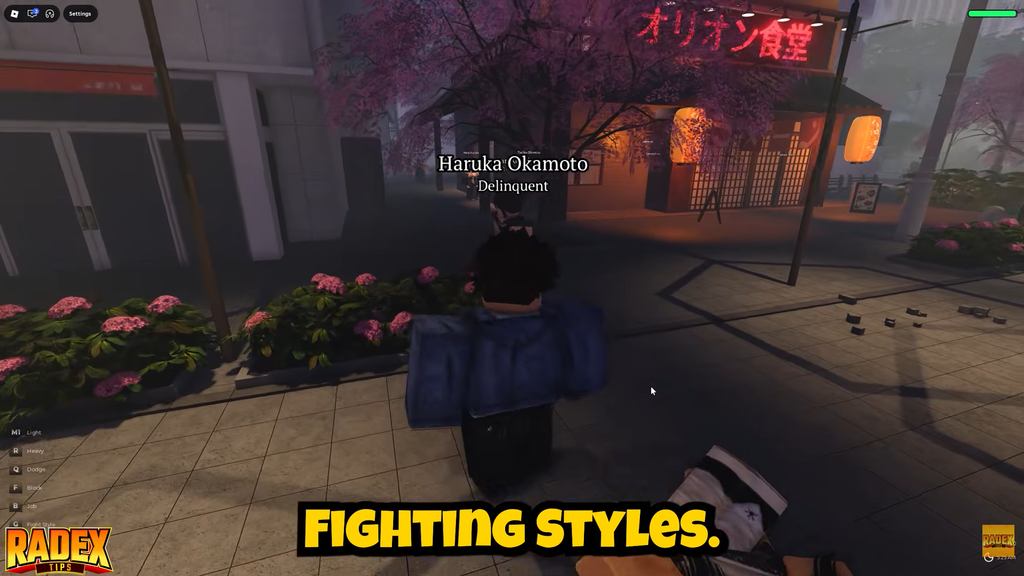
Kabuki PC keybinds (keyboard and mouse)
These are the default inputs on keyboard and mouse. Combat lives on the left side of the keyboard and the mouse, while movement, emotes, and menus fill out the rest.
| Action | Key |
|---|---|
| Light Attack | M1 (Left Click) |
| Heavy Attack | R |
| Dodge | Q |
| Block | F |
| Jump / Get Up | Space |
| Fists Up / Fists Down | T |
| Fight Styles | G |
| Job | B |
| Emote | C |
| Character Menu | H |
You cannot throw a punch with your fists down, so press T to raise them the moment a fight starts. Forgetting this is the most common reason attacks do nothing.
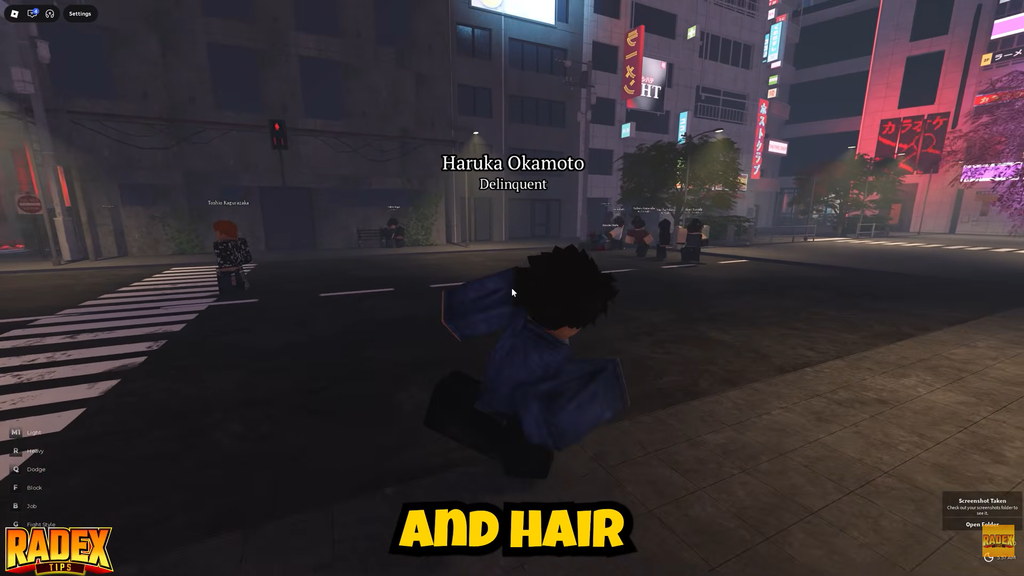
Kabuki Xbox and PS5 controller layout
Controller play maps attacks to the triggers and bumpers, with dodge and block within reach of your thumbs and fingers. The Xbox and PS5 bindings line up directly, so the table below pairs each Xbox button with its PlayStation equivalent.
| Action | Xbox | PS5 |
|---|---|---|
| Light Attack | RT | R2 |
| Heavy Attack | RB | R1 |
| Block | LT | L2 |
| Dodge | B | Circle |
| Fight Style | LB | L1 |
| Fists Up / Fists Down | Y | Triangle |
| Emote | D-Pad Left | D-Pad Left |
| Character Menu | D-Pad Up | D-Pad Up |
| Shift Lock | R3 | R3 |
How to Shift Lock in Kabuki
Shift Lock keeps the camera fixed behind your character, which makes aiming attacks and timing dodges far easier in a crowded brawl. The input depends on your device.
- PC: Ctrl, the standard Roblox Shift Lock. Toggle it on in your Roblox settings first.
- Xbox: R3, click the right thumbstick.
- PS5: R3, click the right thumbstick.
On controller, Shift Lock stays on R3 no matter which pad you use, and it cannot be moved to another button.
Keybinds cannot be remapped
Kabuki has no rebinding option. Every PC and controller input is locked to the defaults above, and there is no in-game menu to change them. If a binding feels awkward, the only adjustment available is Roblox’s own Shift Lock toggle on PC.
Switching fighting styles with G or LB
Use G on PC, LB on Xbox, or L1 on PS5 to bring up Fight Style and choose from your unlocked options. Kabuki offers seven styles through its in-game gacha rolls, and Muay Thai is currently considered the strongest.
Opening the Character Menu and code field
The H key on PC, or D-Pad Up on both controllers, opens the Character Menu. From here you reach avatar customization and the code redemption box, where entered promo codes grant free rolls. You will know it worked when the menu overlay appears on screen with the customization options and code field visible.
With the full layout memorized, the rest comes down to practice. Timing a dodge with Q or B is the defensive skill that decides most street fights, and keeping your fists raised the moment a brawl begins means every attack lands when you need it.