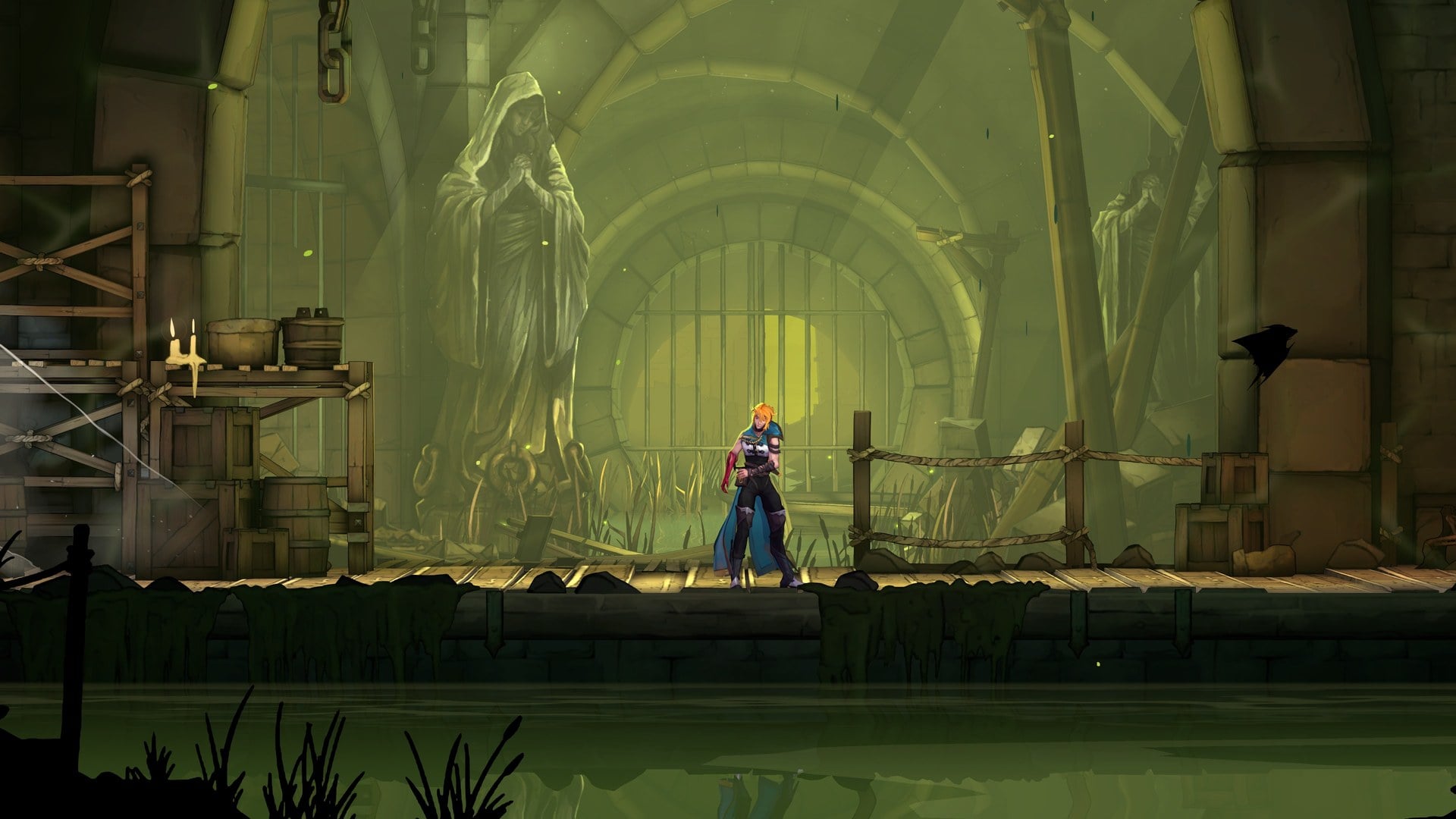
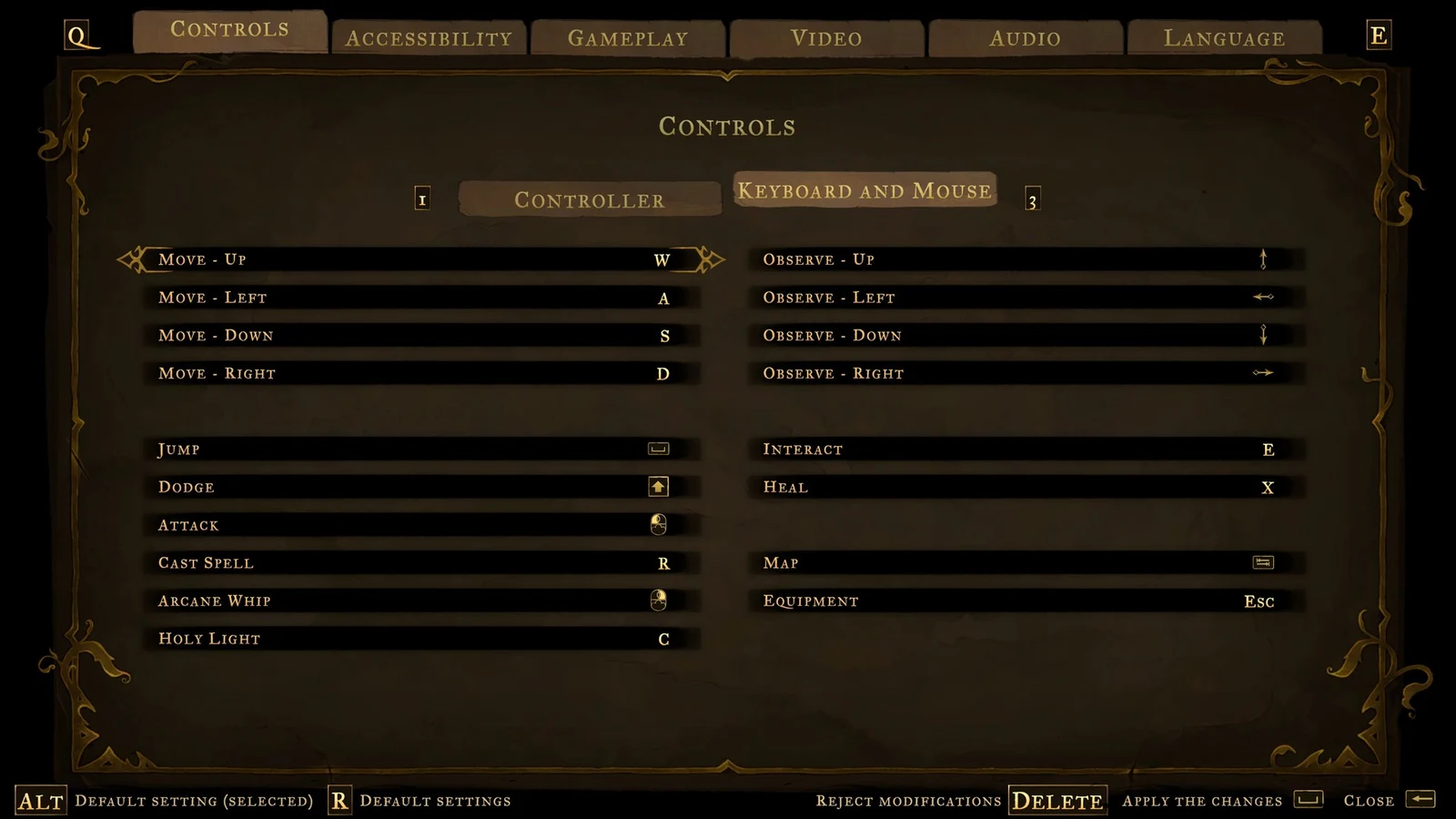
On PC, Castlevania: Belmont’s Curse uses keyboard and mouse controls by default, and the settings screen lists their default keys and lets you rebind them. Movement sits on W/A/S/D, left mouse is Attack, right mouse is Arcane Whip, and the parry lives on a single key once the game hands it to you.
Quick answer: Attack is left mouse, Arcane Whip is right mouse, Cast Spell is R, Holy Light (the parry) is C, and Heal is held on X. View them under Settings > CONTROLS > KEYBOARD AND MOUSE. To rebind one, select its row there, press Enter and press the new input.
Default keyboard and mouse controls
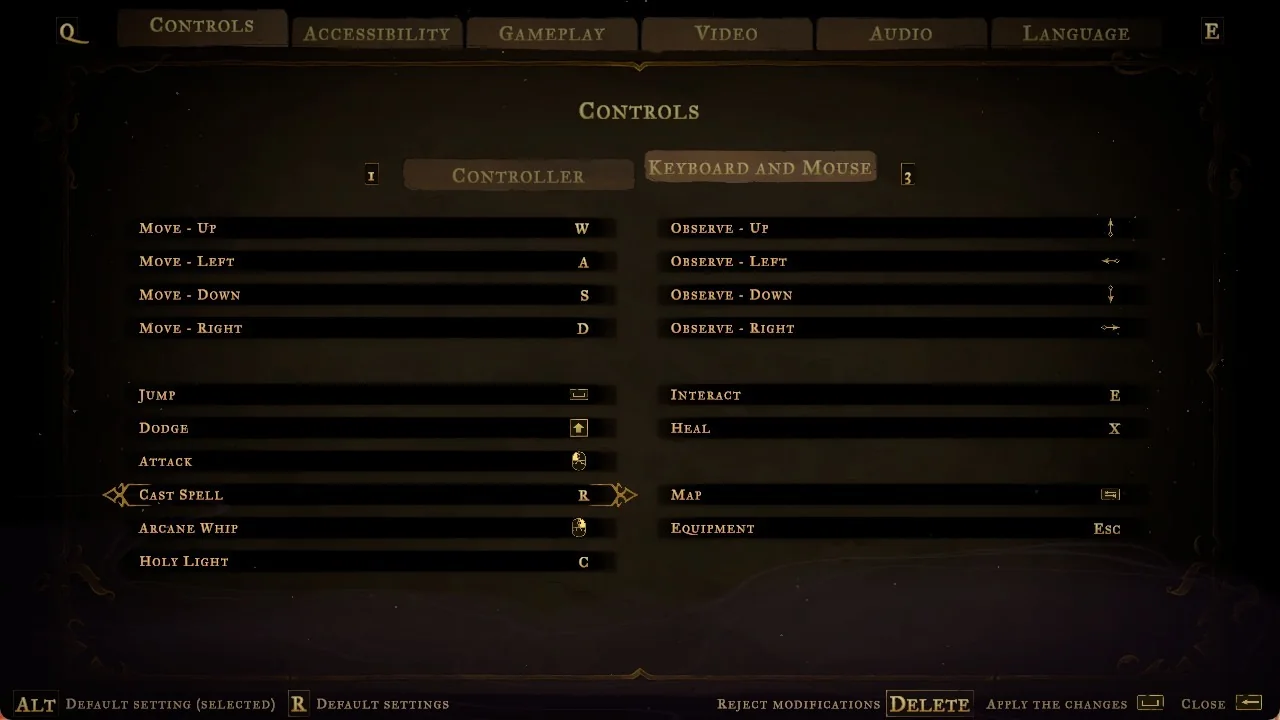
The KEYBOARD AND MOUSE tab lists 18 bindings in total: four movement keys, the main action keys, four Observe keys for moving the view, and Interact, Heal, Map, and Equipment. Only the two mouse buttons are used during play.
| Action | Default key |
|---|---|
| Move – Up / Left / Down / Right | W / A / S / D |
| Jump | Space |
| Dodge | Shift |
| Attack | Left mouse button |
| Cast Spell | R |
| Arcane Whip | Right mouse button |
| Holy Light | C |
| Observe – Up / Left / Down / Right | Arrow keys |
| Interact | E |
| Heal | X |
| Map | Tab |
| Equipment | Esc |
Heal, Holy Light (parry), and Arcane Whip keys
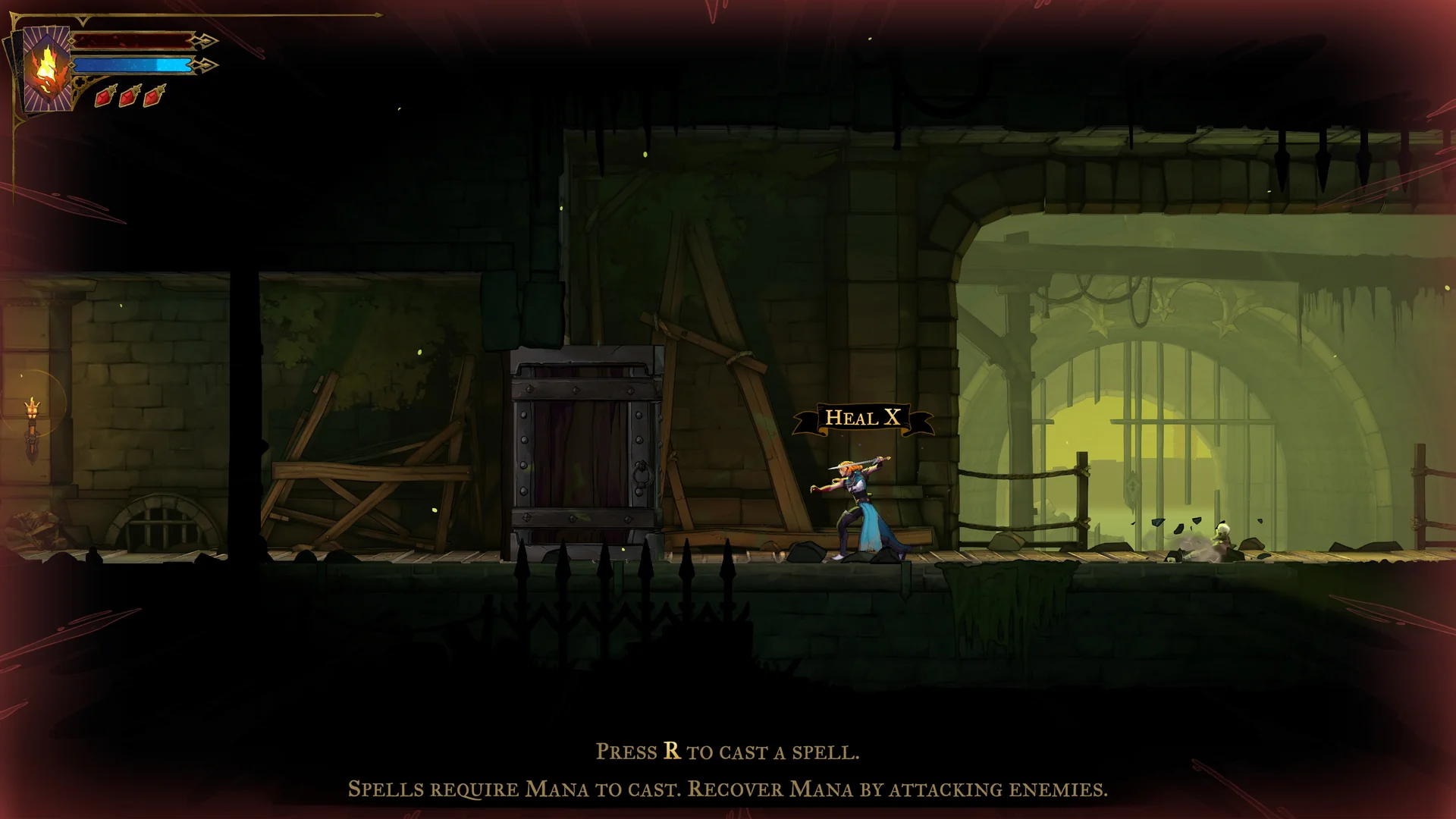
Hold X to heal; tapping it has no effect. Keep the key down for roughly a second to drink a potion. When Rose is low on health, a “HEAL X” notice appears above her.
Holy Light is assigned to C and also serves as your parry. Activate it just before an attack connects to block the blow. You unlock Holy Light later in the story, not at the beginning.
Arcane Whip is the right mouse button, while the left mouse button is your standard Attack. Cast Spell sits on R, and spells draw from mana that you rebuild by attacking enemies.
Where to find the key bindings
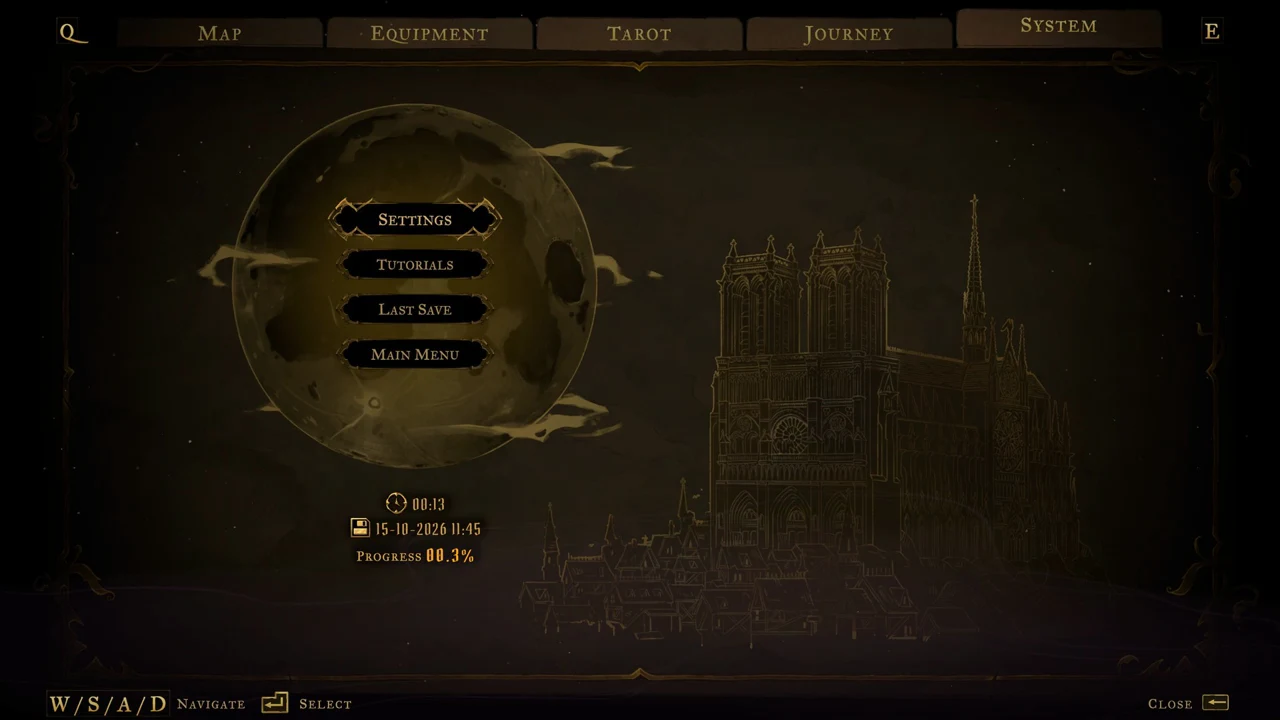
Changes on this screen take effect once you apply them with Space. The footer spells out these options as “ALT DEFAULT SETTING (SELECTED)”, “R DEFAULT SETTINGS”, “REJECT MODIFICATIONS DELETE”, “APPLY THE CHANGES”, and “CLOSE”. For Video, Audio, Accessibility, Gameplay and Language options, see every Castlevania: Belmont’s Curse setting explained.
How to rebind a key
Go to the CONTROLS tab and select the KEYBOARD AND MOUSE sub-tab, which sits on key 3. Move to the row for the action you want to change, such as CAST SPELL. An ornate frame appears at either end of the selected row. Press Enter.
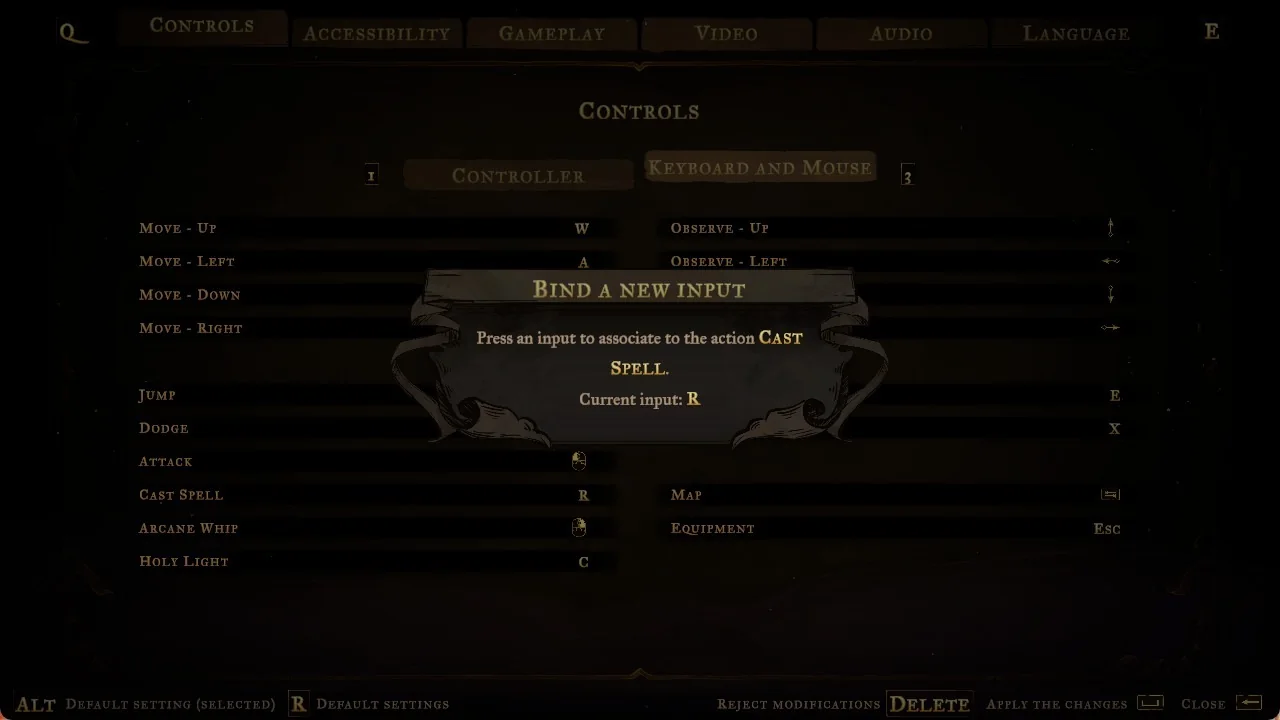
A dialog opens titled “BIND A NEW INPUT” with the line “Press an input to associate to the action CAST SPELL.” and “Current input: R”. Press the input you want to assign. Pressing the same key again, such as R, keeps the binding unchanged.
Press Space to apply the changes. Alt resets the selected row to its default, R resets every row to default, Delete rejects modifications, and Backspace closes the screen.
Controller layout
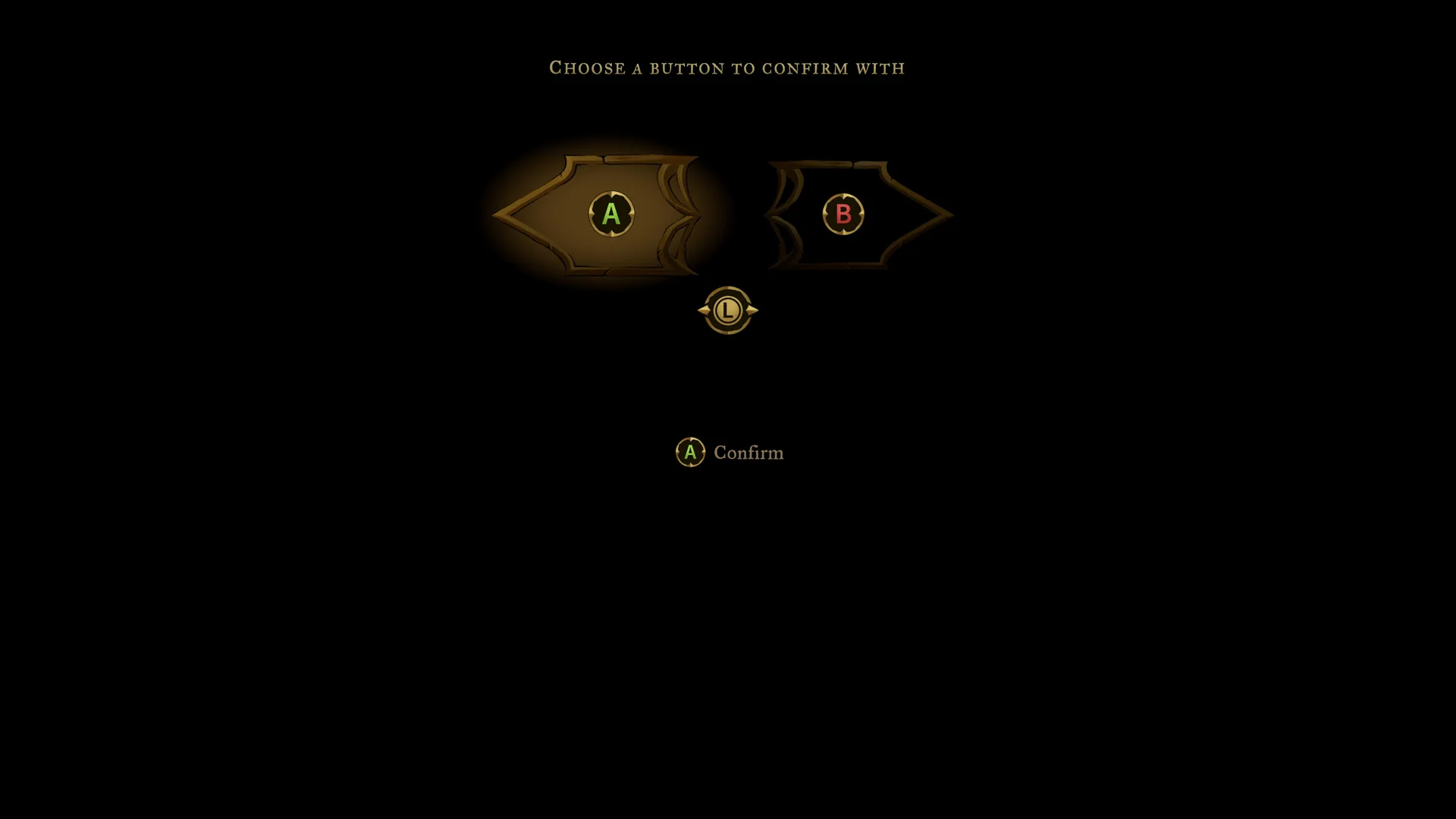
The CONTROLLER sub-tab uses Xbox button names. The same mappings apply to a PlayStation pad through matching positions. First launch asks you to “CHOOSE A BUTTON TO CONFIRM WITH” (A or B) before the brightness card, and a “USE B TO VALIDATE” checkbox sits on the tab with the line “A to validate, B to cancel” under it.
| Action | Xbox | PlayStation |
|---|---|---|
| Move | Left stick (D-pad alt.) | Left stick / D-pad |
| Jump | A | Cross |
| Dodge | B | Circle |
| Attack | X | Square |
| Cast Spell | Y | Triangle |
| Arcane Whip | RT | R2 |
| Holy Light | LT | L2 |
| Interact | RB | R1 |
| Heal | LB | L1 |
| Observe | Right stick | Right stick |
| Map | View button | – |
| Equipment | Menu button | – |
Both Motion sensitivity and Eye sensitivity are sliders set to 0.75 by default.
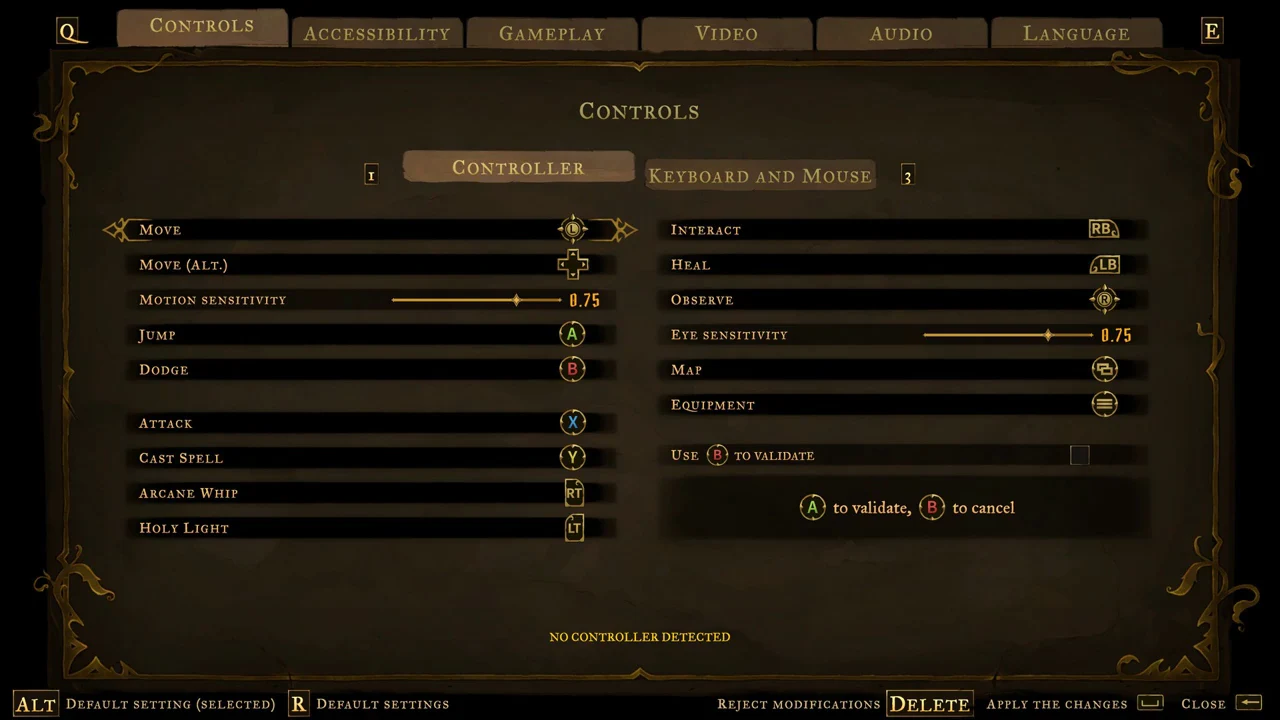
In-game control prompts
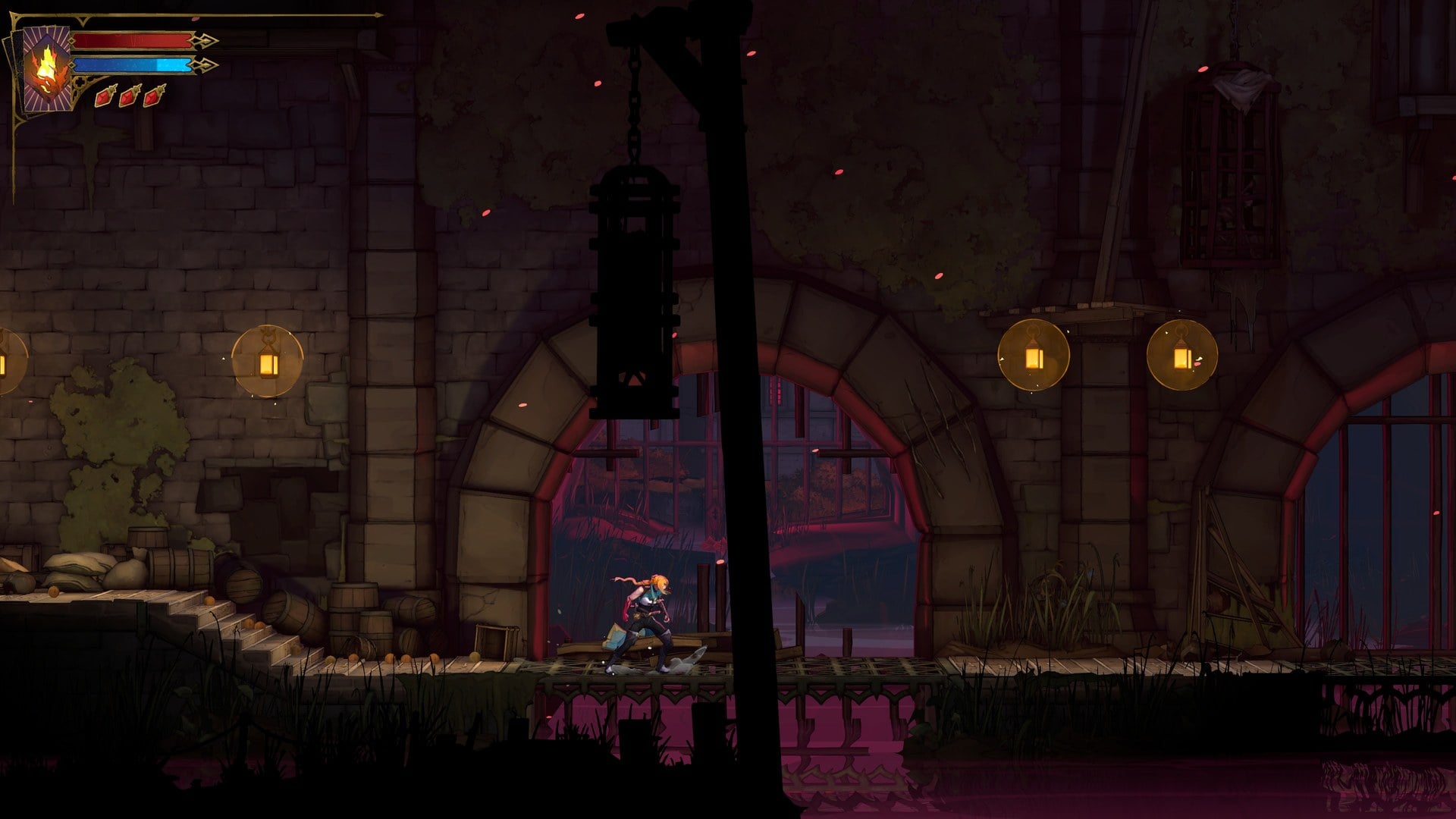
Near the start of the Bank of the River Seine and Paris Streets sewer sections, on-screen prompts introduce the controls one at a time. The opening prompt asks you to attack using the left mouse button.
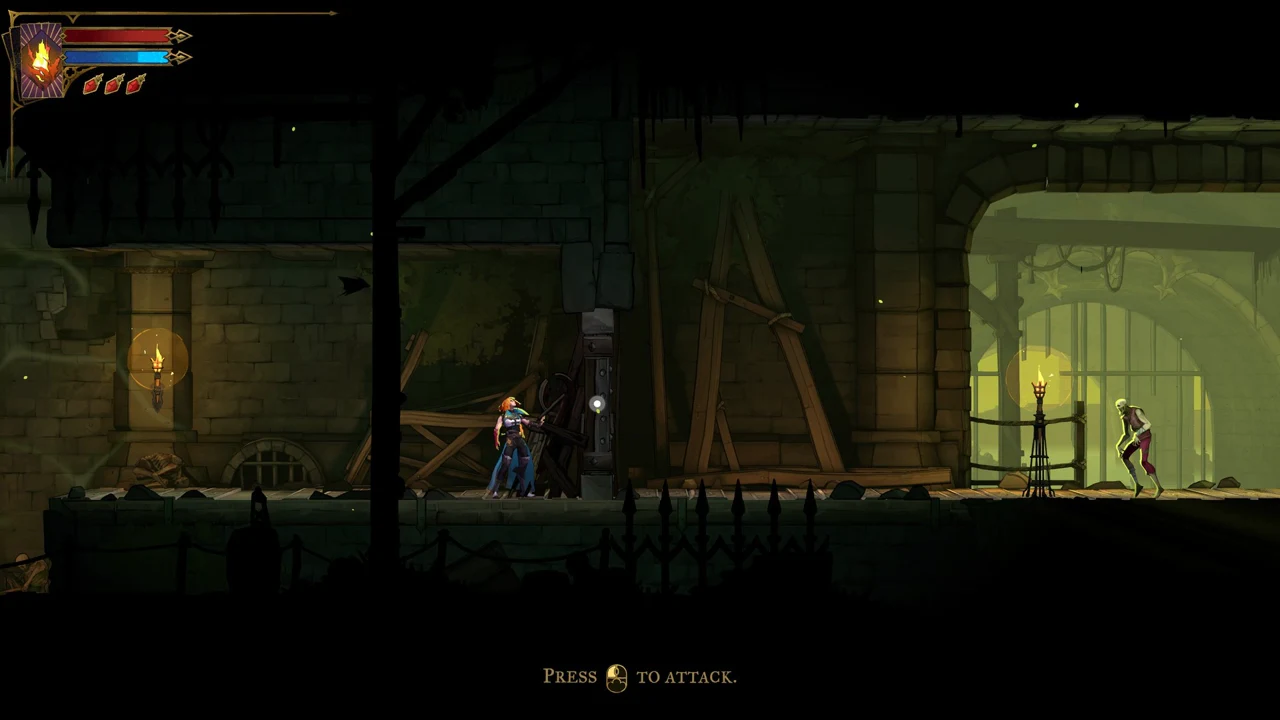
The spell tutorial reads “PRESS R TO CAST A SPELL. SPELLS REQUIRE MANA TO CAST. RECOVER MANA BY ATTACKING ENEMIES.” It can show alongside the “HEAL X” banner when Rose is at low health.
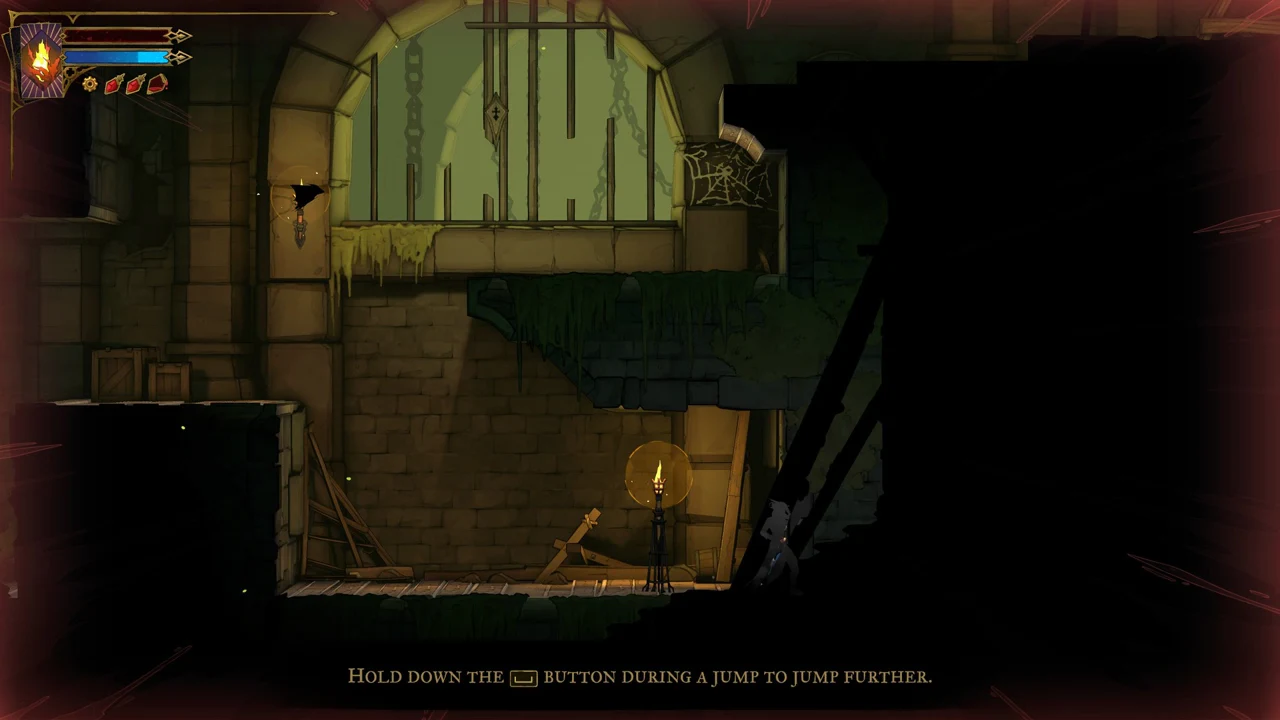
Jump has two extensions. Holding Space during a jump carries you further.
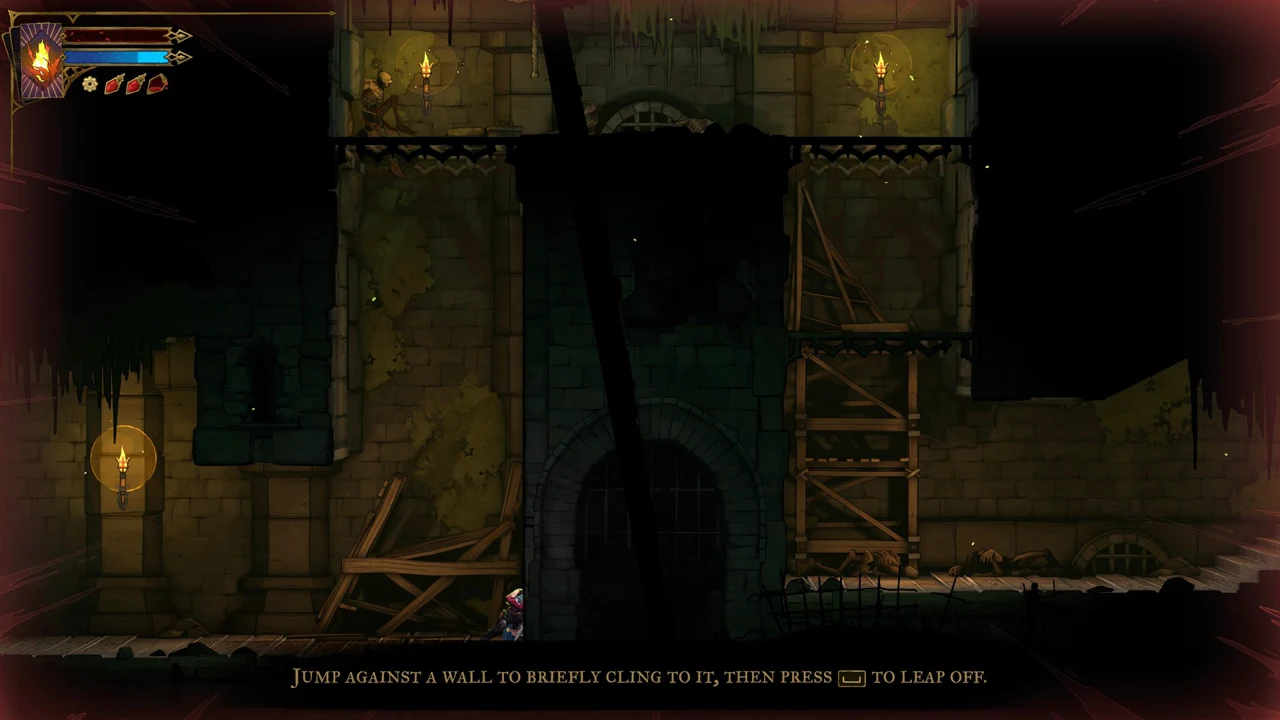
Jumping against a wall briefly clings Rose to it, so you can press Space to leap off.
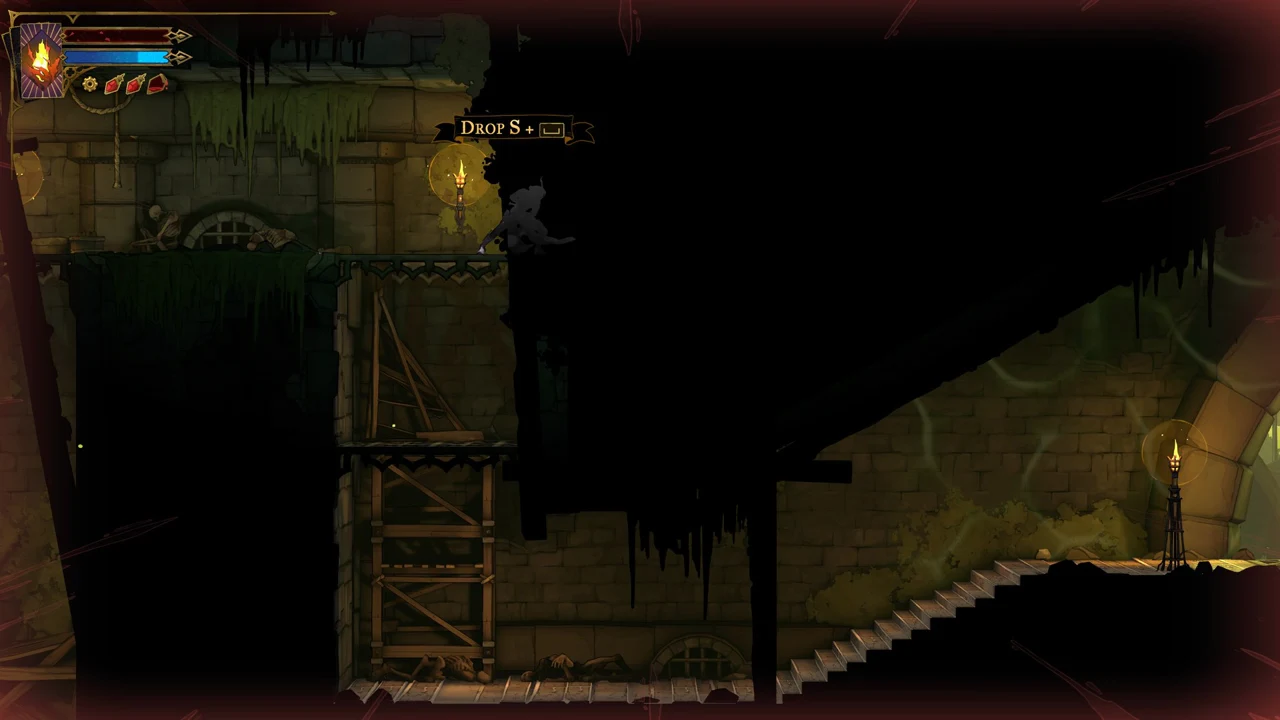
On a thin platform, a banner over Rose reads “DROP S + [Space]”: hold S and press Space to drop through it.
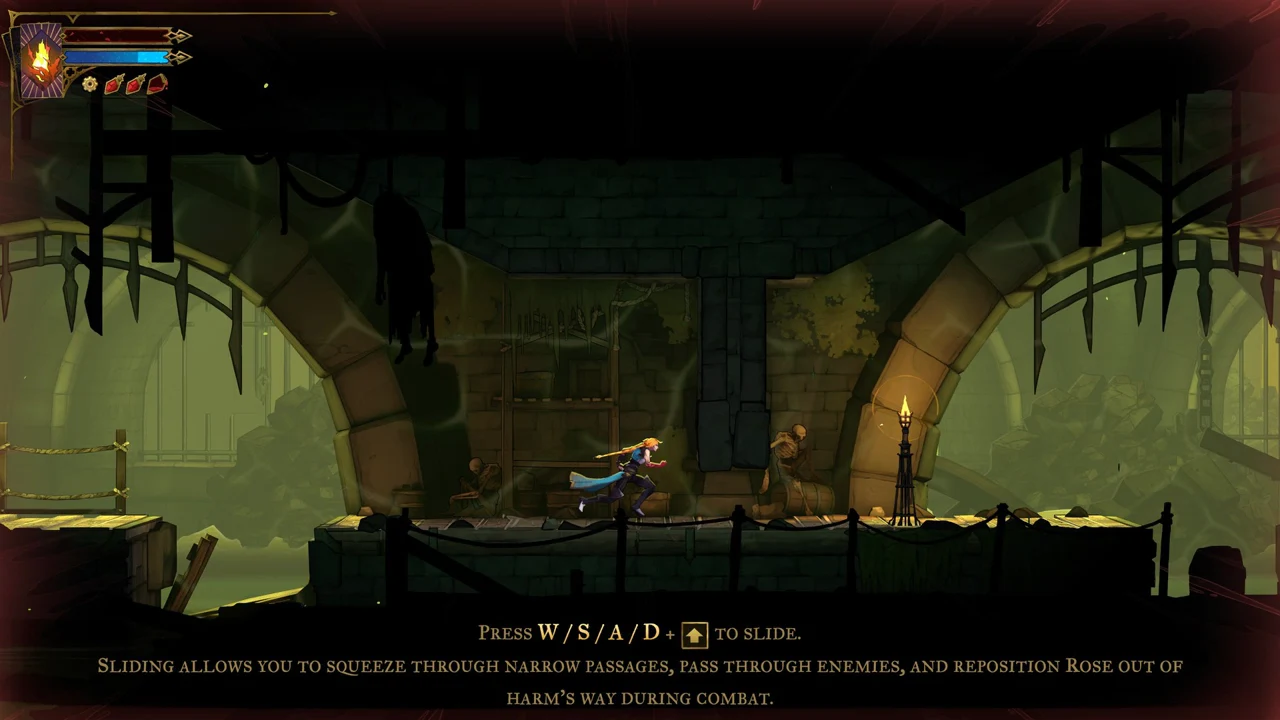
Sliding pairs a direction with the Dodge key. The tutorial explains that “SLIDING ALLOWS YOU TO SQUEEZE THROUGH NARROW PASSAGES, PASS THROUGH ENEMIES, AND REPOSITION ROSE OUT OF HARM’S WAY DURING COMBAT.” Interact prompts name the key directly, such as “INTERACT E” at a lever.
Keys on cards, dialogue and tutorial prompts
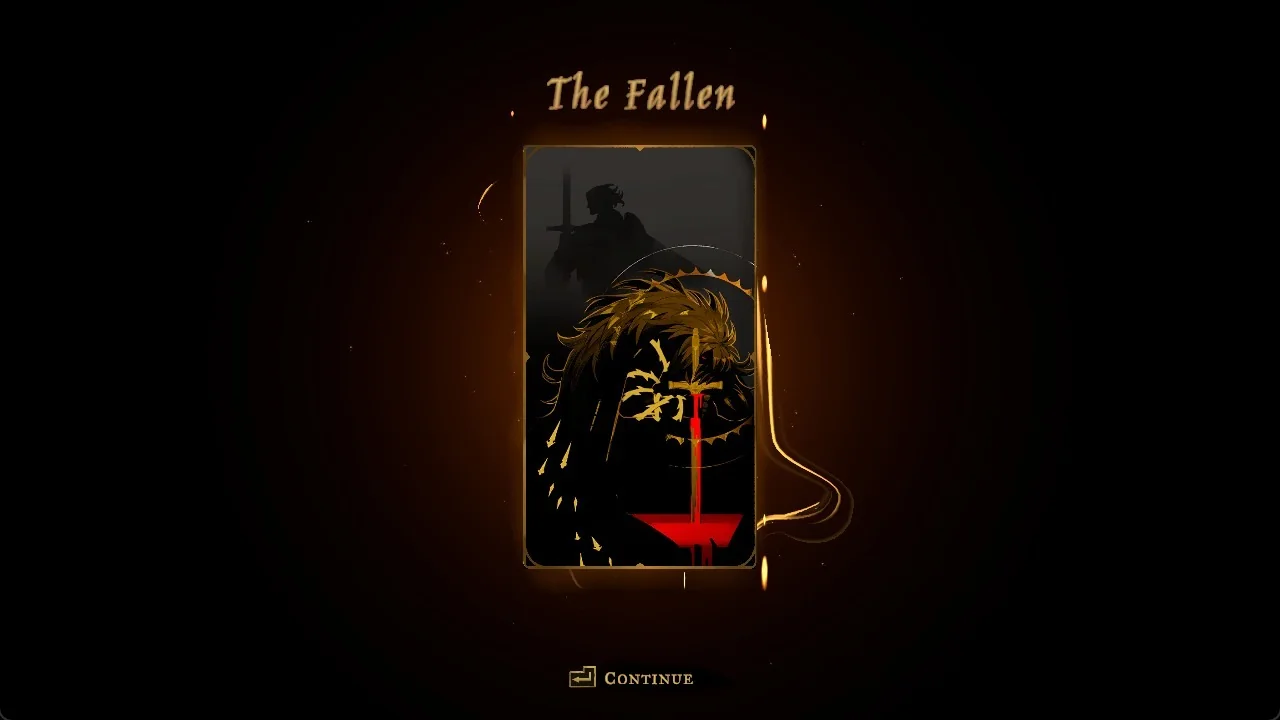
Cards and clues continue with Enter. The card “The Fallen” shows “Continue” with an Enter icon, and the clue panel “A Lever for the Well” carries the same Continue Enter footer. Dialogue boxes, such as the spirit speaking, show no key, and they advance with Enter.
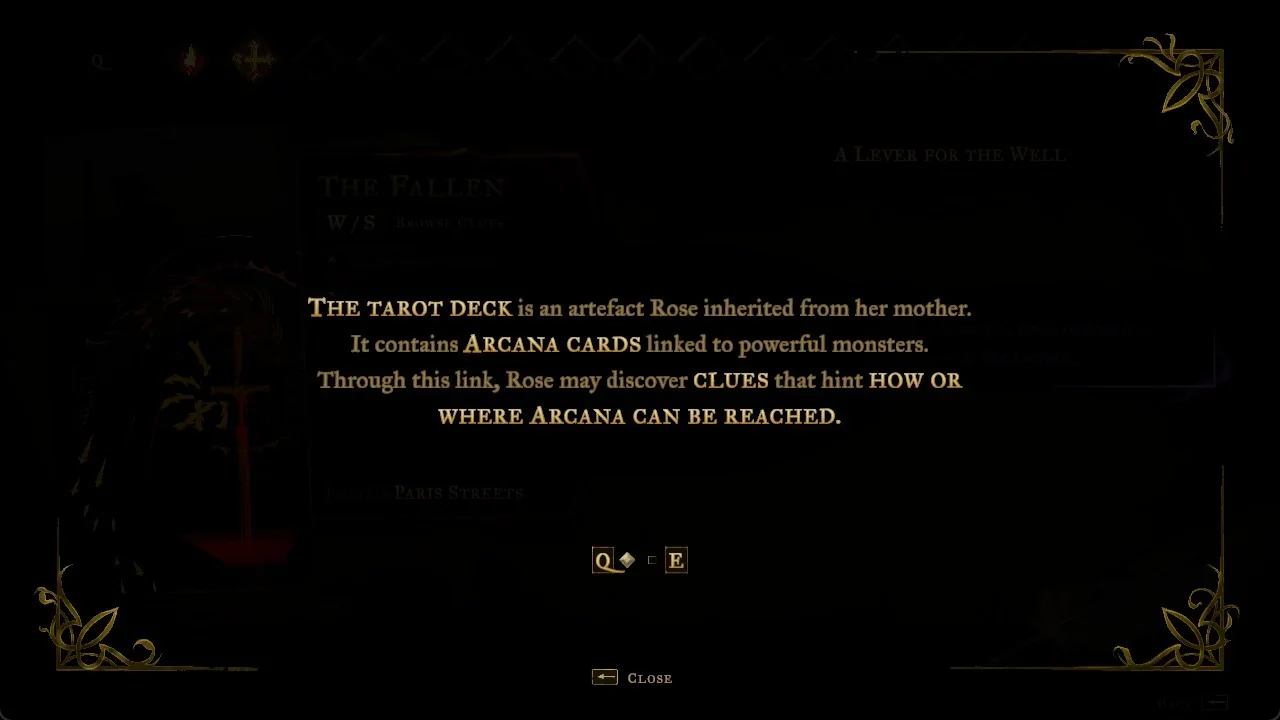
Use Q and E to move between tutorial pages; the first Tarot tutorial is one example, and both icons appear at the bottom. To exit a tutorial, press Backspace, identified as “Close” in the footer.
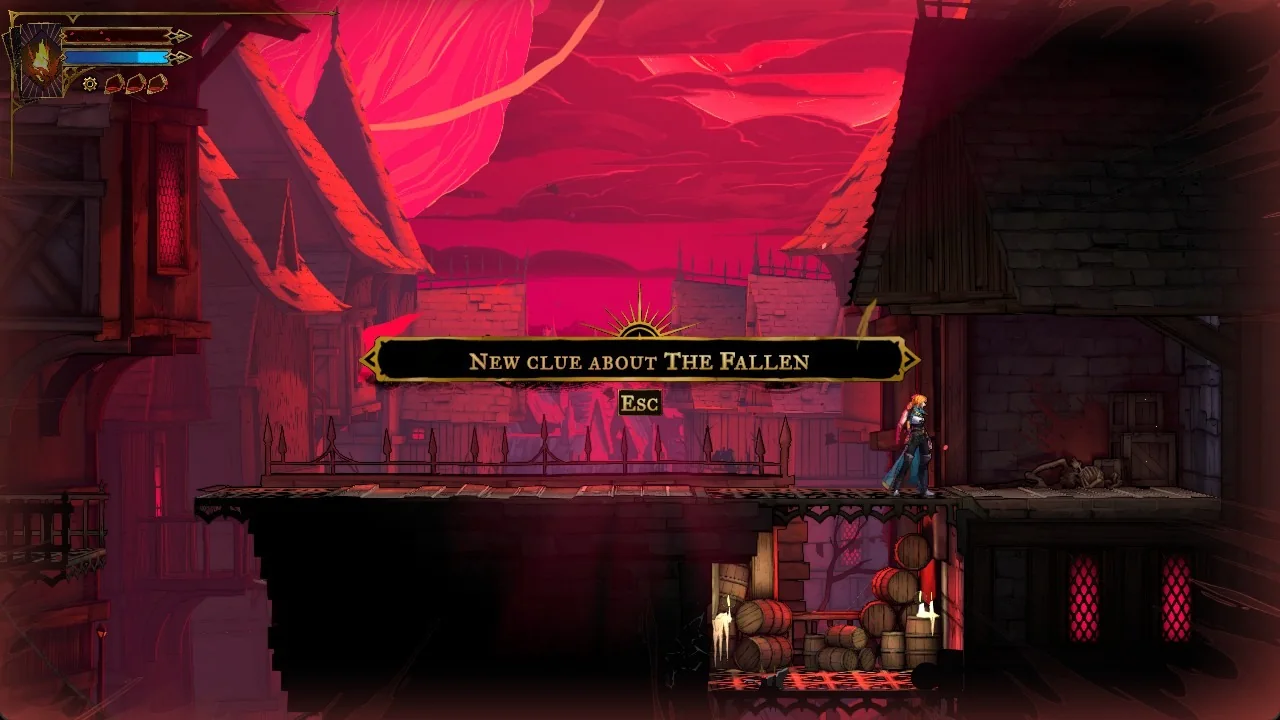
Under the banner “New clue about The Fallen”, Esc is displayed. Press Esc to bring up the Equipment menu; the clue appears in its Tarot tab.
Map screen keys
Open the map with Tab in game, or through the MAP tab of the Esc menu. The bottom bar lists its keys: the up and down arrows “UNZOOM/ZOOM”, the right mouse button “GO TO UPPER MAP”, R “FOCUS ON ROSE”, and Backspace “CLOSE”. The zoom bar runs through three levels, WORLD, AREA, and SUB-AREA.
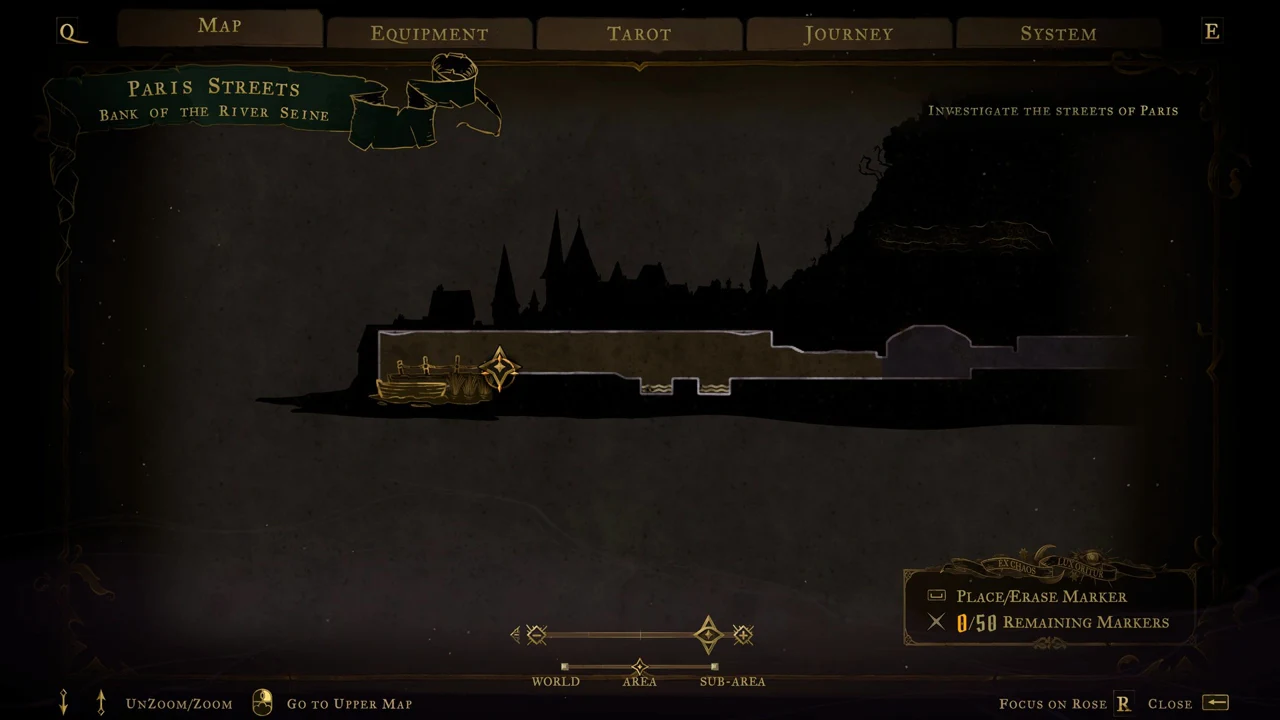
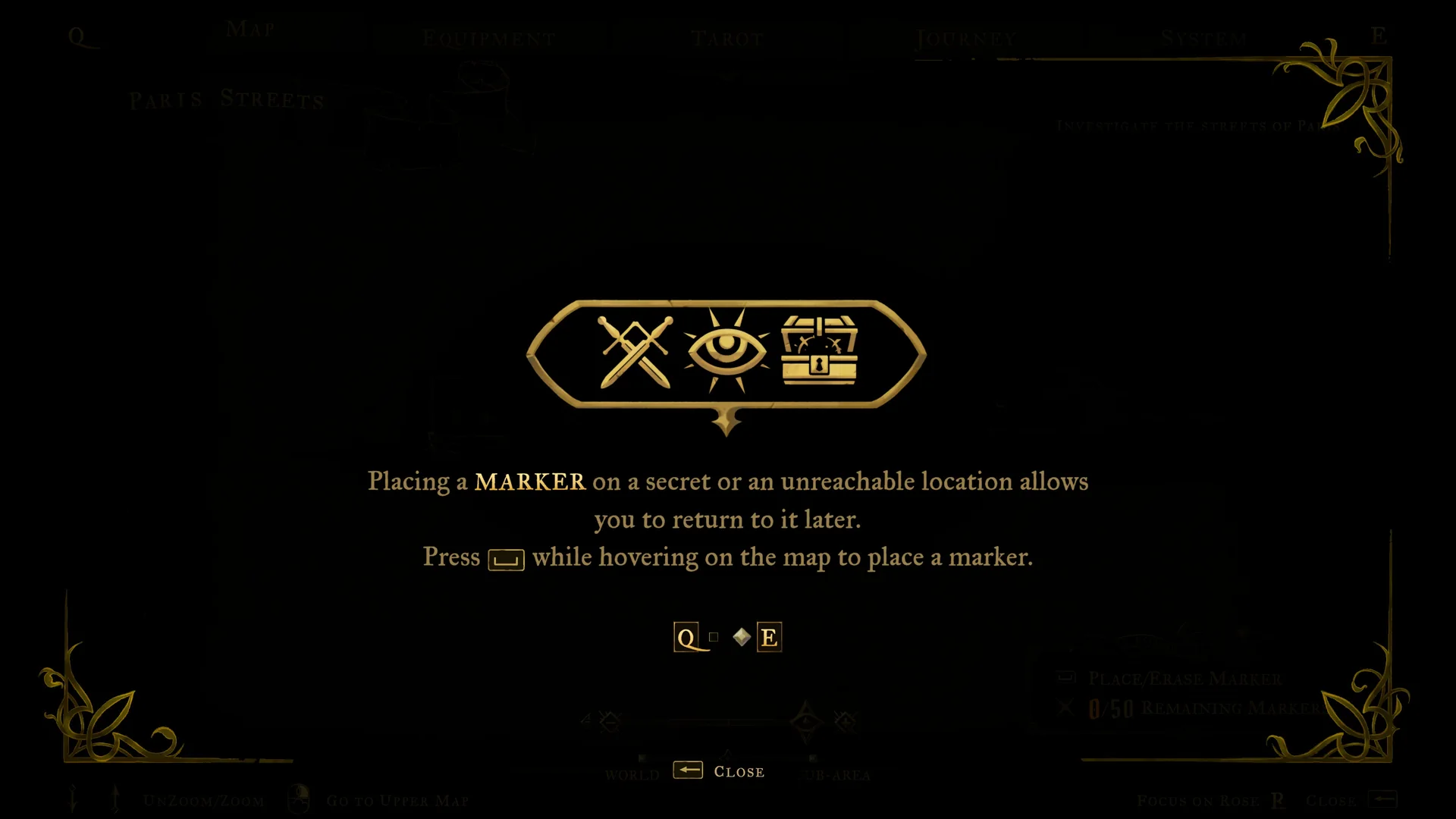
A box in the bottom right shows “[Space] PLACE/ERASE MARKER” and “0/50 REMAINING MARKERS”. The marker tutorial reads: “Placing a MARKER on a secret or an unreachable location allows you to return to it later. Press [Space] while hovering on the map to place a marker.” The map itself fills in as you explore, so you can retrace your steps.
Menus are keyboard-only
On the main menu, the settings screen, and the Esc menu tabs, mouse clicks do nothing. You move with the keys the footers show.
- W/A/S/D to “NAVIGATE”
- Enter to “SELECT” (the Tarot tab shows Enter as “CONSULT ARCANA”)
- Backspace to “CLOSE”
- Q and E to switch tabs
Some confirm buttons need Enter held rather than tapped. On the first-launch screens, a “CONTINUE” button shows a round ring around the Enter icon, and the ring fills over about two seconds while you hold Enter. A tap does nothing there.
PC to PlayStation key reference
If you are following instructions written with PlayStation buttons, this table lines up each action with the PC keyboard and mouse control. Interact is also the key you hold to absorb an Arcana after a boss.
| Action | PC | PlayStation |
|---|---|---|
| Jump | Space | Cross |
| Dodge / slide | Shift (with a direction) | Circle |
| Attack | Left mouse | Square |
| Cast Spell | R | Triangle |
| Arcane Whip | Right mouse | R2 |
| Holy Light / parry | C | L2 |
| Interact | E | R1 |
| Heal (hold) | X | L1 |
| Map | Tab | – |
| Equipment menu | Esc | – |
Keep left mouse for Attack, right mouse for the whip, C for the parry, and held X to heal when the banner appears over Rose.