

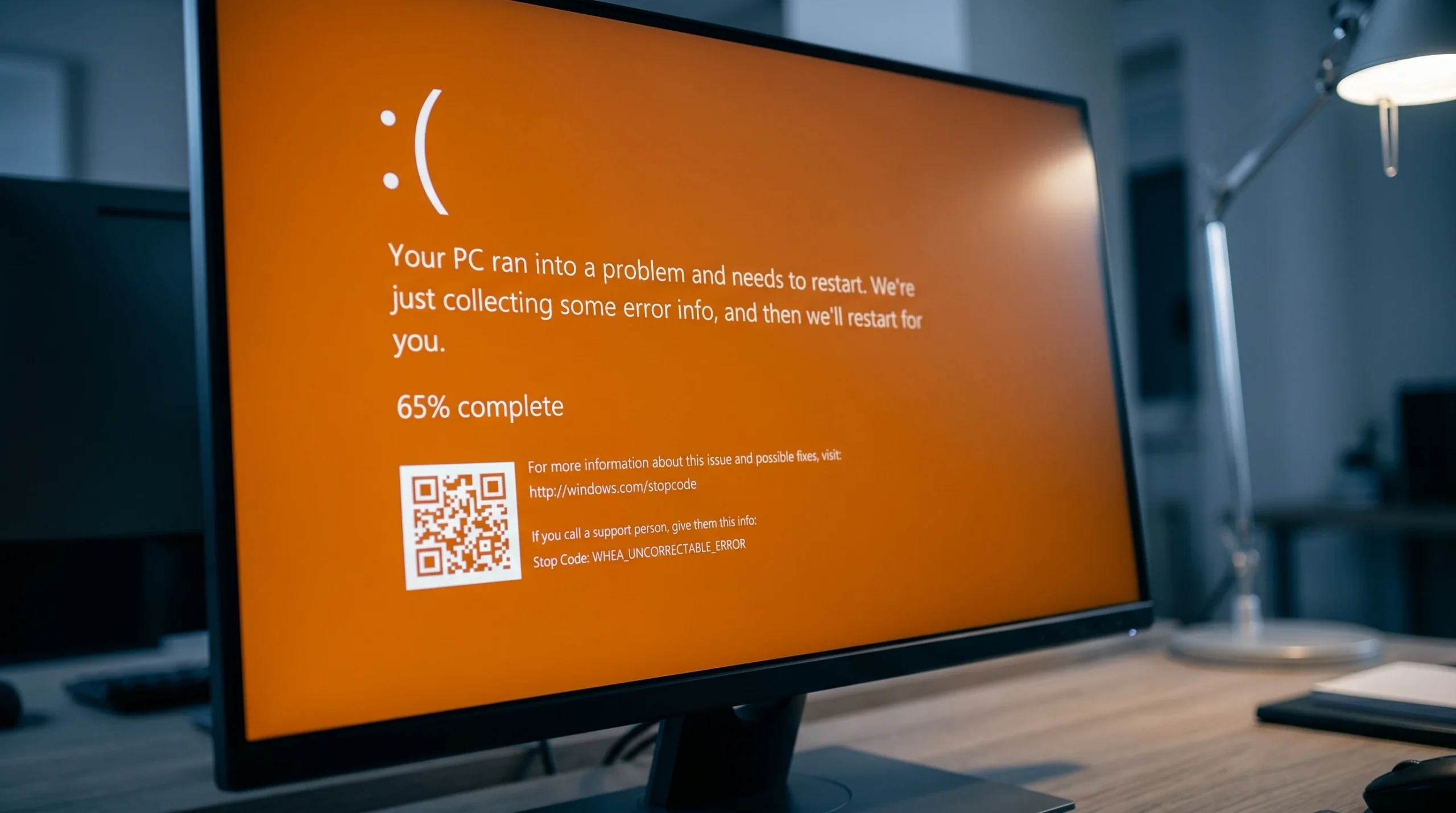
The Orange Screen of Death (OSoD) is a rare critical crash that freezes Windows completely. Unlike the far more common Blue Screen, it is almost always tied to your graphics hardware. A failing or improperly seated GPU, a corrupt or incompatible display driver, or an overclock that the card cannot sustain are the usual triggers. Some people hit it while watching video or gaming, others see it on boot before the login screen, and a few run into it after enabling BitLocker or plugging in a second monitor.
Quick answer: Boot into Safe Mode, then update or roll back your graphics driver in Device Manager. If you recently overclocked the GPU, return it to stock clock speeds. The screen is fixed when Windows boots to the desktop normally with no orange flash or freeze.
What causes the Orange Screen of Death
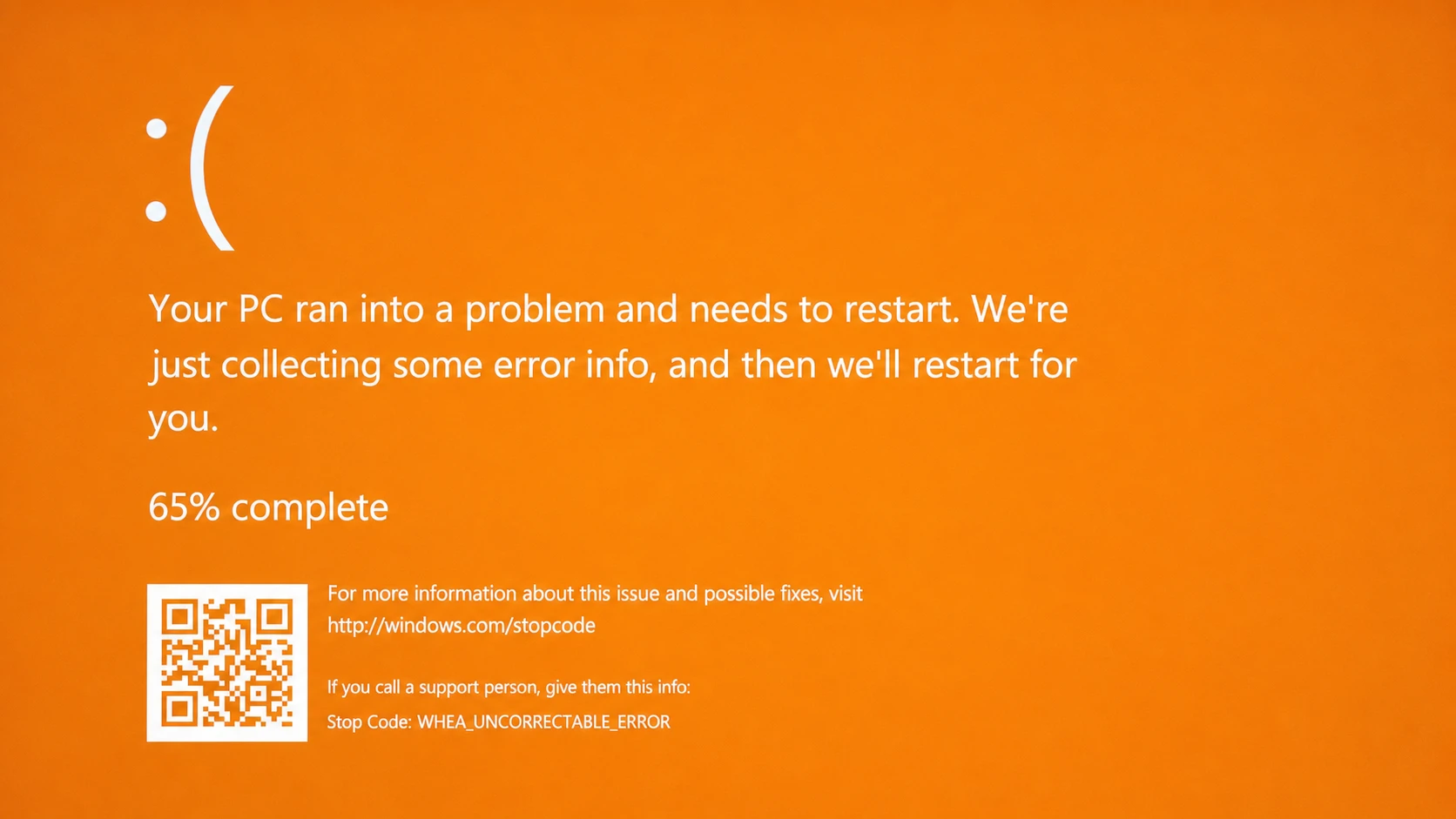
The orange crash comes in two forms. The first is a solid orange screen, sometimes with a stop code. The second is an orange screen with white vertical lines, which usually points to a GPU that is faulty or not seated properly in its slot. When a stop code does appear, it is most often one of the two below.
| Likely cause | What it points to |
|---|---|
| Outdated or corrupt display driver | Most common trigger; GPU driver crash |
| Overclocked GPU | Card cannot sustain the higher clock speed |
| Improperly seated or failing GPU | Orange screen with white vertical lines |
| Faulty RAM or motherboard | Stop code such as FAULTY_HARDWARE_CORRUPTED_PAGE or WHEA_UNCORRECTABLE_ERROR |
| BitLocker pre-boot screen | Orange screen at startup before login |
| Recently installed software or driver | Software conflict introduced after the install |
Reports of this error are scattered across user threads, which confirms it is uncommon rather than unheard of.
If you cannot boot: Use Safe Mode and Automatic Repair
When the orange screen blocks normal startup, Windows usually drops into Automatic Startup Repair on its own. If it finds the cause, it clears it and boots through. If it cannot, the machine loops back to the same screen, and you need to get into Safe Mode first, which loads only the basic set of drivers so you can apply a fix without the bad driver interfering.
Fix 1: Update or roll back the graphics driver
A corrupt graphics driver, or a new version that does not agree with your system, is the single most likely reason for the orange screen. Update it if your driver is old, or roll it back if the crashes started right after a driver update.
Tip: Check Device Manager for any entry with a yellow exclamation mark. A non-display driver flagged there can cause the same crash, so update it too.
Fix 2: Lower the GPU clock speed
Overclocking pushes a card past its base clock to render faster, but it also draws more power and runs hotter. If the orange screen shows up while gaming or under heavy graphics load, an unstable overclock is a strong suspect. Open your overclocking tool, return the GPU to its stock clock speed, and remove the overclocking software if the crashes persist. Restart so the change takes effect.
Fix 3: Remove external and multimedia devices
An incompatible or faulty peripheral can crash the display pipeline. Too many multimedia devices, TVs in particular, have been linked to this error as well.
Windows + R, type control, open Hardware and Sound, then Devices and Printers. Right-click any device you no longer need and choose Remove device.Note: If any device plugged into one specific port fails while others work elsewhere, the port itself may be bad and should be checked by a technician.
Fix 4: Handle the BitLocker pre-boot orange screen
If the orange screen appears at startup and you use BitLocker or another encryption service, the pre-boot screen is the culprit. You can still type even when no input box is visible.
BCDEDIT /Set {default} bootmenupolicy legacyFix 5: Uninstall recent software and use System Restore
If the crashes began right after you installed a program, that software is the likely conflict. A few apps, including softOSD, have been reported to cause the orange screen. Boot into Safe Mode, then go to Settings, Apps, Installed apps, find the recent program, click the three dots, and choose Uninstall.
If you cannot pin down a single program, roll the whole system back. From the Advanced Startup menu, open Troubleshoot, Advanced options, System Restore, and pick a restore point from before the crashes started, ideally about a week old. Back up any files on the desktop first, since they can be lost during the rollback. You can also launch System Restore from within Windows by pressing Windows + R and running rstrui.exe.
How to confirm the fix worked
The error is resolved when your PC boots straight to the desktop with no orange flash, no freeze, and no white vertical lines, and stays stable under the same load that triggered it before, such as gaming or video playback. To double-check the cause, open Event Viewer and look at the System log. New stop entries are recorded there, and reviewing them can confirm whether the GPU or another driver was at fault. For a deeper look, the crash dump can be analyzed with WinDbg.
When none of the fixes work
If updating drivers, removing the overclock, unplugging devices, and a system restore all fail, the problem is most likely physical hardware. Reseat the graphics card and RAM modules, and check that internal connections are firm. Where possible, test those parts in another PC. A faulty motherboard or a bad RAM stick can produce the orange screen on its own, and in that case the affected component needs to be checked and replaced by a hardware technician.



