
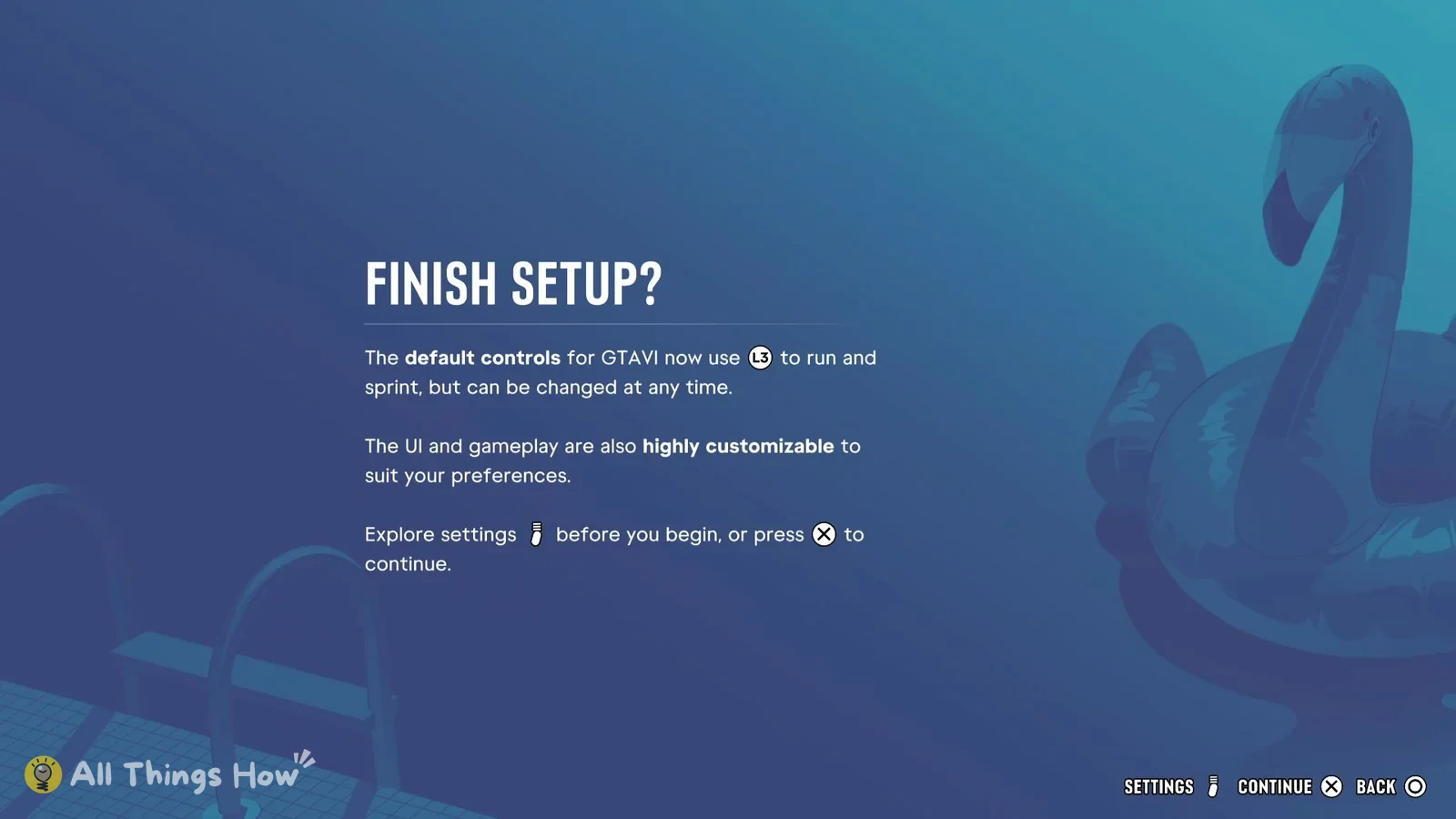
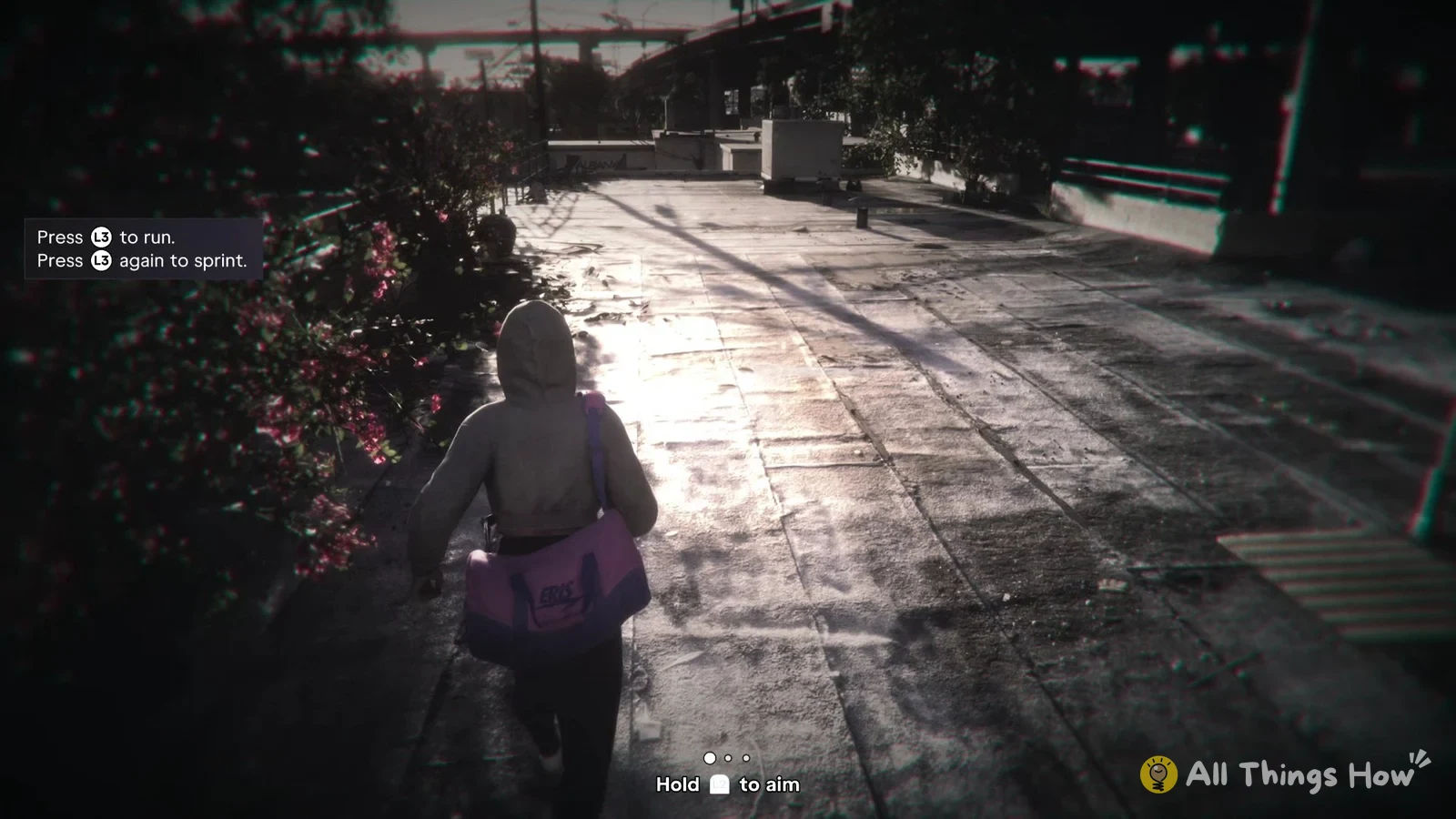
If you’ve played older GTA games, your thumb probably goes straight to X to run. In GTA 6 on PS5, that makes your character jump. The game moved running to the left stick, and the first setup screen tells you so: “The default controls for GTAVI now use L3 to run and sprint, but can be changed at any time.”
Quick answer: Press L3 (push the left stick in) to run, then press L3 again to sprint. If you want X to run instead, go to Settings > Control Scheme and pick “Classic”.
GTA 6 on-foot controls (Default scheme)
These are the buttons you’ll use most while walking around. Running sits on L3, X handles jumping and climbing, and Circle crouches.
| Button | Action |
|---|---|
| Left stick | Move |
| L3 | Run |
| Right stick | Look |
| R3 | Look behind |
| L1 | Holster |
| L2 | Aim / Interact |
| R1 | Cover |
| R2 | Shoot |
| Triangle | Interact |
| Square | Melee |
| Circle | Crouch |
| Cross (X) | Jump / Climb |
| D-pad up | Cellphone |
| D-pad left | Radio controls |
| D-pad down | Objective / Minimap |
| D-pad right | Detonate explosives |
| Touch pad | Map |
| Options | Pause |
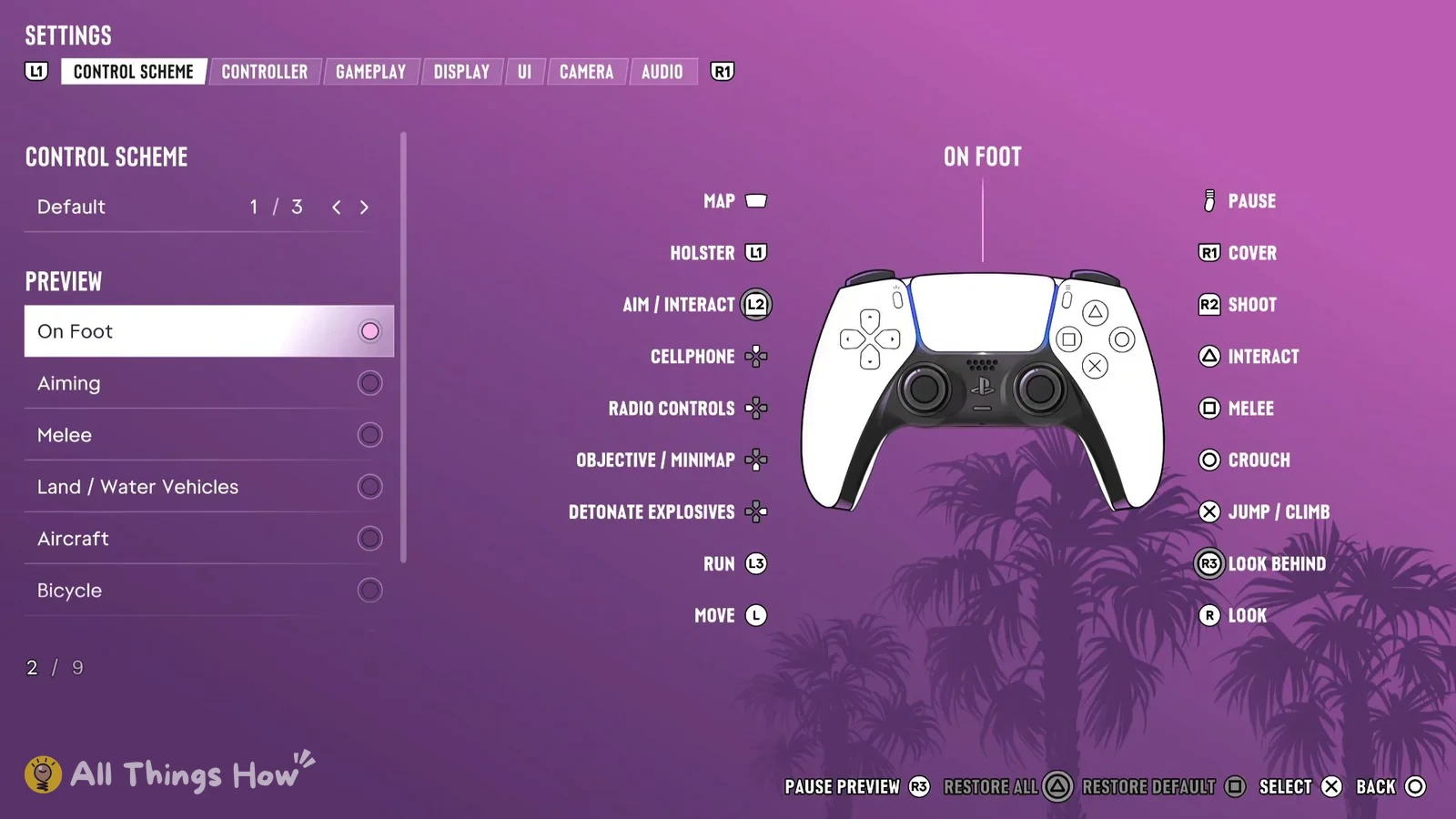
The touch pad opens the full map, while D-pad down brings up your objective and the minimap.
GTA 6 aiming controls on PS5
Once you hold L2 to aim, a few buttons change what they do. Triangle stops being interact and becomes a quick weapon swap, R3 switches from looking behind to zoom and throw path, and the D-pad turns into scope and shoulder controls.
| Button | Action while aiming |
|---|---|
| L2 | Aim |
| R2 | Shoot |
| R1 | Cover |
| Triangle | Quick swap weapon |
| Square | Melee |
| Circle | Crouch |
| R3 | Zoom / Throw path |
| L3 | Run |
| L1 | Holster |
| D-pad up | Zoom scope in |
| D-pad left | Switch shoulder |
| D-pad down | Zoom scope out |
| D-pad right | Detonate explosives |
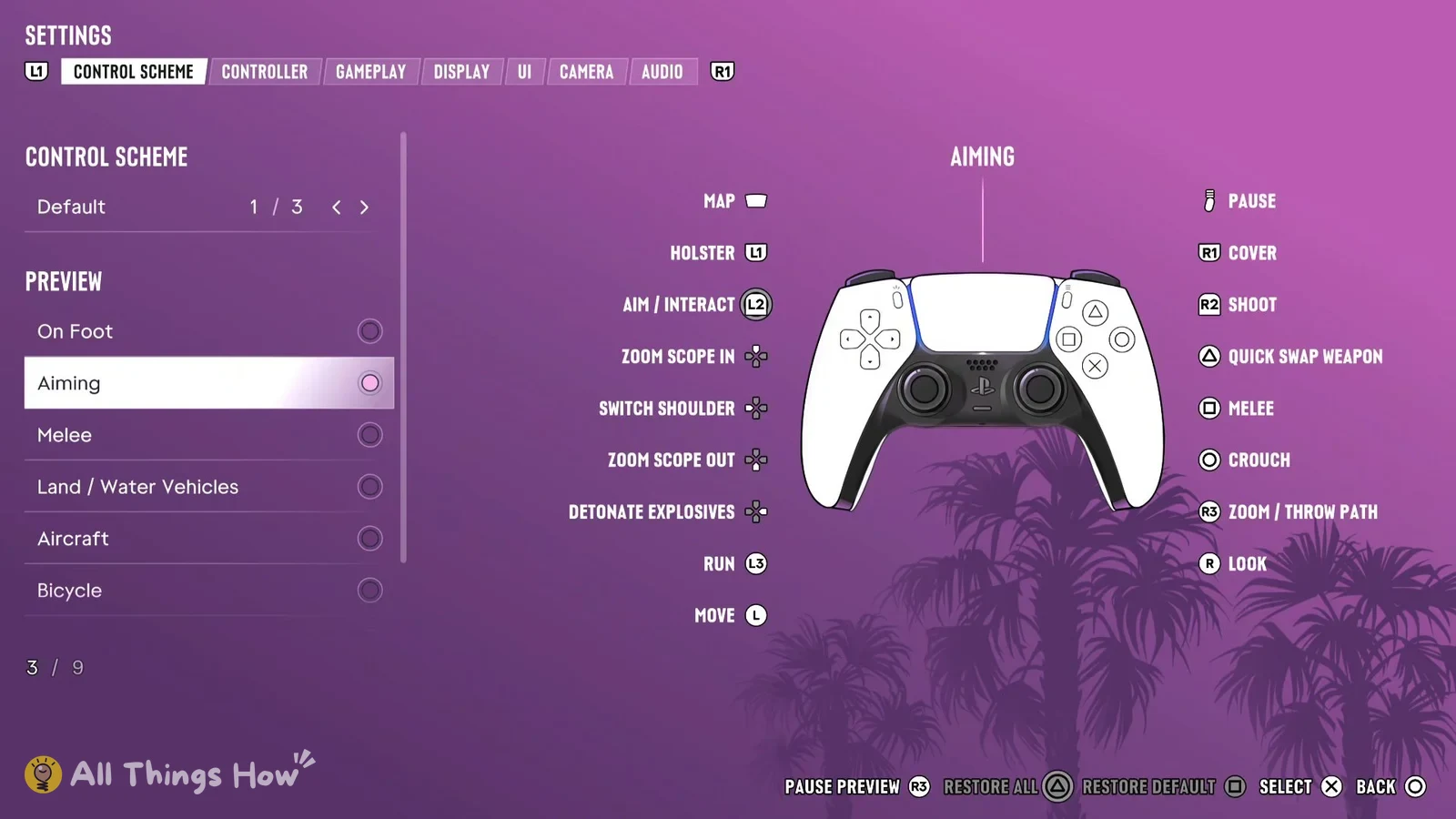
L3 still runs while you’re aiming, so you can keep moving fast with your weapon up. D-pad left swaps which shoulder the camera sits over, which helps when you’re peeking out from one side of cover.
GTA 6 driving controls for cars and boats
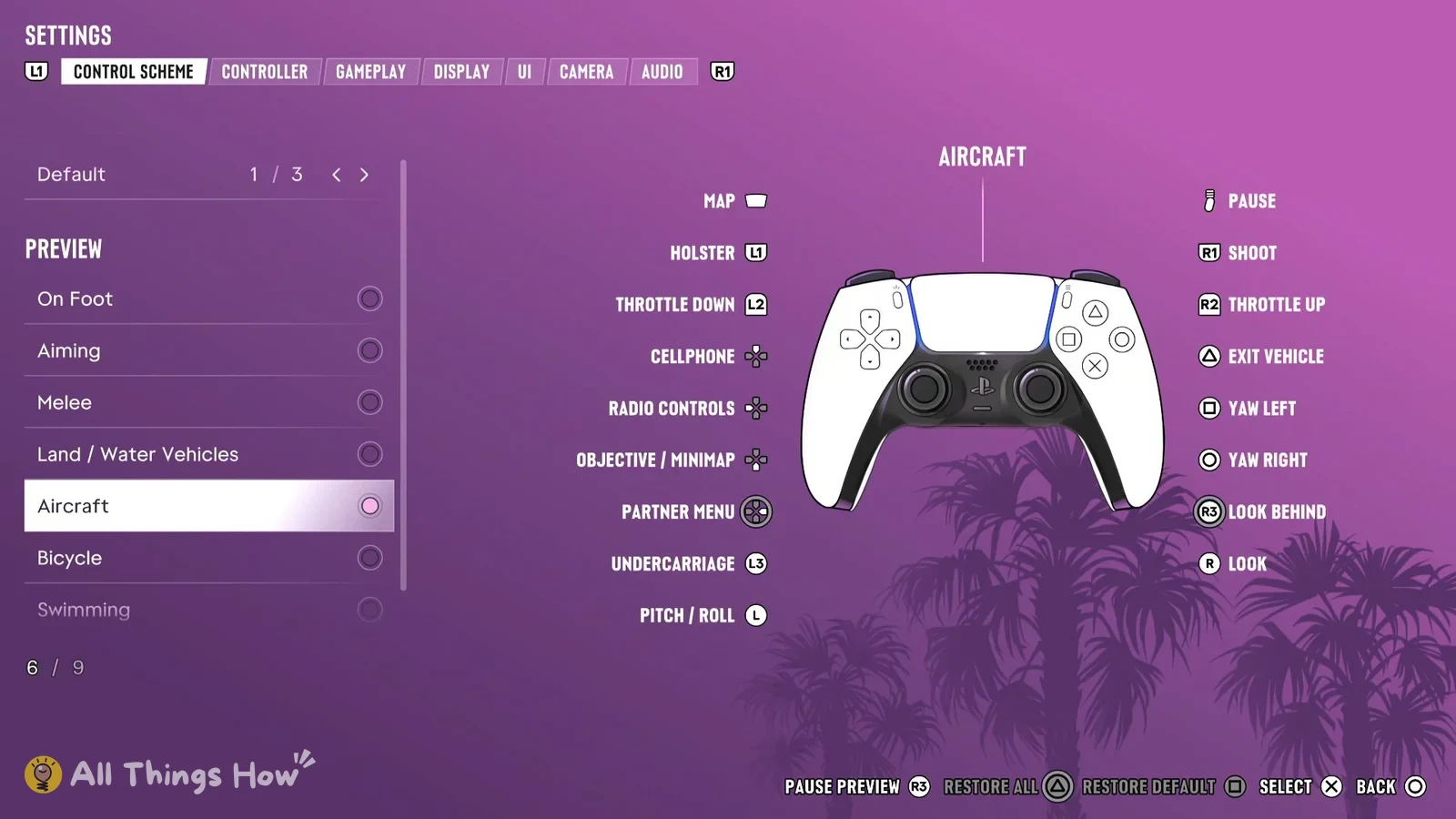
The game groups cars and boats together under “Land / Water Vehicles”, so the same layout works for both. R2 is gas, L2 brakes and reverses, and X is the handbrake.
| Button | Action in a vehicle |
|---|---|
| R2 | Accelerate |
| L2 | Brake / Reverse |
| Cross (X) | Handbrake |
| Left stick | Turn |
| R1 | Shoot |
| L1 | Holster |
| L3 | Horn / Nitrous |
| Triangle | Exit vehicle |
| Circle | Headlights |
| Square | Melee |
| R3 | Look behind |
| Right stick | Look |
| D-pad up | Cellphone |
| D-pad left | Indicate left |
| D-pad right | Indicate right |
| D-pad down | Objective / Minimap |
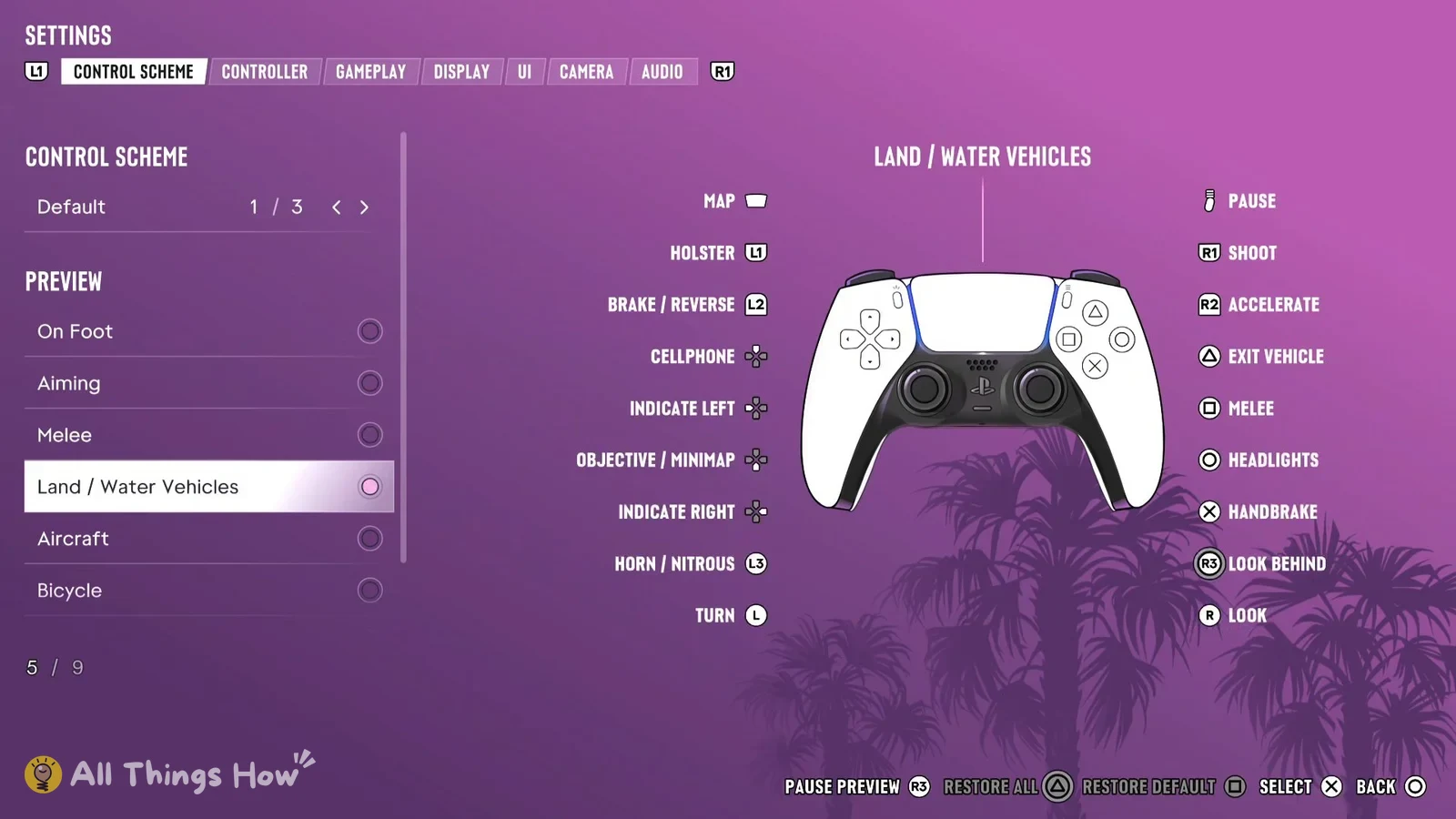
In a vehicle, L3 is no longer run. It becomes the horn and nitrous button. Shooting moves from R2 to R1, since R2 is your accelerator, and D-pad left and right work your turn signals.
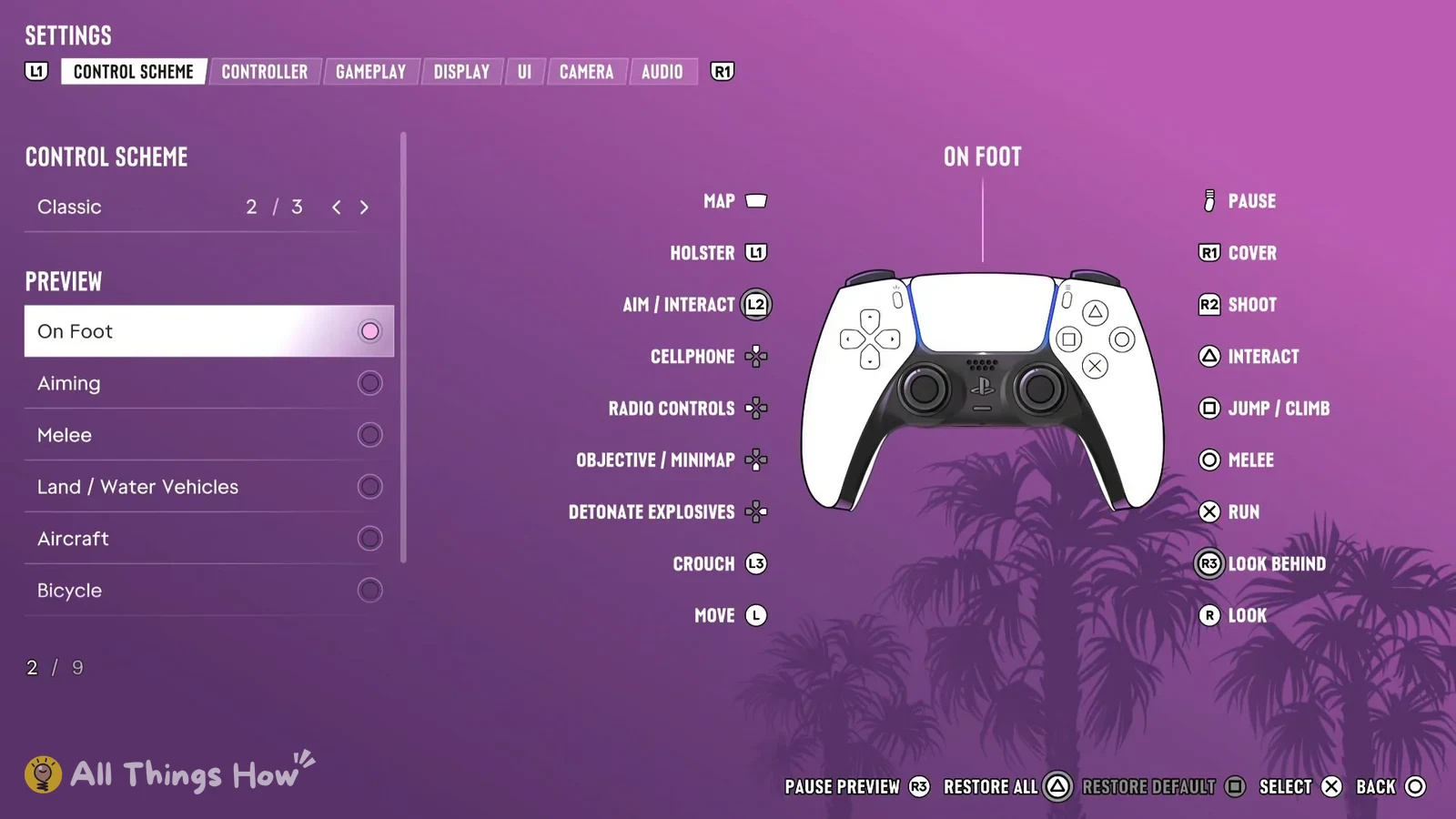
Classic scheme: run on X instead of L3
The Classic scheme puts running back on X and shuffles three other on-foot buttons to make room. Here’s what changes when you’re walking around:
| Button | Default | Classic |
|---|---|---|
| Cross (X) | Jump / Climb | Run |
| Square | Melee | Jump / Climb |
| Circle | Crouch | Melee |
| L3 | Run | Crouch |
Everything else on foot stays where it is in Default. R2 still shoots, L2 still aims, R1 is still cover, Triangle is still interact, D-pad up still pulls out your phone and the touch pad still opens the map.
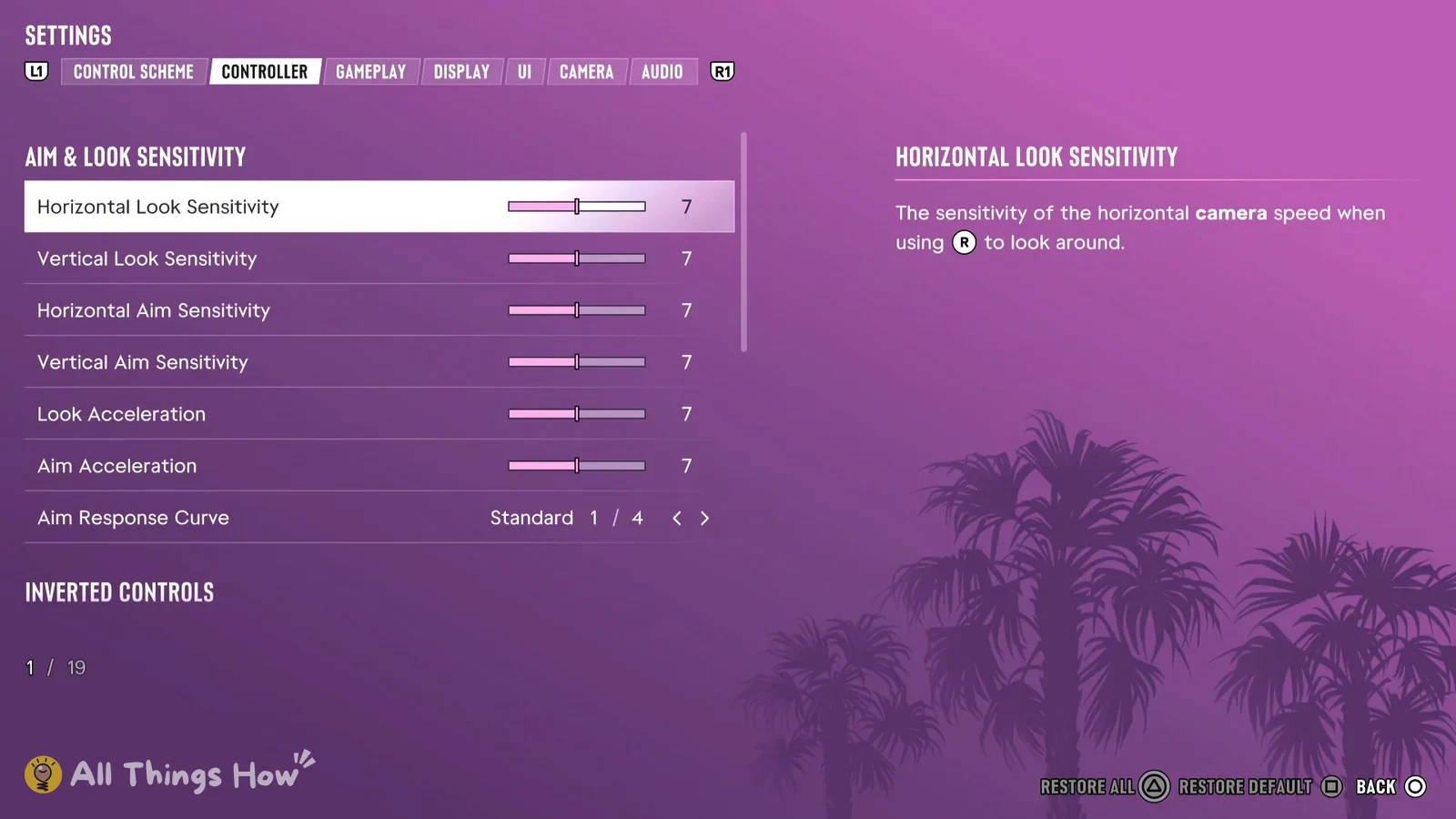
How to change the control scheme in GTA 6
There are three schemes to pick from: Default, Classic and Left-Handed. You can switch whenever you like, and it doesn’t have to be done on the first setup screen.
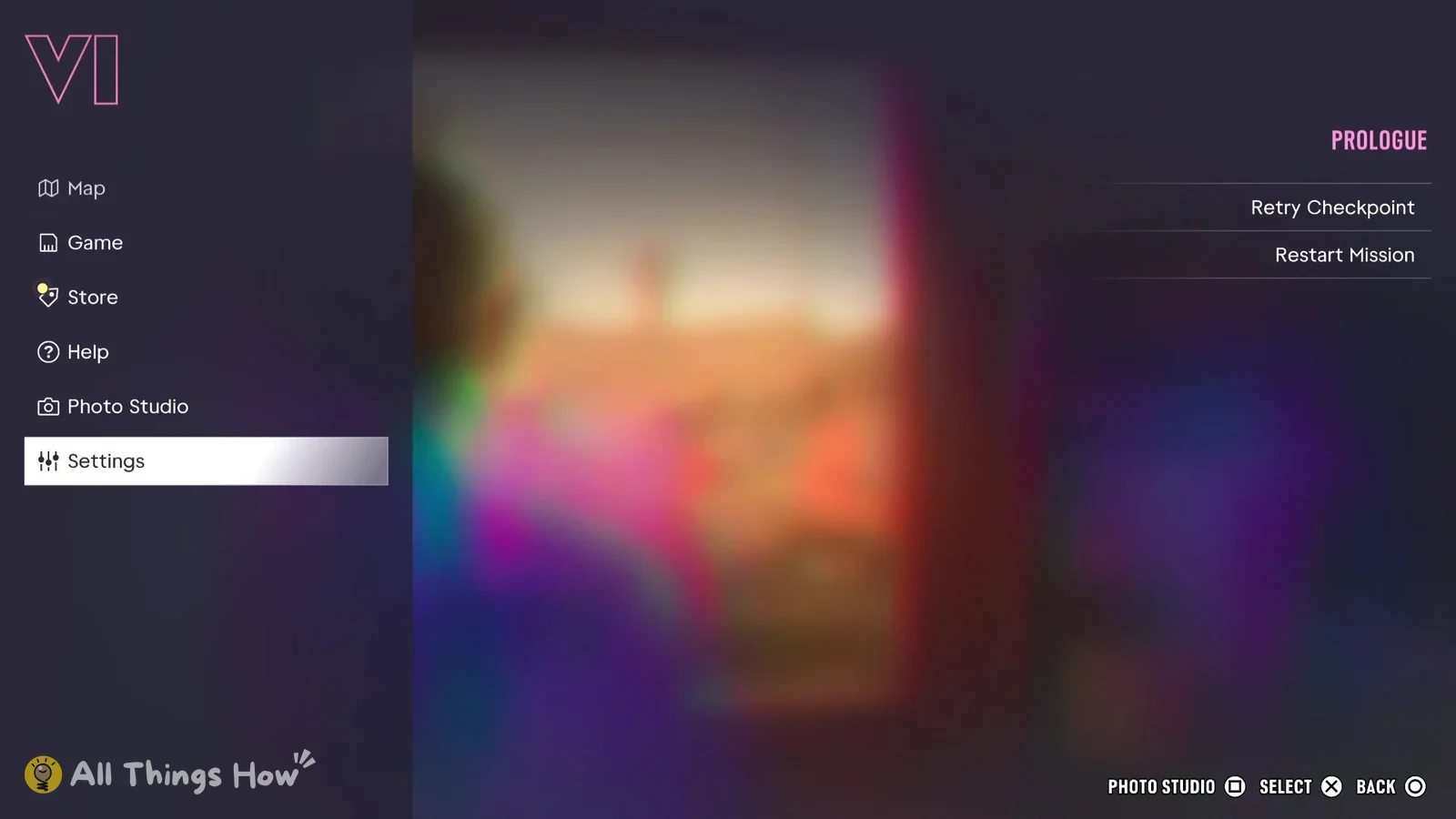
Once you’re back in the game, press X while moving. If your character starts running instead of jumping, Classic is active.