
Gaming

Does GTA 6 Autosave? What It Keeps and Why Save Game Is Greyed Out

Where to find the GTA 6 autosave, why progress inside a mission can be lost, and how to save it yourself.

Where to find the GTA 6 autosave, why progress inside a mission can be lost, and how to save it yourself.

GTA 6 does keep an autosave, but it can sit on an older point in the story while you’re deep into a mission. If the game closes before that mission ends, you can land back at the start of the mission instead of at the last checkpoint you passed.

Quick answer: Yes. In Options > Game > Load Game, check for “(Autosave)”. Mission progress might be missing, so complete the mission before saving in any of the 15 manual slots.


Where to find the GTA 6 autosave

The autosave doesn’t get its own menu. It shows up in the same list as your manual saves, and the button names below are the PS5 defaults.
Press Options to open the pause menu, then go to the Game tab. That tab holds both the Save Game and Load Game options.
Choose Load Game. The screen that opens is headed “GAME / LOAD” and lists every save the game has for your story.
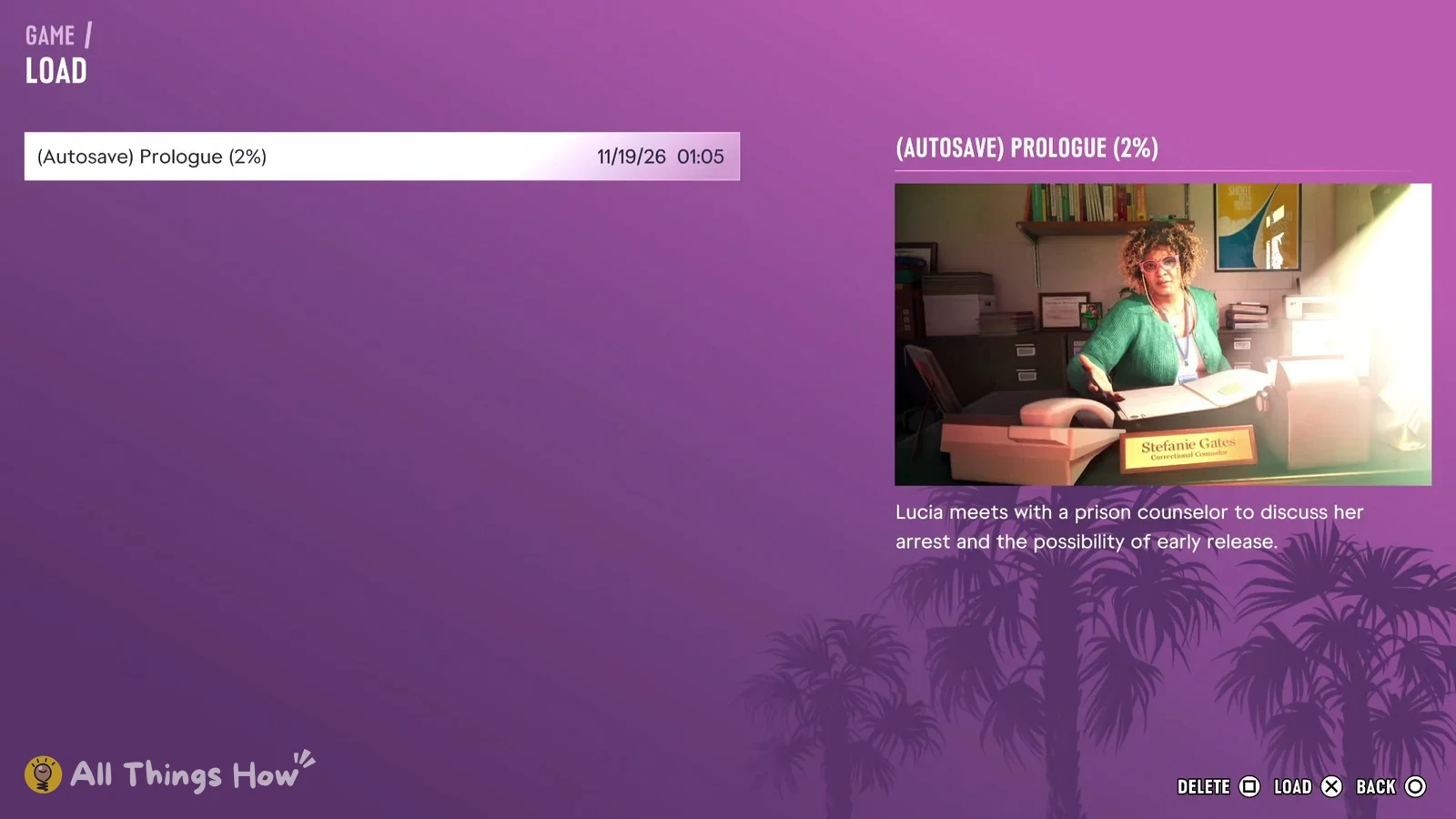
Look for the entry whose name starts with “(Autosave)”. It’s named after the last part of the story you completed, plus a completion percentage, for example “(Autosave) Prologue (2%)”. Next to it you’ll see a date and time, a picture and a one-line summary of where the story stands.
GTA 6 Load screen with the entry (Autosave) Prologue (2%)
The autosave entry in the Load Game list.

From that screen, Cross loads the highlighted save, Square deletes it and Circle takes you back.


Why the GTA 6 autosave didn’t keep your mission progress

During “Gone Fishing”, well beyond its opening, the load list still showed “(Autosave) Prologue (2%)” as the autosave. None of the mission progress made by then appeared in the list. The newest save it contained was still the one created when the Prologue ended.

That matters if the game shuts down in the middle of a mission. When the console lost power partway through “Gone Fishing” and the game was started again, continuing put the story back at the start of “Gone Fishing”. The whole mission had to be replayed, and the checkpoints already passed inside it were gone.

Checkpoints and saves aren’t the same thing

While you’re in a mission, open the pause menu to choose Retry Checkpoint or Restart Mission. Retry Checkpoint returns you to the latest checkpoint you’ve reached, and it works fine if you keep the game open. But in the case above, closing the game meant those checkpoints didn’t carry over. They aren’t entries in the save list.
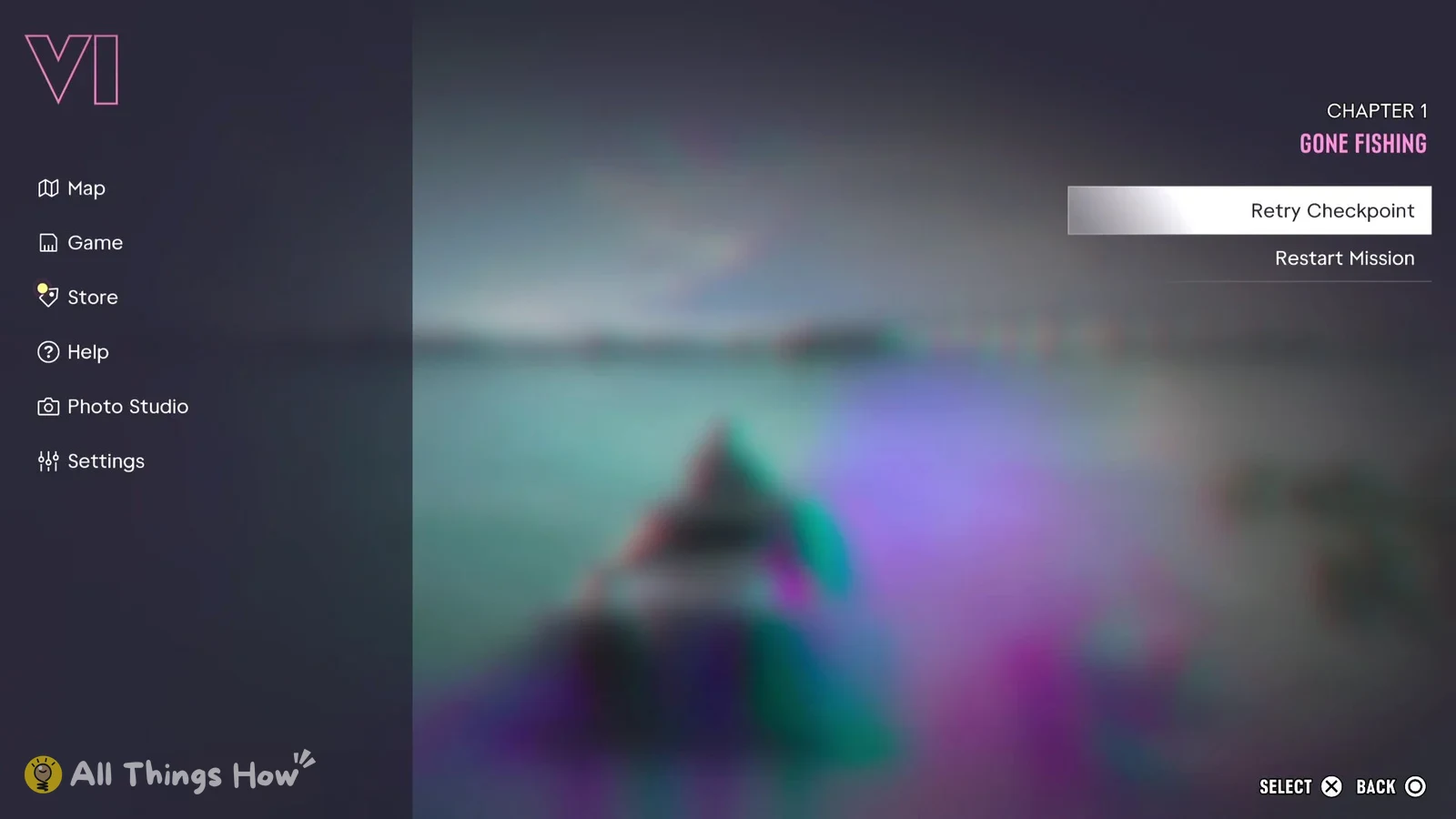
GTA 6 pause menu during a mission with Retry Checkpoint and Restart Mission
Retry Checkpoint and Restart Mission in the pause menu.

Why Save Game is greyed out in GTA 6

You can’t make a manual save while a mission is running. Under Options > Game, Save Game is greyed out for the whole mission and you can’t select it. As soon as the mission ends, it becomes selectable again and opens a screen headed “GAME / SAVE”.
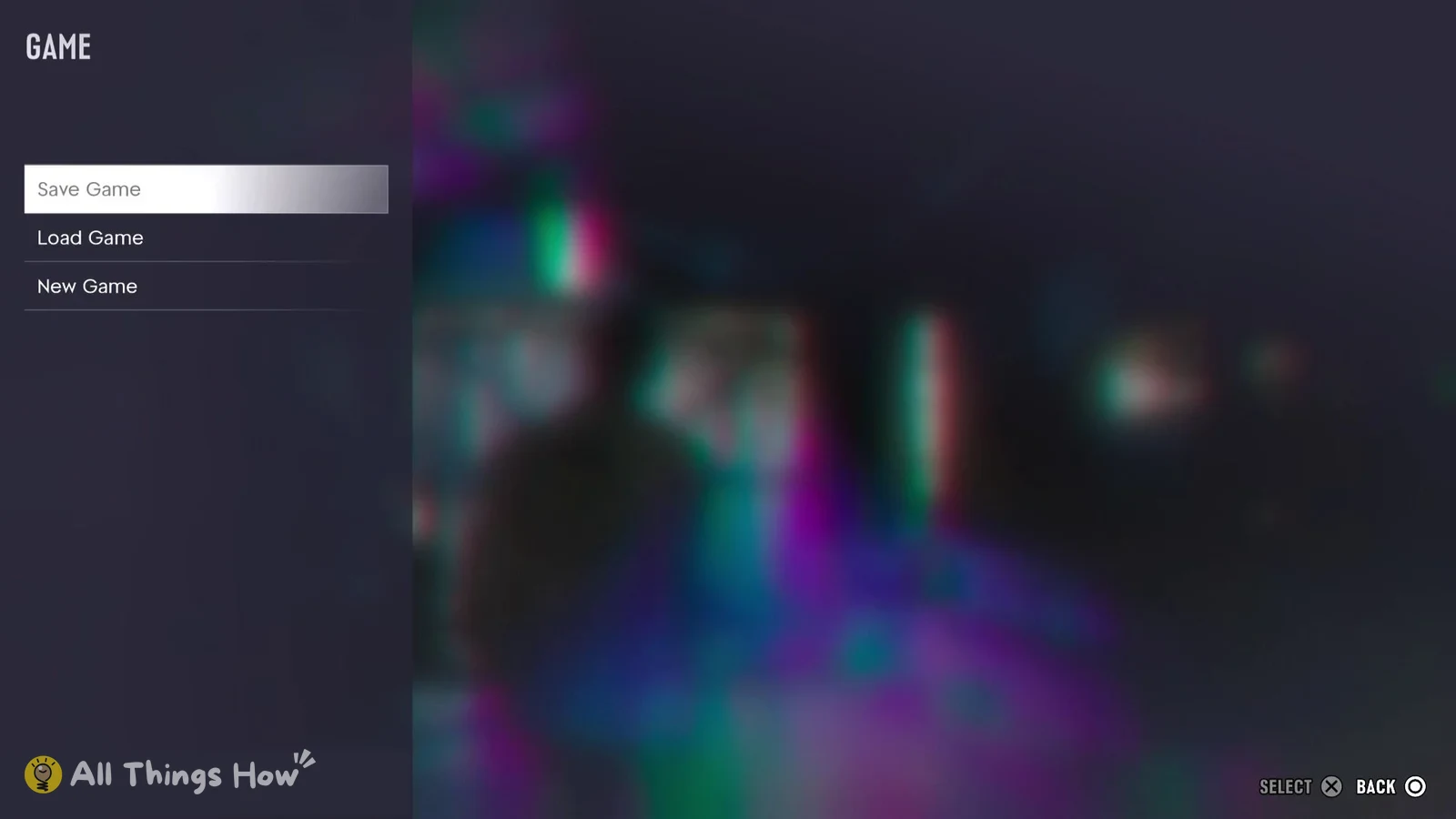
GTA 6 Game menu with Save Game greyed out during a mission
Save Game greyed out during a mission.

How to make sure your GTA 6 progress is saved
Finish the mission you’re in before you quit or turn off the console, if you can. Progress made inside a mission may not be in any save yet, so stopping halfway can send you back to the start of it.
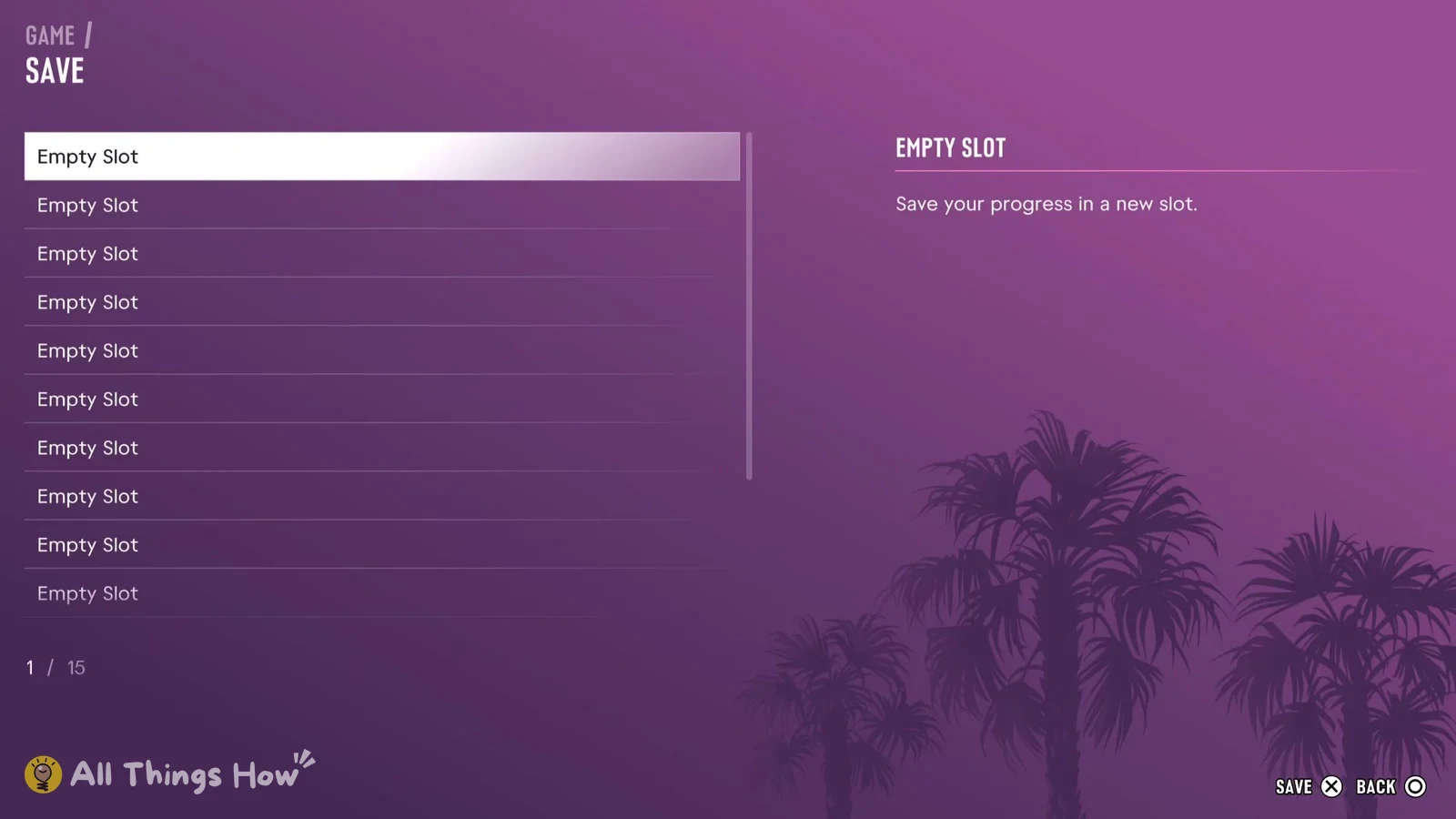
Once the mission is over, press Options, go to Game and choose Save Game. It should no longer be greyed out, and it opens the “GAME / SAVE” screen with 15 slots.
GTA 6 save screen with empty slots and the 1 / 15 counter
The save screen with its 15 slots.
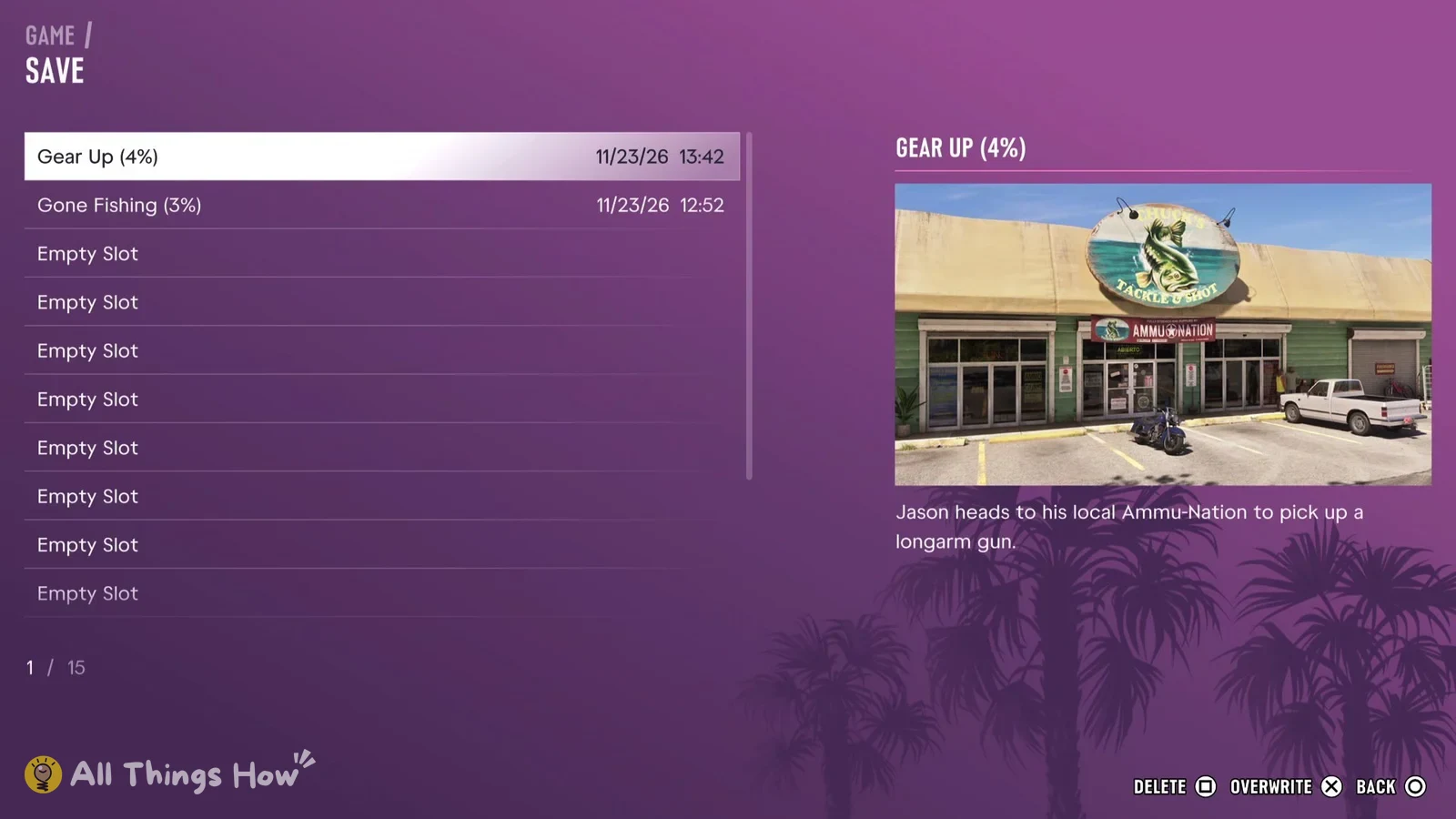
Choose a slot by highlighting it, then press Cross. The save title shows the most recent mission you finished and a percentage. For instance, it can show “Gone Fishing (3%)”, then later “Gear Up (4%)”, so you can check that it saved the right point.
GTA 6 save screen with slots named Gear Up (4%) and Gone Fishing (3%)
Manual saves named after the last mission finished.
Spread your saves across more than one slot instead of writing over the same one each time. With 15 slots, you can keep several older points in the story to fall back on.
To go back to any of them, open Options > Game > Load Game, highlight the save you want and press Cross.