

A USB flash drive or external hard drive that refuses to appear in Windows 11 almost always points to one of three things: power management, a missing drive letter, or a driver problem. The fix depends on whether the drive shows up anywhere in the system at all, so the first job is to find out where Windows is hiding it.
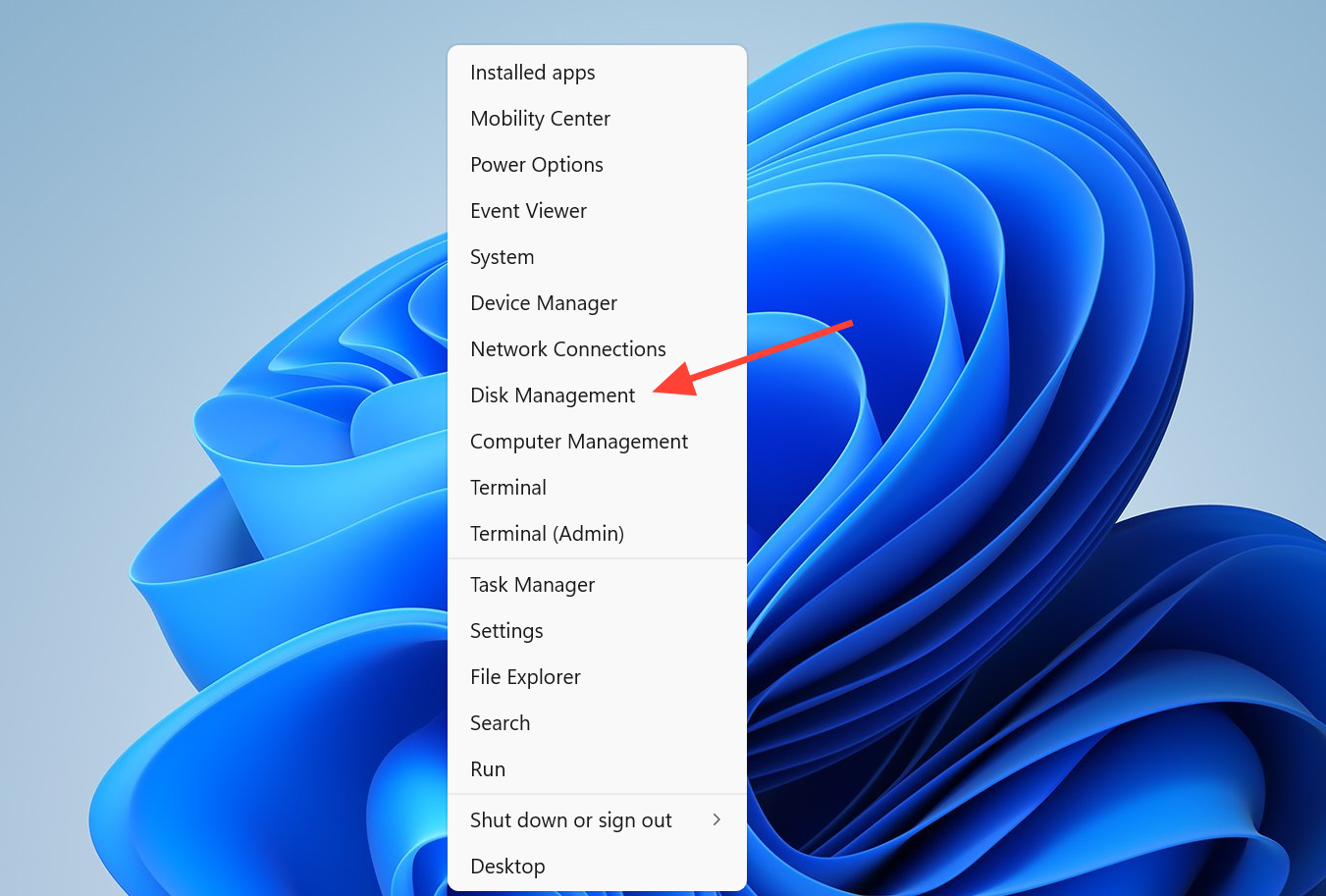
Quick answer: Open Disk Management (right-click Start, choose Disk Management). If the drive appears there without a letter, assign one. If it appears as unallocated, create a partition. If it does not appear at all, test it on another PC, switch ports, and reinstall the USB controllers in Device Manager.
Run the basic USB checks first
Before changing any settings, rule out the simple hardware causes. These take a minute and solve a surprising number of cases.
- Restart the PC, then plug the drive back in.
- Try a different USB port to rule out a dead or loose port.
- Try a different cable, since a damaged cable can stop a drive from being recognized.
- Plug the drive into a second computer. If it works there, the problem is the original PC, not the drive.
- Check for a physical power switch or separate power cable. Some external drives need their own power source.
Compatibility matters too. A USB 3 device may misbehave on an older USB 2 port, so check the drive’s manual if you are pairing newer hardware with an older machine. While you are here, install pending Windows updates from Settings > Windows Update > Check for updates, then reboot.
Find where Windows is hiding the drive
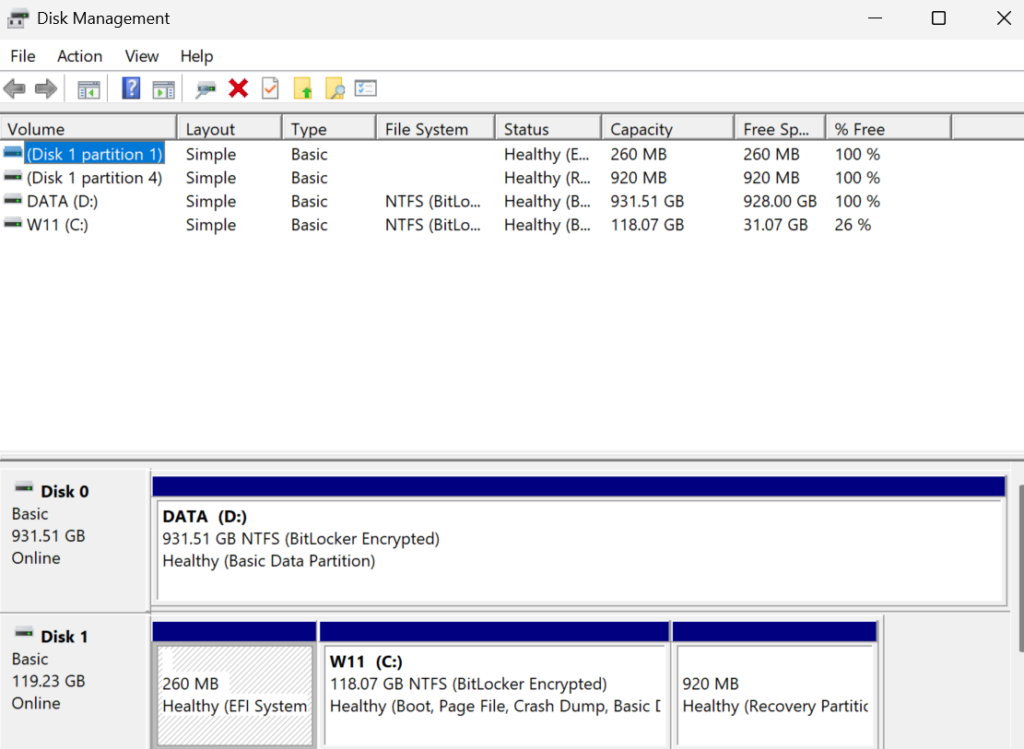
Disk Management is the diagnostic that tells you which fix you need. Right-click the Start button and choose Disk Management, then look for your USB device in the lower pane. What you see decides your next move.
| What Disk Management shows | What it means | Fix to use |
|---|---|---|
| Drive listed, no drive letter | Readable but hidden from File Explorer | Assign a drive letter |
| Drive listed as unallocated (black bar) | No usable partition | Create a new partition |
| Drive listed as RAW or not formatted | File system error or corruption | Repair the file system or format |
| Drive not listed at all | Hardware, controller, or driver fault | Reinstall USB controllers, check ports |
Assign a drive letter when the drive shows in Disk Management
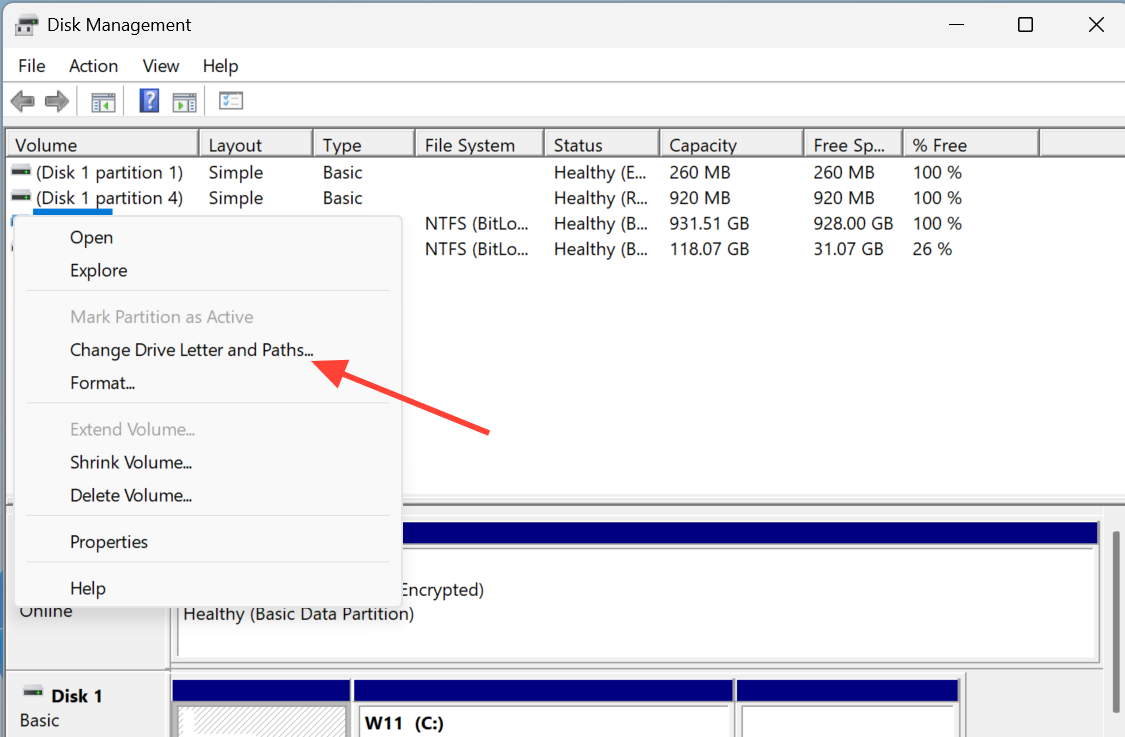
If the drive is visible in Disk Management but missing from File Explorer, it usually just needs a letter. A drive letter conflict can make an otherwise healthy drive invisible.
Stop Windows from powering down the drive
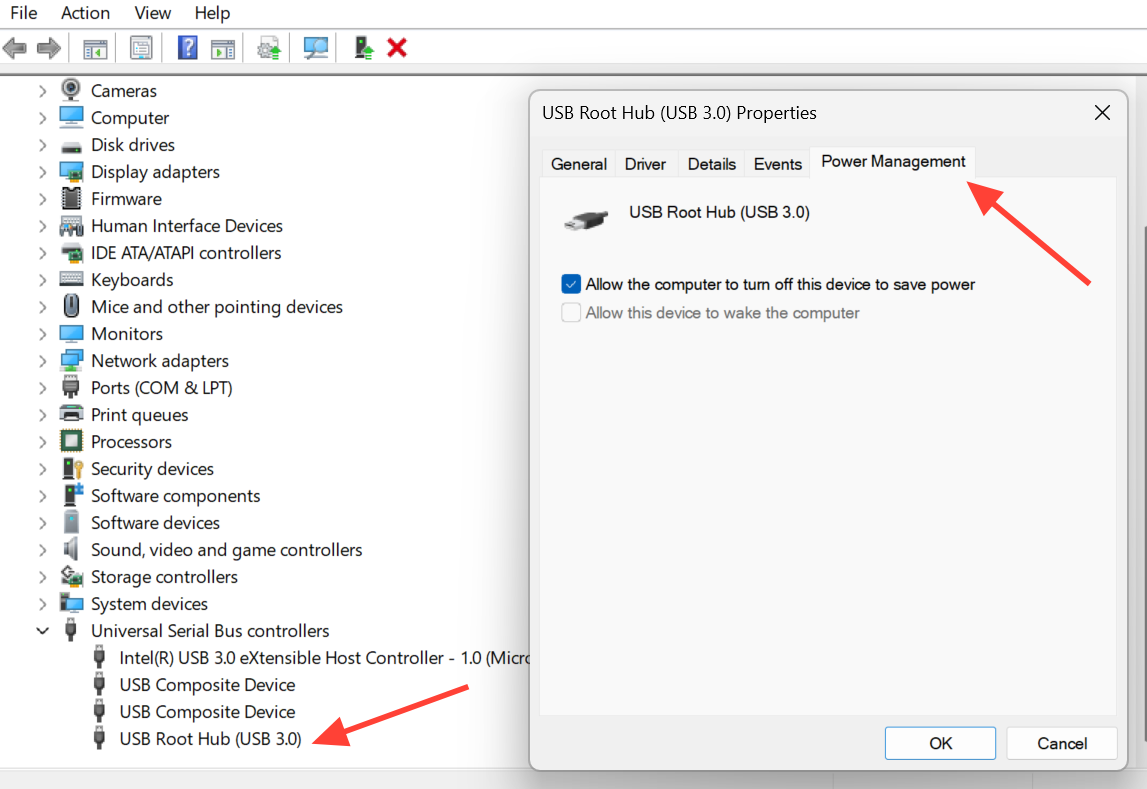
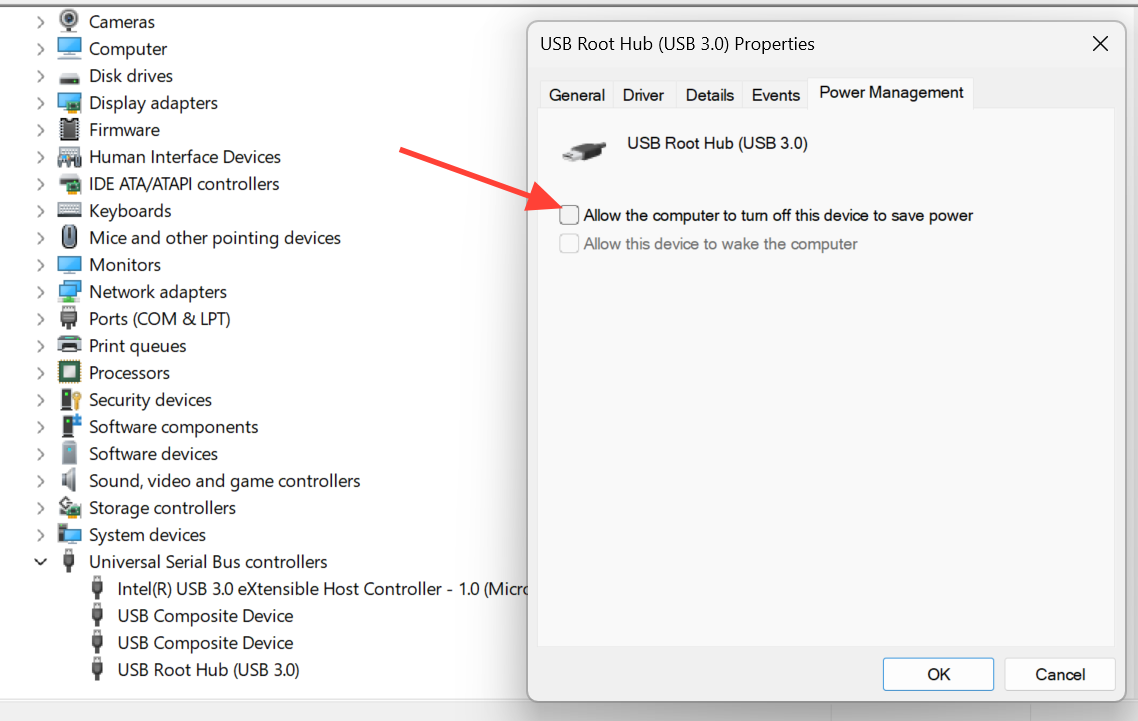
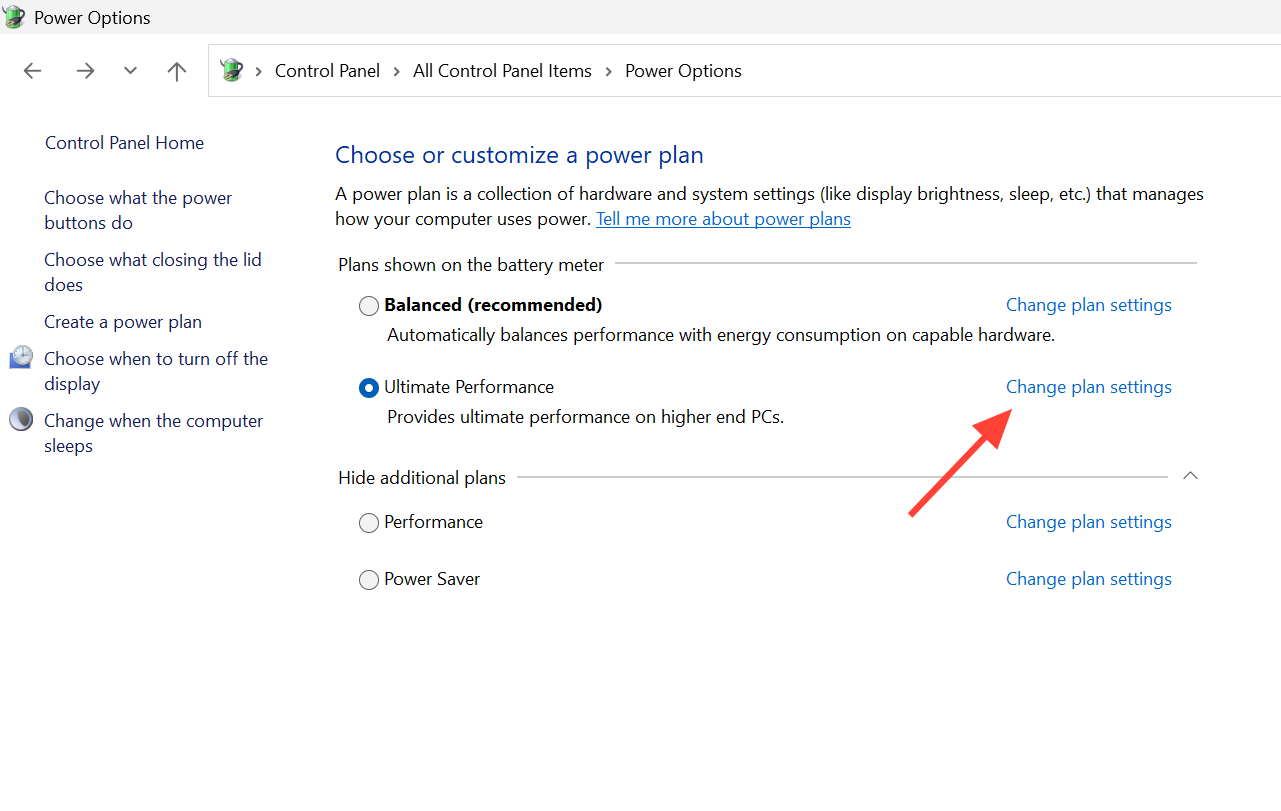
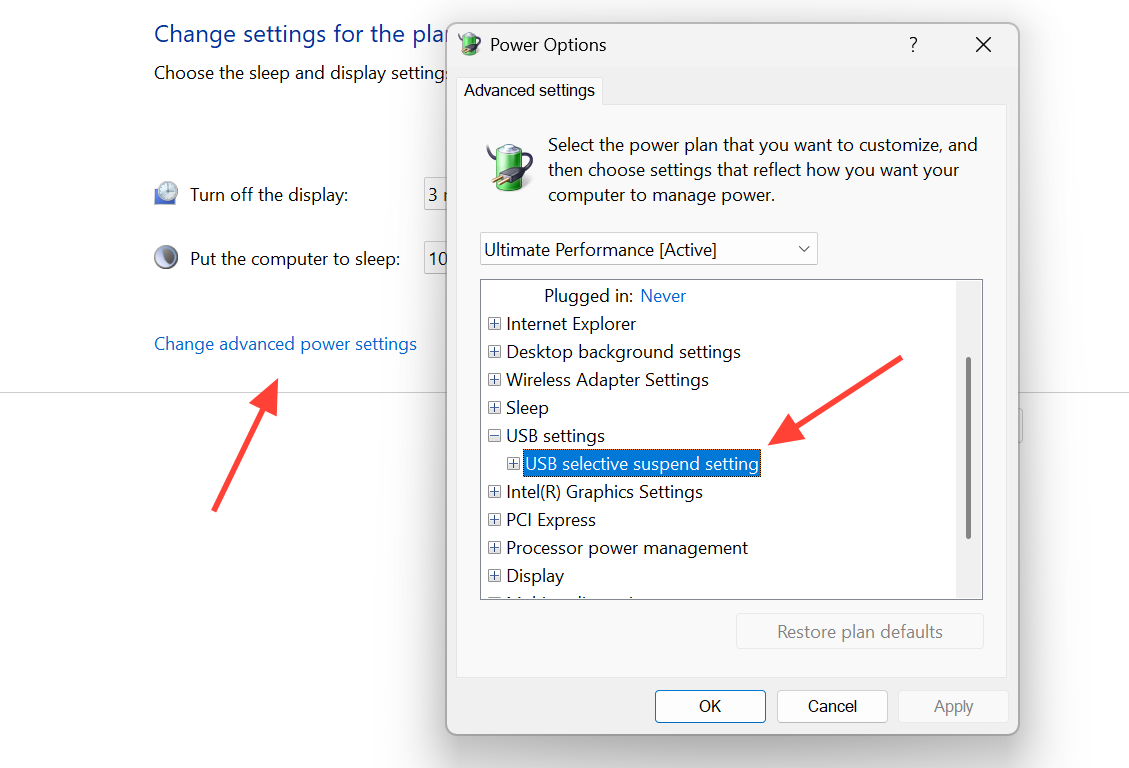
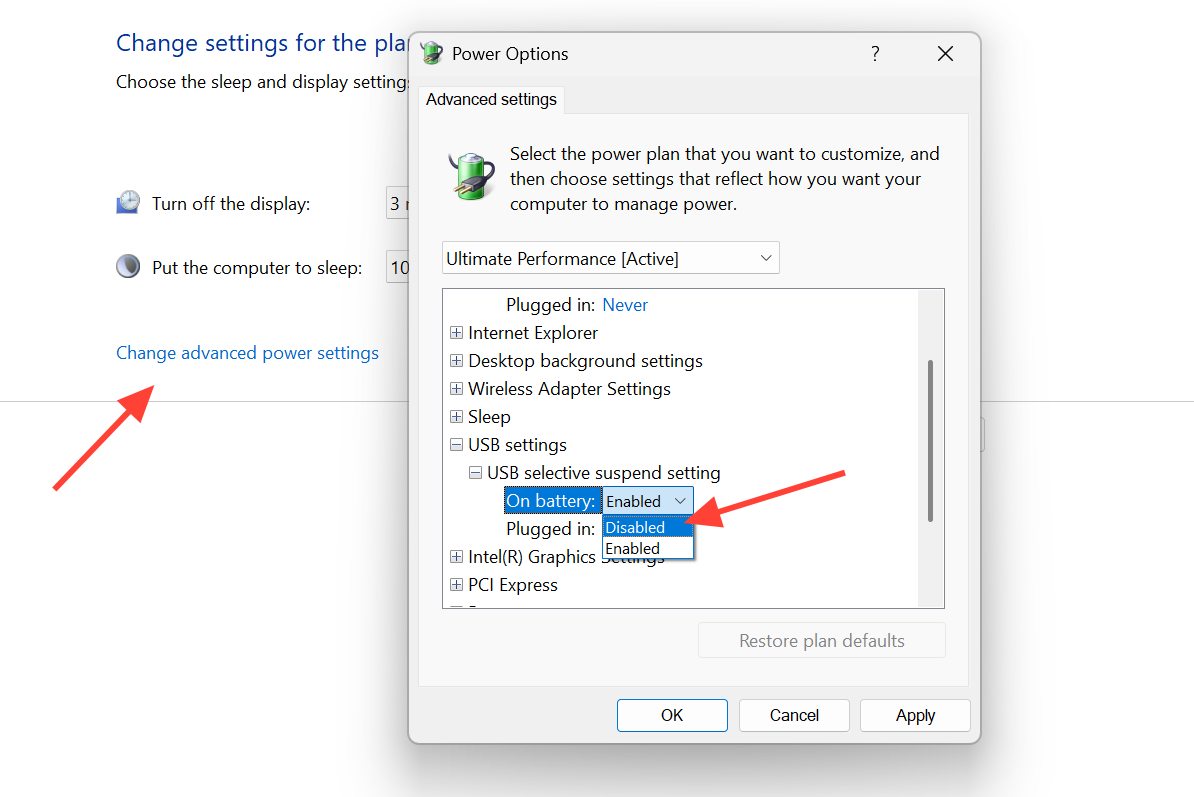
Windows can switch off USB devices to save power, which leaves a drive connected but unrecognized. Turning off this behavior in two places clears intermittent disconnects.
Adjust USB Root Hub power management
Disable USB selective suspend
Fix USB drivers and controllers
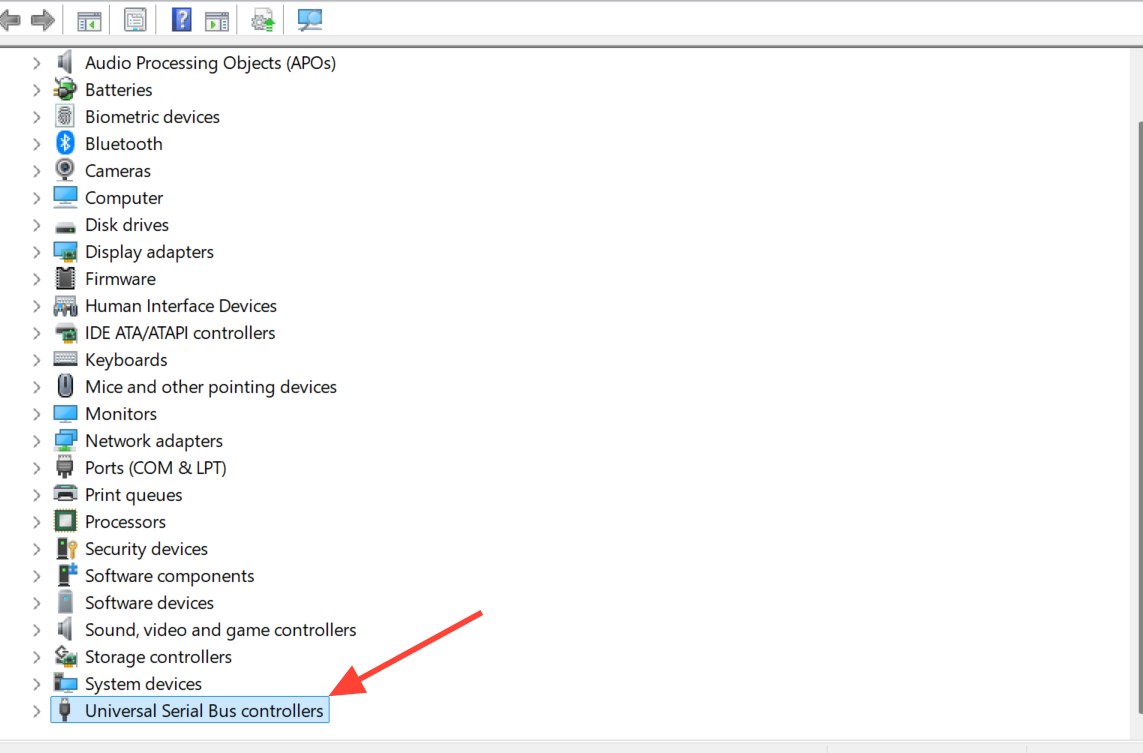
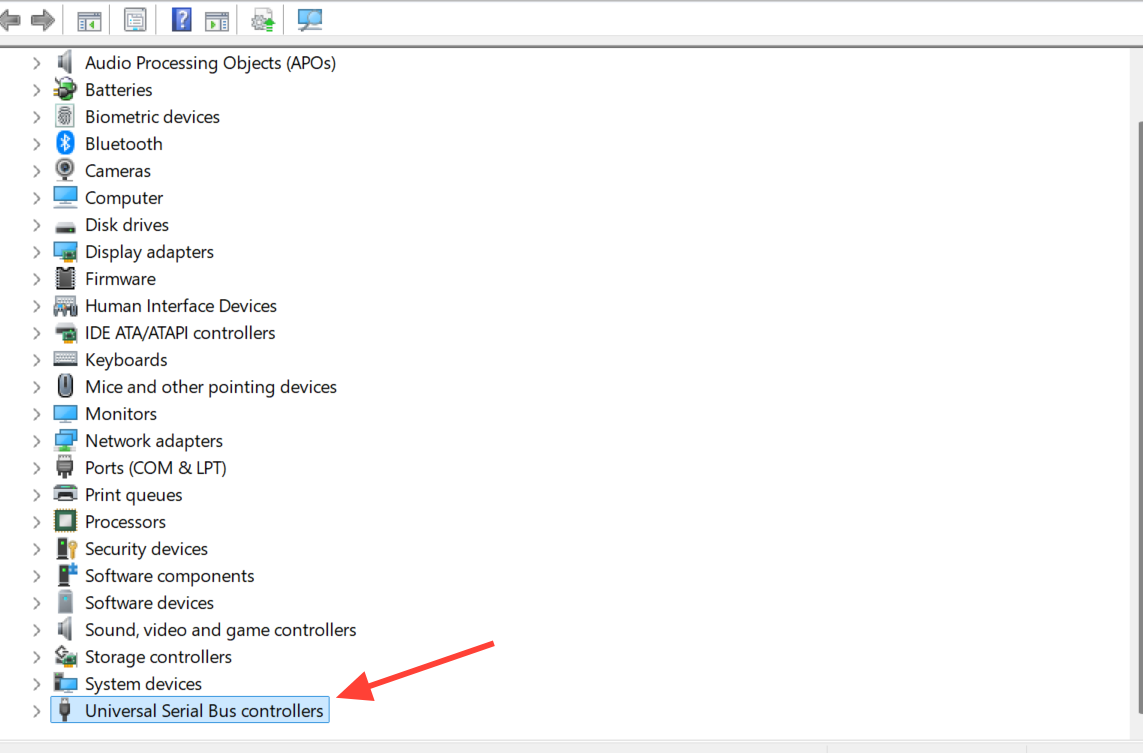
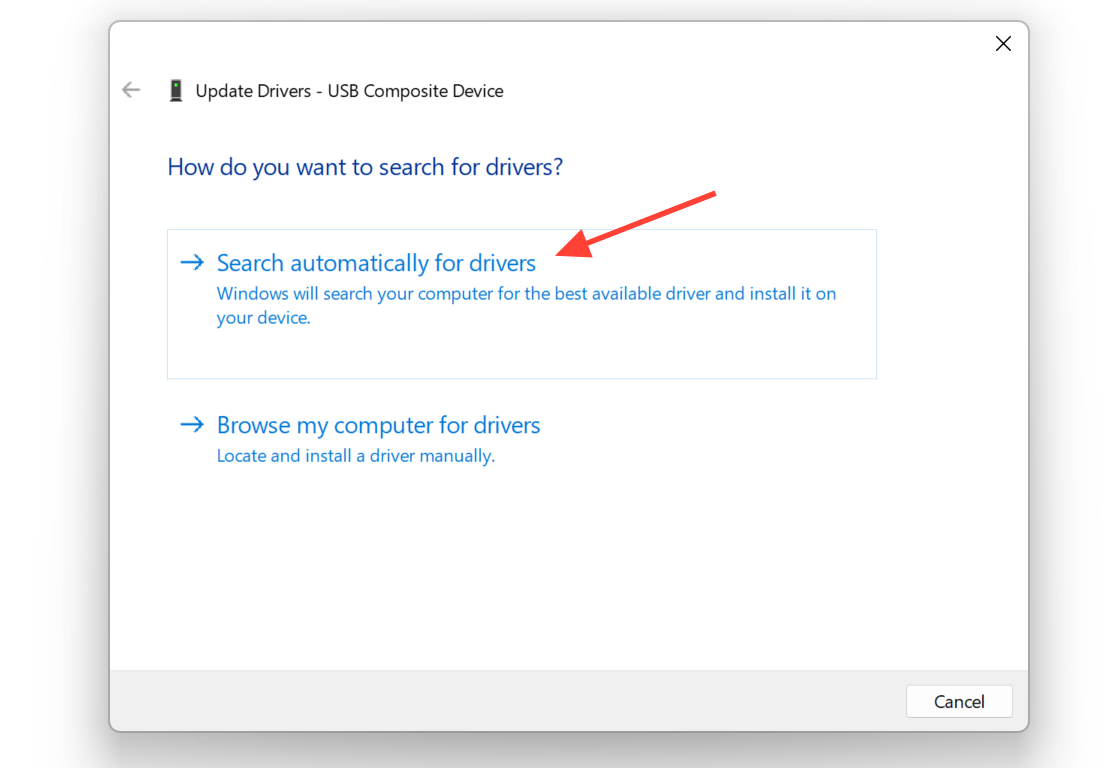
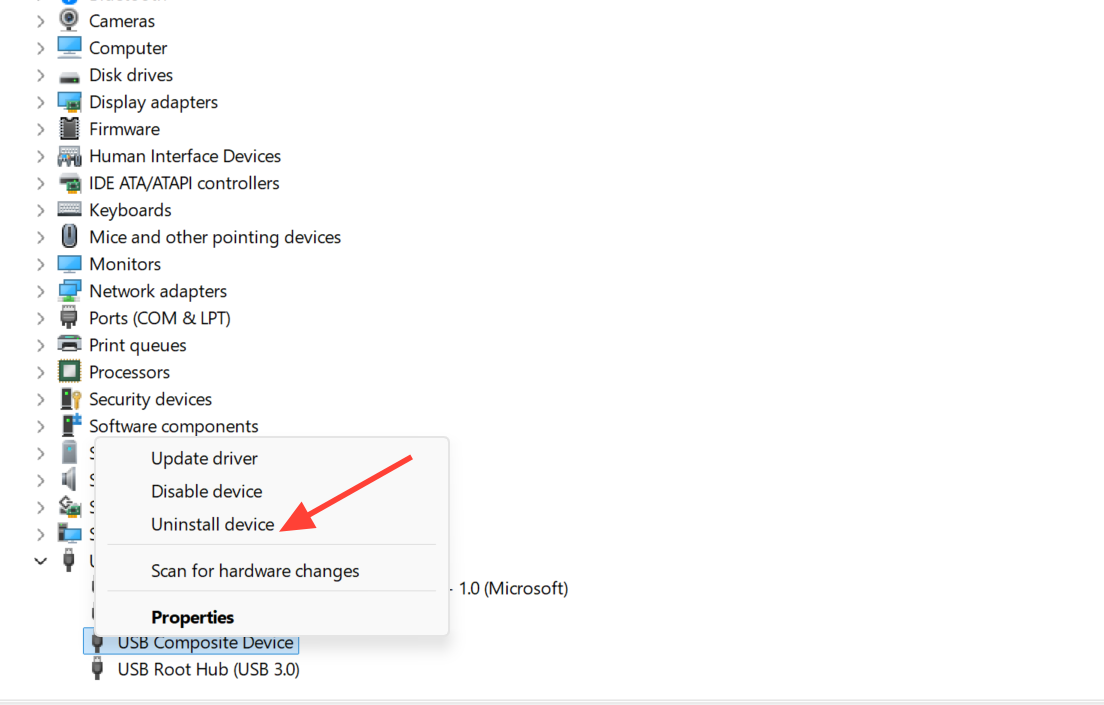
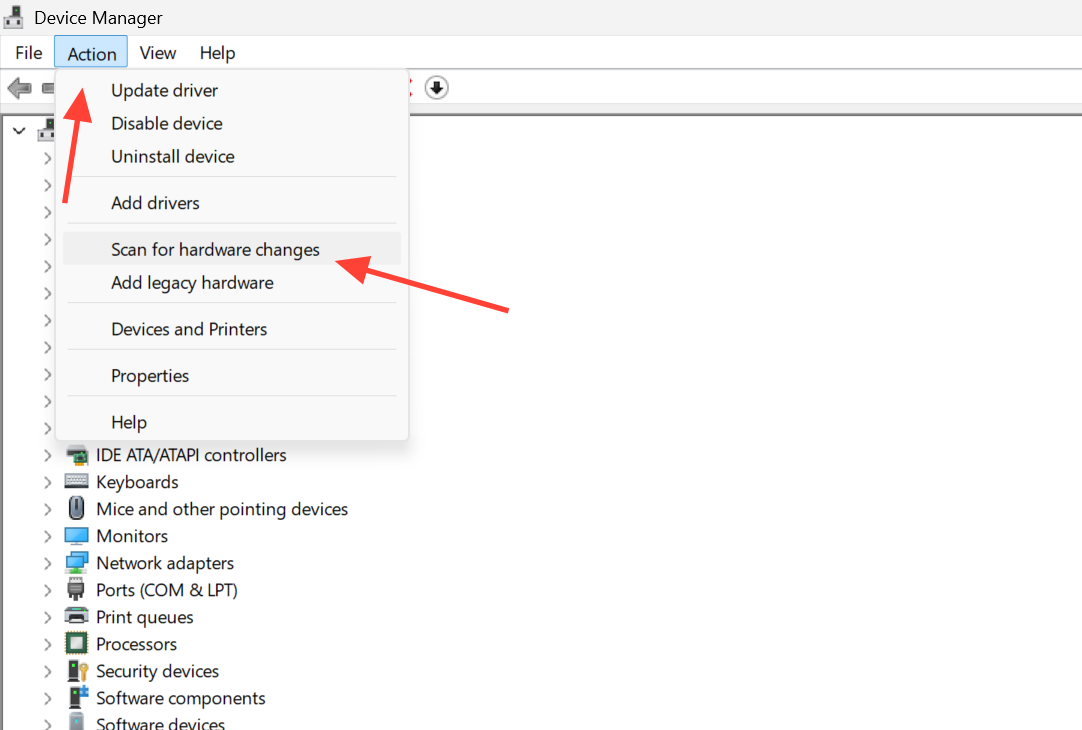
Outdated or corrupted drivers are a common cause, especially when a drive appears under “Other devices” in Device Manager with an error like Code 28, which means no driver is installed. Reinstalling the controller forces Windows to load a fresh driver.
Repair file system errors or create a partition
When Disk Management shows the drive as RAW, unformatted, or unallocated, the data structure on the drive is the problem. File system errors can build up after a drive is pulled out without ejecting or after a power loss.
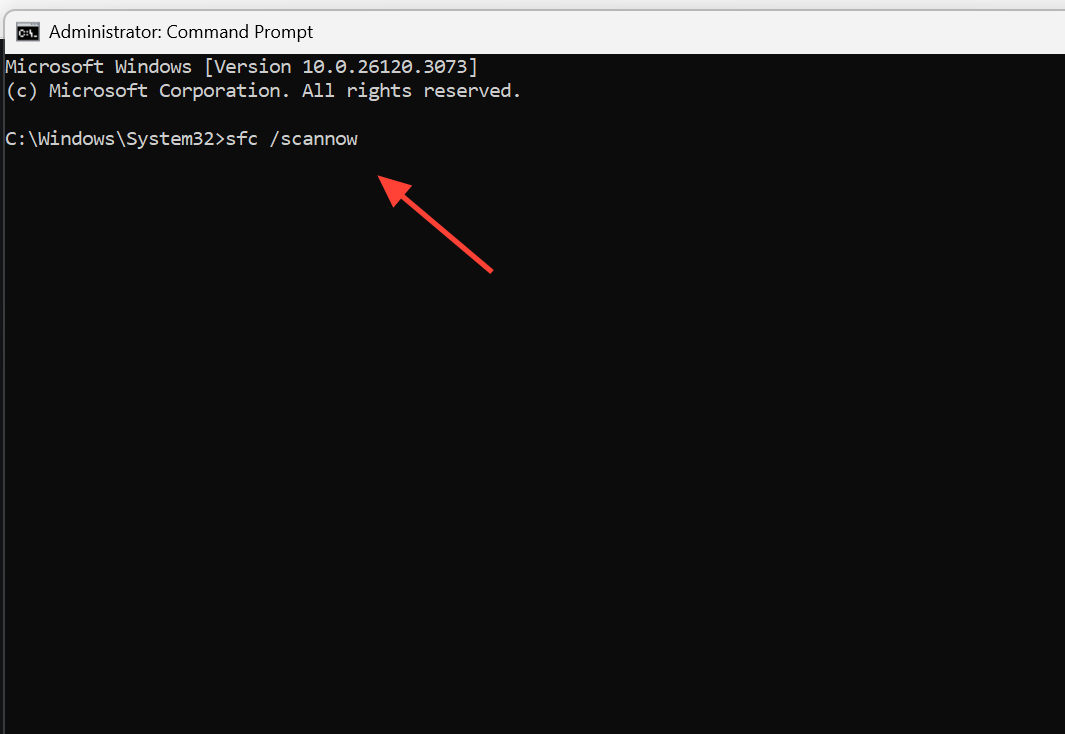
For a drive that shows unallocated space, create a new partition so Windows can use it. For a drive that has a partition but throws read errors, run a disk check first. Open Command Prompt as administrator and run chkdsk against the drive letter to repair file system errors, and run sfc /scannow if you suspect damaged system files are interfering.
Formatting is the last resort, since it erases everything. Back up any recoverable files before you format, then format to NTFS, exFAT, or FAT32 depending on how you plan to use the drive.
Rule out third-party security software
If the drive works on other computers and appears in Device Manager but still cannot be opened on one specific PC, security software is a strong suspect. Some antivirus and endpoint products block USB storage at the driver level, sometimes returning a rights or access error when you try to open the drive.
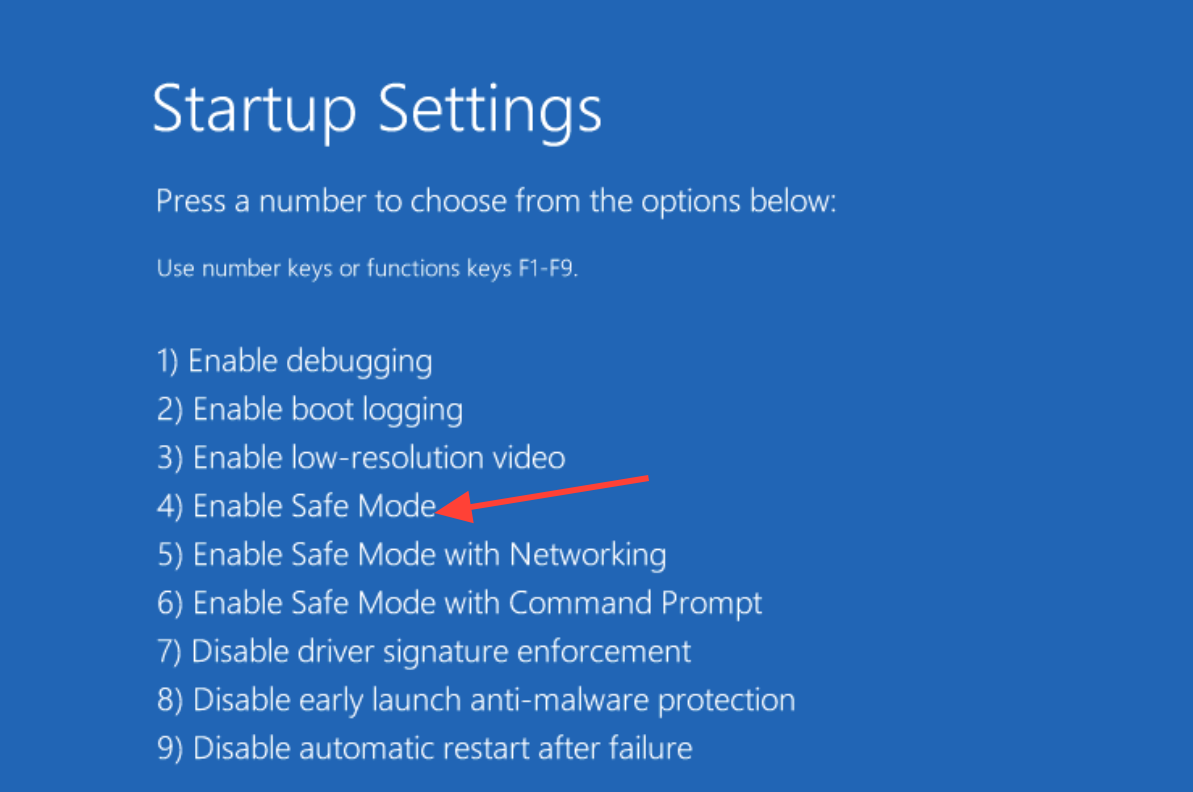
A clean way to test this is Safe Mode. Boot into Safe Mode and try the drive again. If it opens normally in Safe Mode but fails during a normal boot, a background app, usually a third-party security product, is the cause. Disable or fully uninstall that software, reboot, and test once more.
Disabling some security suites is not enough, because their drivers stay loaded until the program is uninstalled. If disabling does not help, remove it temporarily to confirm.
Enable the drive in BIOS or UEFI
On some systems, USB ports or external USB devices can be switched off in firmware. If the drive never appears in Windows or Disk Management, check the BIOS or UEFI settings.
Restart the PC and press the setup key during boot, often F2, Del, or Esc. Look in the Advanced or Boot section for a USB or external device option and make sure the external USB port is enabled, then save and exit.
Work through these in order, and most disappearing-drive problems resolve well before the format stage. Start by checking Disk Management to learn whether the drive is hidden, unpartitioned, or completely absent, then match that result to the fix. If the same drive works fine on another PC but fails in normal Windows yet opens in Safe Mode, treat security software as the prime suspect rather than the hardware.



