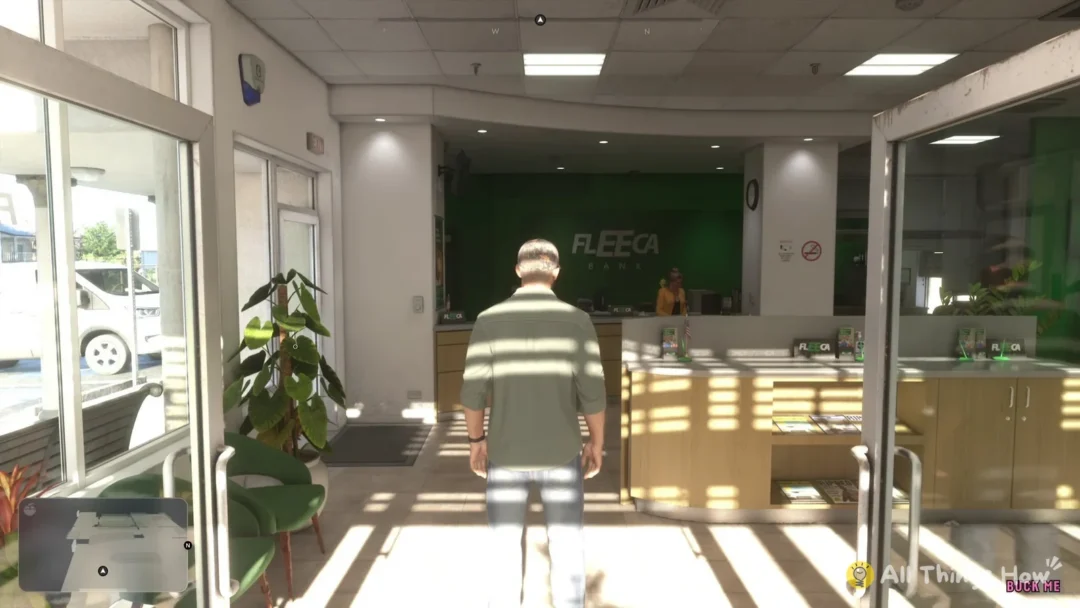

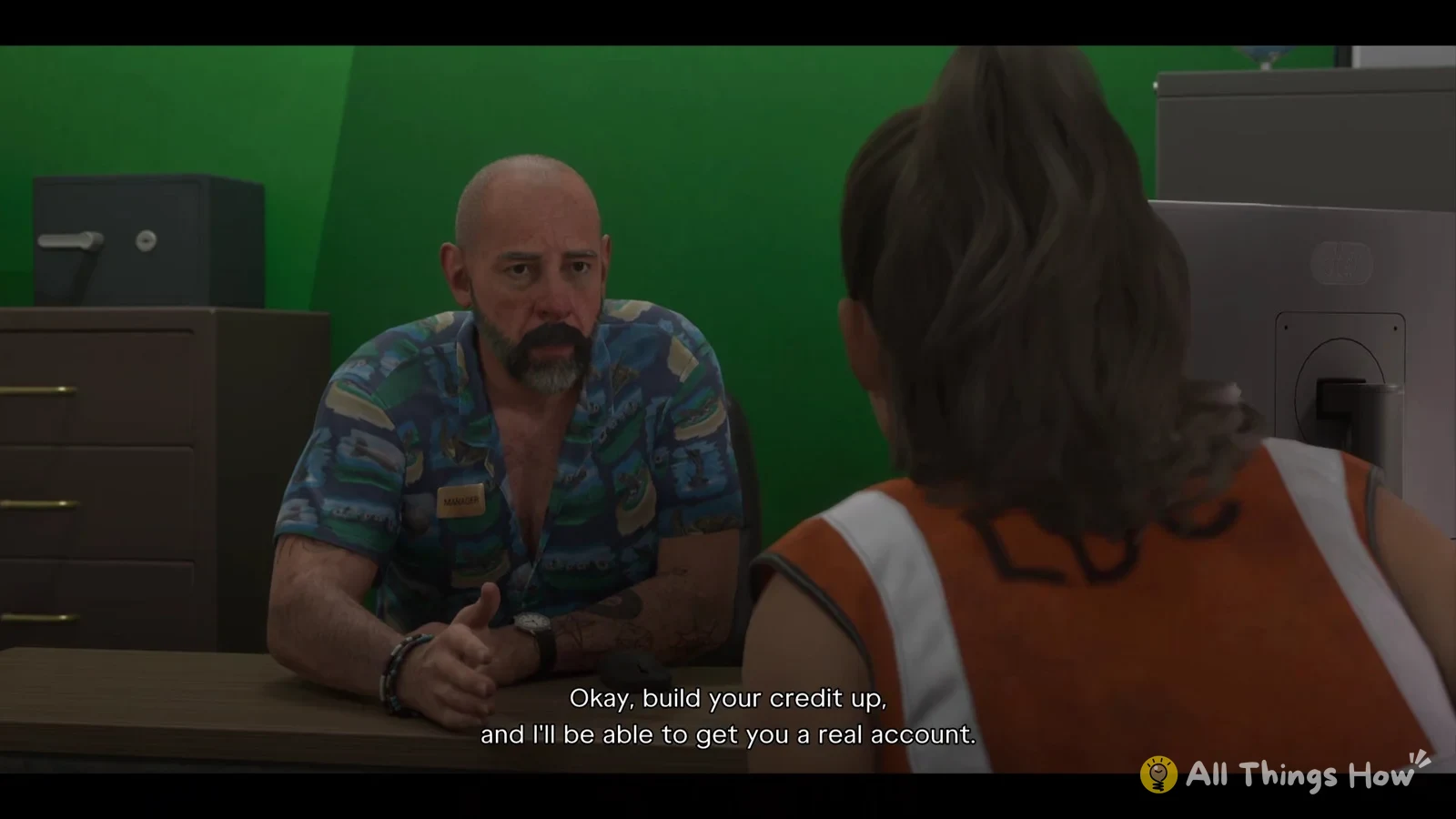
BuckMe shows up in Grand Theft Auto VI during the story mission Buck Me. The Fleeca bank manager tells you, “The best thing I can do is set you up with some BuckMe accounts.” and “Okay, build your credit up, and I’ll be able to get you a real account.” A “BuckMe Installed” notice pops up right after. From then on, the app on your phone has a checking account and a Family Savings account, and the Buck Yourself button moves money from the first into the second.
Quick answer: Bring up your phone with d-pad up and go into BuckMe. Pick Checking Account, then Buck Yourself; enter the amount and hit Confirm. It goes to Family Savings, and you can’t take it back out after the transfer.
How to move money into Family Savings in GTA 6
These steps use the Default controls on PS5.
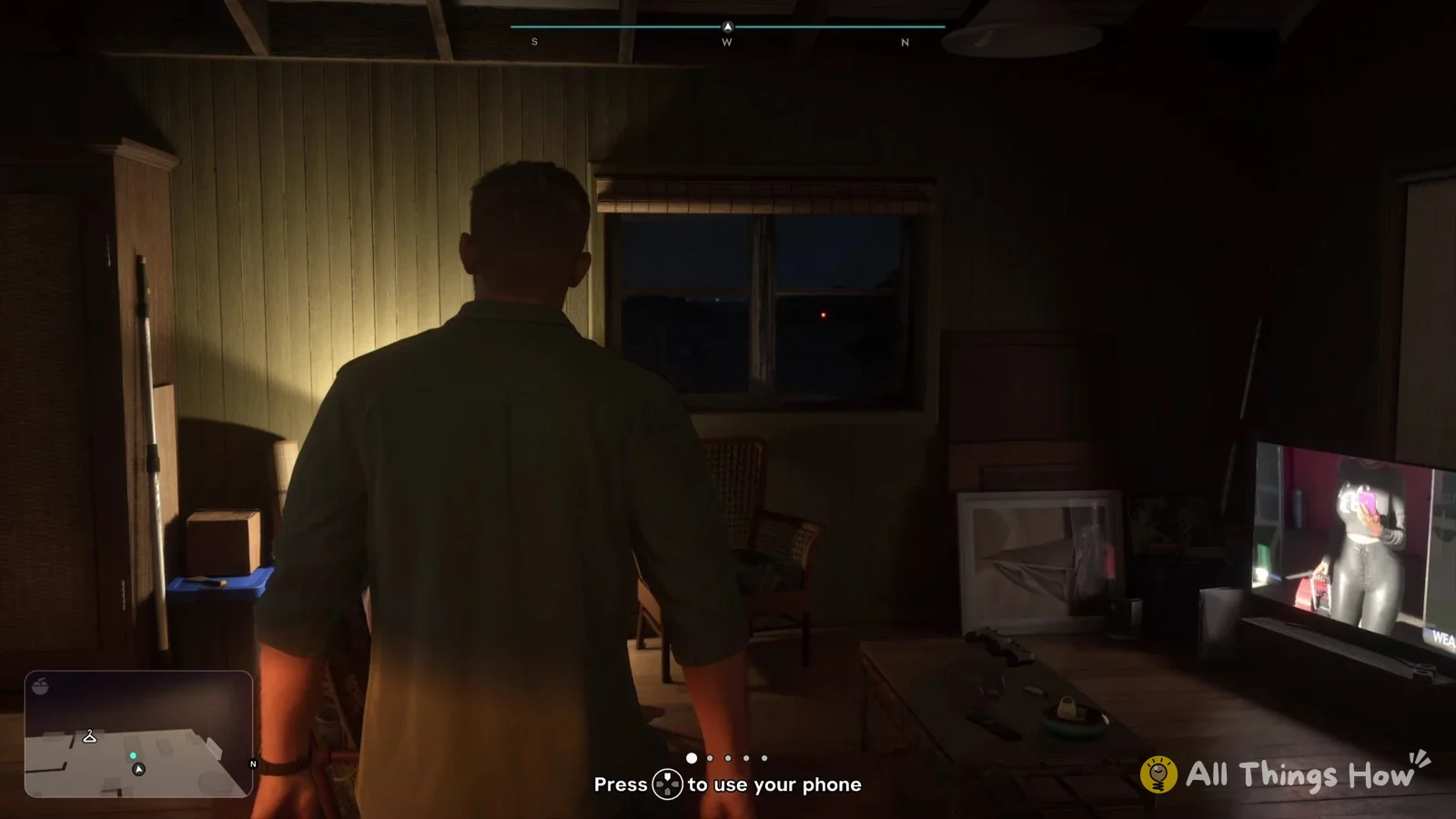
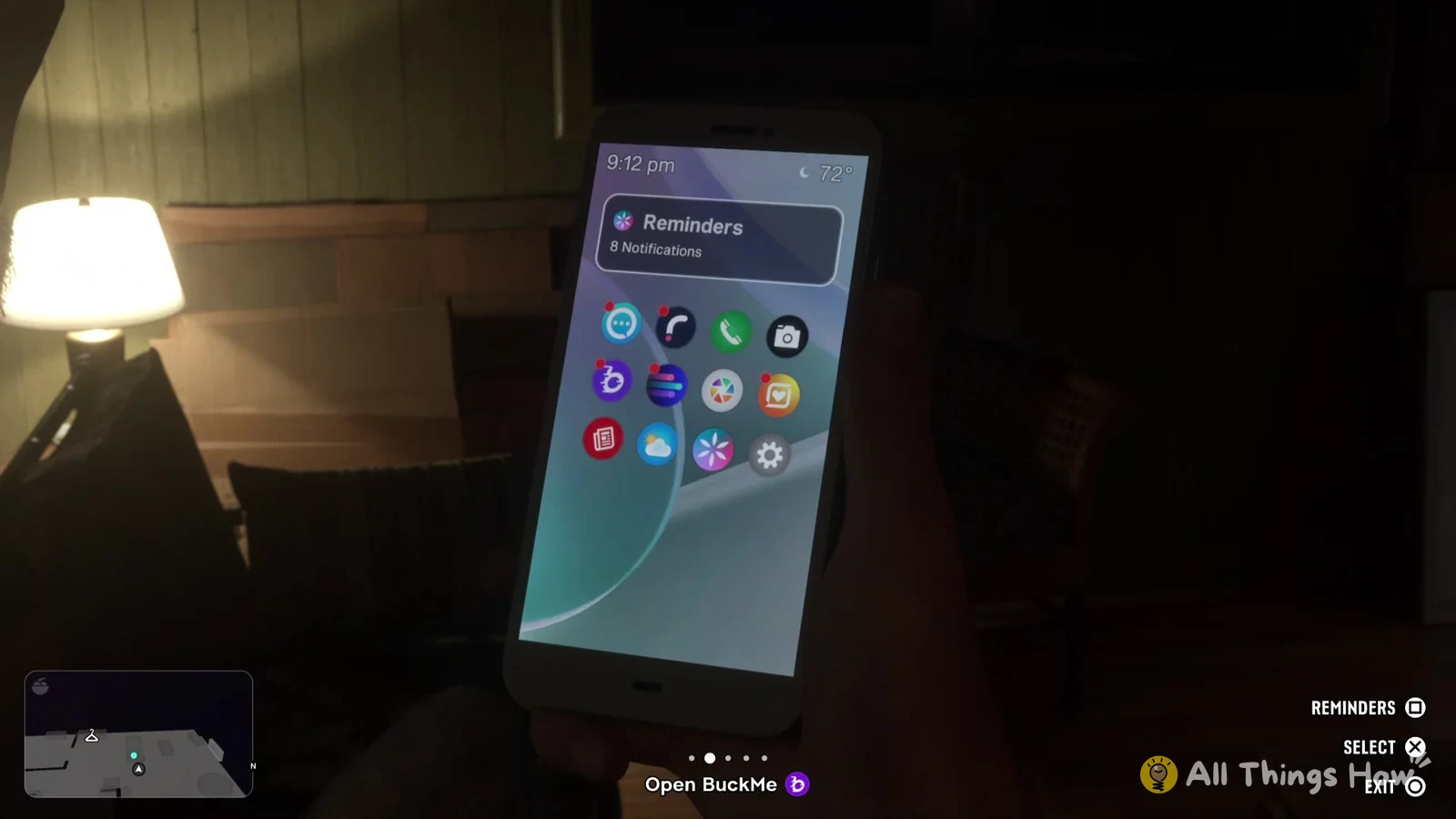
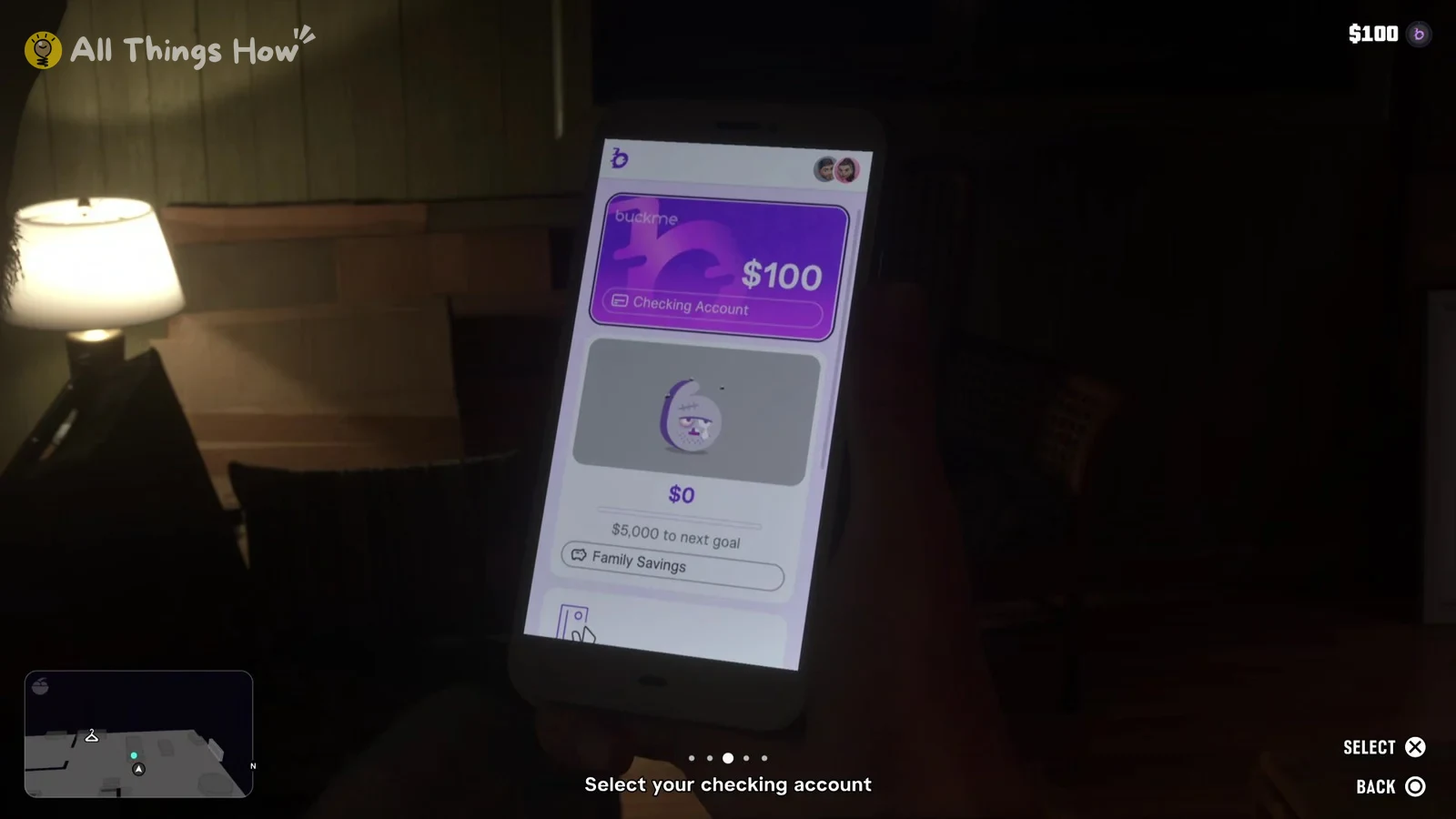
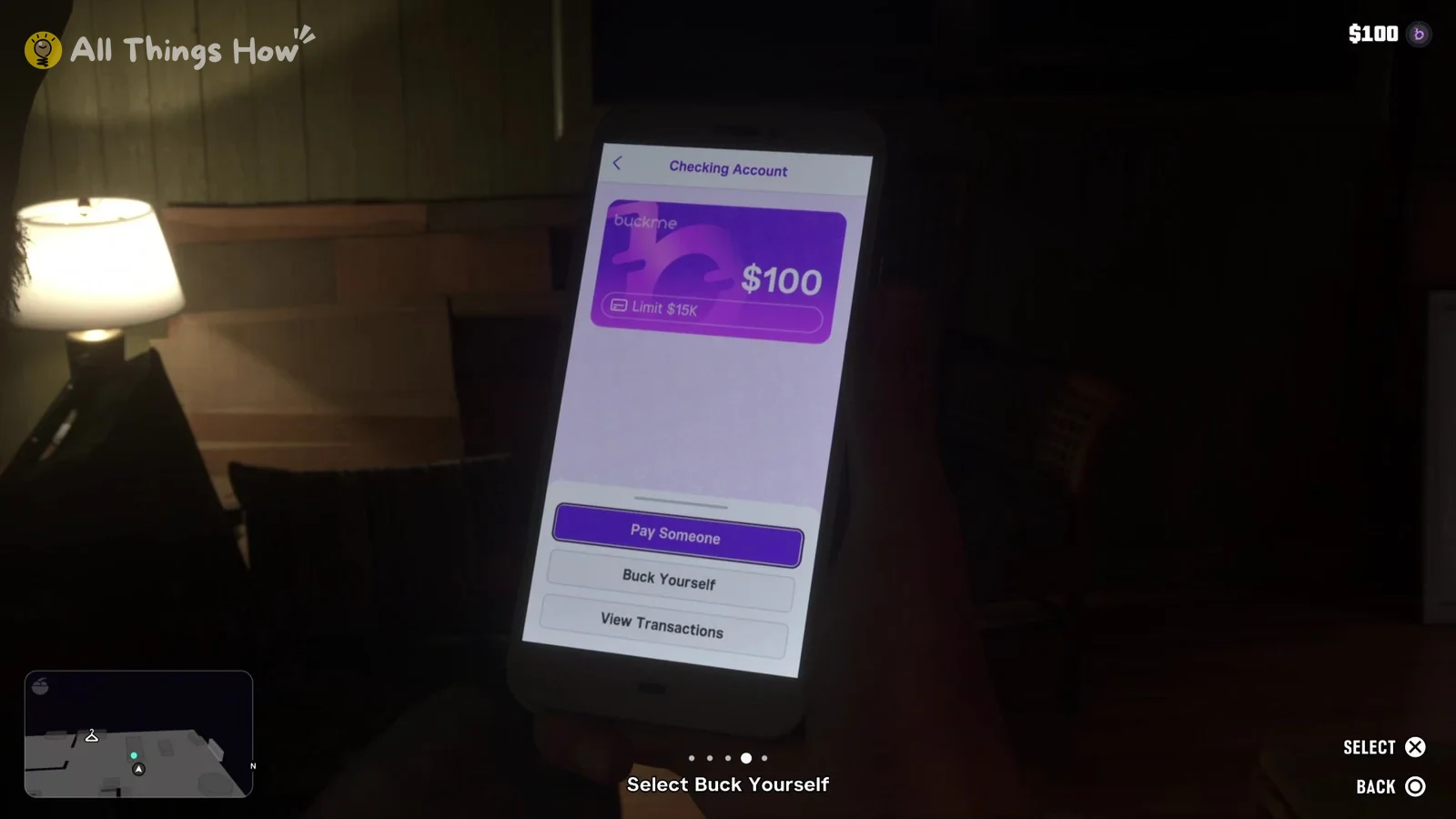
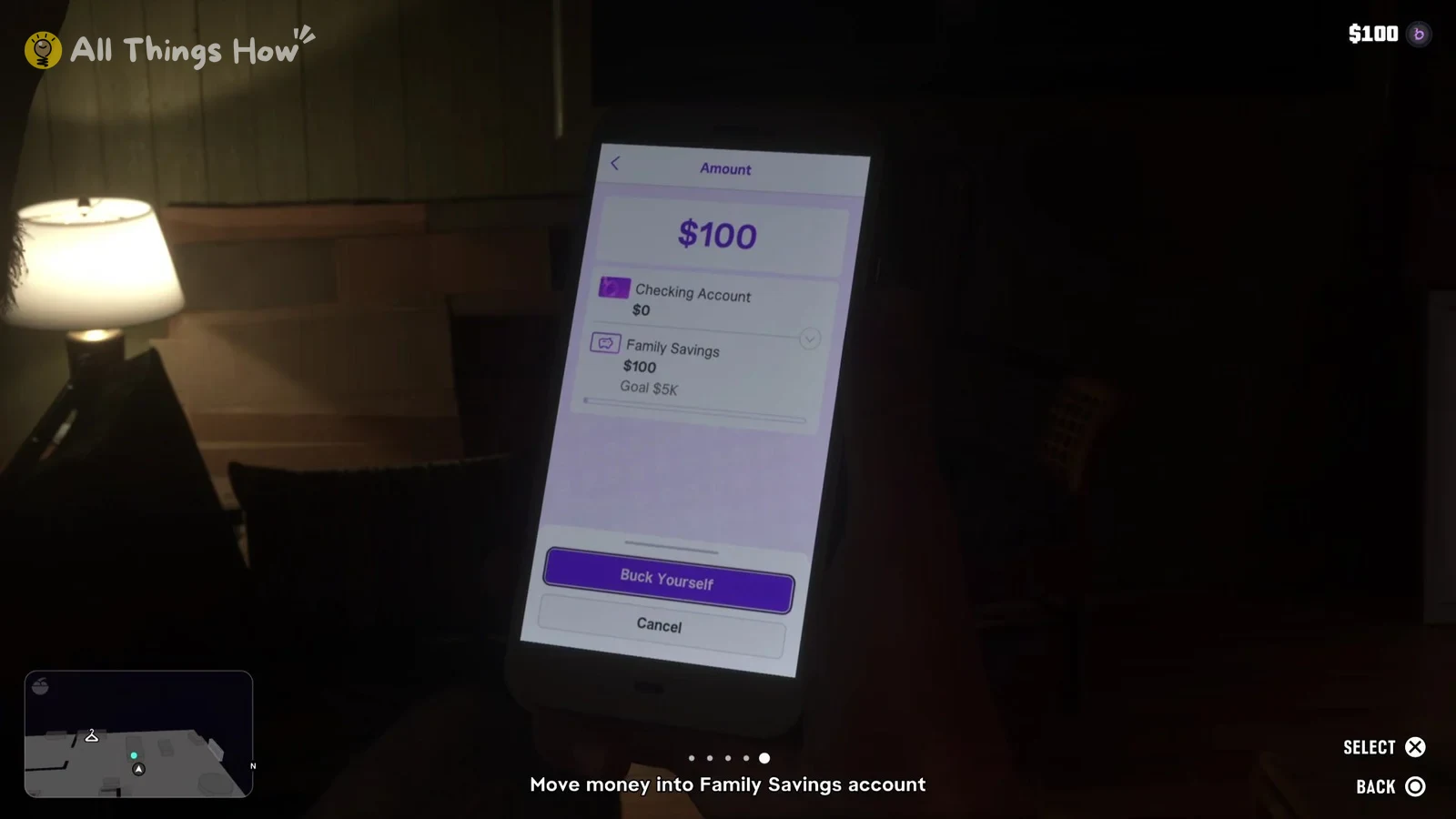
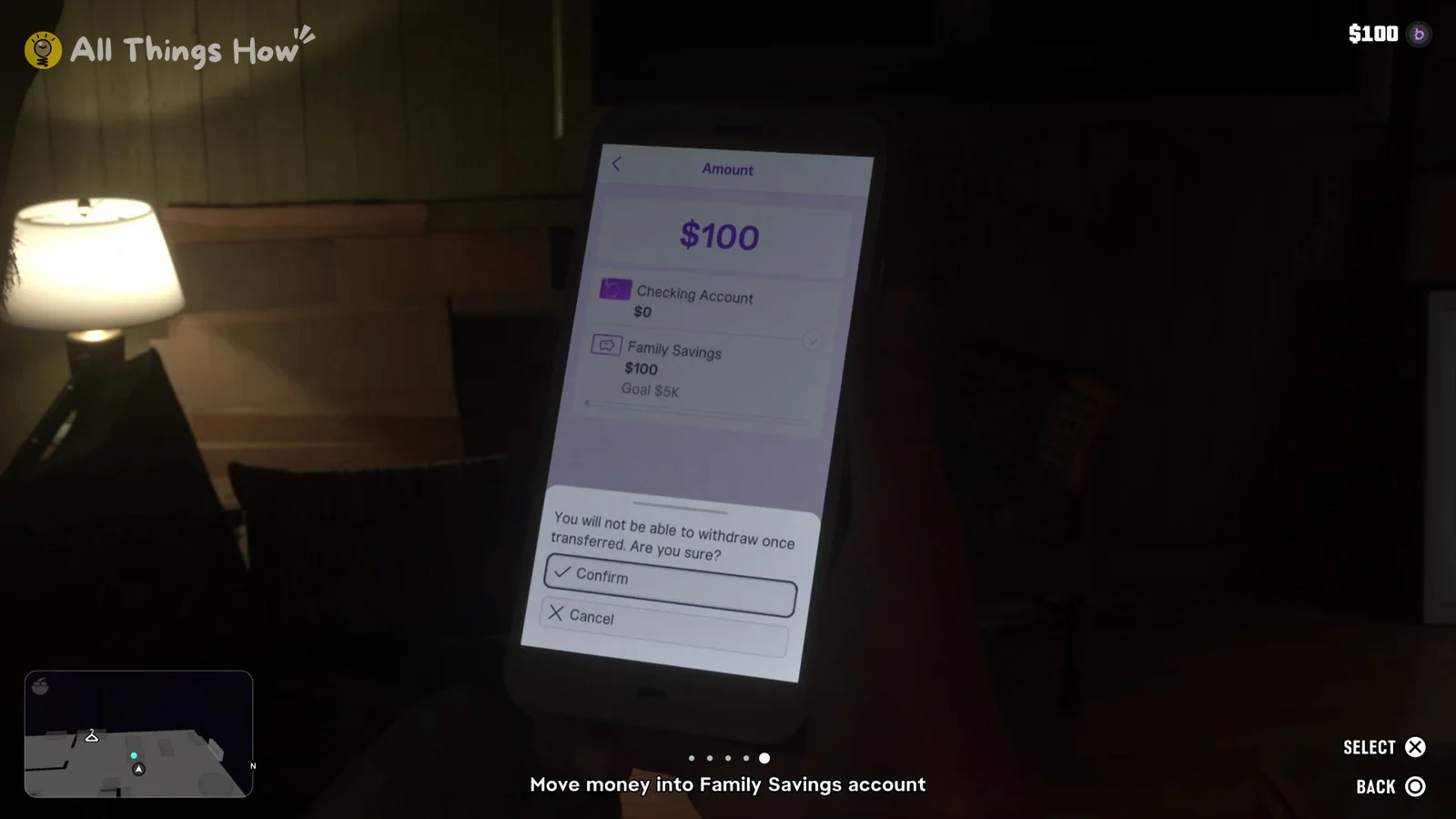
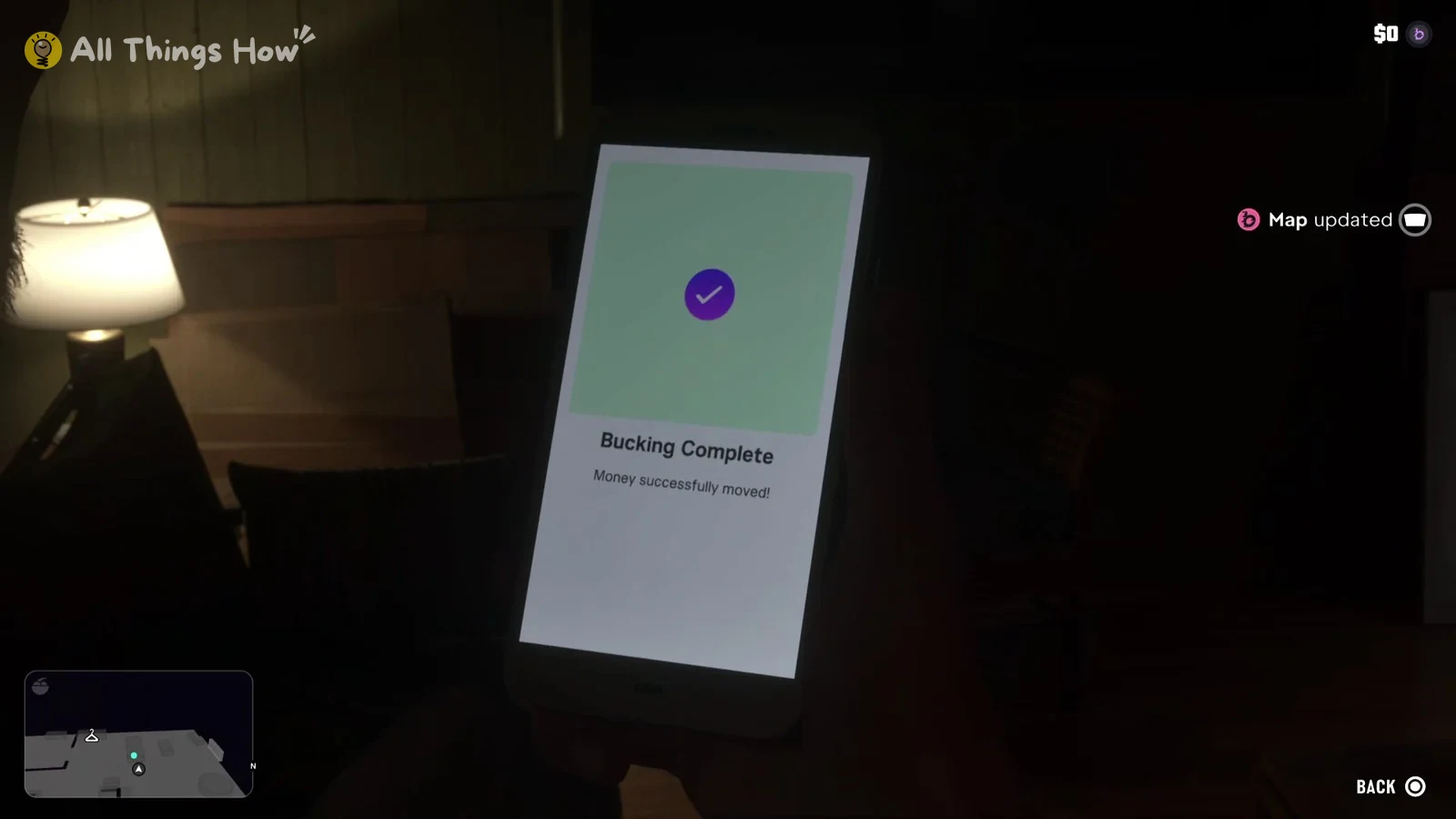
Money you move into Family Savings can’t be taken back out. Only move cash you’re sure you won’t need from your checking account.
What the BuckMe app shows
The home screen has two cards. “Checking Account” shows your current balance, and “Family Savings” shows its own balance plus how far you are from the next goal. Tap into the checking account and you’ll see the balance again with a “Limit $15K” line under it. If you want to go past that cap, here’s how to raise the BuckMe limit.
The Checking Account screen has three buttons:
- “Pay Someone”
- “Buck Yourself”, which moves money into Family Savings
- “View Transactions”
Save for the Future: The $5,000 Family Savings goal
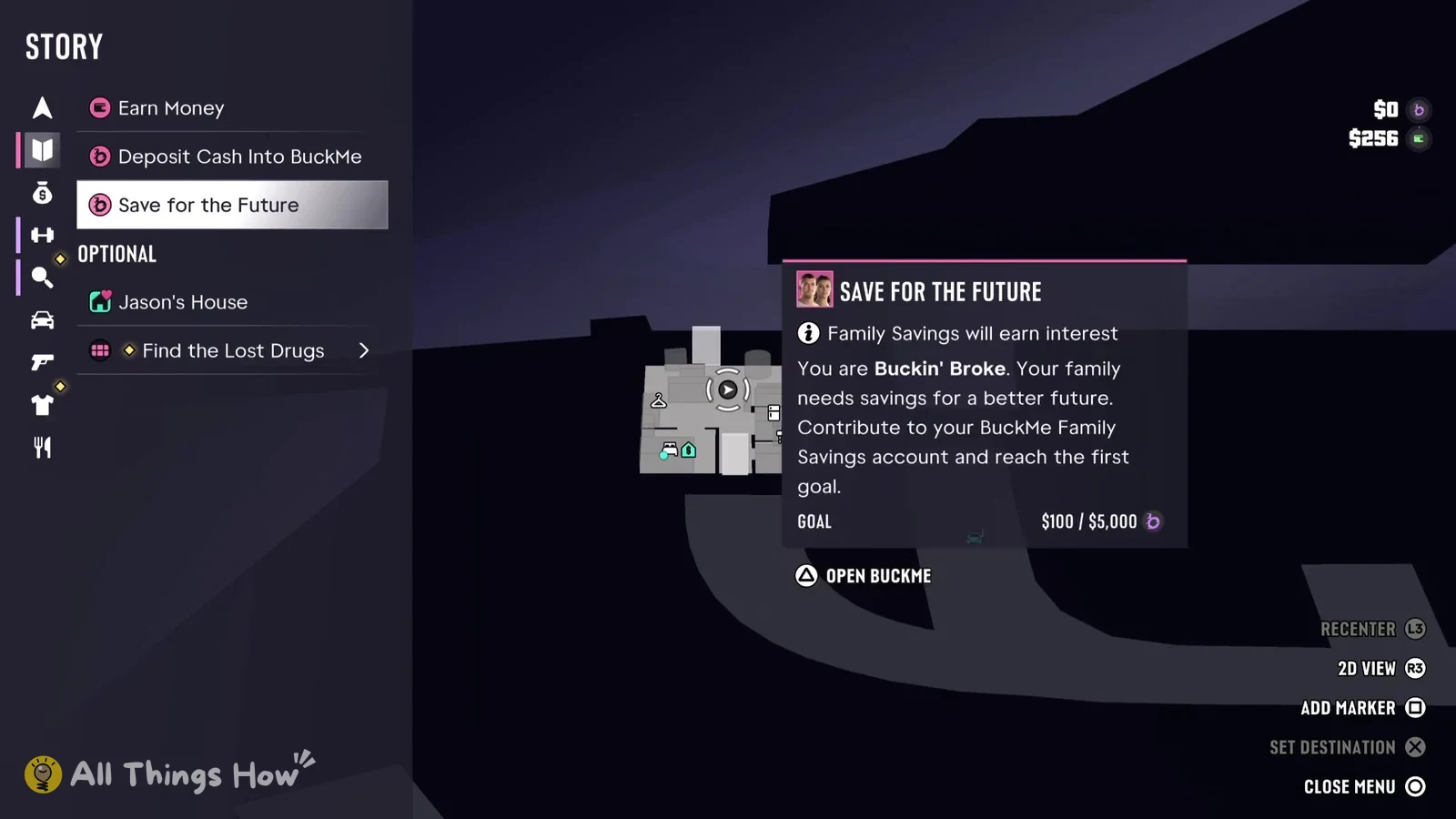
Family Savings is tied to a Story list card on the map called “SAVE FOR THE FUTURE”. The card reads “Family Savings will earn interest. You are Buckin’ Broke. Your family needs savings for a better future. Contribute to your BuckMe Family Savings account and reach the first goal.”
The card tracks your progress toward $5,000. After a $100 move, it shows “GOAL $100 / $5,000”. It also has an “OPEN BUCKME” option on Triangle, so you can jump straight into the app from the map instead of pulling out your phone first.
How to get cash into BuckMe
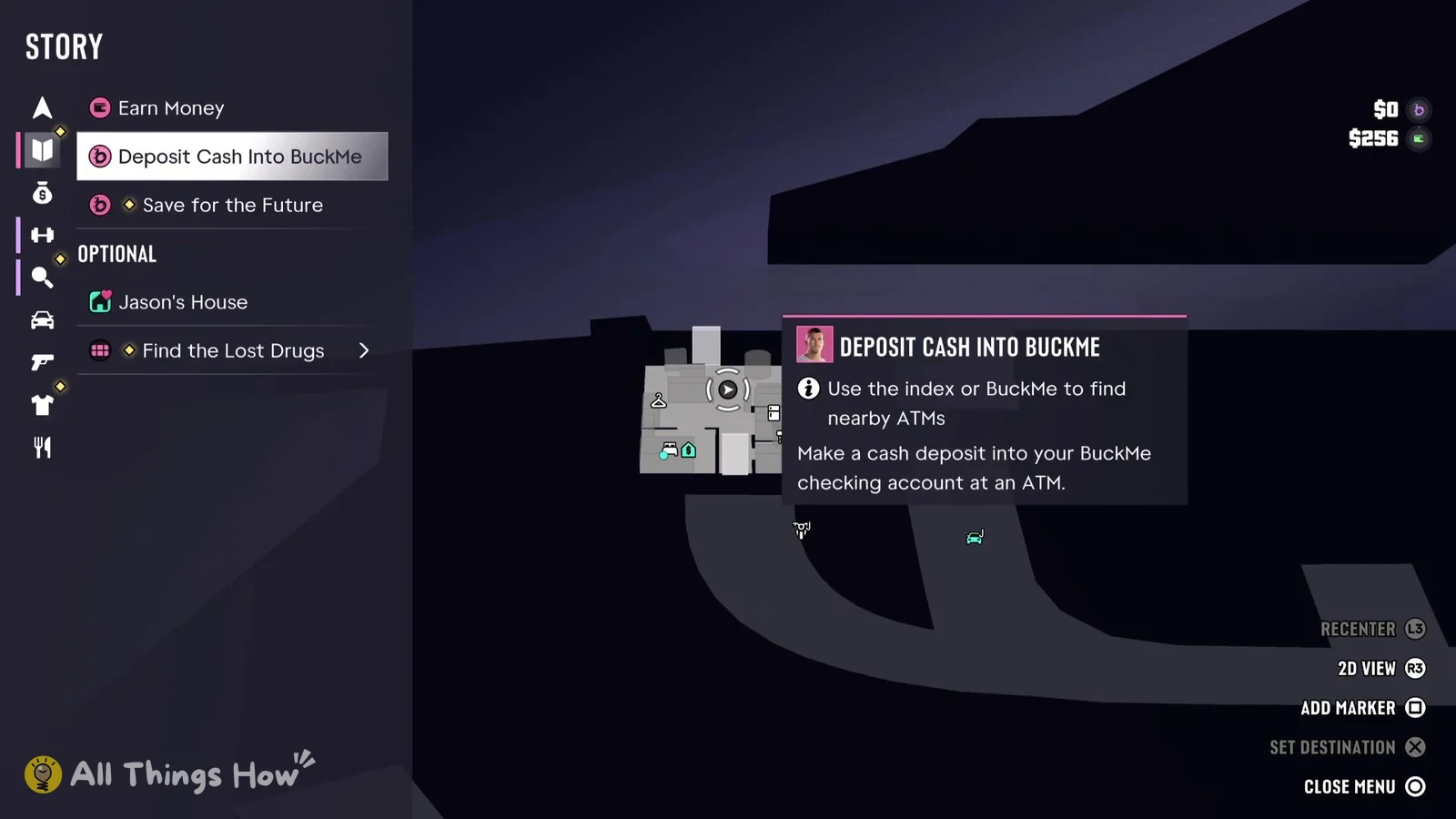
A second Story card, “DEPOSIT CASH INTO BUCKME”, says “Use the index or BuckMe to find nearby ATMs. Make a cash deposit into your BuckMe checking account at an ATM.” A help box adds “You can now deposit cash into BuckMe at an ATM instead of using your stash.” To find a machine close to you, check the GTA 6 ATM locations.
The three money amounts on the HUD
Once Buck Me is done, the top right of the screen shows three amounts instead of one, each with its own icon:
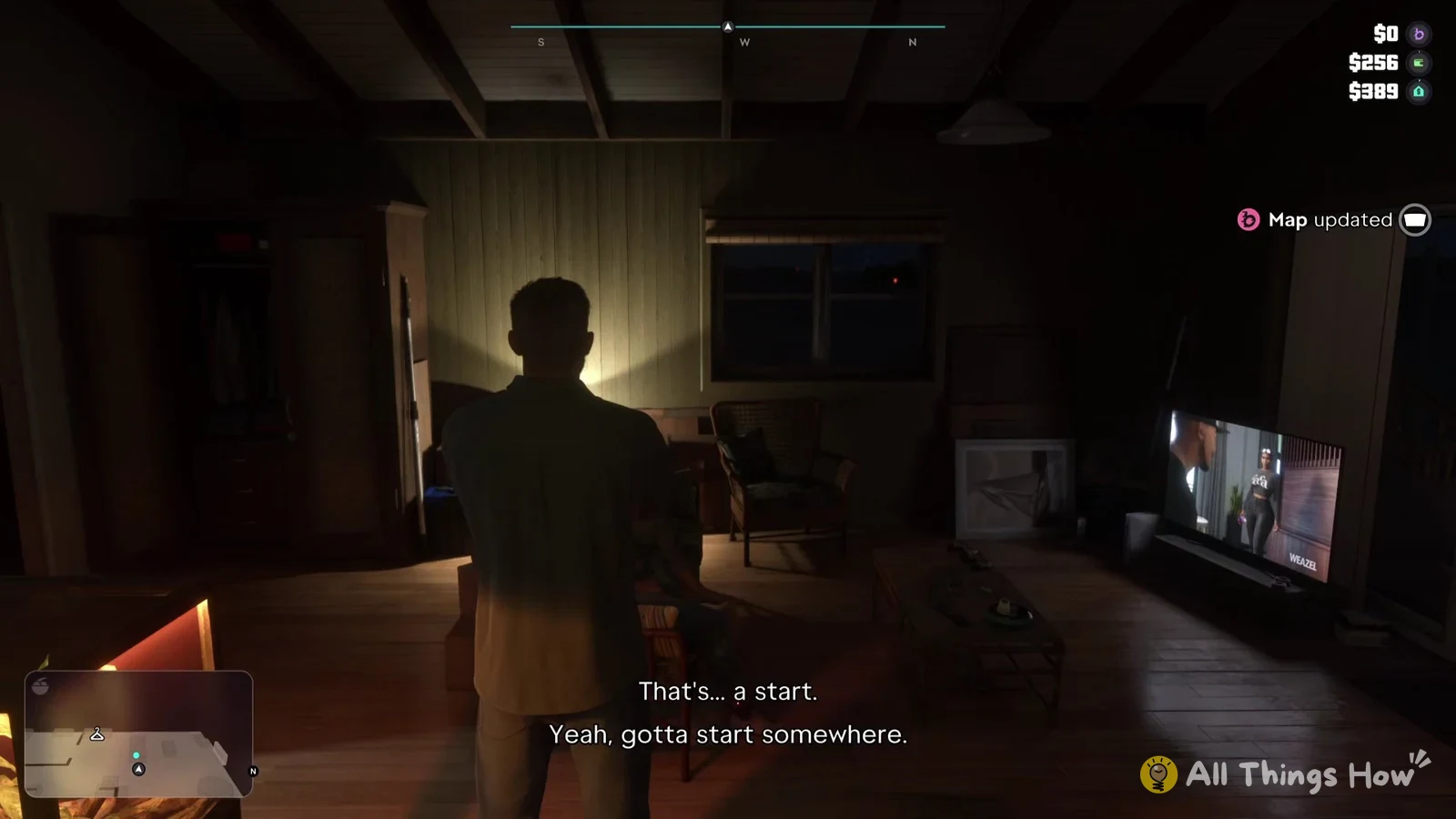
| Icon | What it counts | Example |
|---|---|---|
| “b” | BuckMe | $0 |
| Wallet | Cash you carry | $256 |
| House | House stash | $389 |
The wallet number is the cash on you, which is the money you’d take to an ATM to deposit. For how much you can hold at once, see the GTA 6 cash limit.