
Grand Theft Auto VI doesn’t let you play in first person from its menus. You can still get a first-person view by changing one controller setting and pressing the touch pad at the right moment while you’re sitting in a vehicle.
Quick answer: Save manually first. In Settings, set Touch Pad Button to Camera, take the driver’s seat in a vehicle, bring up your phone, close it, then hit the touch pad right away.
Is there a first-person mode in GTA 6?
No. There’s no first-person mode to turn on, and none of the camera settings offers a first-person view. When you see players walking around in first person, they’re using a glitch.
How to get first person in GTA 6 with the touch pad glitch
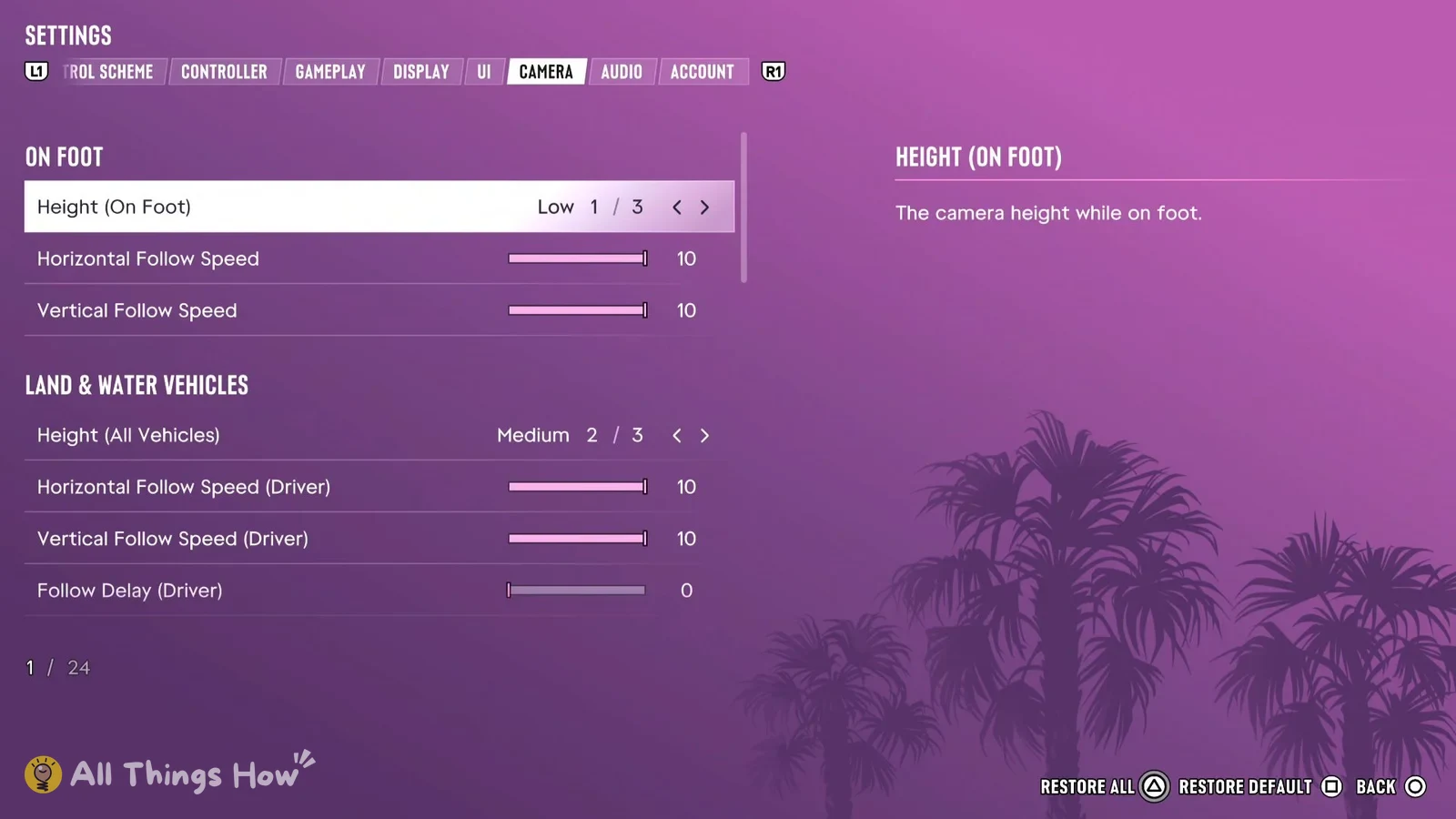
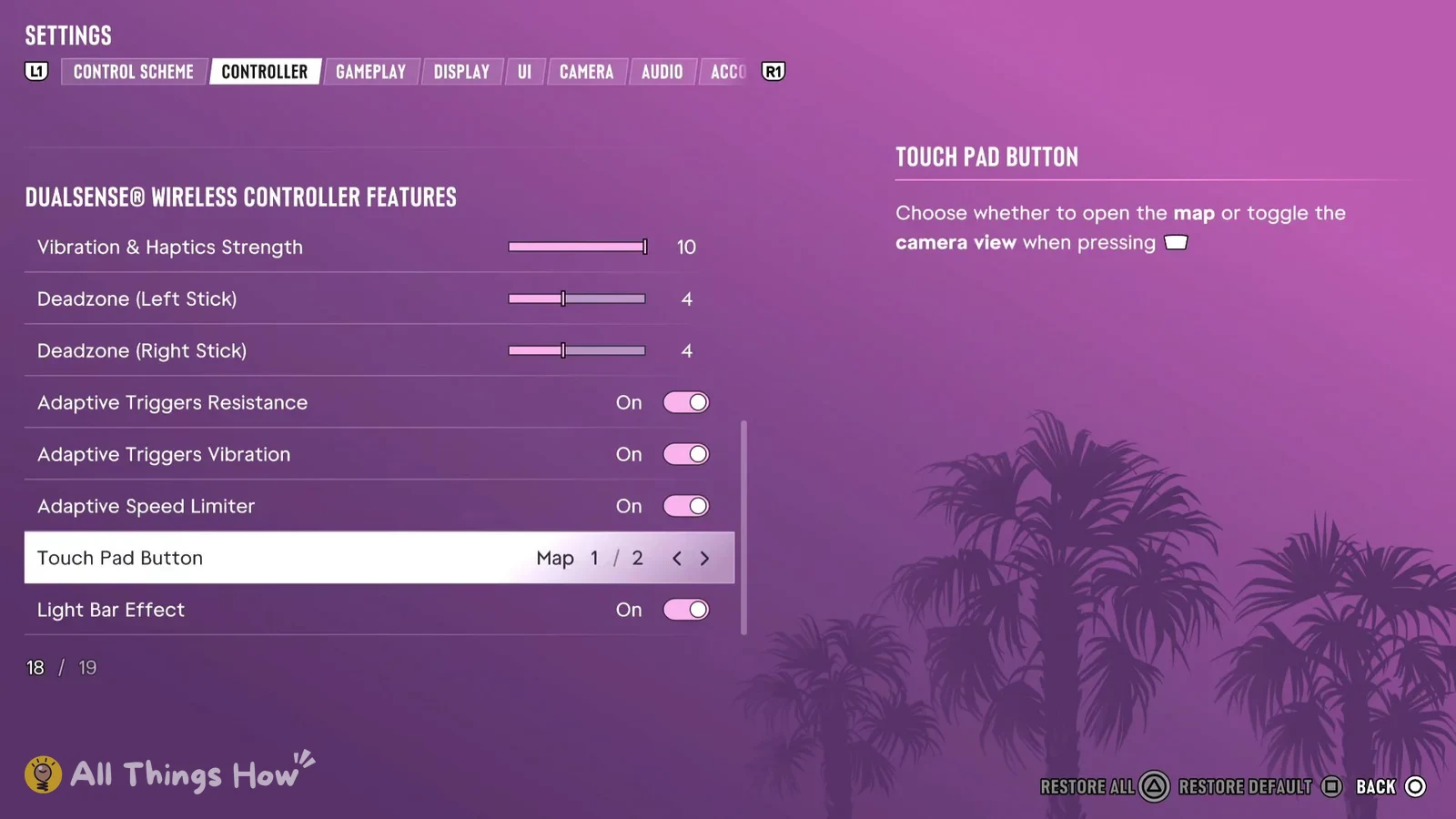
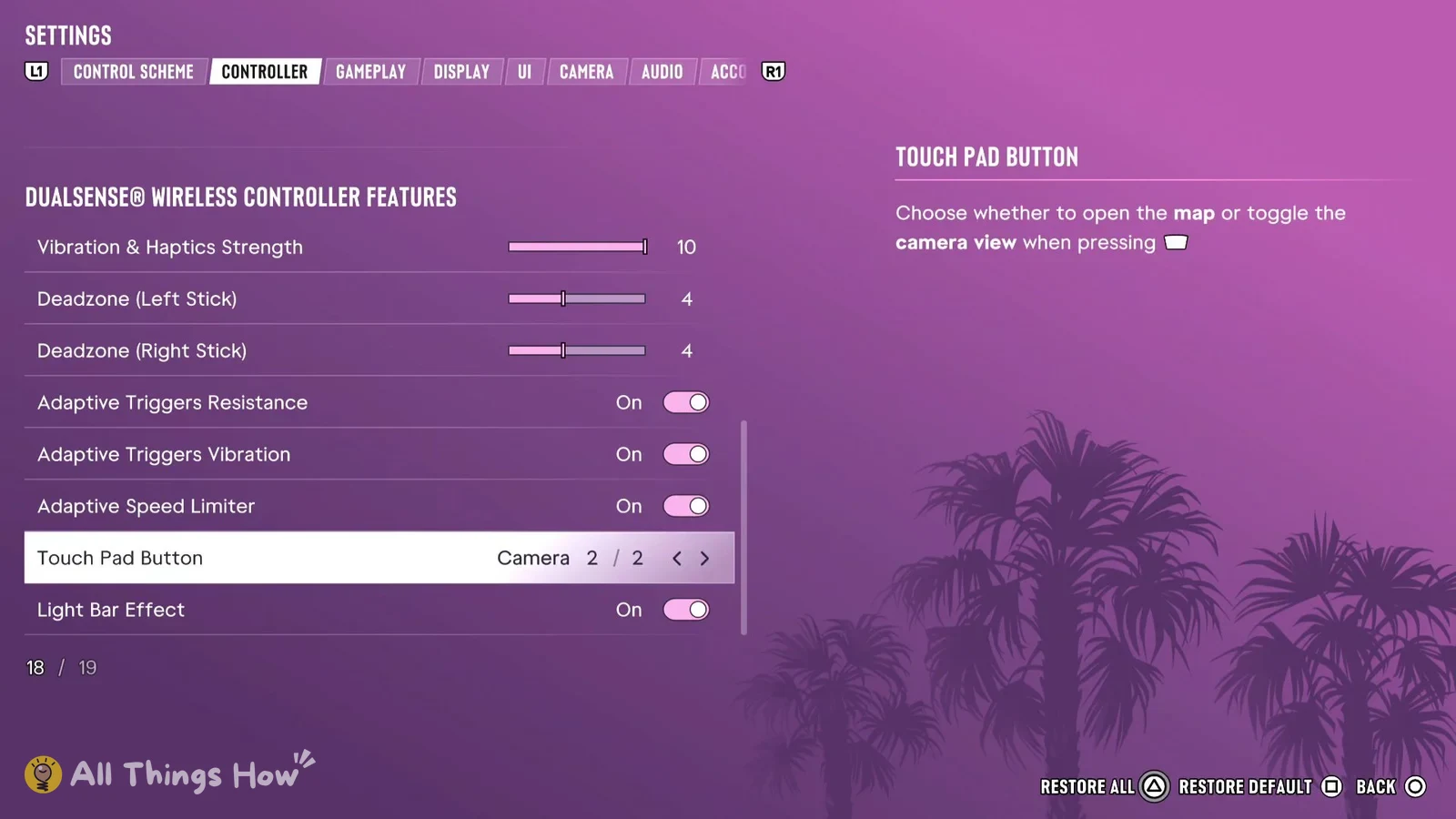
The glitch depends on what the touch pad does. In Settings, under the CONTROLLER tab, the second-to-last row is Touch Pad Button (row 18 of 19). Its description reads “Choose whether to open the map or toggle the camera view when pressing” the touch pad. There are two choices. “Map” (1 / 2) is the default, and “Camera” (2 / 2) is the one you need. With Camera picked, the Control Scheme preview labels the touch pad “CAMERA DISTANCE”. In normal play, pressing it moves the third-person camera through its distances. If you just want that, you can change the camera view with the touch pad without doing the glitch.
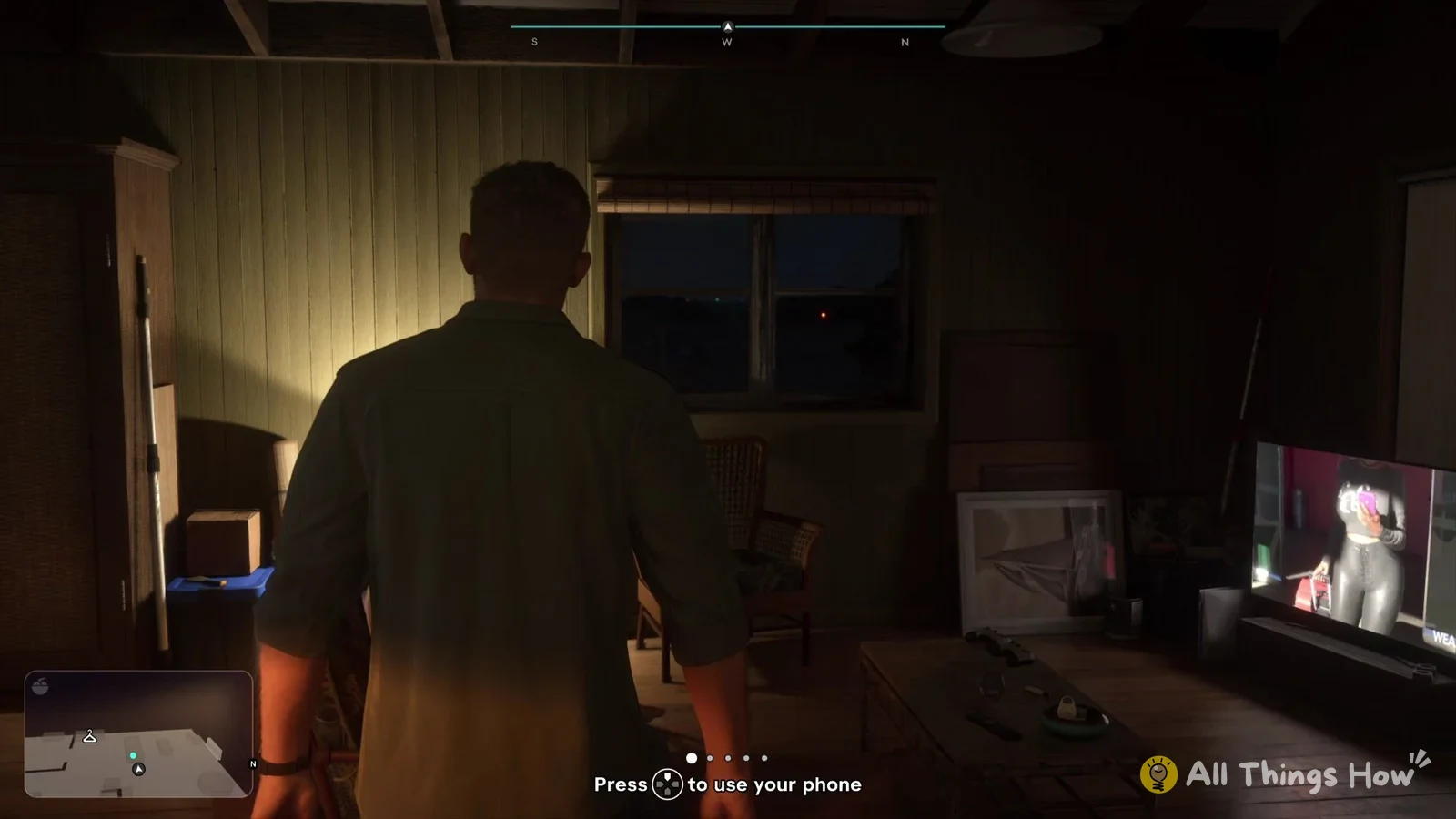
The game wasn’t built to be played this way, so expect clipping and animations that look wrong from up close.
Other first-person settings in GTA 6
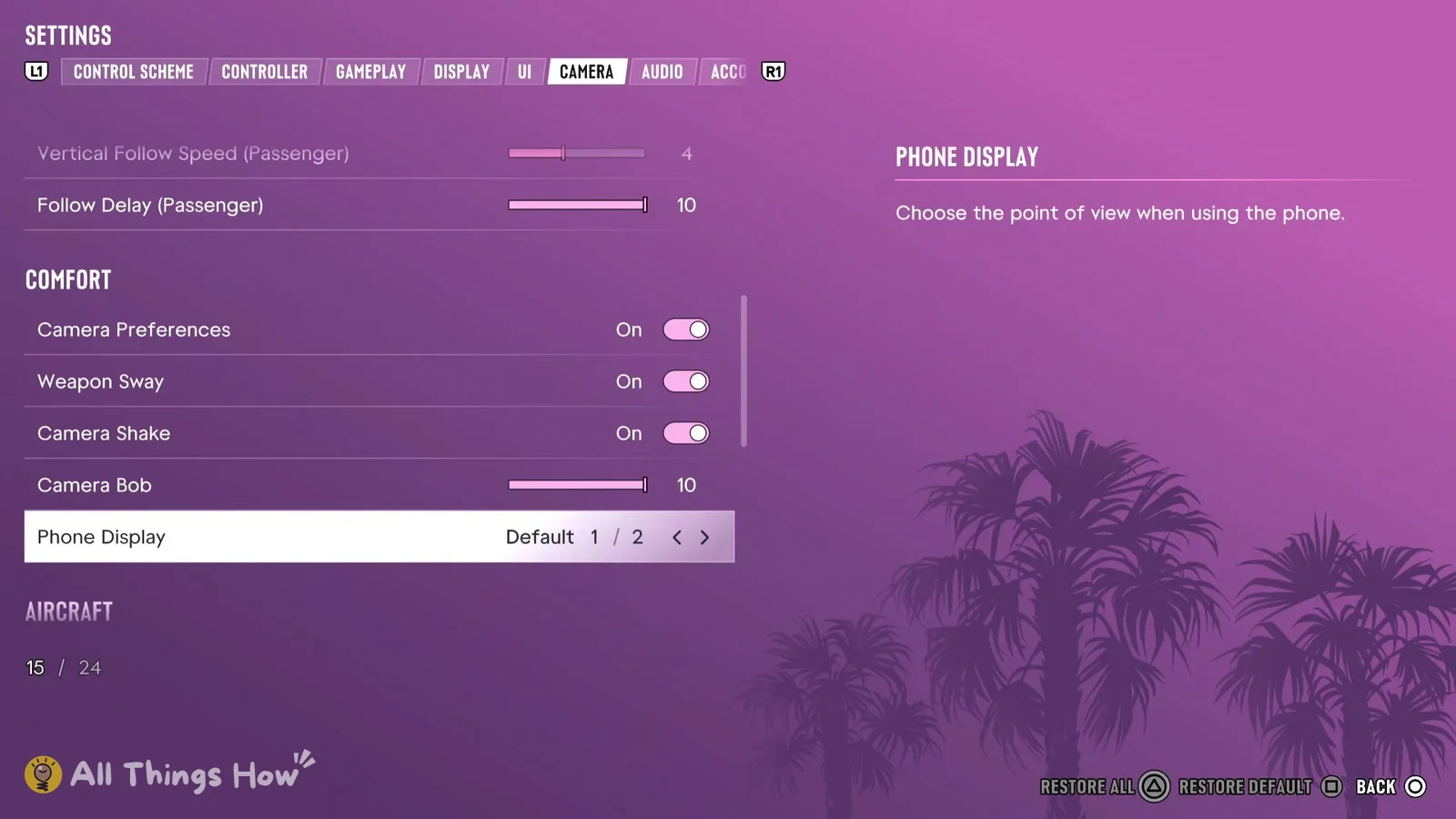
- On the CAMERA tab in Settings, go to the COMFORT group and look for Phone Display. The current choice is Default (1 / 2). Its description says “Choose the point of view when using the phone.”
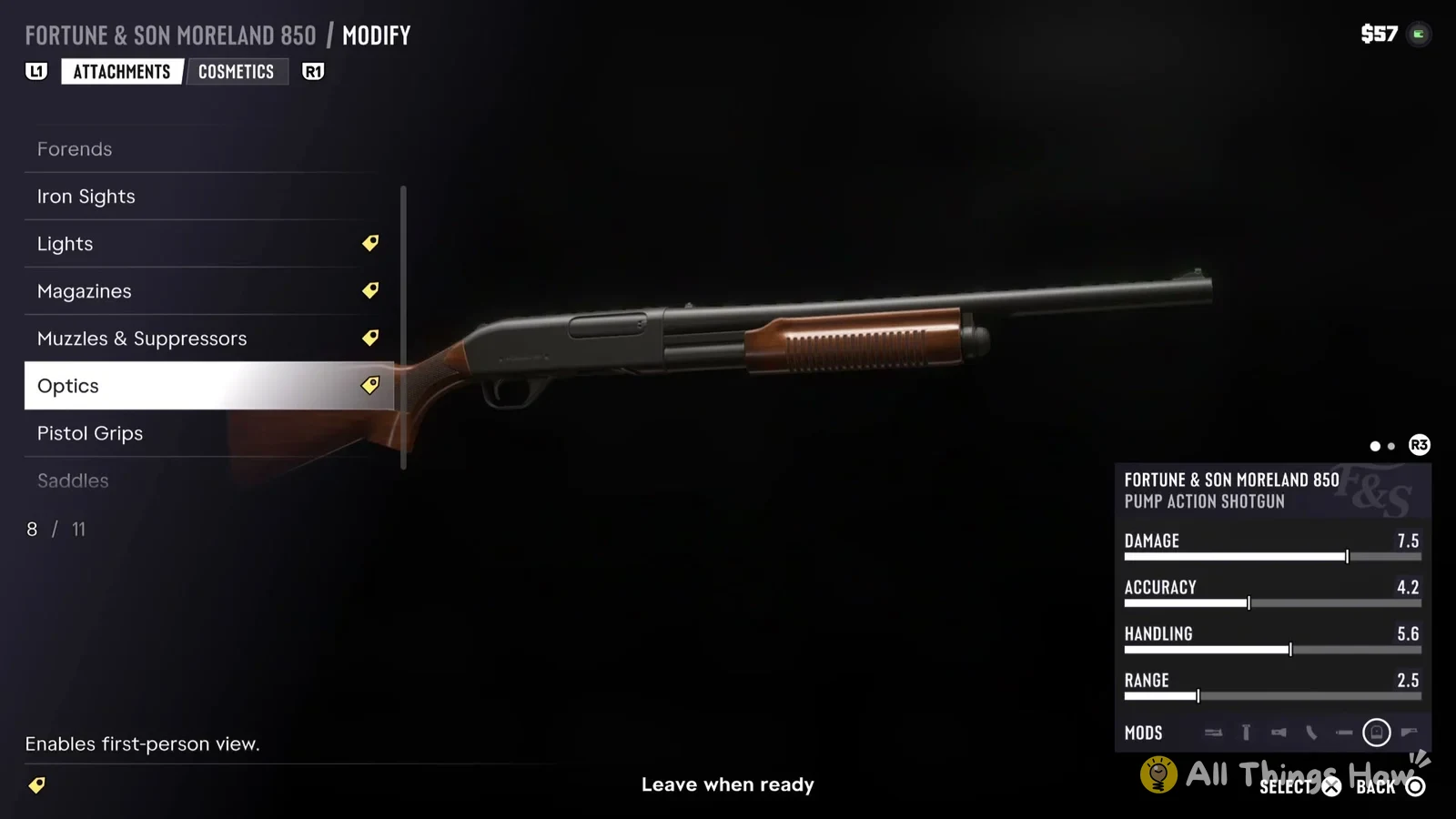
- Optics: In Ammu-Nation’s Modify menu, the description for the Optics attachment type reads “Enables first-person view.” Putting an optic on a weapon gives you the game’s own first-person view for aiming.
For the full set of options at Ammu-Nation, see GTA 6 weapon attachments.