

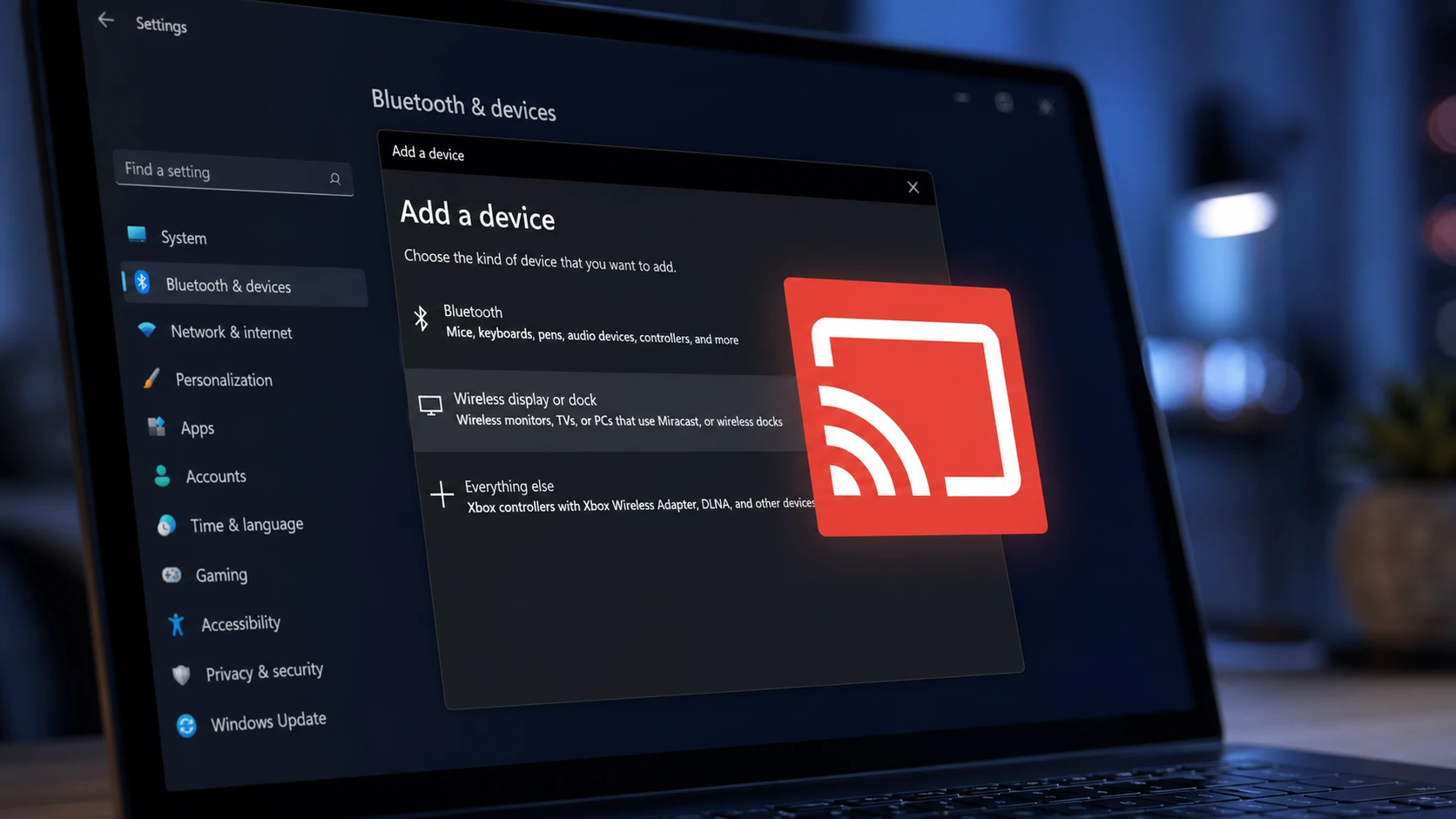
A wireless screen that connects and then drops a few minutes later is one of the most common Miracast complaints on Windows 11 and Windows 10. The link runs over Wi-Fi Direct, so anything that interrupts the wireless adapter, from a power-saving setting to an outdated driver, can knock the cast offline without warning.
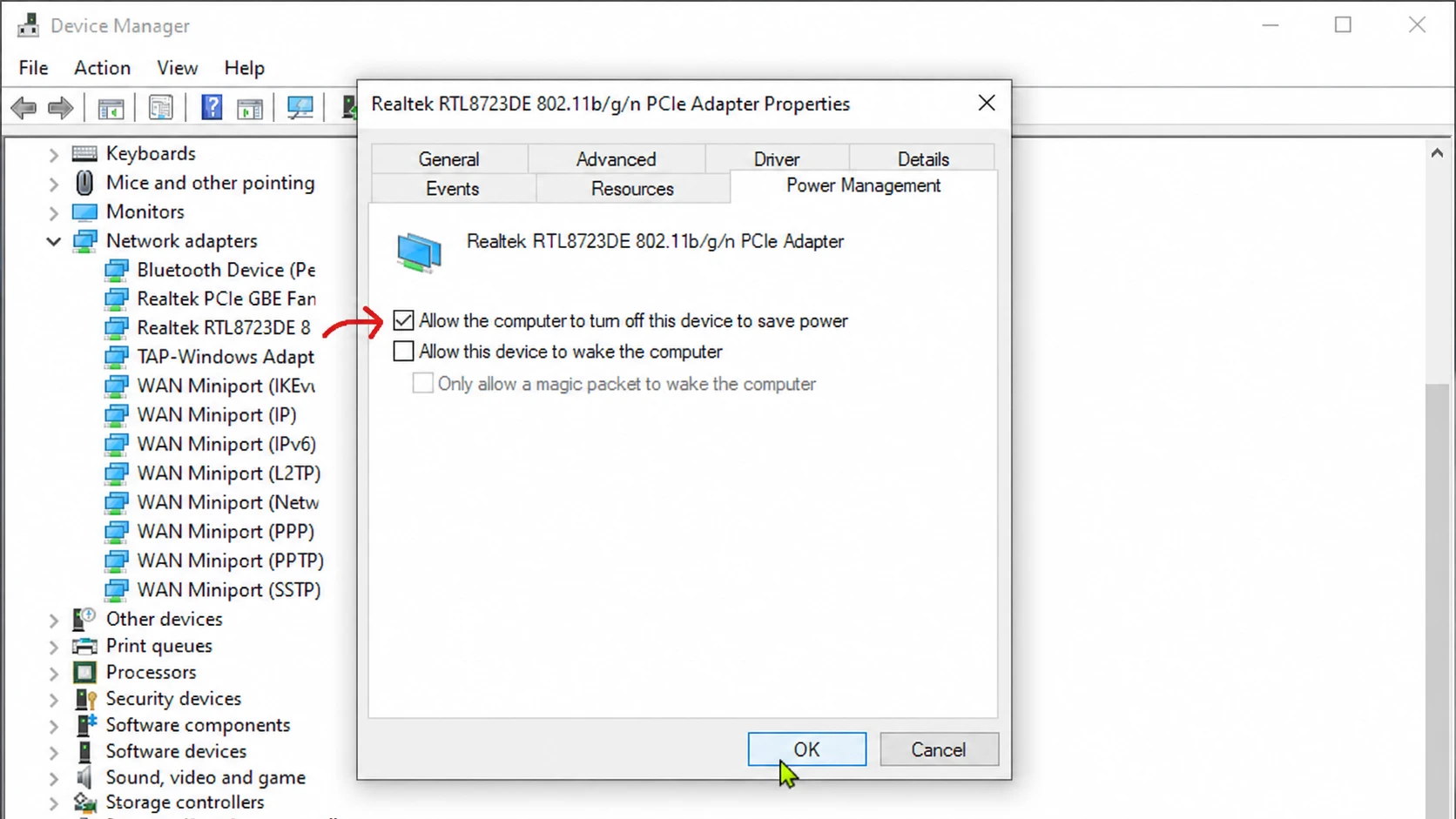
Quick answer: Open Device Manager, go to your network adapter’s Power Management tab, and uncheck Allow the computer to turn off this device to save power. Then update your graphics and Wi-Fi drivers. These two changes resolve most random Miracast disconnects.
Quick checks before changing settings
Run through the basics first. Each of these can stabilize the connection on its own, so try a cast after every change.
- Restart the PC, then power your wireless display off and back on.
- Remove and reconnect the display. Go to Start > Settings > Devices > Bluetooth & other devices, select the wireless display or adapter under Wireless displays & docks, choose Remove device > Yes, then pair again.
- Keep the PC and display within 15.2 meters of each other and clear any obstacles between them. A wireless booster helps over longer distances.
- Turn off Power Saving mode on the TV or display, since it can shut down features mid-cast.
- Update the TV or display firmware from its own menu using the manufacturer’s instructions.
- Install pending Windows updates. If the drops started right after a recent update, a System Restore or rolling back that update is a last resort.
- Temporarily disable your antivirus or security software to rule out interference.
Run the Network Troubleshooter
Because Miracast rides on your Wi-Fi network, a general network fault often shows up as a dropped cast. The built-in Network Troubleshooter checks for common wireless problems and applies fixes automatically. Run it, then test the connection again before moving on.
Update your graphics and Wi-Fi drivers
Outdated or corrupt drivers are the most frequent cause of Miracast drops. The wireless display stack leans on both the graphics driver and the Wi-Fi adapter driver, so update both. A bad driver from a Windows update has been known to break Miracast, so a clean current driver is often the cure.
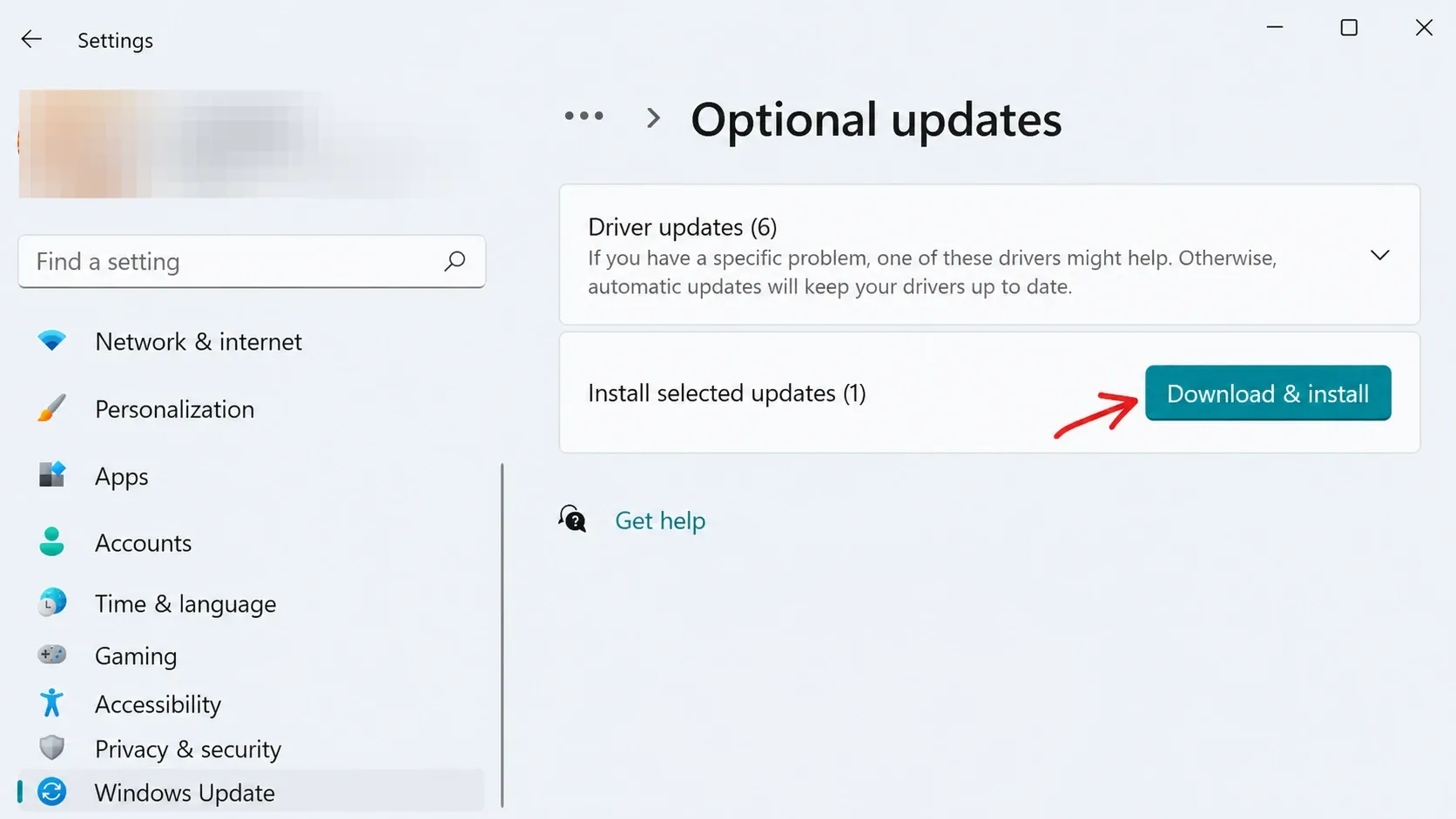
.inf or .sys file, install it manually through Device Manager. Restart the PC afterward and test the cast.Note: If a driver update made things worse, rolling that single driver back to the previous version can restore a stable connection. This is a common real-world fix when a wireless adapter driver regresses.
Turn off network adapter power saving
Windows can put the Wi-Fi adapter into a low-power state to save battery, and that pause is enough to break a live Miracast stream. Disabling this setting keeps the radio fully active during a cast.
Configure Unicast Response in the firewall
Unicast is a one-to-one transmission between a single sender and a single receiver. The Unicast Response setting controls whether your PC accepts unicast replies to its multicast or broadcast messages, which matters during Miracast discovery and pairing.
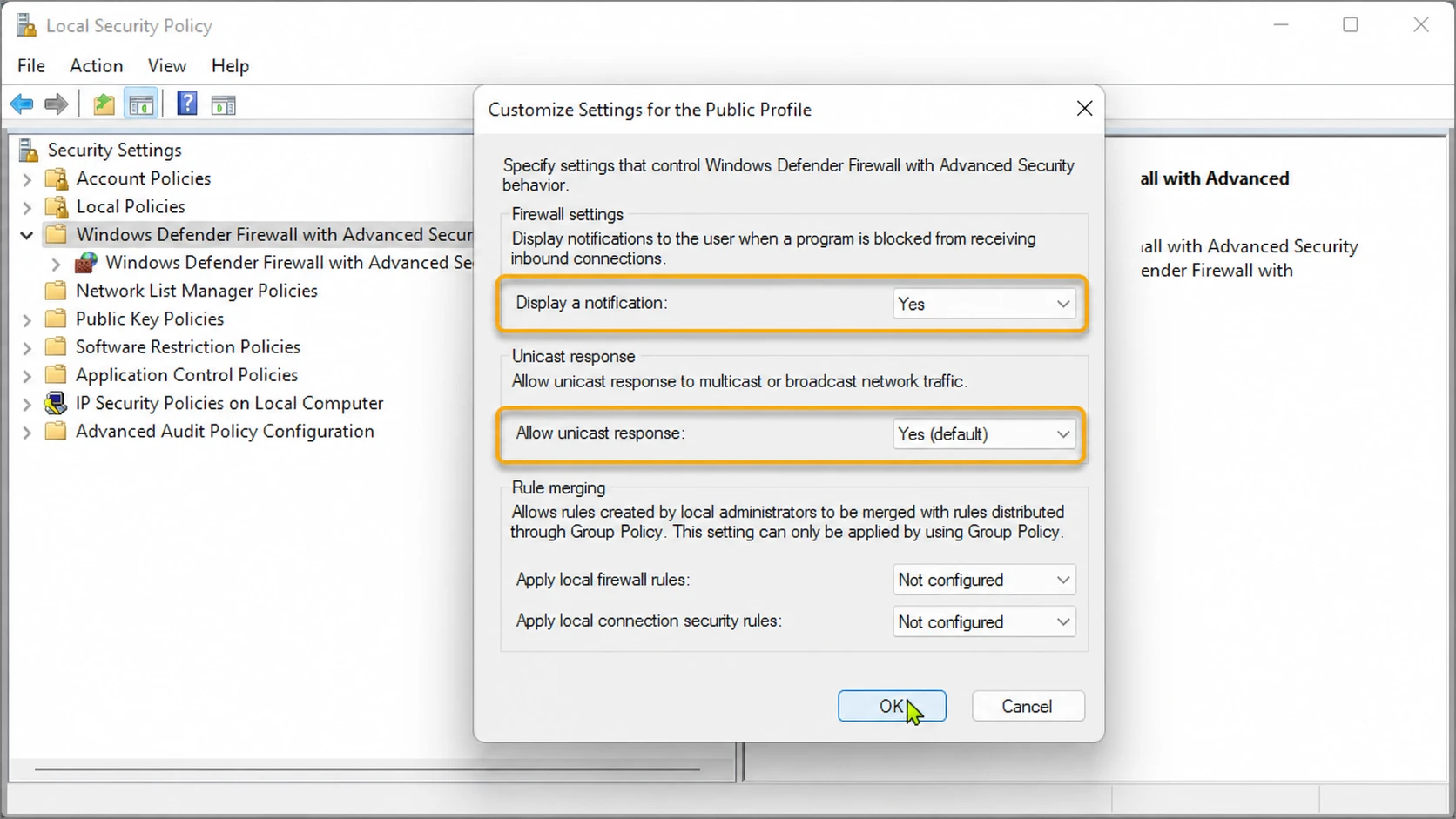
When this option is disabled, Windows Defender Firewall with Advanced Security blocks the unicast responses other computers send back. When it is enabled, the firewall waits up to three seconds for those replies before blocking later ones.
Reset the network adapter
Miracast depends on Wi-Fi Direct and Bluetooth, both of which sit inside the Windows network stack. If a setting deeper in that stack is corrupt, resetting the network adapter clears it and rebuilds the configuration from scratch.
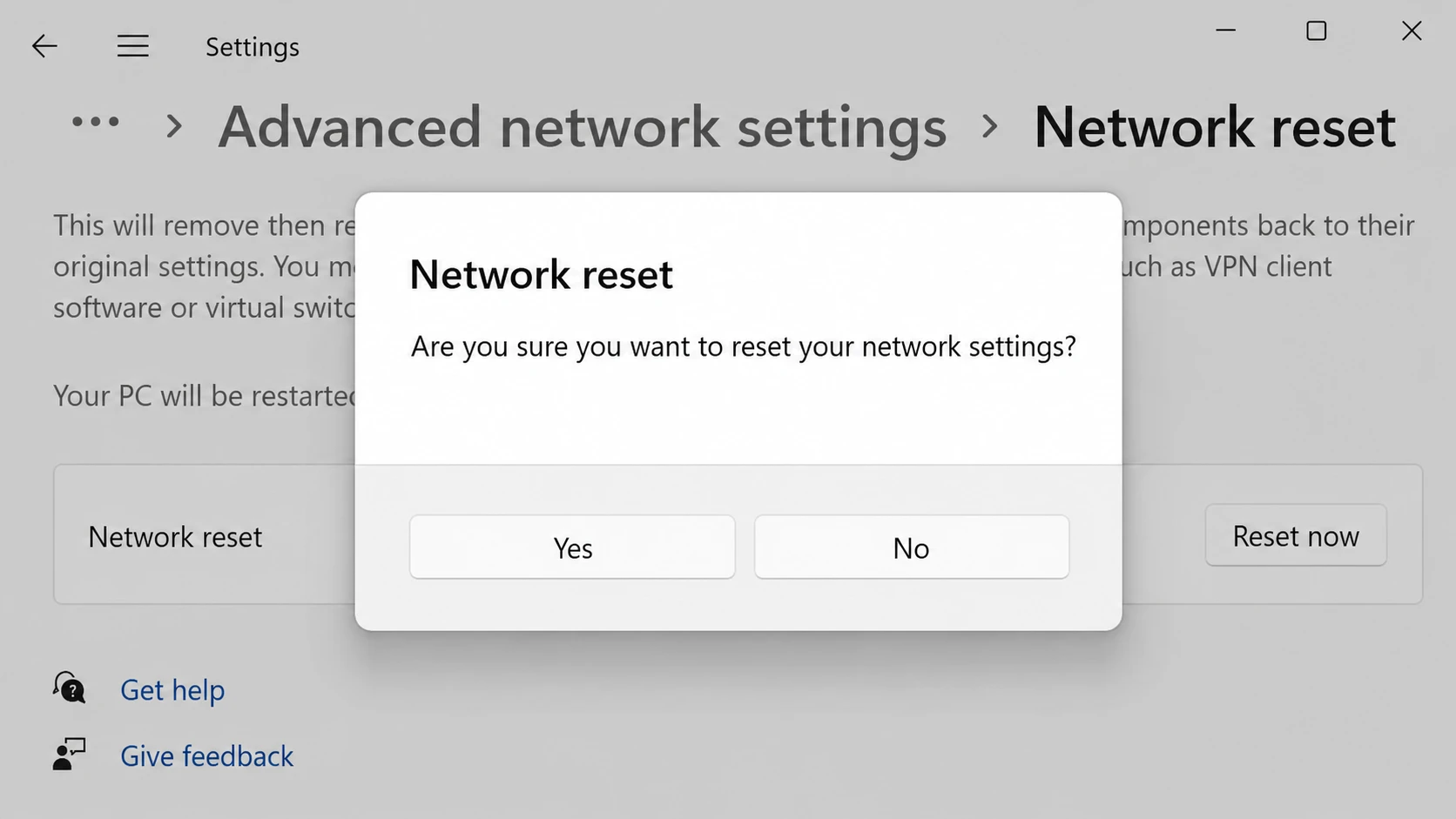
If the reset does not help, the built-in wireless adapter itself may be the weak point. Plugging in a wireless USB dongle and casting through that confirms it. When the dongle holds a stable connection, you can either keep using it or have a technician replace the internal adapter.
Run the Hardware and Devices Troubleshooter
If the connection still drops, rule out a faulty display. The Hardware and Devices Troubleshooter checks attached hardware for problems and points to anything that may need replacing.
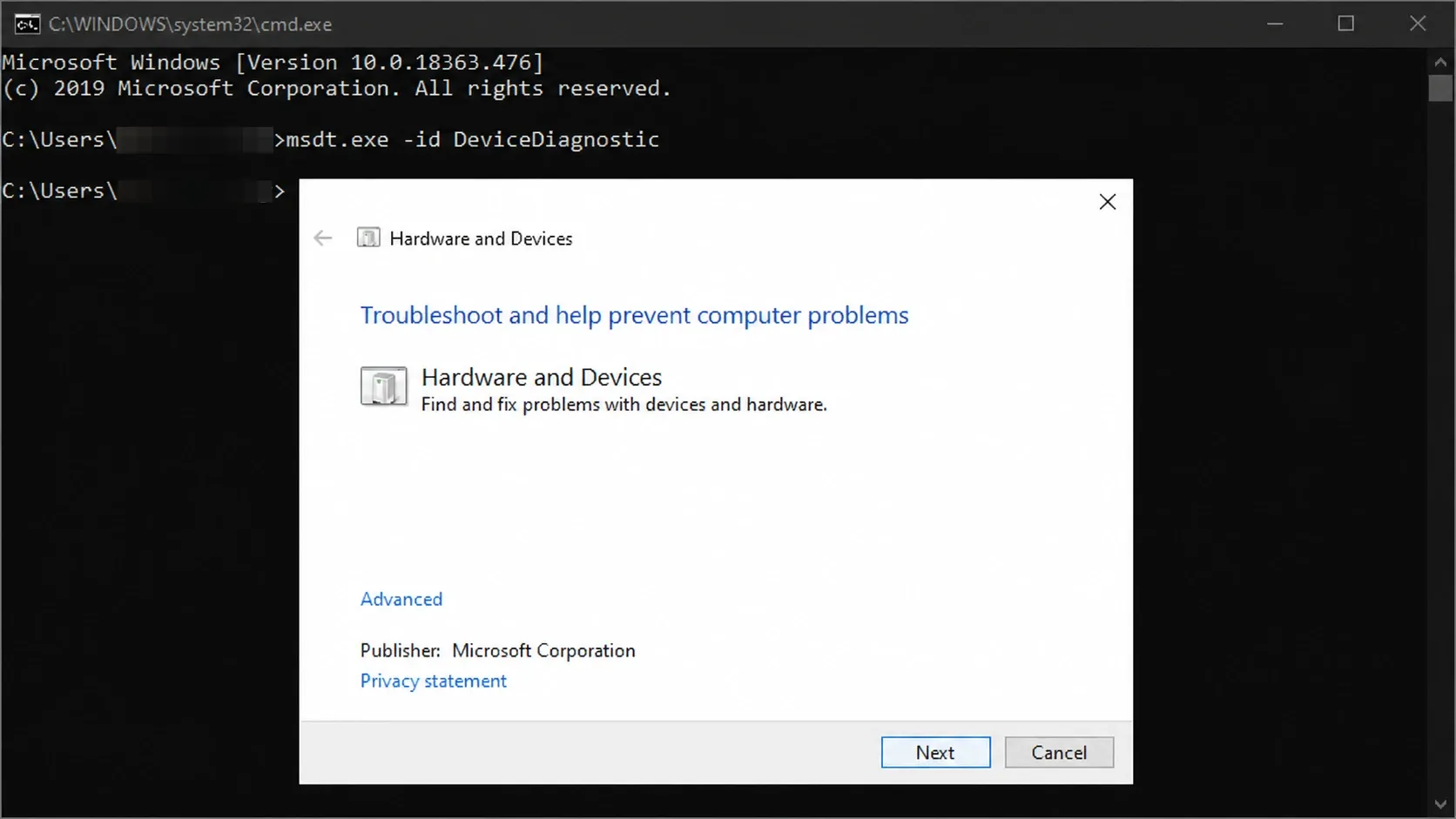
To isolate the cause further, connect the same wireless display to a second PC. If it drops there too, the display or receiver is likely at fault. If the second PC casts cleanly, the problem stays with the original machine’s drivers, wireless hardware, or settings.
Common causes of random Miracast drops
Matching the symptom to the right cause saves time. Use the table below to jump to the most likely fix.
| Cause | What it looks like | Where to fix it |
|---|---|---|
| Wi-Fi instability | Drops when other devices use bandwidth, choppy video | Network Troubleshooter, move devices closer |
| Outdated or corrupt drivers | Cast fails minutes in, lag or flicker before drop | Update graphics and Wi-Fi drivers |
| Power saving on the adapter | Random disconnects on battery or after idle | Power Management tab in Device Manager |
| Wireless interference | Drops near microwaves, cordless phones, Bluetooth gear | Move the display, reduce nearby radios |
| Display power saving | Screen sleeps and connection ends | Disable power saving on the TV or display |
| Weak internal adapter | Fails on one PC but works on others | Reset adapter, try a USB Wi-Fi dongle |
Most random Miracast disconnects on Windows trace back to drivers or power settings, so start there and work down the list. If the cast holds through a full session after a change, that change fixed it. If the display works on another PC but not yours, the wireless adapter and its driver are the parts to focus on next.





