

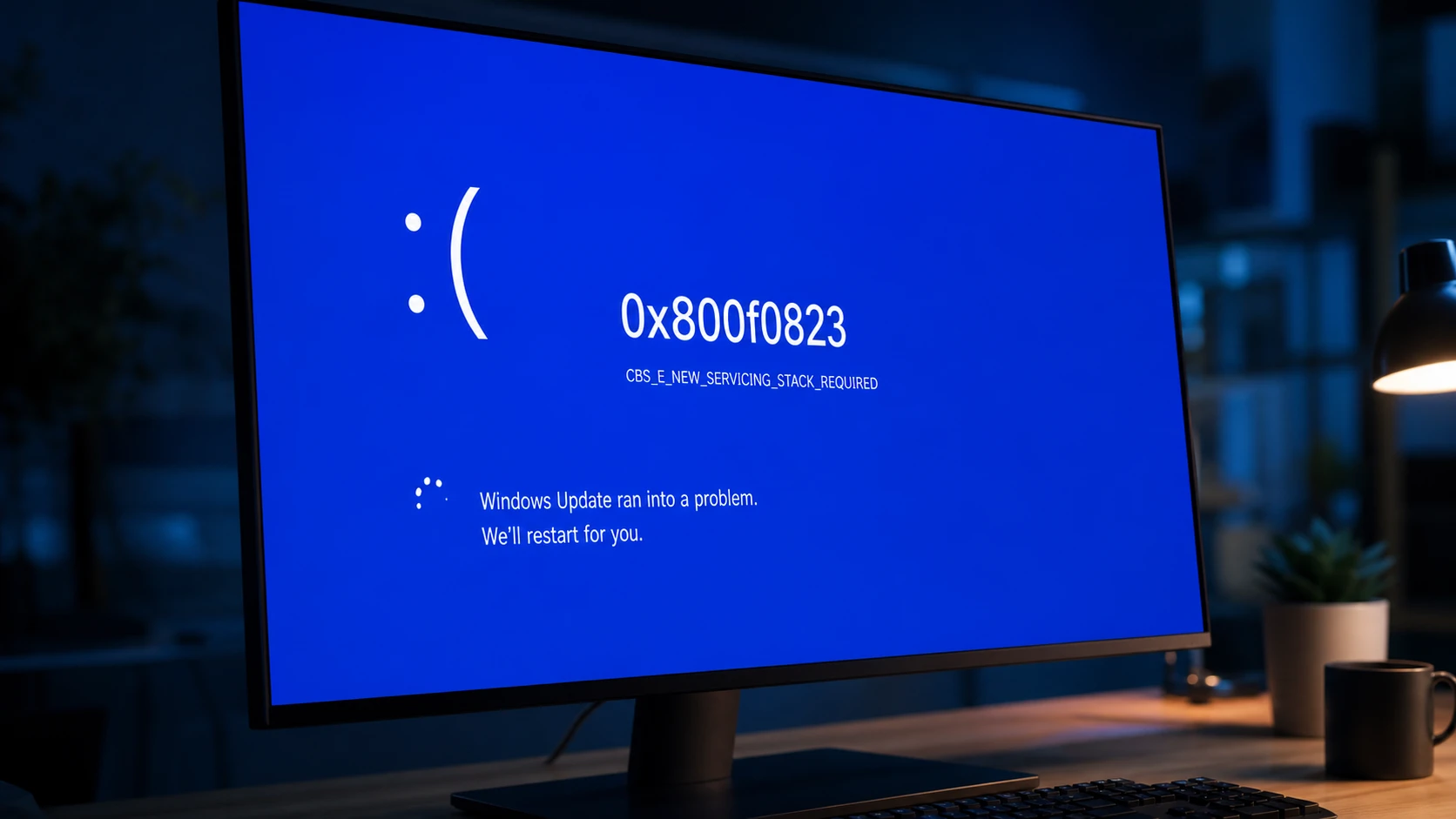
When a Windows update refuses to install and throws error 0x800f0823, the system is telling you that its servicing stack is too old to handle the package you are trying to apply. The full error reads CBS_E_NEW_SERVICING_STACK_REQUIRED, and you may also see the message “This update can not be applied to your computer.” The fix is direct once you understand what the servicing stack does.
Quick answer: Download and install the latest standalone servicing stack update (SSU) that matches your Windows version and CPU architecture, restart, then run the original cumulative update again.
What error 0x800f0823 means
The servicing stack is the component that actually installs Windows updates. It manages Component-Based Servicing (CBS), which handles how patches are applied to the operating system. When the stack falls behind the version a cumulative update expects, the install stops and CBS records the mismatch.
You can confirm the cause inside the CBS log. Open C:\Windows\Logs\CBS\CBS.log and look for a line that names the package and the stack version it requires. A typical entry looks like this.
Error CBS Package "Package_for_KB5012170~31bf3856ad364e35~amd64~~14393.5285.1.4" requires Servicing Stack v10.0.14393.5285 but current Servicing Stack is v10.0.14393.4349. [HRESULT = 0x800f0823 - CBS_E_NEW_SERVICING_STACK_REQUIRED]Windows Update normally keeps the servicing stack current on its own by installing SSUs automatically. A machine usually lands here only after skipping updates, which is why physical PCs and virtual machines that have been offline for a while are the most common victims. The same error appears whether you update over a live connection or apply an offline MSU file.
Before you start: back up the system disk
Servicing changes write directly to system components, so back up the operating system disk first. On a virtual machine, take a snapshot or use your platform’s restore option before touching anything. This gives you a clean rollback point if a manual install behaves unexpectedly.
Fix 1: Install the latest servicing stack update
This is the resolution that addresses the actual cause. You need the SSU that matches both your Windows release and your CPU architecture, installed before the cumulative update (LCU).
winver, and press Enter. Note the edition and build number so you can match the correct update.| Windows version | Where to find the KB number |
|---|---|
| Windows Server 2025 | support.microsoft.com/help/5047442 |
| Windows Server 2022 | support.microsoft.com/help/5005454 |
| Windows 11 (all versions) | support.microsoft.com/help/5065323 |
| Windows 10, version 2004 and later | support.microsoft.com/help/5018682 |
| Windows 10 1809 and Windows Server 2019 | Windows 10 and Windows Server 2019 update history |
For Windows 10 version 1607 and earlier, or Windows Server 2016, search for a standalone SSU instead. In the catalog, use a search string such as ssu "Windows Server 2016" and pick the entry with the most recent release date. You can cross-check the newest SSU for older releases on the MSRC servicing stack update advisory, under the question about when the most recent SSU was released for each Windows version.
.msu link in the popup to save the file.Note: A KB article may reference its bundled SSU using a different KB number than the main article. The catalog only lists the main KB number, so search for that one rather than the separate SSU number mentioned in the text.
Fix 2: DISM offline servicing (apply SSU before LCU)
If you hit 0x800f0823 while servicing an offline image with DISM, the same rule applies. The servicing stack must be updated first, then the cumulative update. Confirm the image’s architecture and build before downloading anything, because feeding DISM a package for the wrong architecture (an ARM64 MSU into an x64 image, for example) produces confusing failures, sometimes surfacing as 0x80070002 during MSU extraction.
dism /Get-WimInfo /WimFile:"D:\sources\install.wim" /index:1Check the Architecture, Version, and Edition fields, then download the SSU and LCU that match that release family and architecture from the catalog.
mkdir C:\Mount
mkdir C:\Scratch

dism /Mount-Wim /WimFile:"D:\sources\install.wim" /Index:1 /MountDir:"C:\Mount"

dism /Image:"C:\Mount" /Add-Package /PackagePath:"C:\Updates\SSU.msu" /ScratchDir:"C:\Scratch"

dism /Image:"C:\Mount" /Add-Package /PackagePath:"C:\Updates\LCU.msu" /ScratchDir:"C:\Scratch"

dism /Image:"C:\Mount" /Cleanup-Image /StartComponentCleanup

dism /Unmount-Wim /MountDir:"C:\Mount" /Commitmkdir C:\Updates\Extracted
expand -F:* "C:\Updates\SomeUpdate.msu" "C:\Updates\Extracted"
dism /Image:"C:\Mount" /Add-Package /PackagePath:"C:\Updates\Extracted\*.cab" /ScratchDir:"C:\Scratch"If the extracted CAB file names show arm64 while your image is x64 (or the reverse), you have found the root cause. Download the matching packages and the offline servicing completes normally.
If the stack still will not update: repair update components
Corrupted update components can block the SSU from installing cleanly. Two built-in repair paths help here, and they are worth running before any manual download if the system has a history of failed updates.
DISM /Online /Cleanup-Image /RestoreHealth
sfc /scannownet stop wuauserv
net stop cryptSvc
net stop bits
net stop msiserver
ren %systemroot%\SoftwareDistribution SoftwareDistribution.old
ren %systemroot%\System32\catroot2 catroot2.old
net start wuauserv
net start cryptSvc
net start bits
net start msiserverRestart the PC afterward and attempt the SSU install again. You can also run the built-in Windows Update troubleshooter from Settings under System and then Troubleshoot, which can detect and clear common update faults on its own.
How to confirm it worked
You know the fix succeeded when the cumulative update that previously failed installs and completes, and the 0x800f0823 message no longer appears. After the final restart, re-check for updates and confirm the device reports as up to date. If you want to verify at the log level, the CBS.log no longer records a CBS_E_NEW_SERVICING_STACK_REQUIRED entry against the package.
Why the fix sometimes does not take
| Reason | What to do |
|---|---|
| SSU is older than the version the LCU requires | Pick the newest SSU release date for your exact build; an outdated SSU still triggers 0x800f0823. |
| Wrong CPU architecture downloaded | Match x64, x86, or ARM64 to your image; mismatches cause failures, including 0x80070002. |
| LCU applied before the SSU (offline servicing) | Install the SSU first, then the LCU. |
| Corrupted component store or update cache | Run DISM /RestoreHealth and reset the update components, then retry. |
If the failure survives every step, keep a copy of the CBS.log handy and contact Microsoft Support, attaching the relevant log data so the failing package and required stack version are visible. After the system is patched, leave automatic updates enabled so the servicing stack stays in sync and this error does not return.





