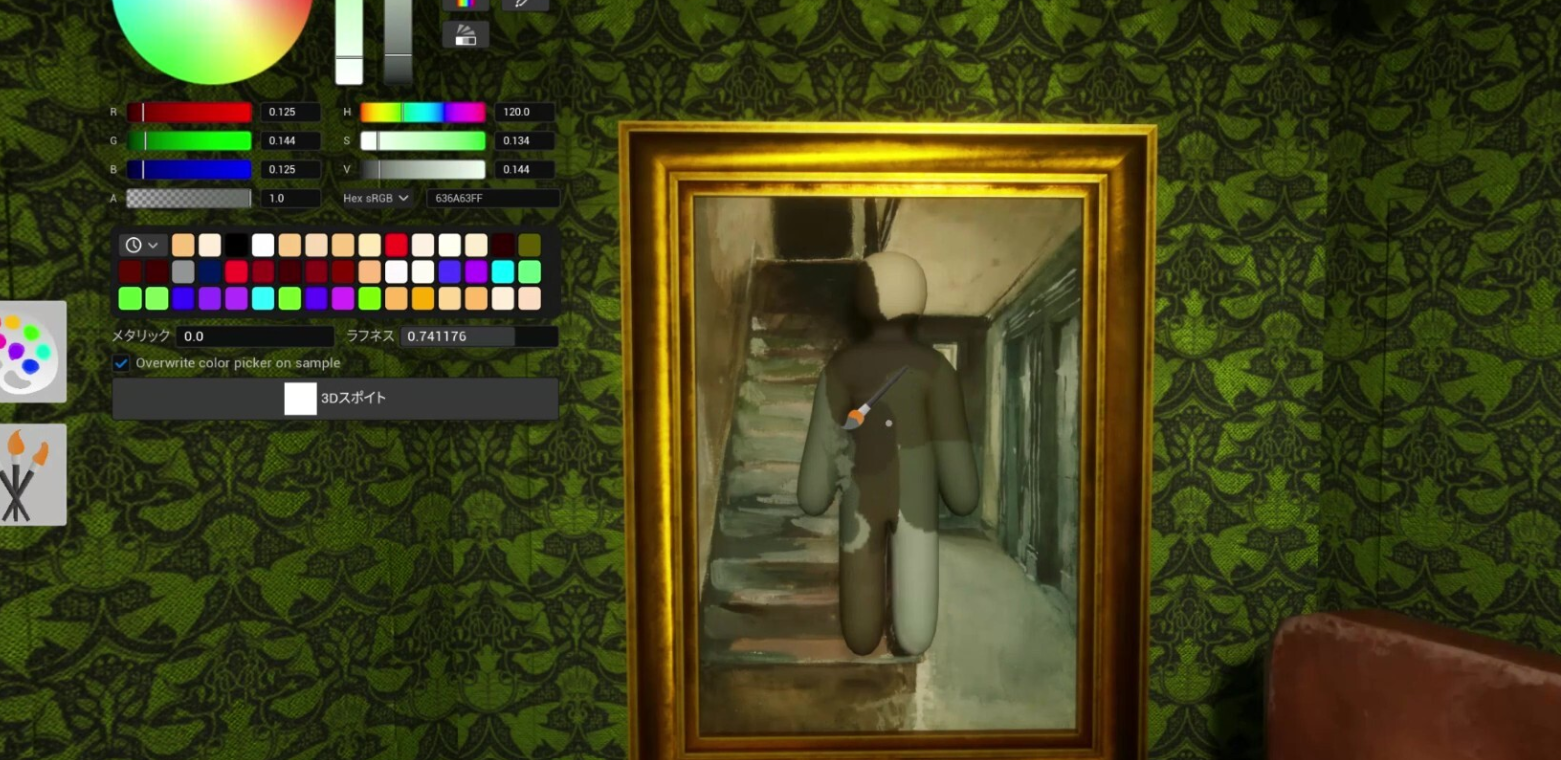
MECCHA CHAMELEON, the paint-and-hide multiplayer game that landed on Steam on June 9th, 2026, has a launch problem that locks some players out before they ever reach the main menu. The game freezes the whole PC, throws a black screen, or closes with a fatal error referencing Unreal Engine 5’s Oodle shader decompression. The crash is heavily concentrated on 13th and 14th Gen Intel processors, and it usually starts after the first successful boot.
Quick answer: Add -dx11 to the game’s Steam launch options to force DirectX 11 rendering, then launch normally. If you run a 13th or 14th Gen Intel CPU, also update your motherboard BIOS to the latest version before retrying.
What the MECCHA CHAMELEON startup crash looks like
The crash often appears after the game has already run once. You change a setting, restart, and then it fails every time. The error window points at a low-level rendering fault in Unreal Engine 5, and the readable text usually names your processor as the suspect.
LowLevelFatalError [File:...\RenderCore\Private\ShaderCodeArchive.cpp] [Line: 499]
DecompressShaderWithOodleAndExtraLogging(): Could not decompress shader group with Oodle.
The CPU (Intel(R) Core(TM) i9-14900K) may be unstable;
for details see http://www.radgametools.com/oodleintel.htm
The process name in the crash log is PenguinHotel_Win64_Shipping, which is the game’s shipping executable. The Oodle decompression failure is a known behavior on 13th and 14th Gen Intel chips, where instability can corrupt the shader unpack step. The same crash has been reported across the i9-14900K and the i7-13700F, so it is not tied to a single chip.
Fastest fix: Force DirectX 11 with a Steam launch option
Forcing the older DirectX 11 renderer sidesteps the shader path that triggers the Oodle fault. Players who switched to -dx11 report the game booting cleanly afterward, so try this first.
The game’s minimum requirements list a DirectX 11 or 12 compatible card, so DirectX 11 mode is fully supported and not a downgrade you have to live with permanently.
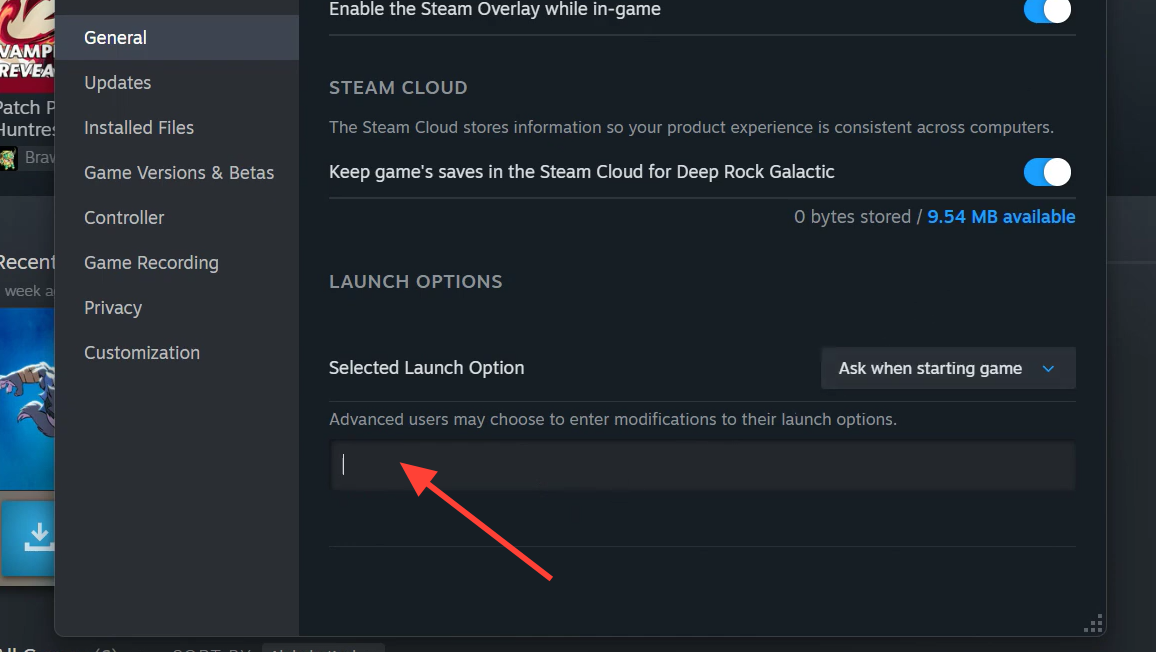
-dx11Fix for 13th and 14th Gen Intel CPUs: Update your BIOS
The Oodle error is linked to known instability on recent Intel chips, and an outdated BIOS makes it more likely. Updating to the latest BIOS applies the corrected voltage and power behavior for these processors, which reduces the shader decompression failures.
Note: BIOS reduces how often the crash happens, but a chip that has already degraded may keep failing. In that case, the DirectX 11 launch option is the more reliable workaround.
Repair a MECCHA CHAMELEON crash from corrupted files or drivers
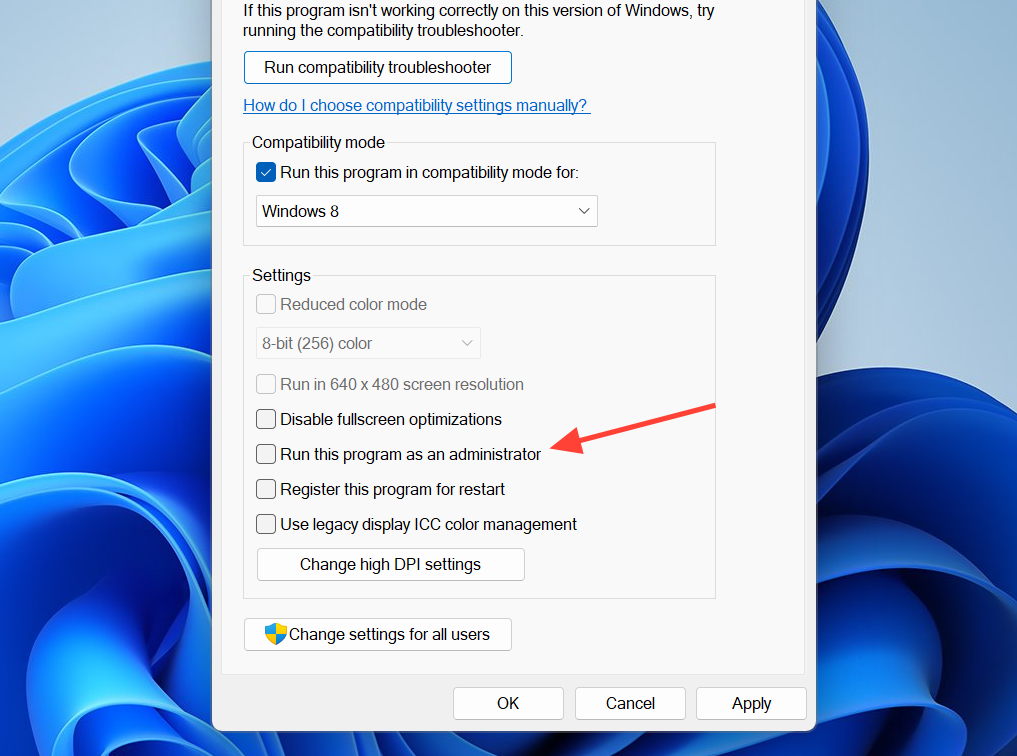
If the game still crashes to desktop or refuses to open after the launch option, work through the underlying software dependencies. These steps fix the broken-file and driver causes that are unrelated to the Intel issue.
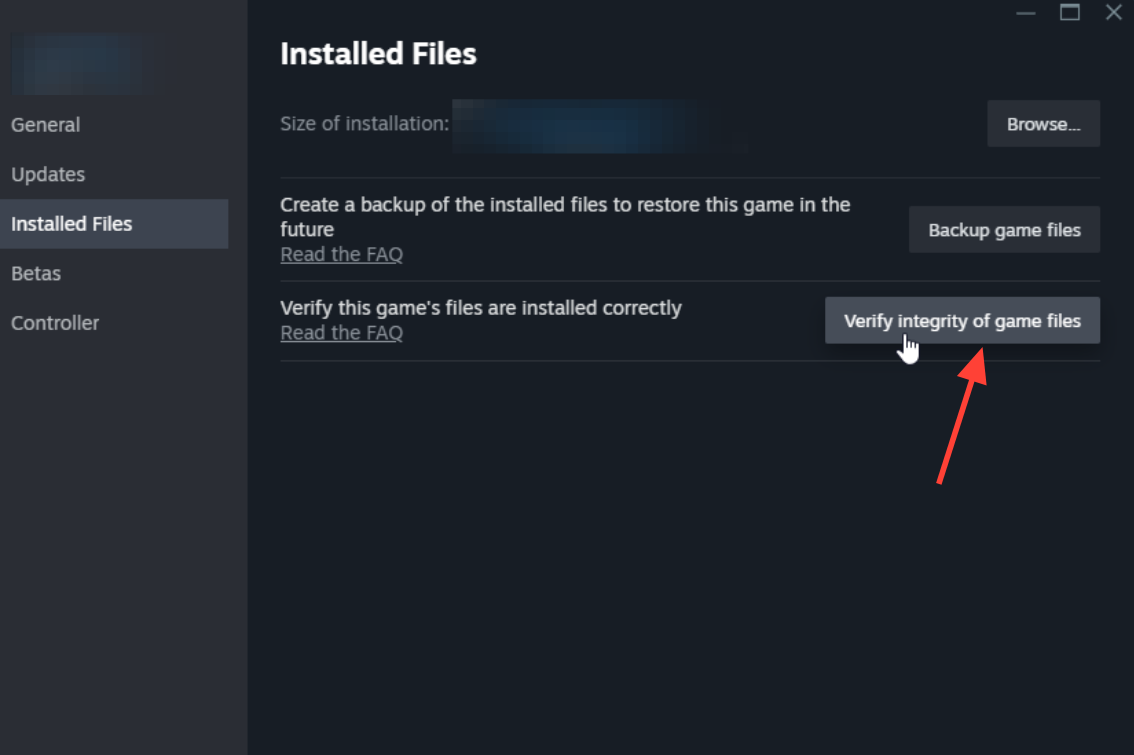
vc_redist.x64.exe package from the official Microsoft download page, then restart your PC.
Crash causes and matching fixes
| Symptom | Likely cause | Fix to try first |
|---|---|---|
| Oodle decompression error naming your CPU | 13th/14th Gen Intel instability with UE5 shaders | Add -dx11 launch option, then update BIOS |
| Black screen or full PC freeze on boot | Shader/render path failure or GPU driver conflict | Force DirectX 11, then clean-install GPU driver |
| “An unexpected error occurred” pop-up | Unverified files or missing runtime libraries | Verify files, install latest Visual C++ |
| Crash returns after changing settings | Cached shader state breaking on restart | Verify files and relaunch in DirectX 11 |
How to confirm the crash is fixed
You know the fix worked when the game loads past the splash and reaches the main menu without the LowLevelFatalError window appearing. A stable result is reaching the menu, opening a public lobby, and painting your character without a freeze or black screen. If it boots once but crashes on the next launch, the cause is most likely the Intel shader issue, so keep the DirectX 11 launch option in place and confirm your BIOS is current.
The crash sits in the engine and CPU layer rather than the game’s own logic, so a clean boot with DirectX 11 is the clearest sign the workaround is holding. MECCHA CHAMELEON is built on Unreal Engine 5 and is currently the developer’s only released title, so until a patch hardens shader handling for affected Intel chips, the launch option remains the most dependable way to keep playing.