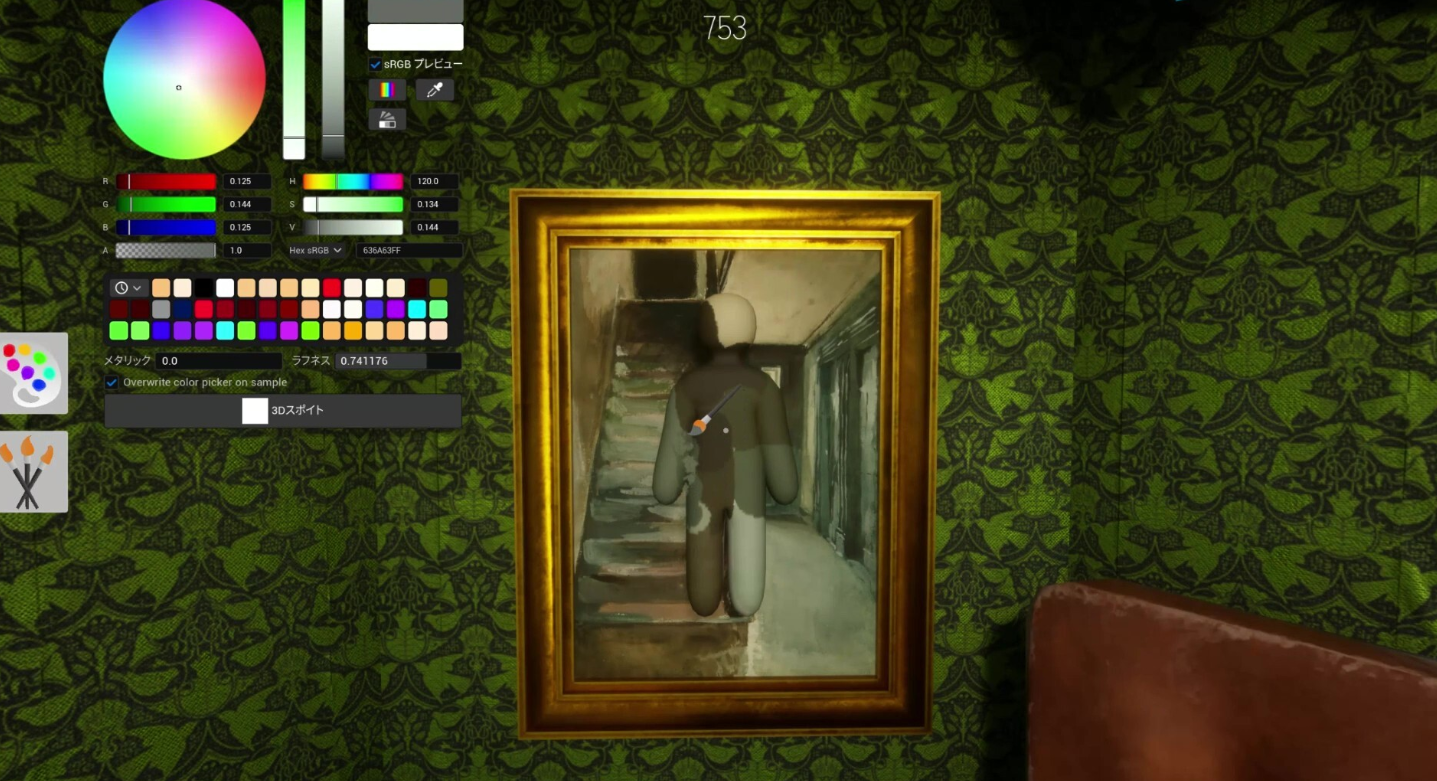
Getting around the stage in MECCHA CHAMELEON comes down to standard PC keyboard and mouse controls, layered on top of the painting tools that make this hide-and-seek game tick. There is no flashy traversal system here. You walk, you look around, and during the preparation window you use that movement to scout a spot before the Seekers are let loose.
Quick answer: Move with the WASD keys and steer the camera with your mouse. If movement feels off after a patch, open in-game Settings, reset controls to defaults, and rebind one key at a time.
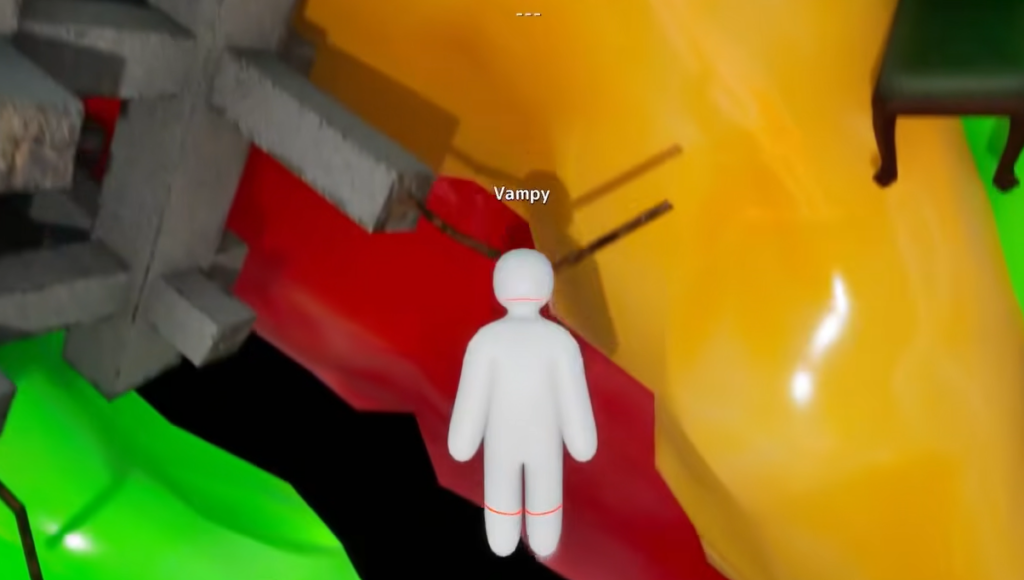
MECCHA CHAMELEON movement controls on PC
Movement uses the WASD keys for walking, with mouse look handling the camera. Crouching and posing are available where the stage and your situation support them. The rest of the inputs are built around the Meccha Paint system, so most of your time in a round is spent painting and posing rather than running across the map.
| Action | Input |
|---|---|
| Walk and move | WASD |
| Look / camera | Mouse |
| Crouch or pose (where supported) | Pose menu |
| Open paint menu | F |
| Open pose menu | R |
| Sample a color | Eyedropper tool |
| Tag a player (Seeker) | Interaction key |
Because the game is new and keys can be remapped, always confirm your bindings in Settings after launch or any update. Treat the table above as the default layout rather than a fixed one.
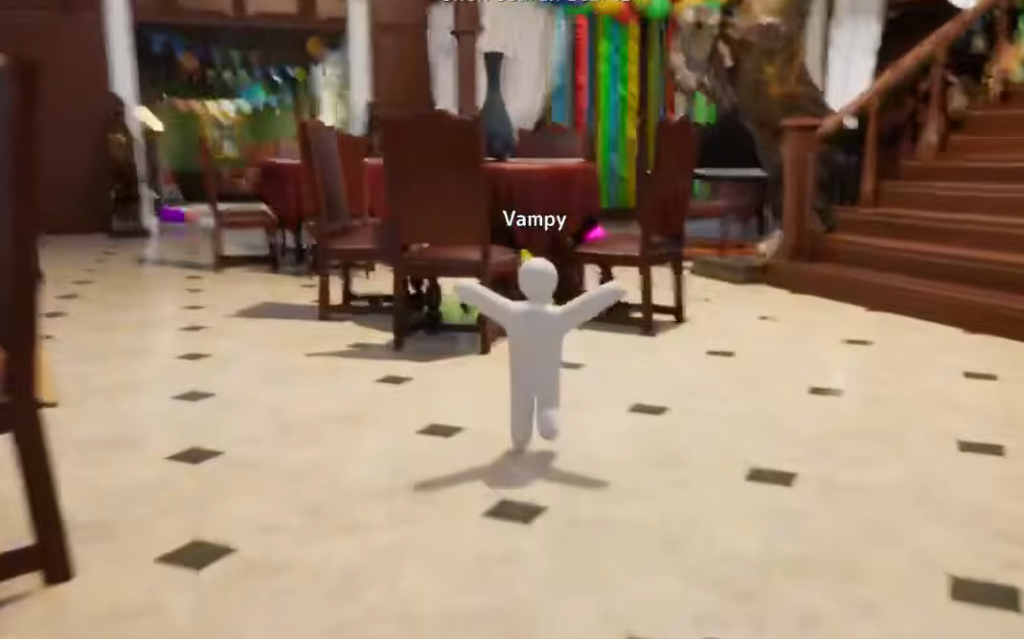
When you can move and when you can’t
Movement is not constant across a round. Each match runs through the same phases, and your ability to move changes with each one. Knowing the order keeps you from wasting your one chance to reposition.
| Phase | Can you move? |
|---|---|
| Lobby | Host sets map and mode; players join |
| Role assignment | Teams are split into Hiders and Seekers |
| Preparation (Hiders) | Yes — roam, paint, and pick a pose |
| Hunt | Hiders freeze their disguise; Seekers move and search |
| Results | Winning team is shown; host can restart |
As a Hider, your freedom to move ends when you lock your pose. As a Seeker, movement is your main tool during the hunt, used to sweep walls, corners, and choke points while you look for shapes that do not belong.
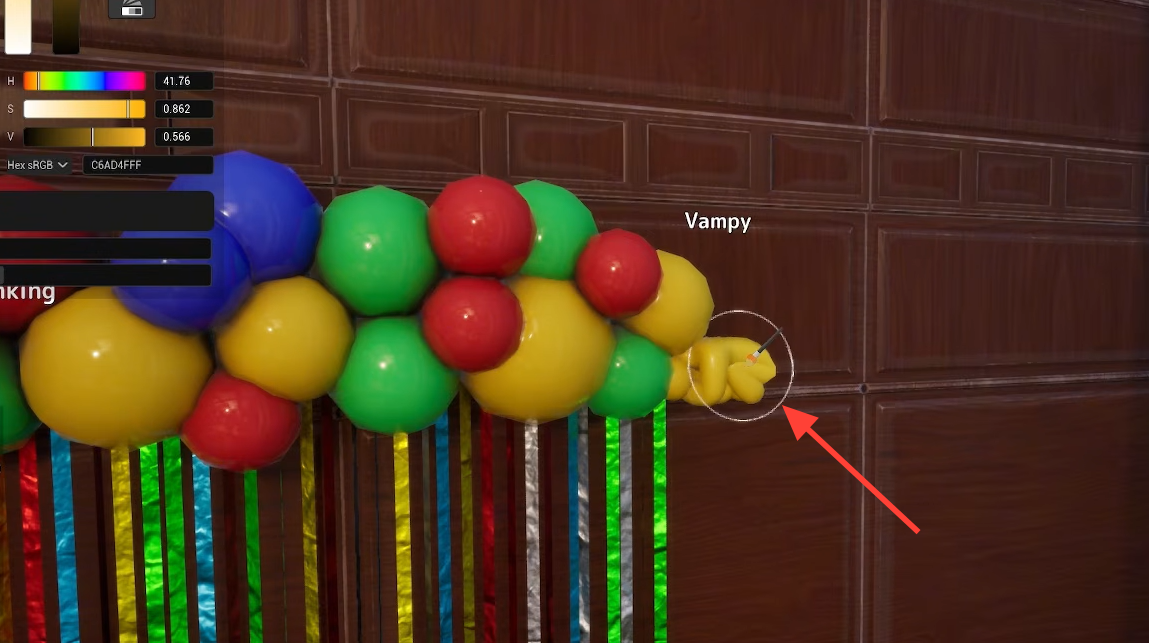
Use your prep-phase movement wisely as a Hider
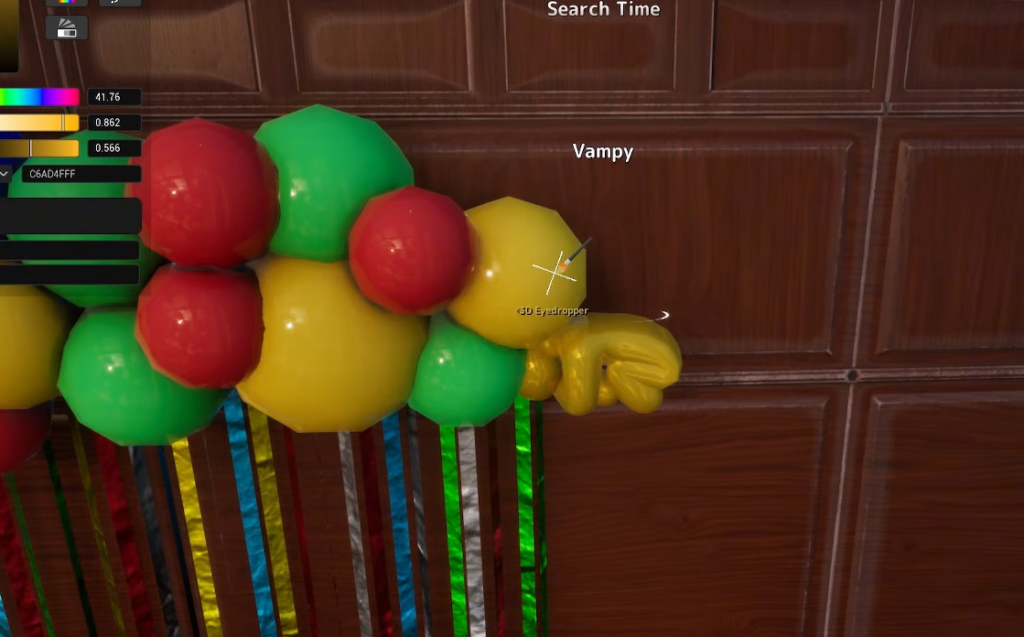
The preparation window is the only time a Hider gets to travel the map freely, so spend it deliberately instead of jogging in circles. Pick your hiding zone early, then stay put and refine.
Fix movement that feels wrong
If your character stops responding correctly to WASD or the camera feels too fast or too slow, the cause is almost always your bindings or sensitivity rather than a bug. Reset and rebuild from defaults.
Movement is built around online multiplayer, so every player in a lobby needs the same game version. If a friend cannot join or moves strangely, have them check the version on the title screen and restart Steam before changing lobby settings.
MECCHA CHAMELEON is a paid, Windows-only release on Steam, and its controls and keybinds can shift with patches, so the surest way to confirm your current movement layout is the in-game Settings screen. You can grab the game and check its requirements on the official Steam store page.