
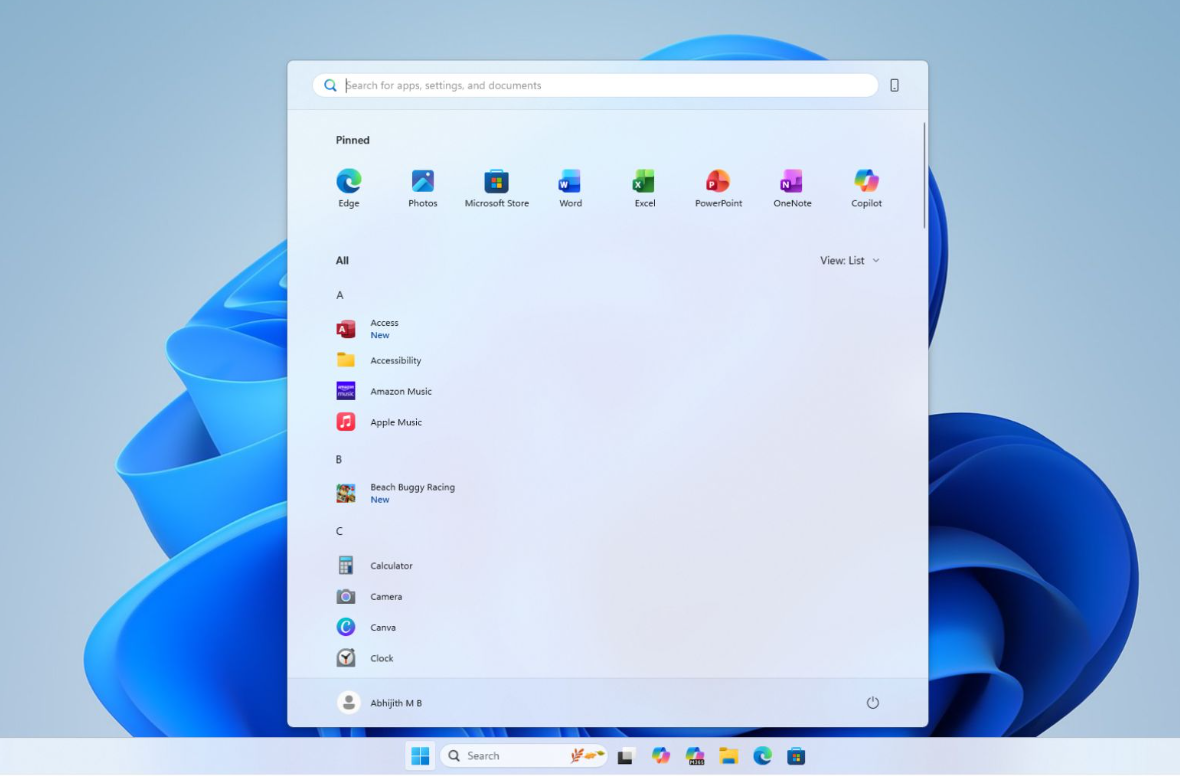
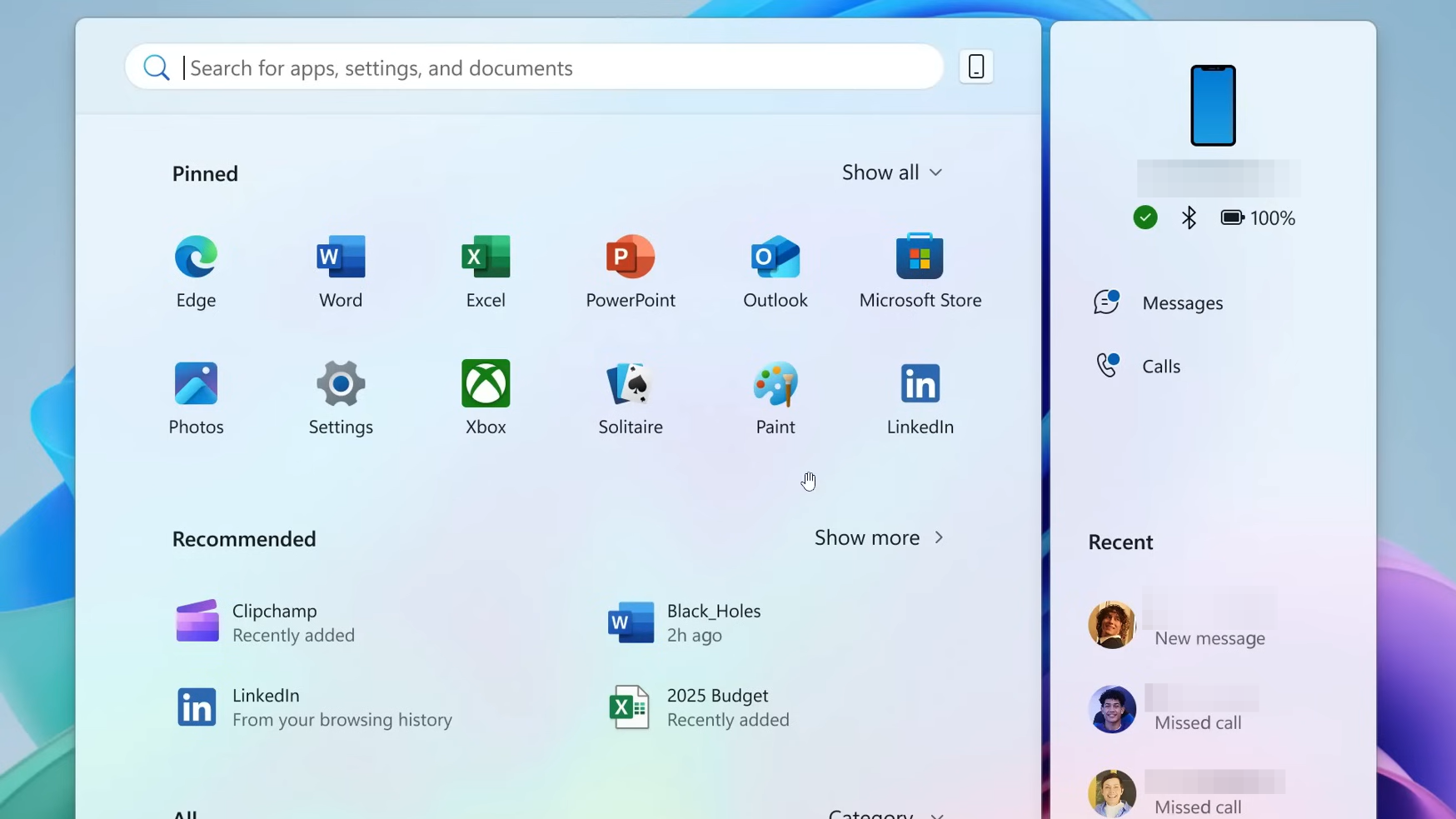
The redesigned Windows 11 Start menu is rolling out to versions 24H2 and 25H2 via the optional October 2025 update. It moves the full app list to the main page, adds grid/list/category views, lets you disable Recommendations, adapts to screen size, and integrates a richer Phone Link panel. If it hasn’t appeared on your PC yet, you can get it right now using the steps below.
Check requirements (version, build, prerequisites)
Confirm your device is on Windows 11 version 24H2 or 25H2. The new Start menu is delivered to these releases through the October non‑security preview update.
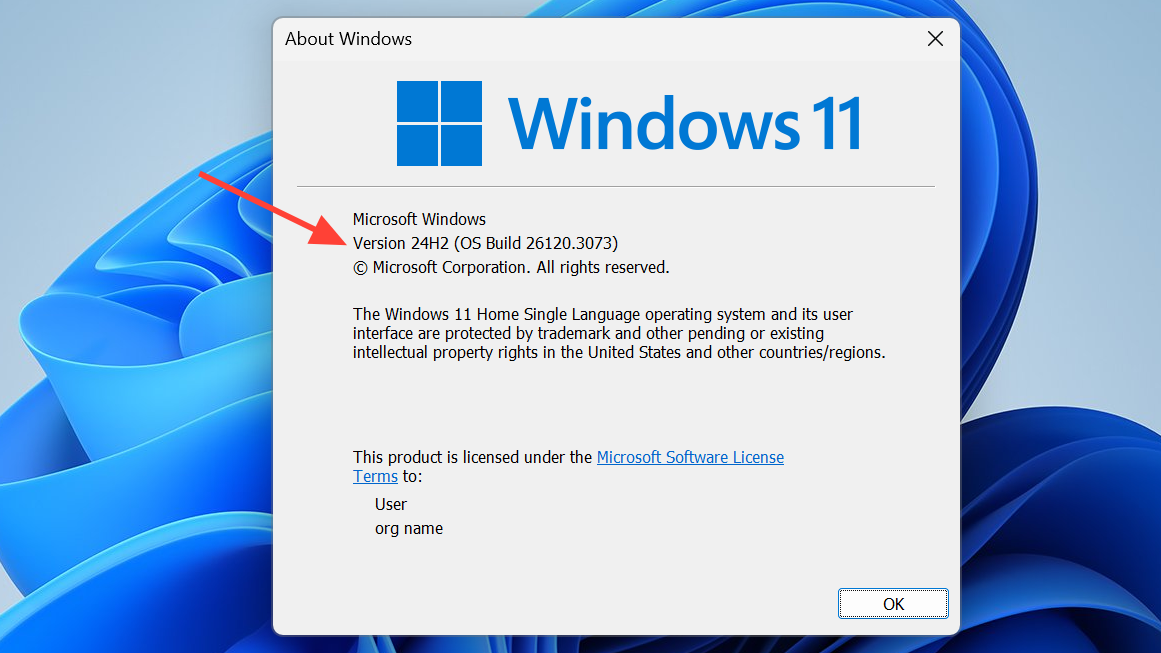
Verify your build number. Press
Windows+R, type winver, and press Enter. You’re aiming for build 26100.7019 (24H2) or 26200.7019 (25H2), or newer.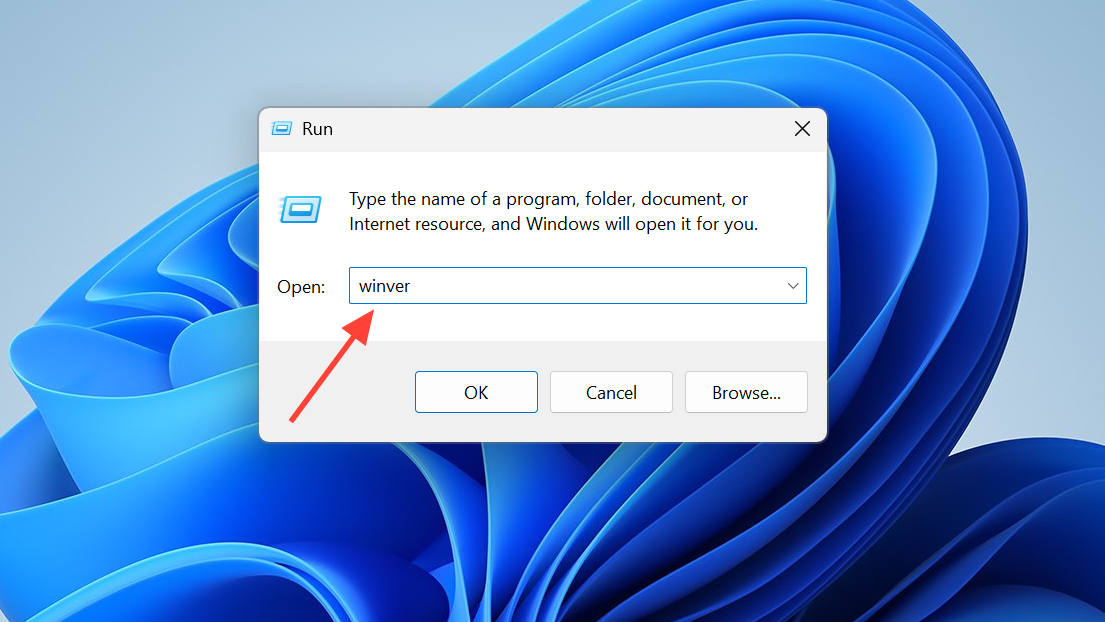
Make sure the September mandatory update (KB5043080) is installed. KB5067036 depends on it; without it, the new Start menu may not activate.
Method 1: Get the new Start menu via Windows Update (official)
Open Settings and go to Windows Update. Turn on the toggle for “Get the latest updates as soon as they’re available” so your device is offered the preview update promptly.
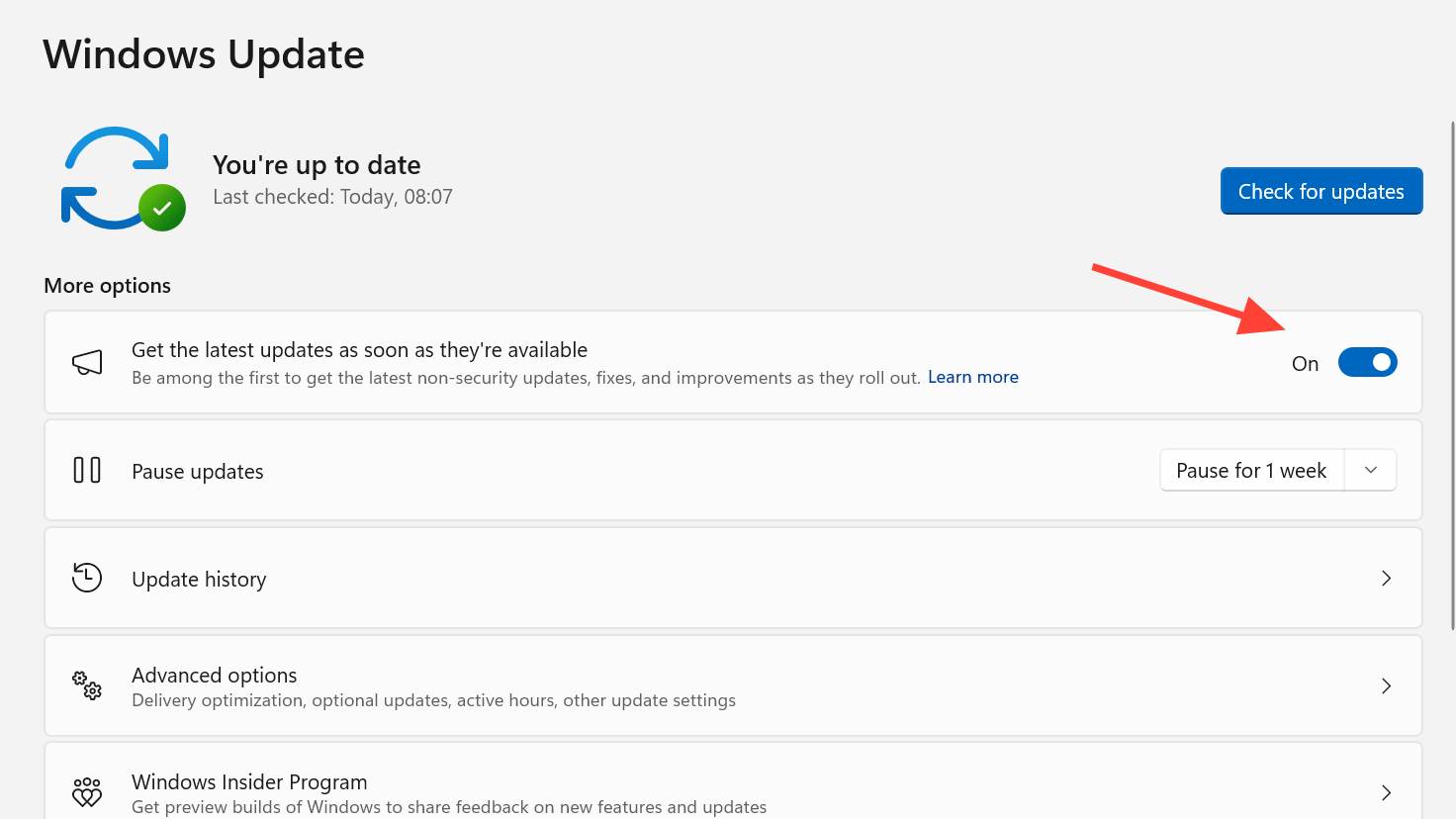
Select Check for updates and install the optional October 2025 non‑security preview update KB5067036. You can review the update details on Microsoft Support at support.microsoft.com.
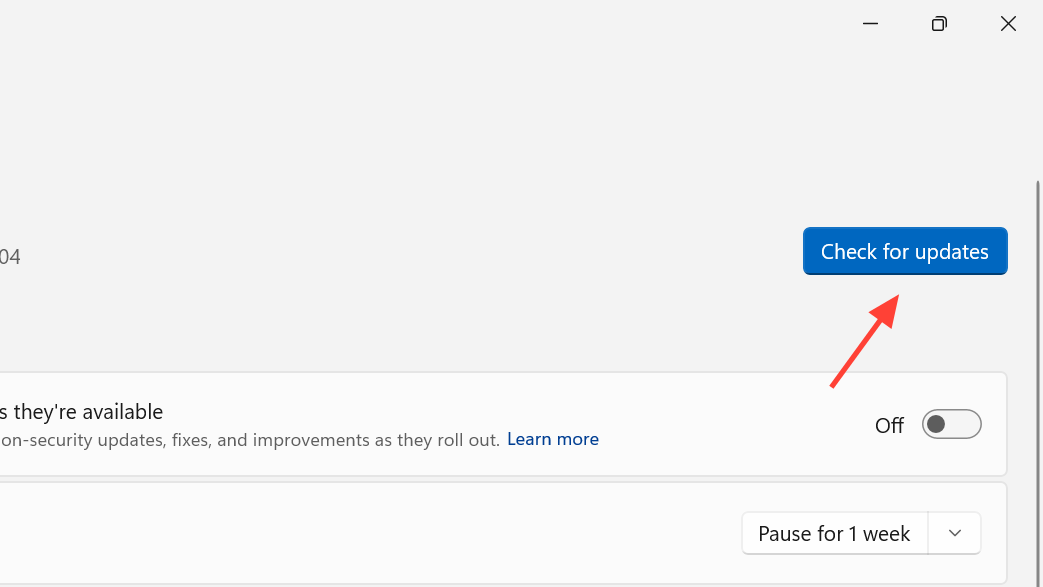
Restart your PC when prompted to complete installation. A restart is required before new features are turned on.
Open Start and look for the updated layout. The All apps list is accessible on the main page, you can switch views (grid, list, or categories), and Recommendations can be turned off to reclaim space for pins and apps.
Method 2: Install KB5067036 from Microsoft Update Catalog (manual)
Visit the Microsoft Update Catalog and search for KB5067036. Use the official catalog to get the package that matches your Windows 11 version and architecture (x64 or ARM64): catalog.update.microsoft.com.
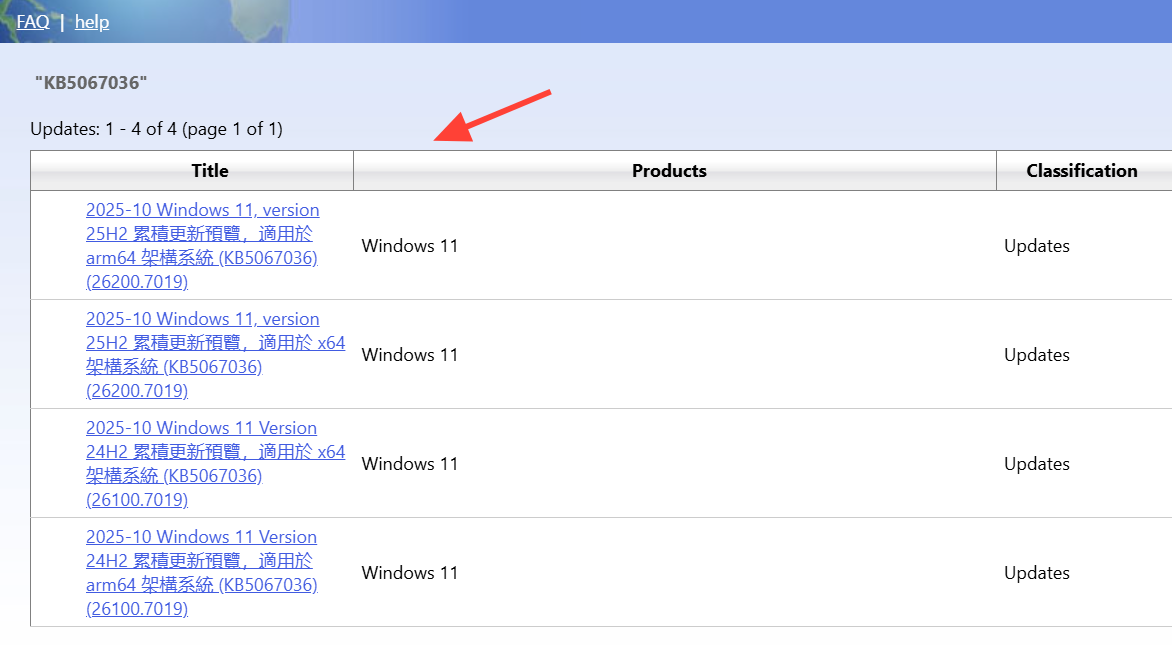
Download the correct package (24H2 or 25H2) for your system. Installing the wrong edition or architecture will fail or not apply the feature.
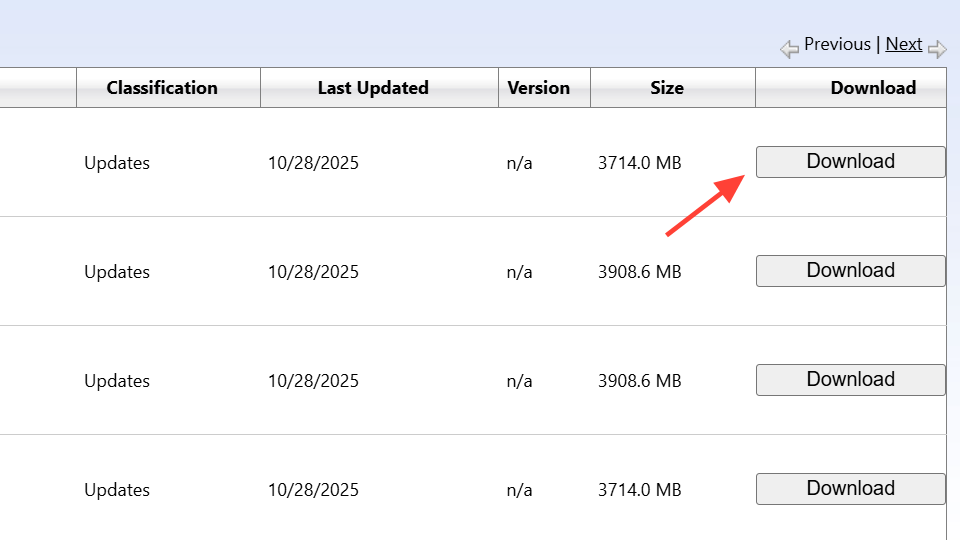
Run the downloaded
.msu file and follow the prompts to install. Restart when finished to activate the new Start menu.Method 3: Force‑enable the new Start menu with ViVeTool (advanced)
Install KB5067036 first and confirm you are on build 26100.7019 or 26200.7019 (or newer). Feature flags won’t apply reliably on older builds.
Download ViVeTool and extract it to a simple path such as
C:\vive. ViVeTool toggles hidden Windows features and is intended for experienced users.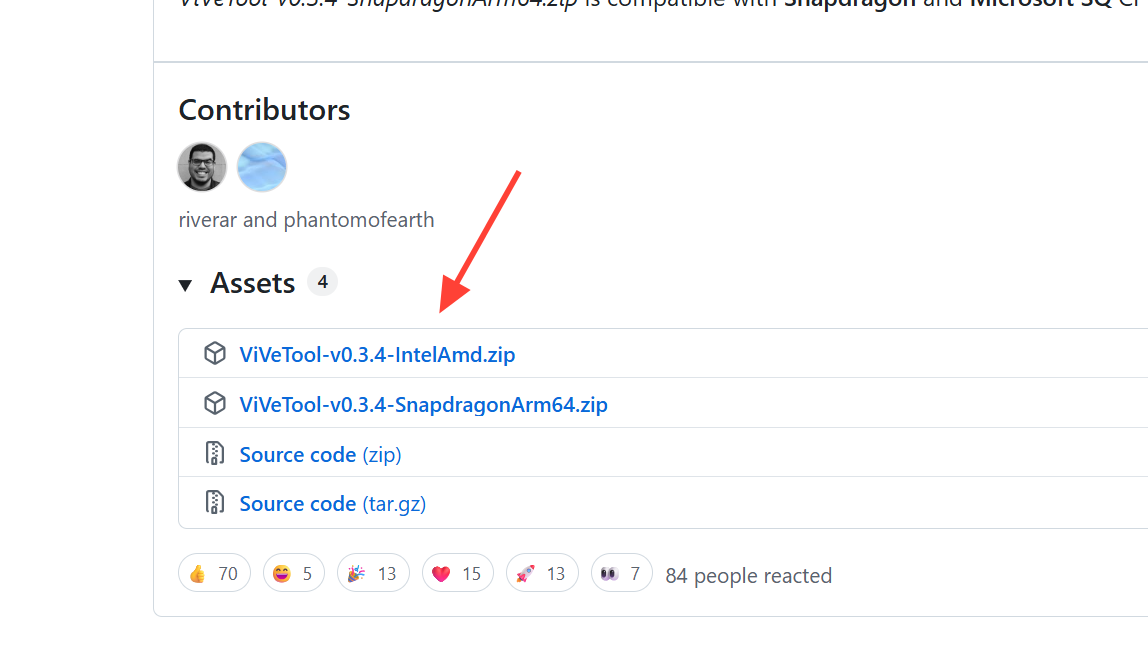
Open Command Prompt as administrator. Use the
cd command to navigate to the folder where you extracted ViVeTool.cd C:\vive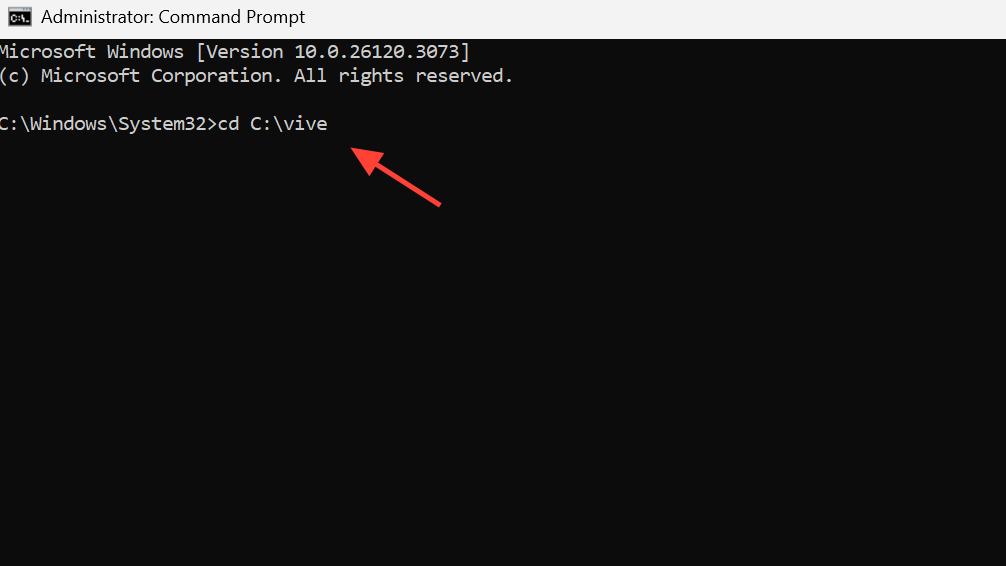
Enable the feature IDs for the new Start menu and related components. Press Enter to run the command.
vivetool /enable /id:57048231,47205210,56328729,48433719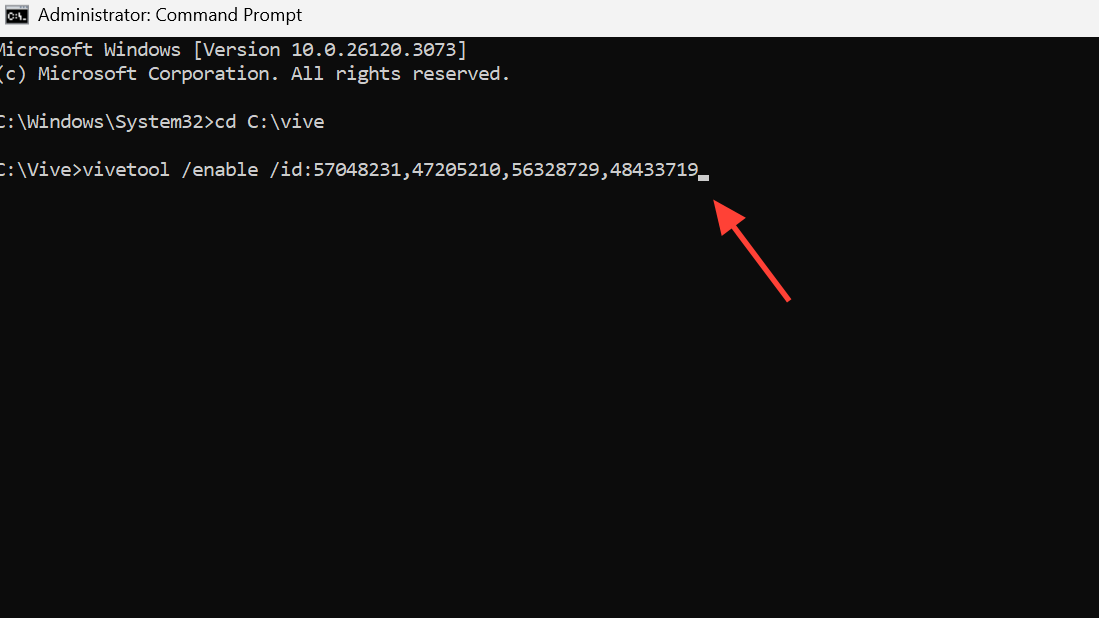
Restart your PC. The new Start layout should now appear with All apps on the main page and the new view options. To revert, you would disable the same IDs, but results can vary; proceed only if you’re comfortable with advanced configuration.
Configure the new Start menu (views and options)
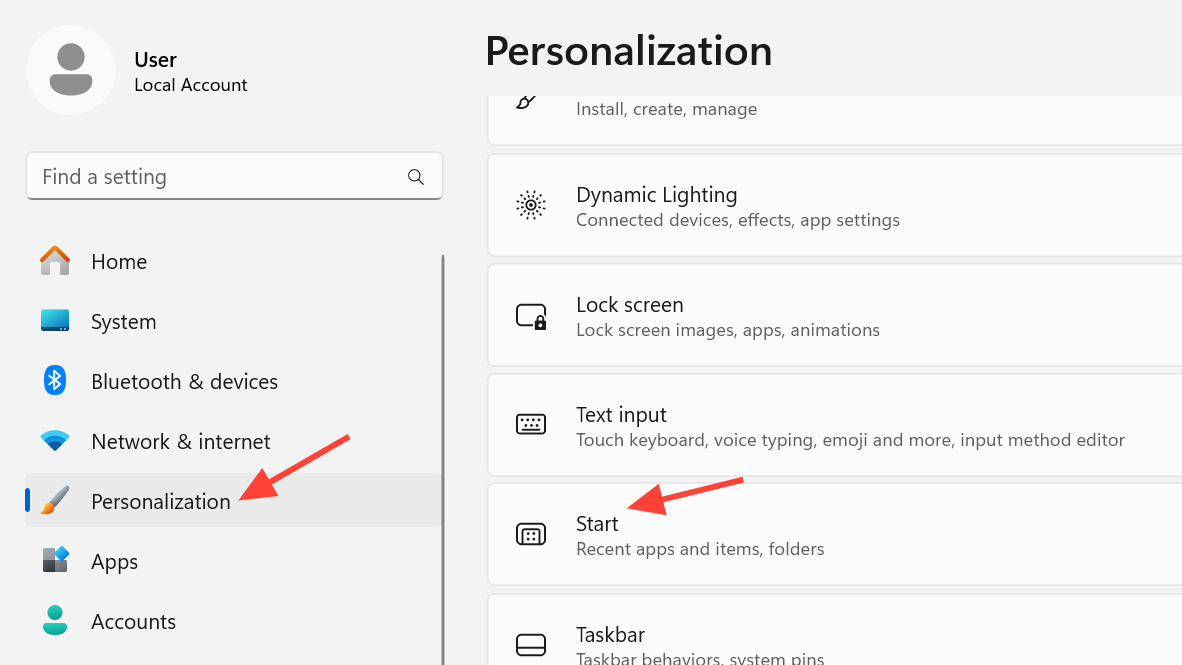
Manage Start content in Settings. Go to Settings > Personalization > Start to choose whether to show Recommendations and adjust pinned content behavior. Microsoft’s Start customization guidance is here: support.microsoft.com.
Resize the Start menu. Open Start, move your pointer to the top or side border until it becomes a double‑headed arrow, then drag to adjust the size for your screen.
Choose your All apps view. Within the Start menu, switch among category, list, or grid to change how apps are organized. Your last chosen view is remembered the next time you open Start.
Note on permanence. Once the new Start menu is available on your PC, there’s no supported switch to bring back the prior Start design, though you can disable specific panels like Recommendations or the Phone Link area.
If you prefer to wait, the new Start menu will arrive broadly with upcoming cumulative updates. If you want it today, installing KB5067036—and, if needed, flipping the feature flags—gets you there quickly.



