
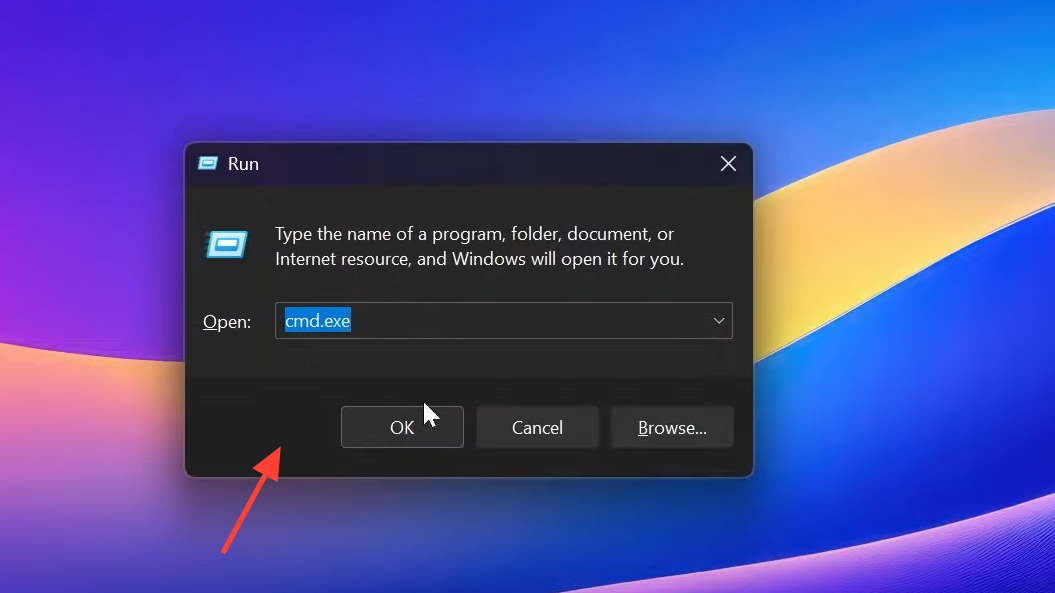
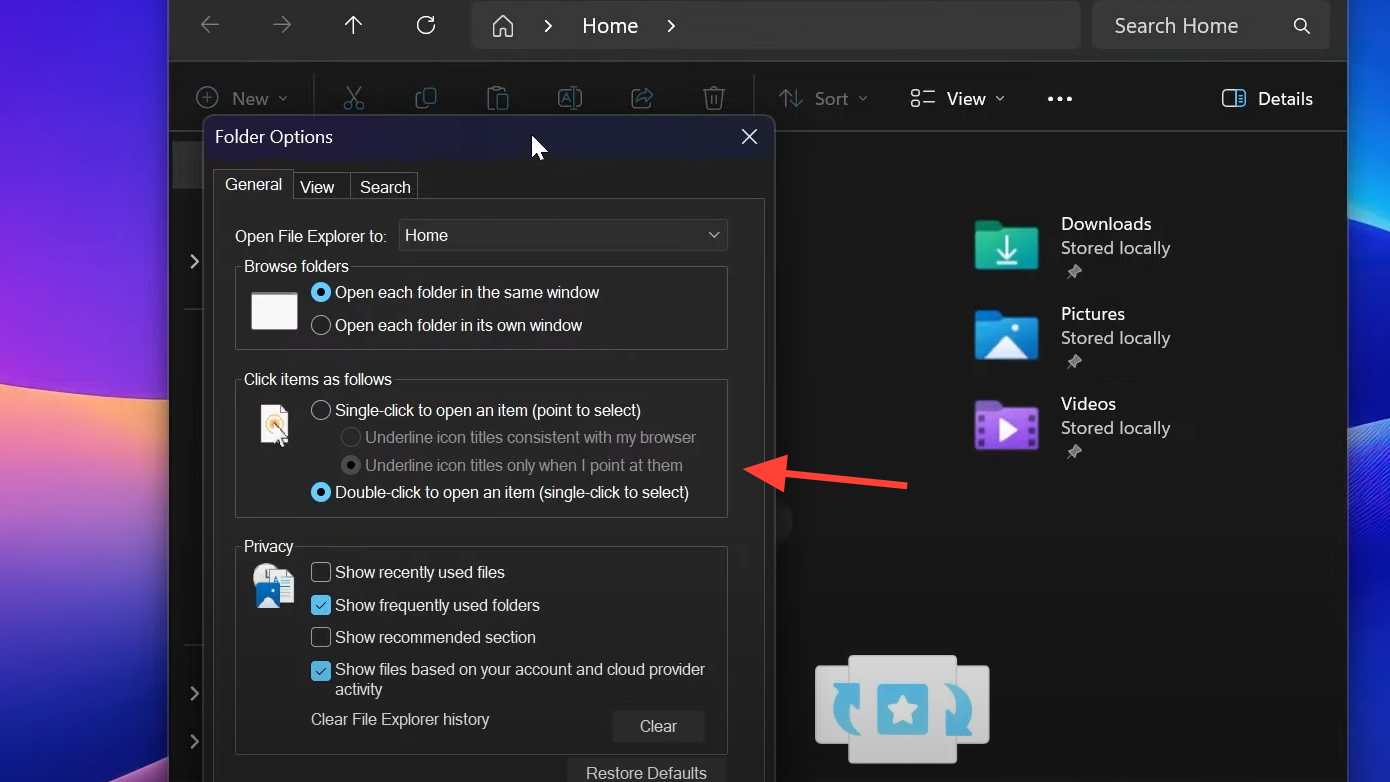
Windows 11 is rolling out darker visuals to more legacy dialogs. On recent 25H2 Insider builds, the Run dialog, Folder Options, file copy/move progress, and certain “access denied” prompts can match the system’s dark theme. Some dialogs still don’t switch, such as Properties and the file-extension rename confirmation, but the overall experience becomes more consistent and easier on the eyes.
What’s new in Windows 11 dark mode dialogs
After enabling these hidden flags, the following elements adopt dark styling when the system theme is set to Dark: Run (Windows + R), File Explorer’s Folder Options, file operation progress windows, and elevated “are you sure” prompts for protected actions. Properties and certain non-elevated confirmations remain light for now.
Requirements and limitations
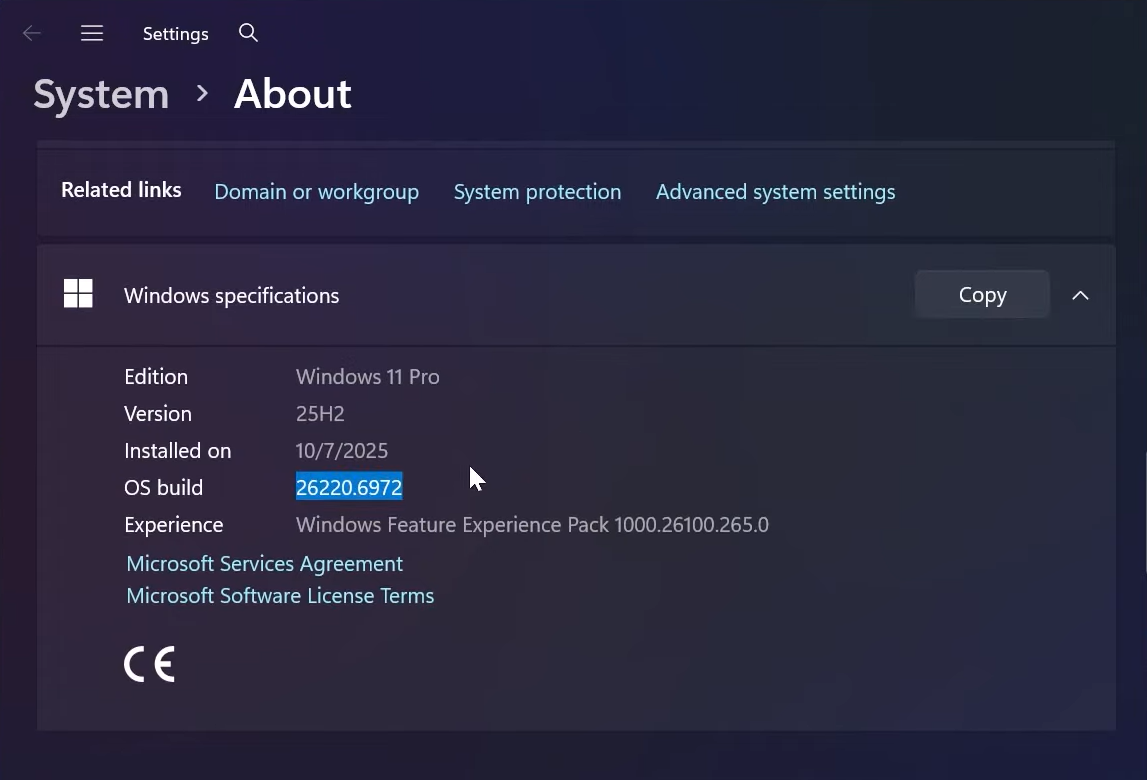
These dark dialogs are currently available on Windows 11 Insider builds (25H2 line). Specifically, Beta 26120.6972 and Dev 26220.6972 or newer show the new visuals when the feature flags are enabled. The feature set is still incomplete; some legacy dialogs remain light.
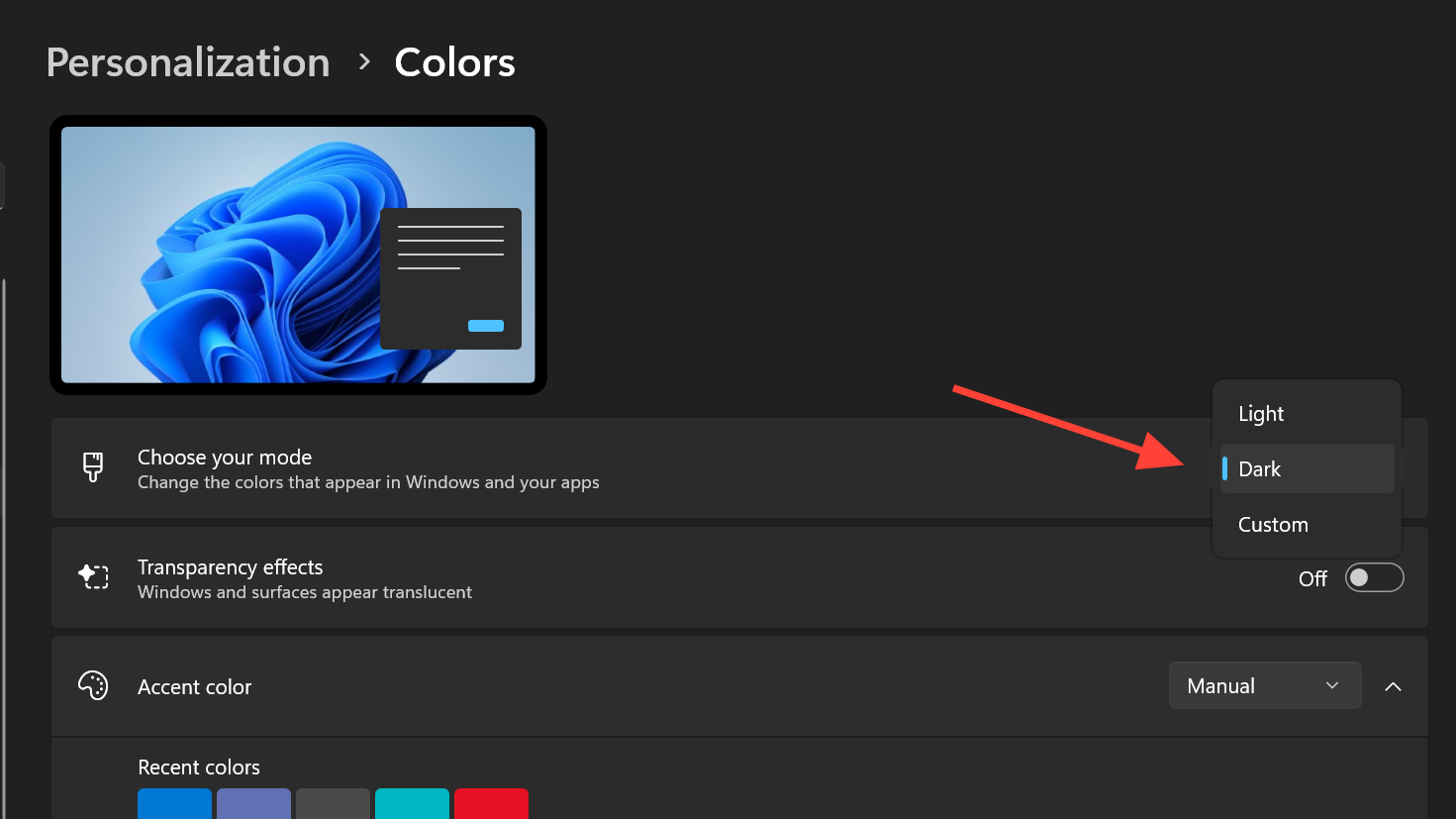
Make sure Windows is set to Dark mode system-wide. You can switch the system theme in Settings as described on Microsoft’s guide: Using Dark Mode in Windows 11.
Method 1 — Enable new dark dialogs with ViVeTool (Insider builds)
ViVeTool is a small command-line utility that toggles hidden Windows features. Use it to switch on the dark UI for specific dialogs on supported Insider builds. Changes apply system-wide and require a restart.
C:\vive. This keeps the tool and commands in a simple path.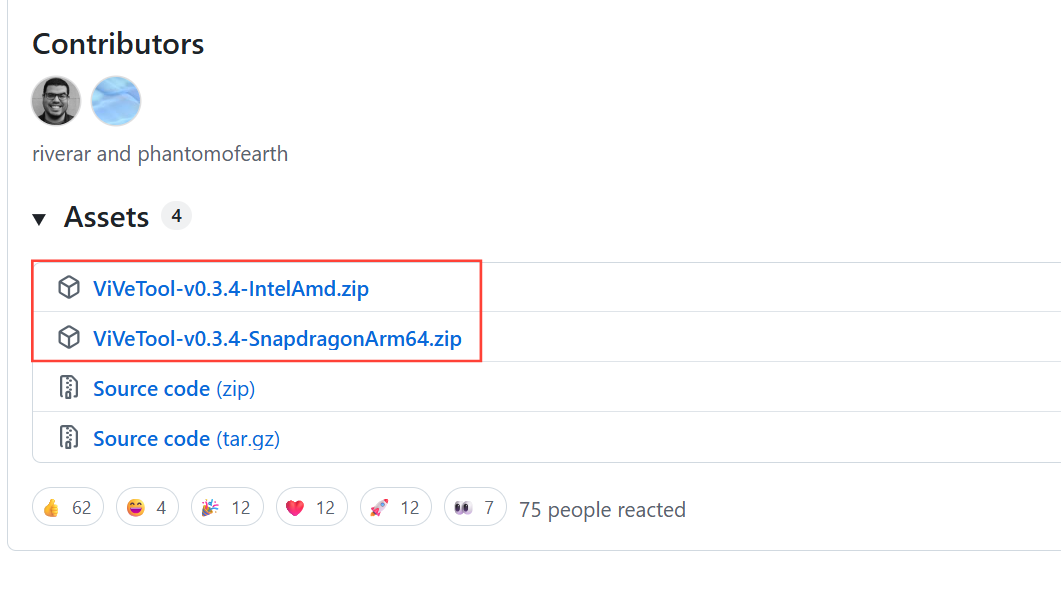
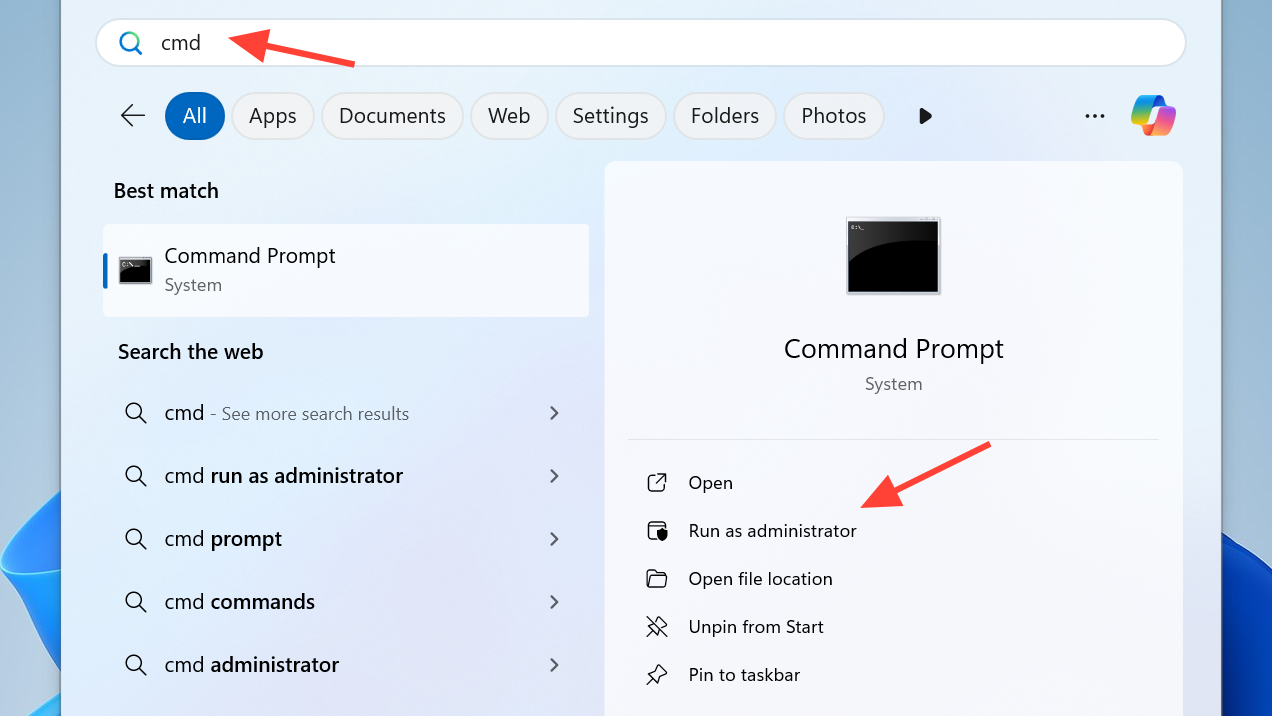
cd \vive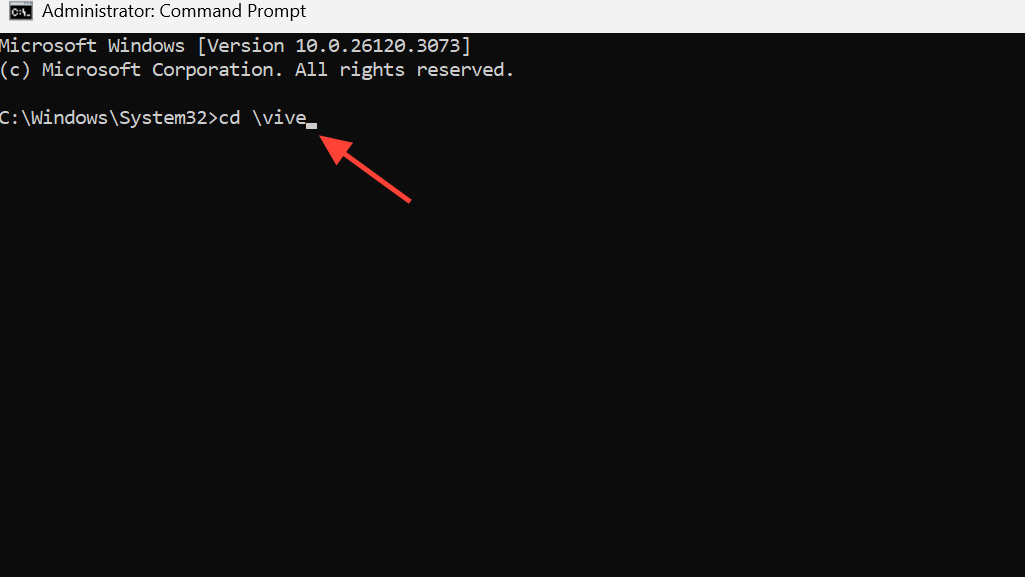
vivetool /enable /id:57857165,57994323,48433719,49453572,58383338,59270880,59203365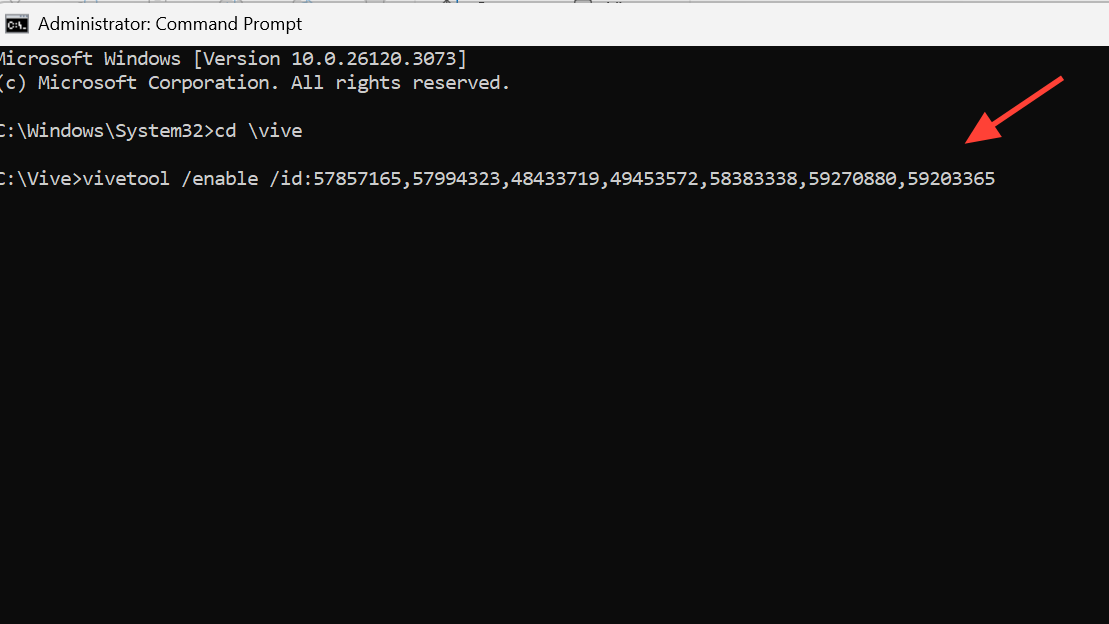
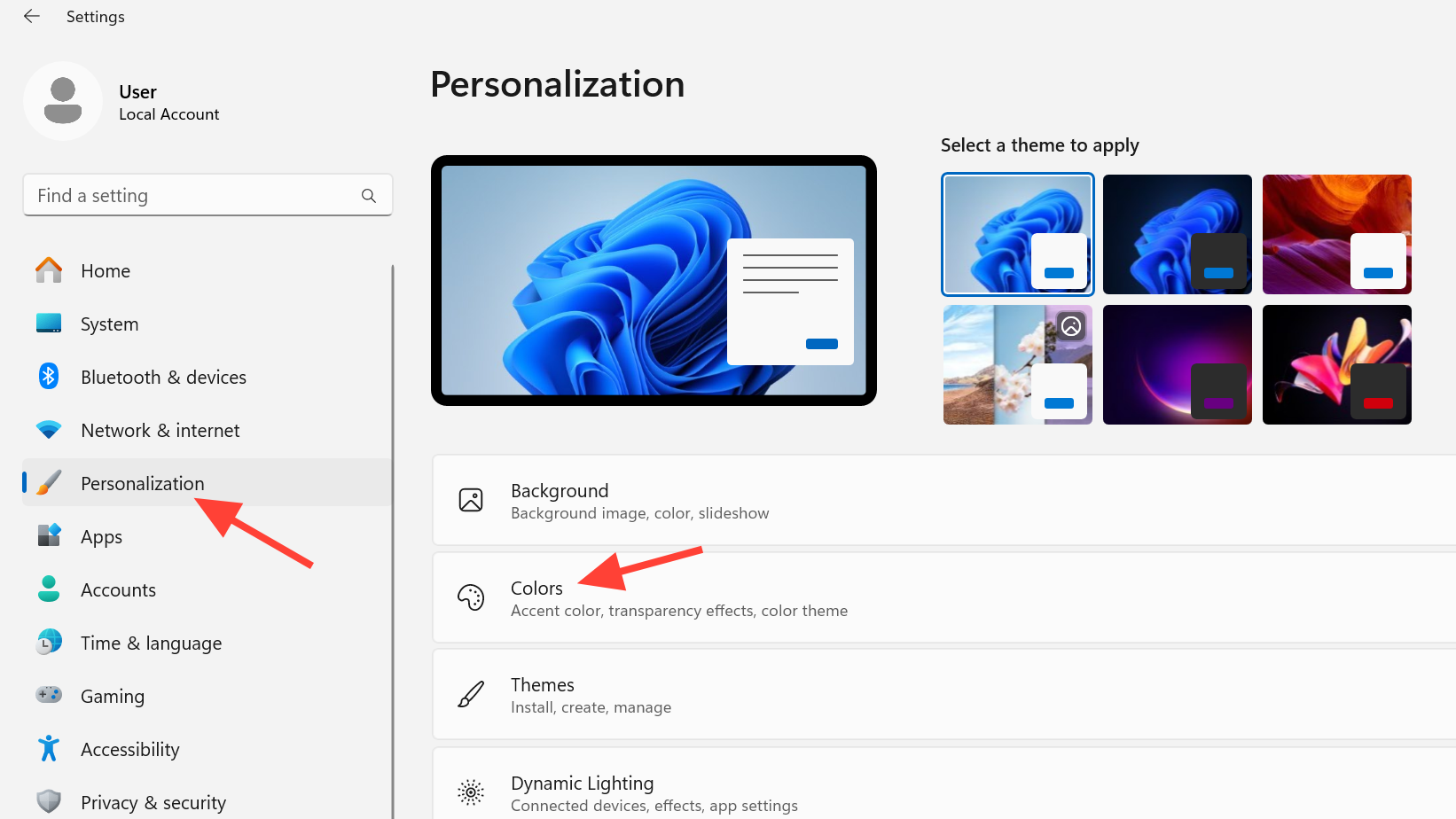
Method 2 — Set system dark mode in Settings
These dialogs only appear dark when Windows is set to the Dark theme. Confirm your system theme first.
Troubleshooting — dark mode flips back to light in 25H2
Some 25H2 builds may intermittently switch the theme back to light. Use the steps below to stabilize your setup.
As Windows 11 continues to expand dark theme coverage, these steps bring key dialogs into alignment now. Keep your device updated to newer Insider builds to get broader coverage as it rolls out.



