
Discord freezing on the “Starting” screen in Windows 11 almost always points to a local problem rather than a Discord outage. The app opens, the logo appears, and the loading spinner runs forever without reaching your servers, messages, or voice channels. Corrupted cache files, leftover background processes, or a blocked network connection are the usual reasons it never finishes loading.
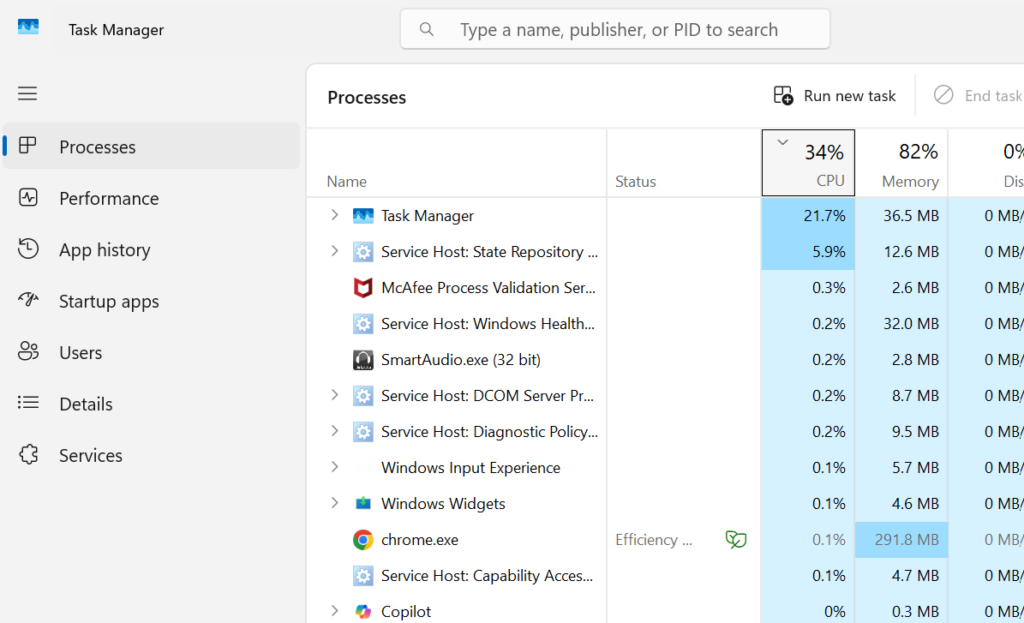
Quick answer: Open Task Manager (Ctrl + Shift + Esc), end every Discord process, then press Windows + R, type %appdata%, open the Discord folder, and delete the Cache, Code Cache, and GPUCache folders. Restart Discord. This clears most frozen startup loops.
Why Discord freezes on the Starting screen
When Discord hangs on launch, it has failed to finish its startup routine. The most common triggers are damaged temporary files, a network or DNS problem that stops the app from authenticating, or another program holding onto Discord in the background. The freeze often shows up right after a Windows update, a Discord update, or an improper shutdown.
| Cause | What you usually see |
|---|---|
| Corrupted cache files | Endless spinner, freeze returns after each restart |
| Network or DNS failure | App loads in browser but desktop app stays stuck |
| Stuck background process | Discord window opens but never moves past the logo |
| Firewall or antivirus block | Freeze after an update changed Discord’s files |
| Outdated Discord or GPU driver | Black screen, blank window, or crash after startup |
Note: If Discord loads fine in your web browser but the desktop app stays frozen, the problem is local. That rules out a server outage and points to cache or startup conflicts on your PC.
End all Discord processes and restart the app
Closing the Discord window does not always stop it. The app frequently keeps running in the background, and a stuck process there is enough to block the next launch. Forcing a full shutdown clears that conflict.
Clear the Discord cache to remove corrupted files
Deleting the cache is the most reliable fix for a frozen startup. Discord stores temporary files to load faster, but if those files become damaged after an interrupted update or sudden power loss, the app stalls while trying to read them. Removing them forces Discord to build fresh cache on the next launch.
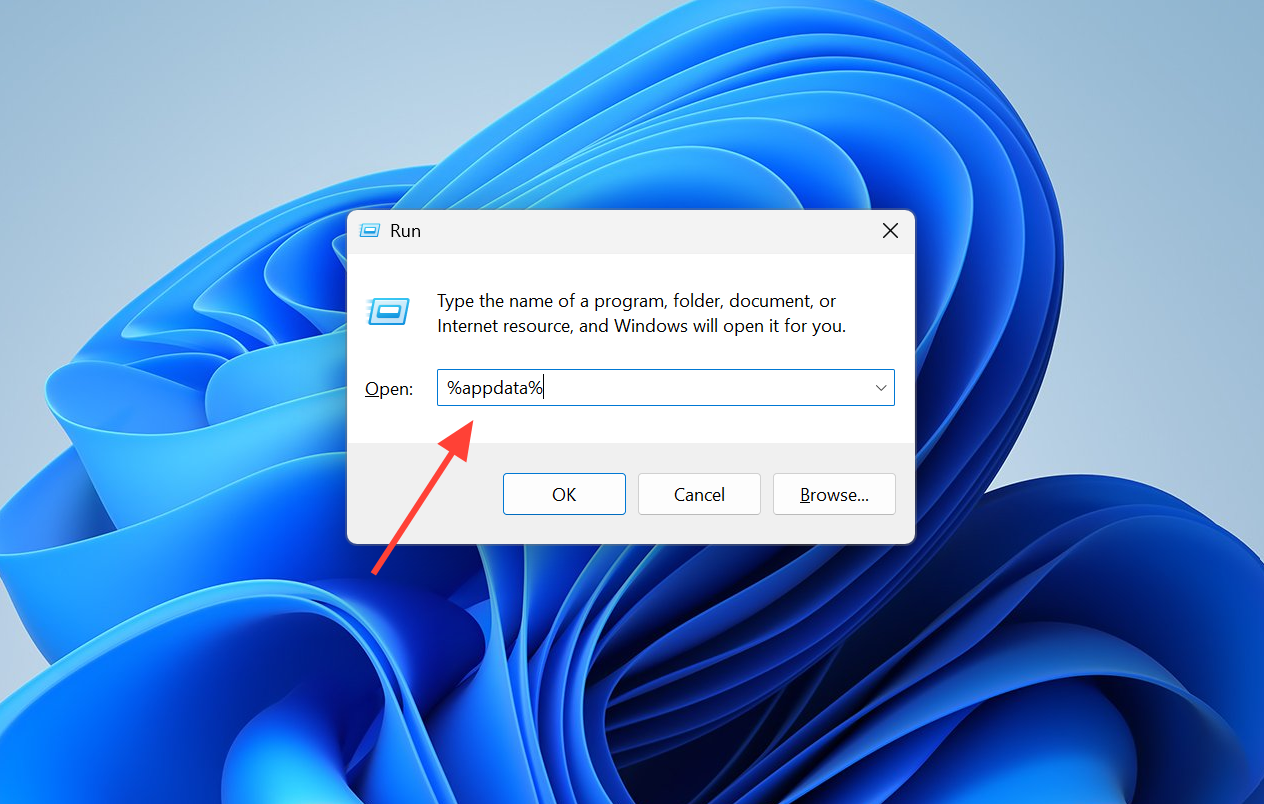
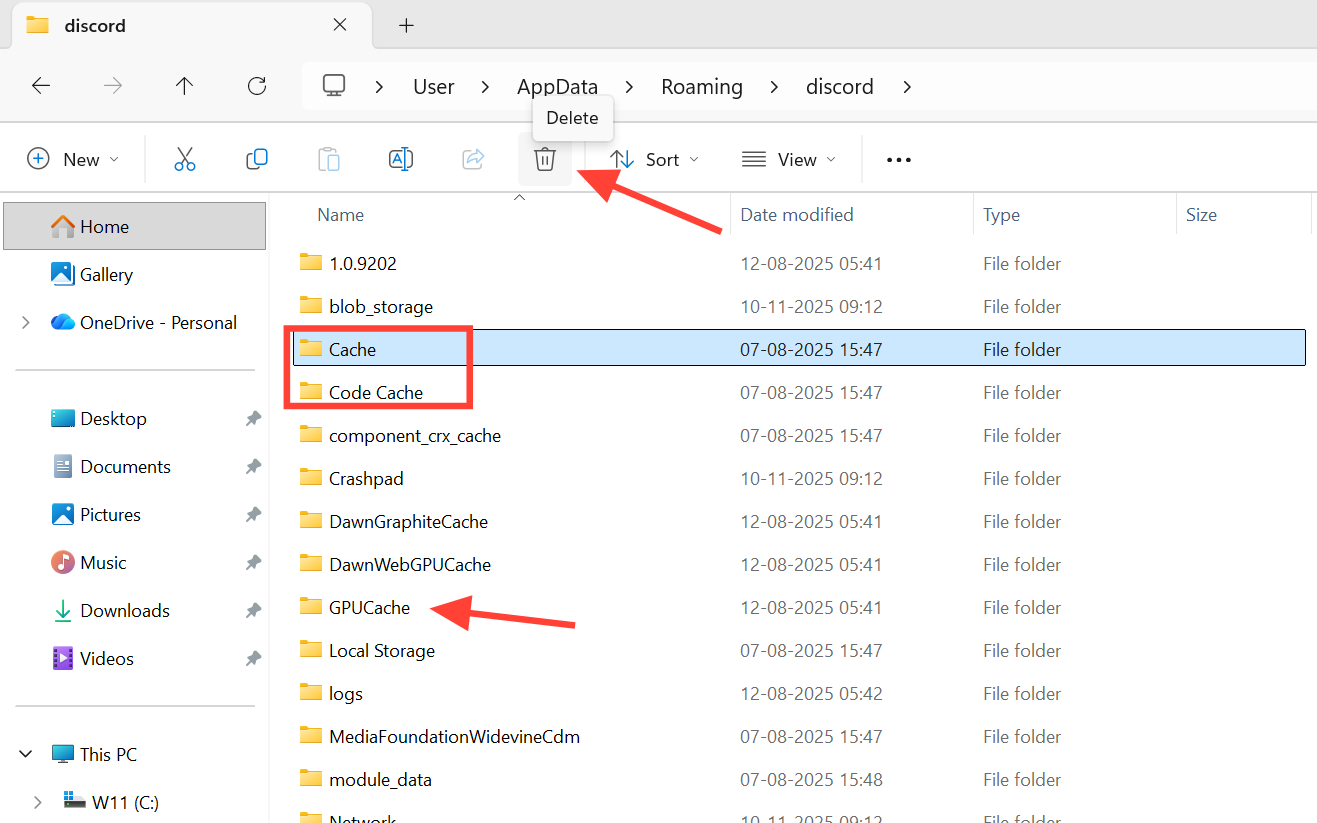
Only delete the cache folders inside the Discord directory. Do not remove unrelated system folders, and never force-shut down your PC repeatedly while Discord is frozen, as that can damage temporary system files.
Fix network and DNS problems blocking startup
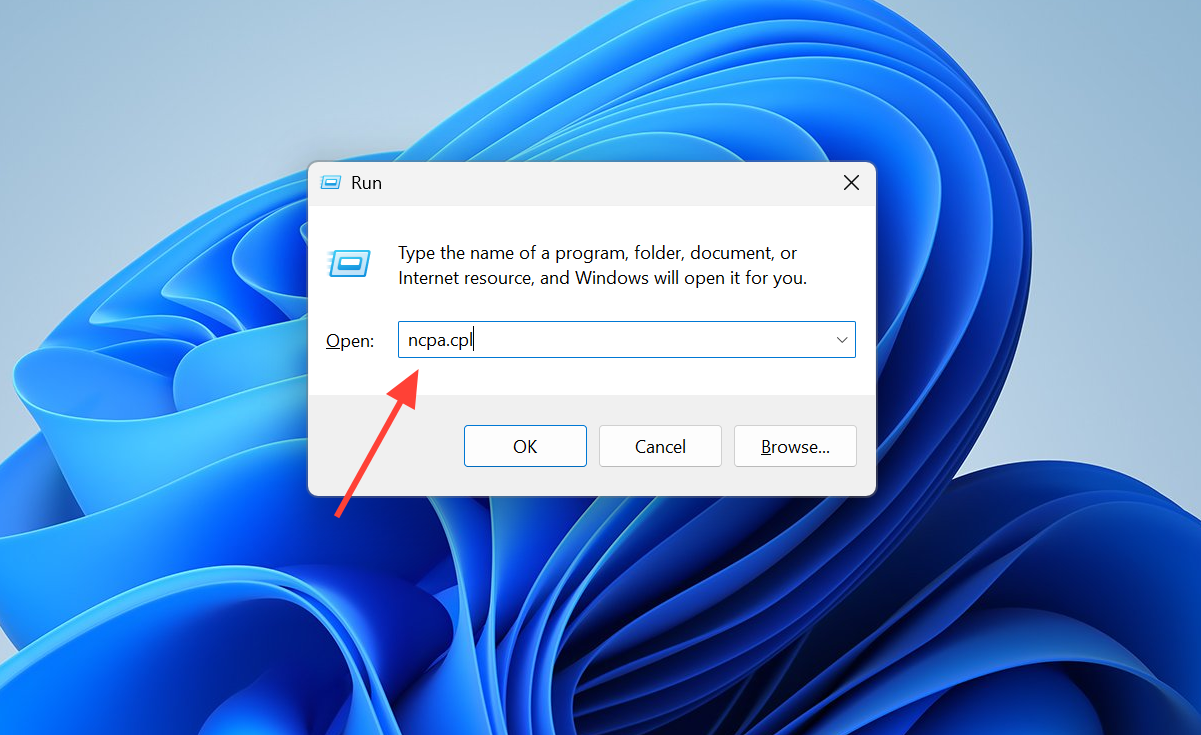
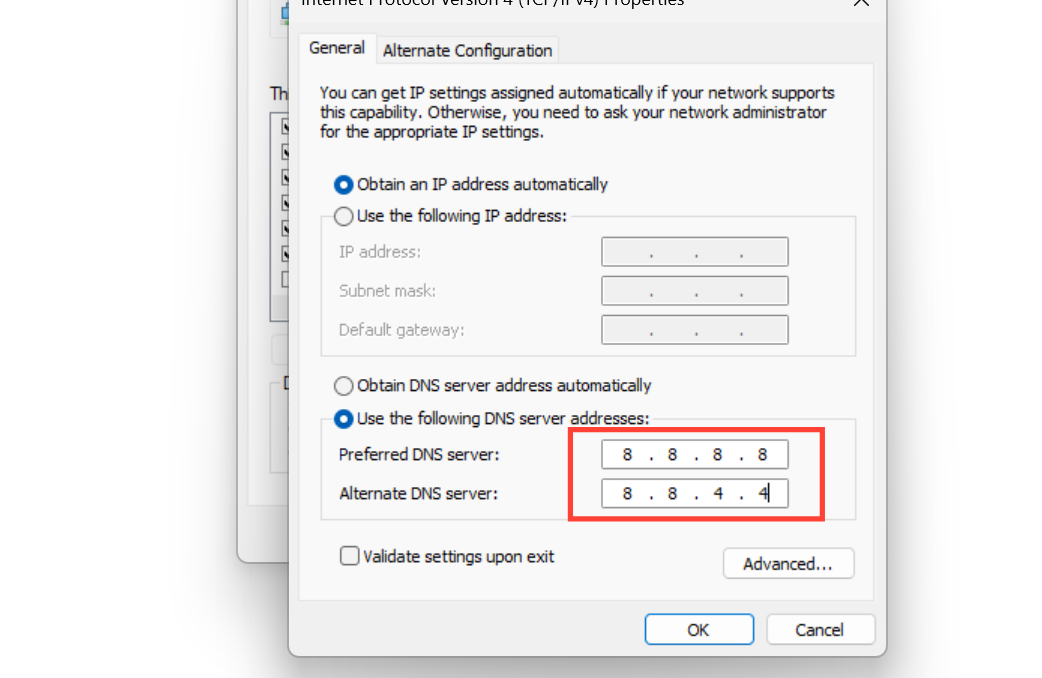
Discord needs a stable connection to finish authenticating during launch. If your DNS is unreliable, or a VPN, proxy, or firewall is interfering, the app can sit on the loading screen waiting for a response that never arrives. Switching to a public DNS provider often restores a clean connection.
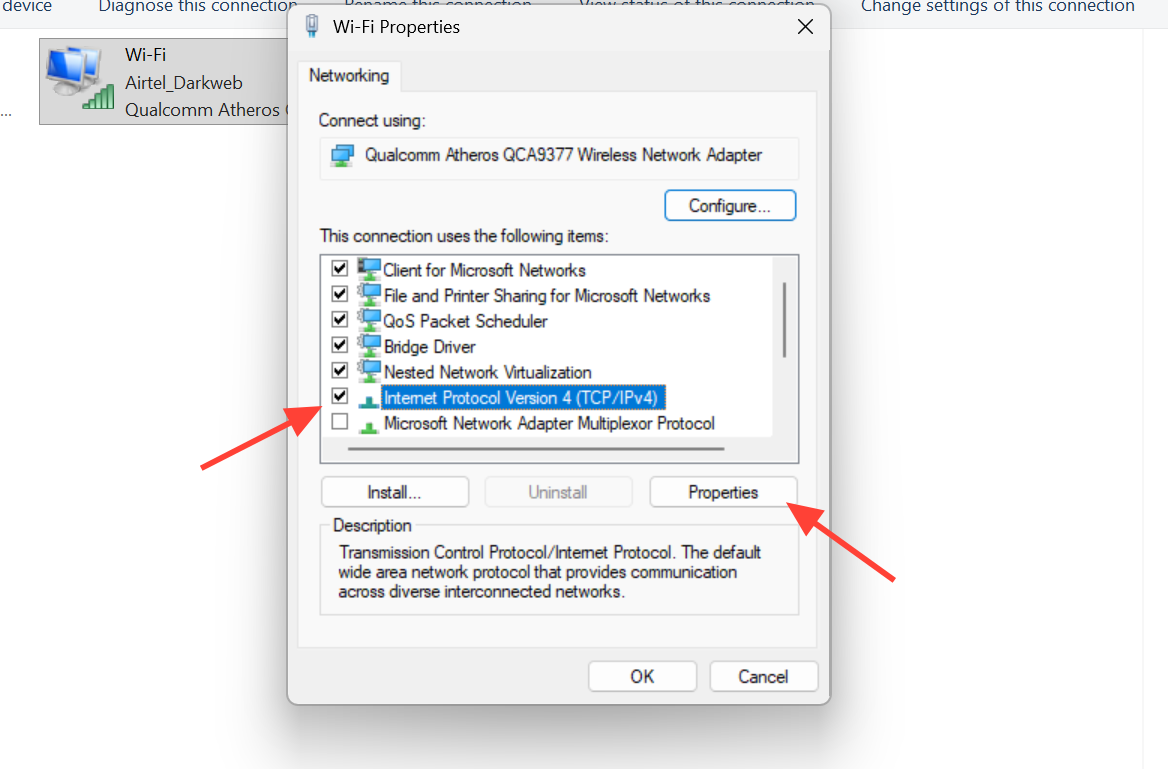
| Provider | Preferred | Alternate |
|---|---|---|
| Google DNS | 8.8.8.8 | 8.8.4.4 |
| Cloudflare DNS | 1.1.1.1 | 1.0.0.1 |
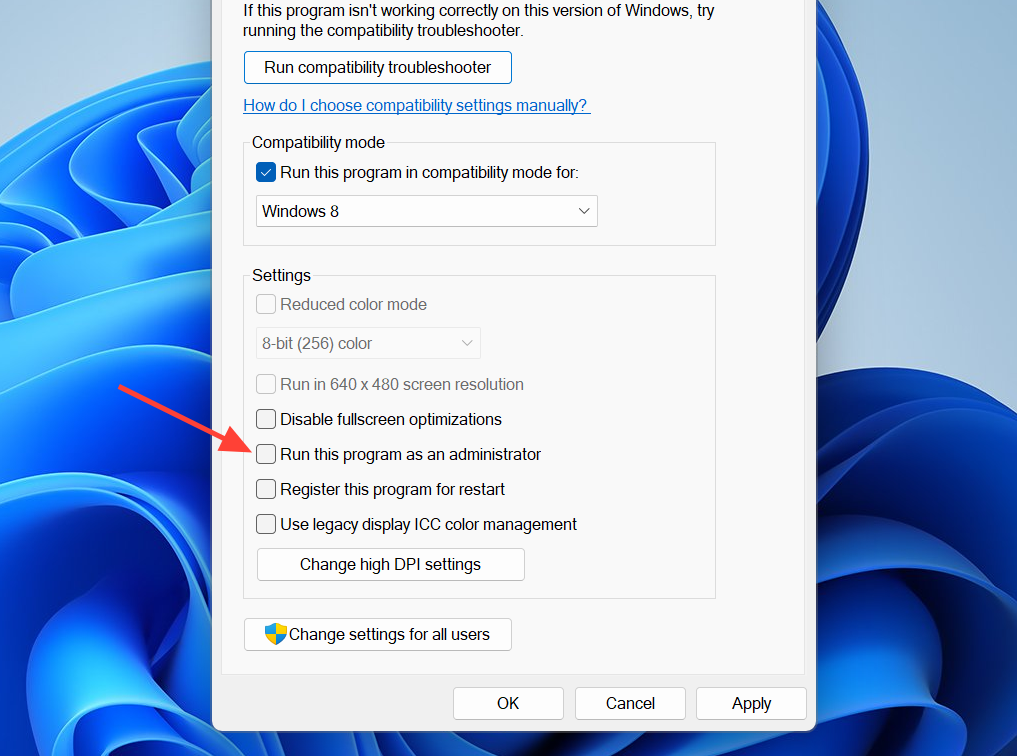
Run Discord as administrator
Windows 11 enforces stricter application permissions, and Discord sometimes cannot reach the system resources it needs during startup. Running it with elevated rights can clear permission-related freezes.
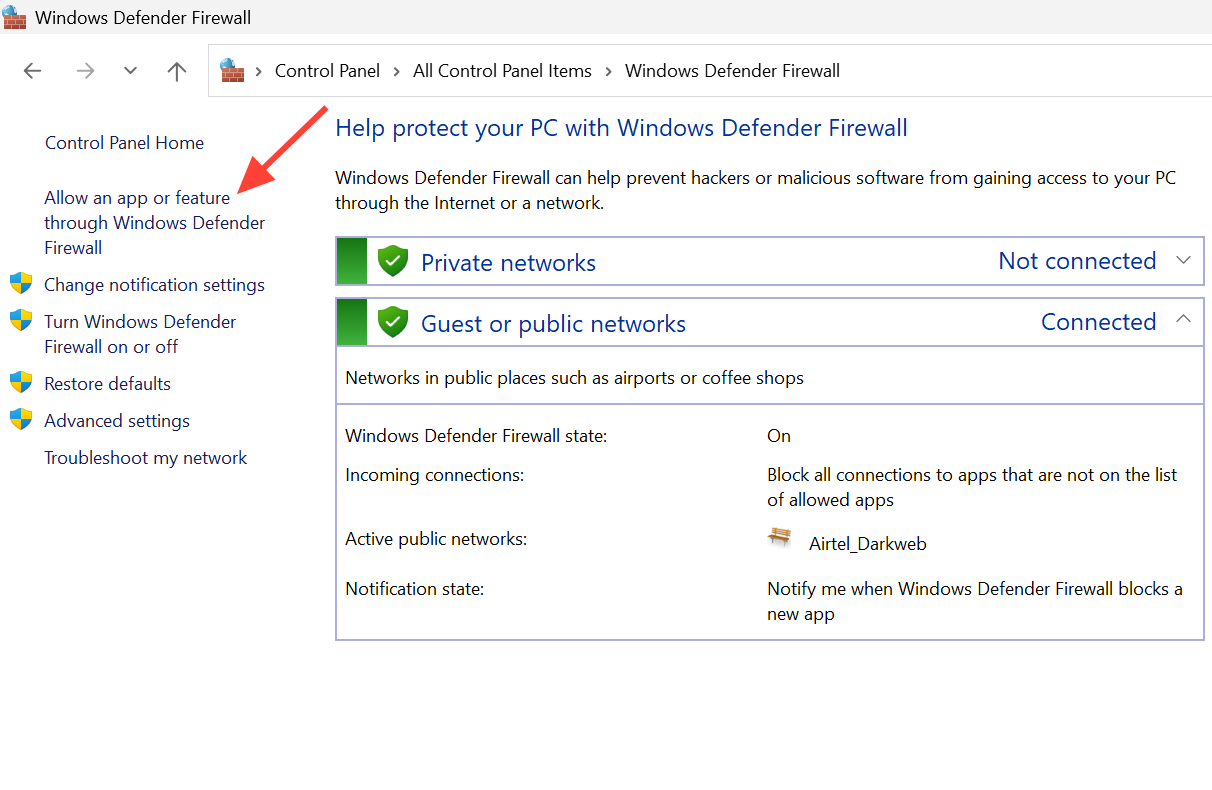
Check firewall and antivirus settings
Security software can block Discord’s network connections, especially after an update changes the app’s executable files. When Discord cannot pass the firewall, it stalls during the connection phase of startup.
Update or reinstall Discord and Windows components
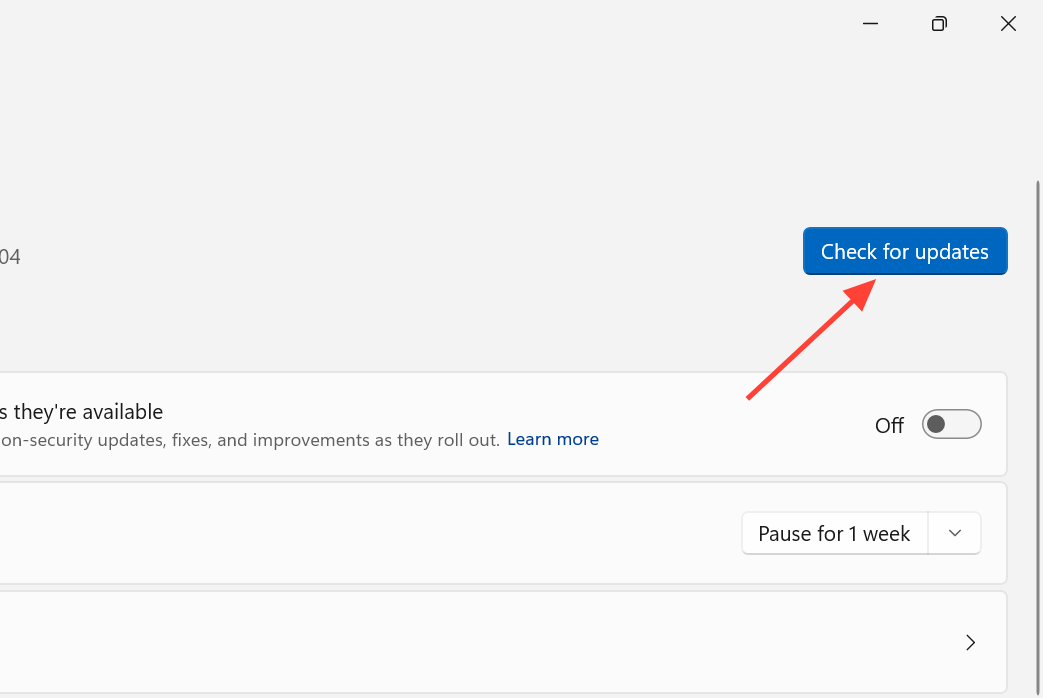
Outdated software is a frequent cause of startup freezes. An old Discord build can clash with updated Windows networking or security, and incomplete Windows updates or aging GPU drivers can break the app’s startup rendering. When nothing else works, a clean reinstall removes any corrupted installation files left behind.
appwiz.cpl, press Enter, select Discord, and choose Uninstall.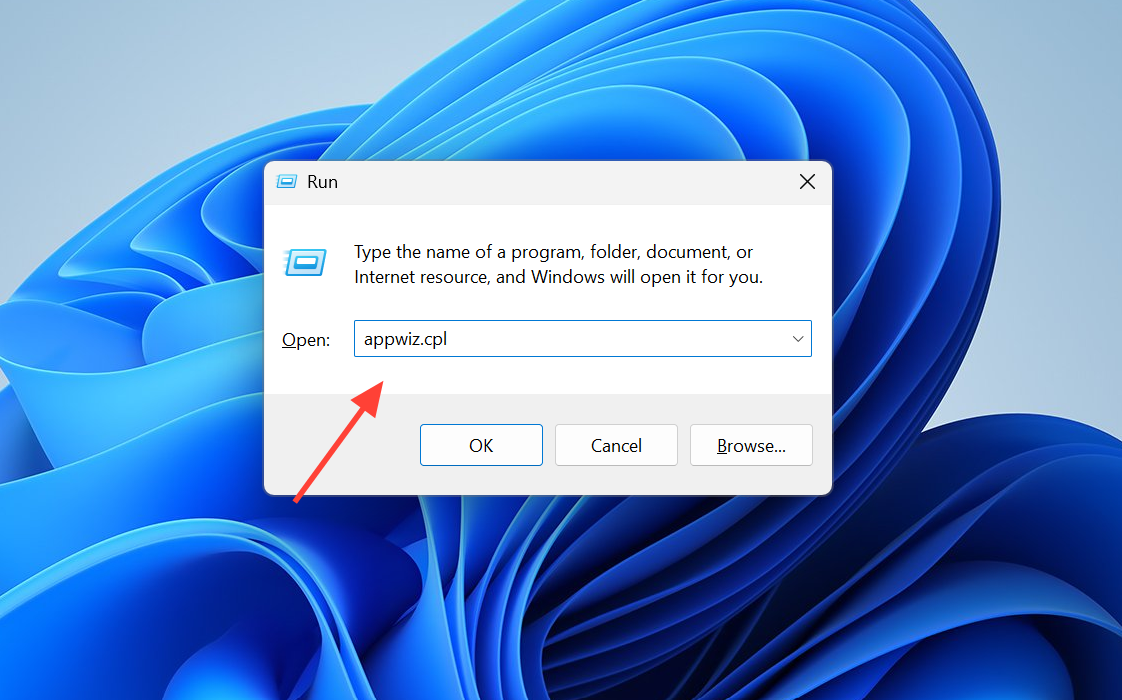
%appdata%, and delete the leftover Discord folder. Repeat with %localappdata%.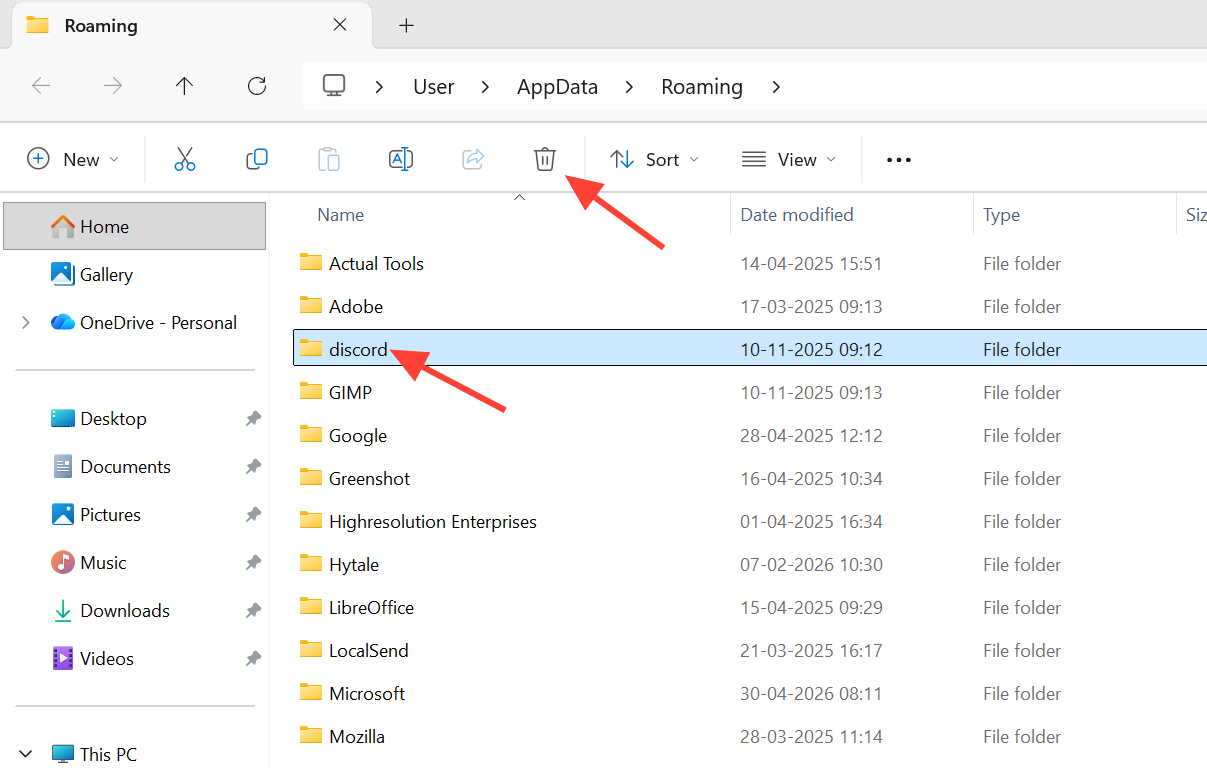
Avoid third-party “Discord repair tools” from unknown websites. They can contain malware and will not fix a genuine cache or network issue.
How to confirm the fix worked
You know the problem is resolved when Discord moves past the spinning logo and loads the full interface with your server list, direct messages, and voice channels visible. If a restart only fixes the issue temporarily and the freeze returns, the underlying cache corruption or startup conflict is still present, so work back through the cache cleanup and process steps rather than relying on a reboot. If the desktop app stays stuck but the web version connects normally, keep your focus on local fixes, since Discord’s servers are reachable.