

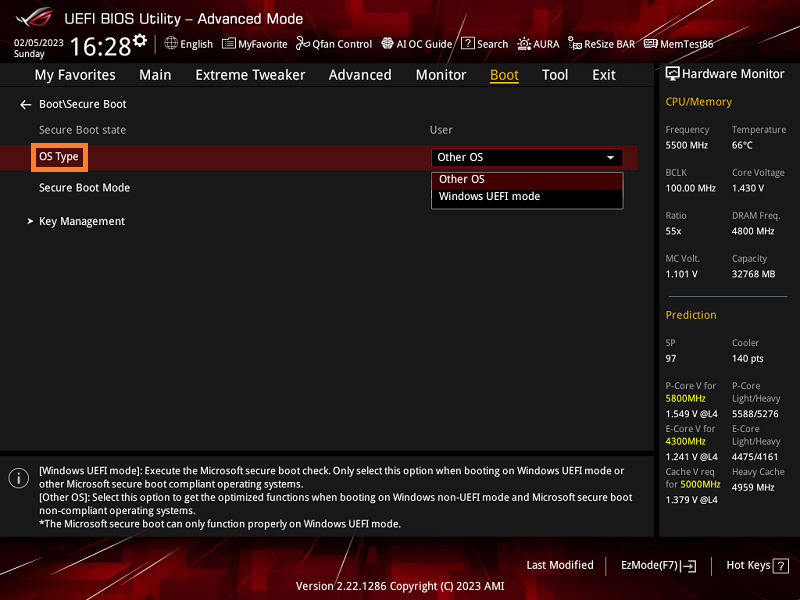
Secure Boot blocks untrusted boot code by allowing only signed components to load during startup. On ASUS systems, the setting is controlled either by OS Type (desktop motherboards) or Secure Boot Control (notebooks). Once enabled, Windows will report Secure Boot as On and certain games and security features will work as intended.
Quick reference: ASUS Secure Boot controls
The labels you see in BIOS directly determine the Secure Boot state.
| BIOS option | Effect at next boot |
|---|---|
| OS Type = Windows UEFI mode. | Secure Boot turns On when keys are present (state shows “User”). |
| OS Type = Other OS. | Secure Boot is Off. |
| Secure Boot State = User. | Keys are installed; Secure Boot can be active. |
| Secure Boot State = Setup. | No keys installed; Secure Boot is not active. |
On desktop boards, OS Type controls Secure Boot; see the official overview for this behavior on ASUS motherboards (FAQ 1049829).
Enable Secure Boot — ASUS desktop motherboards (UEFI)
On ASUS motherboards, Secure Boot is enabled by setting OS Type to Windows UEFI mode.
Enable Secure Boot — ASUS notebooks, AIO, and handhelds
Laptops use a “Secure Boot Control” toggle in the Security page.
F2 and press the power button. Release F2 when BIOS opens.Verify Secure Boot state in Windows
Fix greyed‑out options or changes that won’t stick (restore keys)
If the Secure Boot state won’t change, refresh the Secure Boot key database, then try again.
Desktop motherboards — restore default keys
F10 to save. After reboot, set OS Type to Windows UEFI mode again if needed.Notebooks/AIO/handhelds — restore factory keys
Common blockers and how to resolve
- UEFI boot required. Secure Boot only works in UEFI mode, not Legacy/CSM. Set the firmware to UEFI‑only and disable CSM.
- GPT system disk required. If your system drive is MBR, convert it to GPT; otherwise Secure Boot will not activate.
- Keys determine state. “User” indicates keys are installed; “Setup” indicates none are present. Use the restore‑keys steps above if needed.
- BitLocker prompts. Changing boot security may trigger a recovery key prompt. Have your recovery key ready or suspend BitLocker before making BIOS changes. See ASUS guidance for finding the recovery key: Troubleshooting – BitLocker Recovery Key.
Once BIOS is set to UEFI with valid keys and the correct toggle, Secure Boot will report On in System Information and persist across reboots.



