Fortnite Crew bills every month for as long as it stays active, and the only way to stop the next charge is to turn off auto-renewal on the same platform you used to subscribe. If you bought Crew on an Xbox Series X, Series S, or Xbox One, you cancel through your Microsoft account, not through the Epic Games website.
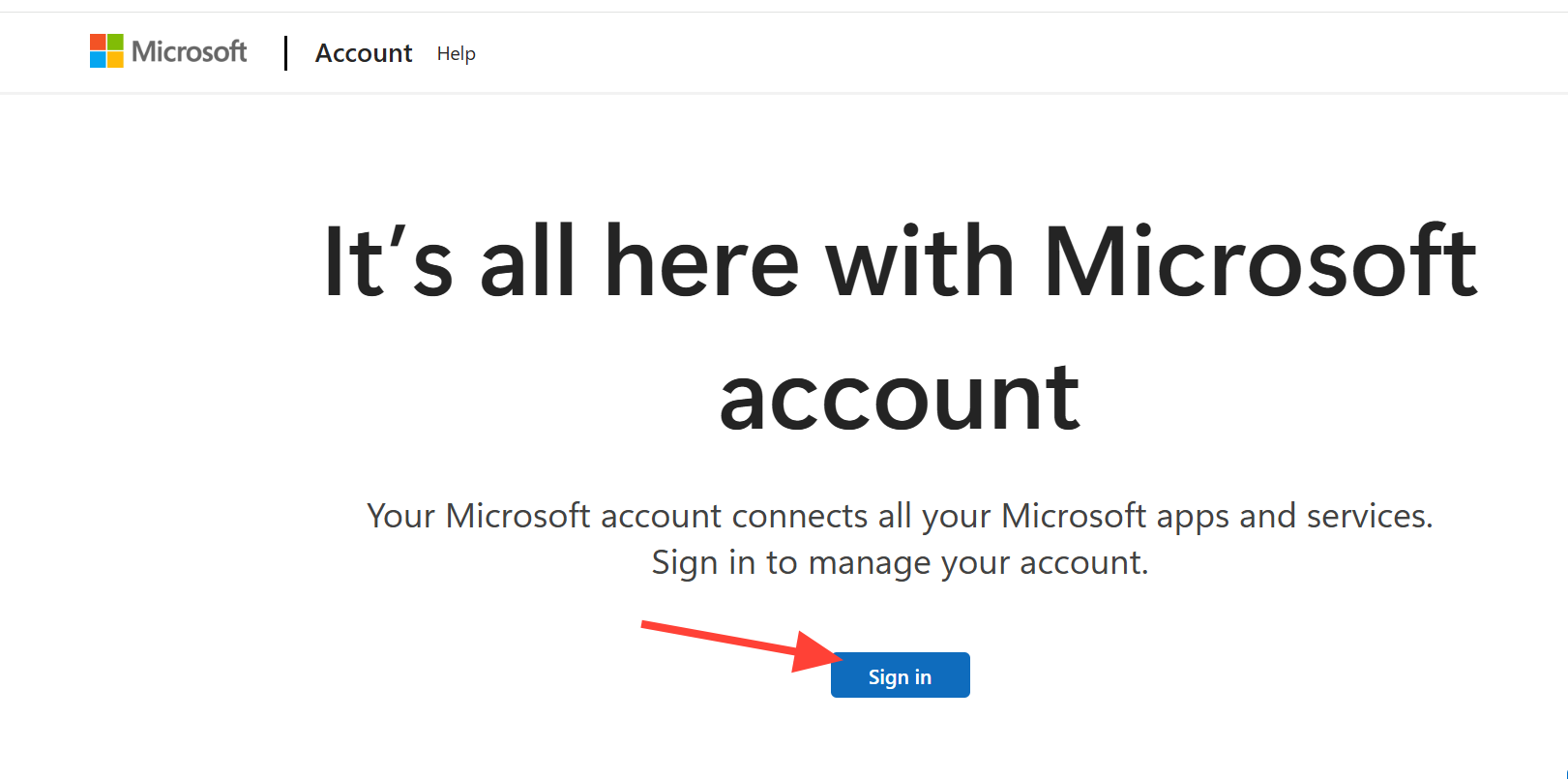
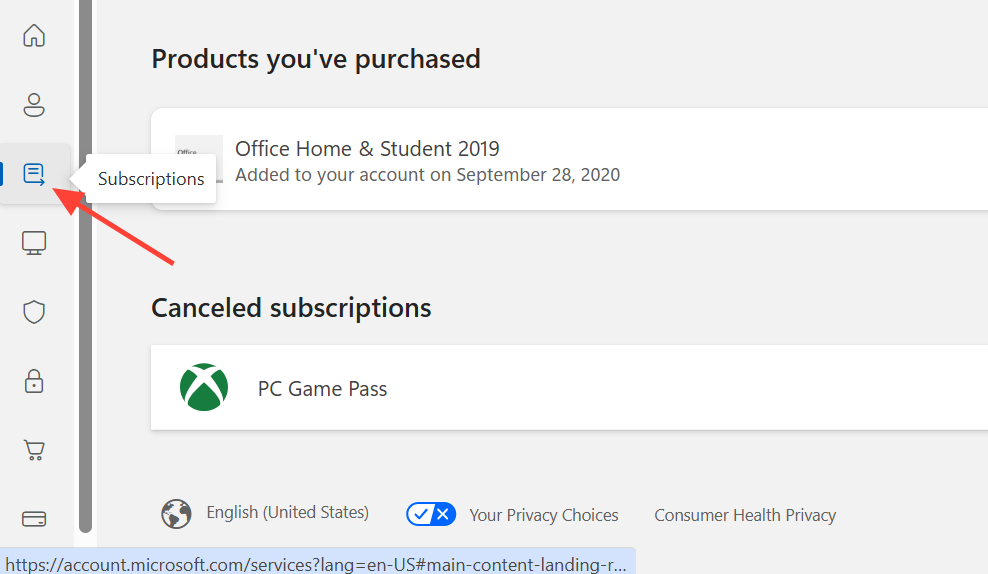
Quick answer: Sign in at account.microsoft.com/services, find Fortnite Crew, open the three-dot menu, choose Manage, and select Turn off recurring billing. Auto-renewal is off once the status changes and no future date is listed.
Cancel Fortnite Crew from your Xbox console
Use this route if you subscribed directly on the console. It turns off auto-renewal so billing stops at the end of your current period.
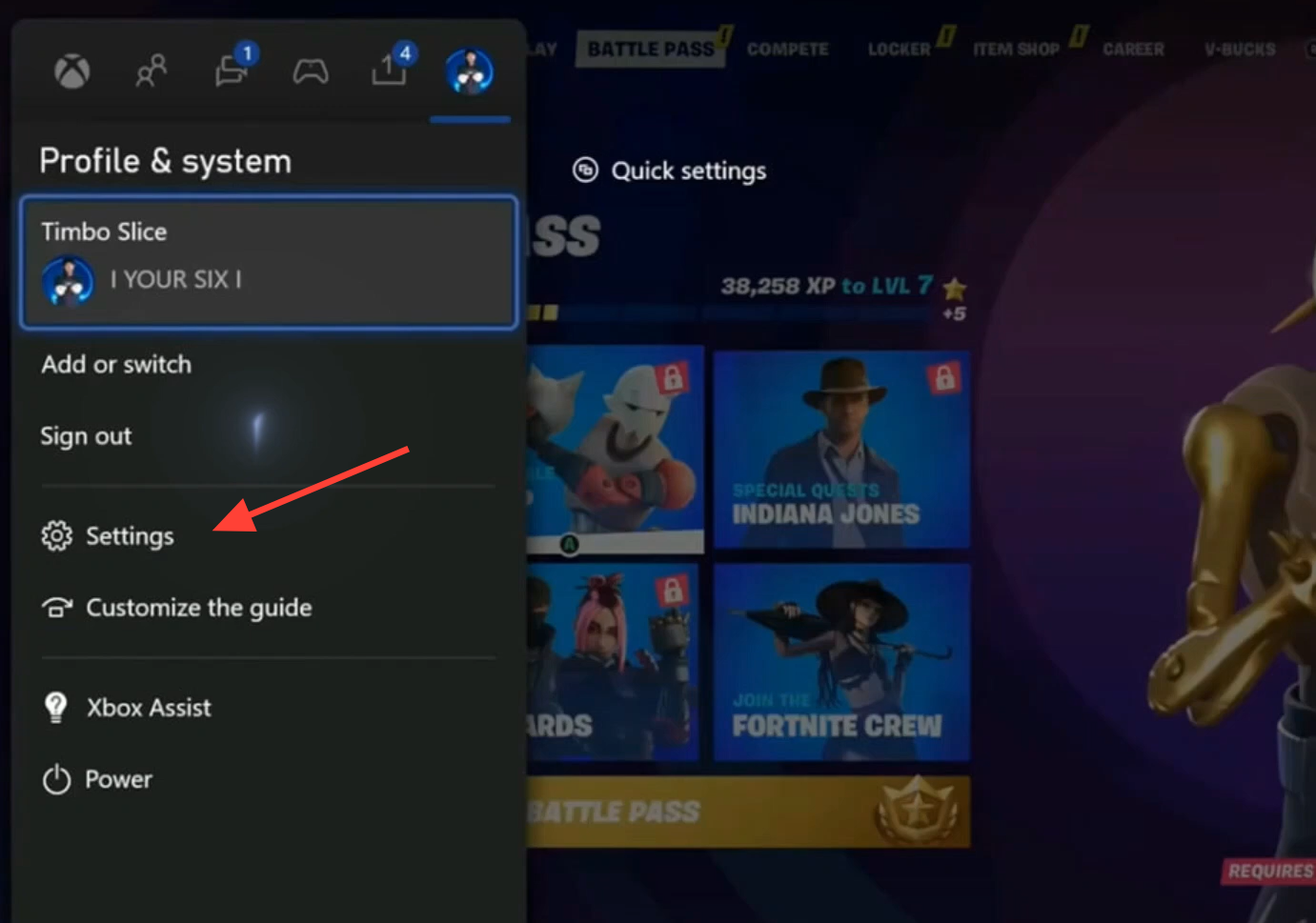
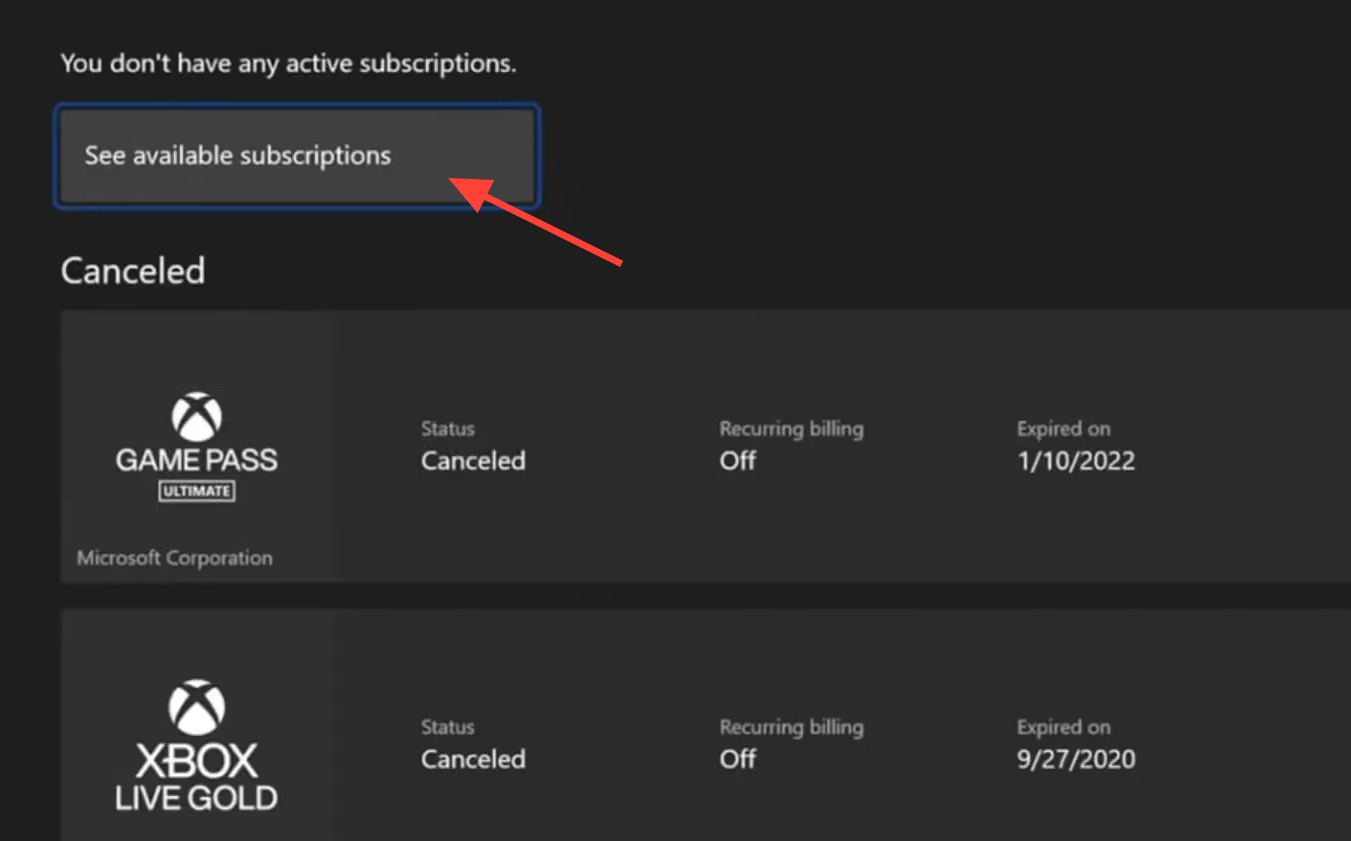
Fortnite Crew does not always appear under the console Subscriptions page. If it is missing, cancel through the Microsoft account website instead, described below.
Cancel through your Microsoft account online
The web method is the most reliable, especially when Crew does not show up on the console. It works from a phone or computer browser.
How to confirm the cancellation worked
After you turn off auto-renewal, the Fortnite Crew entry should show that recurring billing is off and no upcoming renewal date is listed. On the console, the auto-renewal toggle stays in the off position. On the web, the status changes from active recurring billing to a plan that ends on its current expiration date.
If you still see a scheduled charge, the cancellation did not register. The most common reasons are canceling on a different platform than the one you subscribed on, or using the general Subscriptions page instead of Services & Subscriptions. Repeat the steps on the correct platform and page.
What happens after you cancel
Canceling stops the next payment but does not end your access immediately. You keep Fortnite Crew benefits until the current billing period runs out. Epic Games does not refund unused time, so timing your cancellation before the next renewal date matters if you want to avoid another full month.
| Item | What happens after canceling |
|---|---|
| Monthly charge | Stops after the current billing cycle ends |
| Access during paid period | Kept until the current period expires |
| Refund for unused time | Not offered |
| Battle Pass content, V-Bucks, Crew Packs already earned | Stay on your account |
| Future monthly rewards | Stop after cancellation |
Fortnite Crew costs $11.99 per month and includes a monthly Crew Pack, 1,000 V-Bucks, and Battle Pass access. Turning off auto-renewal only affects future billing. It does not remove skins, emotes, or V-Bucks you already received while subscribed. If you decide to return later, you can resubscribe at any time and the monthly benefits resume.