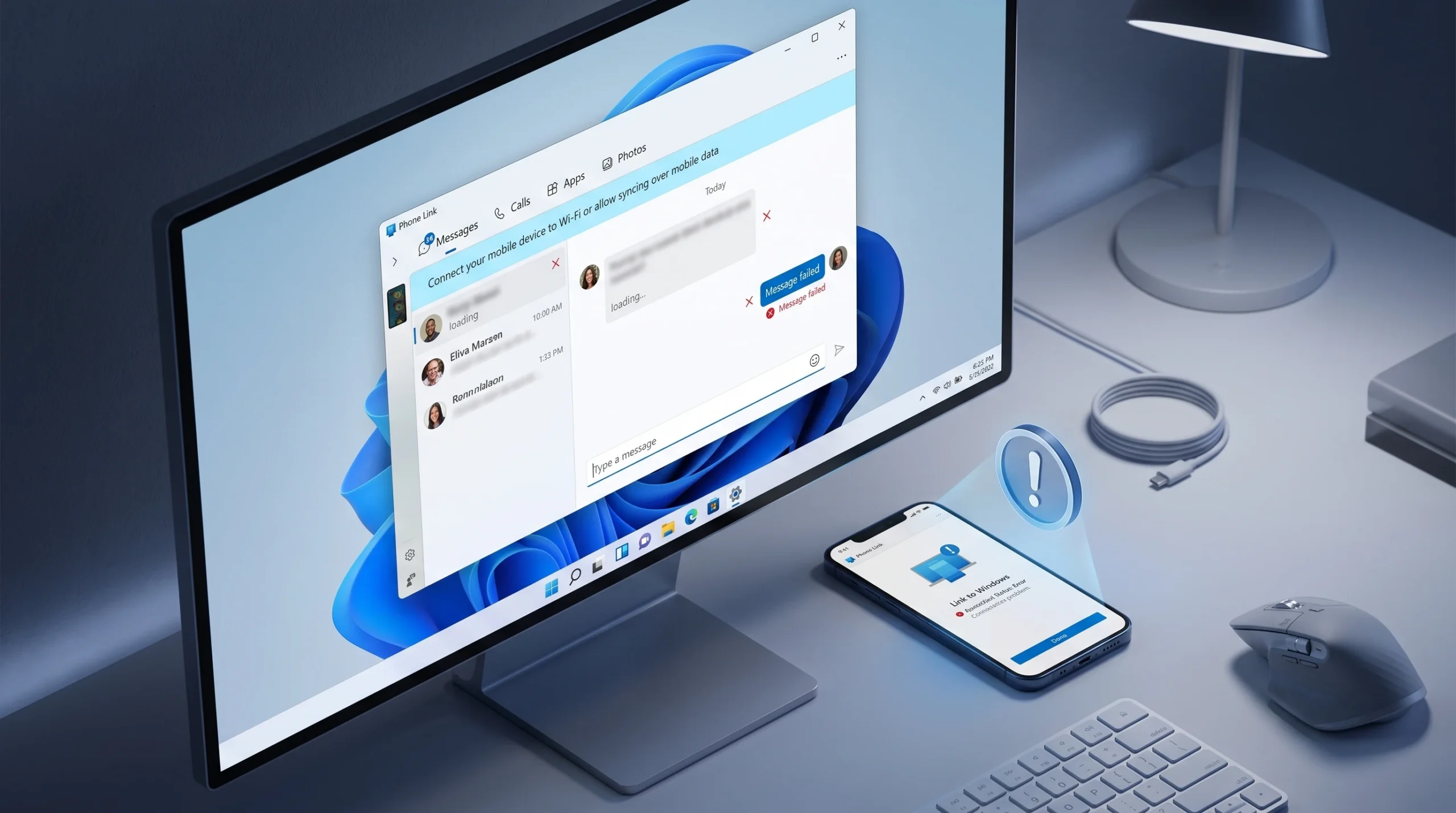
Phone Link can slip into a state where it still pushes notifications for new texts, yet the Messages tab never refreshes on its own. Outgoing texts leave your PC but never flip to a sent state, incoming replies only appear as notifications, and the conversation view stays frozen until you close and reopen the app. On Windows 10 with an Android phone, this is a known sync bug tied to a stuck device session, and clearing that session fixes it.
Quick answer: Unlink the phone inside Phone Link on your PC, sign out of the Link to Windows app on your Android phone, restart both devices, then re-link using the same Microsoft account. Removing the device on Windows alone does not clear the stuck session — you must also sign out on Android.
Why messages sync as notifications but not into the Messages tab
Phone Link runs two related jobs. One relays notifications from the phone, and the other commits the actual message state — the sent/delivered markers and the full thread history. When the notification relay keeps working but the message state stops committing, you get the exact split behavior above. Notifications arrive and quick replies from the notification work, but the Messages tab is stale.
The cause sits on the Android side. The Link to Windows app stays logged in with a stale session, so the sync bridge never resets even after you close the PC app. A PowerShell restart can jolt it back temporarily, but the reliable fix is to fully tear down and rebuild the link between the two devices.
Fast reset with PowerShell (temporary fix)
Try this first, since it takes seconds and sometimes clears the stall without a full re-link. It force-closes the Phone Link processes and relaunches the app cleanly.
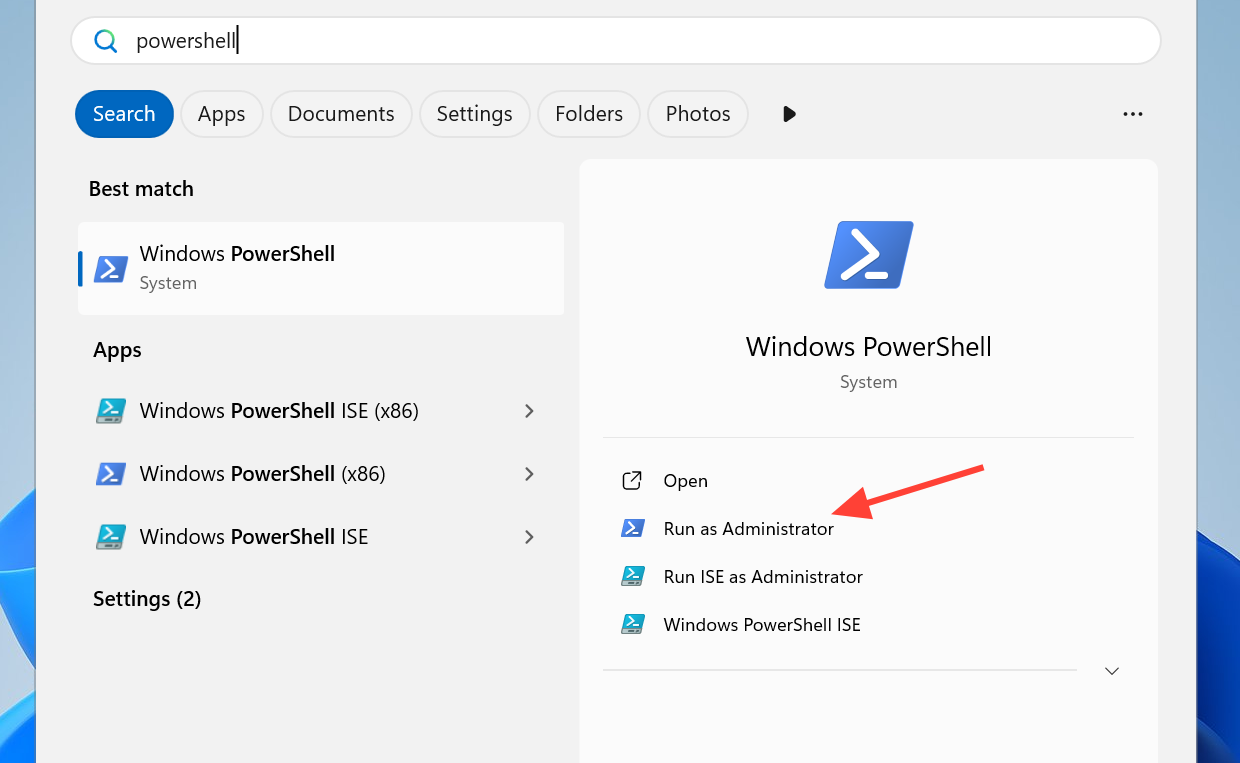
taskkill /f /im PhoneExperienceHost.exe
taskkill /f /im YourPhone.exe
start shell:AppsFolder\Microsoft.YourPhone_8wekyb3d8bbwe!App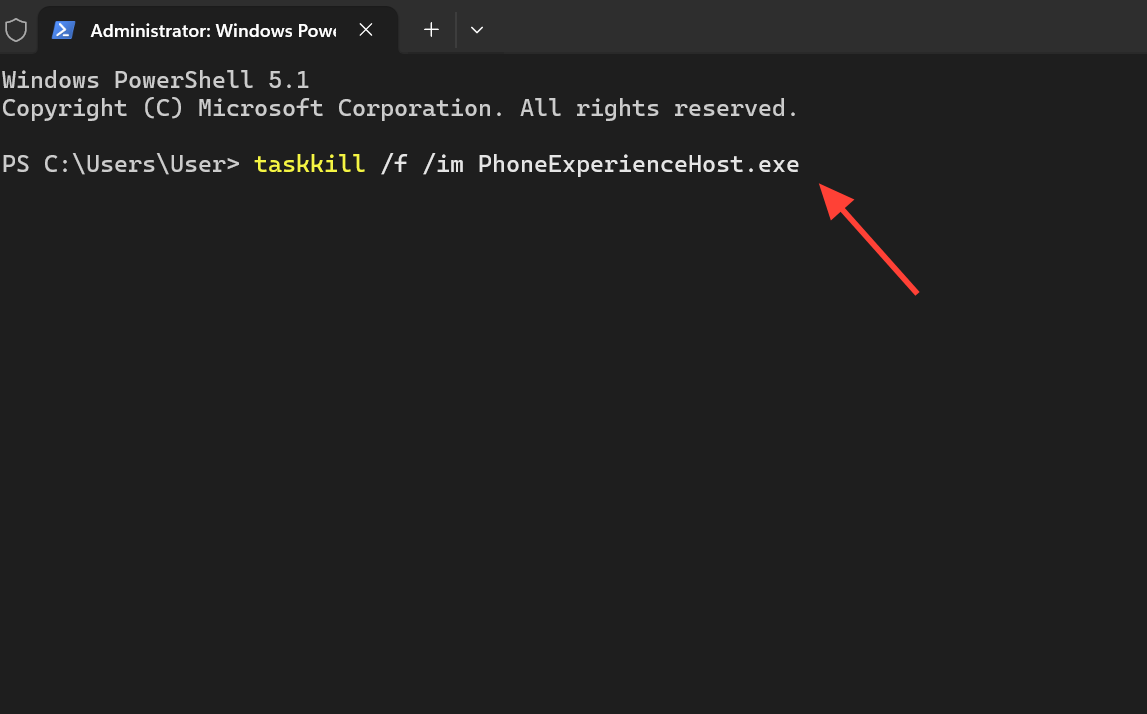
Full fix: unlink, sign out on Android, and re-link
This is the reset that actually clears the stuck session. The order matters — the Android sign-out is the part most people skip, and it is the step that resets the sync bridge.
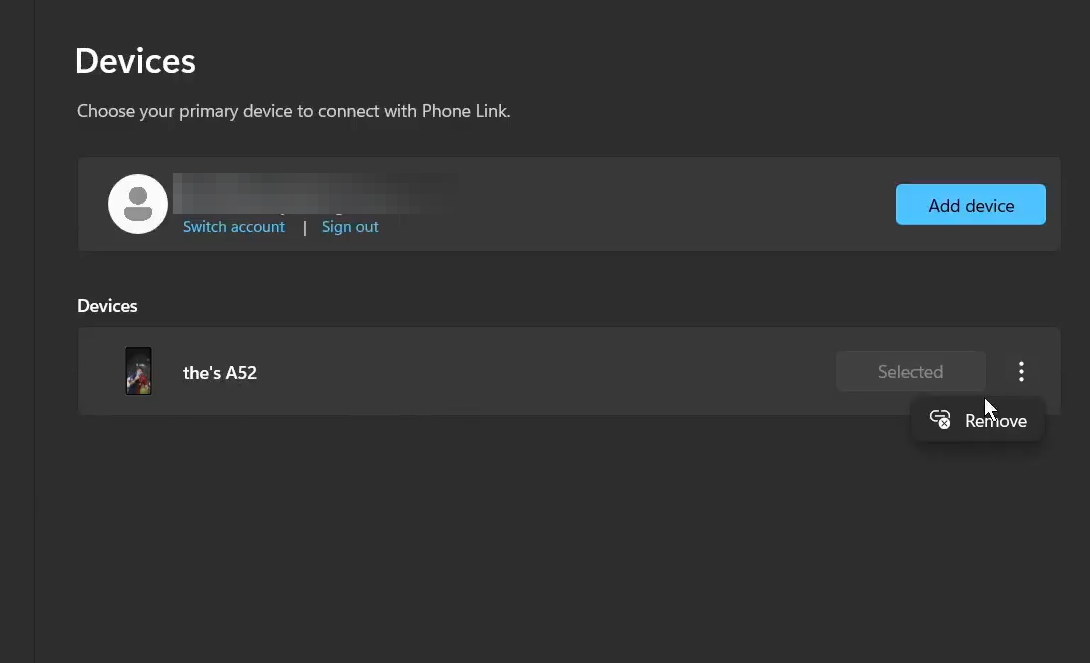
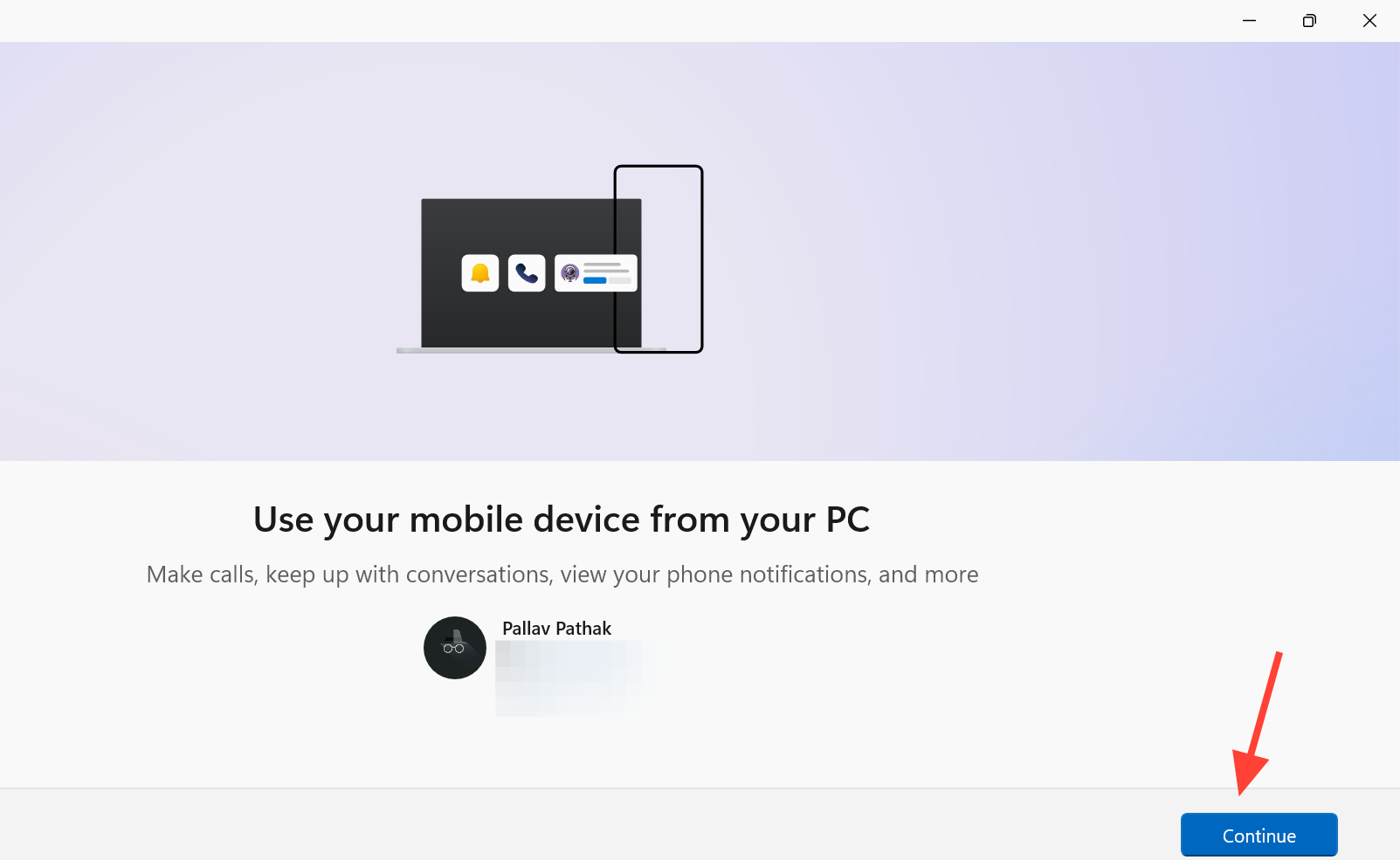
You can confirm official pairing details and workflow on the Microsoft support page for Phone Link messaging if any prompt looks unfamiliar.
Check Android permissions and battery settings
If messages still fail to sync after re-linking, the phone is likely blocking the connection through missing permissions or aggressive power management. Open Settings on the phone, find the App info page for Link to Windows, and confirm the following.
| Setting | Required state | Why it matters |
|---|---|---|
| SMS permission | Allowed | Lets Phone Link read and send text messages |
| Phone permission | Allowed | Supports call and messaging features |
| Contacts permission | Allowed | Matches conversations to names |
| Storage permission | Allowed | Handles attachments in MMS |
| Notification access | On for Link to Windows | Keeps the relay connected |
| Battery optimization | Off for Link to Windows | Prevents the app from being killed in the background |
If notifications arrive but messages still will not sync, toggle Notification access for Link to Windows off and back on, reopen Phone Link, and give it a moment to resync.
Why some messages never appear at all
Phone Link only syncs standard SMS and MMS. If a third-party messaging app is set as your primary platform on the phone, its conversations will not show up, while regular texts continue to work normally. Set the phone’s built-in SMS app as the default messaging app so Phone Link has a source it can read.
Two other things worth checking. Keep Phone Link updated through the Microsoft Store app, since older versions carry more sync issues. A slow or unstable network connection can also delay sending and syncing, so give it time before assuming the link is broken.
For iPhone connections, only messages sent and received through Phone Link itself are guaranteed to appear. Full history sync and past replies are not reliably shown, which is a limitation of the iOS pairing rather than a fault you can fix with the steps above.
RCS messaging on Samsung devices
RCS (advanced messaging) works through Phone Link only on select Samsung phones and only on carrier networks that support it. It requires Samsung Messages to be set as the phone’s default messaging app, and availability is decided by your mobile operator and location. If your Samsung device supports RCS but you cannot use it, contact your carrier to confirm support.
Some RCS features are not carried over. Typing indicators and read receipts do not appear, and image downloads are capped at 2MB, so larger attachments may not come through.
How to confirm the fix worked
Send a test message from Phone Link. It should appear in the Messages tab immediately and show its sent state instead of hanging. Then have someone reply, or send yourself a text from another line — the incoming message should land in the thread without you restarting the app. When both directions update live, the stuck session is cleared and the sync bridge is back to normal.