

Quickly compiling a list of file and folder names from Windows 11 directories supports tasks like inventory, documentation, or batch processing. Windows 11 includes several methods—some built-in, others requiring a short command or a registry tweak—that let you copy file and folder names directly to the clipboard or a text file, saving time and reducing manual effort.
Copying File and Folder Names Using File Explorer
Shift key and right-click on one of the selected items. This action reveals additional context menu options.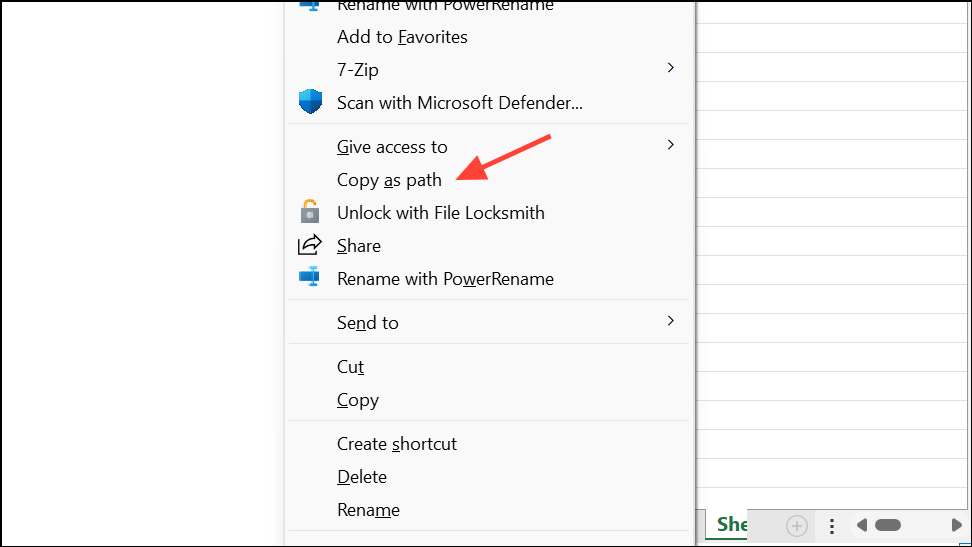
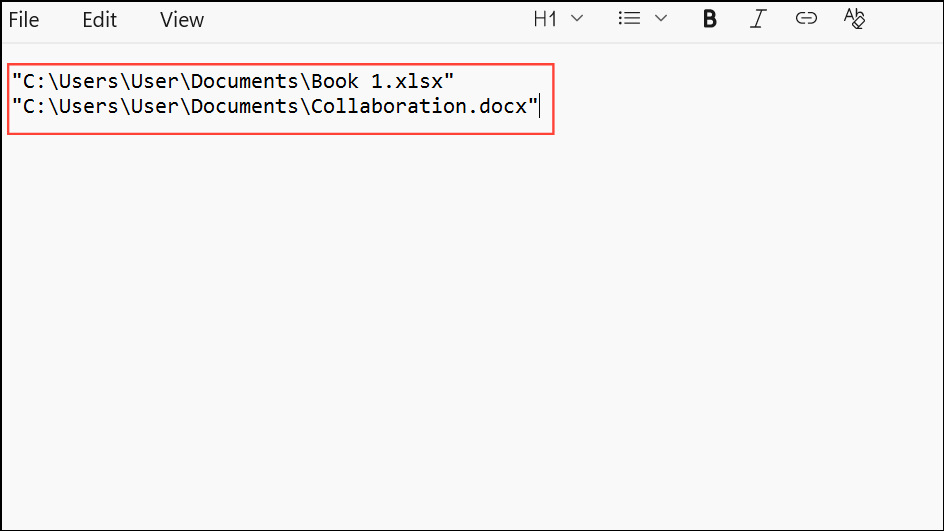
This method is fast for most use cases, but it includes the full file paths. If you only need file or folder names, you can remove the path portion using Find and Replace in your text editor or by using vertical selection in editors like Notepad++ or Word.
Copying File and Folder Names with Command Prompt
cmd, and press Enter to launch Command Prompt directly in that directory.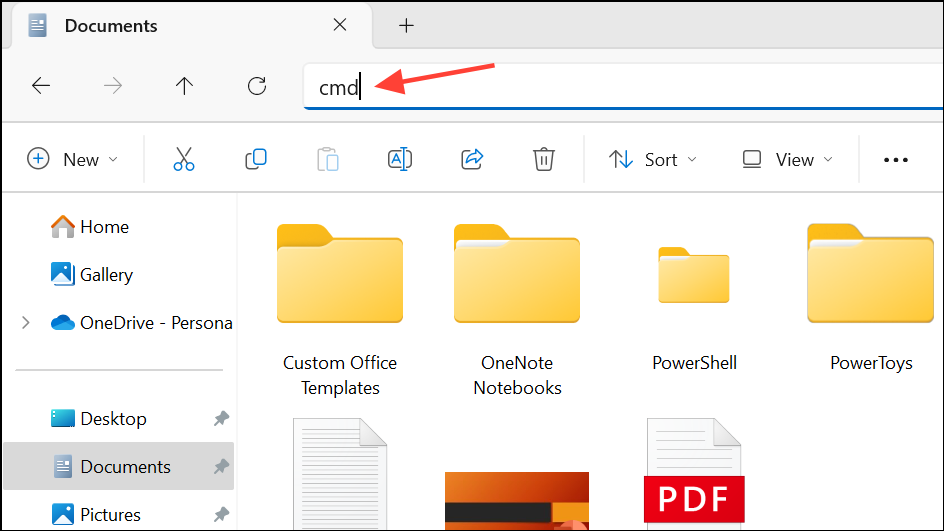
dir /b | clip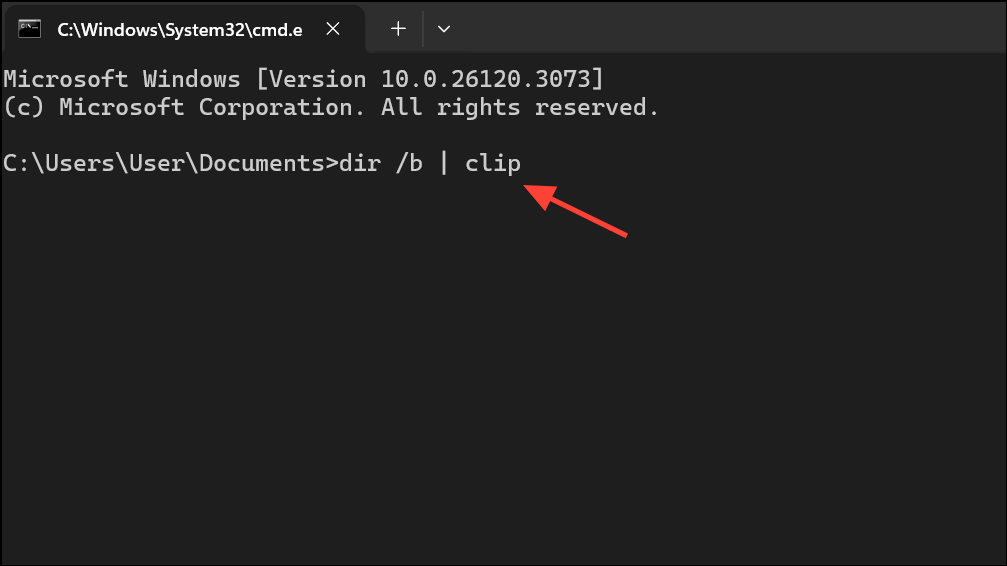
This command lists all items in bare format (/b) and pipes the result to the clipboard using clip.
dir /b /s | clip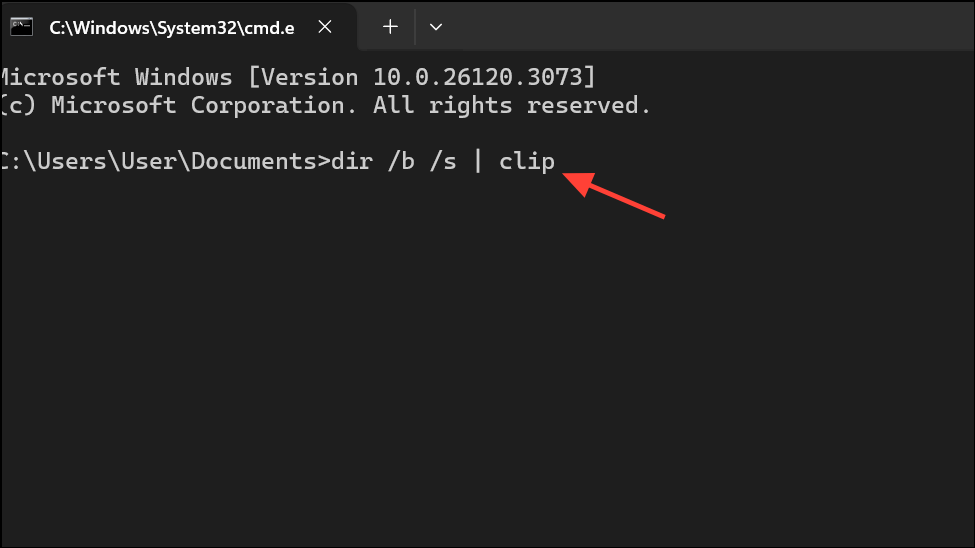
The /s switch adds all items in subfolders, showing full paths. Paste the clipboard content into your preferred editor.
dir /b /a-d | clip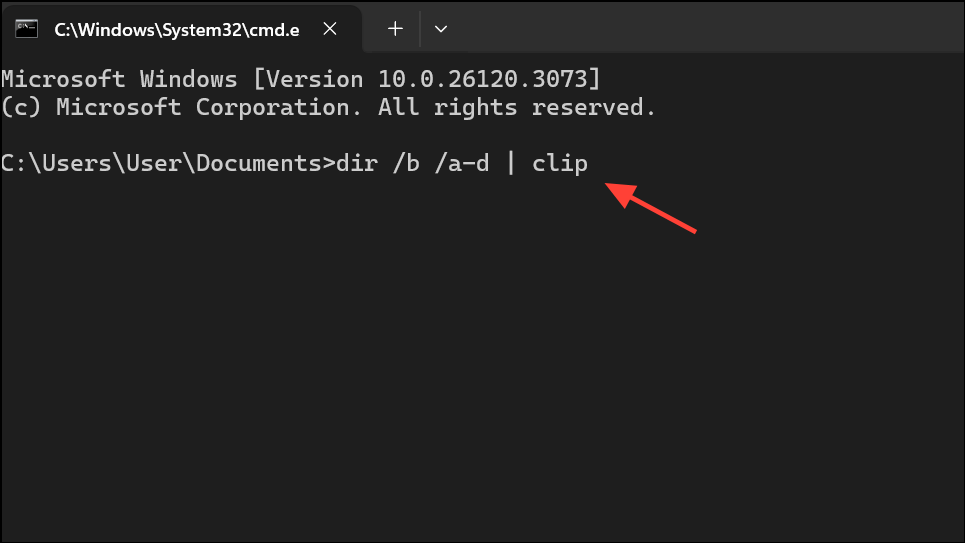
Here, /a-d excludes directories from the result.
This method is reliable, supports large directories, and avoids third-party tools. If you need only the file names (not paths), use Find and Replace or a regular expression in your text editor to remove path details.
Using PowerShell to Copy File and Folder Names
Shift, right-click the folder, and choose Open PowerShell window here.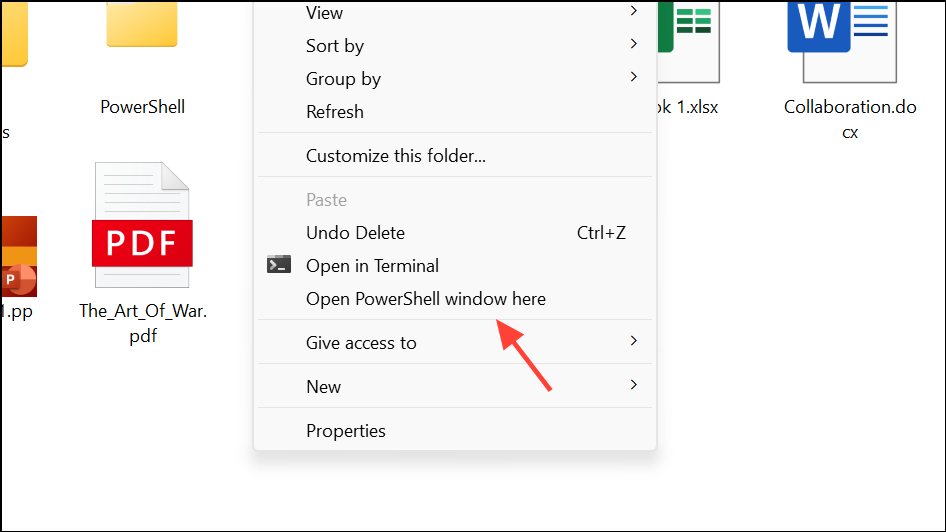
Get-ChildItem -Name | clip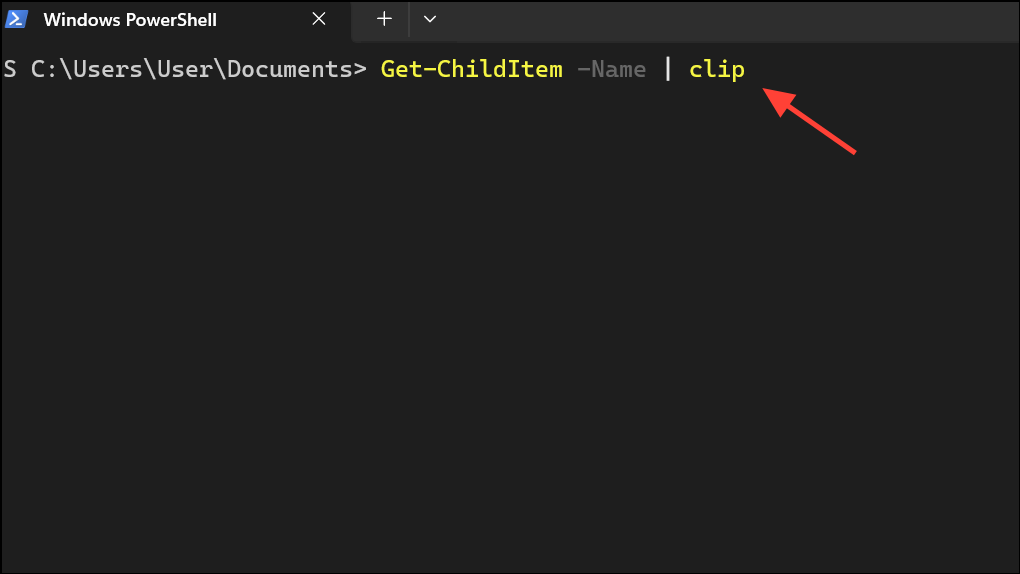
This command lists only the names (no paths) and copies them to the clipboard.
Get-ChildItem -Recurse -Name | clip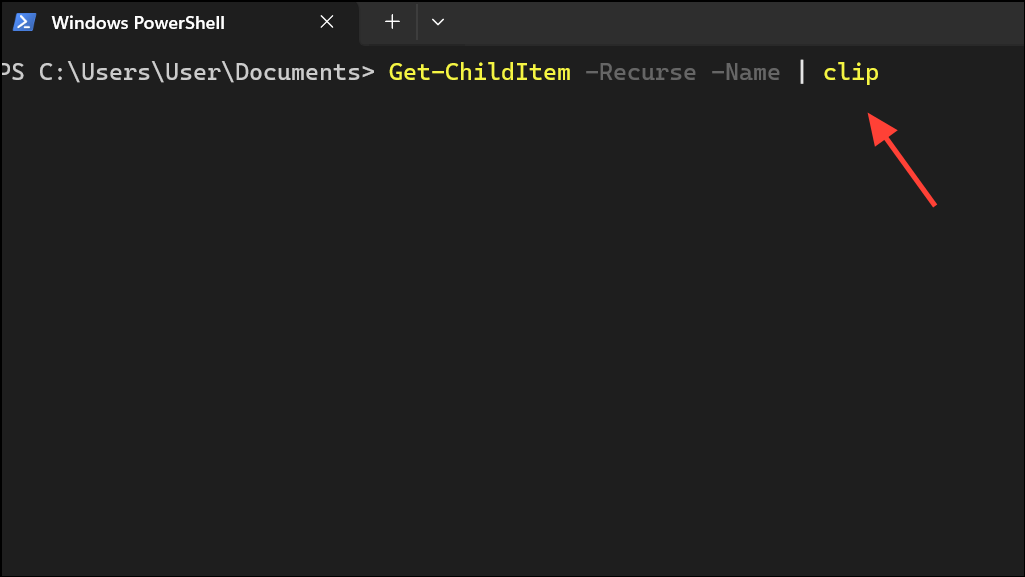
PowerShell offers more flexibility, such as filtering by file type or exporting to different formats if needed.
Adding a Custom “Copy File List to Clipboard” Context Menu Option
For a one-click solution, you can add a custom context menu entry that copies file or folder lists directly to the clipboard. This requires editing the Windows Registry, so take care and back up the registry before proceeding.
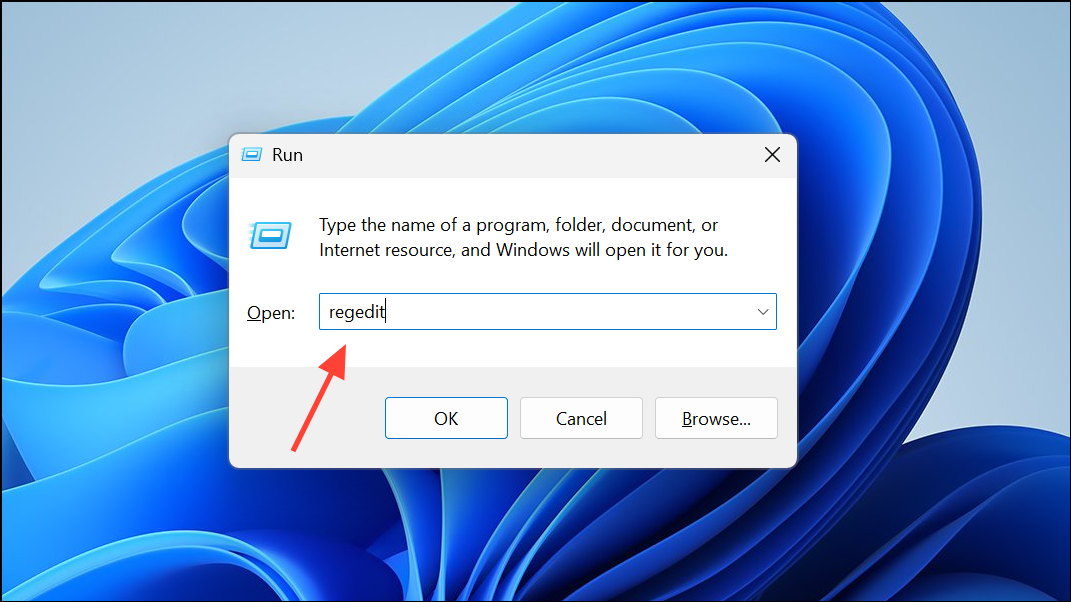
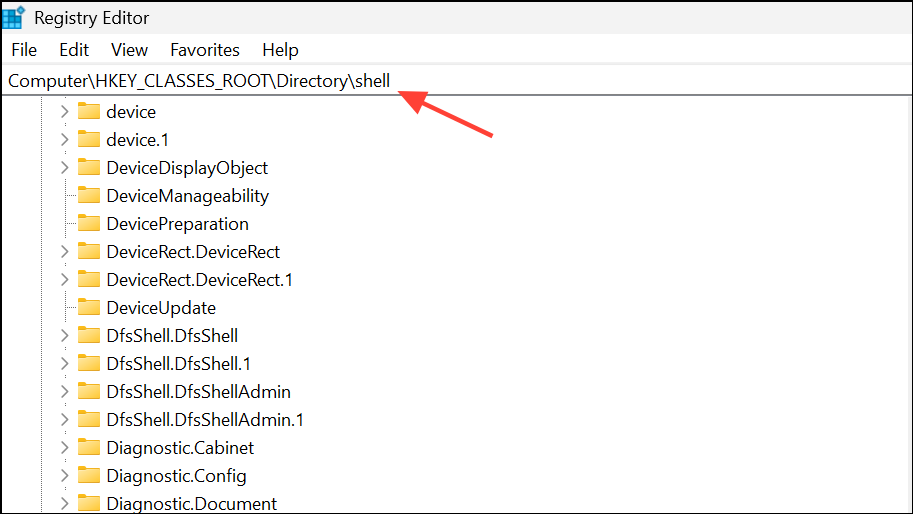
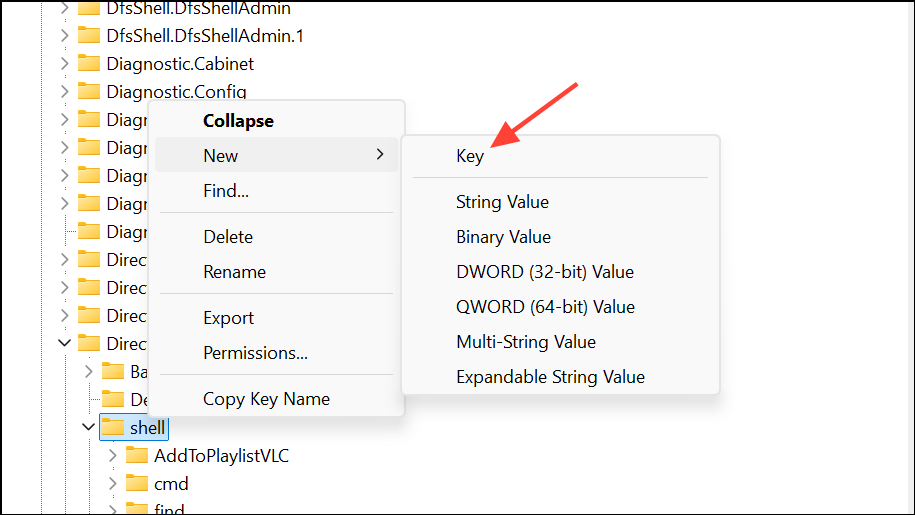
copylist key and double-click (Default) in the right pane. Enter Copy File List to Clipboard as the value.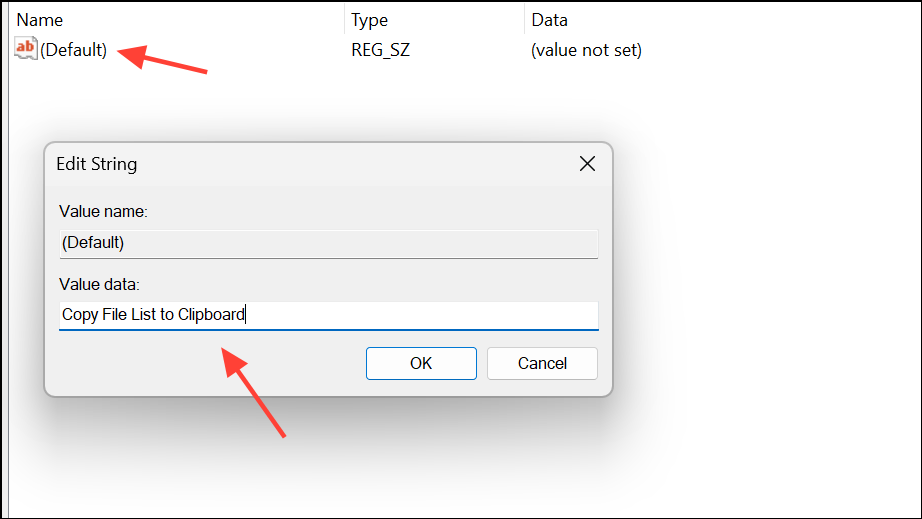
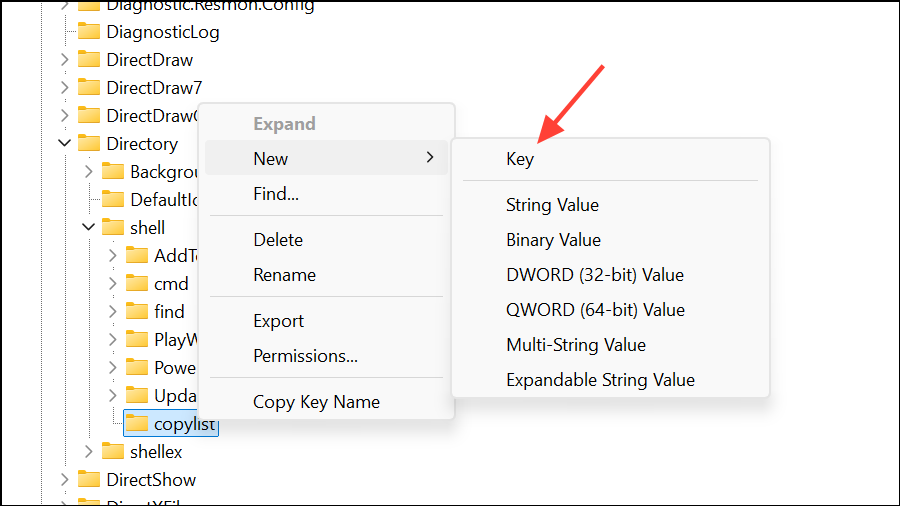
cmd /c dir "%1" /a:-d /o:n | clip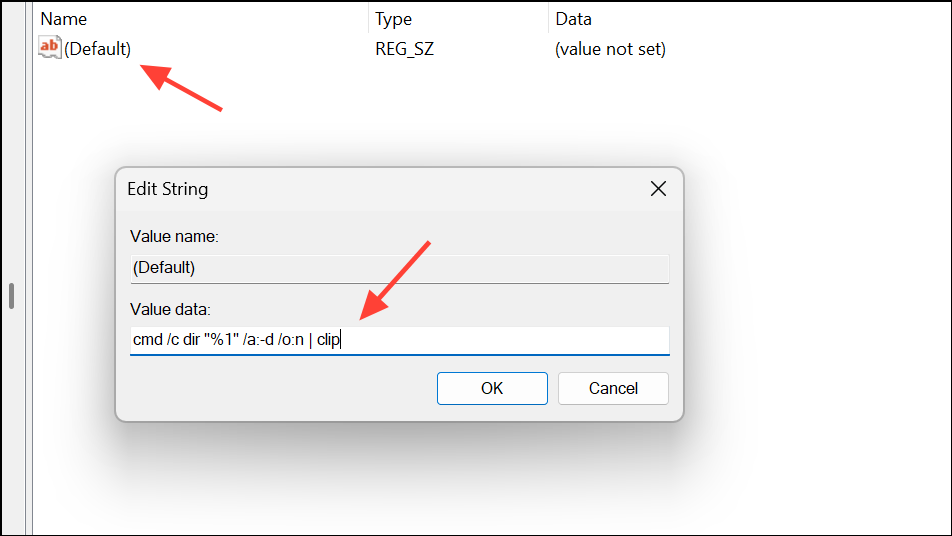
This command copies the file list for the selected folder (excluding subfolders) to the clipboard, including details like modification date and size.
Show more options, you’ll see Copy File List to Clipboard in the context menu. Select it, then paste the results into Notepad or Excel.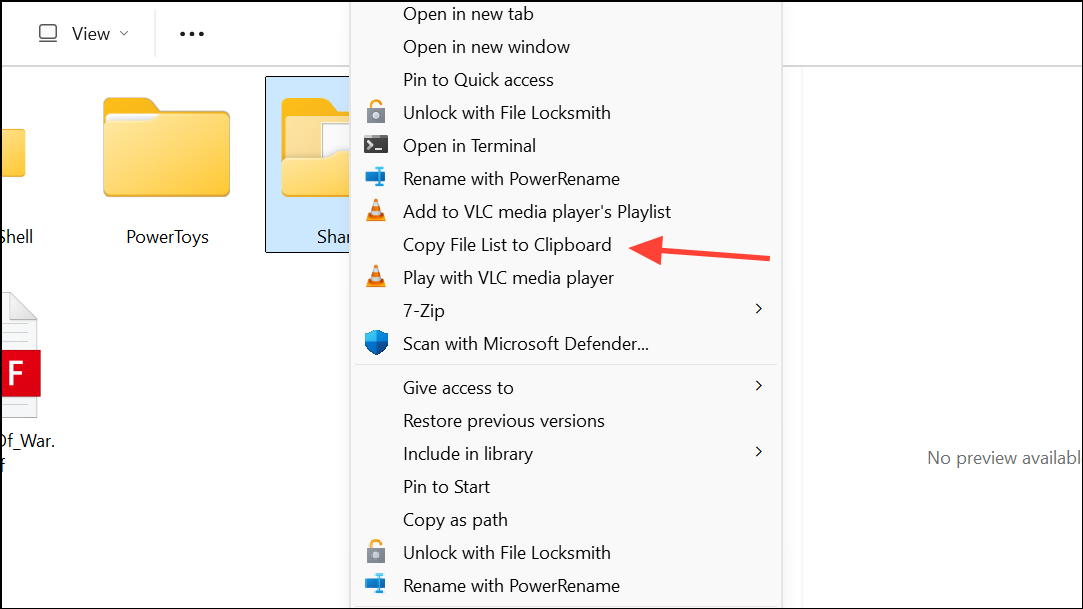
This approach streamlines repeated tasks and is especially useful for users who frequently need file lists for documentation or reporting.
Copying a Single File or Folder Name Only
If you only need the name of a single file or folder (without its path), use the rename trick:


This method is quick for occasional use but can be risky if you accidentally change the file name.
Third-Party Tools and Alternatives
Some users prefer graphical utilities or Explorer add-ons for more advanced file listing features. Tools like Send To Toys or xplorer² lite let you copy file names or paths with a click, and may offer options to include or exclude extensions, paths, or additional metadata. These solutions are ideal for users who need advanced customization or batch processing beyond Windows’ built-in features.
Copying file and folder names to the clipboard in Windows 11 can be streamlined using built-in shortcuts, command-line tools, or context menu tweaks. These methods speed up repetitive tasks and simplify file management, so you can focus on more important work.



