

Unexpected laptop shutdowns from a drained battery often trace back to missing low battery notifications in Windows 11. This issue interrupts work, risks data loss, and usually signals a misconfigured power plan, notification setting, or a battery health concern. Addressing the root causes restores timely alerts so you can plug in before your device powers off.
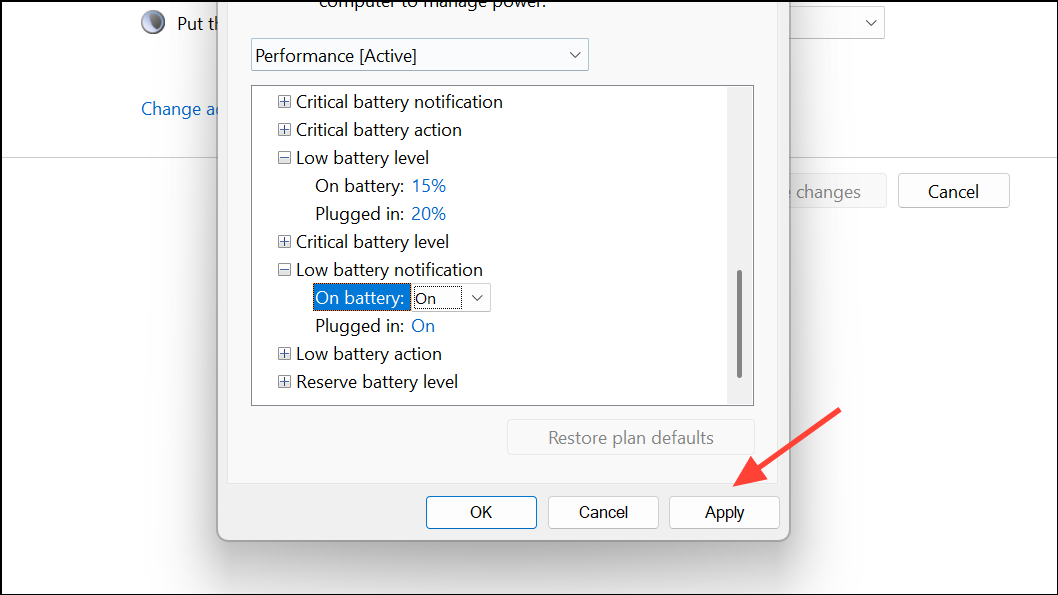
Enable Low Battery Notifications in Power Options
Windows + S, typing Control Panel, and selecting it from the search results. In the Control Panel, set the “View by” option to Large icons for easier navigation.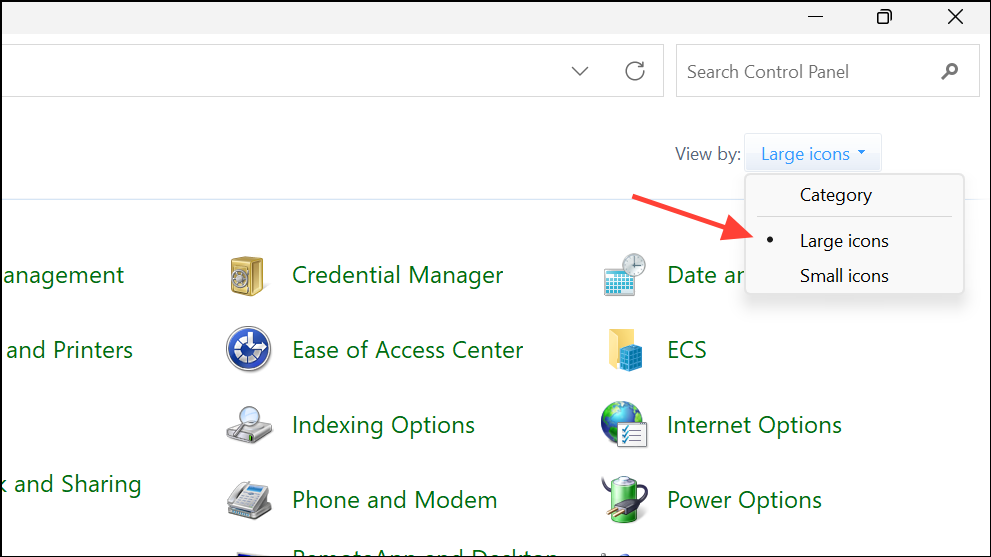
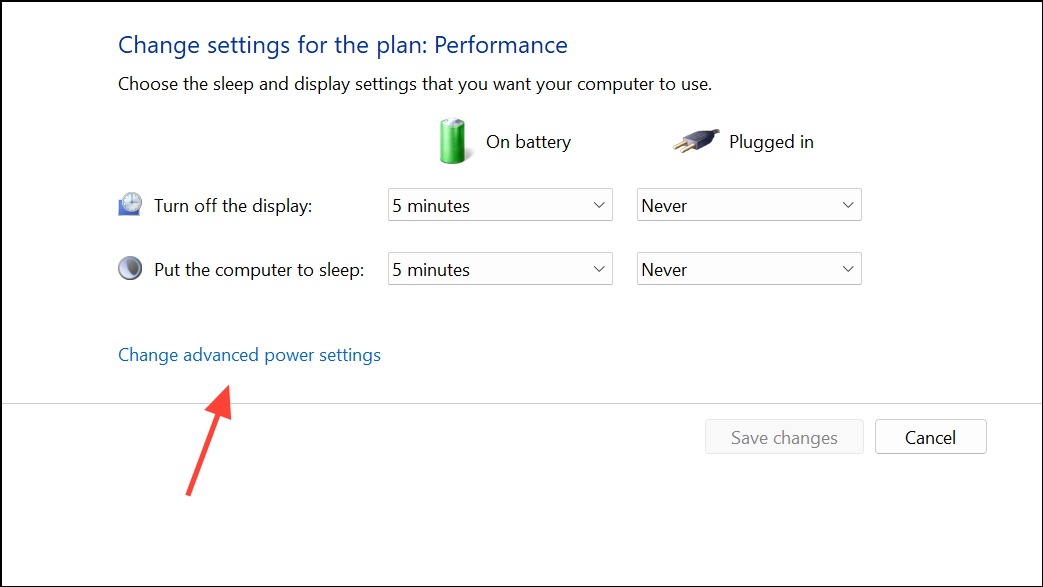
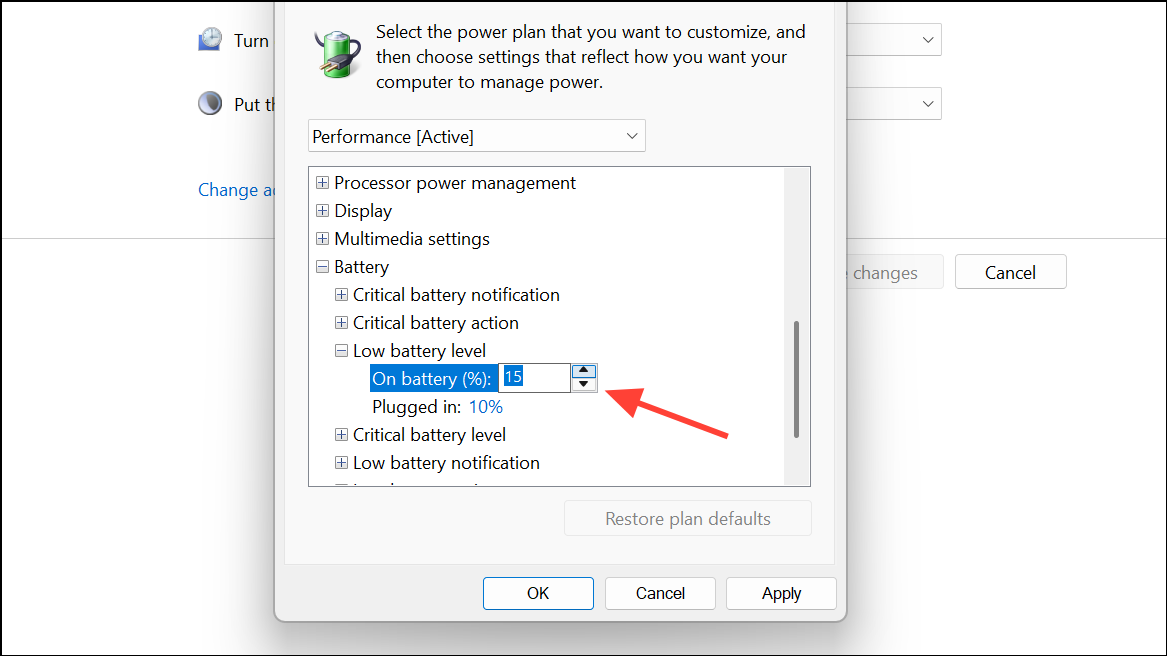
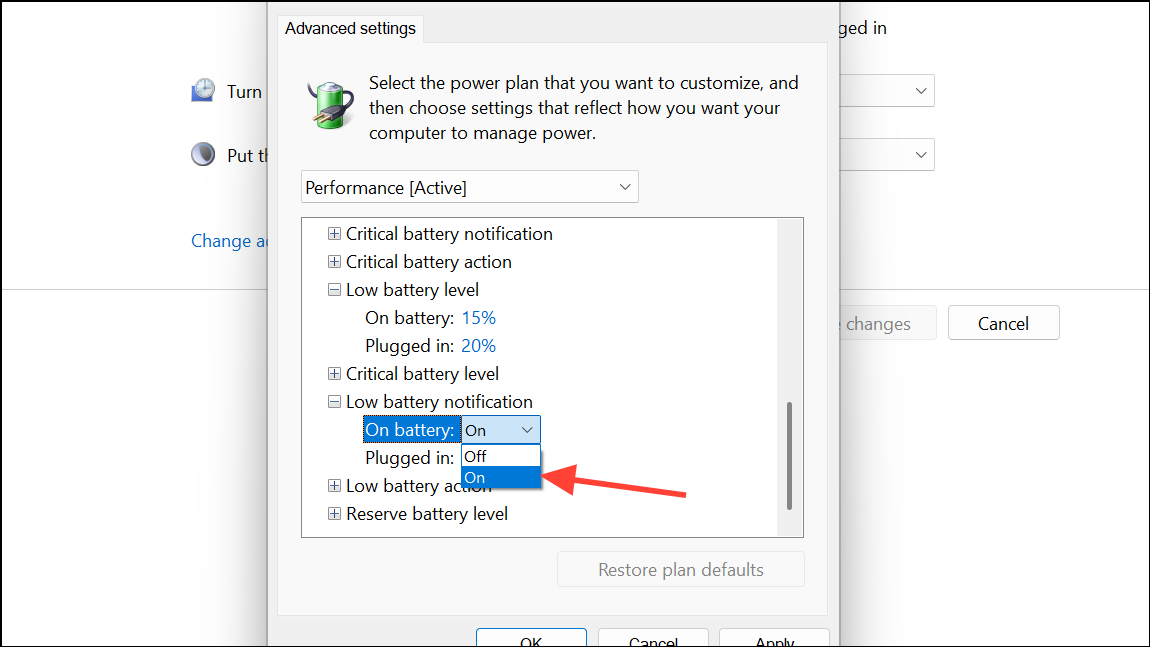
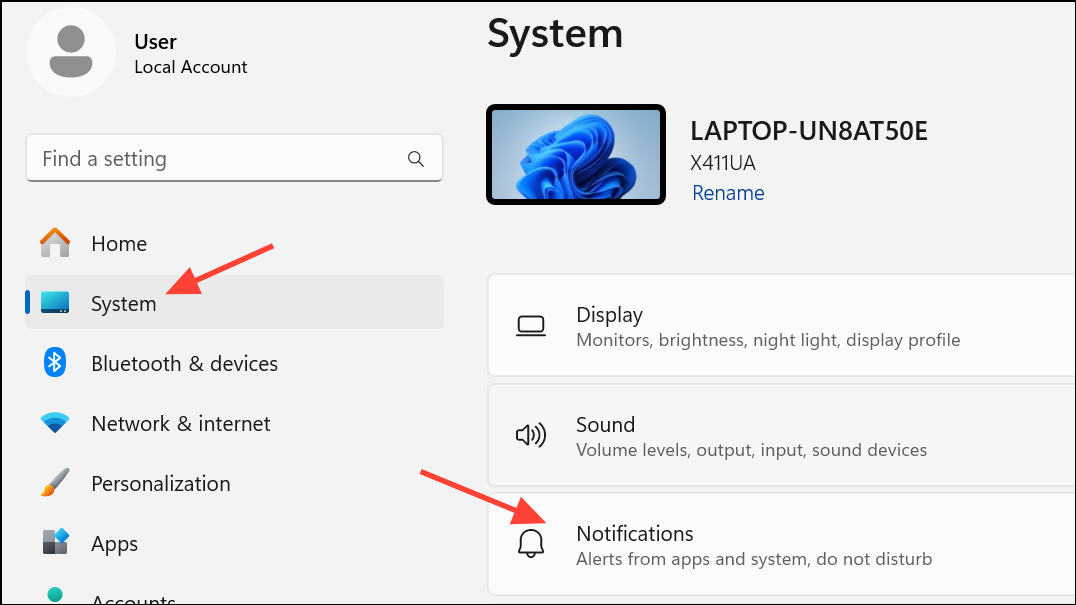
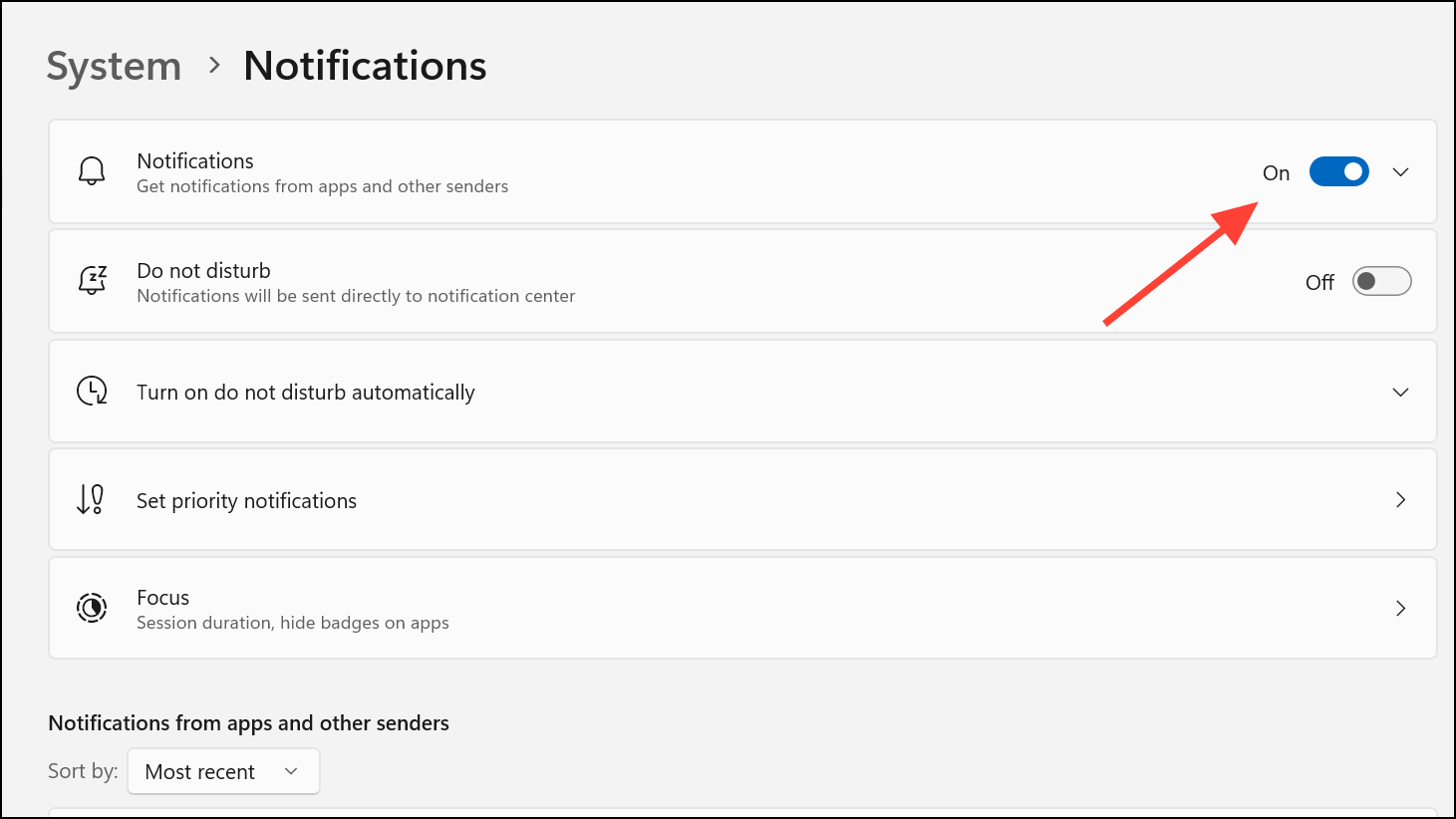
Check and Enable System Notifications
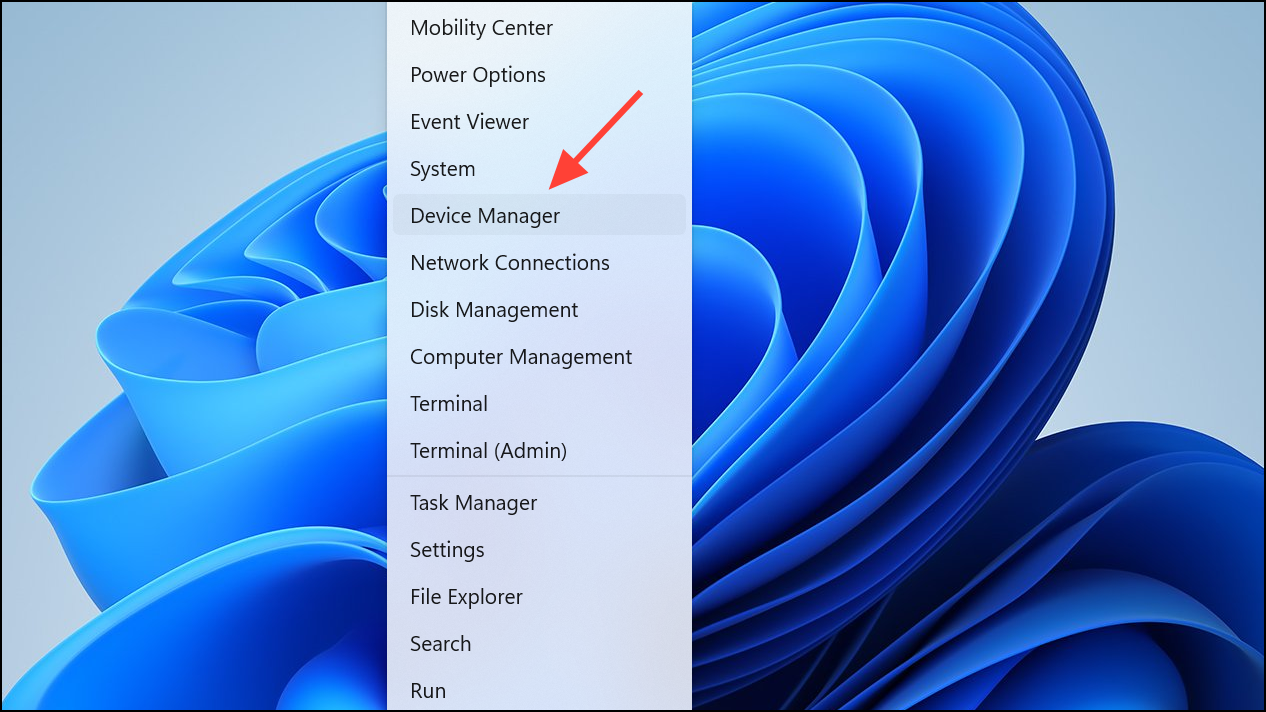
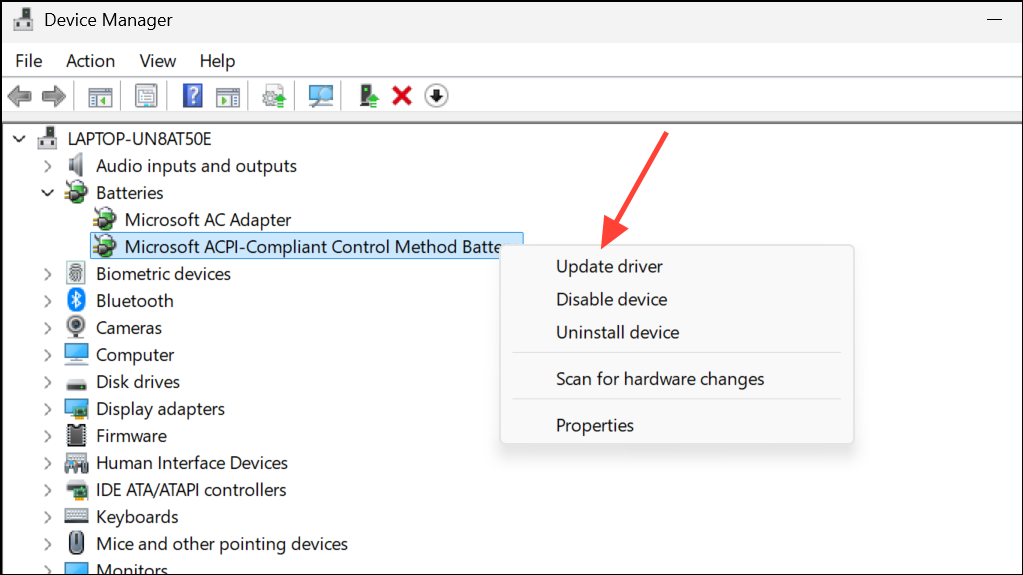
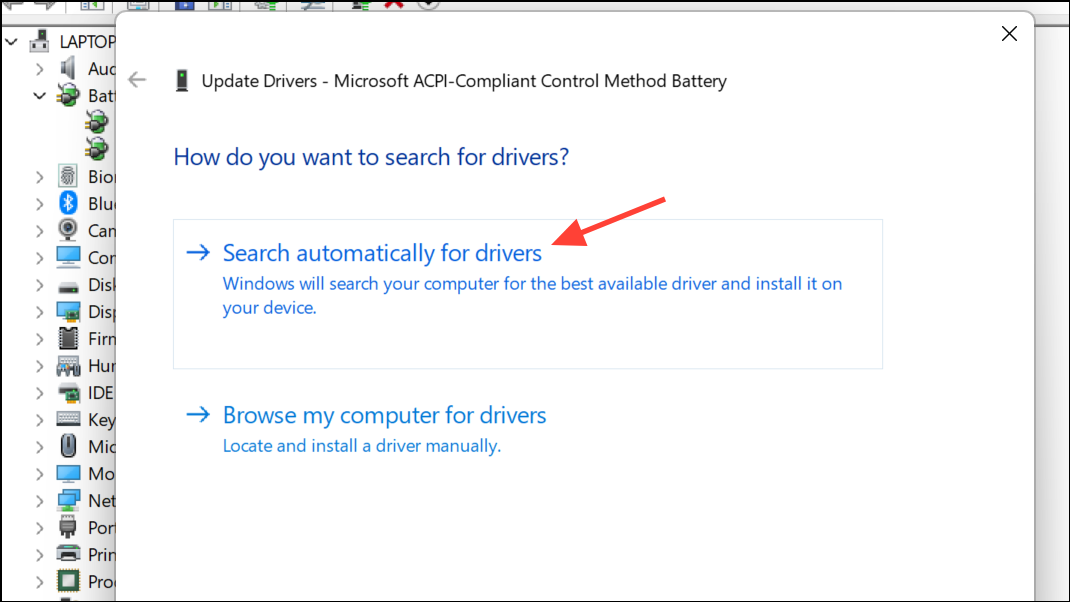
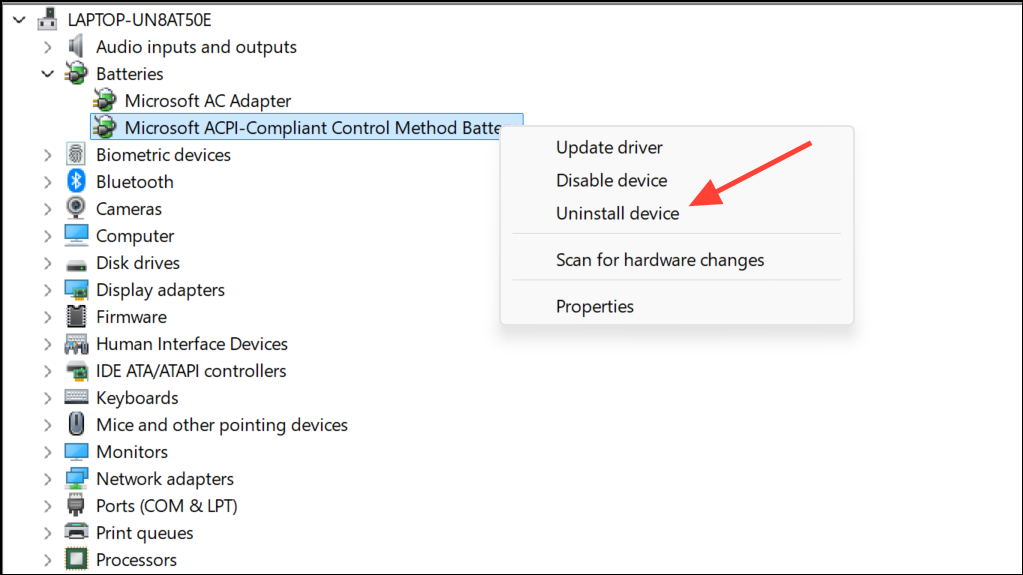
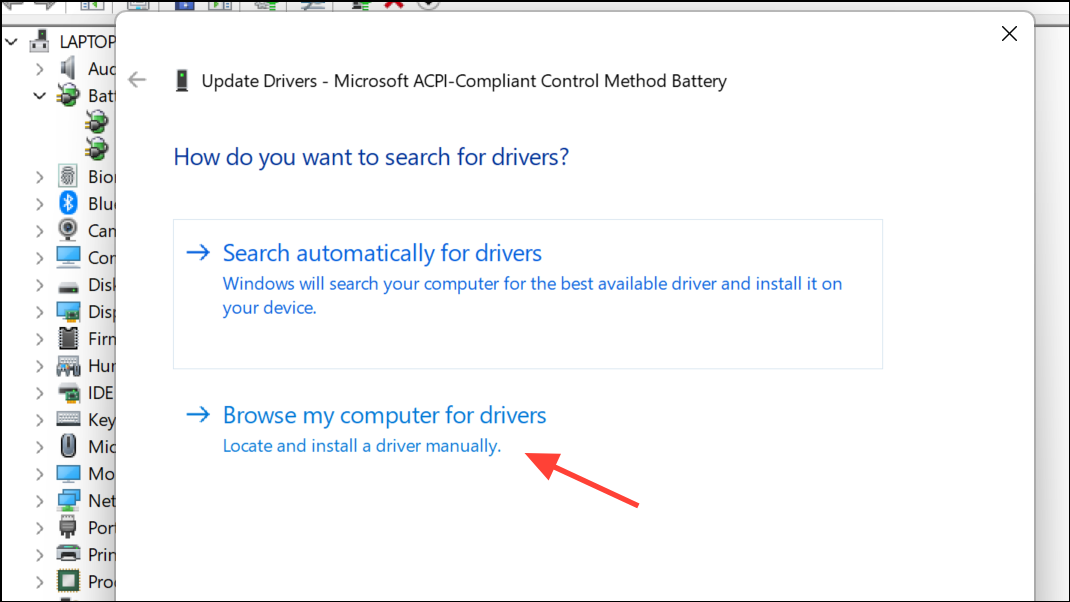
Update or Reinstall Battery Drivers
Reset Power Plans and Run Power Troubleshooter
cmd and select Run as administrator.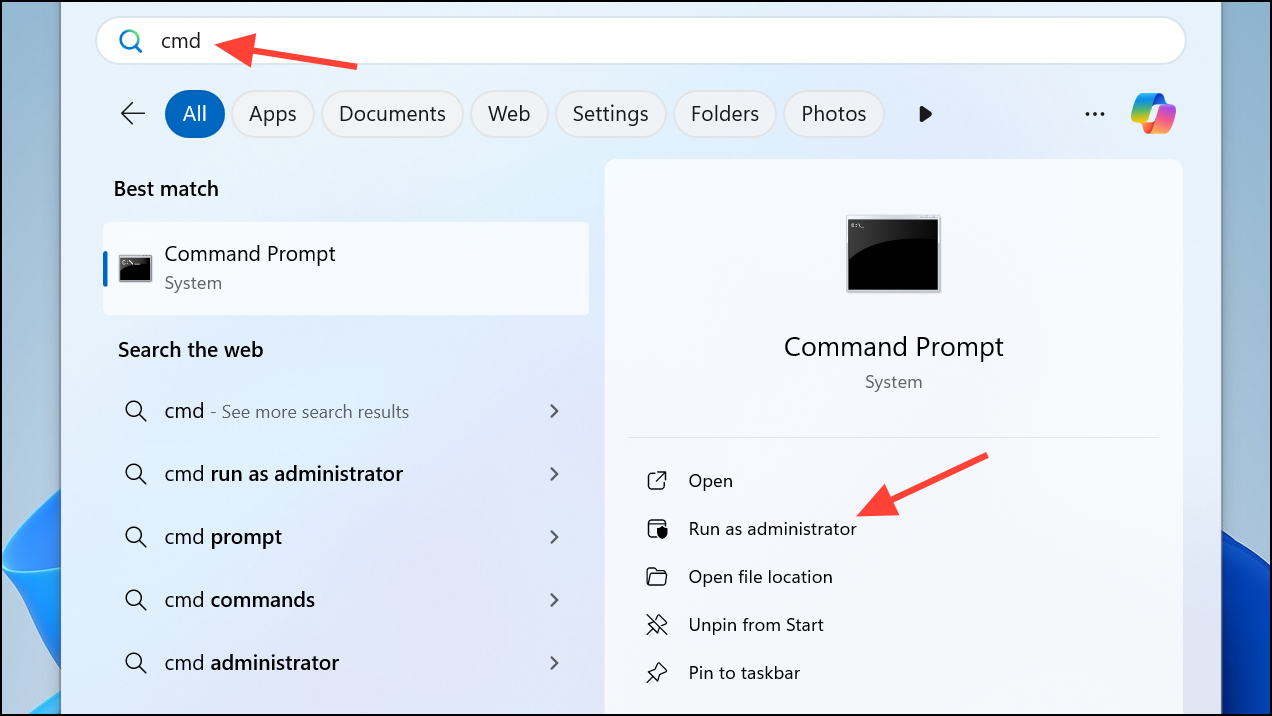
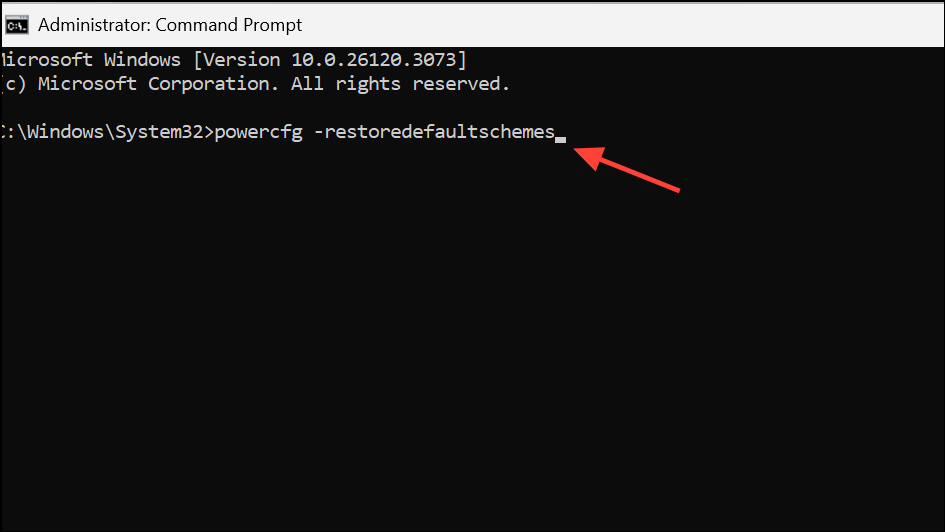
powercfg -restoredefaultschemesThis command resets all power plans to their default settings, which can restore missing battery notification options.
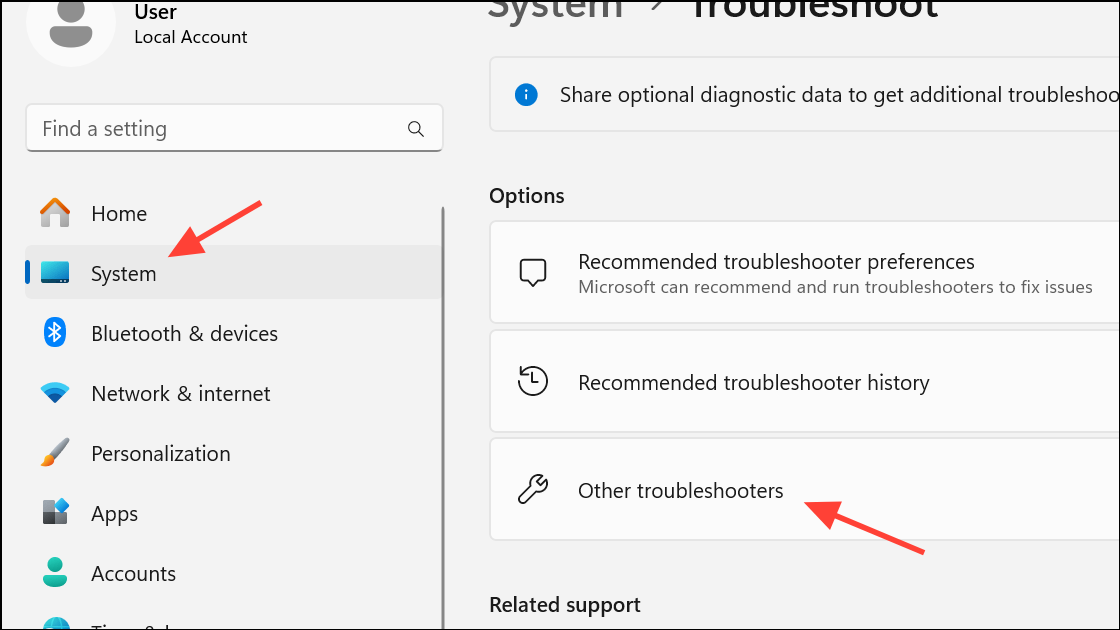
Assess Battery Health and Replace if Necessary
Sudden shutdowns without warning, even with low battery notifications enabled, may indicate battery degradation. Batteries with poor health can drain rapidly, skipping the threshold where alerts are supposed to appear.
powercfg /batteryreport /output "C:\battery_report.html"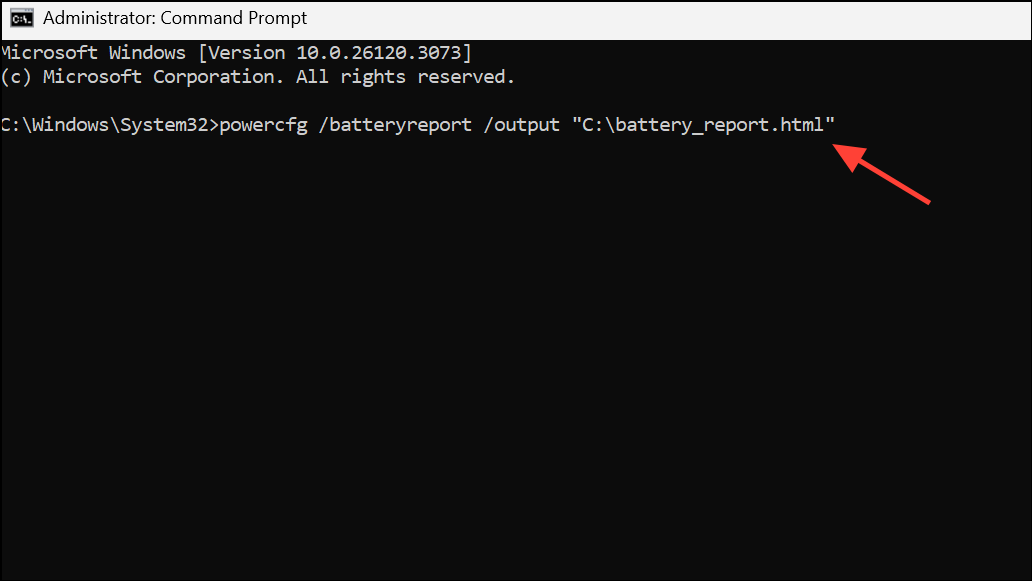
C:\ drive and open battery_report.html in your browser. Review the Design Capacity and Full Charge Capacity figures in the Installed Batteries section. A Full Charge Capacity significantly lower than Design Capacity signals a worn-out battery. If Full Charge Capacity is below 60% of Design Capacity, consider replacing the battery to restore normal notification behavior and runtime.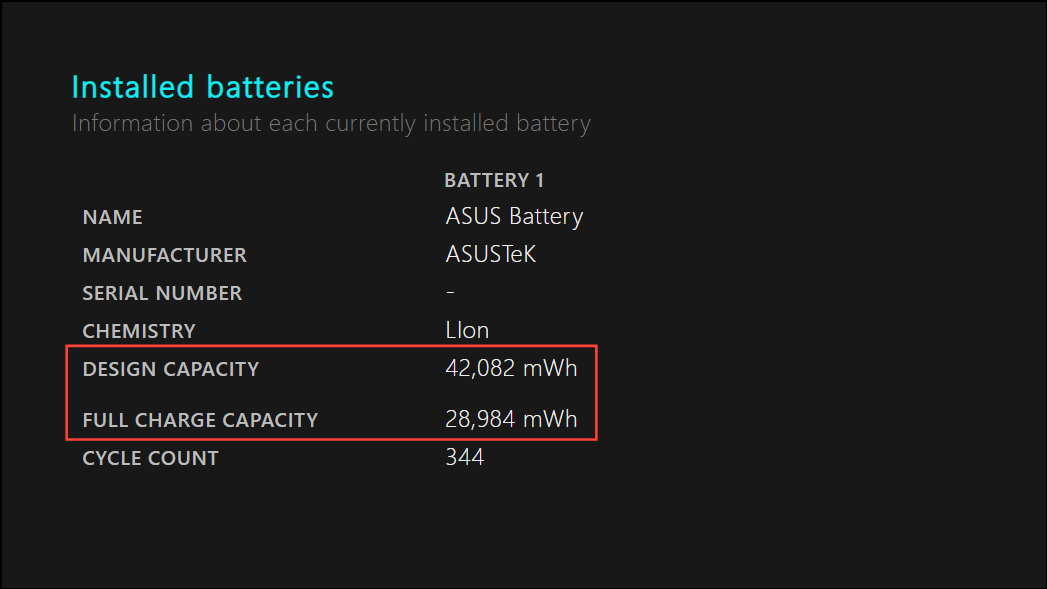
Create a Custom Low Battery Alert (Optional)
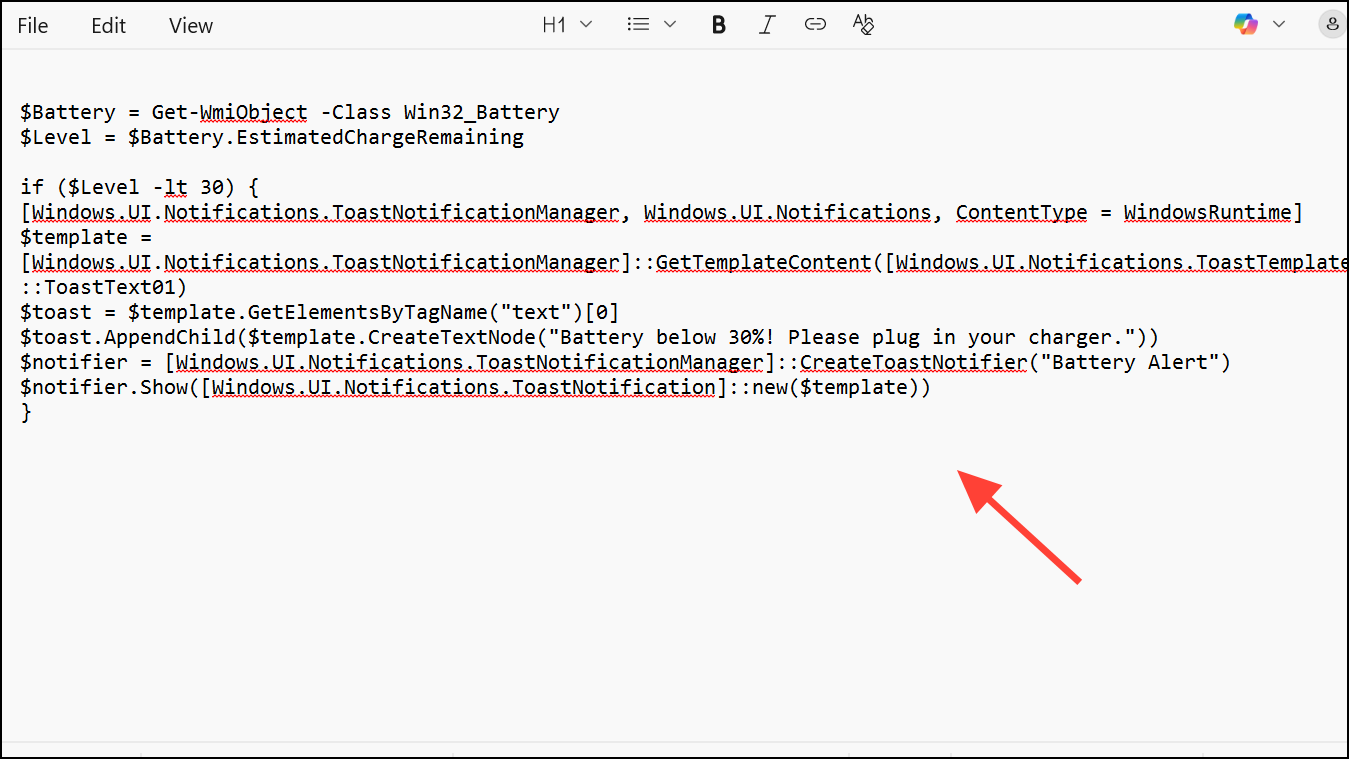
For users who want a more visible toast notification or need to set a custom battery percentage for alerts, a PowerShell script with Task Scheduler can automate this process.
$Battery = Get-WmiObject -Class Win32_Battery
$Level = $Battery.EstimatedChargeRemaining

if ($Level -lt 30) {
[Windows.UI.Notifications.ToastNotificationManager, Windows.UI.Notifications, ContentType = WindowsRuntime]
$template = [Windows.UI.Notifications.ToastNotificationManager]::GetTemplateContent([Windows.UI.Notifications.ToastTemplateType]::ToastText01)
$toast = $template.GetElementsByTagName("text")[0]
$toast.AppendChild($template.CreateTextNode("Battery below 30%! Please plug in your charger."))
$notifier = [Windows.UI.Notifications.ToastNotificationManager]::CreateToastNotifier("Battery Alert")
$notifier.Show([Windows.UI.Notifications.ToastNotification]::new($template))
}
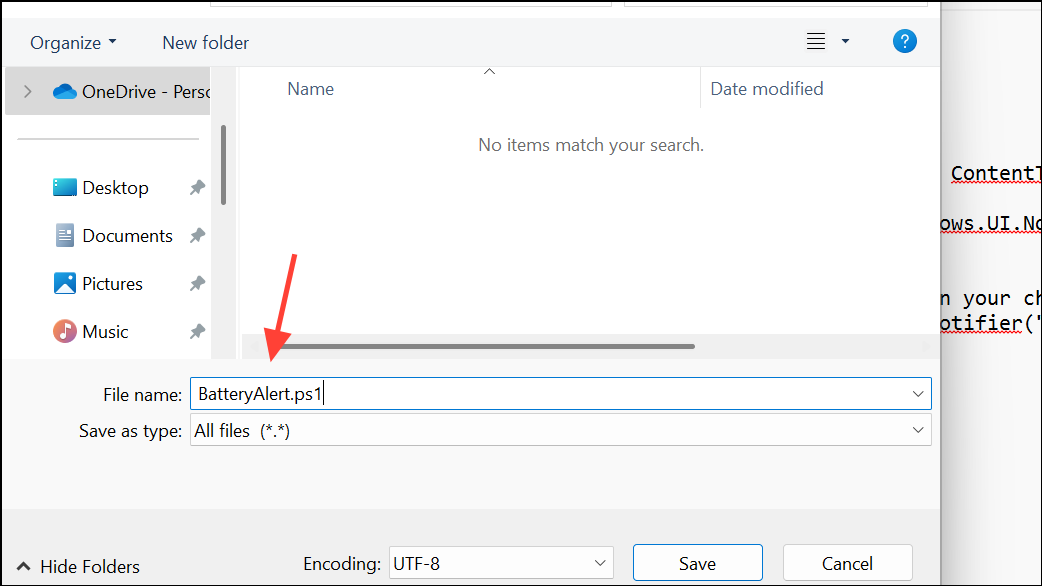
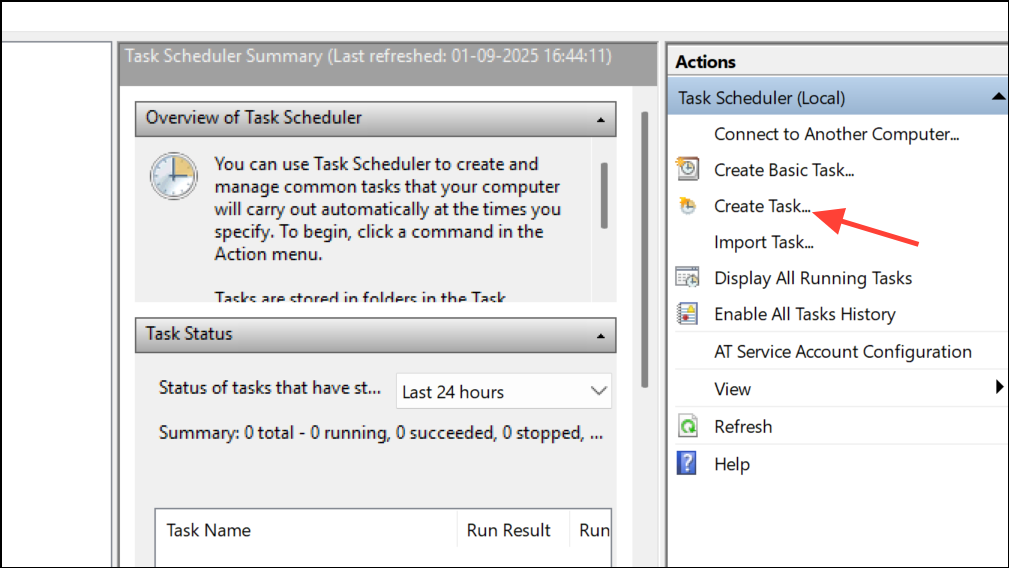
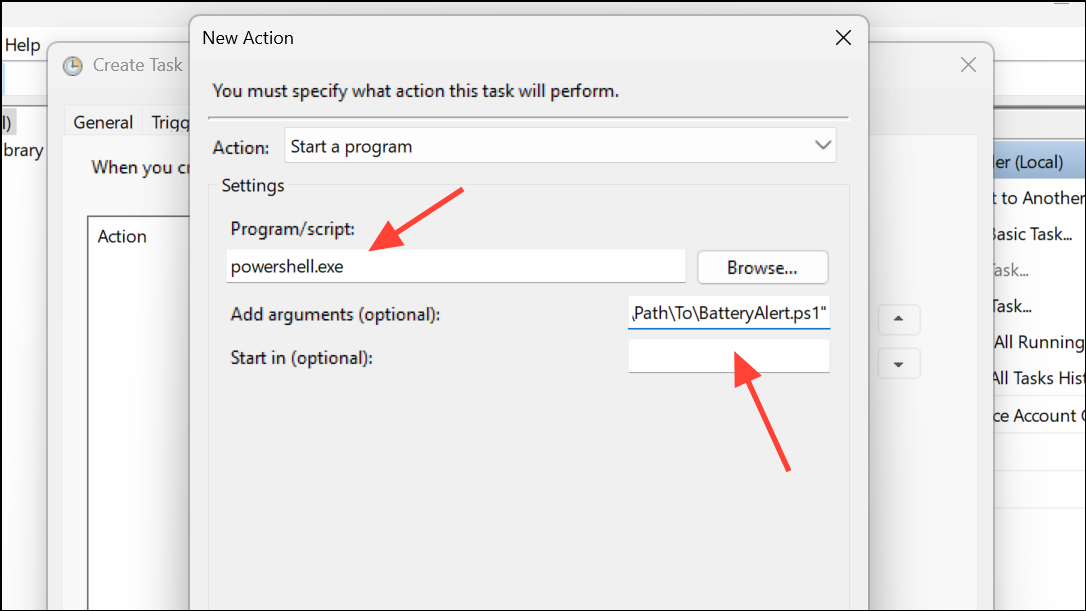
-ExecutionPolicy Bypass -File "C:\Path\To\BatteryAlert.ps1"Replace the path with your script’s location. This setup ensures you receive a pop-up notification when the battery drops below your chosen threshold.
Additional Tips and Troubleshooting
- If you cannot find low battery notification options in your power plan, reset the power schemes as described above.
- On some laptops, battery notification settings may be missing due to manufacturer-specific software or firmware. Check for BIOS updates or OEM power management utilities.
- If your battery drains so quickly that the system never reaches the notification threshold, set the low battery level to a higher percentage or replace the battery.
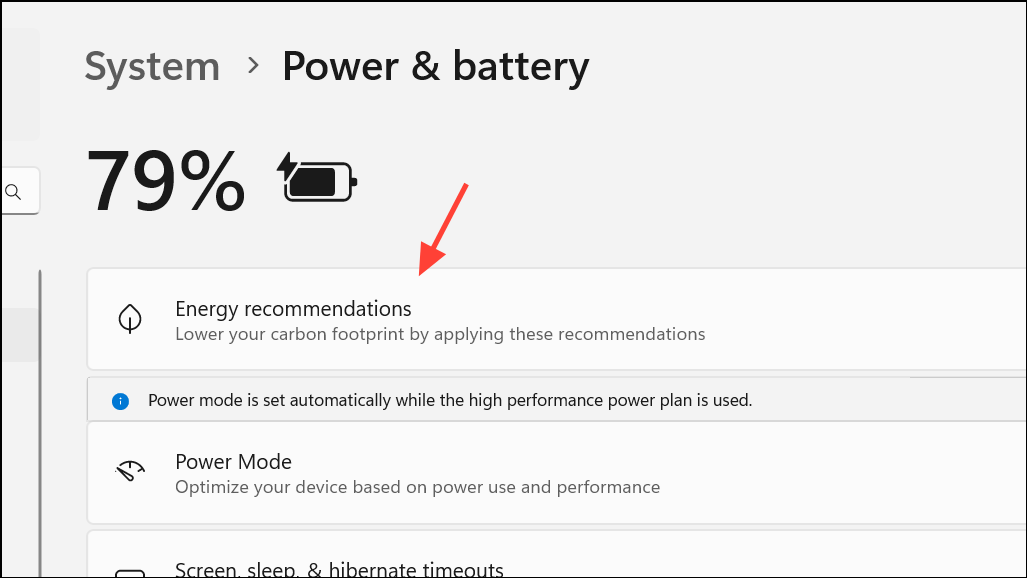
- Energy recommendations in Settings > System > Power & battery can help optimize battery lifespan, but do not directly control notifications.
Restoring low battery notifications in Windows 11 usually involves adjusting Power Options, ensuring notifications are enabled, and checking battery health. If these steps don’t work, a failing battery may be the culprit—replacing it often brings notifications and runtime back to normal.



