
Windows 11’s approach to multi-monitor setups introduces some changes to how the taskbar behaves across screens. By default, the taskbar appears on all connected monitors, which can clutter your workspace or cause issues like OLED burn-in on certain displays. Disabling or hiding the taskbar on your second monitor can streamline your workflow and protect your hardware.
Method 1: Hide the Taskbar on Secondary Monitor Using Windows 11 Settings
Windows+i. This shortcut brings up the main settings panel instantly.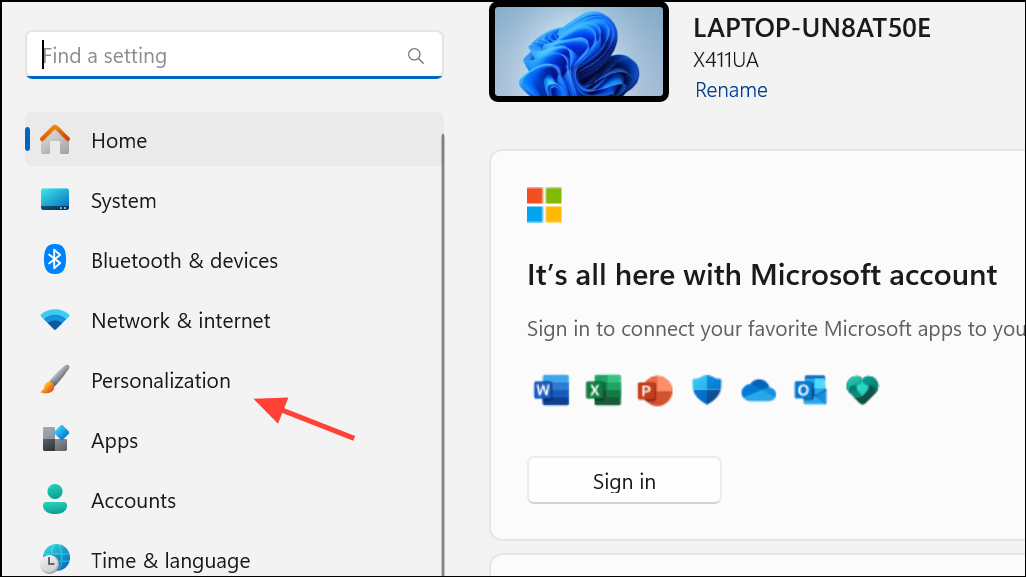
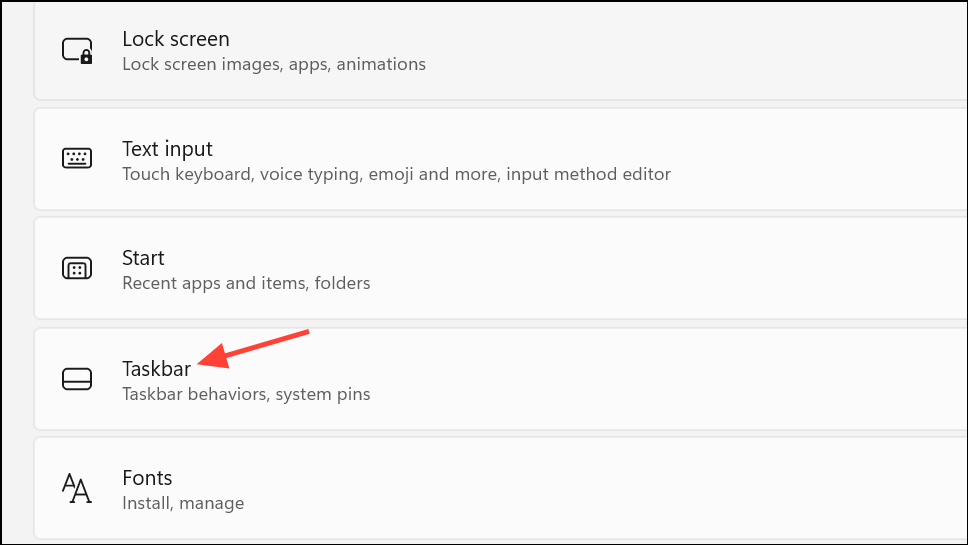
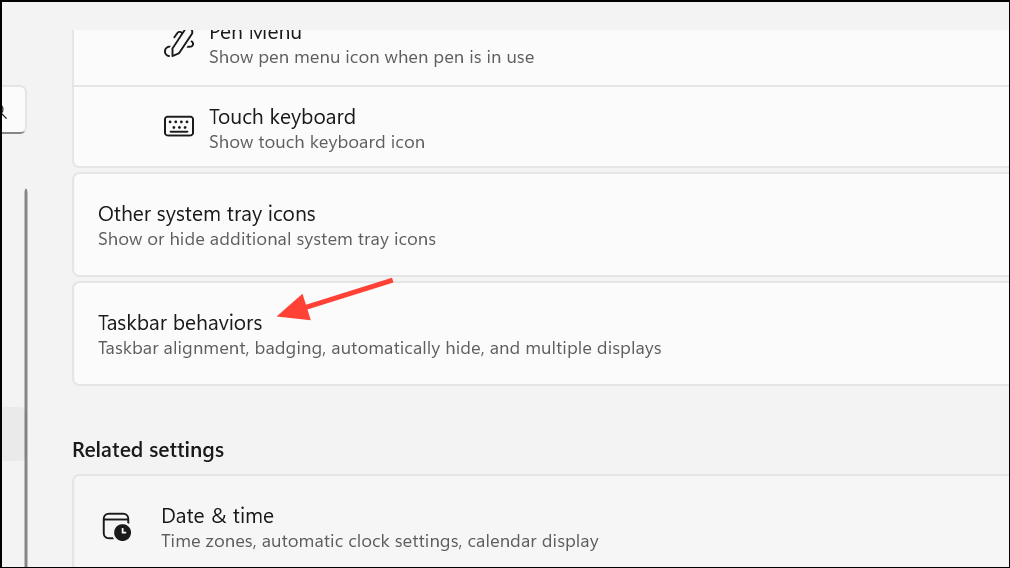
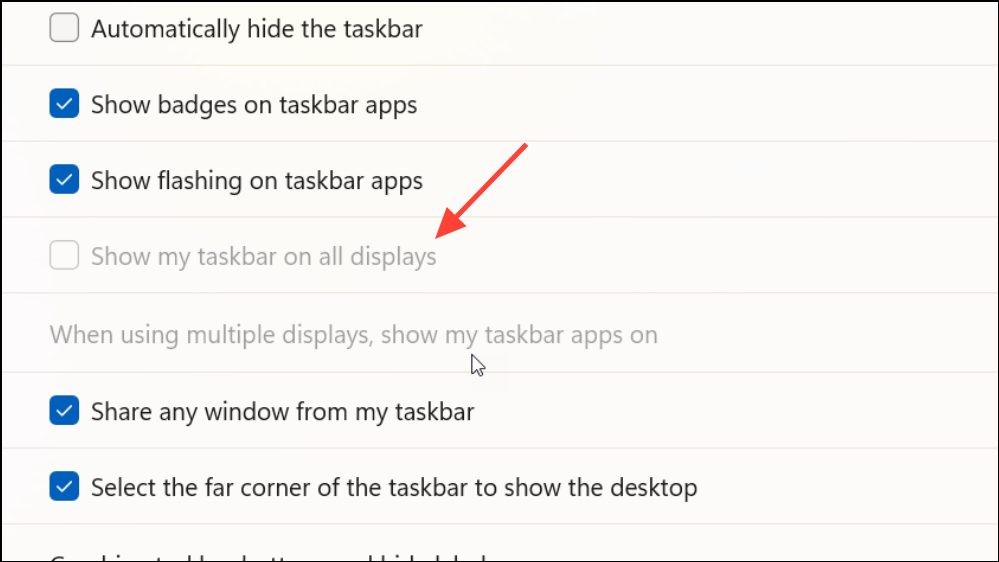
This setting is immediate and doesn’t require restarting your system. If you want the taskbar to reappear on other monitors later, simply re-enable this option.
Method 2: Use Third-Party Software for Advanced Taskbar Control
Windows 11’s built-in settings do not allow for per-monitor auto-hide or advanced taskbar placement. If you want more granular control—such as hiding the taskbar only on a specific monitor or customizing its behavior—third-party tools like DisplayFusion and StartAllBack provide these features.
DisplayFusion
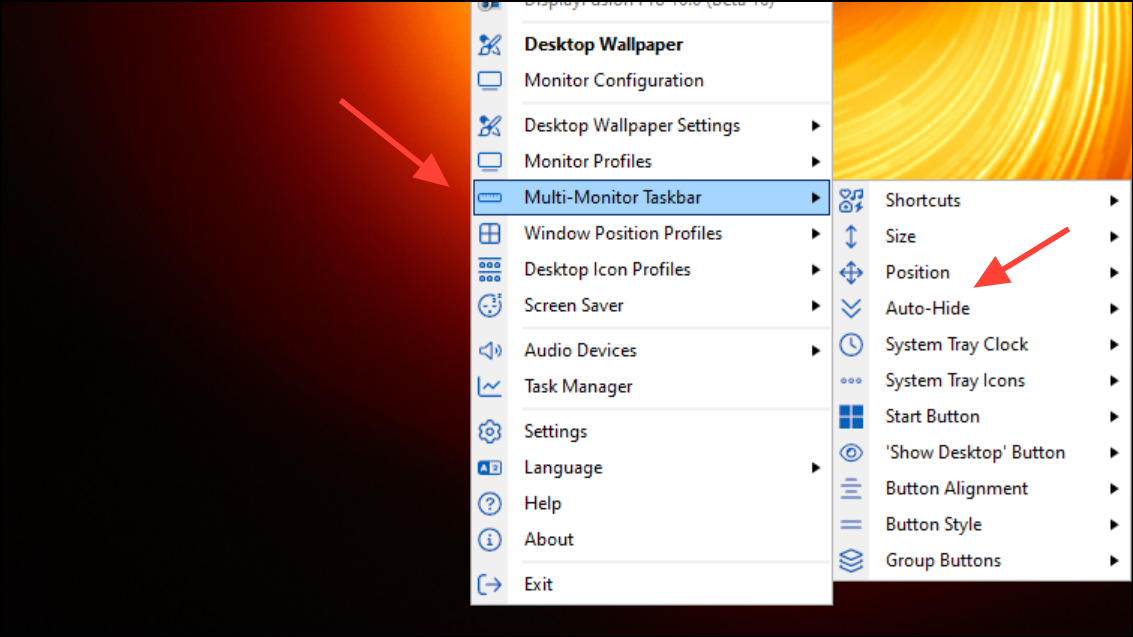
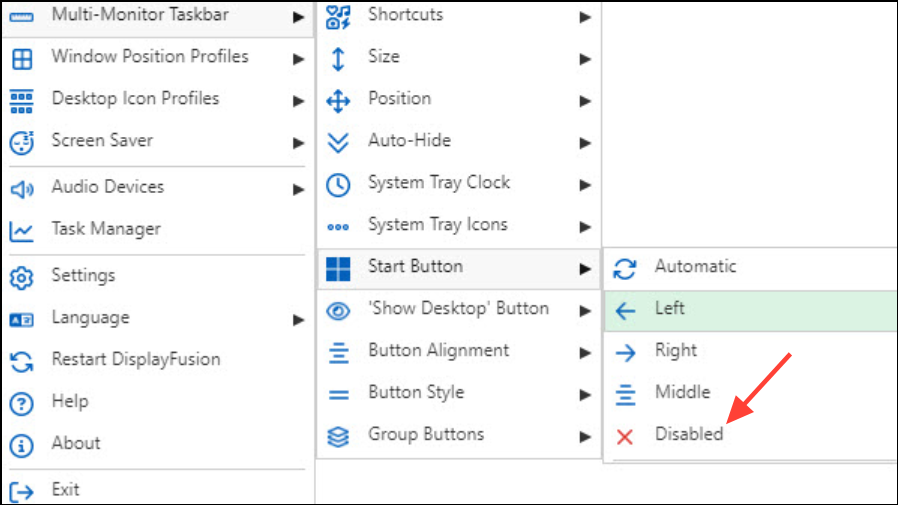
DisplayFusion’s per-monitor settings allow for a combination of always-on, auto-hide, or completely hidden taskbars. This flexibility solves the limitations present in Windows 11’s native options.
StartAllBack
StartAllBack also allows you to remove the taskbar from secondary monitors, move it to the top or sides, and adjust its appearance. If the taskbar keeps reverting to the primary monitor after sleep or restart, additional utilities like PersistentWindows may help maintain your layout.
Method 3: Scripted and Registry-Based Solutions (Advanced)
For users comfortable with scripting, tools like AutoHotkey can provide unconventional ways to hide or toggle the taskbar on specific monitors. These approaches require familiarity with scripting and may not be as stable as dedicated third-party applications.
One example AutoHotkey script toggles the visibility of the taskbar window:
^LWin:: ; Ctrl + Left Windows key
    If WinExist("ahk_class Shell_TrayWnd")
    {
        WinHide, ahk_class Shell_TrayWnd
    }
    else
    {
        WinShow, ahk_class Shell_TrayWnd
    }
return
This script hides or shows the taskbar when you press Ctrl + Left Windows key. However, it affects all monitors and requires modification to target only secondary displays. Registry edits for taskbar behavior are not officially documented or supported in Windows 11 and may not yield the desired result.
Disabling or hiding the taskbar on your second monitor in Windows 11 is straightforward with the built-in settings, but advanced customization requires third-party tools. With these methods, you can reclaim screen space and optimize your multi-monitor workflow.



