Checking license status and activation for Microsoft Office prevents unexpected feature restrictions and ensures you can use all Office applications without interruptions. Whether you use Microsoft 365 Apps, Office 2021, or earlier versions, there are multiple ways to confirm both license type and activation status. The most reliable method depends on your Office version and installation type.
Check Activation Status and License Type from Office Application
File in the top menu, then choose Account or Office Account, depending on your Office version.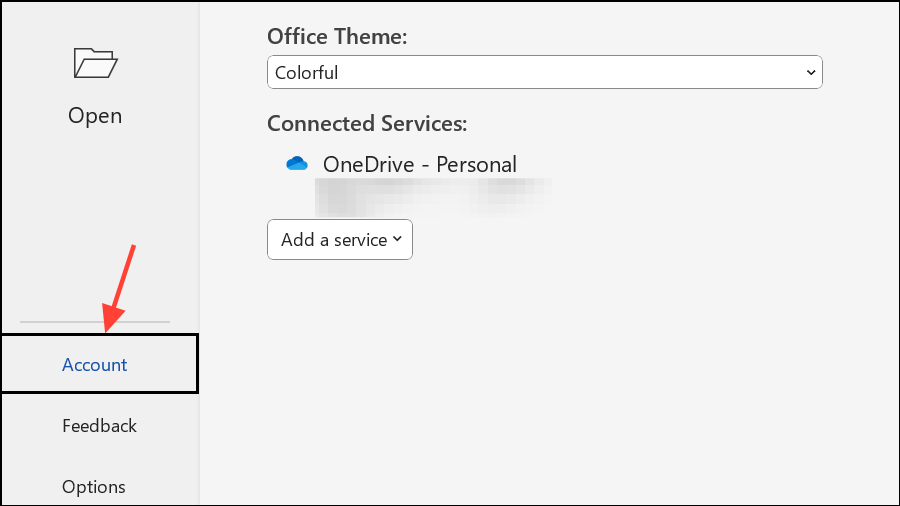
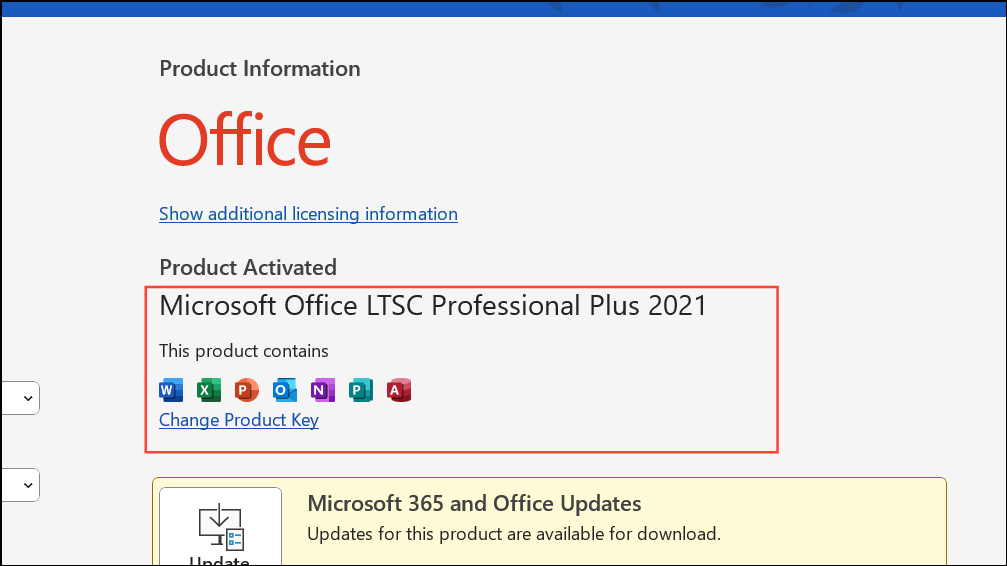
Product Activated, your Office installation is fully activated. If you see Product Activation Required or similar, your Office needs activation.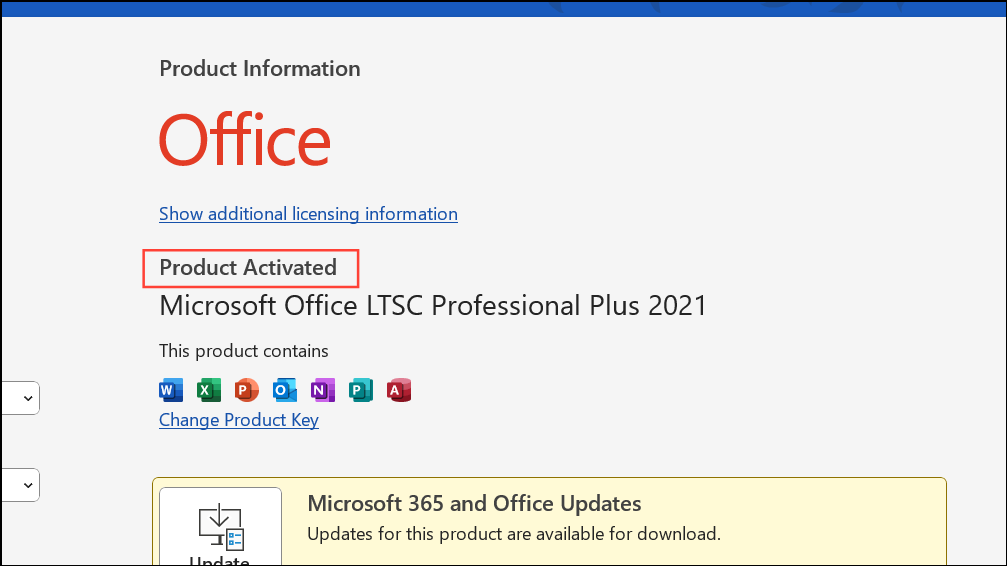
Check Activation Status Using Command Prompt and OSPP.VBS Script
For detailed technical information about your Office license, especially on perpetual or volume-licensed installations, you can use the ospp.vbs script included with Office.
cmd in the Windows search bar, right-click on Command Prompt, and select Run as administrator.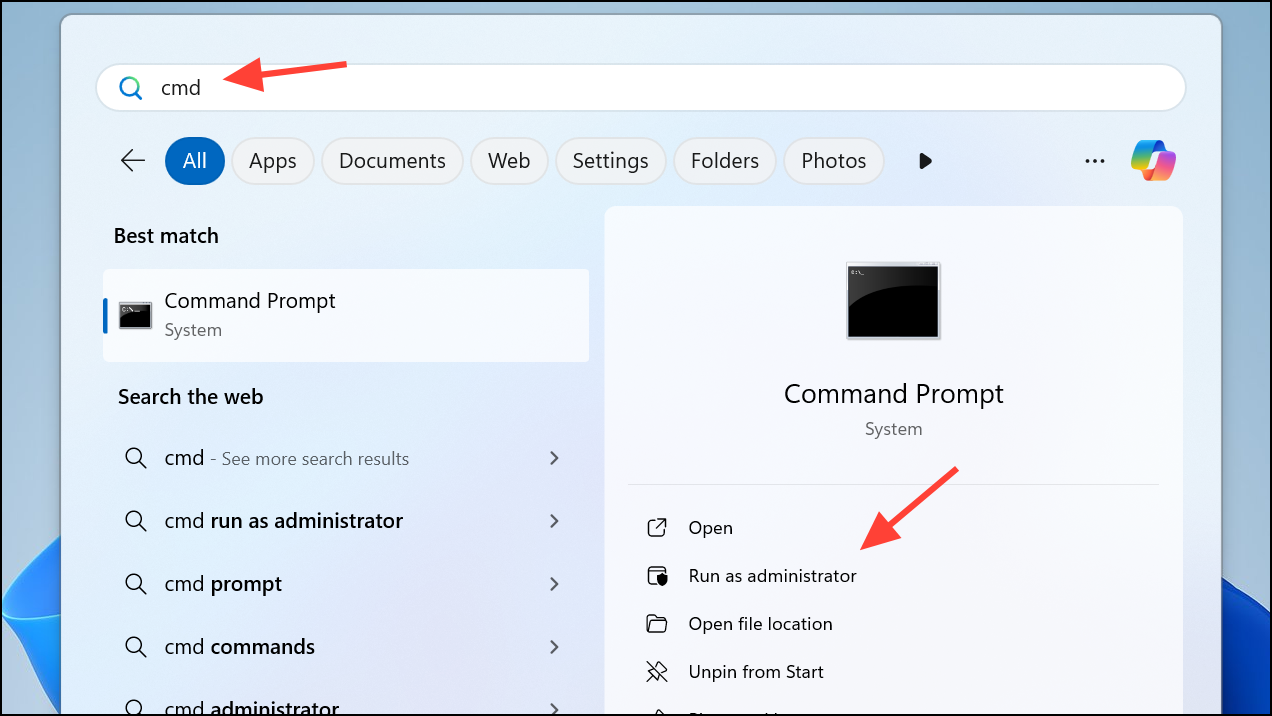
cd "C:\Program Files\Microsoft Office\Office16"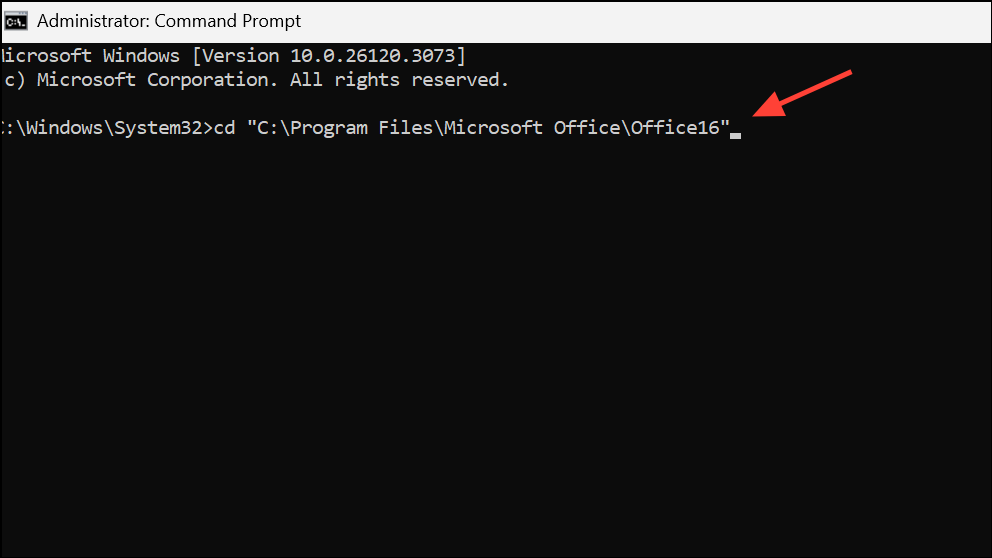
For 32-bit Office on 64-bit Windows, use:
cd "C:\Program Files (x86)\Microsoft Office\Office16"Replace Office16 with the correct folder for your Office version (e.g., Office15 for Office 2013, Office14 for Office 2010).
cscript ospp.vbs /dstatus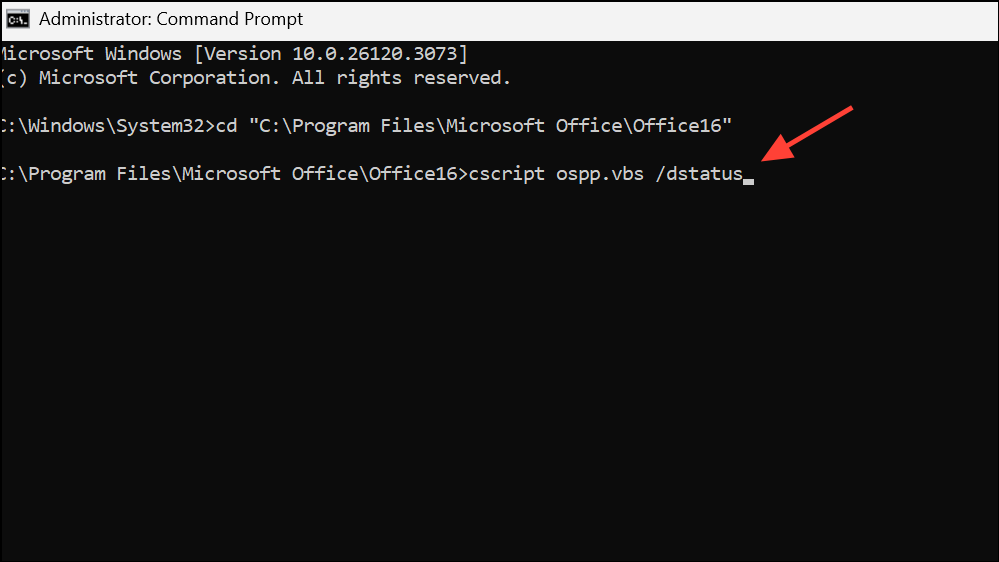
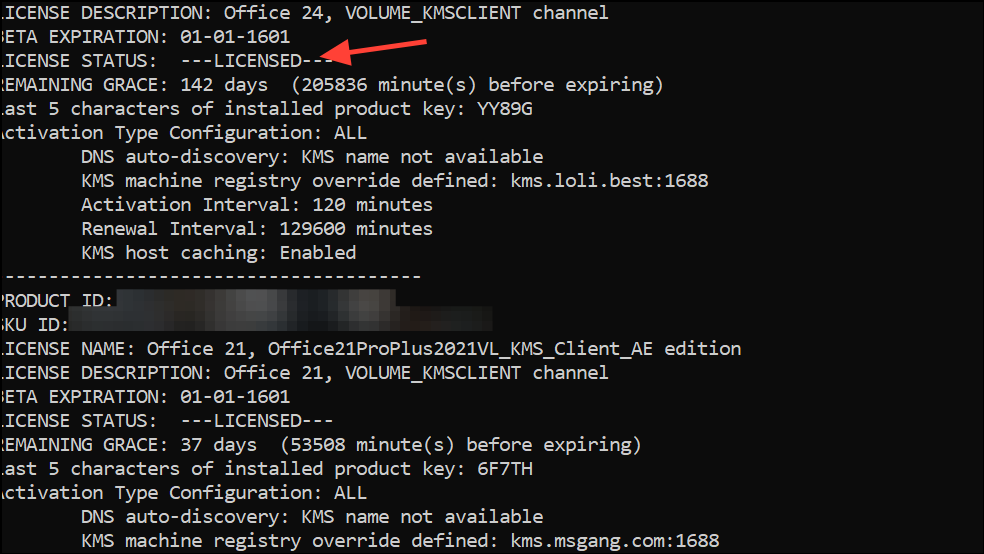
This command outputs detailed information, including:
- Product ID and SKU ID.
- License name and description (such as Retail, Volume, MAK, or KMS).
- Activation status (e.g., LICENSED, NOTIFICATIONS, or OOB_GRACE).
- Remaining grace period for volume licenses.
- Last five characters of the installed product key.
If the license is listed as LICENSED, Office is activated. If you see statuses like NOTIFICATIONS or OOB_GRACE, activation is incomplete or expired, and Office features may be limited.
For Microsoft 365 Apps installed after Version 1910, the ospp.vbs script no longer provides complete information. Use the PowerShell method below for those installations.
Check Activation Status with PowerShell and vnextdiag.ps1 (Microsoft 365 Apps and Office 2021+)
Microsoft 365 Apps and newer versions of Office (including subscription-based Project and Visio) use a new activation method. The vnextdiag.ps1 PowerShell script is the recommended way to retrieve license and activation status for these products.
PowerShell in the start menu, right-click, and choose Run as administrator.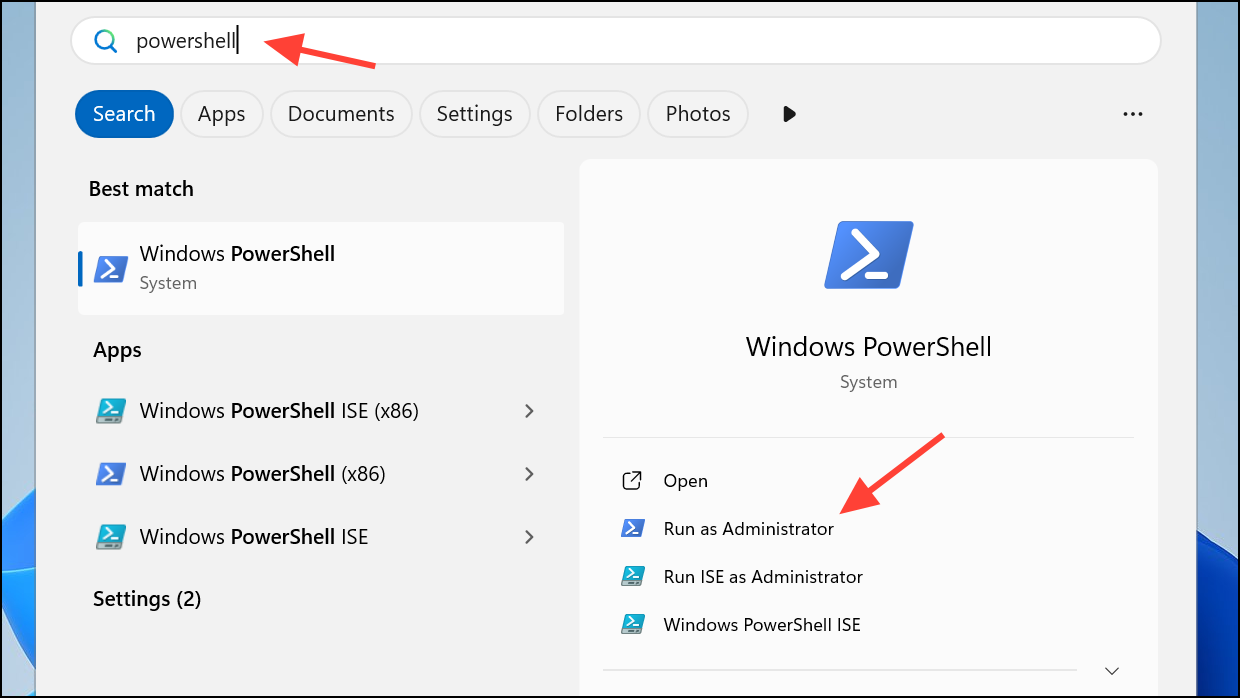
cd "C:\Program Files\Microsoft Office\Office16"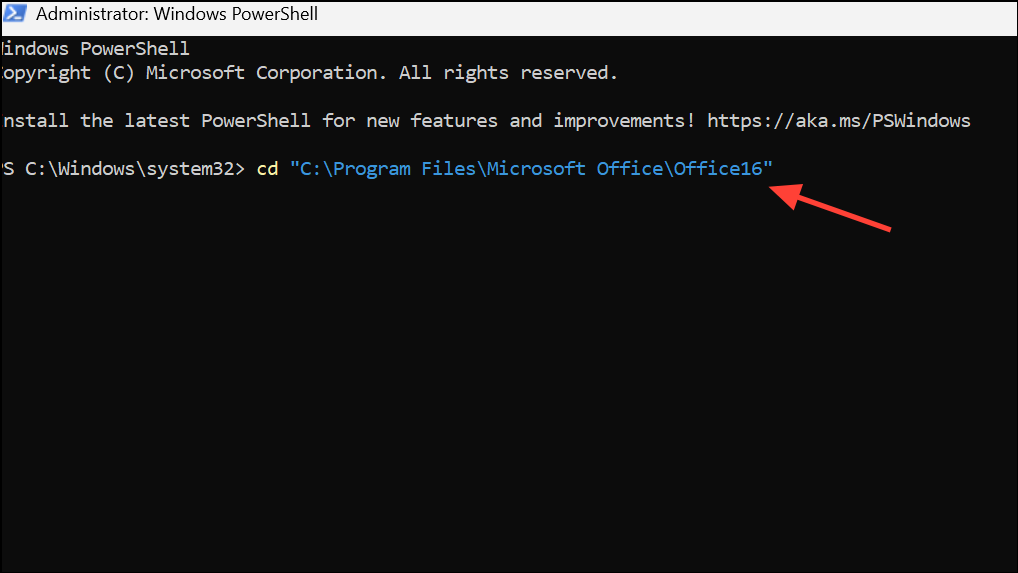
For 32-bit Office on 64-bit Windows:
.\vnextdiag.ps1 -action list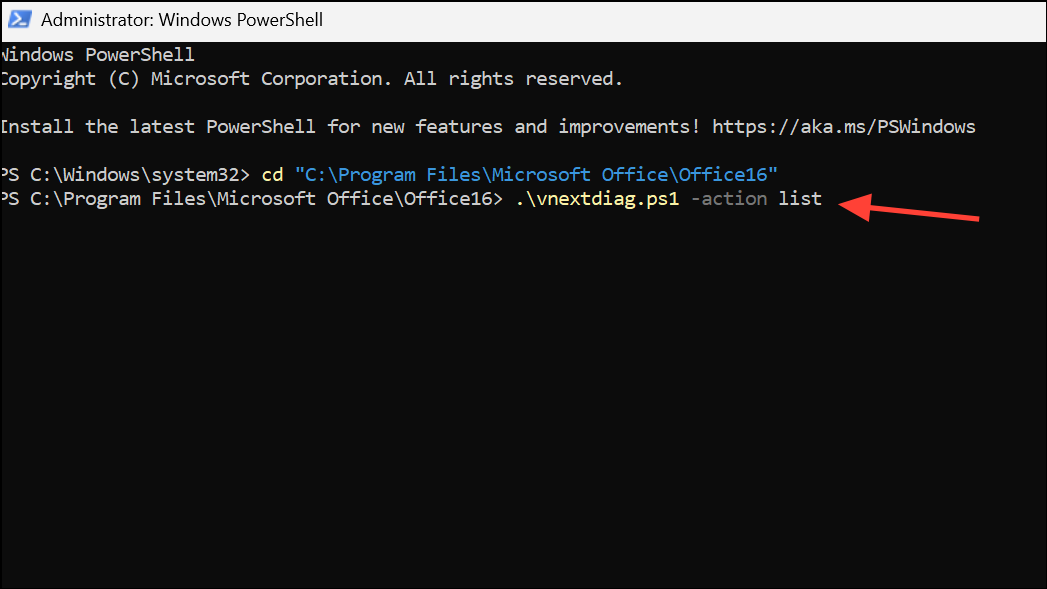
The script outputs:
- Type of license (e.g., User|Subscription, Device|Perpetual).
- Product name (e.g., O365ProPlusRetail, HomeBusiness2021Retail).
- Activation state (Licensed, Not Licensed, etc.).
- User email associated with activation, if applicable.
- Tenant ID for organizational subscriptions.
- Details about shared computer activation or device-based licensing.
If the license state is Licensed, your Office is activated. If no licenses are found or the status is different, activation is needed or has failed.
Set-ExecutionPolicy RemoteSigned -Scope Process.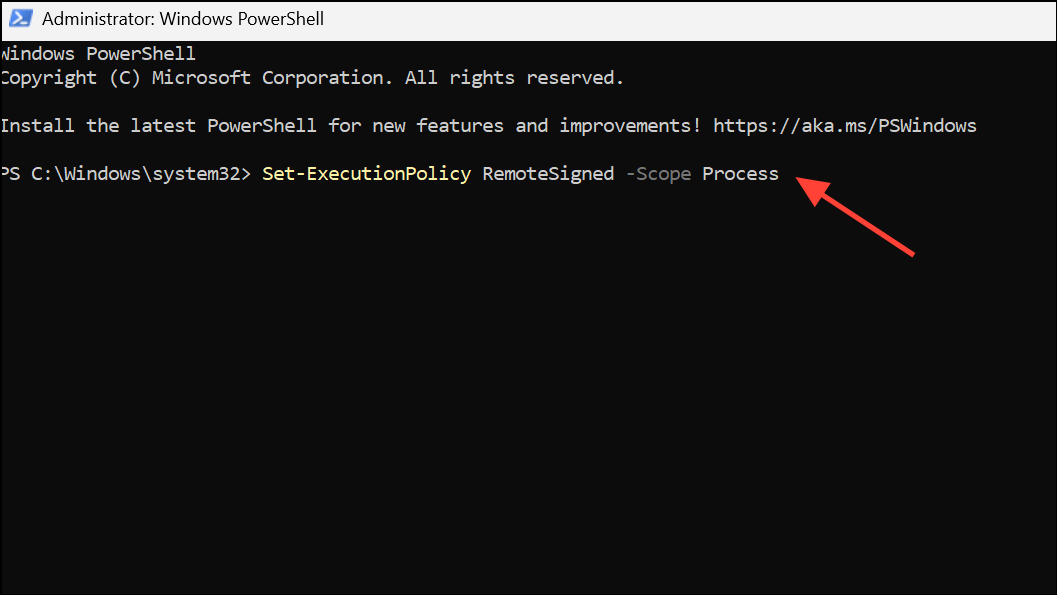
You can also check for activated products in the Windows Registry or by examining license files in the %localappdata%\Microsoft\Office\Licenses folder, but using vnextdiag.ps1 is faster and more reliable for supported versions.
Check License Type and Status with PowerShell CIM Commands
For advanced users or system administrators managing multiple machines, PowerShell can query license status locally or remotely using Windows Management Instrumentation (WMI).
Get-CimInstance SoftwareLicensingProduct | where {$_.name -like "*office*"} | select name, licensestatus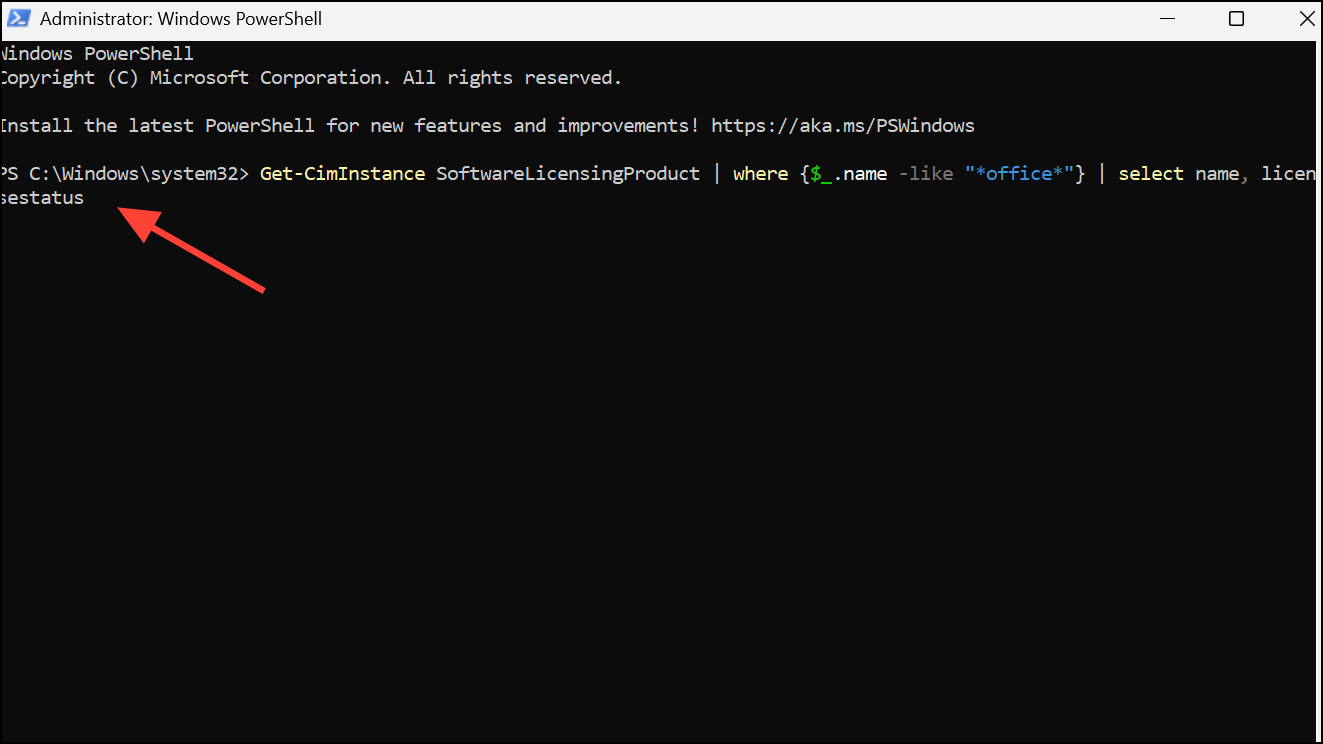
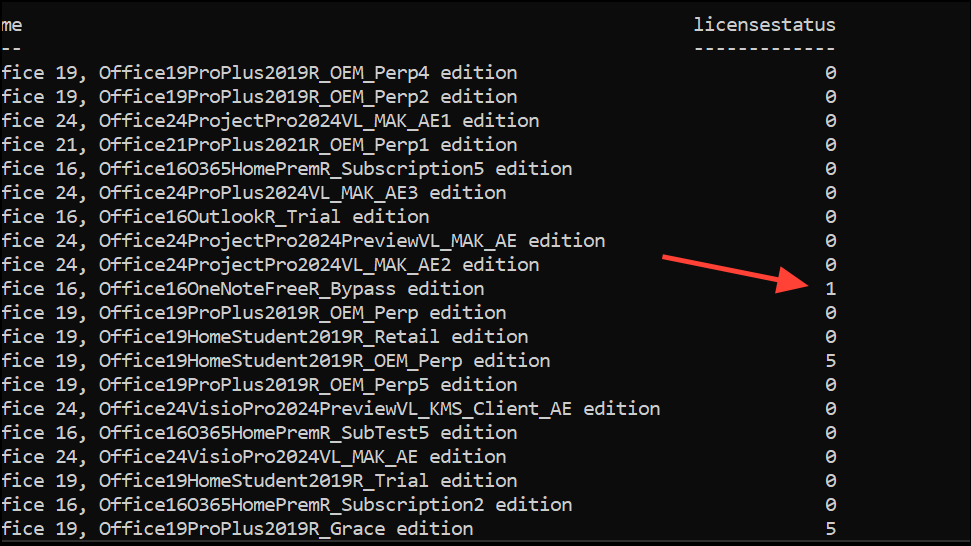
The LicenseStatus value indicates:
- 0 = Unlicensed.
- 1 = Licensed.
- 2 = Out of Box Grace Period.
- 3 = Out of Tolerance Grace Period.
- 4 = Non-Genuine Grace Period.
- 5 = Notification.
- 6 = Extended Grace.
You can convert these codes to descriptive text using a custom enumeration in PowerShell for easier interpretation.
Get-CimInstance -ComputerName [RemotePCName] SoftwareLicensingProduct | where {$_.name -like "*office*"} | select name, licensestatusCheck License Status from Control Panel (Windows)
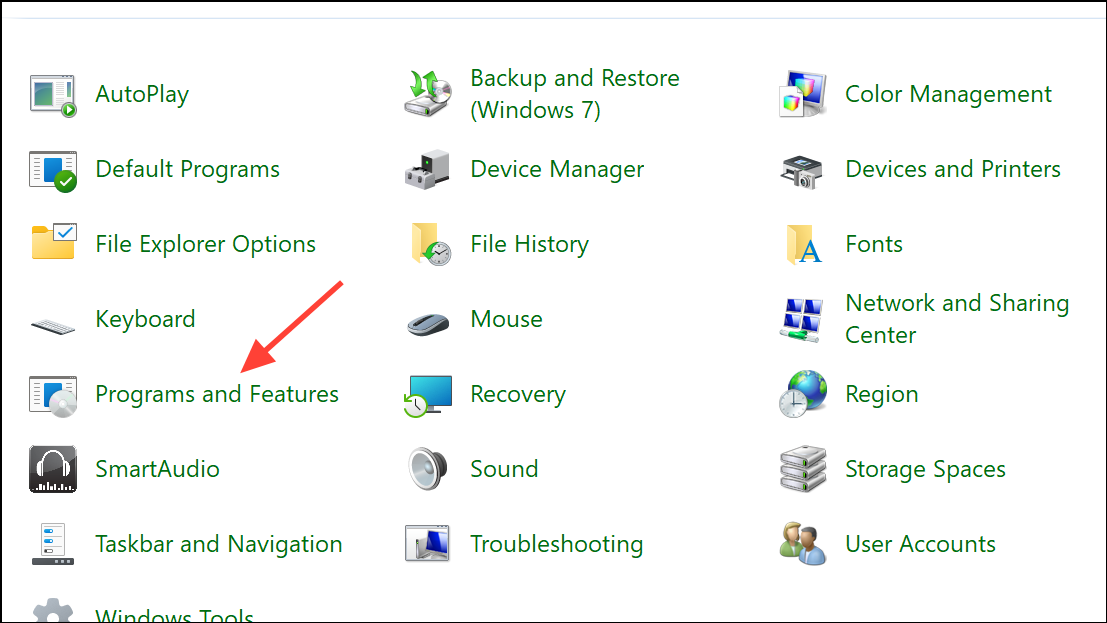
The Control Panel provides a basic check for Office activation, but it may not display detailed license type information.
Check Activation Status on Mac
For Mac users, activation checks are slightly different.
Troubleshooting and Additional Notes
If you discover that your Office license is not activated, try restarting your computer and ensuring a stable internet connection. For subscription licenses, sign in with the correct Microsoft account. If you purchased your license through an authorized reseller and activation fails, contact their support team for help. For volume or enterprise licenses, coordinate with your IT department or system administrator to resolve activation or assignment issues.
Activation status can also be affected by system cloning (identical SIDs), leftover registry keys from previous installations, or exceeding the allowed number of activations for your license type. Use the most appropriate method above based on your Office version and deployment scenario to get accurate results.
Verifying your Microsoft Office license type and activation status ensures you have access to all features and prevents interruptions. Use the built-in Office interface for quick checks, or command-line and PowerShell tools for more detailed information and troubleshooting.