Microsoft Teams shows error code 500 when server-side communication fails or there’s a problem with cached credentials, network configuration, or application files. This error can block access to meetings, chat, and collaboration features, impacting your workflow until it’s resolved. Addressing the root causes—like outdated credentials, connectivity issues, or corrupt cache—restores Teams functionality and ensures you can rejoin your workspace without delays.
Clear Microsoft Teams Credentials Using Credential Manager
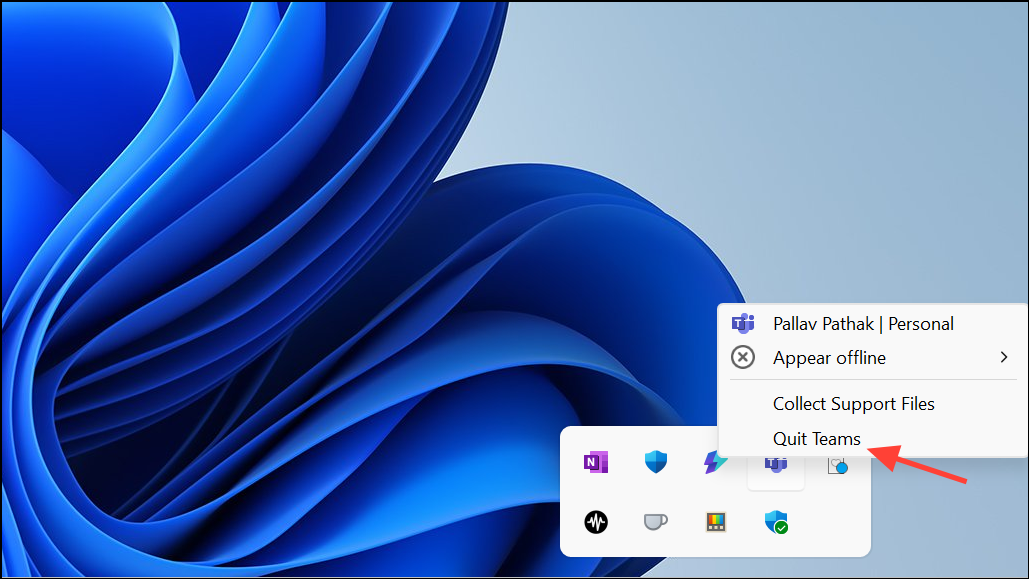
Close Microsoft Teams completely. Right-click the Teams icon in the system tray and select Quit. Alternatively, open Task Manager (Ctrl + Shift + Esc), find any Teams processes, and end them.
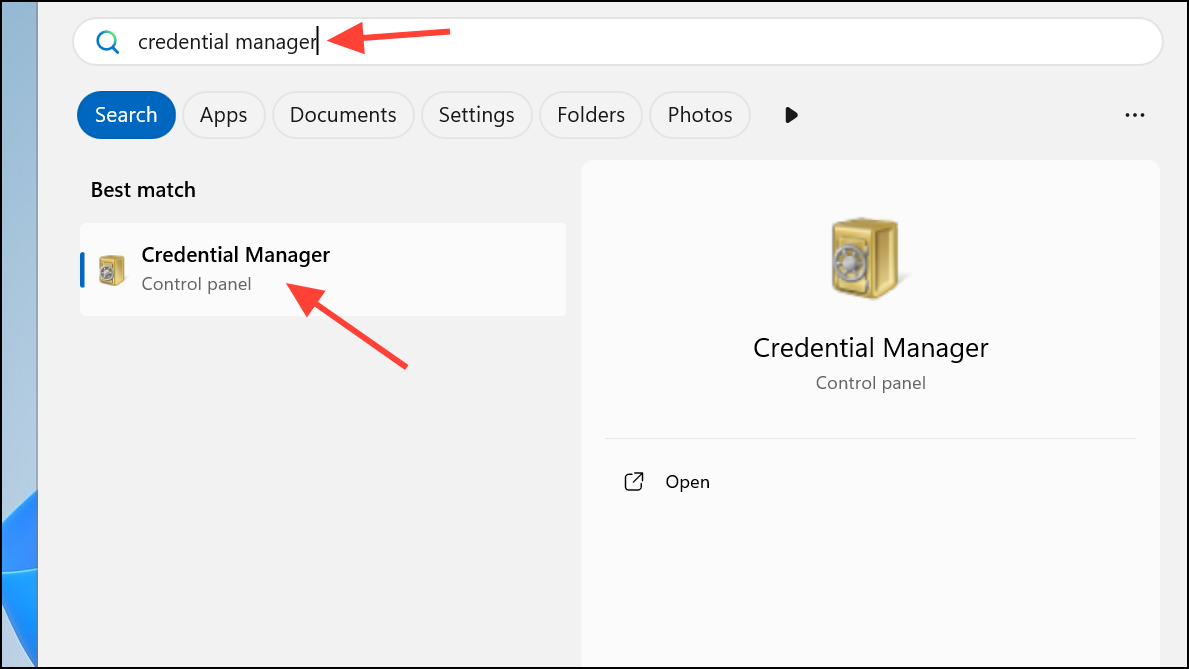
Open the Windows search bar and type Credential Manager. Click on the application to launch it. Navigate to Windows Credentials to see a list of saved credentials for your user account.
Find all entries labeled MSTeams or related to Microsoft Teams. Expand each entry by clicking the down arrow and select Remove to delete them. Repeat this for every Teams-related credential.
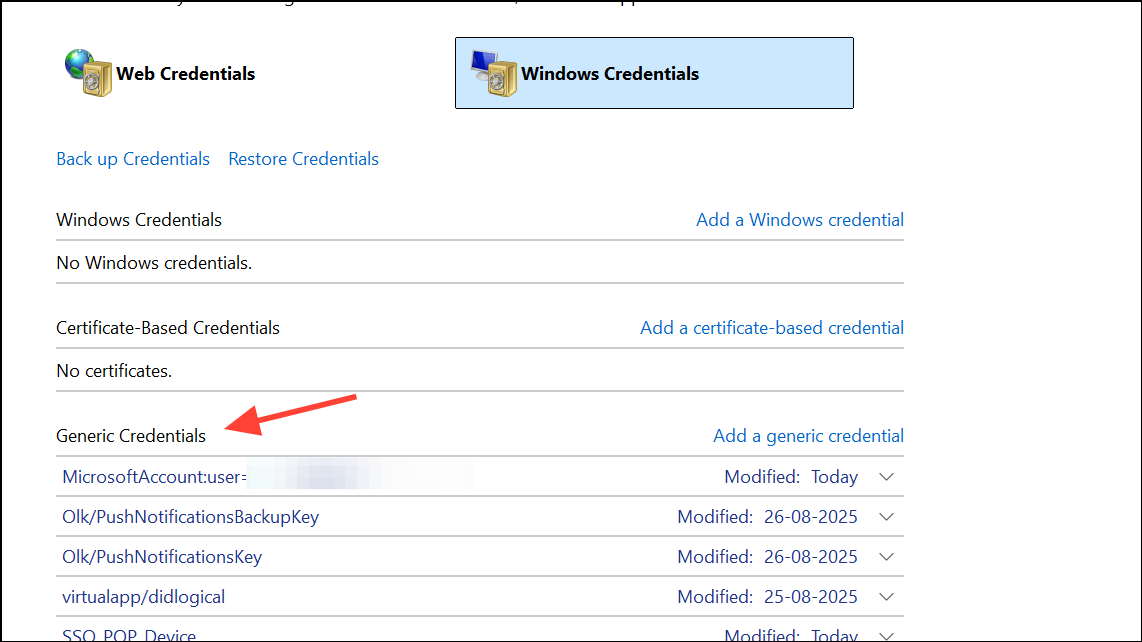
Open Microsoft Teams and sign in with your Office 365 credentials. This forces Teams to create fresh authentication tokens, resolving issues caused by outdated or corrupt credentials.
Log Out and Re-Authenticate in Teams
If Teams is running, right-click its icon in the system tray and select Log Out. This initiates a full sign-out and clears your session data.
When prompted, enter your Office 365 or Microsoft account credentials. If the error persists, combine this step with clearing credentials as described above.
Check Internet Connection and Network Configuration
Verify your device is connected to a stable and fast internet connection. Use a speed test website to confirm your bandwidth is sufficient for Teams calls and messaging.
If you’re using a VPN, proxy, or custom DNS, temporarily disable these settings. Sometimes, Teams fails to connect to Microsoft’s servers due to network filtering or misconfigured DNS.
Restart your router if you notice unstable connectivity. If possible, connect via Ethernet for improved reliability during troubleshooting.
Clear Microsoft Teams Cache
Fully exit Microsoft Teams. Open the Run dialog by pressing Windows + R and type
%appdata%\Microsoft\Teams, then press Enter.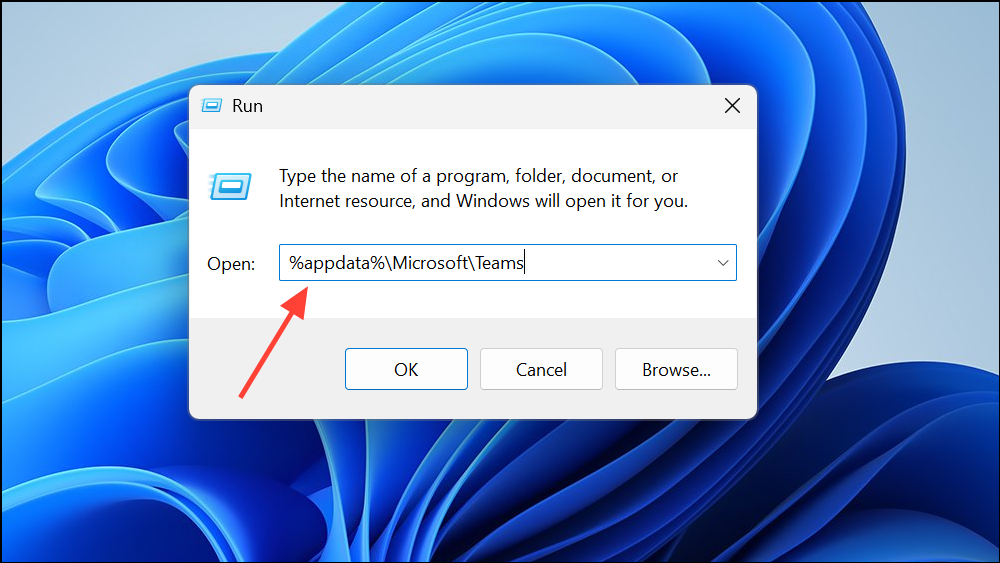
In the Teams folder, open the Cache subfolder. Select and delete all files inside, but do not remove the folder itself. Repeat this process for Application Cache\Cache and any other cache subfolders found within %appdata%\Microsoft\Teams.
Restart Teams. Clearing cache files removes temporary data that may be corrupt and causing login or loading errors.
Run Teams with Administrative Privileges
Locate the Microsoft Teams shortcut on your desktop or in the Start menu. Right-click the icon and select Properties.
Click the Compatibility tab. Check the box labeled Run this program as an administrator. Click Apply, then OK.
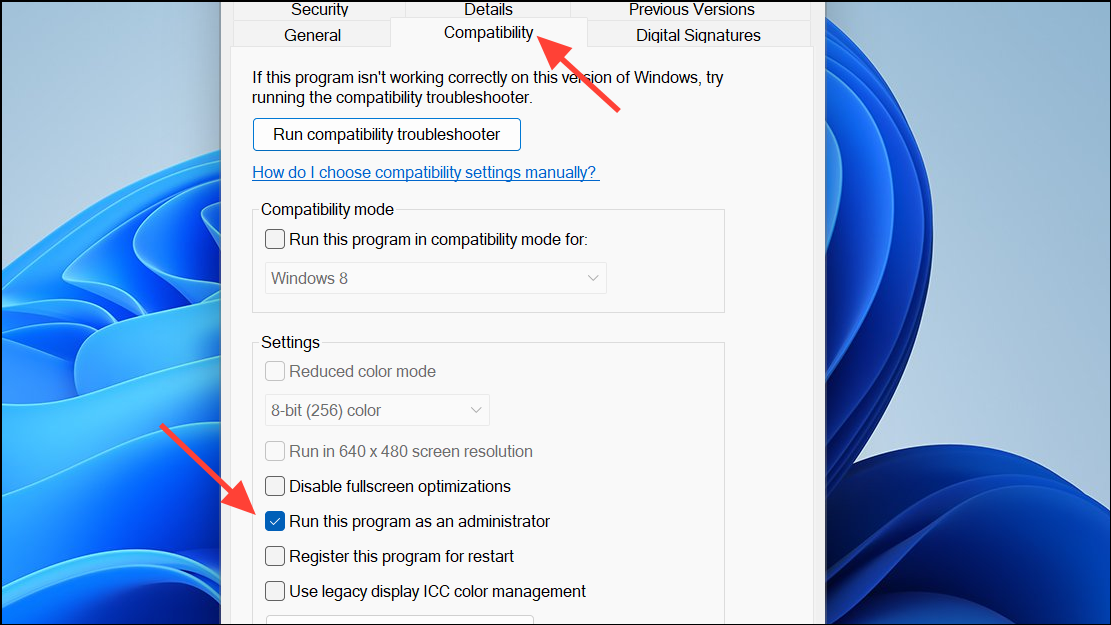
Launch Teams again. Administrative privileges can resolve permission-related errors that prevent Teams from accessing required system files or network resources.
Update Network Drivers
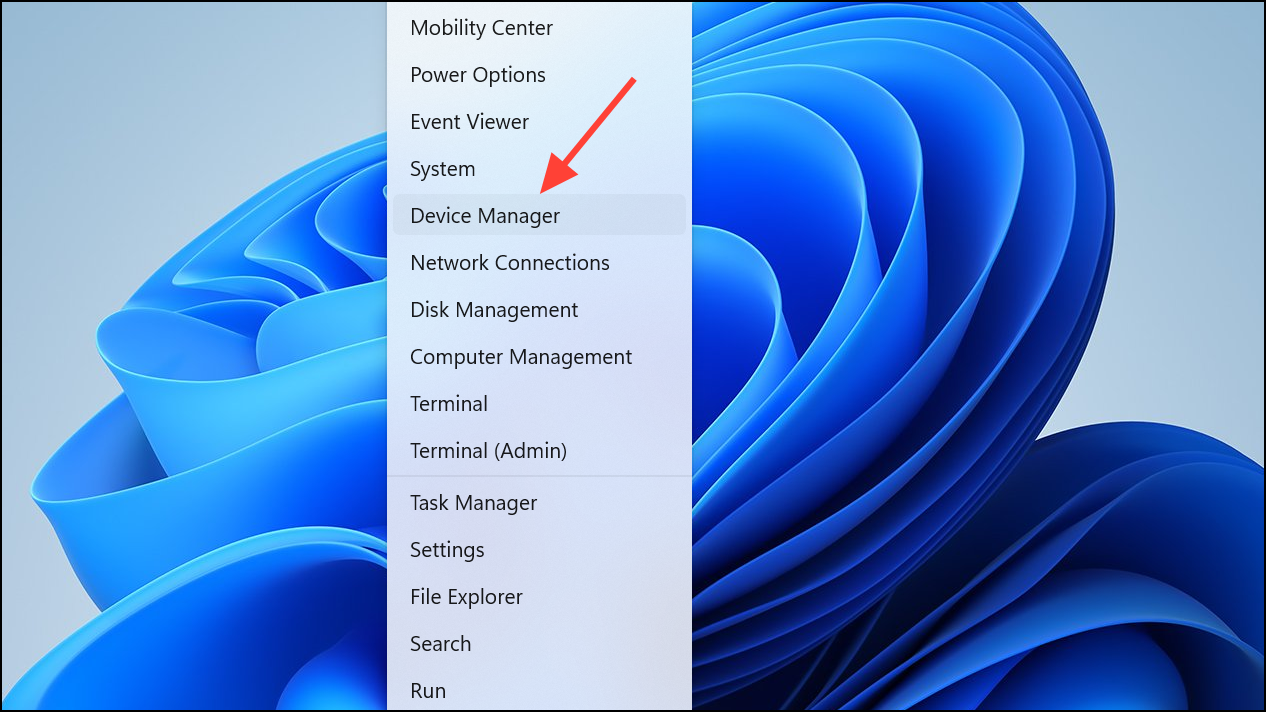
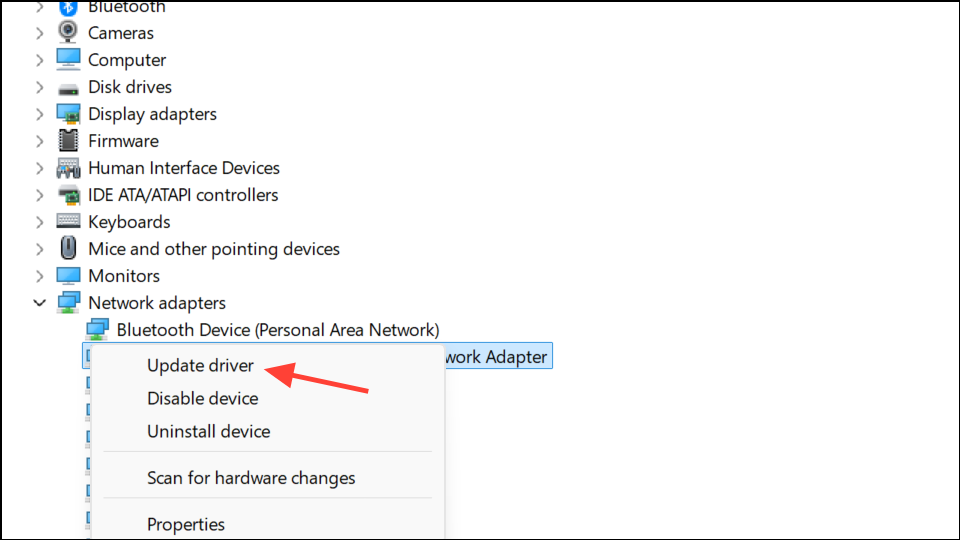
Select Search automatically for updated driver software. Allow Windows to find and install any available updates. Restart your device after updating.
Flush DNS Cache
Open Command Prompt as an administrator. Type
ipconfig /flushdnsand press Enter. This command clears the DNS resolver cache, resolving issues caused by outdated or incorrect DNS records.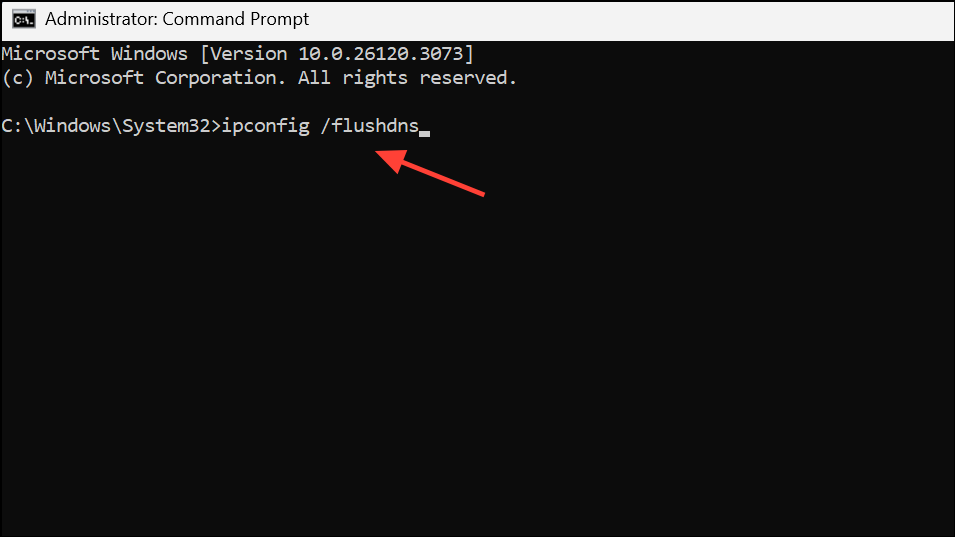
Temporarily Disable Windows Firewall and Antivirus
Open Windows Security from the Start menu. Go to Firewall & network protection and select your active network.
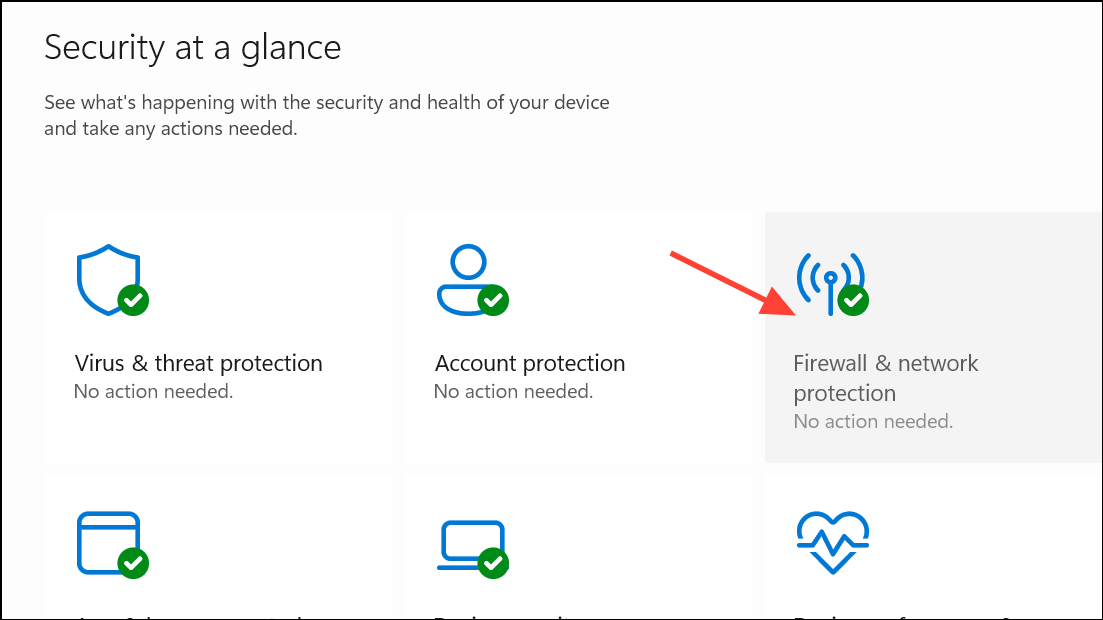
Turn off Microsoft Defender Firewall for this network temporarily. If you use a third-party antivirus, disable its protection as well.
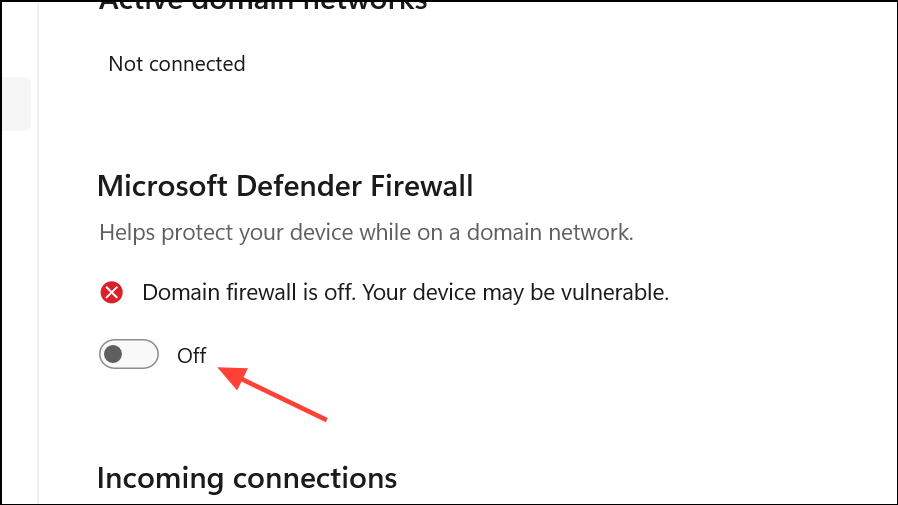
Try signing in to Teams. If the error resolves, add Teams as an allowed app, then re-enable your firewall and antivirus to maintain security.
Reinstall Microsoft Teams
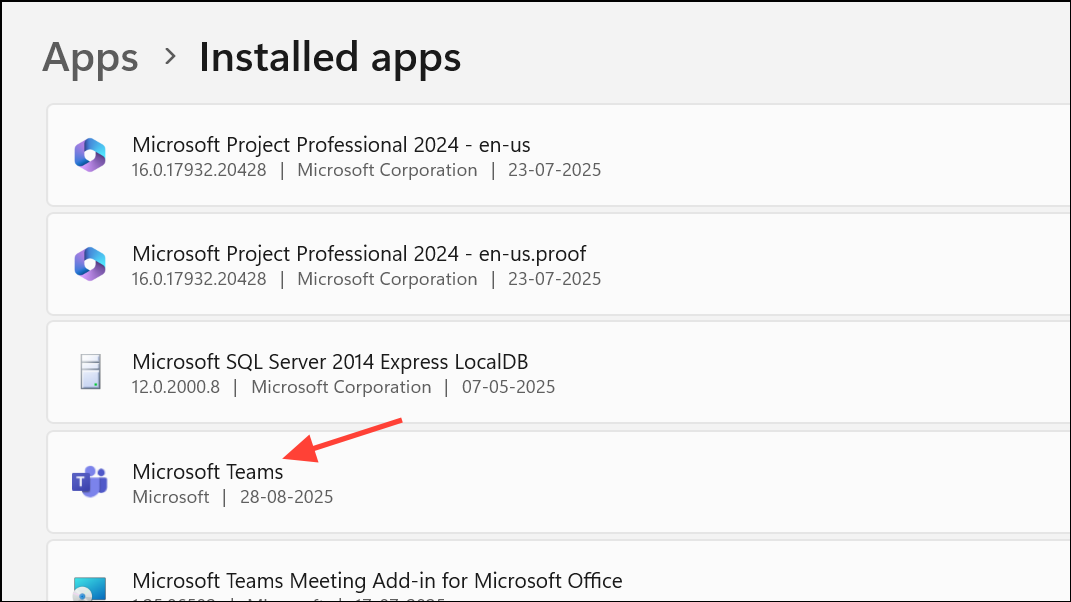
Click the three-dot menu next to Teams and select Uninstall. Follow the prompts to remove the application from your system.
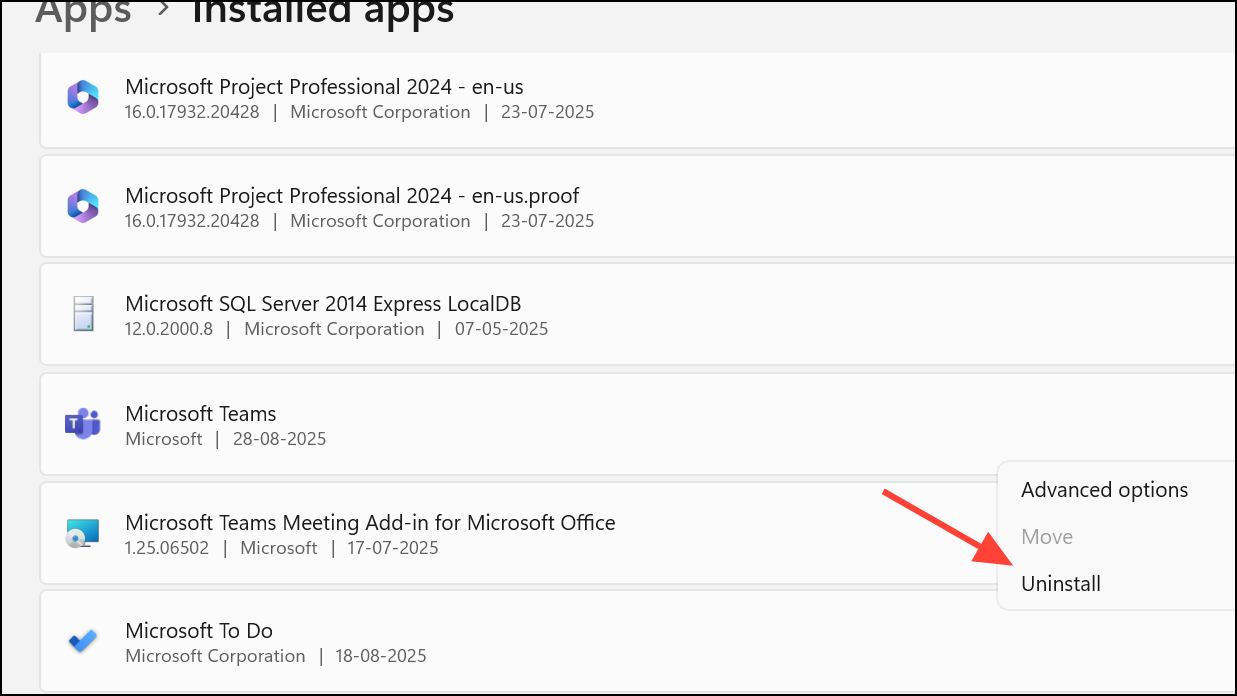
Restart your computer. Download the latest Teams installer from the official Microsoft website and perform a fresh installation. Sign in with your credentials to complete setup.
Check Microsoft Service Status
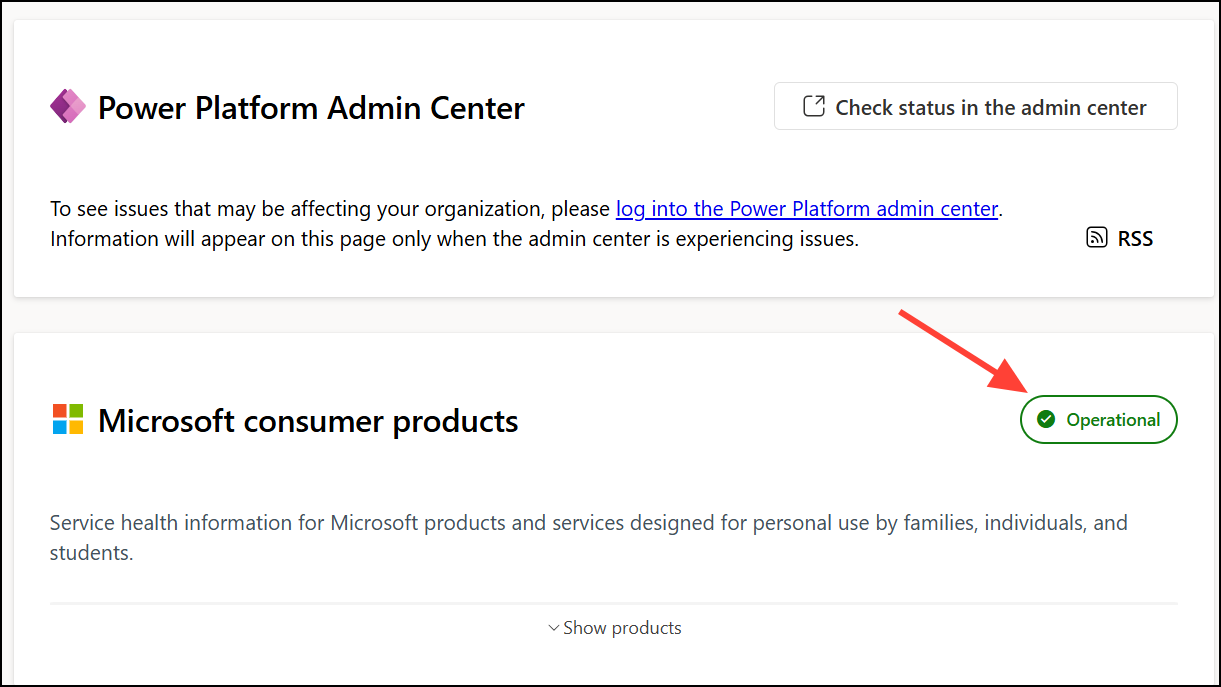
Visit the Microsoft Office Service Status page to confirm if there are ongoing outages affecting Teams. If a widespread service issue is reported, wait for Microsoft to resolve it before troubleshooting further.
Resolving error code 500 in Microsoft Teams restores access to meetings, chat, and collaboration tools, letting you get back to work without disruption. If the issue persists, reach out to your IT support or Microsoft for further assistance.