
Windows 11 systems, by default, prompt for a password or require a sign-in after waking up from sleep. This behavior can disrupt scheduled tasks, slow down workflows, and frustrate users who are the sole operators of their devices. Several configuration changes can address this, but not all methods work consistently across different builds or account types. Below, you’ll find the most effective ways to disable the login prompt after sleep in Windows 11, with explanations and important cautions.
Method 1: Change Sign-In Options in Settings
Windows + I on your keyboard.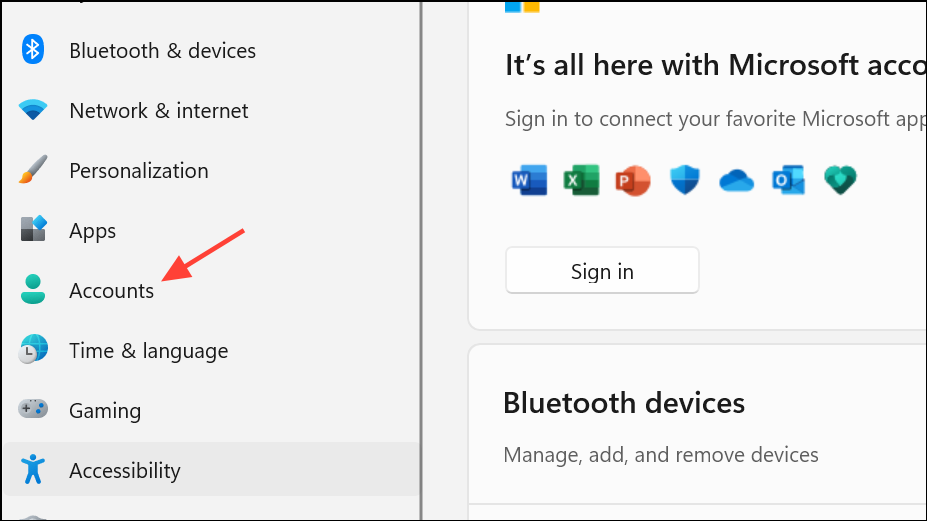
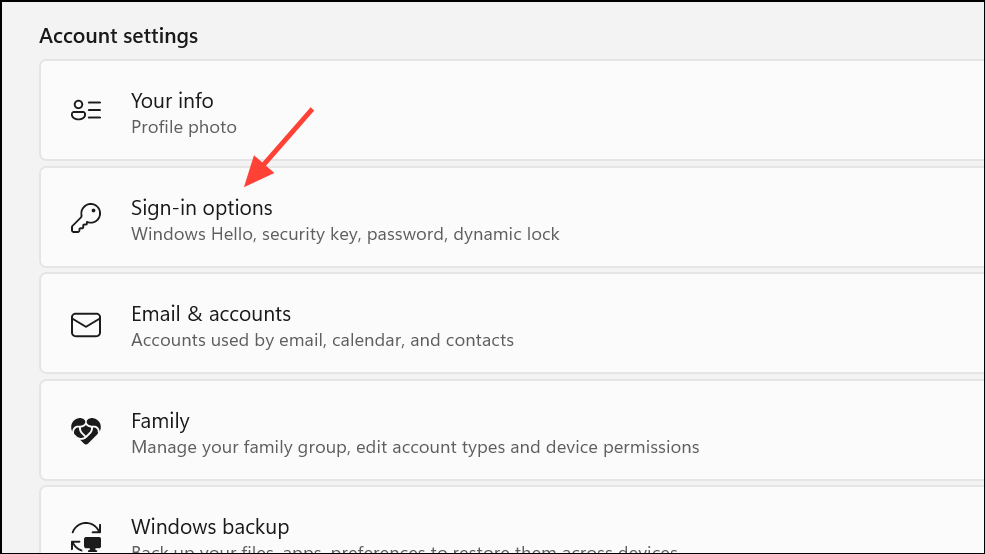
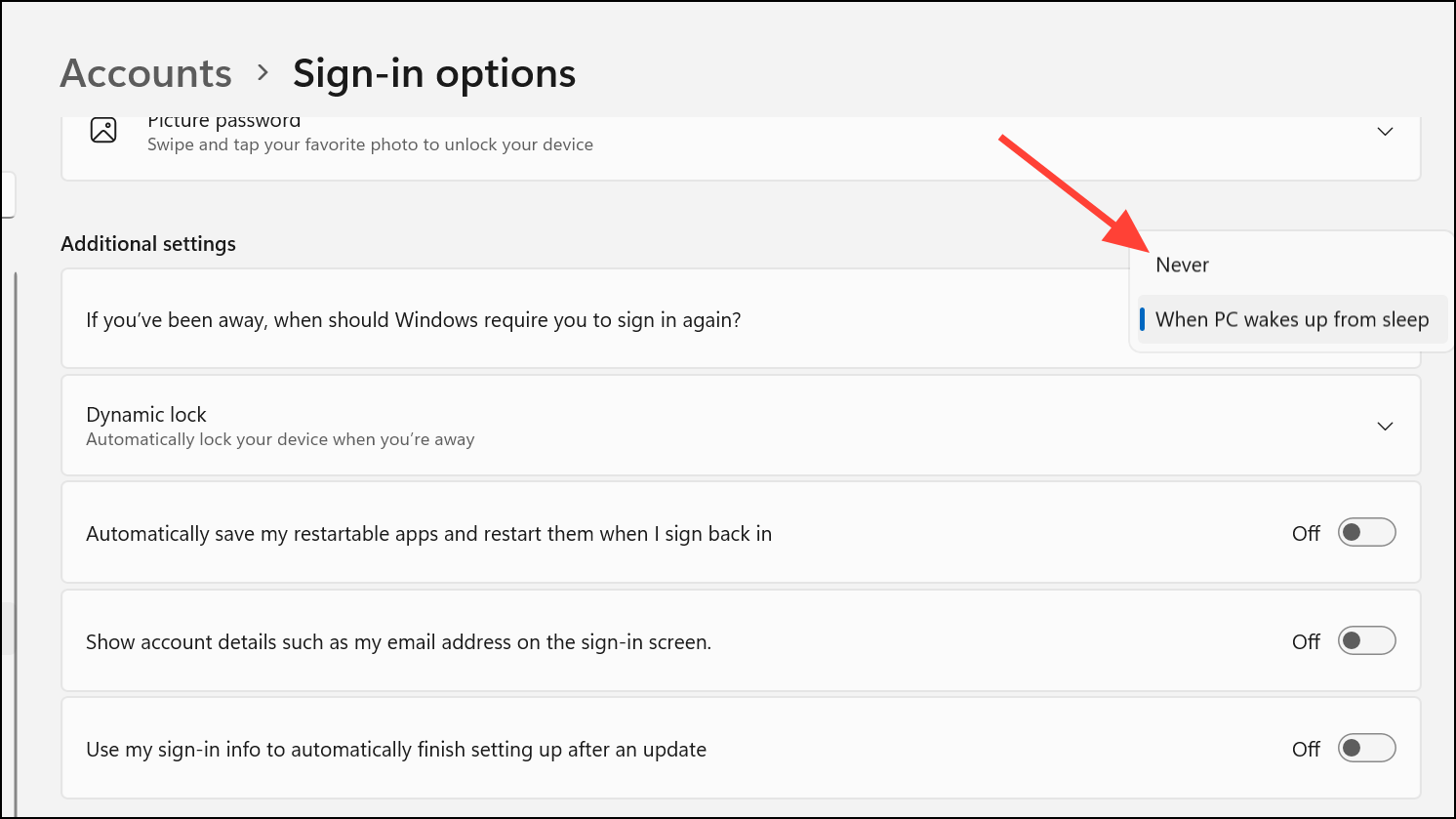
This method directly addresses the sign-in requirement after sleep for most local and Microsoft accounts. However, some users report that the setting is unavailable unless a password is set, or that the option resets after certain updates.
Method 2: Use netplwiz to Disable Password Prompt
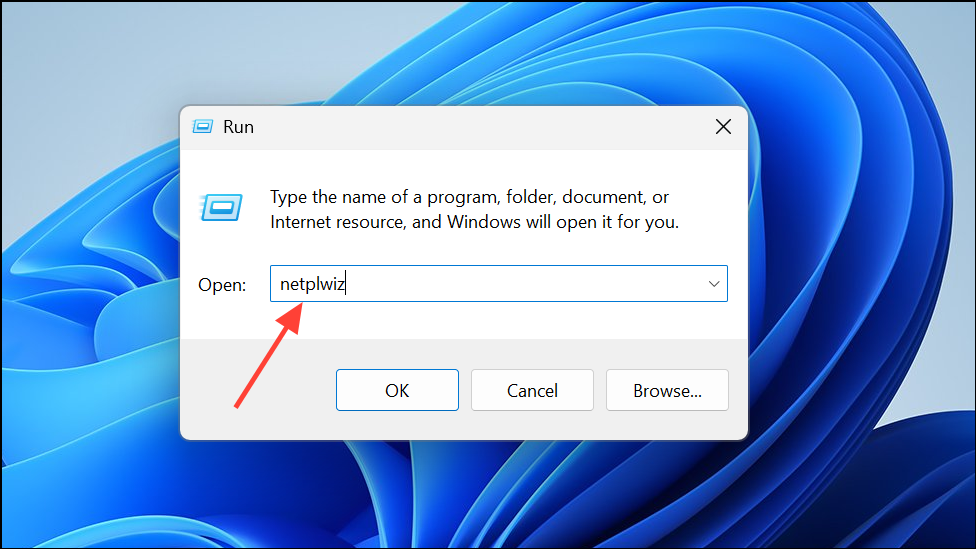
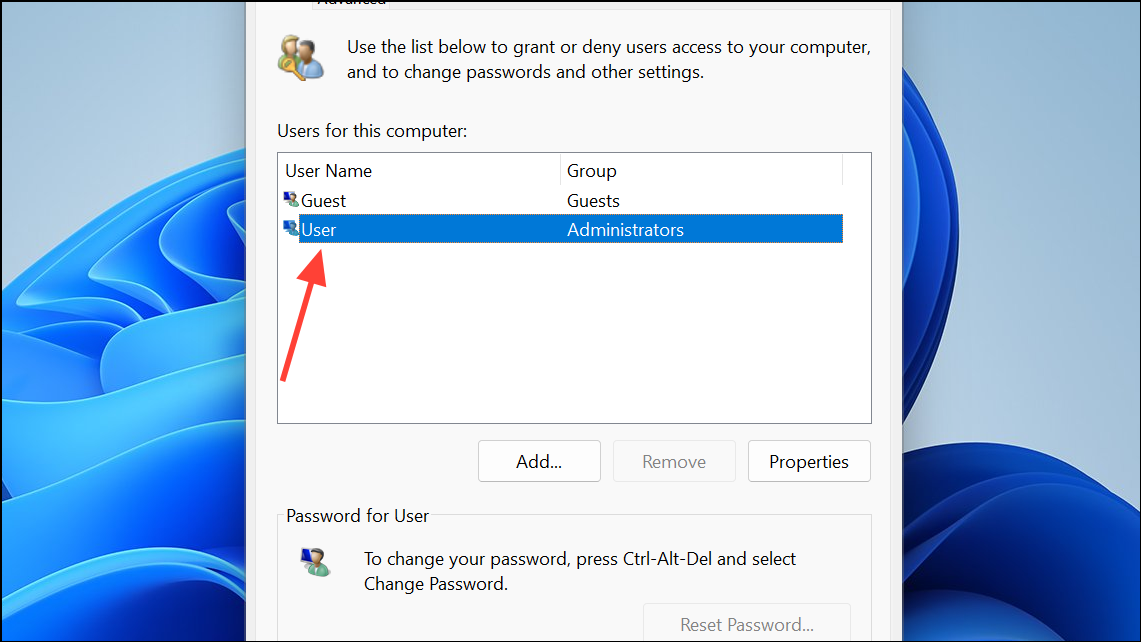
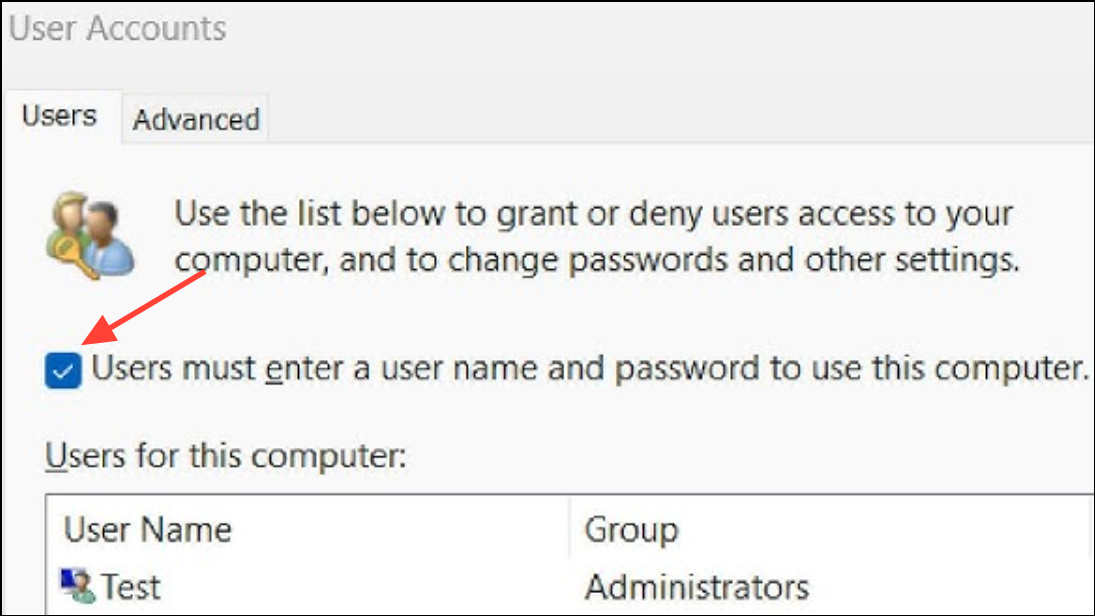
This method configures Windows to automatically log in your account at startup and after sleep. If the checkbox is missing, see the next method for enabling it via the registry.
Method 3: Enable netplwiz Checkbox via Registry Edit
If the “Users must enter a user name and password” option is missing in netplwiz, you can restore it by editing the registry.
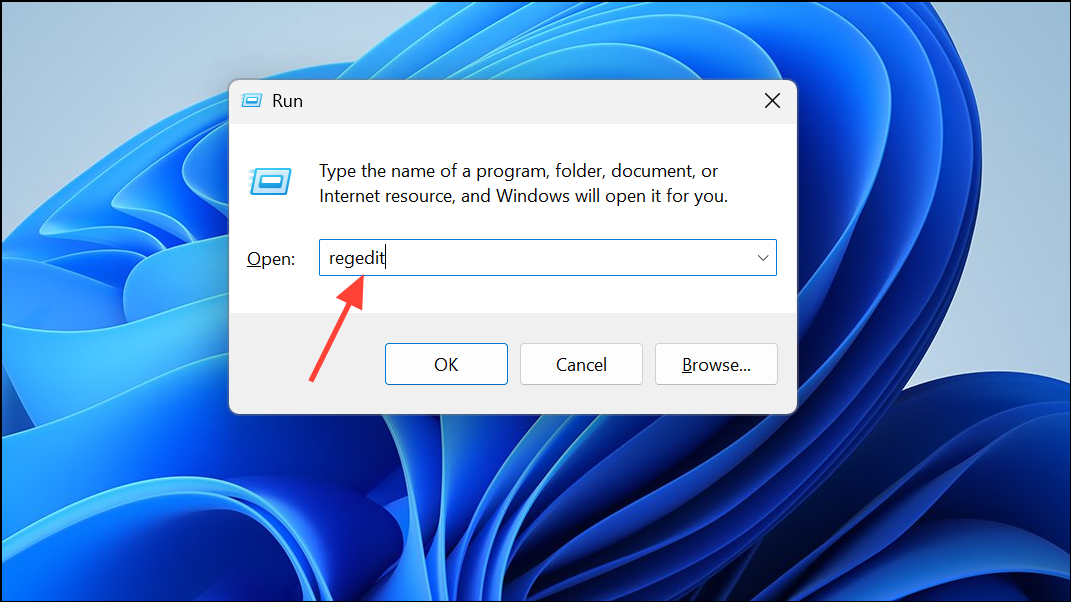
Windows + R, type regedit, and press Enter to open the Registry Editor. Approve the User Account Control prompt if it appears.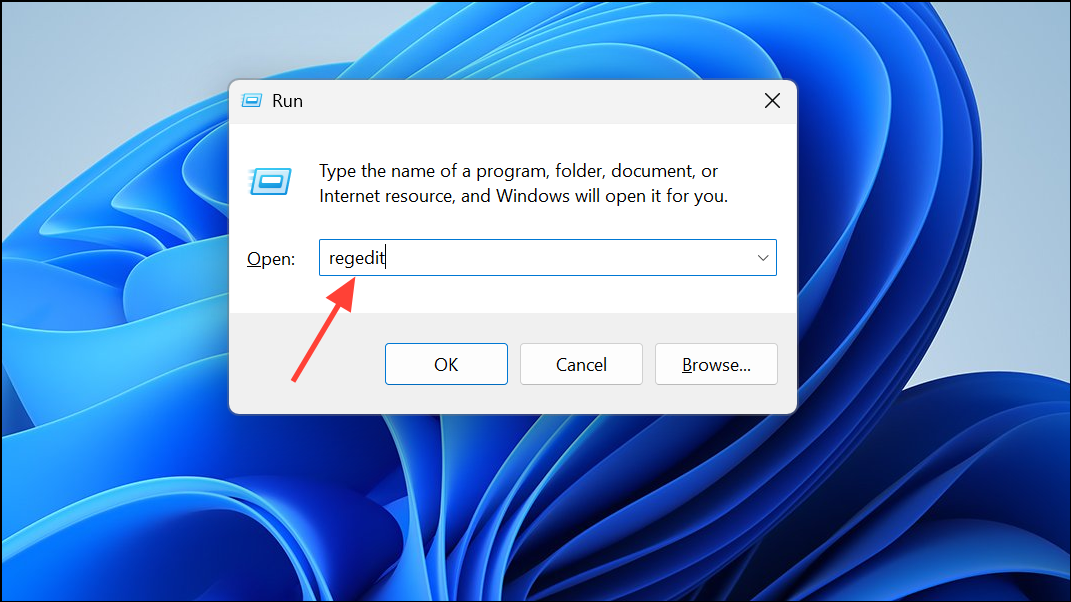
HKEY_LOCAL_MACHINE\SOFTWARE\Microsoft\Windows NT\CurrentVersion\PasswordLess\Device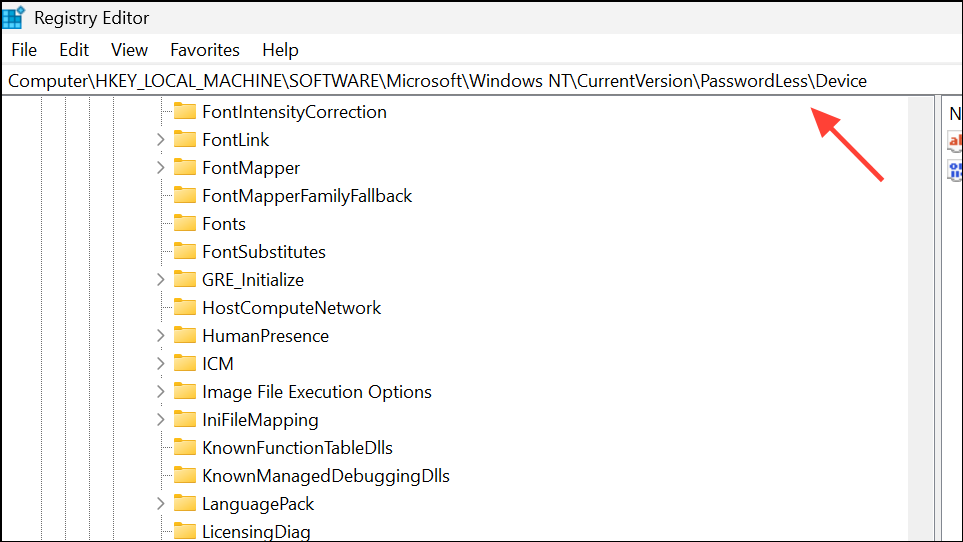
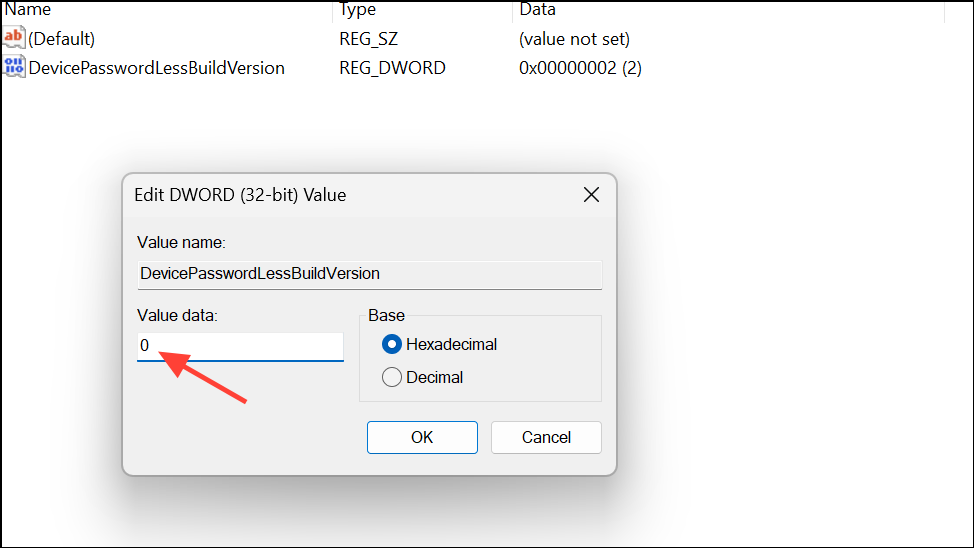
netplwiz. The checkbox should now be visible, allowing you to set up automatic sign-in as described in Method 2.Method 4: Adjust Power Plan Settings for Password on Wakeup
Some Windows versions allow you to control password requirements on wakeup through advanced power settings.
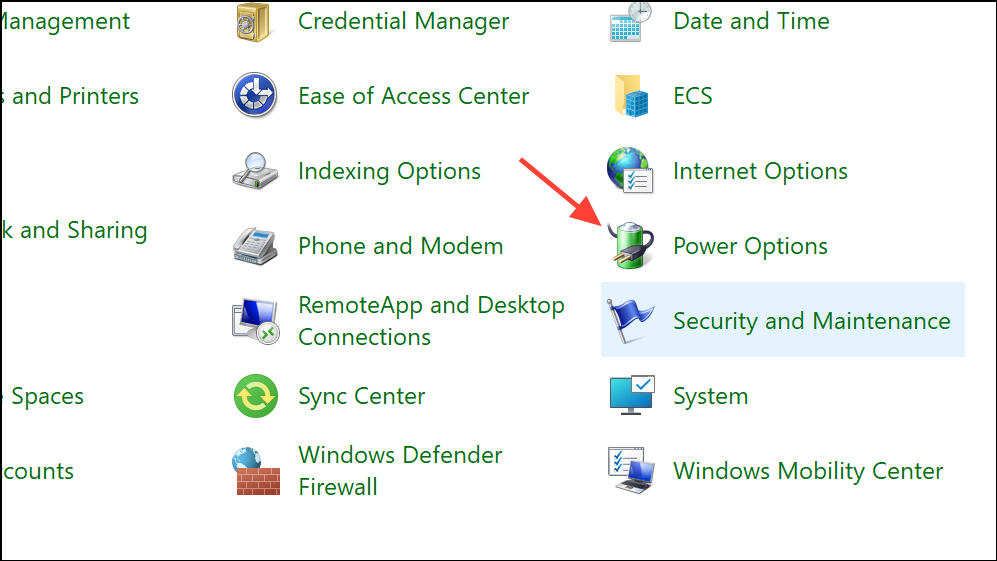
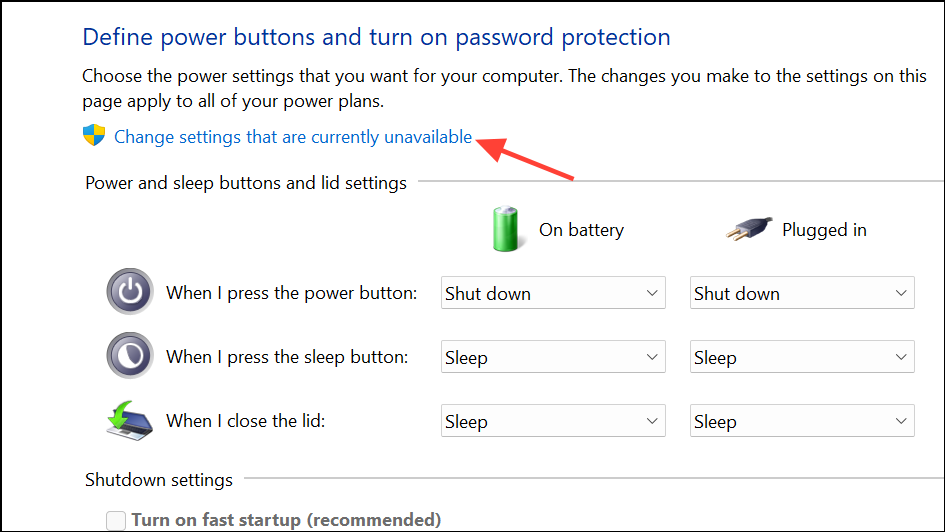
This method may not be available on all editions or may be hidden by group policies.
Method 5: Disable Lock Screen via Group Policy Editor (Windows 11 Pro Only)
On Windows 11 Pro or higher, you can use the Group Policy Editor to remove the lock screen entirely.
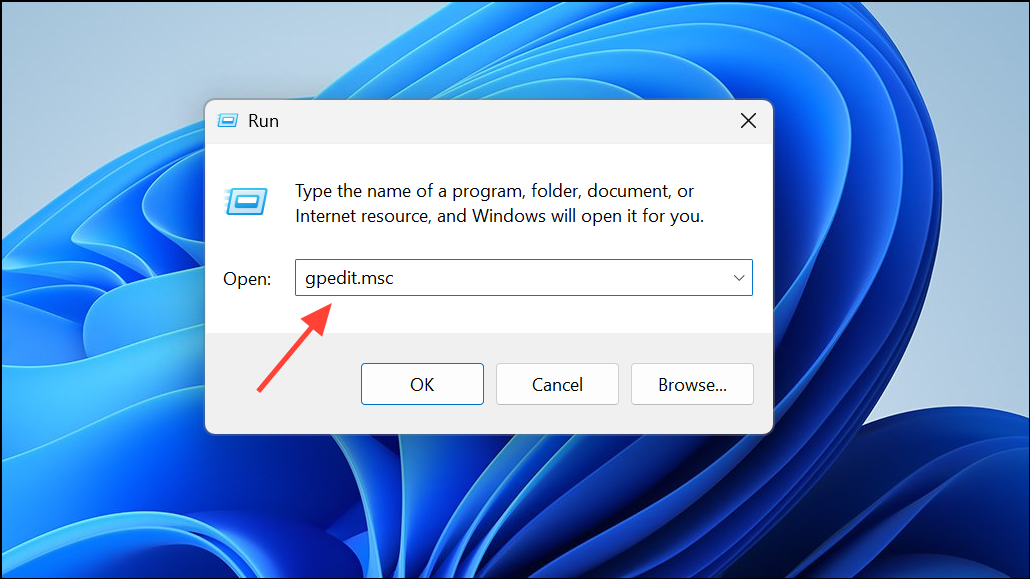
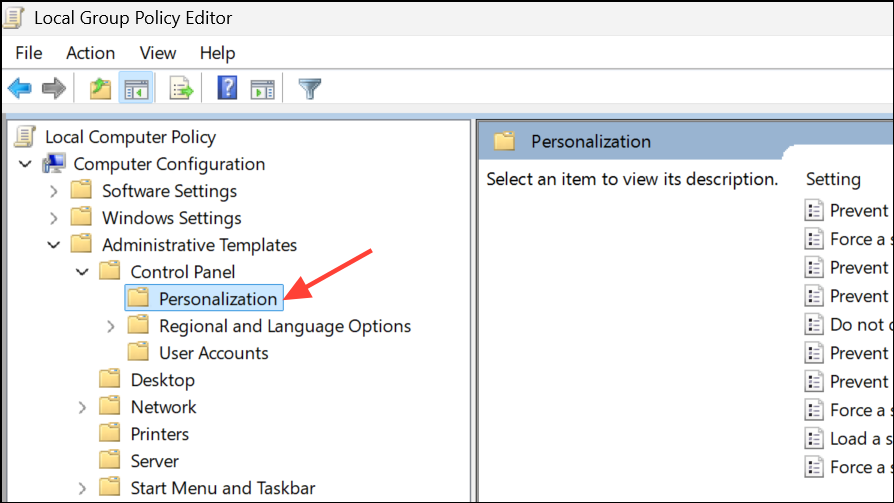
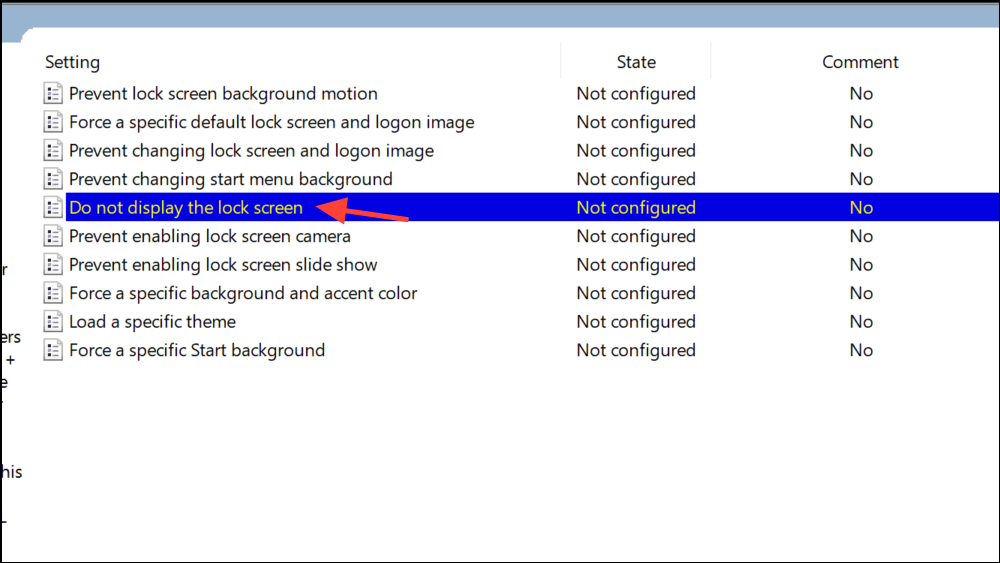
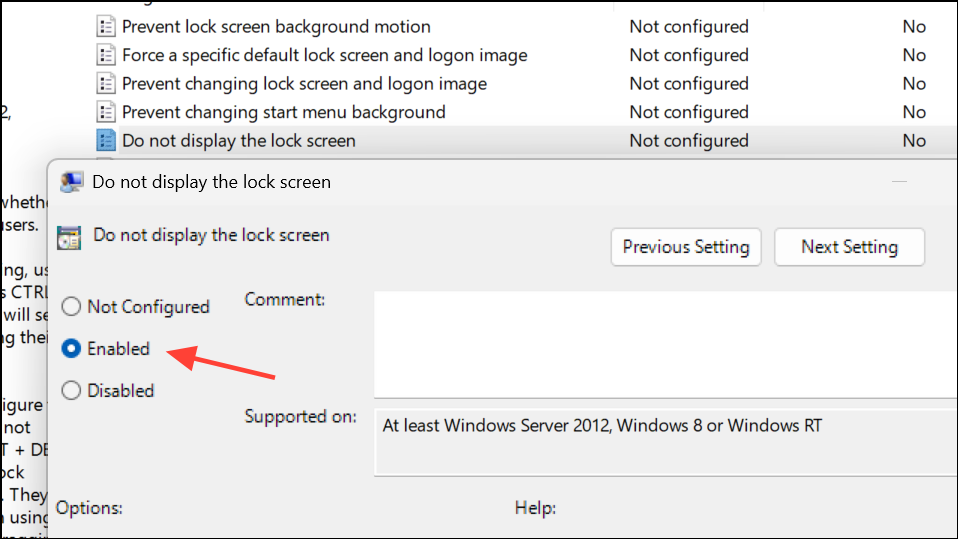
Method 6: Registry Tweak to Disable Lock Screen
If you want to remove the lock screen entirely, you can use a registry modification:
HKEY_LOCAL_MACHINE\SOFTWARE\Microsoft\Windows NT\CurrentVersion\Winlogon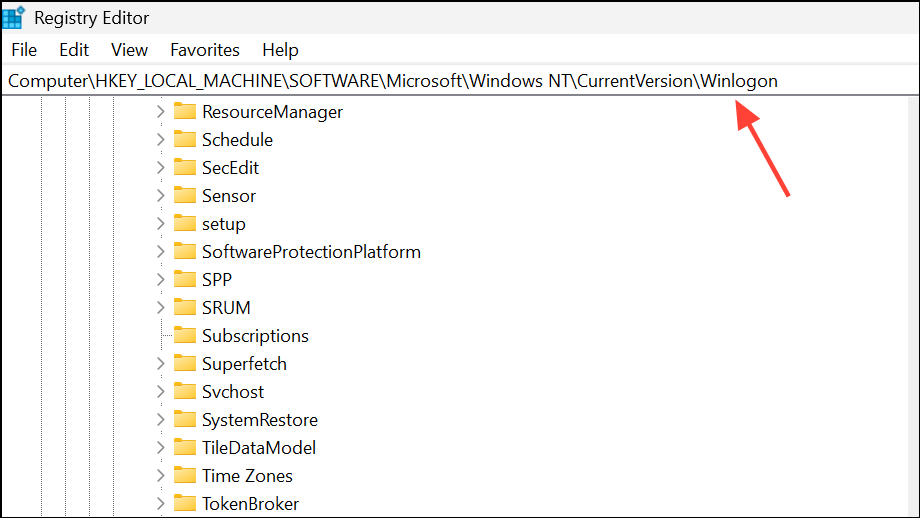
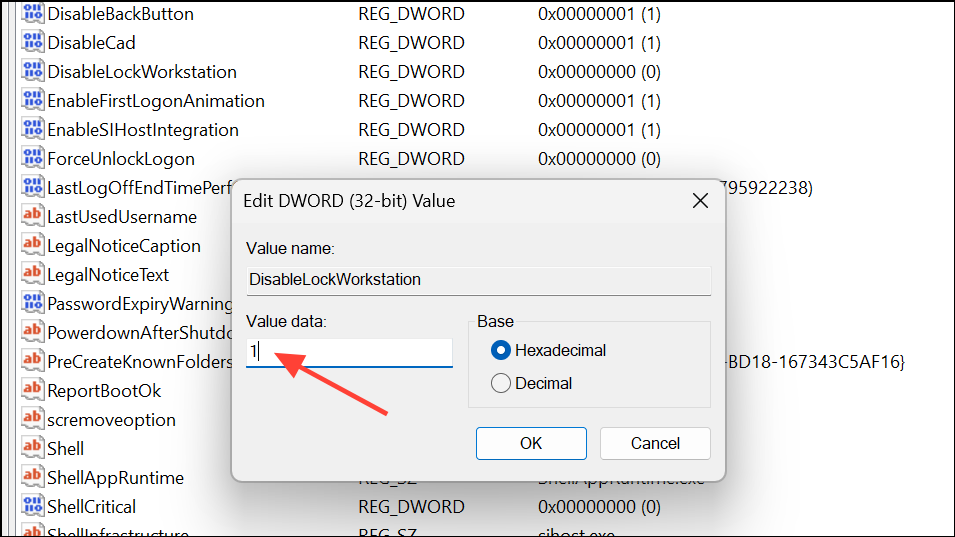
This disables the lock screen, but some users report it may not work on all devices or after certain updates.
Additional Tips and Troubleshooting
- If you use a Microsoft account, switching to a local account without a password may simplify sign-in removal.
- Some settings and registry changes can be overridden by corporate or group policies, particularly on work-managed devices.
- If you create a new user profile and the issue disappears, your original profile may be corrupted. You can transfer files manually to the new profile to resolve persistent problems.
- Always back up your important data and registry before making major changes.
Disabling the login prompt after sleep in Windows 11 can save time and reduce interruptions, especially on personal devices. If one method doesn’t work, try the next—some settings may be hidden or restricted depending on your system configuration.



