

Windows 11’s Start menu search sometimes fails to display results, even when the search bar appears responsive or you know matching files and apps are present. This issue disrupts workflows by making it harder to launch programs, access settings, or find documents. The underlying causes range from corrupted system files and search index problems to recent Windows updates or user profile errors. Here’s how to methodically address and resolve the problem, starting with the most effective fixes based on user reports and official guidance.
Clear Registry PackageStatus Value and Restart Explorer
Corrupted registry data tied to the Windows Search package can prevent search results from rendering, even when the search engine itself is working. Clearing a specific registry value and restarting Windows Explorer has resolved the issue for many users, especially after recent Windows updates.
Windows + R, typing regedit, and pressing Enter. Confirm any User Account Control prompts.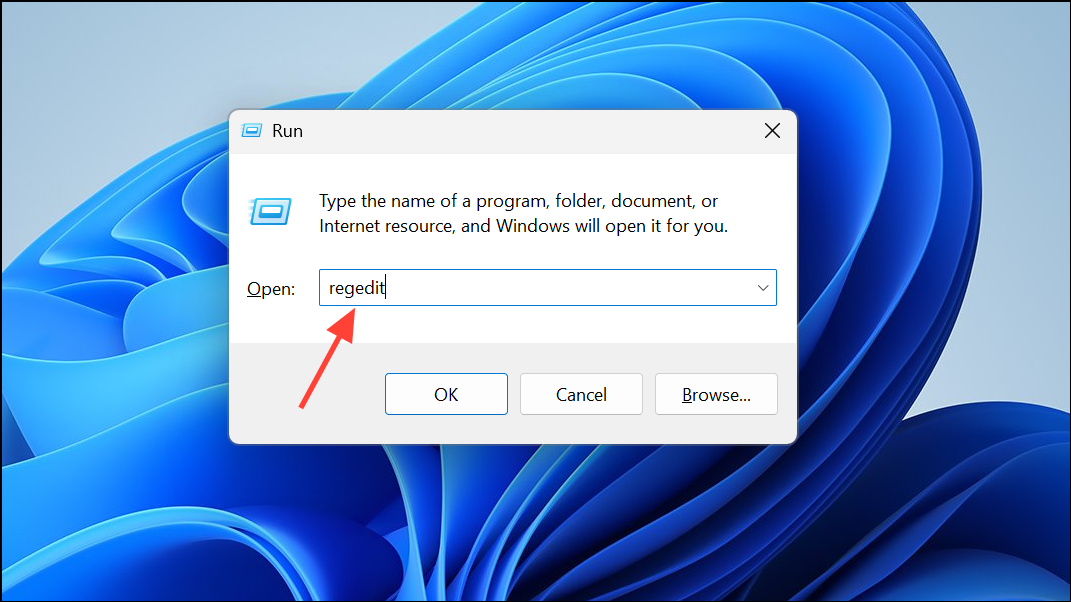
HKEY_LOCAL_MACHINE\SOFTWARE\Microsoft\Windows\CurrentVersion\AppModel\StateChange\PackageList\MicrosoftWindows.Client.CBS_1000.26100.121.0_x64__cw5n1h2txyewyIf your registry lists a different version number, select the key with the highest version.
PackageStatus value in the right pane. Right-click it and select Delete. Confirm the deletion.Ctrl + Shift + Esc to open Task Manager, find Windows Explorer in the Processes tab, right-click it, and choose Restart.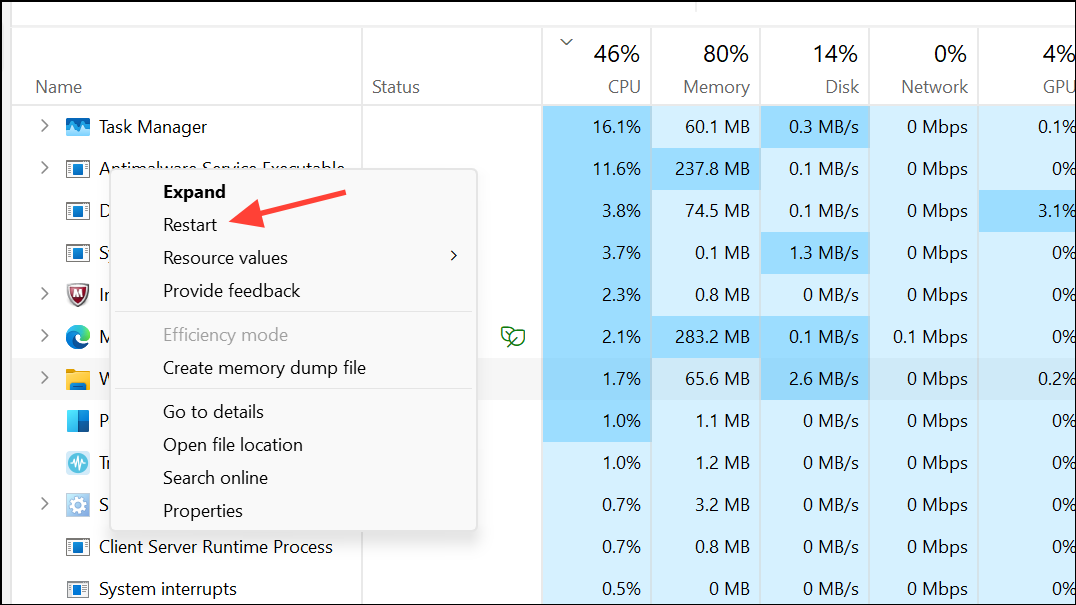
After completing these steps, test the Start menu search. Results should now display as expected.
Rebuild the Search Index
A corrupted or incomplete search index can block results from appearing in Start menu searches. Rebuilding the index forces Windows to re-catalog all files and apps, correcting many common search issues.

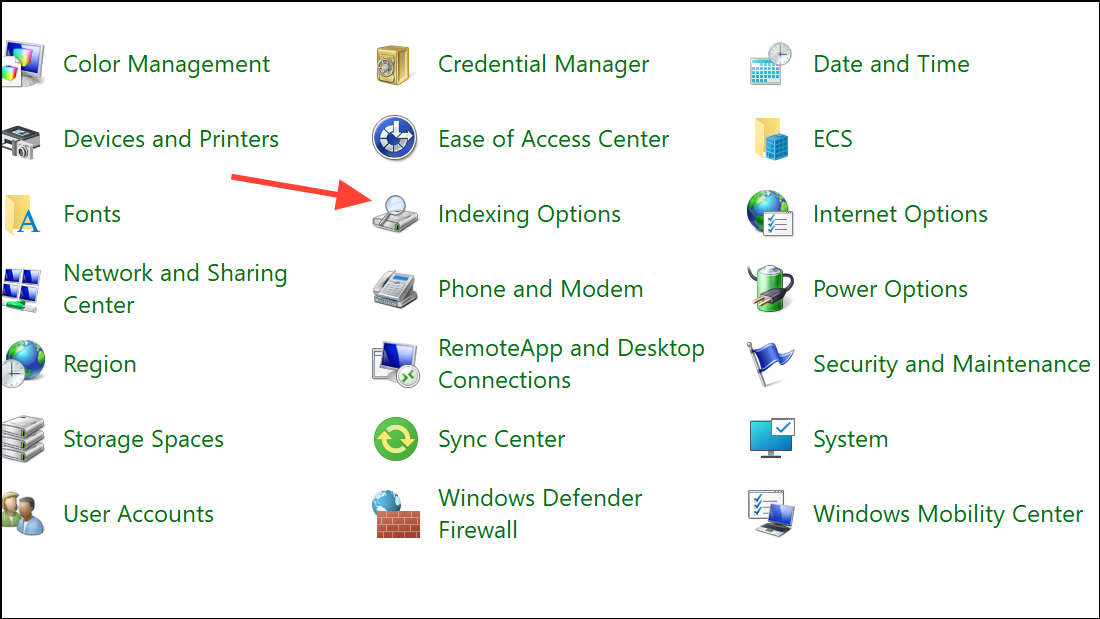
Advanced. In the Advanced Options dialog, under the Troubleshooting section, click Rebuild. Confirm when prompted.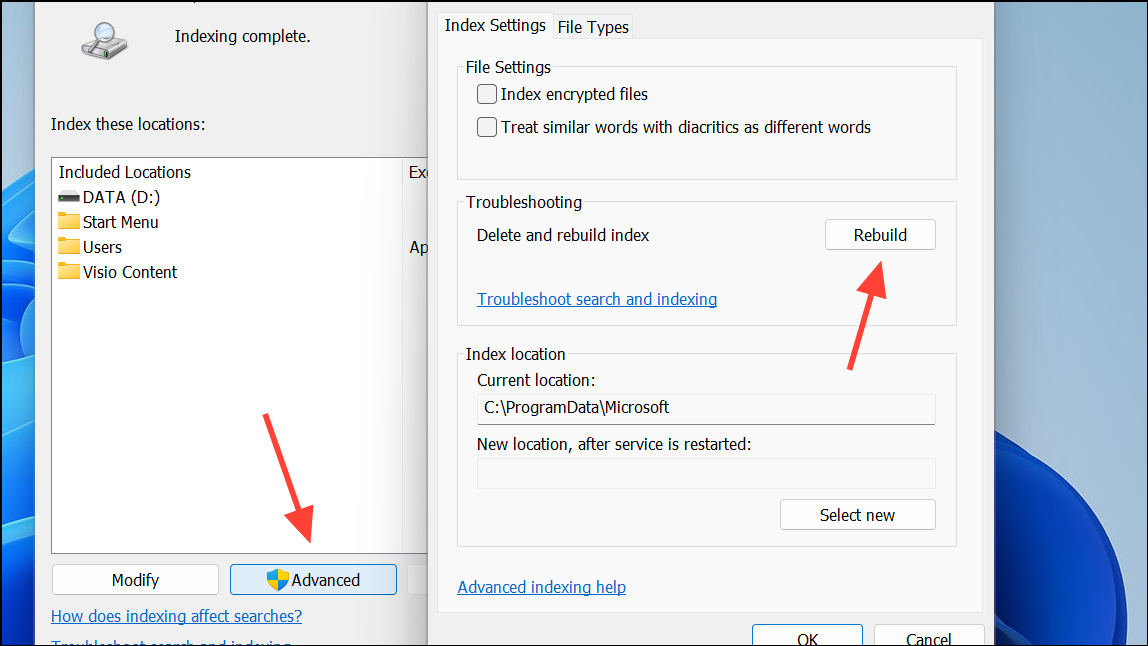
Run the Search and Indexing Troubleshooter
Windows includes a dedicated troubleshooter for search and indexing problems. This utility can detect and fix issues with search services and index corruption.
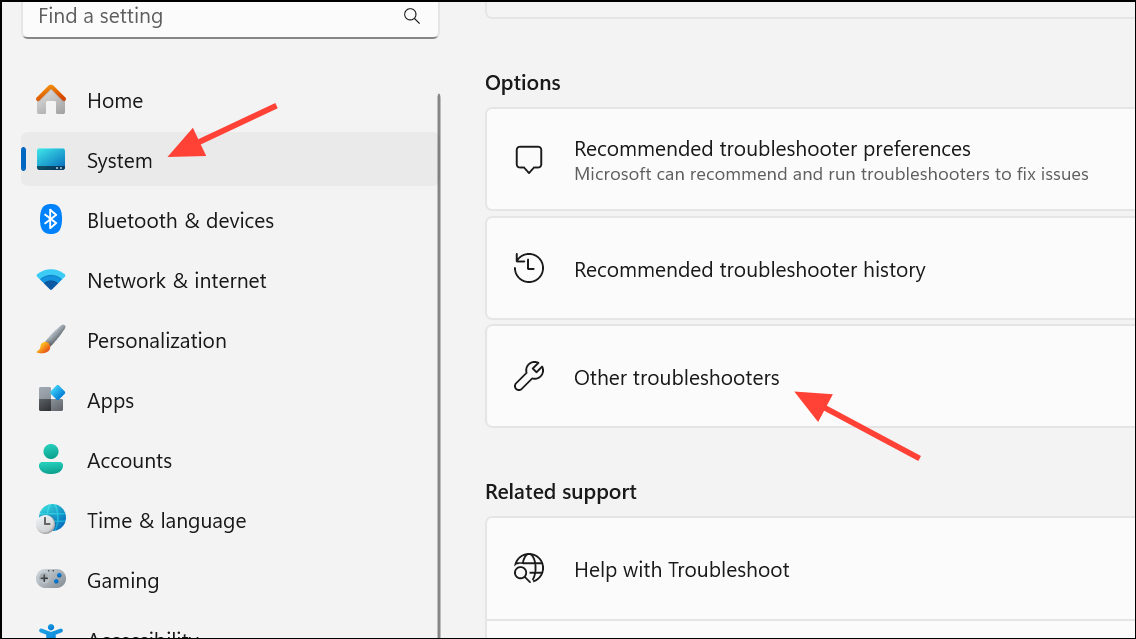
Restart Windows Search and Related Services
Search-related background processes can become unresponsive or stuck, preventing results from displaying. Restarting these services often resolves temporary glitches.
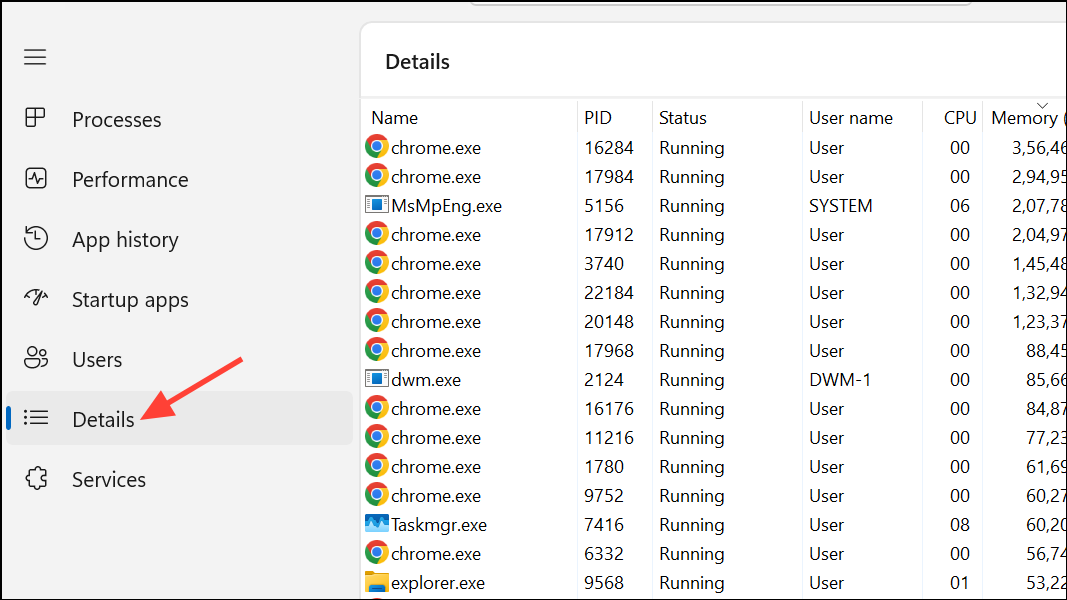
SearchHost.exe or SearchUI.exe. Right-click the process and choose End task. Windows will automatically restart the process the next time you search.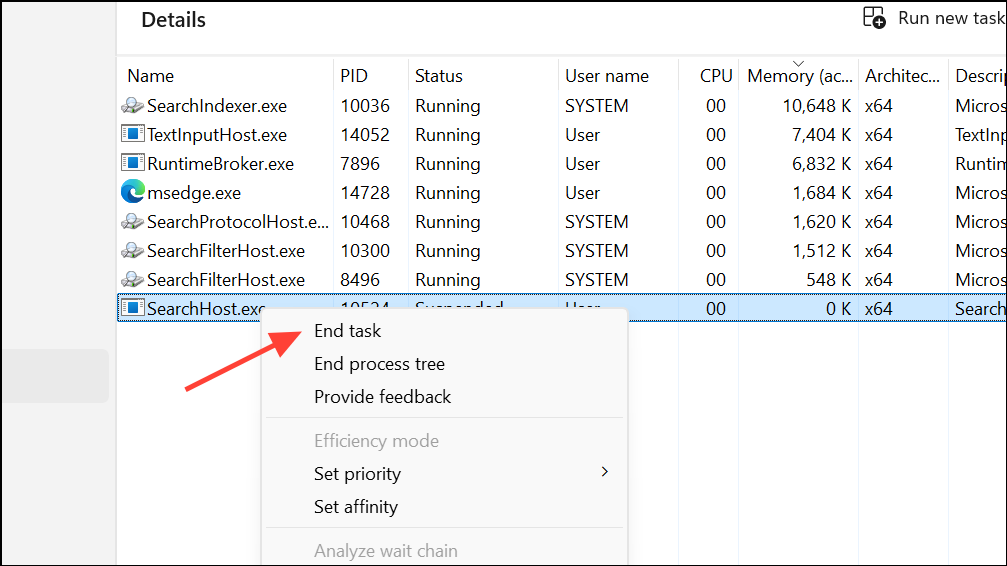
Windows + R), type services.msc, and press Enter.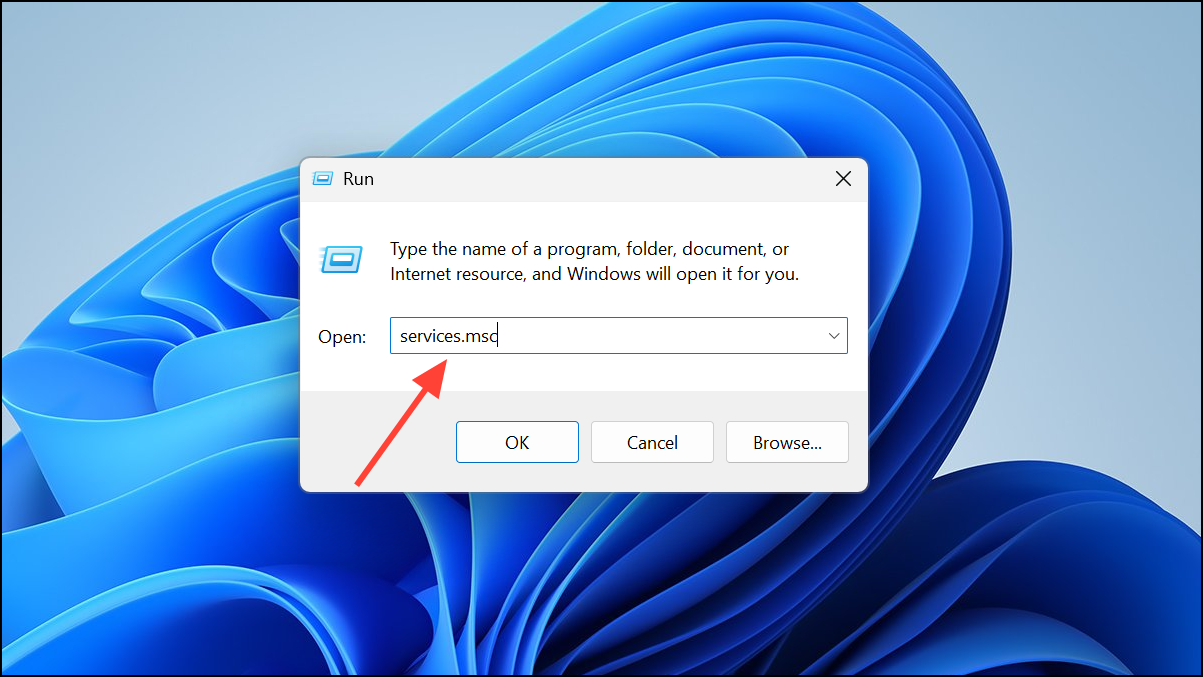
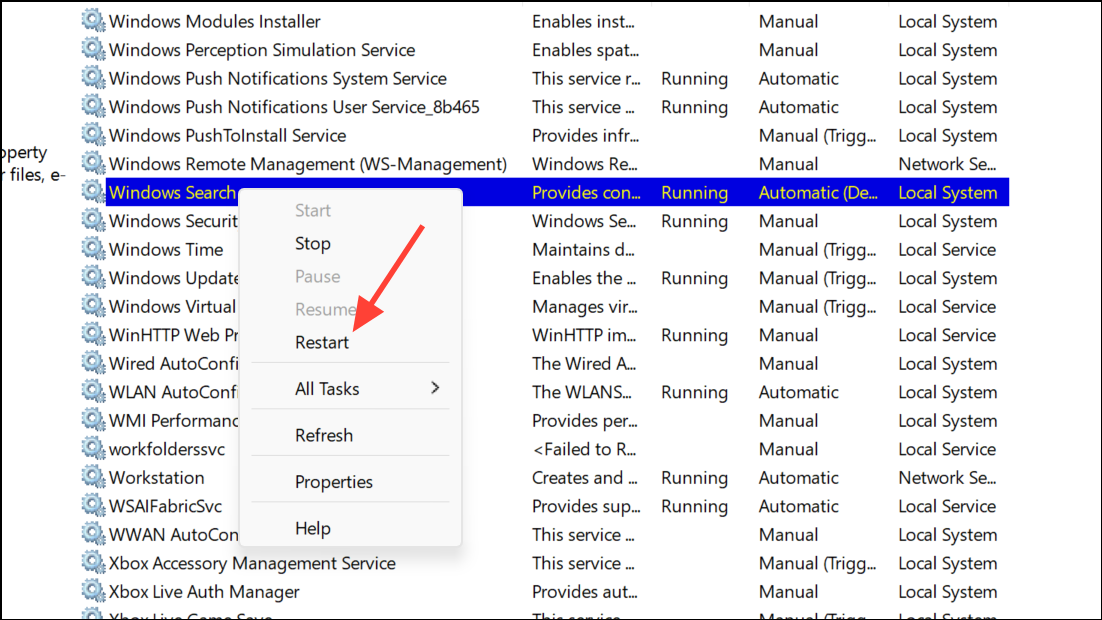
Repair System Files Using SFC and DISM
Corrupted system files can cause the Start menu search to malfunction. Running the System File Checker (SFC) and Deployment Image Servicing and Management (DISM) tools repairs these files and restores normal search behavior.
cmd in the Start menu, right-click Command Prompt, and select Run as administrator.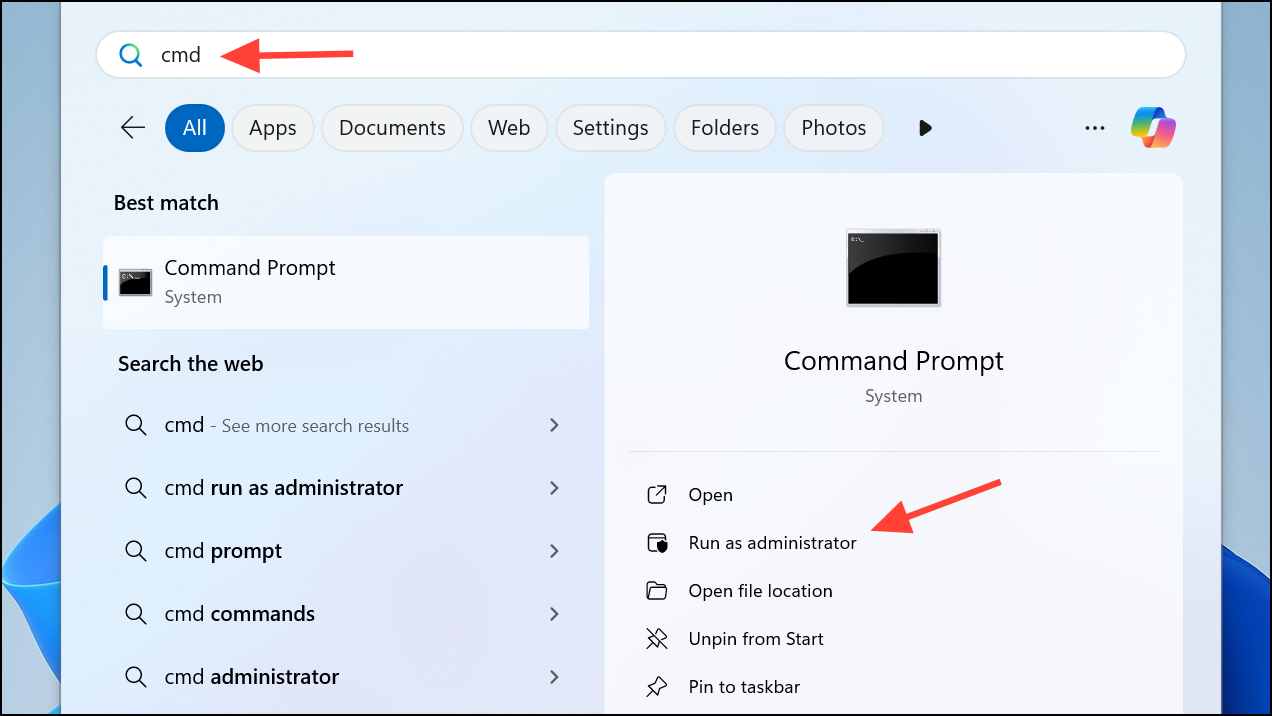
sfc /scannow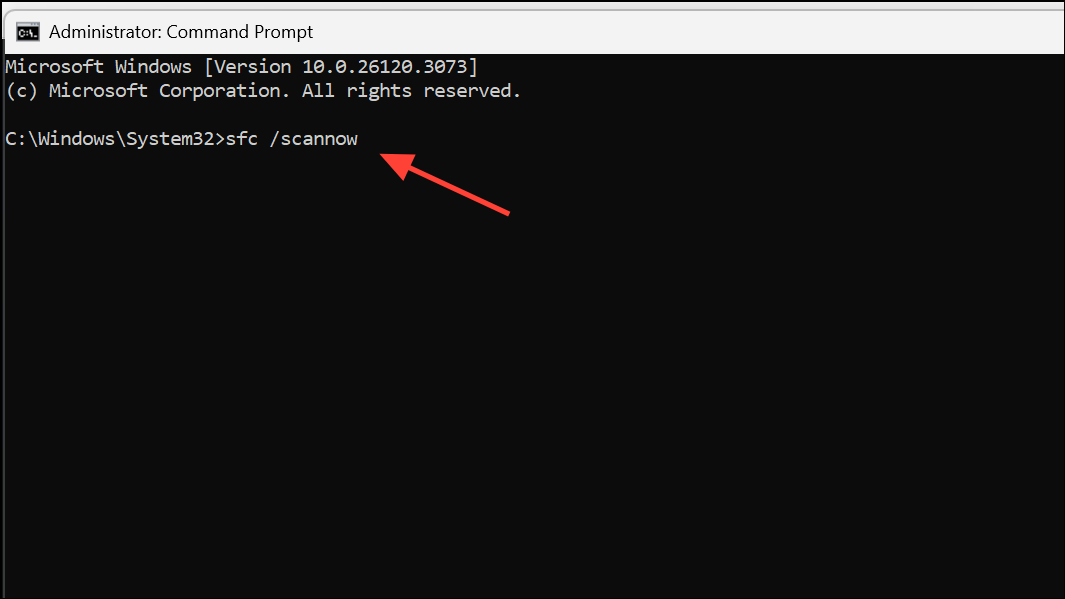
Wait for the scan to complete and follow any instructions if repairs are made. Restart your computer.
DISM /Online /Cleanup-Image /RestoreHealth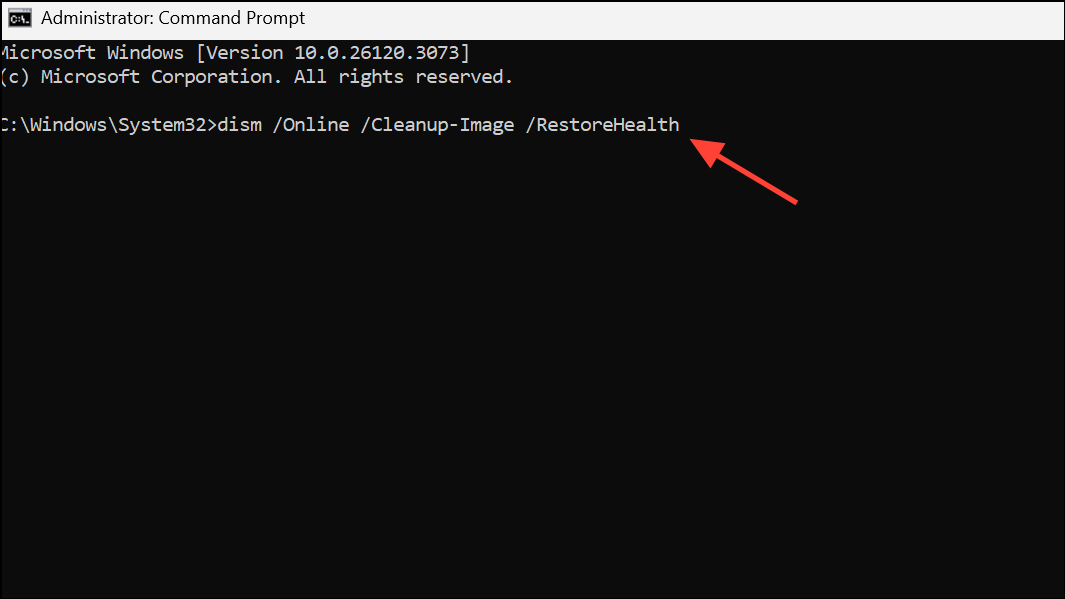
After DISM completes, run sfc /scannow again. Reboot and test the Start menu search.
Reset or Re-register the Windows Search Package
Corruption in the Windows Search app package can block results from appearing. Resetting or re-registering the package reinstalls necessary components.
PowerShell, right-click, and select Run as administrator.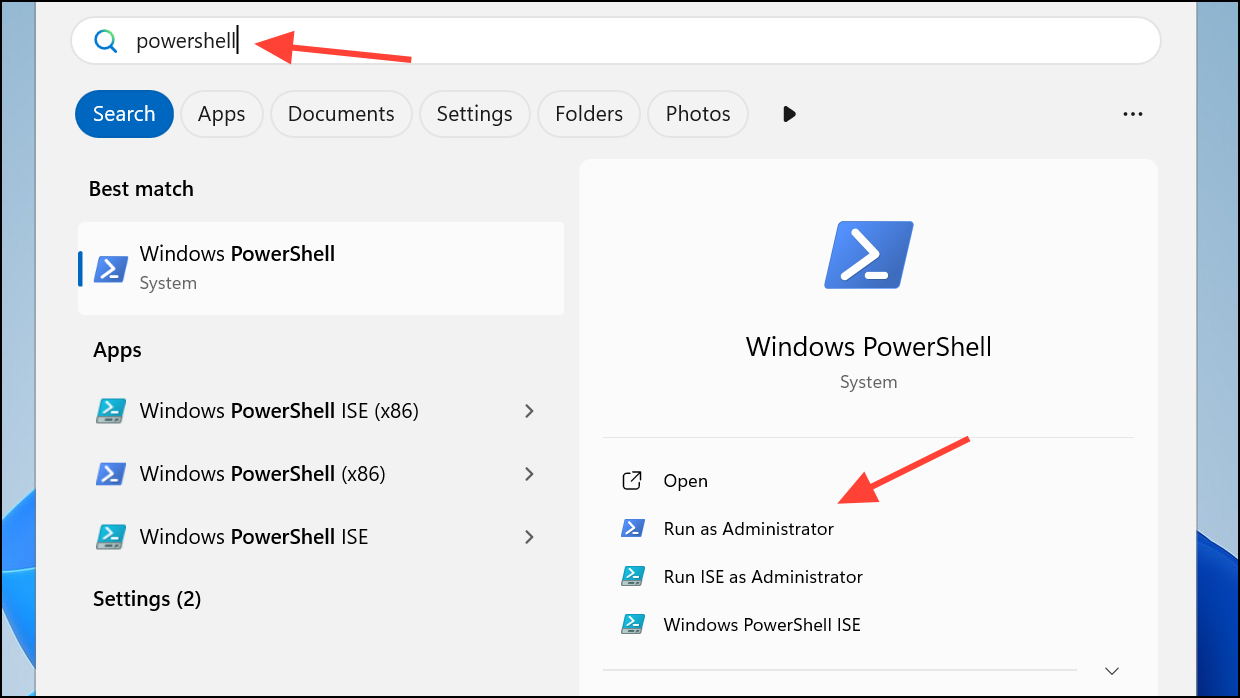
Get-AppxPackage Microsoft.Windows.Search | Foreach { Add-AppxPackage -DisableDevelopmentMode -Register "$($_.InstallLocation)\AppXManifest.xml" }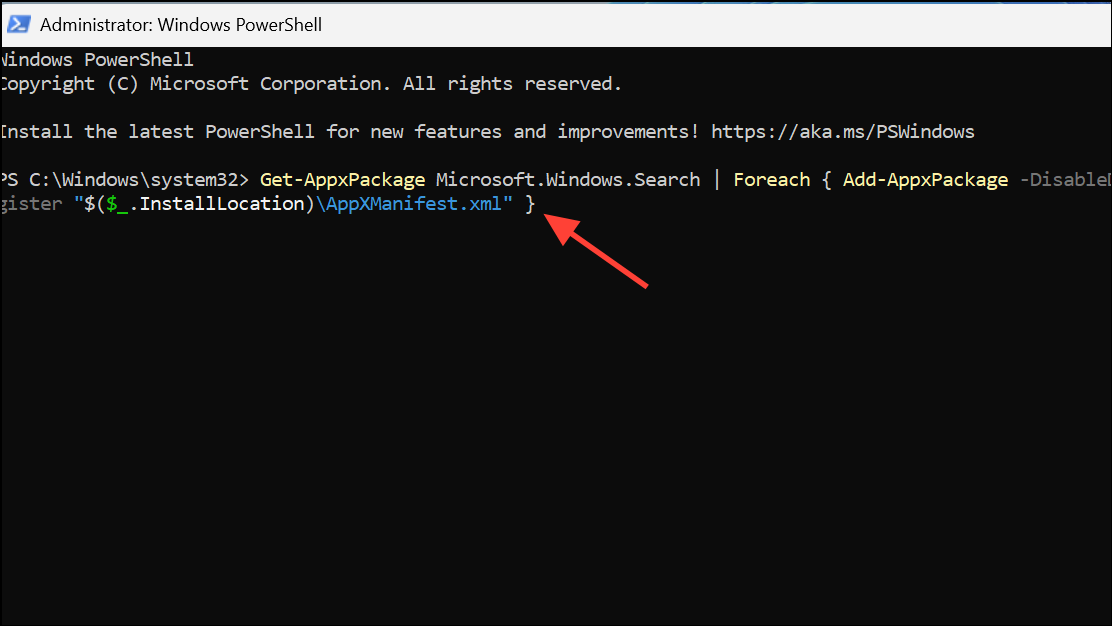
Get-AppxPackage -Name Microsoft.Windows.Search | Reset-AppxPackage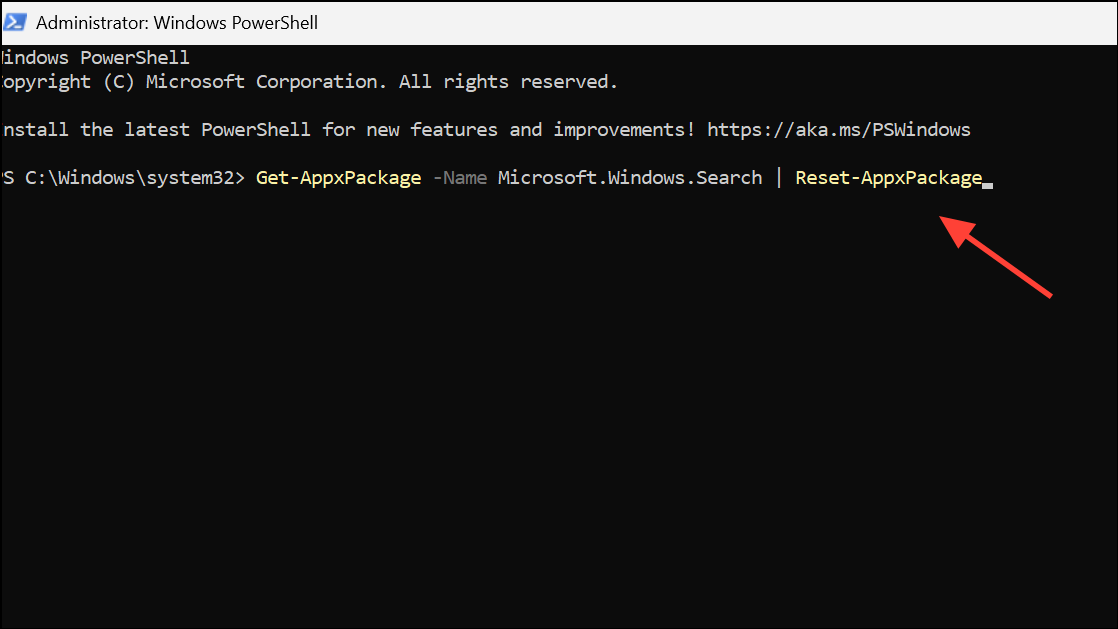
After running these commands, sign out and back in or restart your device, then check if Start menu search results display correctly.
Check for Problematic Updates and Roll Back if Needed
Recent Windows updates can occasionally introduce bugs affecting Start menu search. If the issue began after an update, rolling it back may restore functionality.
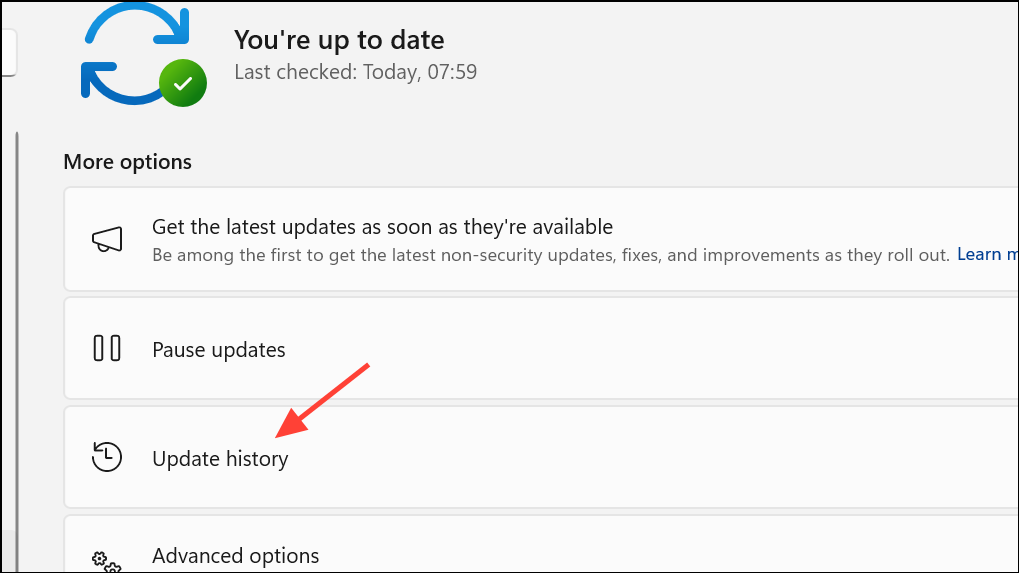
Uninstall updates and identify any recent updates (e.g., KB5058411, KB5054979) that coincide with the search issue.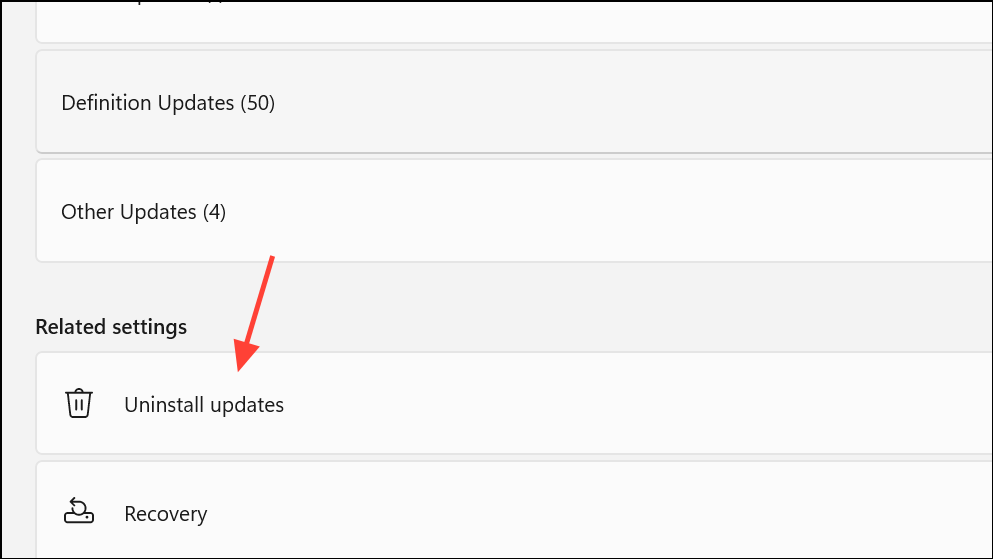
Uninstall. Restart your computer. If search resumes working, pause updates temporarily to prevent reinstallation until Microsoft issues a fix.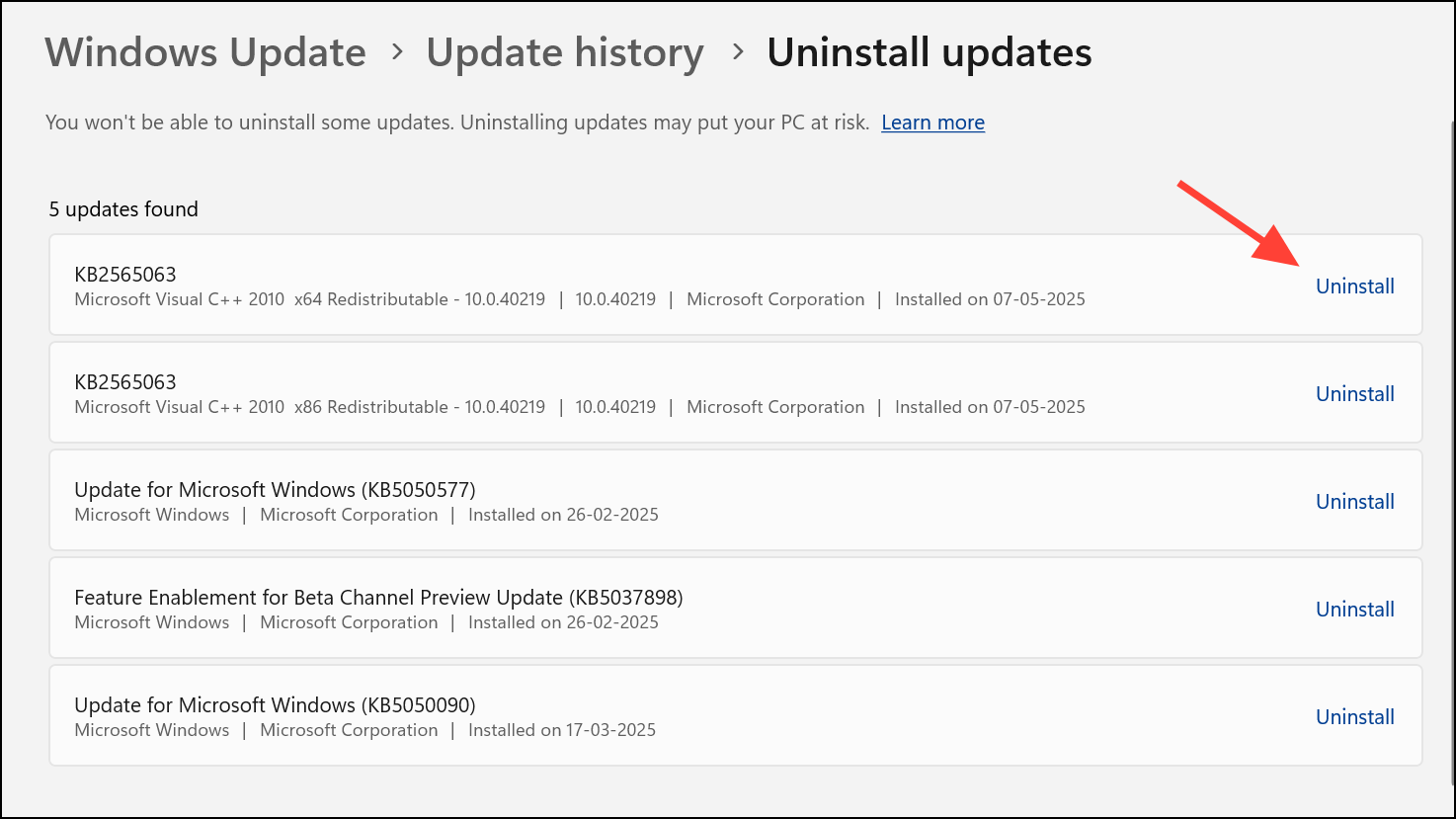
Test with a New User Profile or Repair User Data
Sometimes, search problems are isolated to a specific user profile. Testing with a new profile can determine if the issue is profile-related.

Microsoft.Windows.Search or MicrosoftWindows.Client.CBS folder from the new user’s %USERPROFILE%\AppData\Local\Packages directory into the same location in your main account. This can restore search functionality in some cases.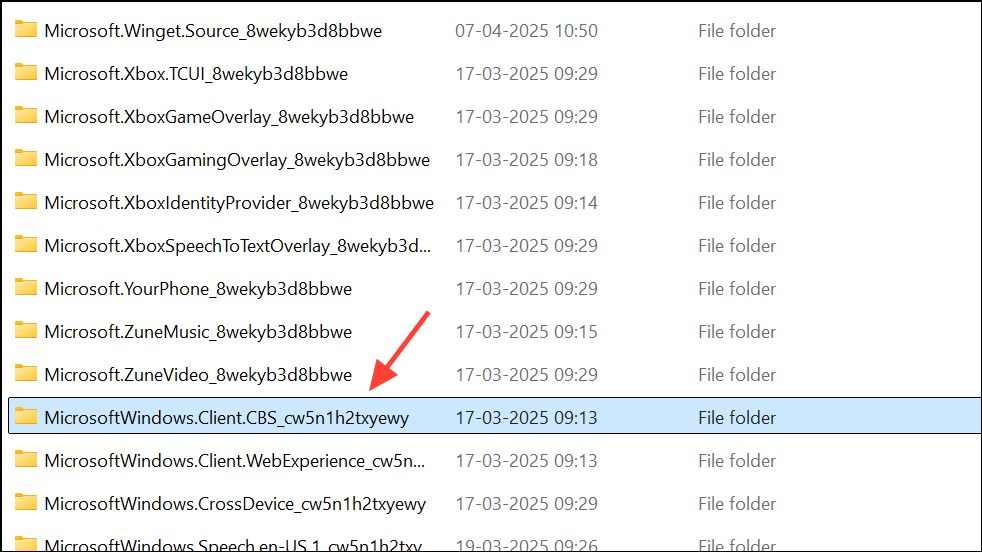
If search only works in the new account, consider migrating your files to the new profile or using the copied package method above.
Additional Steps and Considerations
- Restart the Windows Font Cache Service, as font cache corruption can affect UI rendering in the Start menu.
- Check for and remove any third-party Start menu or UI customization tools, which may interfere with search display.
- Temporarily disconnect any secondary Microsoft accounts or work profiles, as these can sometimes cause search issues after updates.
- If none of the above methods work, consider performing an in-place upgrade with the latest Windows ISO to repair system files without data loss.
By following these structured steps, you’ll restore missing or blank search results in the Windows 11 Start menu and regain reliable access to apps, files, and system settings. If problems persist, keep your system updated and provide feedback to Microsoft via the Feedback Hub for further support.



