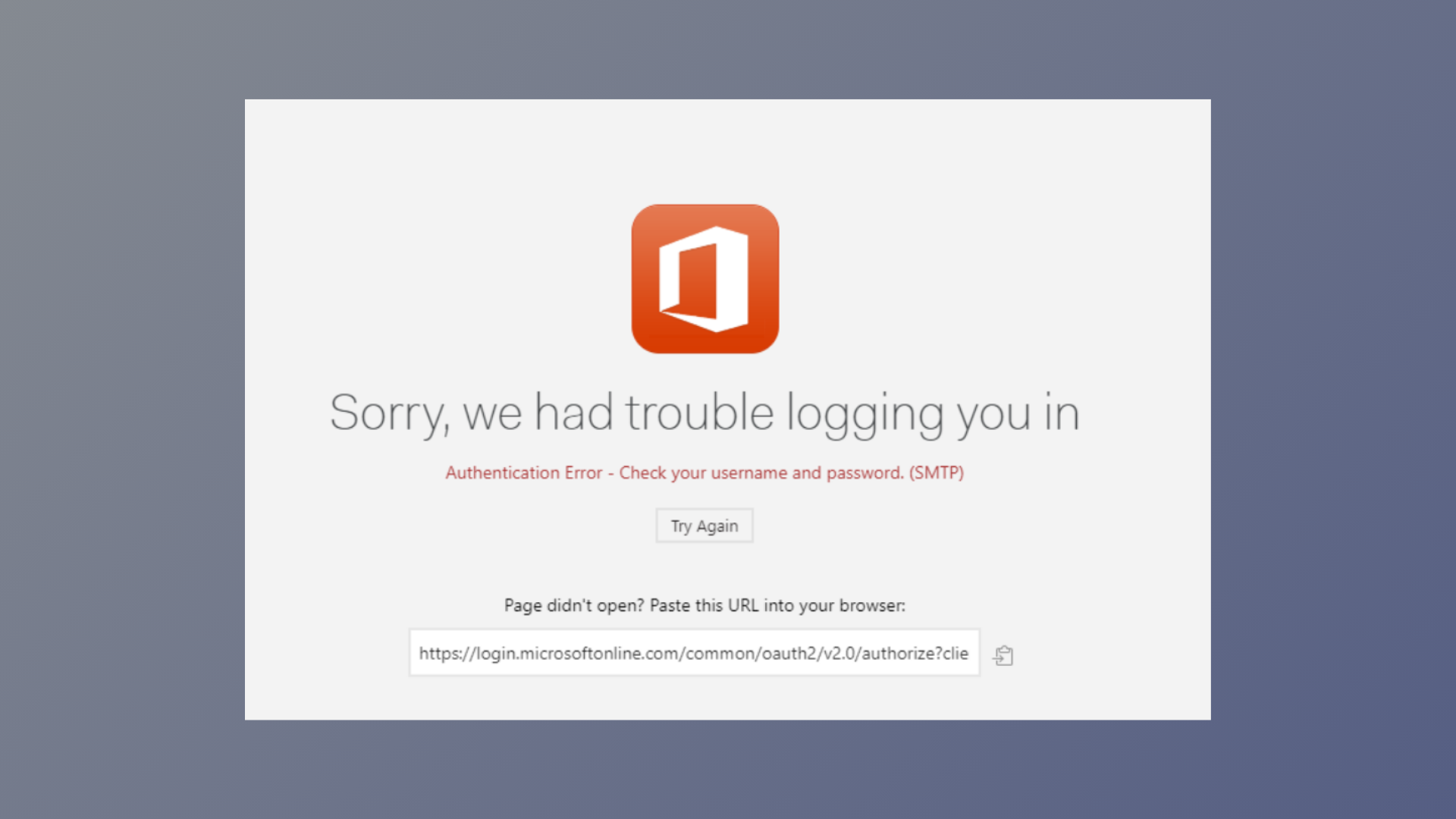
The message “Authentication or initialization failed. Click Reload to try again.” blocks access to email accounts in Outlook and other Microsoft 365 apps, even after pressing Reload or re-adding the account. This error often appears during account setup or after changes to authentication settings, interrupting access to business or personal email. Addressing root causes—such as missing authentication packages, incorrect server settings, or outdated applications—restores access and prevents repeated login failures.
Reinstall Authentication Packages with PowerShell
Missing or corrupted authentication packages for Microsoft Entra (formerly Azure AD) or Live ID frequently cause persistent authentication failures, especially on Windows 10 version 1703 or later and Microsoft 365 version 1807 or later. Restoring these packages directly addresses system-level authentication issues.
Terminal (Admin). This opens an elevated PowerShell window with administrative rights.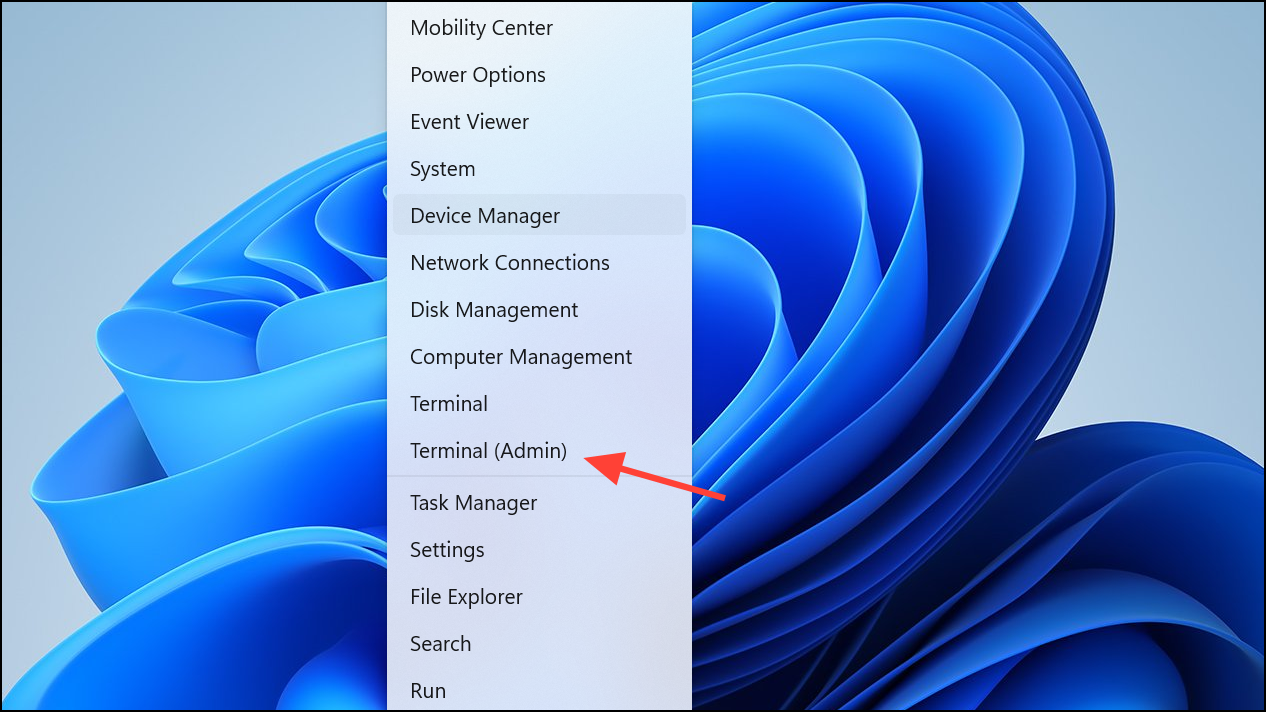
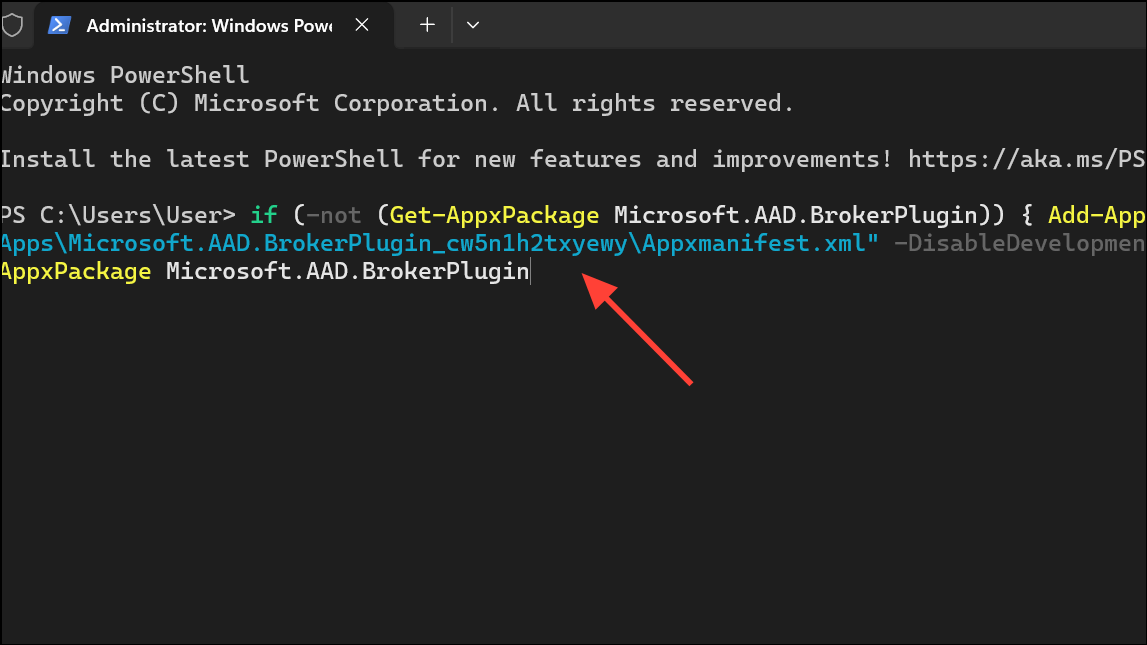
if (-not (Get-AppxPackage Microsoft.AAD.BrokerPlugin)) { Add-AppxPackage -Register "$env:windir\SystemApps\Microsoft.AAD.BrokerPlugin_cw5n1h2txyewy\Appxmanifest.xml" -DisableDevelopmentMode -ForceApplicationShutdown } Get-AppxPackage Microsoft.AAD.BrokerPlugin
if (-not (Get-AppxPackage Microsoft.Windows.CloudExperienceHost)) { Add-AppxPackage -Register "$env:windir\SystemApps\Microsoft.Windows.CloudExperienceHost_cw5n1h2txyewy\Appxmanifest.xml" -DisableDevelopmentMode -ForceApplicationShutdown } Get-AppxPackage Microsoft.Windows.CloudExperienceHost
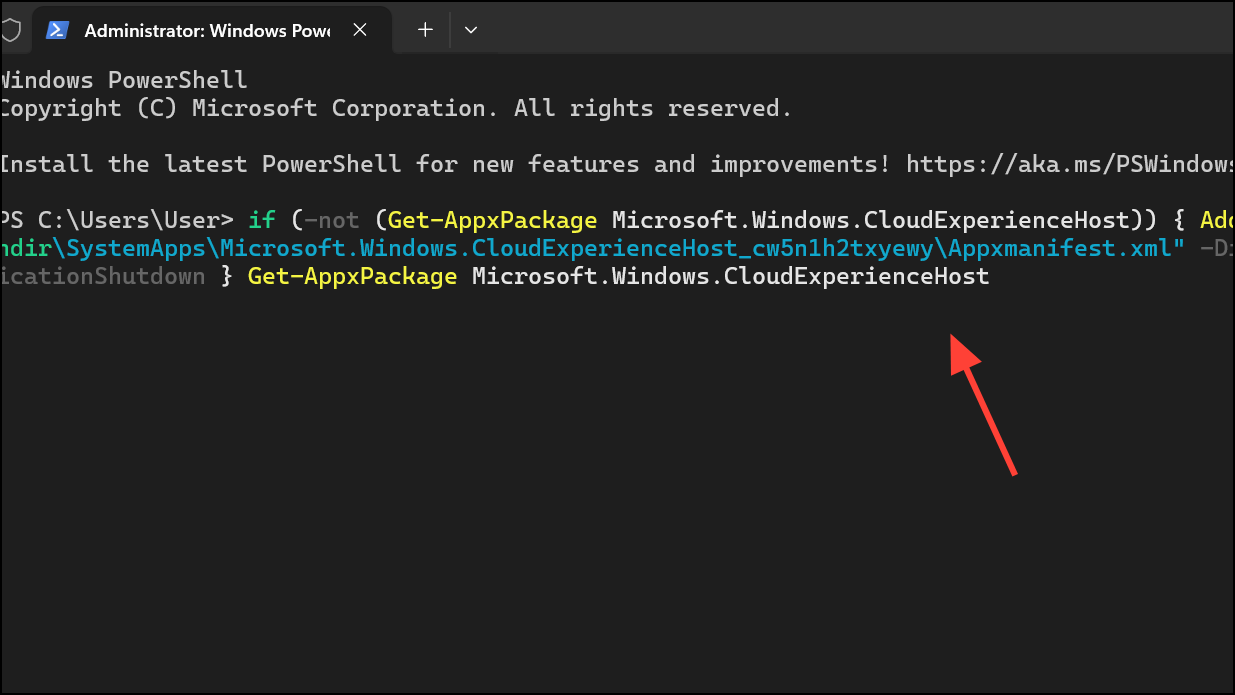
After running the appropriate command, wait for a progress indicator or confirmation message. Restart Outlook and attempt to add your account again. This process reinstalls the necessary authentication components and resolves underlying package issues that block sign-in.
Sign Out and Sign Back In
Session corruption or expired authentication tokens can trigger repeated initialization errors. Signing out and back in forces Outlook to refresh credentials and re-establish a secure connection.
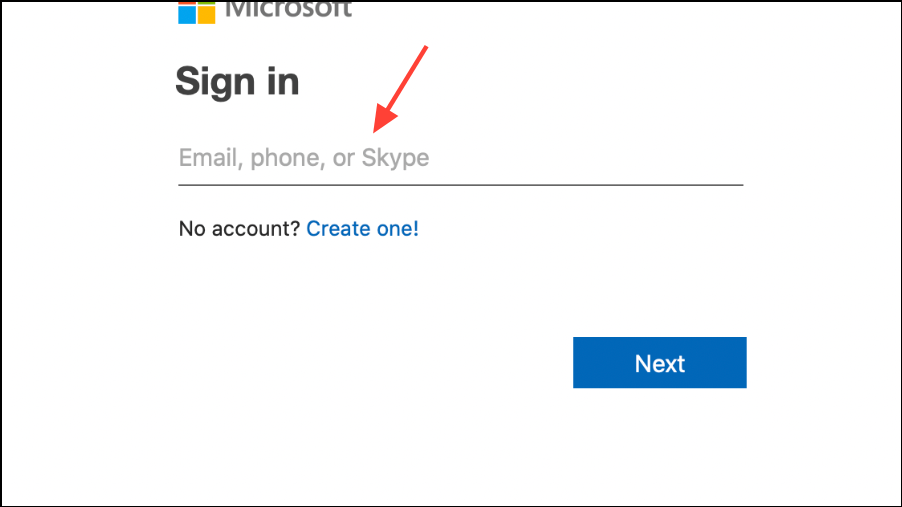
This resets the authentication process and often clears temporary sign-in problems.
Verify and Correct Account Settings
Incorrect server settings or outdated authentication details prevent successful account initialization, especially for IMAP or Exchange accounts. Double-checking these values ensures Outlook connects with the correct servers and security protocols.
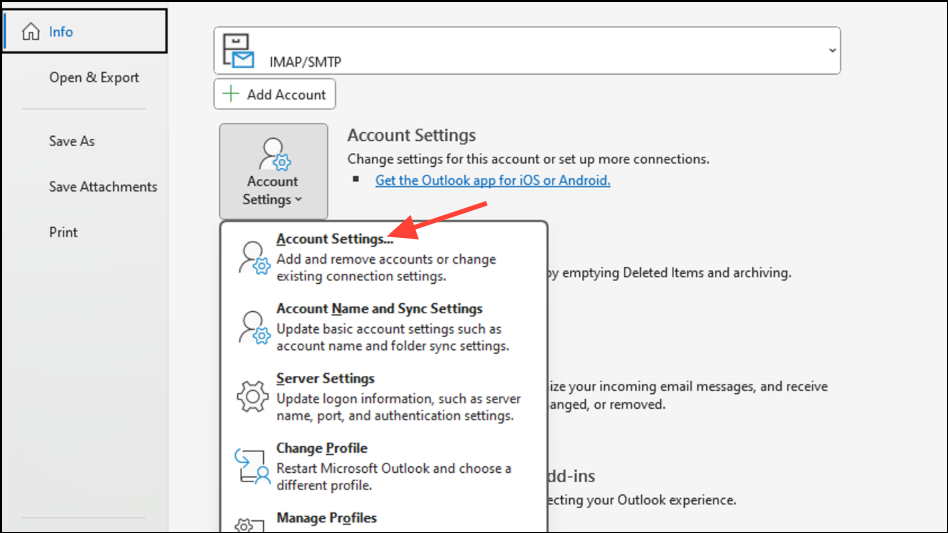
- IMAP server:
imap-mail.outlook.com - Port:
993 - Encryption method:
SSL/TLS
For outgoing mail, ensure SMTP authentication is enabled and the correct server and port are used. Apply changes, then restart Outlook and check if the error persists.
Update Outlook to the Latest Version
Outdated Outlook versions may lack compatibility with current authentication protocols, resulting in failed sign-ins. Updating ensures support for the latest security standards and bug fixes.
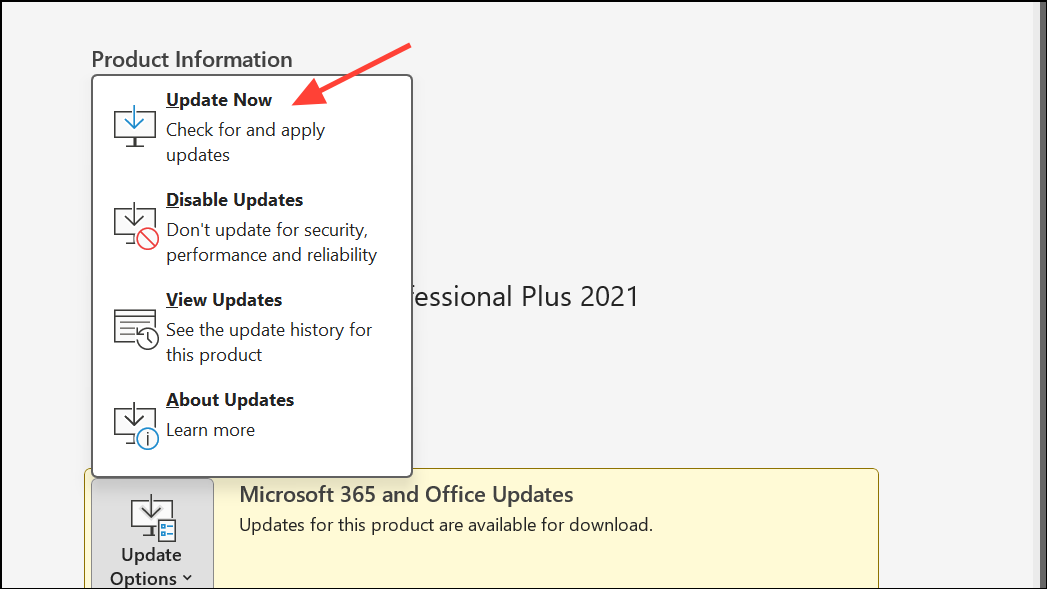
Remove and Re-add the Problematic Account
Residual data from previous account configurations can block new authentication attempts. Removing and re-adding the account prompts Outlook to request fresh credentials and reinitialize the connection.
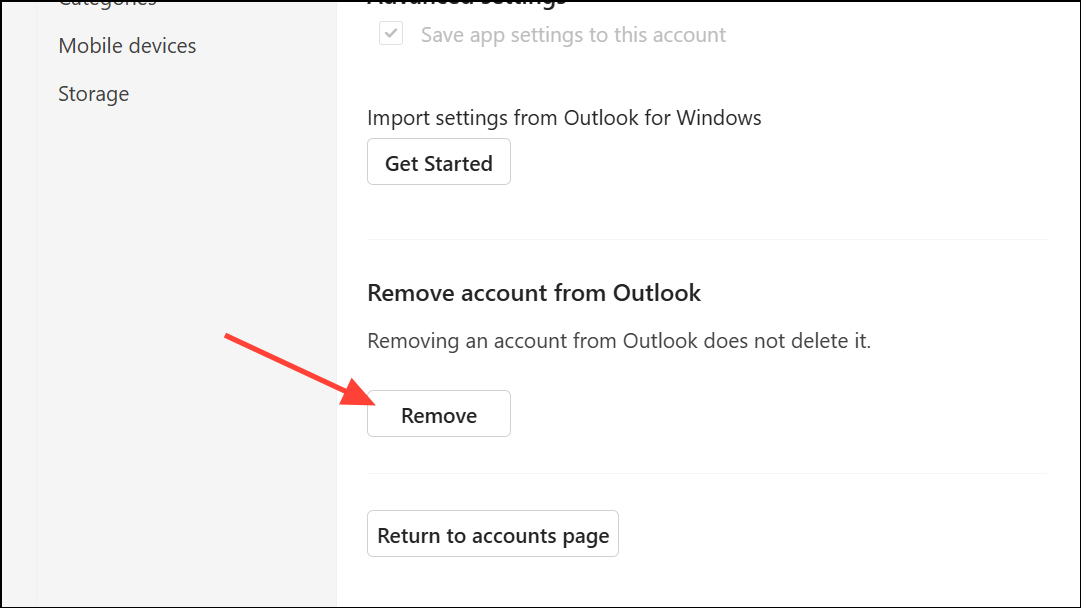
Account Settings and select New to add the account again. Enter your credentials and follow any verification steps.This method often resolves persistent initialization errors by clearing cached authentication data.
Sign In Using Outlook Web Access
Web-based access bypasses local client issues and verifies that the account itself is functional. Successfully logging in online can also trigger account reactivation for some users.
Reload on the error message. In some cases, successful web login resets the authentication state for the desktop app.Set the Account as Primary
For users with multiple accounts, setting the affected account as primary can resolve conflicts that prevent authentication. This is particularly effective if the error began after adding or changing accounts.
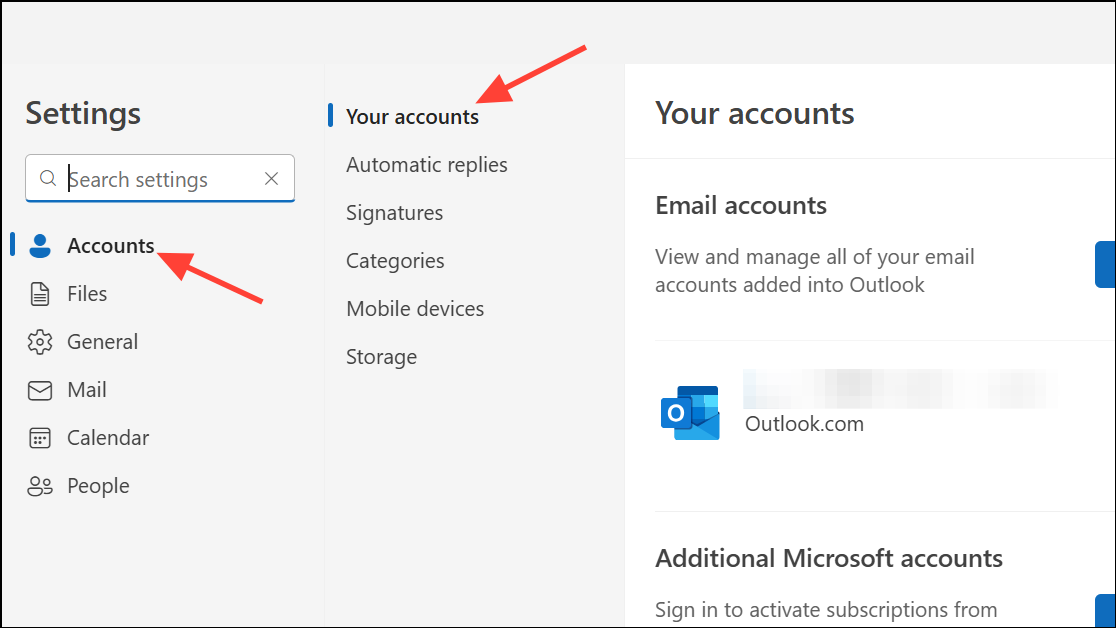
Manage next to the desired account, then choose Set as primary account and confirm when prompted.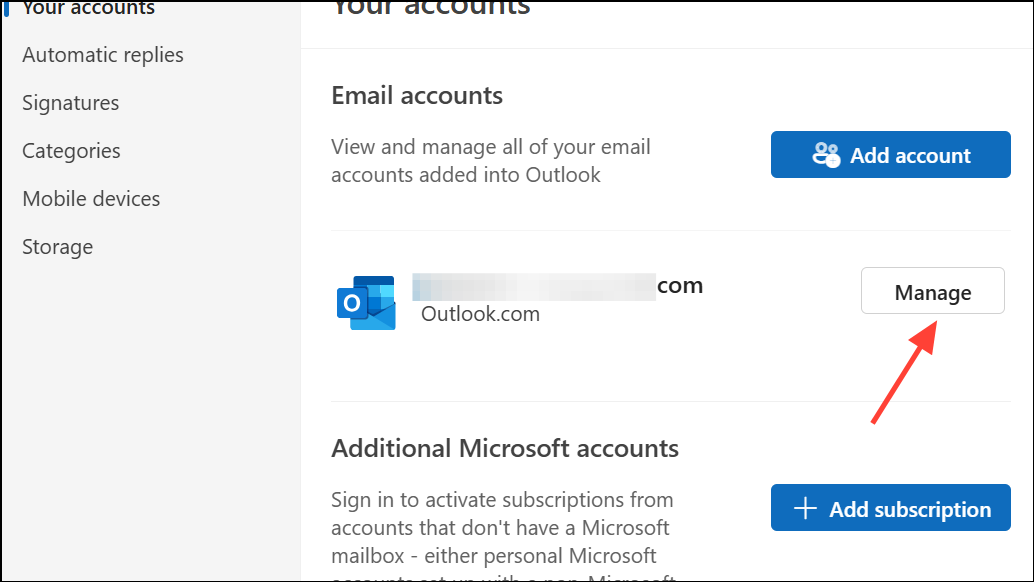
Additional Troubleshooting Steps
For persistent errors, consider these advanced checks:
- Clear cached credentials using Windows Credential Manager or Mac Keychain Access.
- Create a new Outlook mail profile to isolate profile-specific issues.
- Check for firewalls or antivirus software that may block Outlook’s authentication requests.
- Contact your IT administrator or Microsoft 365 support if authentication fails across multiple devices or accounts.
Resolving the “Authentication or initialization failed” error in Microsoft 365 apps restores access to email and other services, streamlining your workflow and preventing missed communications. If the issue returns, repeat these steps or consult Microsoft support for deeper investigation.