

Opening the Downloads folder in Windows 11 can sometimes result in long delays, with messages like "Working on it..." or Windows Explorer becoming unresponsive. This issue often happens even on modern hardware and can significantly slow down everyday tasks such as finding or moving files. The main cause is usually related to how Windows optimizes the folder, thumbnail generation, or an overloaded folder with too many files of certain types.
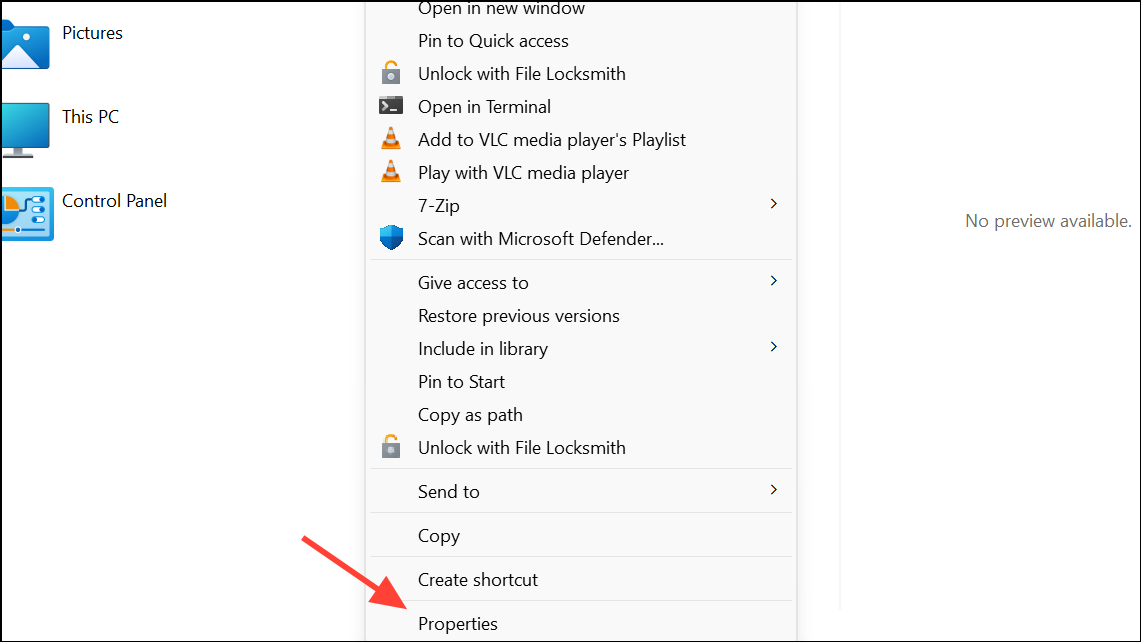
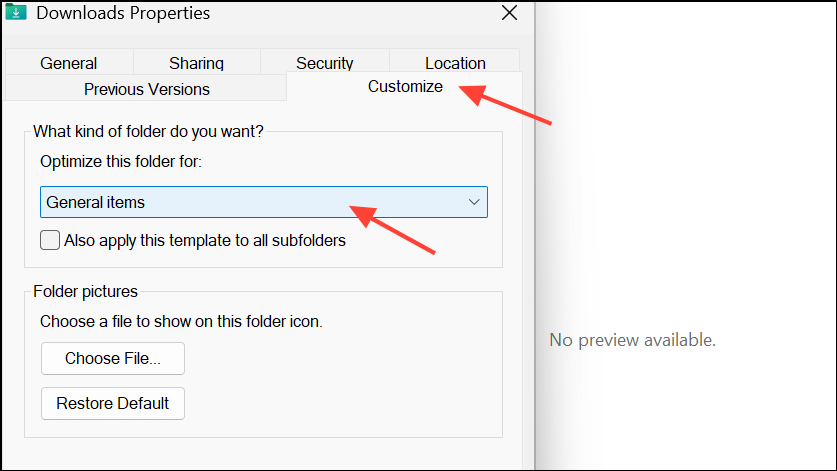
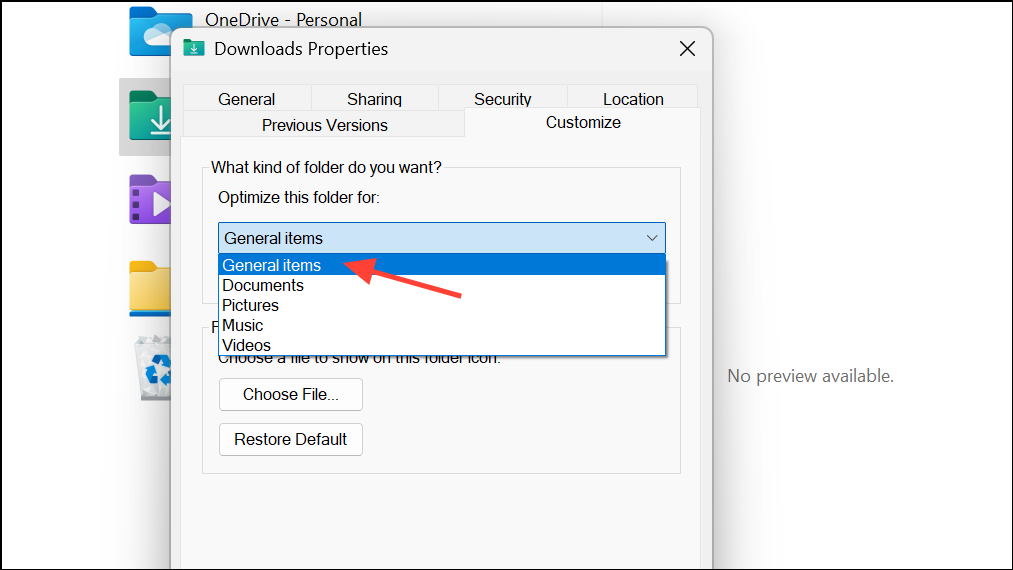
Change Folder Optimization to “General Items”
Windows 11 sometimes automatically configures the Downloads folder as optimized for Pictures or Videos, triggering thumbnail generation for every file. This can dramatically slow down folder loading, especially if the folder contains many files or file types not related to images or videos.
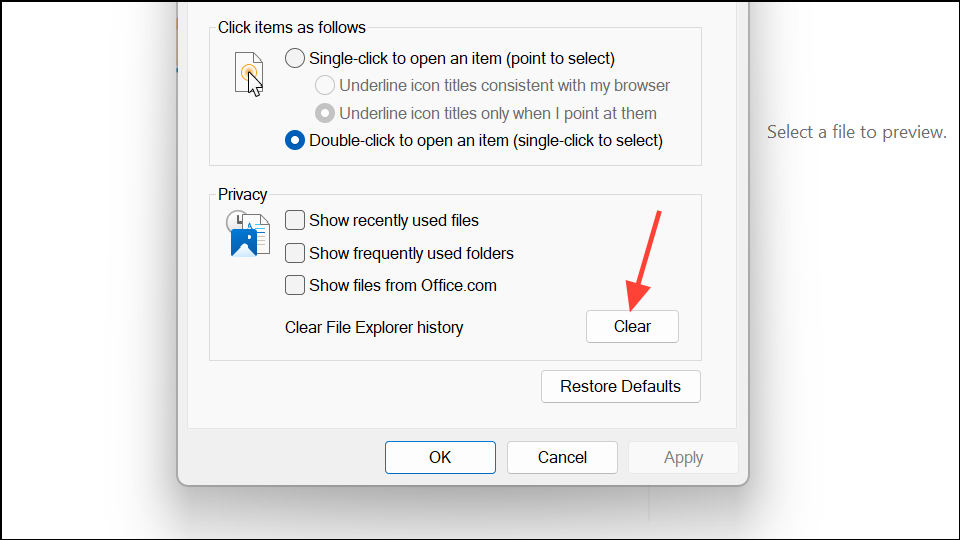
Clear File Explorer History and Cache
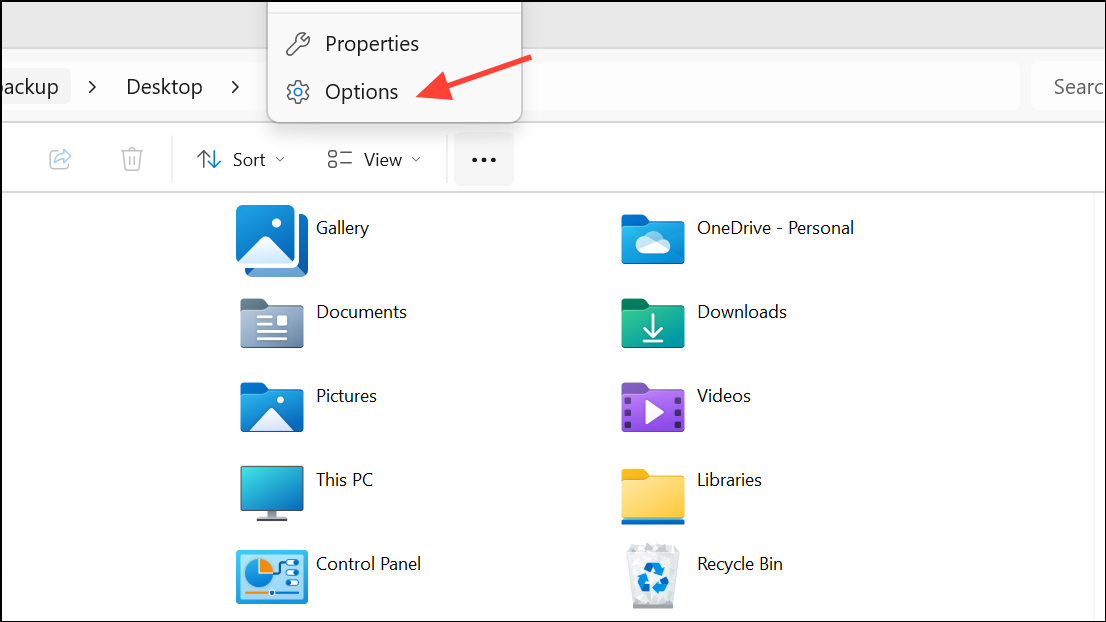
Cached data and history in File Explorer can occasionally cause slowdowns and unresponsive folders. Clearing this data can restore normal performance.
Reduce the Number of Files in Downloads
Having thousands of files or a mix of large files (especially images and videos) in Downloads can make the folder slow to load. Windows must process file details and possibly generate thumbnails for each item, which can overwhelm even fast drives.
Restore Downloads Folder Location to Default
Customizing the location of the Downloads folder or moving it to another drive can sometimes cause slow loading, especially if the drive is disconnected or slow to respond. Restoring the folder to its default location can resolve these issues.
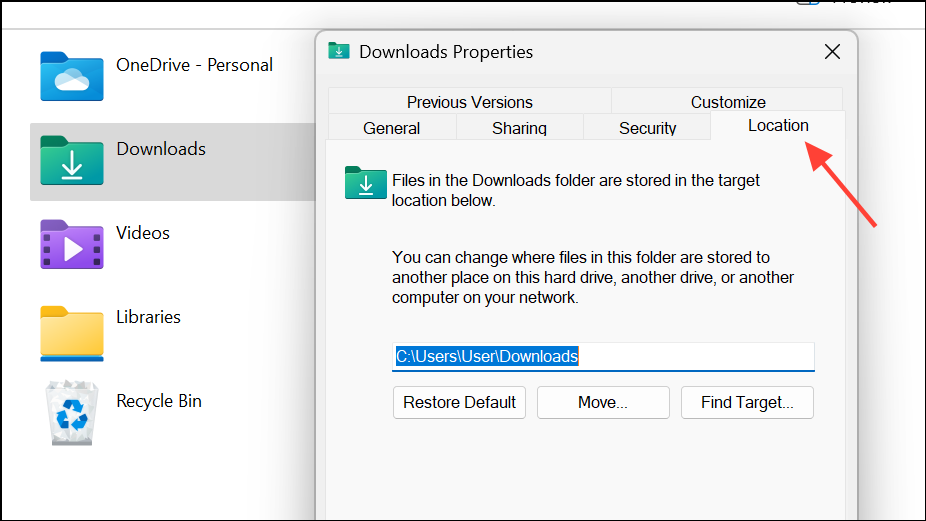
C:\Users\[YourName]\Downloads).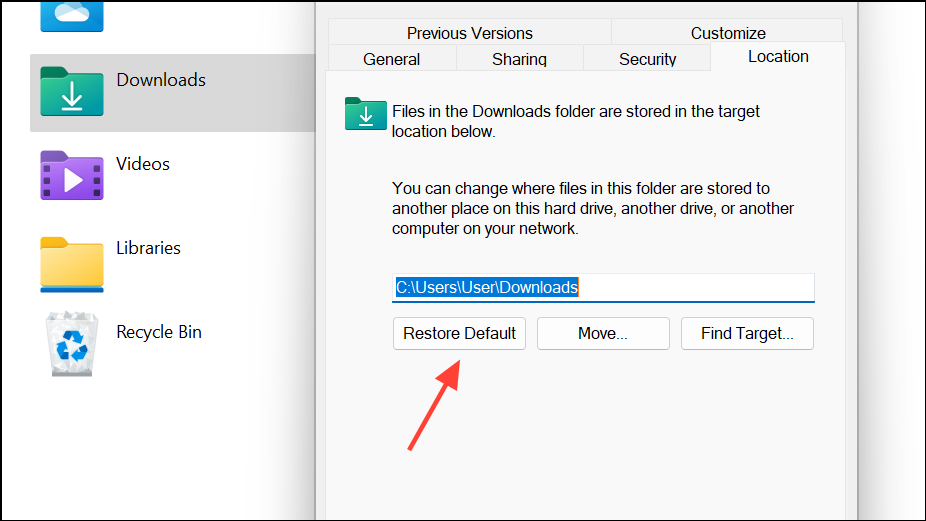
Unpin and Repin Downloads from Quick Access
Issues with Quick Access shortcuts can sometimes cause the Downloads folder to hang or not respond. Resetting the Quick Access link often resolves these problems.
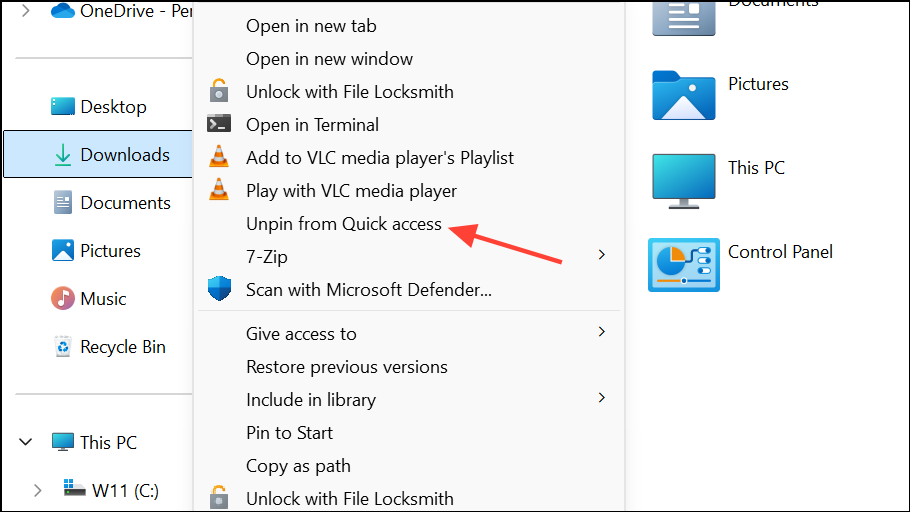
C:\Users\[YourName]\Downloads or your custom location).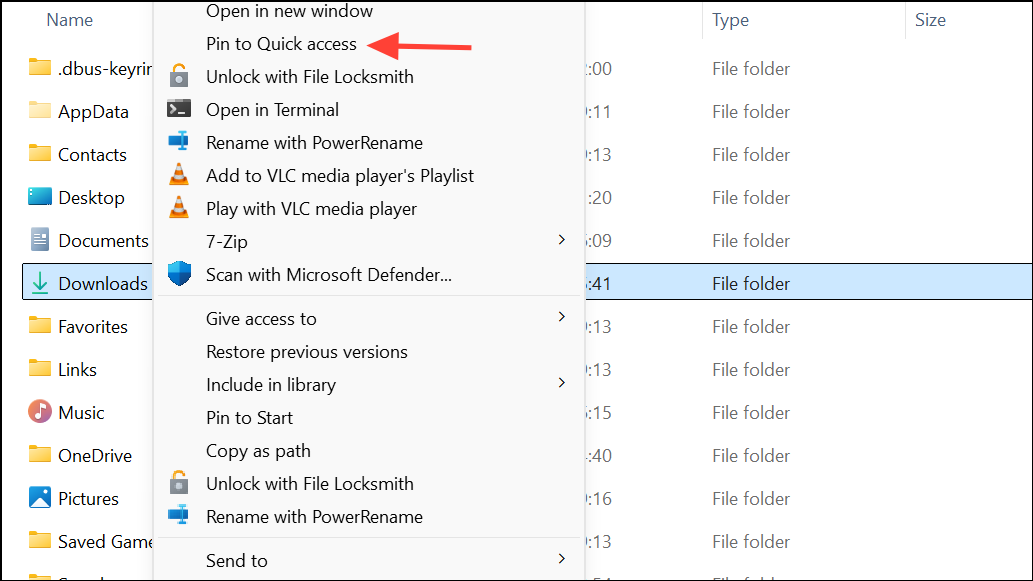
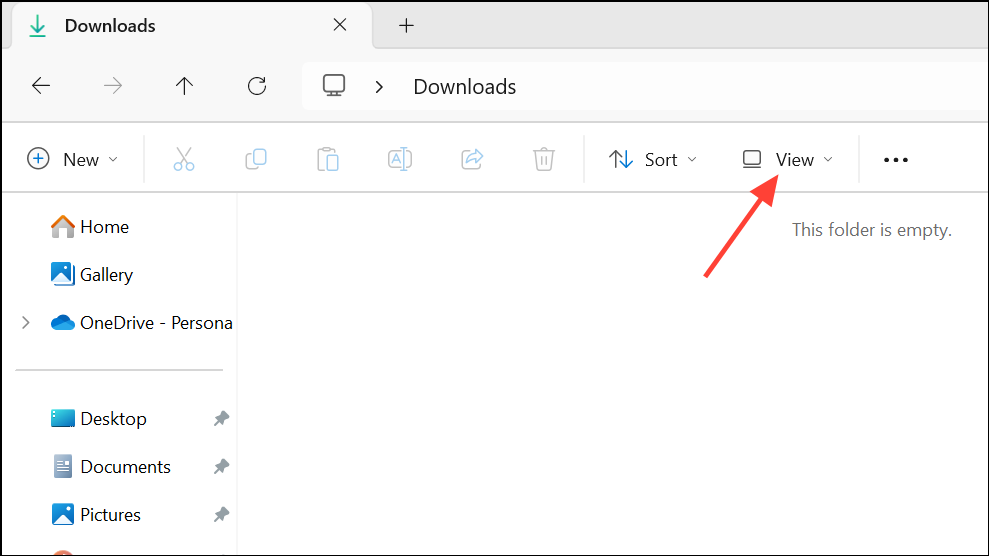
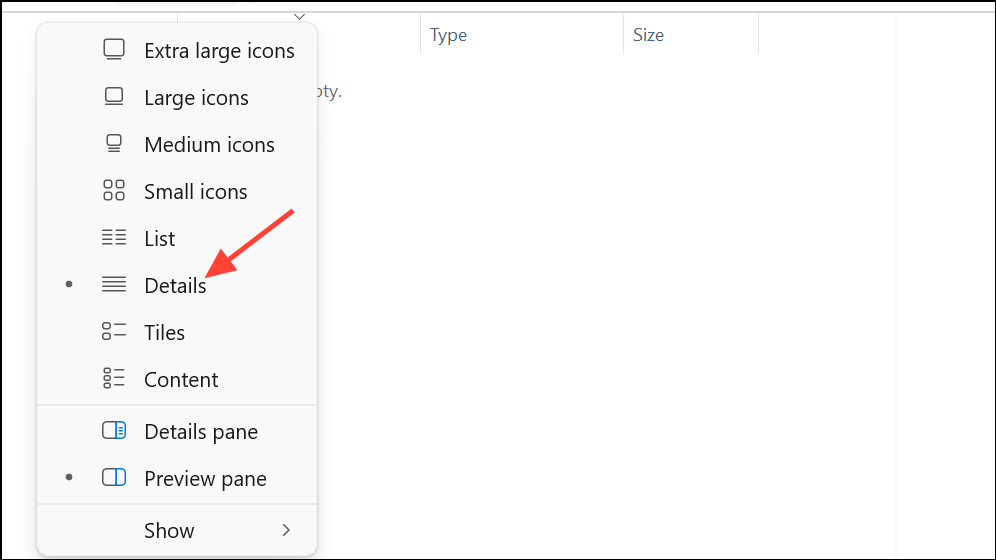
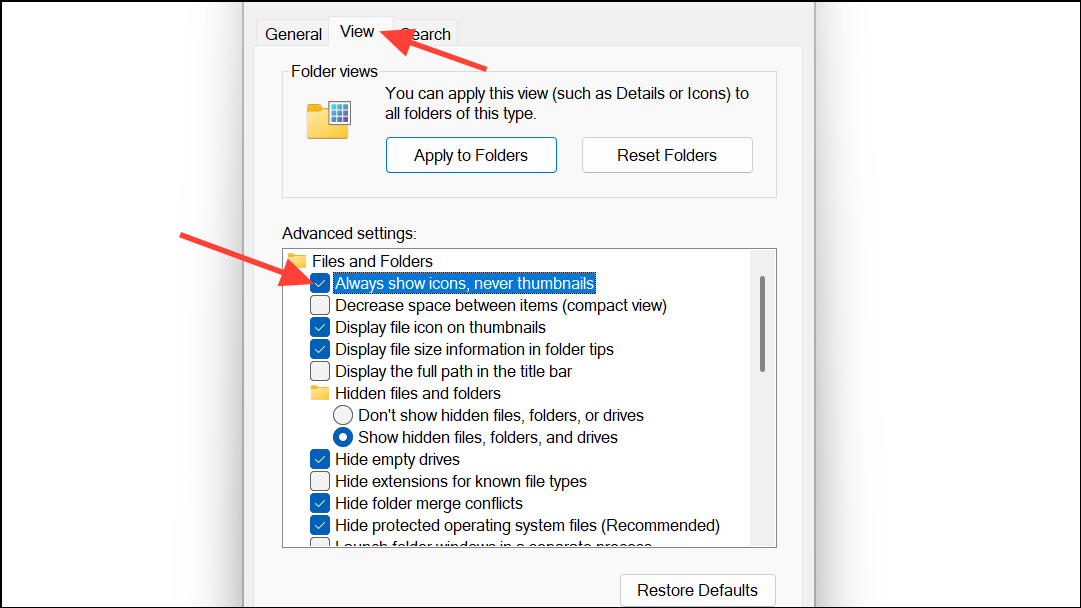
Adjust Folder View and Disable Thumbnails
Folder views set to display large icons or thumbnails can slow down loading, especially for folders with many media files. Switching to a details or list view and disabling thumbnails can speed things up.
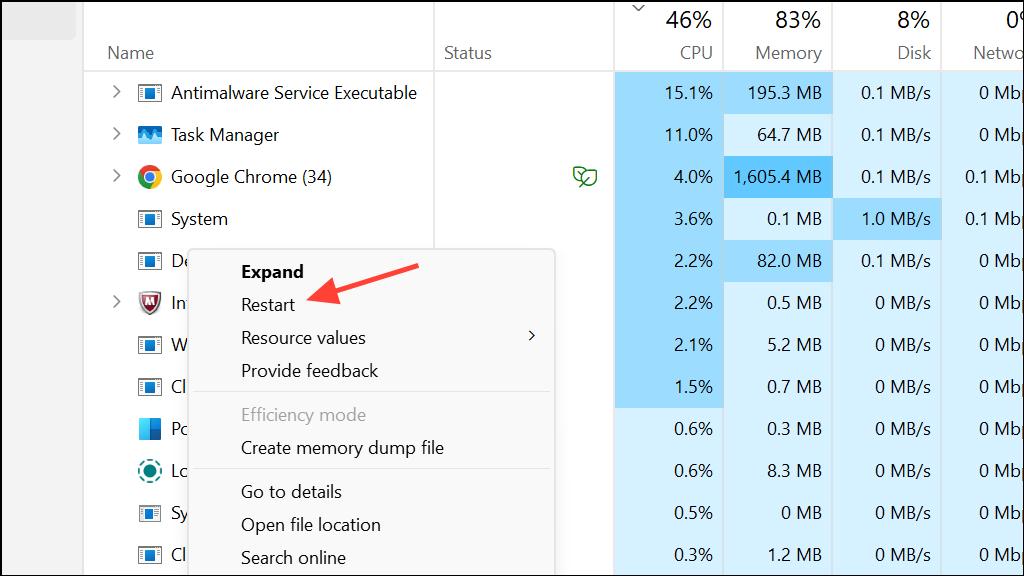
Restart File Explorer or Your PC
Sometimes, a stuck process in Windows Explorer can cause persistent slowdowns. Restarting File Explorer or your entire PC can clear temporary glitches.
Advanced: Registry Tweaks and Third-Party File Managers
For users comfortable with advanced solutions, disabling certain new features in Windows 11’s File Explorer via registry edits can restore classic behavior and improve speed. Note that this may remove features like tabs and could be reverted by Windows updates.
Windows Registry Editor Version 5.00

[HKEY_CURRENT_USER\Software\Classes\CLSID\{2aa9162e-c906-4dd9-ad0b-3d24a8eef5a0}]
@="CLSID_ItemsViewAdapter"

[HKEY_CURRENT_USER\Software\Classes\CLSID\{2aa9162e-c906-4dd9-ad0b-3d24a8eef5a0}\InProcServer32]
@="C:\\Windows\\System32\\Windows.UI.FileExplorer.dll_"
"ThreadingModel"="Apartment"

[HKEY_CURRENT_USER\Software\Classes\CLSID\{6480100b-5a83-4d1e-9f69-8ae5a88e9a33}]
@="File Explorer Xaml Island View Adapter"

[HKEY_CURRENT_USER\Software\Classes\CLSID\{6480100b-5a83-4d1e-9f69-8ae5a88e9a33}\InProcServer32]
@="C:\\Windows\\System32\\Windows.UI.FileExplorer.dll_"
"ThreadingModel"="Apartment"
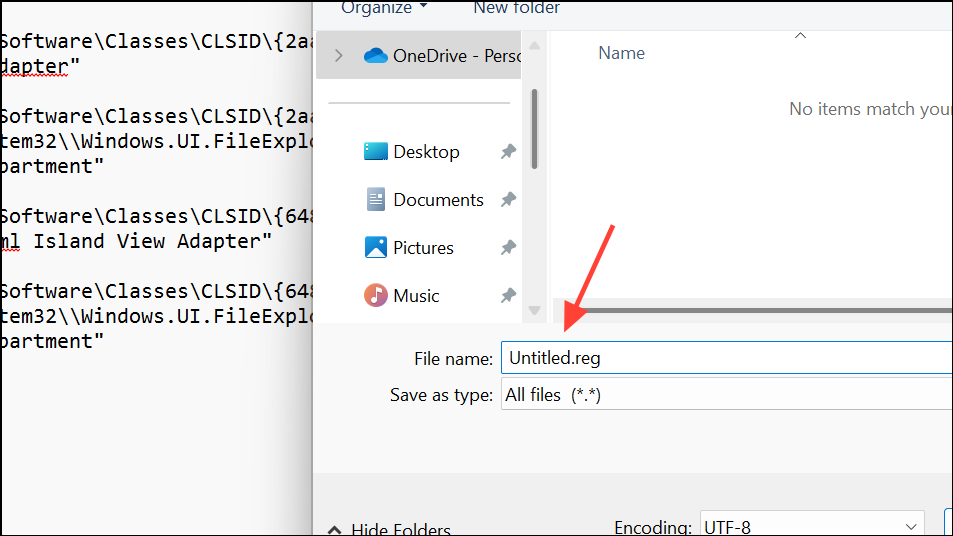
.reg file to add it to your registry. Restart your computer for changes to take effect. Be aware this disables new File Explorer features, including tabs.
Other Troubleshooting Steps
If the Downloads folder still loads slowly after trying the above fixes, consider these additional steps:
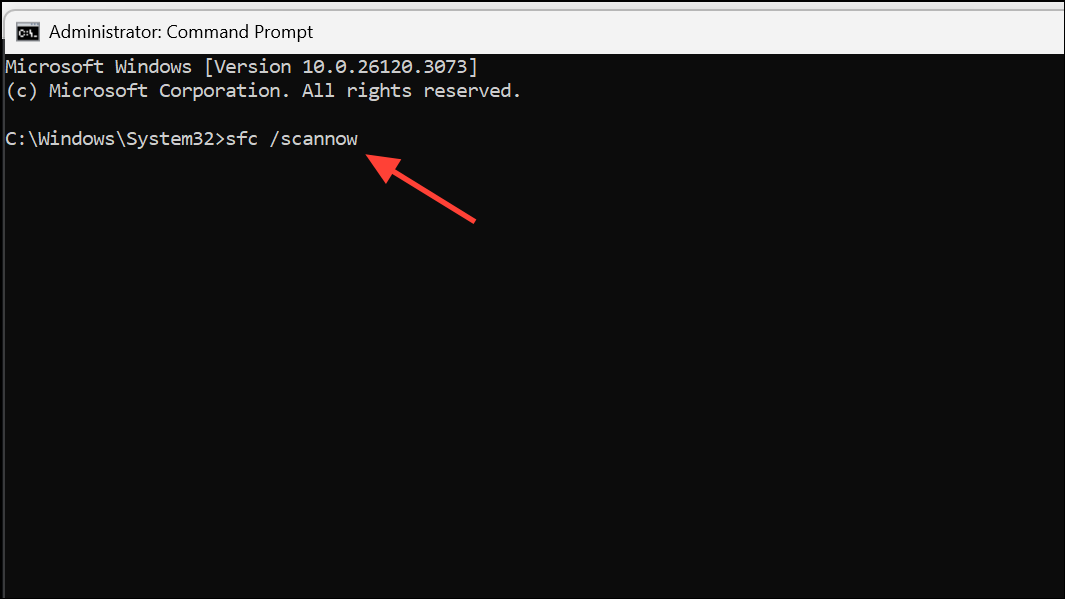
- Run
sfc /scannowin Command Prompt as an administrator to check for and fix corrupted system files.
- Boot into Safe Mode to see if the issue persists. If the folder loads quickly in Safe Mode, a third-party program or service may be causing the slowdown.
- Perform a clean boot by disabling non-Microsoft services using
msconfigto identify potential software conflicts. - Uninstall or update applications that frequently access the Downloads folder, as they may lock files or create conflicts.
- Minimize the Details panel in File Explorer, as expanding it can sometimes cause delays.
Resolving slow loading in the Downloads folder on Windows 11 often comes down to changing folder optimization, clearing out unnecessary files, and tweaking File Explorer’s view settings. Regularly organizing your Downloads folder and keeping File Explorer’s cache clear will keep things running smoothly.



