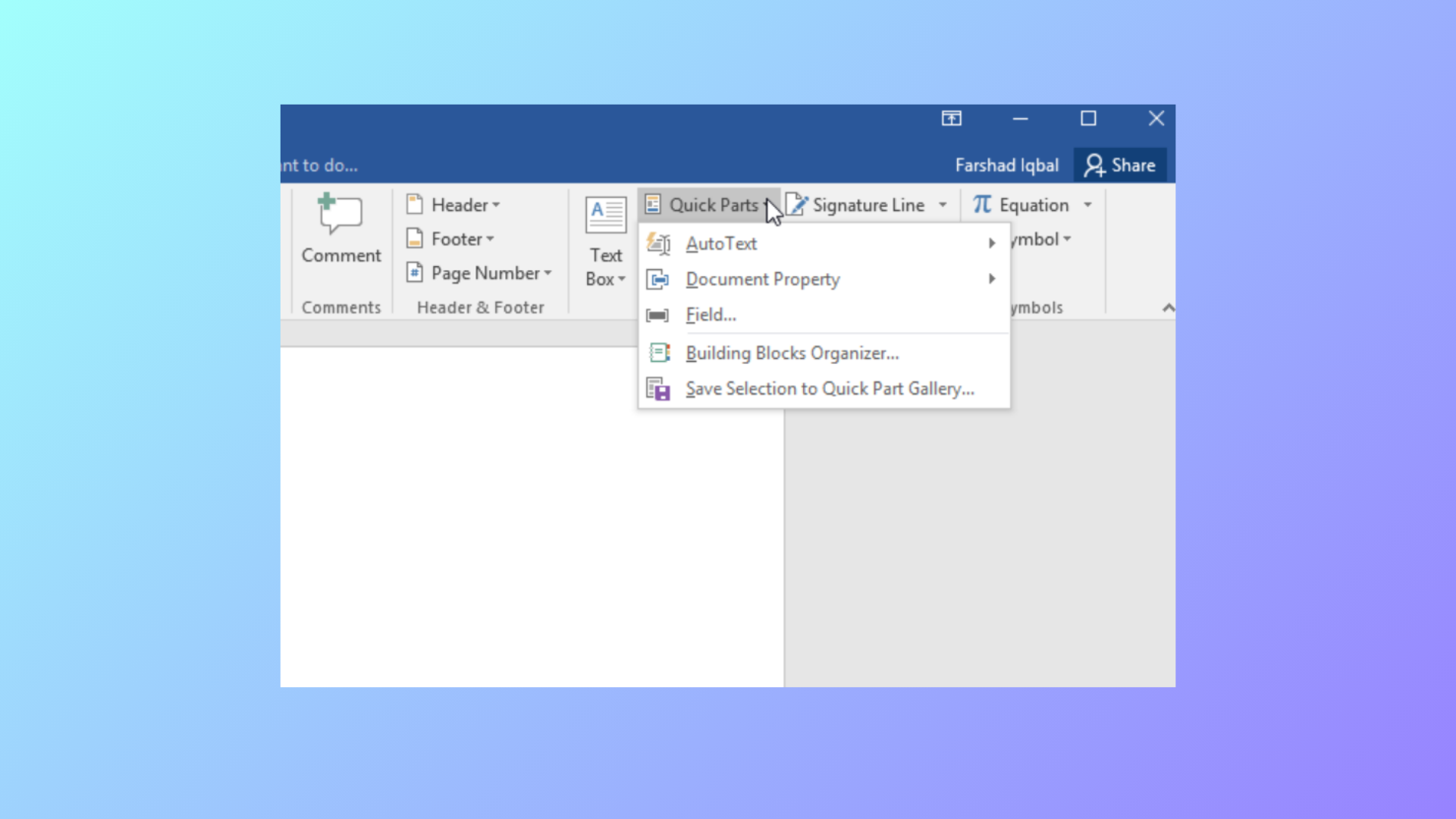
Formatting inconsistencies in Microsoft Word documents can cause issues with readability, document structure, and overall presentation. Removing all formatting restores text to the default style, which is especially useful when combining content from multiple sources or troubleshooting stubborn style problems.
Remove All Formatting Using the Ribbon
Ctrl+A (Windows) or Command+A (Mac).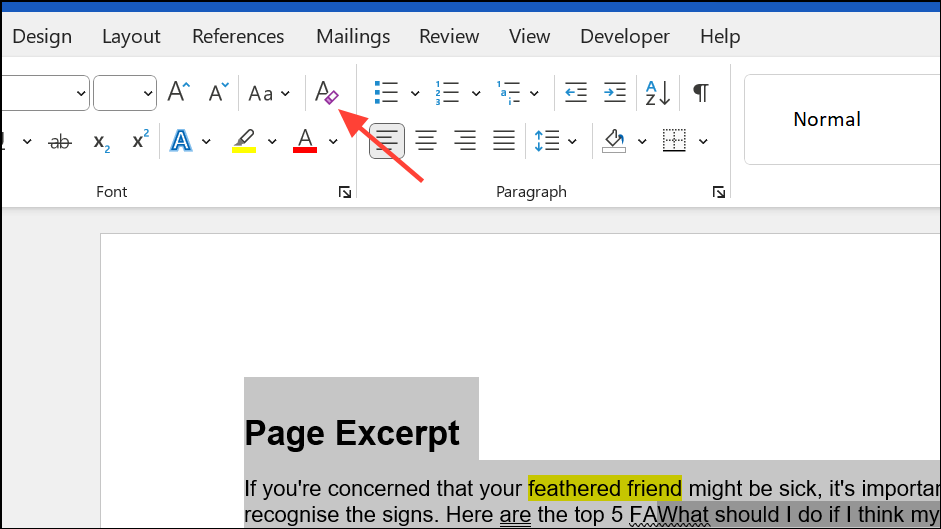
Remove Formatting with Keyboard Shortcuts
Ctrl+Spacebar. This resets text to the default character style.Ctrl+Q. This restores the paragraph to its default settings based on the applied style.Using both shortcuts in sequence ensures both character and paragraph formatting are cleared, streamlining the process for large or complex documents.
Paste as Plain Text
Ctrl+Shift+V (Windows) or Command+Shift+V (Mac) instead of the standard paste shortcut.Remove Formatting by Copying to a Plain Text Editor
This method is especially effective when dealing with documents imported from web pages or other word processors that introduce complex formatting.
Customizing the Default Style After Clearing Formatting
After removing all formatting, Word applies the default “Normal” style, which is typically Calibri, size 11, black. If you want a different default font or size, modify the Normal style:
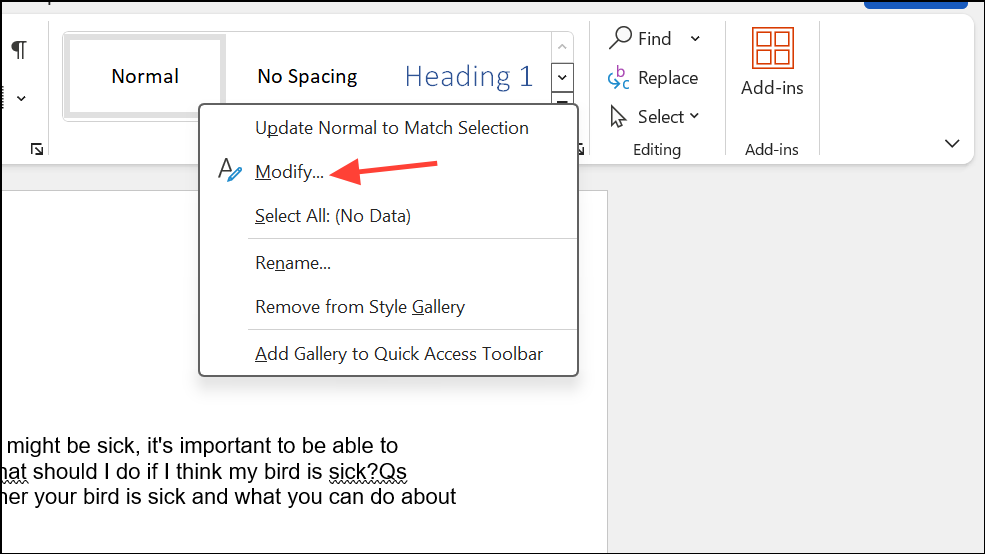
- On the Home tab, right-click the Normal style in the Styles gallery and select Modify.
- Set your preferred font, size, and color, then choose whether to apply changes to just the current document or all new documents based on the template.
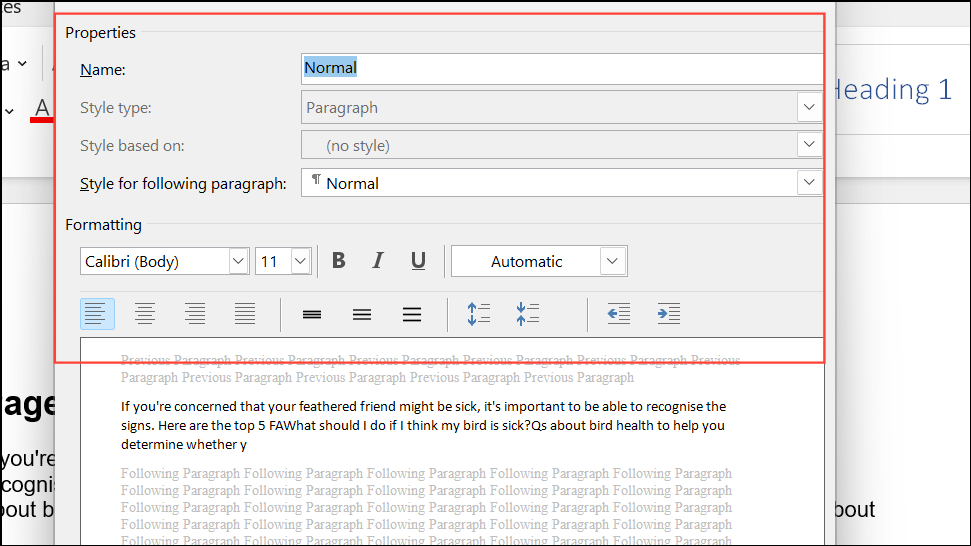
This ensures that when you clear formatting, your text adopts your preferred default style instead of Word’s standard settings.
Advanced: Remove All Formatting Except Bold
If you need to clear all formatting but retain bold text, use Find & Replace with formatting options or a VBA macro. One approach involves highlighting all bold text first, clearing formatting, and then restoring bold formatting only to highlighted words. Alternatively, advanced users can run a VBA macro to automate this process, preserving bold while removing other styles.
Removing all formatting in Microsoft Word is straightforward with the right tools—use the ribbon, keyboard shortcuts, or plain text editors to quickly restore your document to a clean, consistent style. Adjusting the Normal style ensures your preferred formatting is applied every time you clear text.