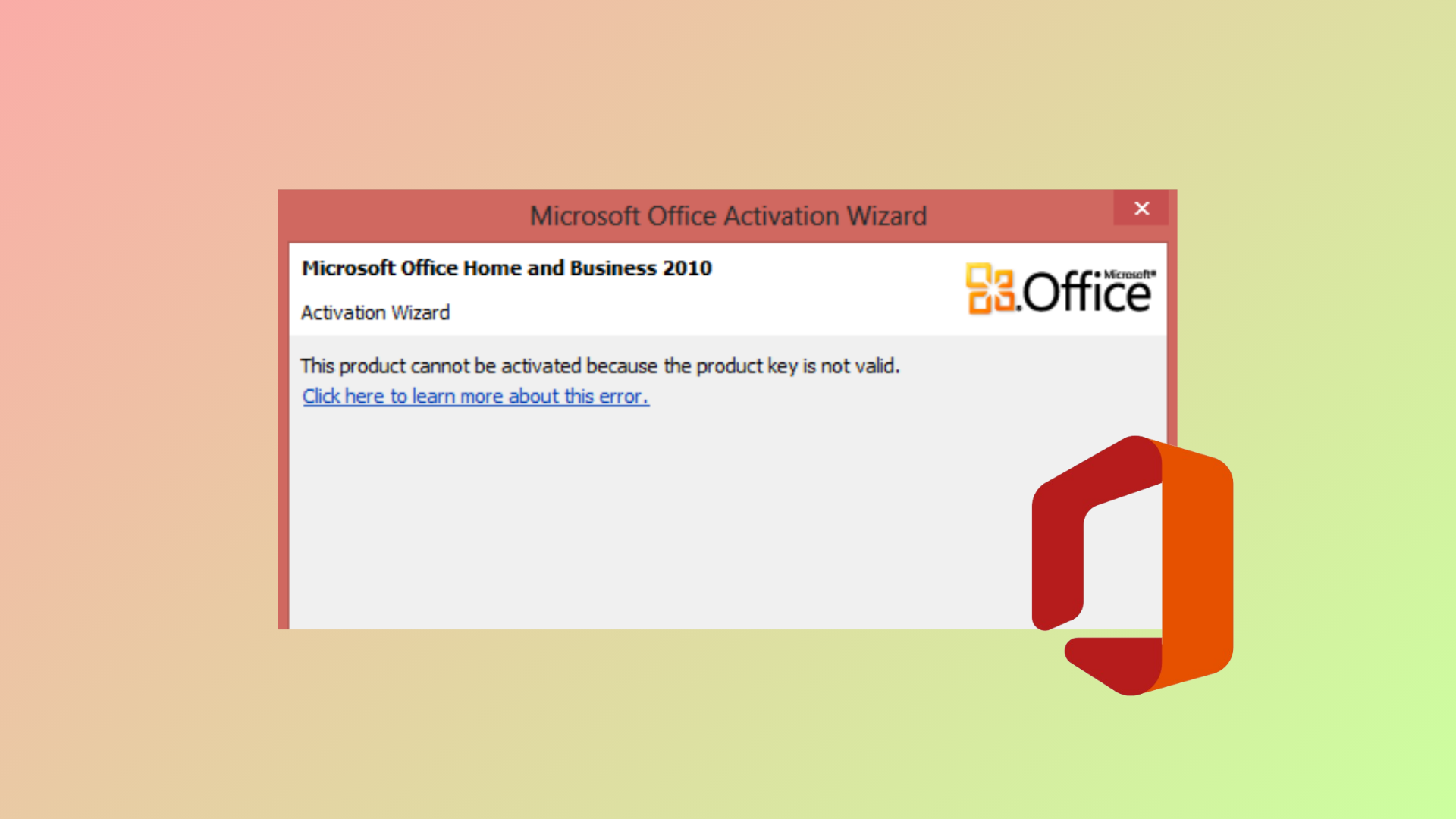
Activation failures in Microsoft Office often result in the message: “This product cannot be activated because the product key is not valid.” When this error appears, Office enters a restricted mode where most features are disabled, and documents may be read-only. Addressing the cause restores full access and prevents repeated activation prompts.
Most Effective Method: Update Office Client Using Command Prompt
Updating the Office Click-to-Run client to a specific version resolves persistent activation errors, especially when standard troubleshooting fails. This approach is particularly effective for recent Office 365 and Microsoft 365 installations that suddenly lose activation, often after Windows updates or account changes.
Windows Key, type cmd, right-click Command Prompt, and select Run as administrator.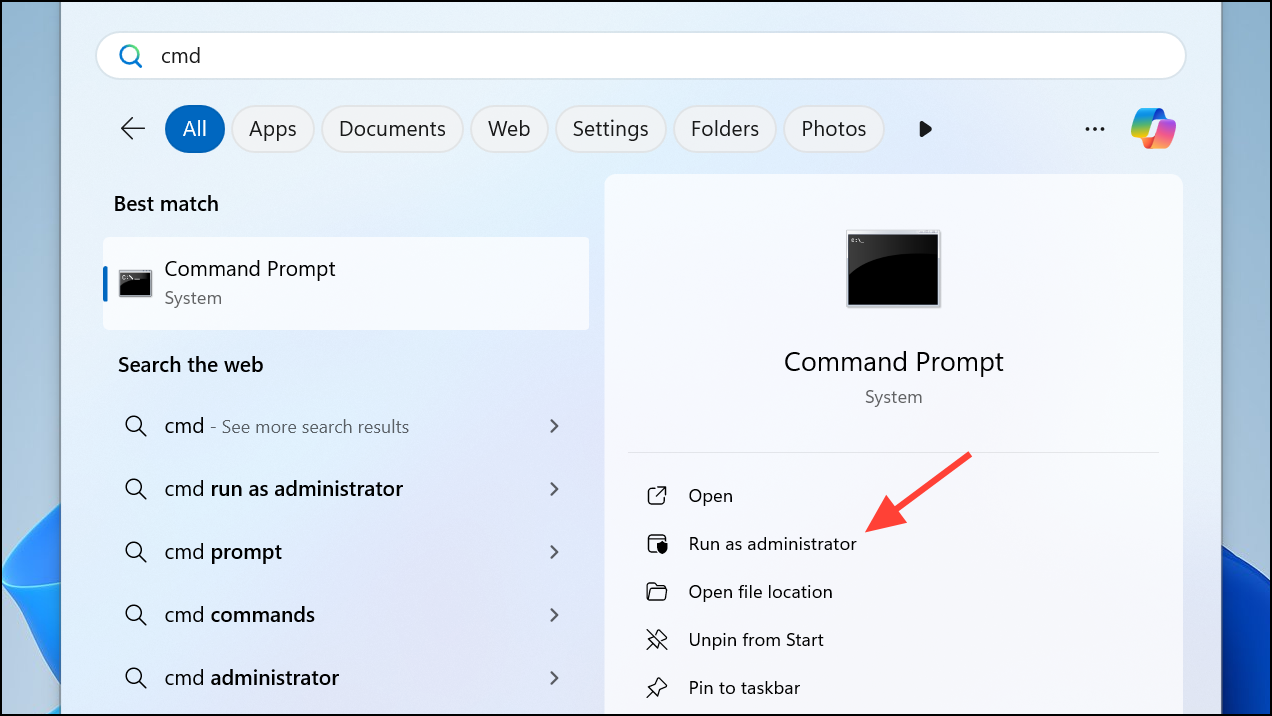
cd "%programfiles%\Common Files\Microsoft Shared\ClickToRun"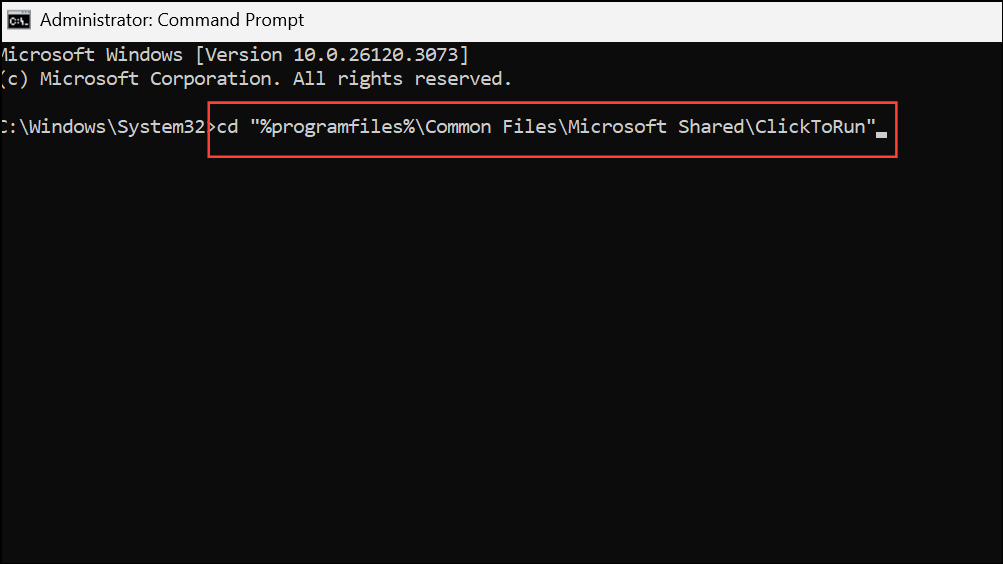
If you receive an error or are using a 32-bit Office on 64-bit Windows, try:
cd "%programfiles(x86)%\Common Files\Microsoft Shared\ClickToRun"OfficeC2RClient.exe /update user updatetoversion=16.0.17531.20120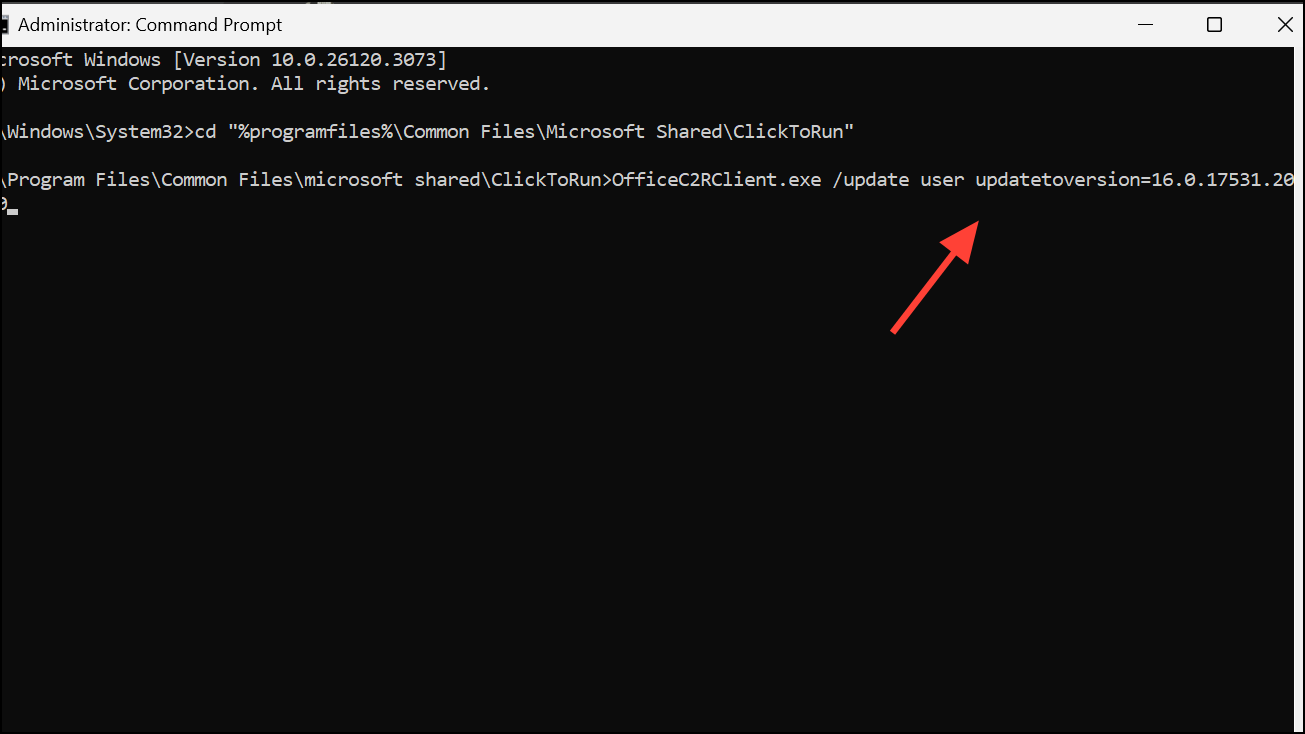
This process downloads and installs a known stable build that resolves activation glitches. Wait for the update to complete before opening any Office app.
This method directly addresses underlying issues with the Office licensing service, restoring activation status without requiring a full reinstall. If you continue to see activation errors, proceed to the next troubleshooting steps.
Check for Blocked, Invalid, or Misused Product Keys
Microsoft blocks product keys that are reported stolen, fraudulently obtained, or abused. If you purchased a product key separately from the software or from an unauthorized third party, the key may have been invalidated and will not work. Signs of this include:
- Activation fails immediately after entering the key.
- The error message mentions the key is not valid or not meant for your region.
- Attempts to re-enter or change the key revert to the old, non-activatable key.
Remove Old or Invalid Product Keys Before Activating
Residual or invalid product keys stored on your system can prevent new keys from being accepted. Removing these keys clears the way for a successful activation.
cd "C:\Program Files\Microsoft Office\Office16"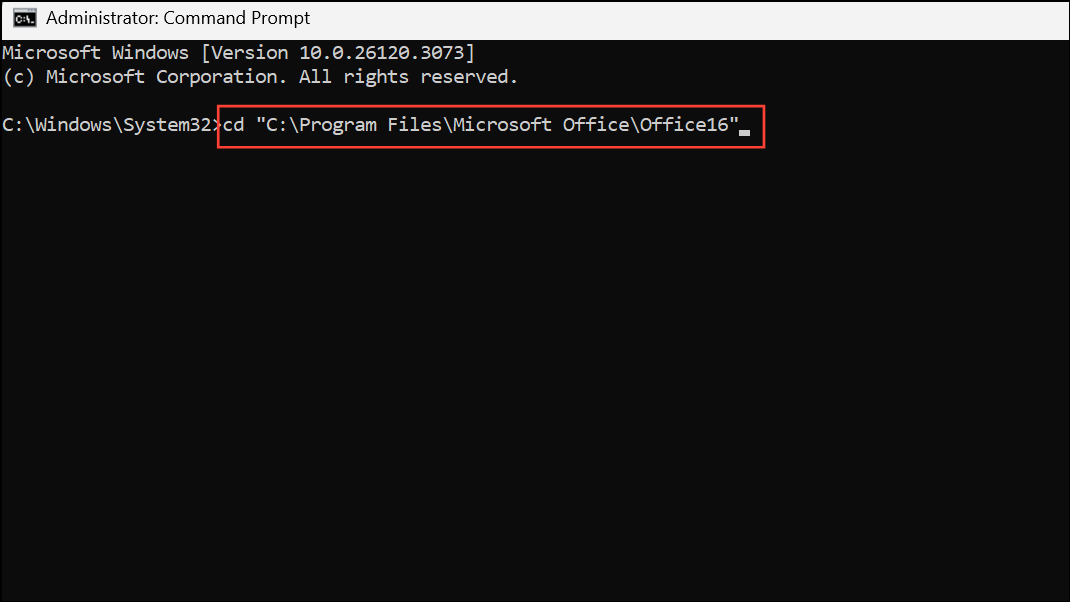
Or, for 32-bit Office on 64-bit Windows:
cd "C:\Program Files (x86)\Microsoft Office\Office16"cscript ospp.vbs /dstatus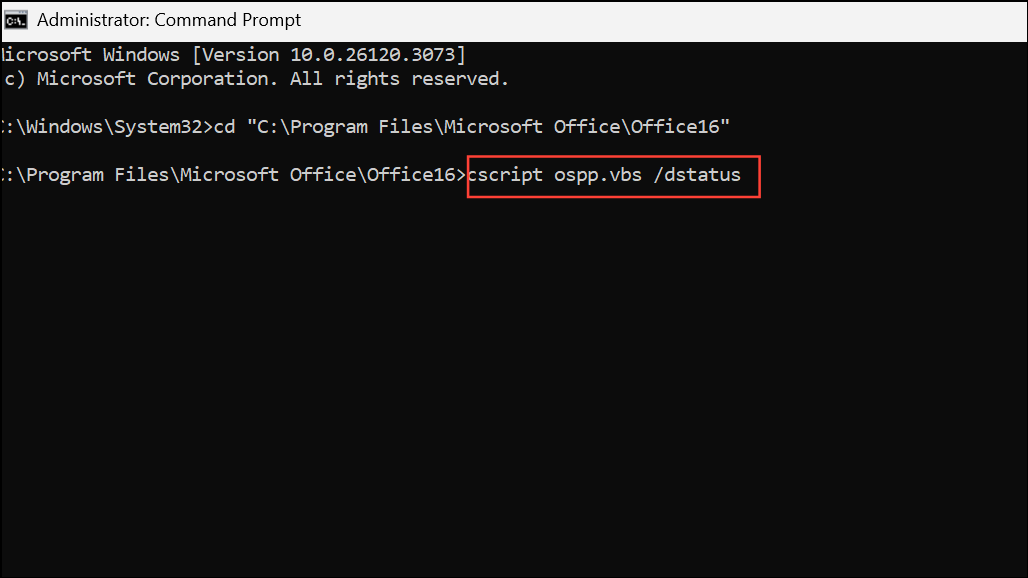
This shows all installed Office keys, including their last five characters.
cscript ospp.vbs /unpkey:XXXXX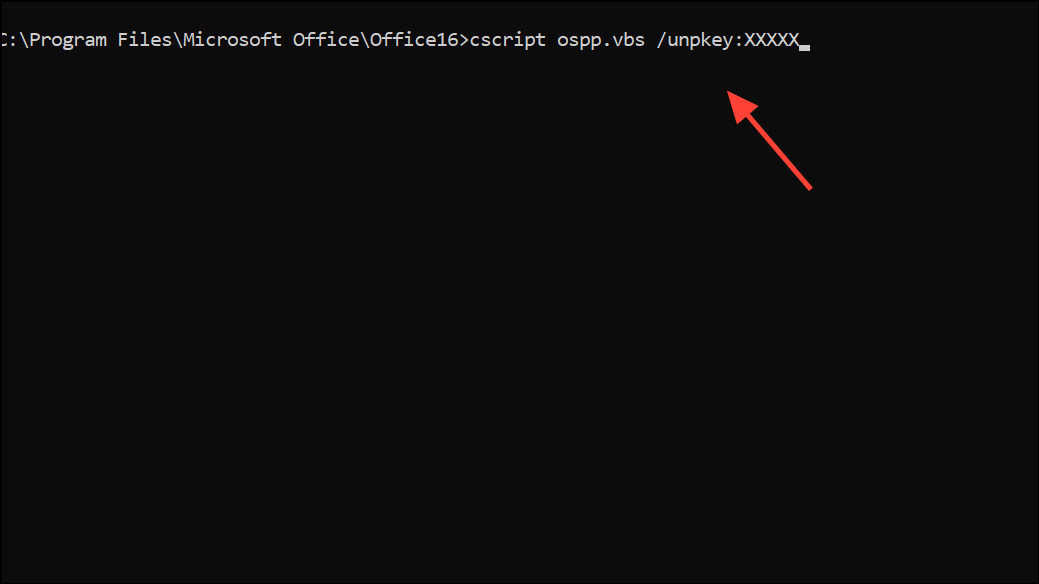
Replace XXXXX with the last five characters of the product key you want to remove. Repeat for each unwanted key.
Check for Multiple Office Installations and Conflicting Versions
Having more than one version of Office installed can cause activation conflicts. Removing unused or trial versions resolves these issues.
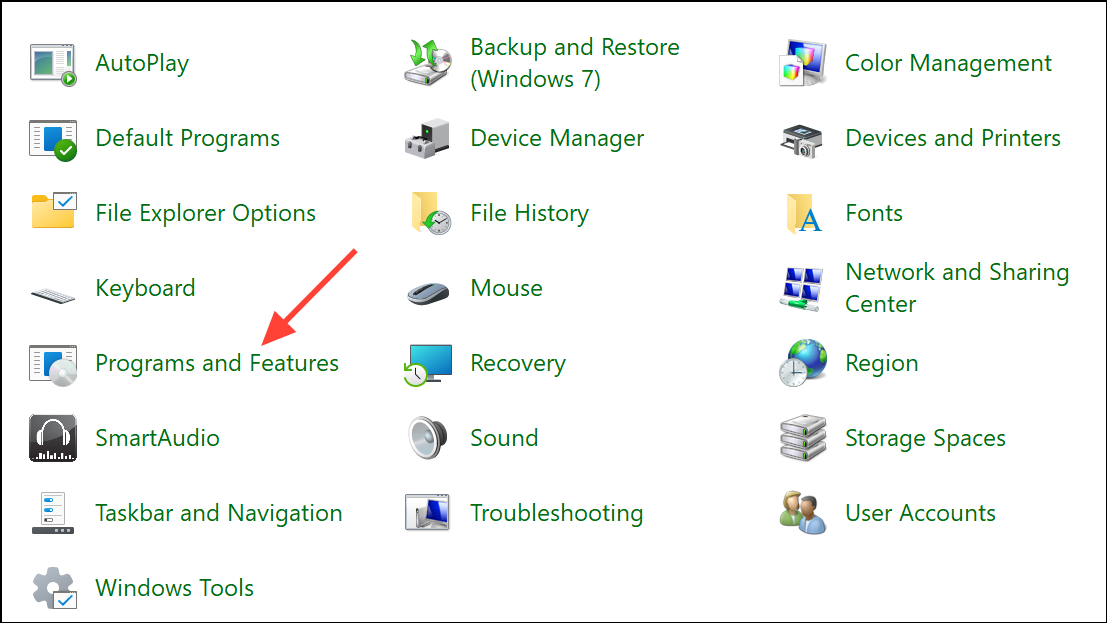
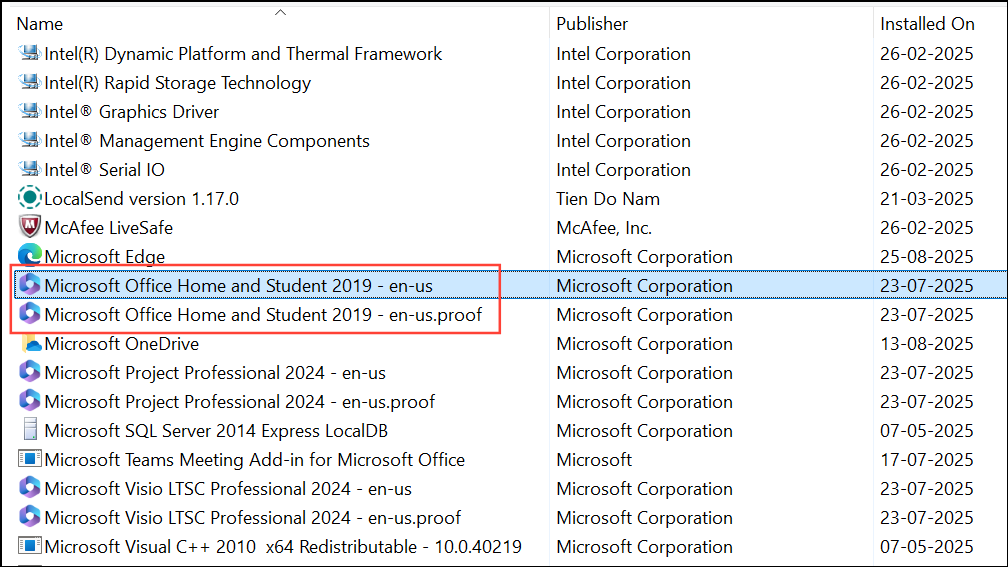
Verify Product Key Entry and Common Mistakes
Incorrectly entering a product key is a frequent cause of activation errors. Product keys are 25 characters and may contain similar-looking letters and numbers.
- Double-check for common mistakes:
8/B, 6/G, 0/O/Q, VV/W. - Copy and paste the key if you received it digitally to avoid typos.
- Ensure you are not using a Windows product key or a key from a different Office version.
- Product keys from volume licenses, school/organization agreements, or older Office versions will not work for retail Office installations.
Address Region and Subscription Issues
Office product keys must be redeemed in the country or region where they were purchased. Using a key from another region causes activation failures. Additionally, expired or canceled subscriptions will not activate Office.
Other Troubleshooting Steps
If standard solutions do not work, try the following:
- Run Office as administrator to resolve permissions issues.
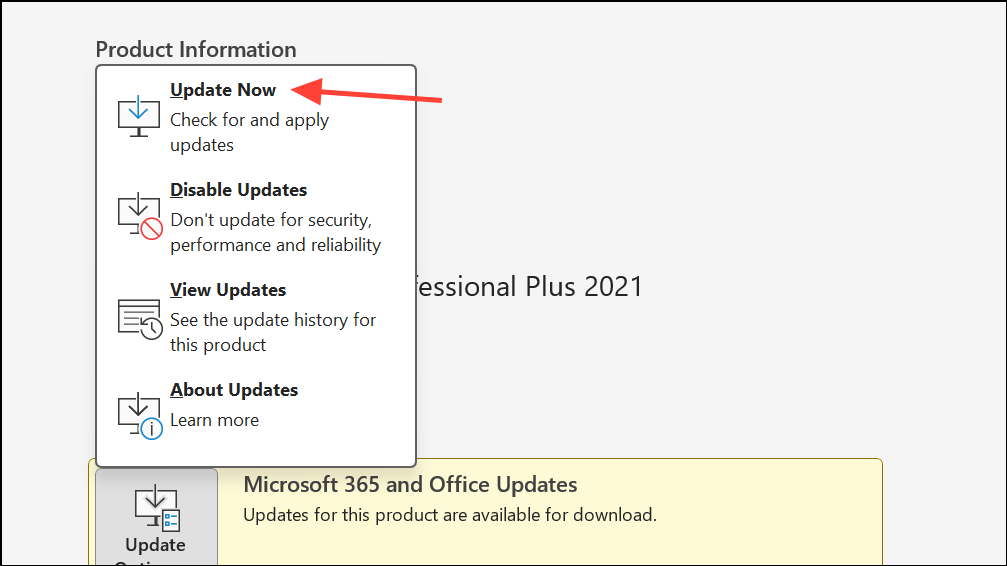
- Update Office to the latest version using
File > Account > Update Options > Update Nowwithin any Office app.
- Check your computer’s date, time, and time zone settings. Incorrect values can cause activation failures.
- Temporarily disable firewall, antivirus, or proxy settings that may block activation requests.
- Use the Microsoft Office Activation Troubleshooter for guided assistance.
- Contact Microsoft Support if all else fails.
Resolving the “not a valid Office product key” error restores your ability to create, edit, and save documents without interruption. Regularly update Office and verify license status to prevent future activation issues.