
“'python' is not recognized as an internal or external command” appears when Windows can’t find Python’s executable on the PATH. Adding the right directories—or using the Python Launcher—lets you run Python and pip from any terminal without full paths.
Reference: Official guidance on PATH, the installer option, and the Python Launcher is in the Python docs under “Using Python on Windows.” See the Python Software Foundation’s documentation at docs.python.org.
What you’ll need
- Windows 11 with a Python install (from python.org or Microsoft Store).
- Administrator rights only if modifying system-wide variables; user-level changes do not require admin.
- A fresh terminal session after any PATH change.
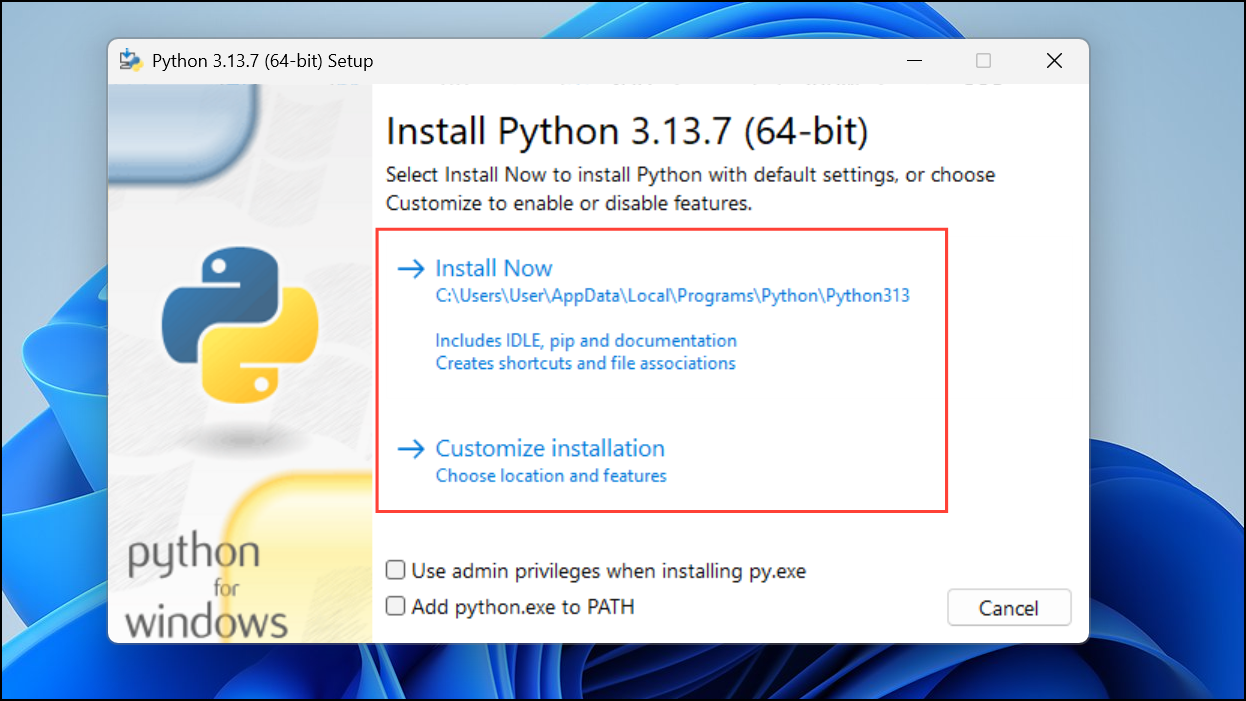
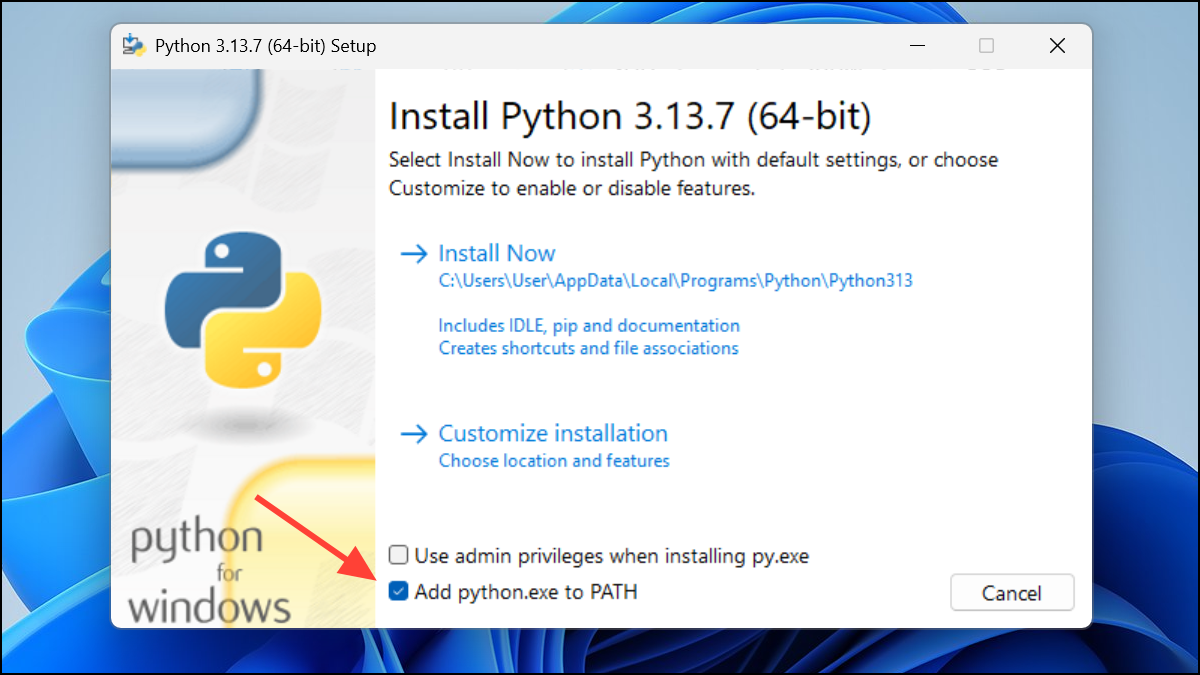
Method 1 — Use the official installer to add PATH (recommended)
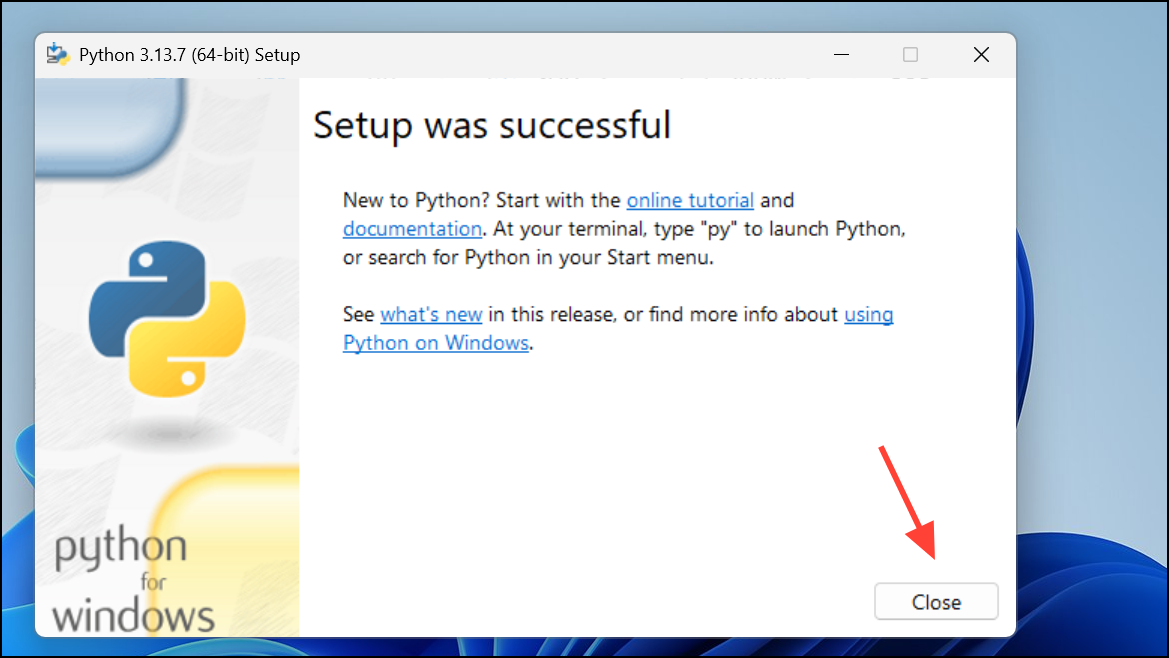
Why this works: The python.org installer can set PATH for you, avoids common typos, and also adds the Scripts folder that pip uses. The same installer can “Modify” an existing install to add PATH later. The Python docs note the “Add Python to PATH” option on the first installer page and allow toggling it post‑install.
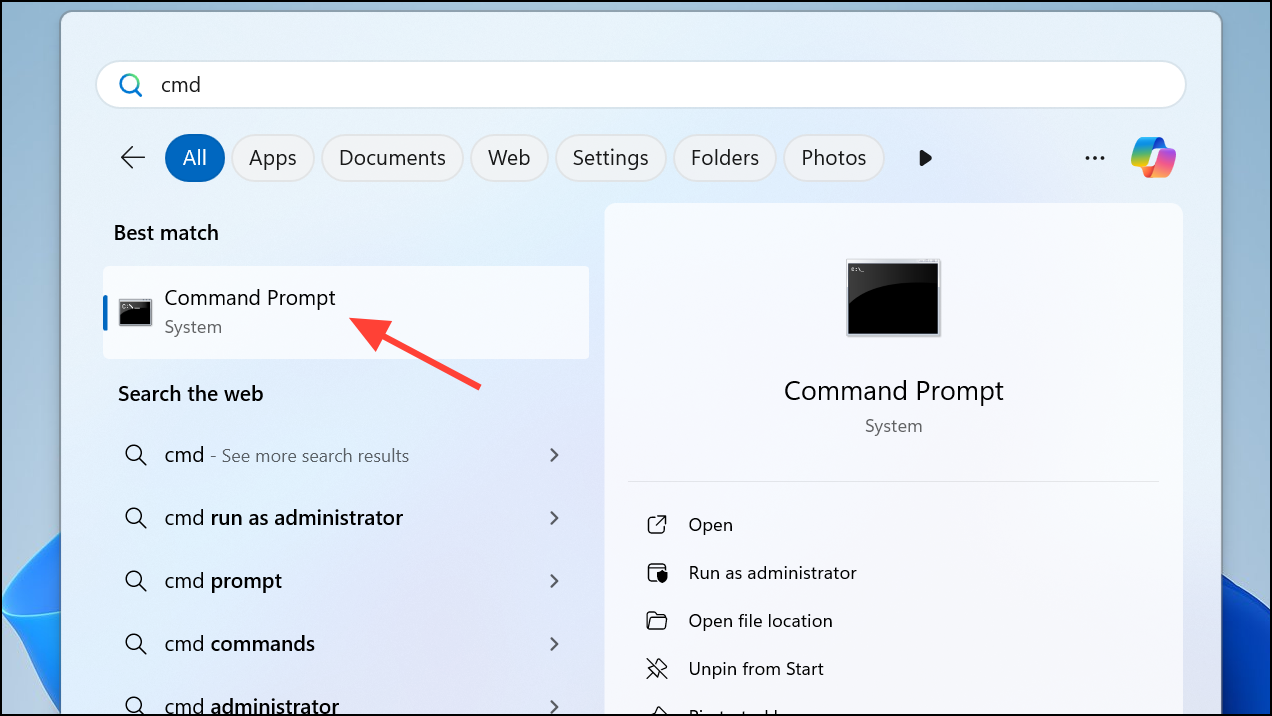
python --version
pip --version
where python
where pip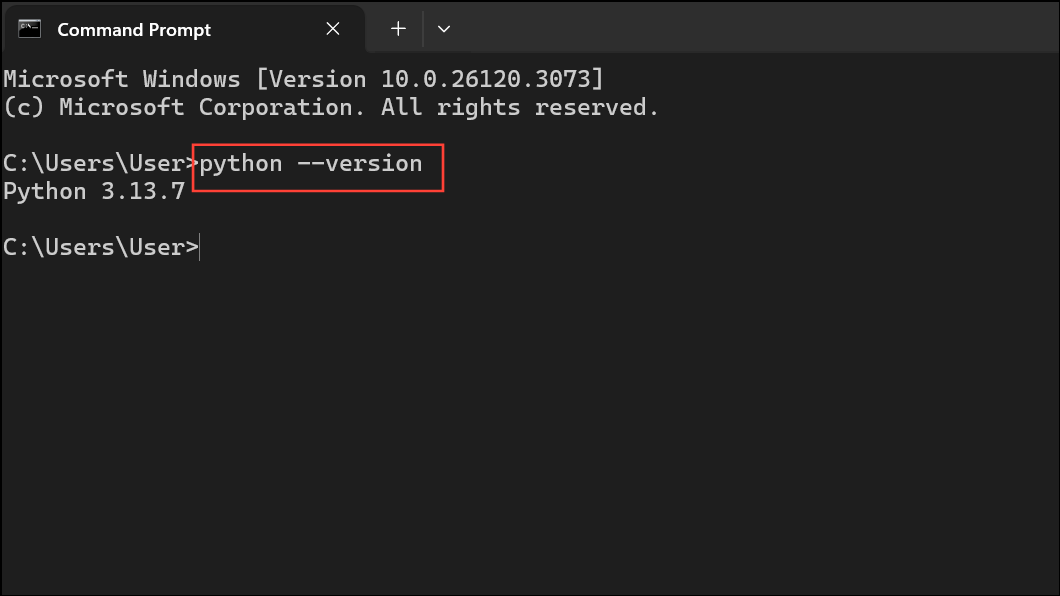
Method 2 — Manually add Python to PATH (user-level)
When to use: If you installed Python without enabling PATH or you’re aligning an existing install. This method targets your user PATH, avoiding system-wide changes.
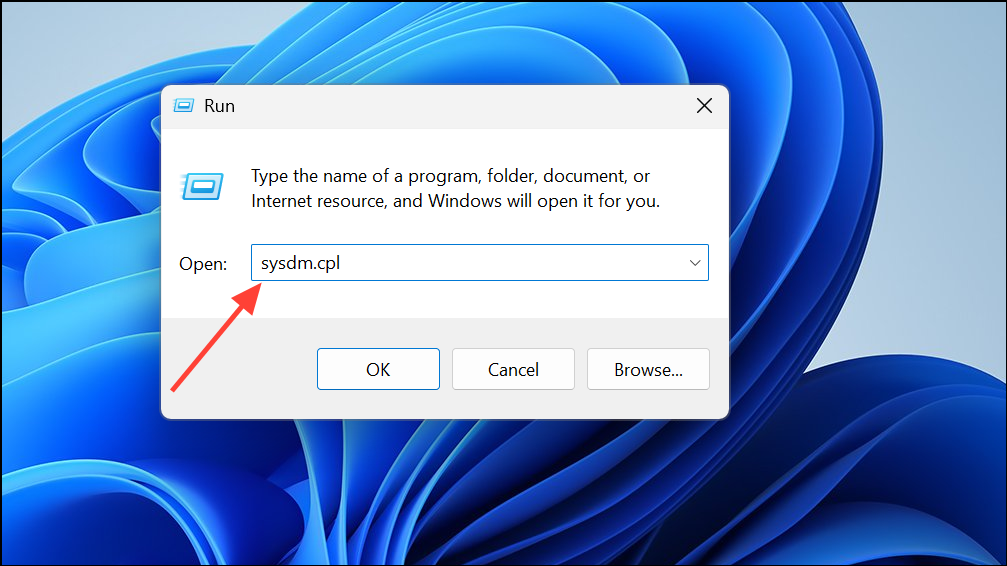
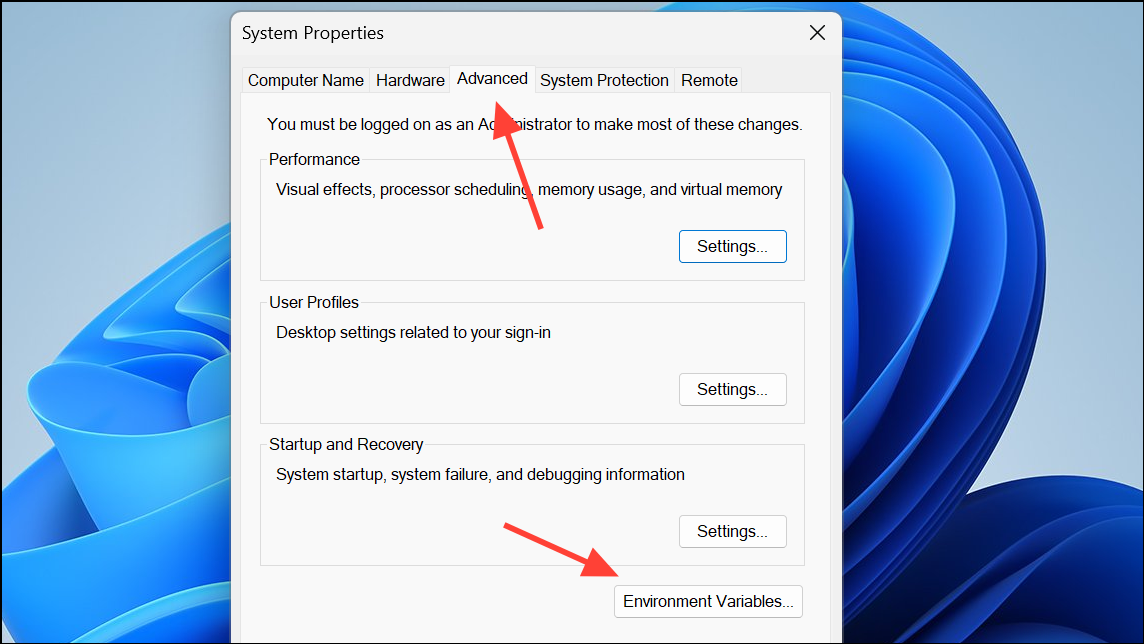
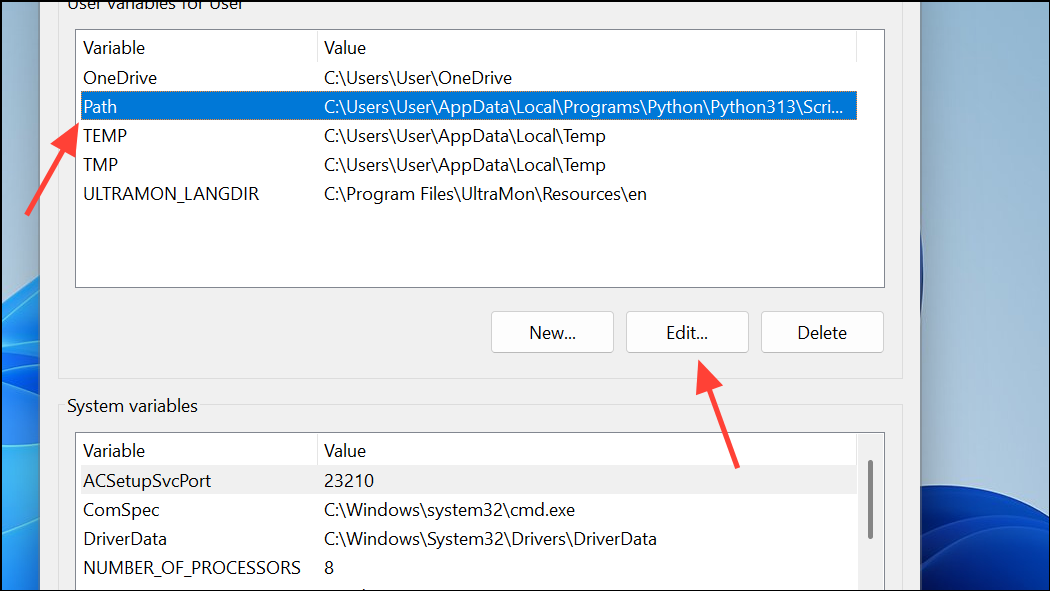
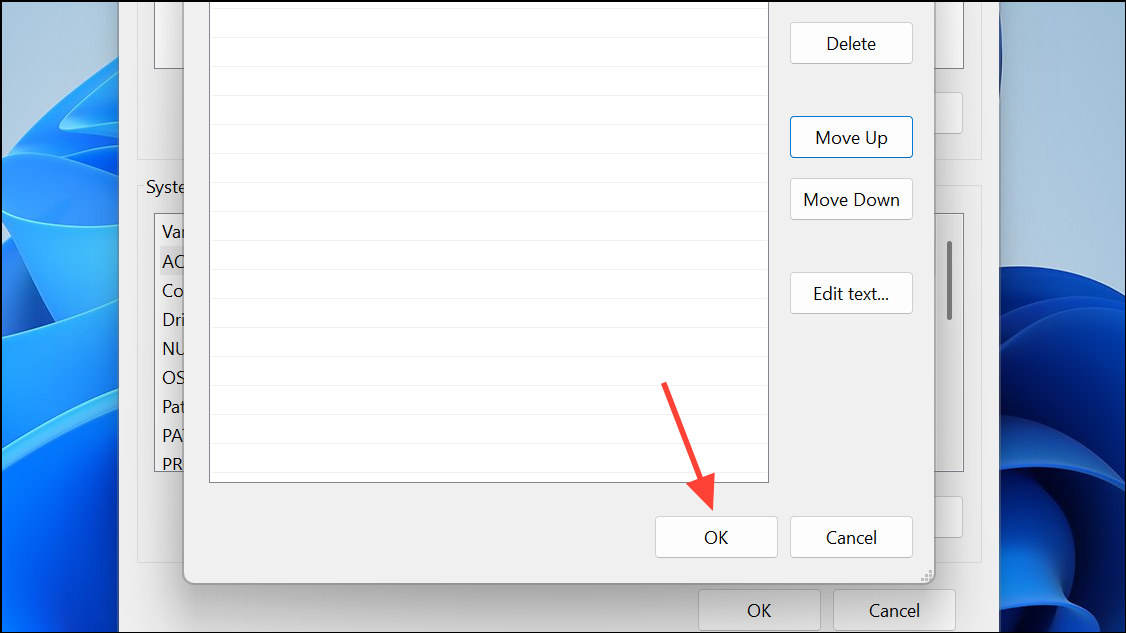
C:\Users\<you>\AppData\Local\Programs\Python\Python311).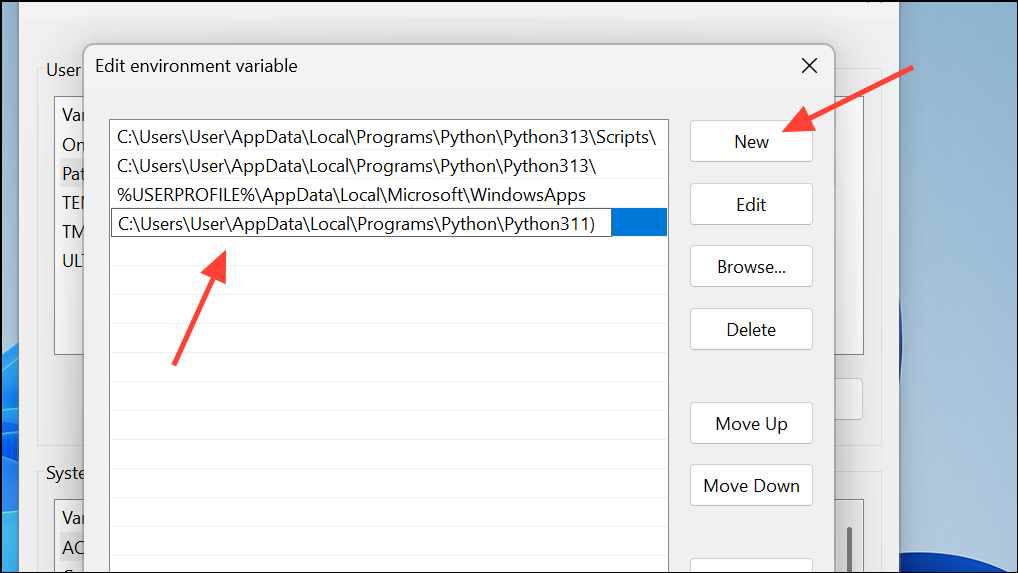
C:\Users\<you>\AppData\Local\Programs\Python\Python311\Scripts).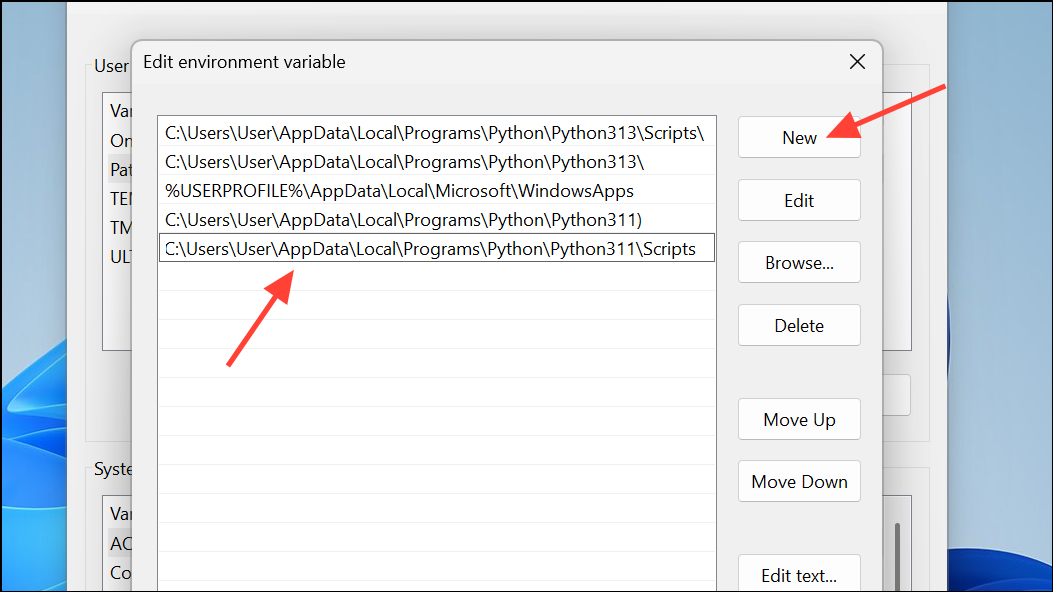
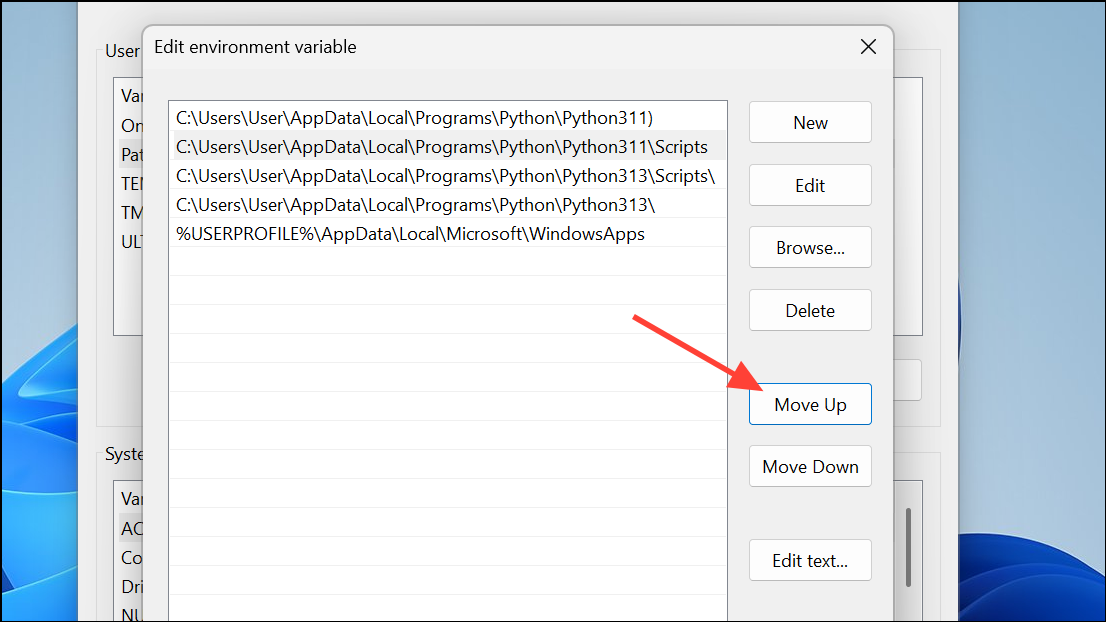
python --version
pip --version
where python
where pip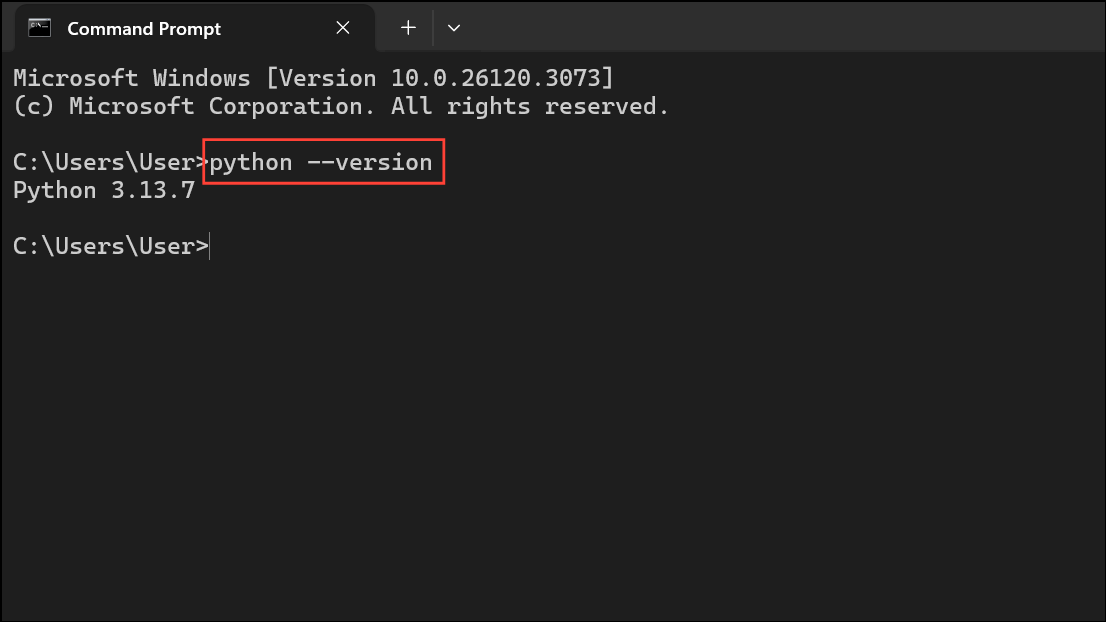
Notes and pitfalls:
- Avoid trailing backslashes in entries (use
C:\Path\To\Python311, notC:\Path\To\Python311\). - Do not insert leading spaces; each entry should be a clean path line.
- Ensure earlier PATH entries aren’t pointing at non-existent folders; invalid directories can cause confusing resolution behavior.
- Restart the shell after changes; some setups require sign-out/sign-in.
Method 3 — Fix Microsoft Store installs with App Execution Aliases
When to use: If Python was installed via the Microsoft Store. Store-based Python relies on “App execution aliases” and the WindowsApps directory rather than traditional PATH edits.
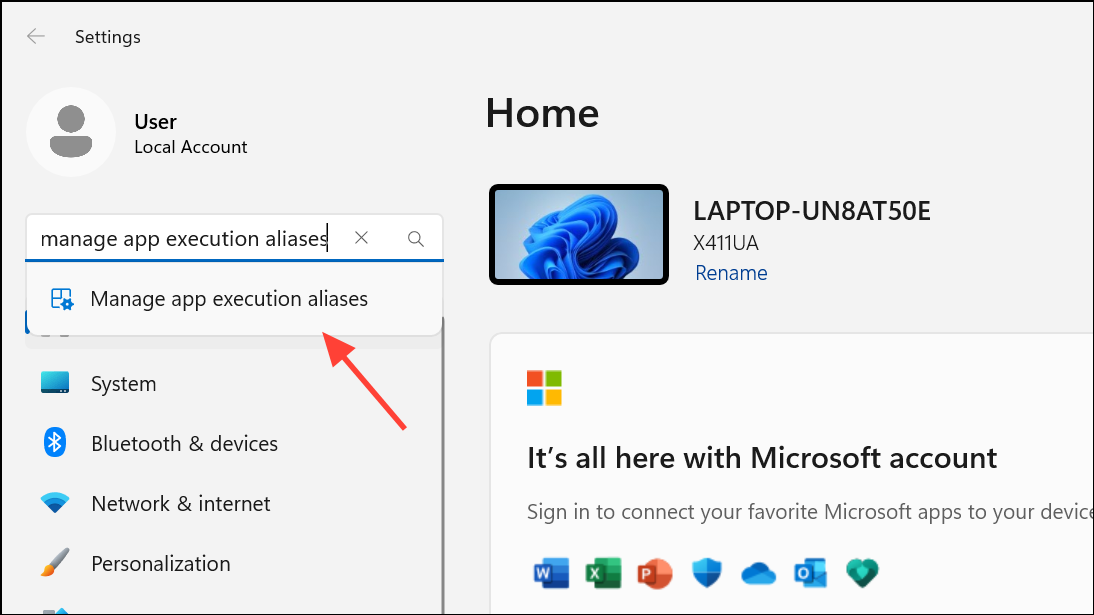
python.exe and python3.exe, or turn them off to avoid conflicts with a python.org install.C:\Users\<you>\AppData\Local\Microsoft\WindowsApps.python --version
python3 --version
where pythonpy) described below.Method 4 — Use the Python Launcher instead of editing PATH
Why consider this: The Python Launcher (py.exe) is installed with python.org builds and correctly locates installed versions by tag, avoiding PATH conflicts. The official docs emphasize the Launcher’s version selection and discovery behavior.
py --version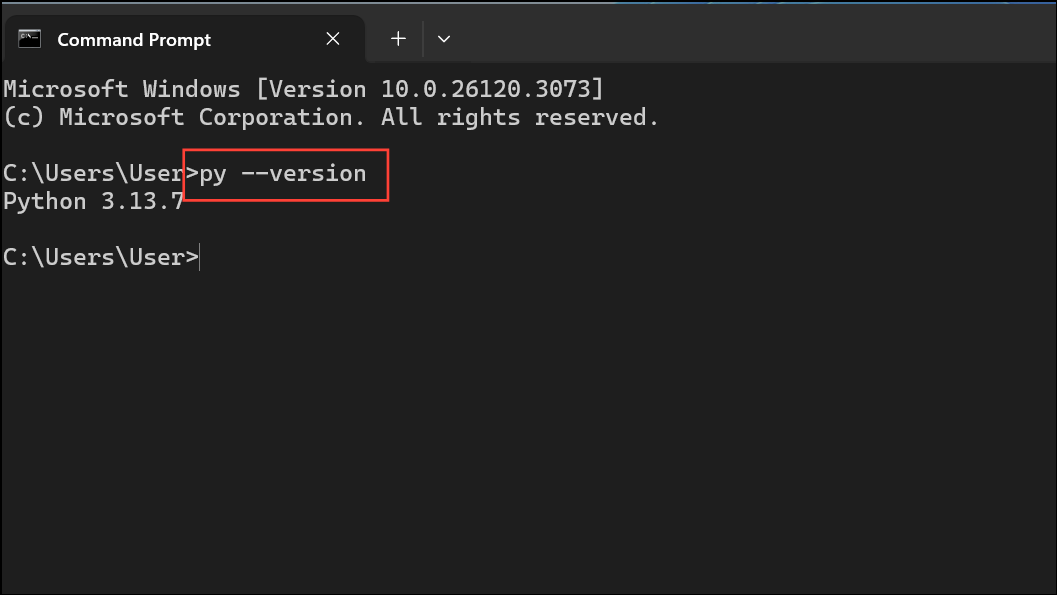
py -3
py -3.11
py -3.10 -m pip --version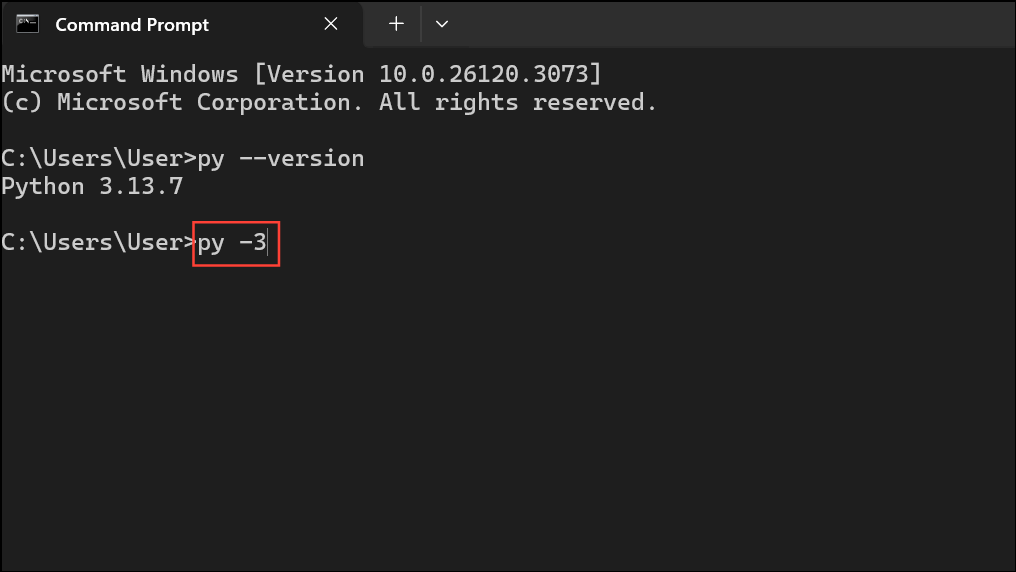
py -3.11 -m venv venv
venv\Scripts\activate
python --version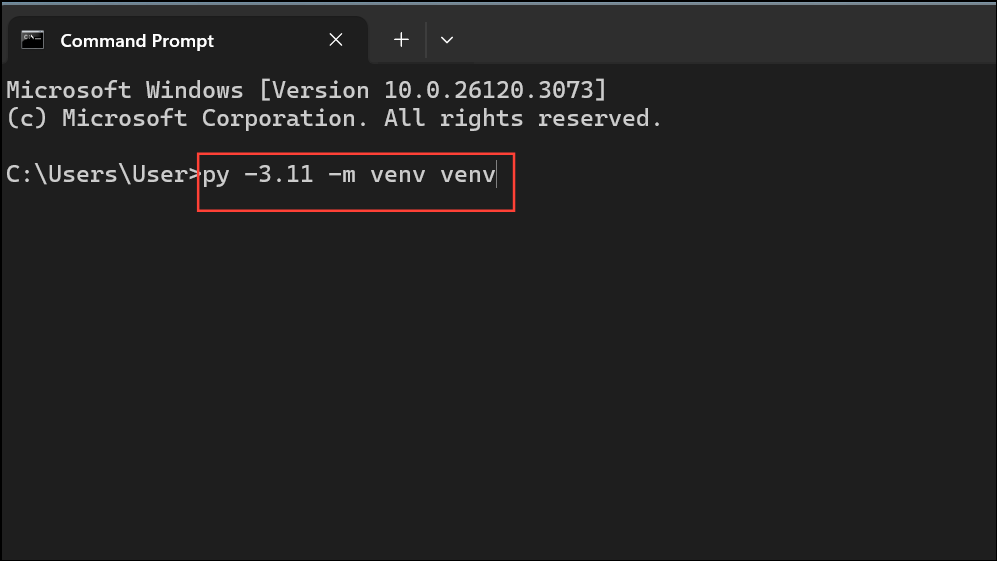
py --list and pin versions per project without touching PATH. Details are covered in the Python docs under “Python Launcher for Windows” at docs.python.org (linked once above).Quick verification and troubleshooting
where python
where python3
where py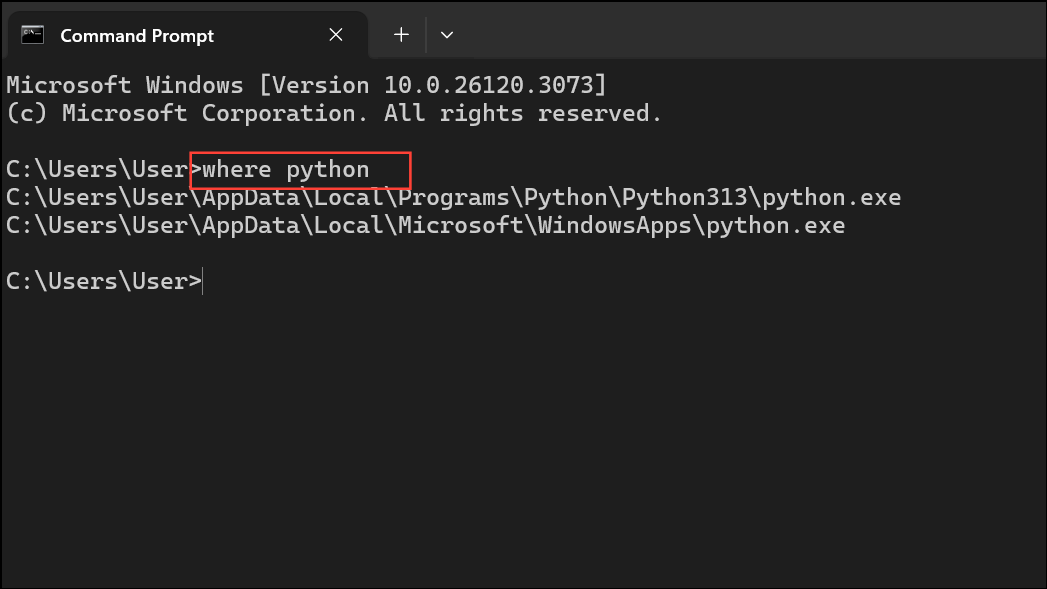
pip --version
where pip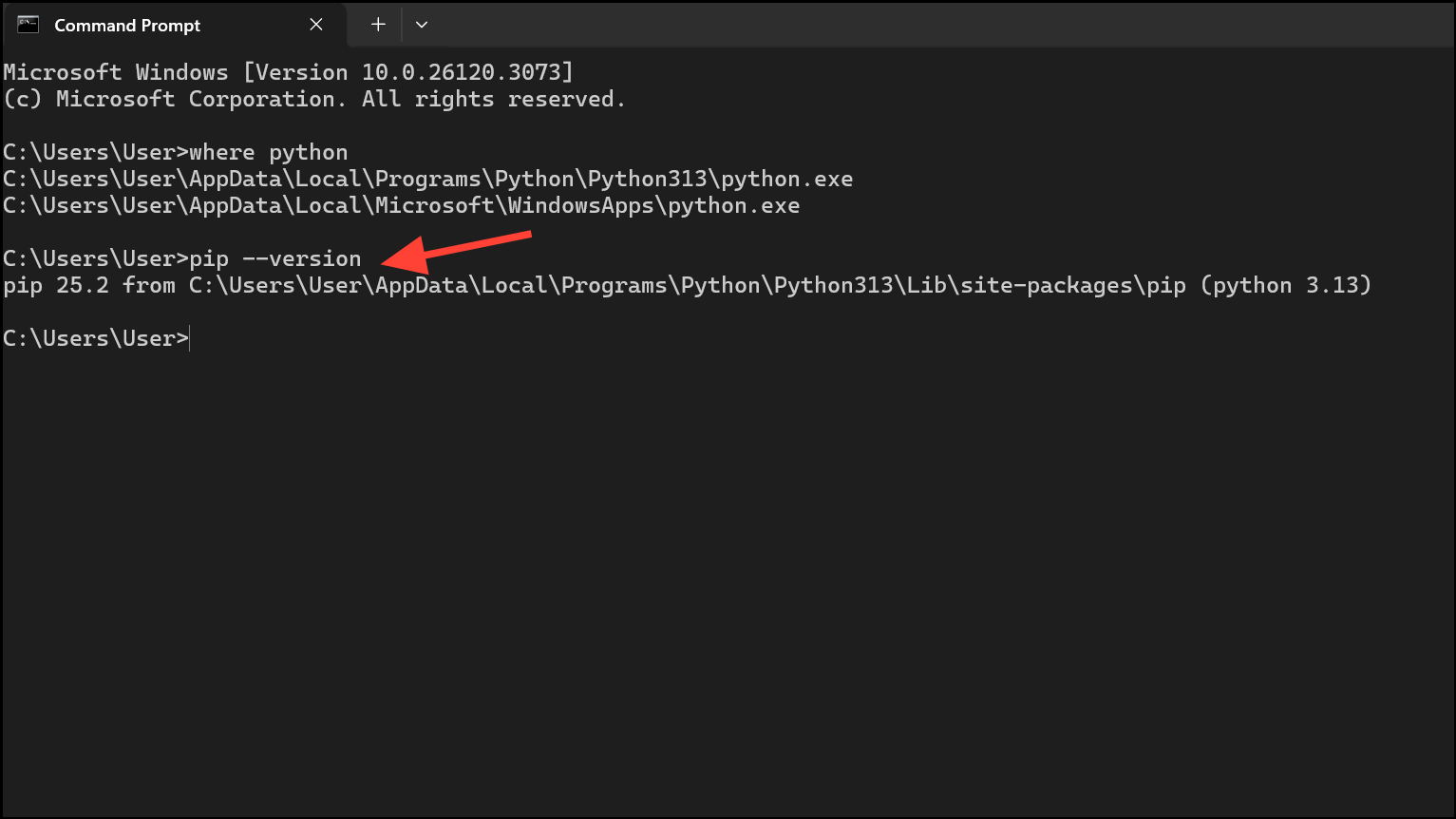
python opens the Microsoft Store, disable the corresponding App Execution Alias, or rely on py to launch the intended version.Once PATH is set (or the Launcher is in use), you can run Python and pip anywhere and avoid full paths. For multi-version setups, prefer the Python Launcher to pick exact versions reliably and keep projects isolated with virtual environments.



