
Formatting inconsistencies in Excel workbooks often slow down data review and reduce clarity, especially when data comes from multiple sources or users. The Cell Style feature in Microsoft Excel addresses this by allowing you to apply a set of formatting options—such as font, color, number format, and borders—to cells in a single action. This not only speeds up the process but also guarantees uniformity throughout your worksheets.
Applying Built-In Cell Styles
Built-in cell styles offer a quick way to apply consistent formatting to your data. These styles group together formatting elements like font, fill color, number format, and borders, making it easy to visually organize your spreadsheet.
Home tab and locate the Styles group. Click the Cell Styles dropdown arrow to open the style gallery.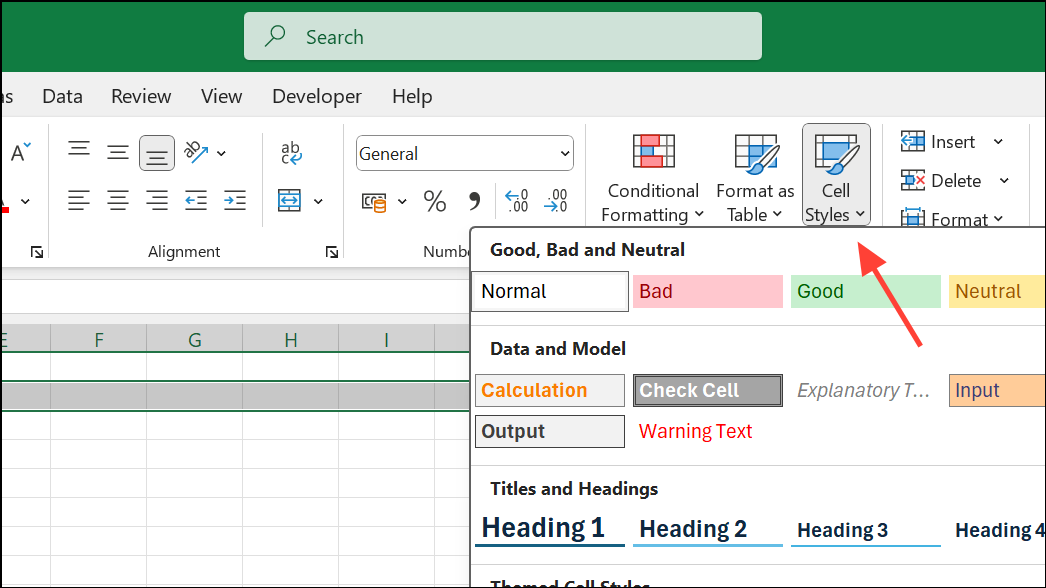
Heading 1 for main titles, or Good, Bad, and Neutral for quick data categorization.Cell styles are divided into sections like Good, Bad, and Neutral; Data and Model; Titles and Headings; Themed Cell Styles; and Number Format. These categories help you quickly find a style suitable for your data type and purpose.
Creating a Custom Cell Style
When built-in styles don’t meet your needs, creating a custom cell style allows you to define exactly how your data should look and behave.
Home tab, click the Cell Styles dropdown, then select New Cell Style at the bottom of the gallery.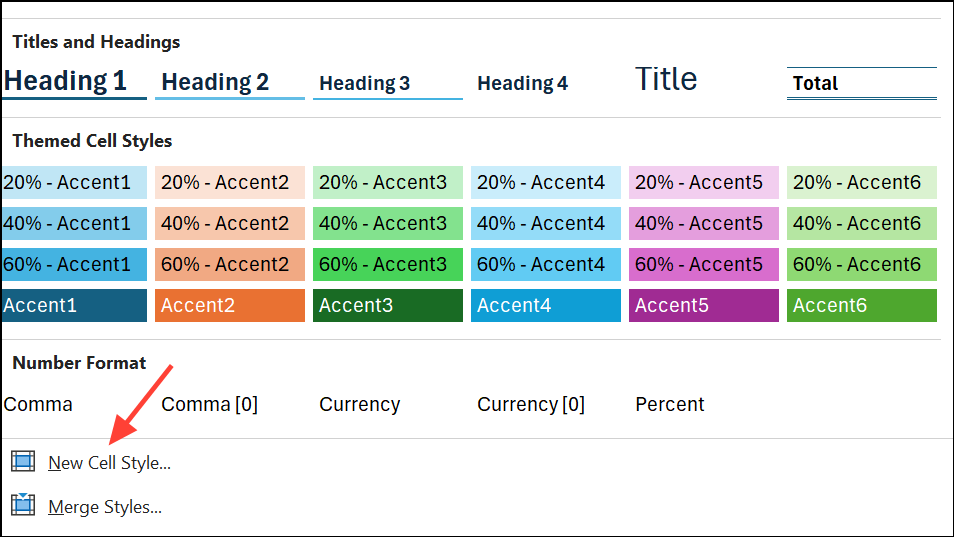
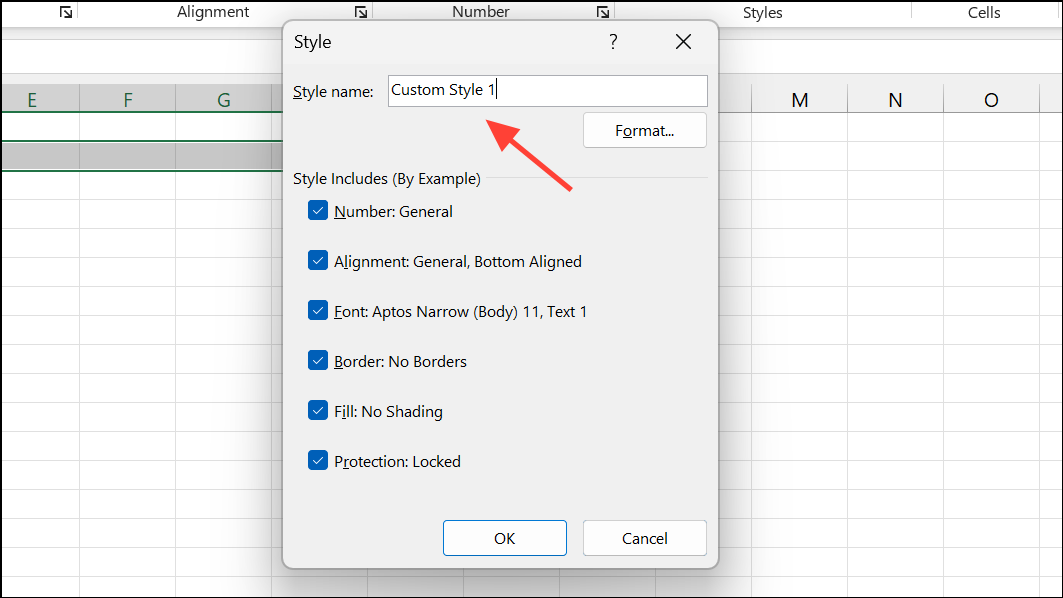
Format to open the Format Cells dialog. Here, you can adjust number, alignment, font, border, fill, and protection settings. Uncheck any formatting options you don’t want included.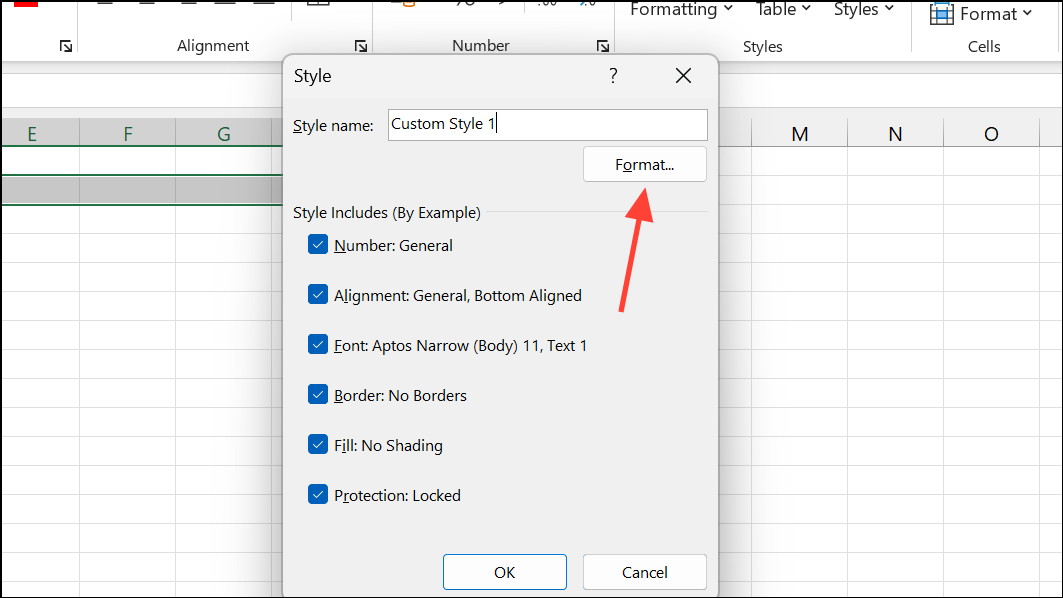
OK to save your custom style. It will now appear in the Custom section of the Cell Styles gallery for easy reuse.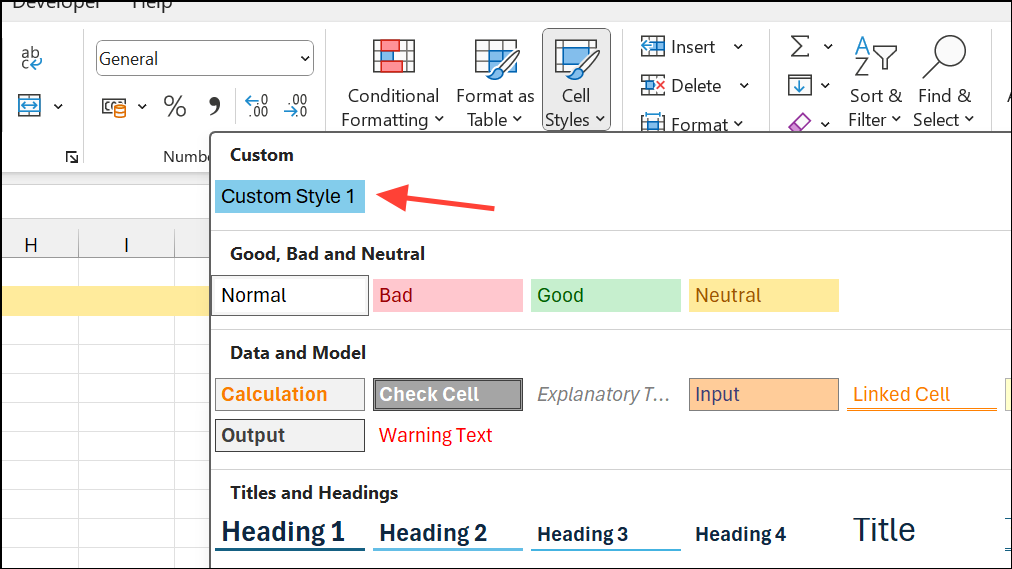
Custom cell styles are especially useful for branding, recurring reports, or any scenario where a unique look is required across multiple sheets.
Modifying and Duplicating Existing Cell Styles
Adjusting an existing style or creating a variation saves time and keeps your formatting consistent. There are two main approaches:
Duplicating a Style
Duplicate.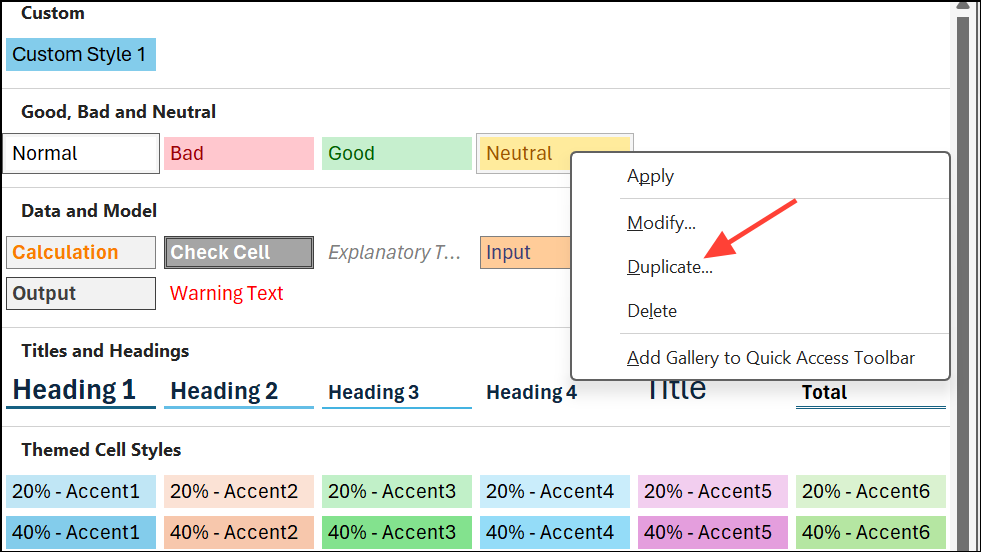
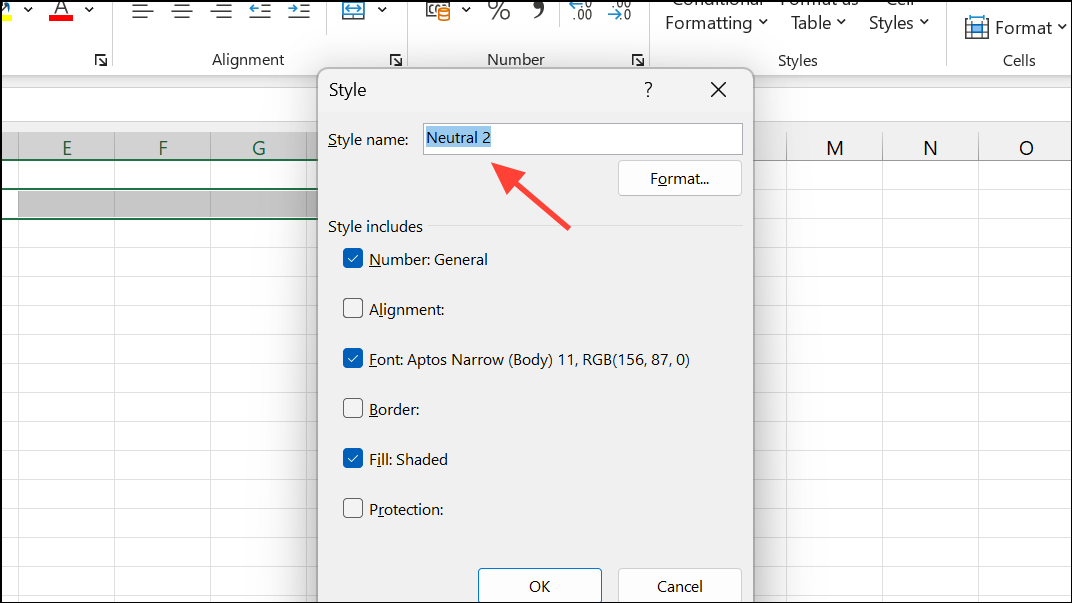
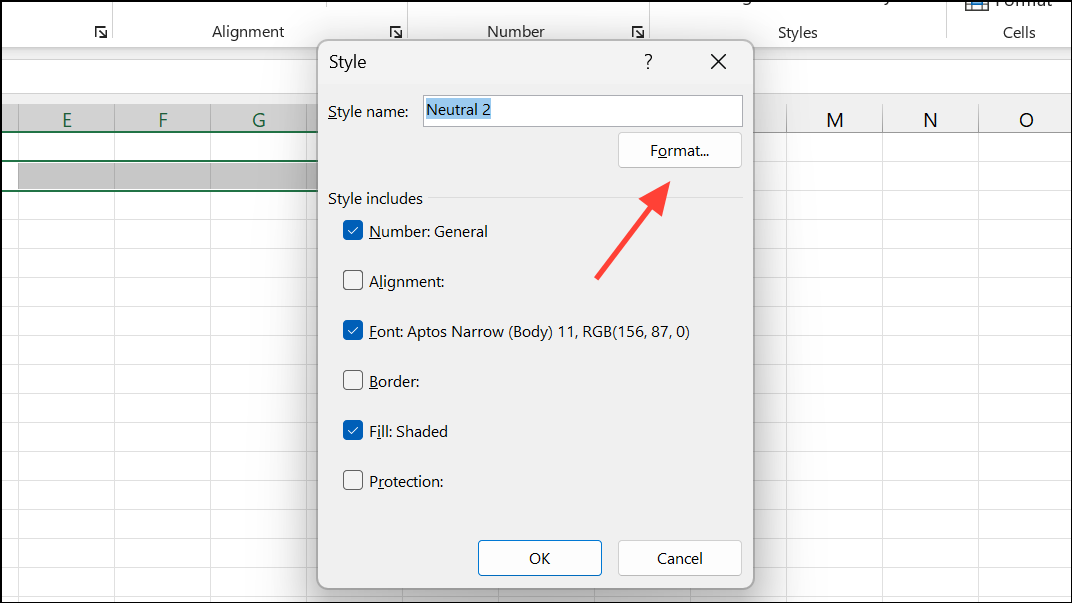
This method keeps the original style unchanged and creates a new custom style for your specific needs.
Modifying a Style
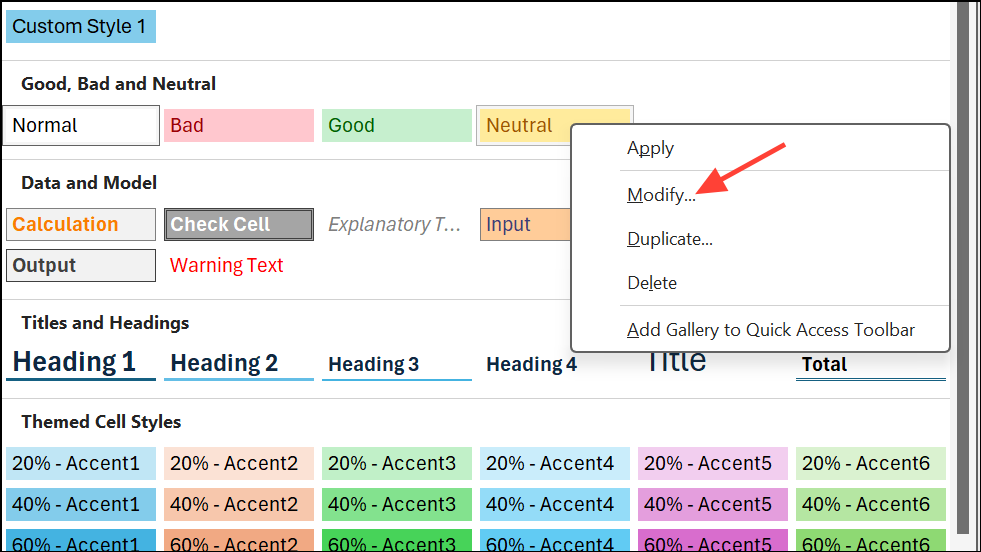
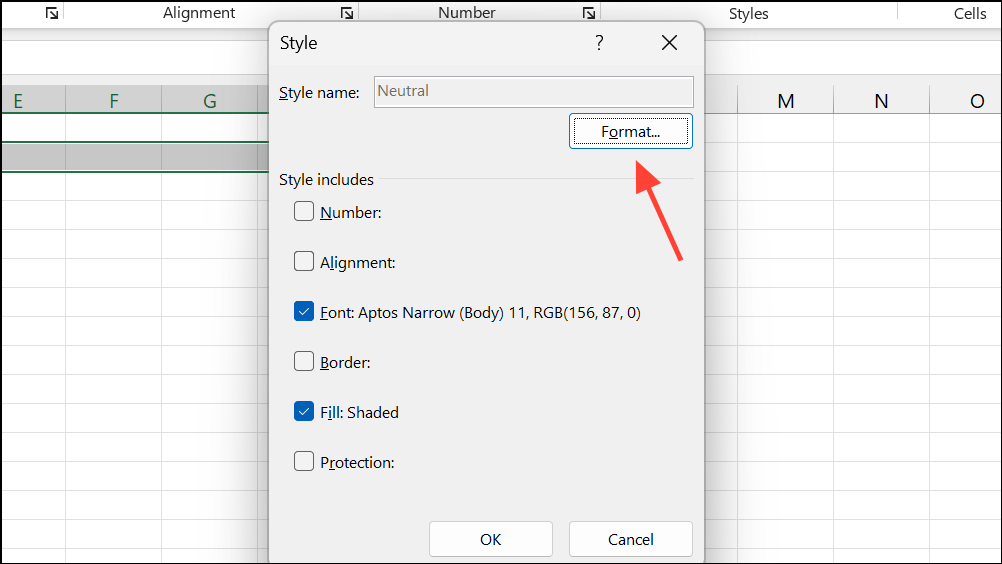
Changes to built-in styles update all cells using that style in the workbook. Custom styles can be renamed, but built-in styles cannot.
Removing and Deleting Cell Styles
Sometimes, you may need to revert cells to their default appearance or remove unused styles from your workbook.
Removing a Cell Style from Data
Normal under the Good, Bad, and Neutral section. This resets selected cells to Excel’s default formatting.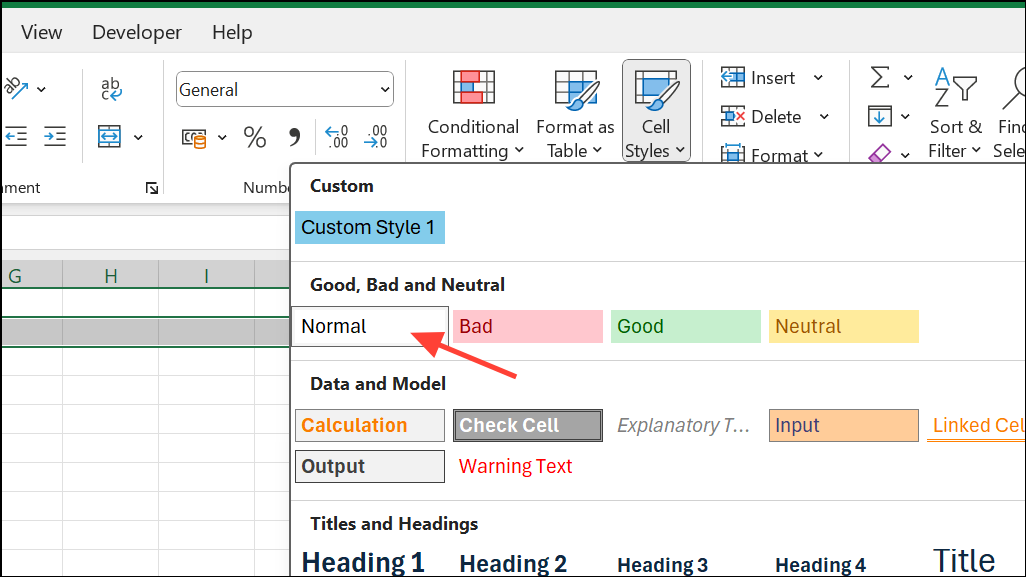
Deleting a Cell Style
Delete.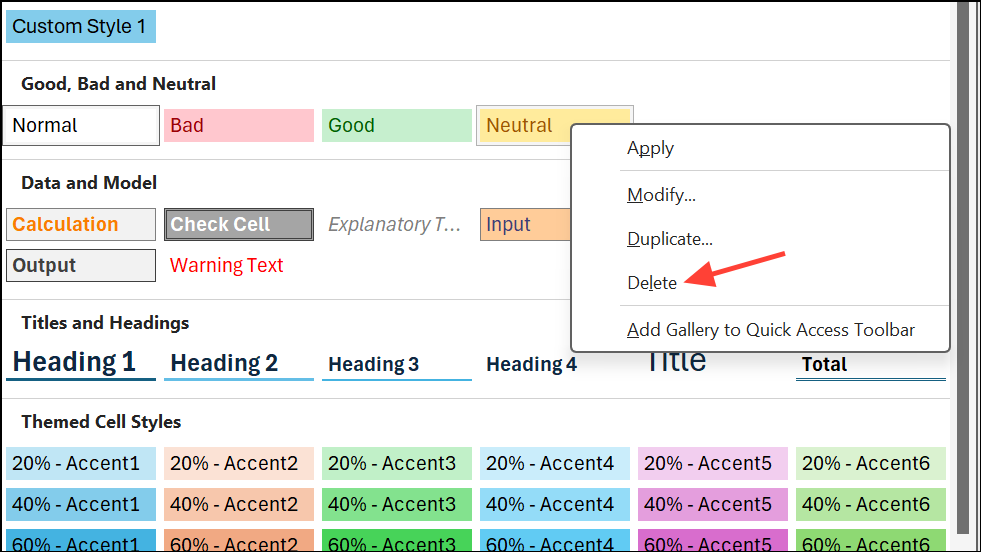
Deleting a style removes it from all cells using it in your workbook.
Normal style cannot be deleted.Copying Cell Styles Between Workbooks
To maintain consistency across multiple workbooks, you can import cell styles from one file to another using the Merge Styles feature.
Home tab, click Cell Styles, and then select Merge Styles at the bottom of the dropdown menu.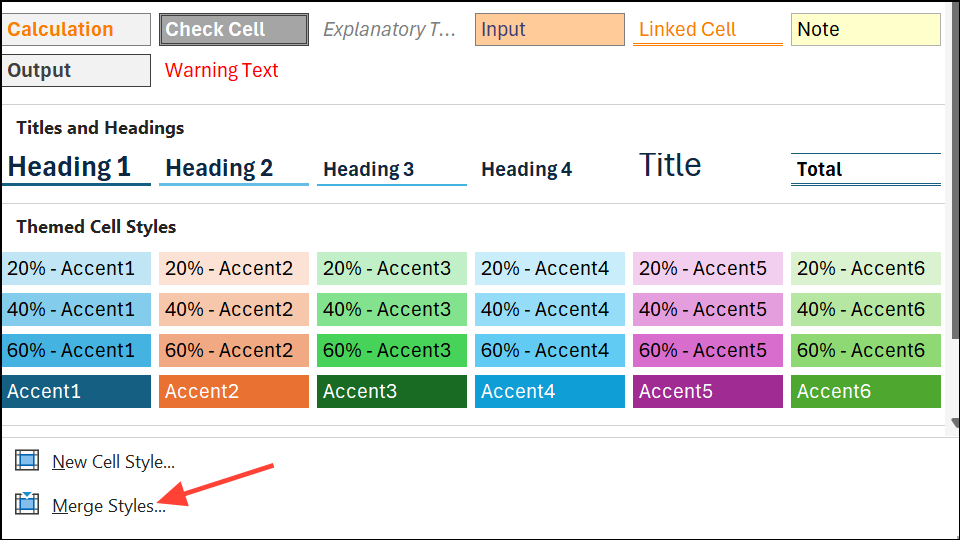
OK. The imported styles will now be available in your destination workbook.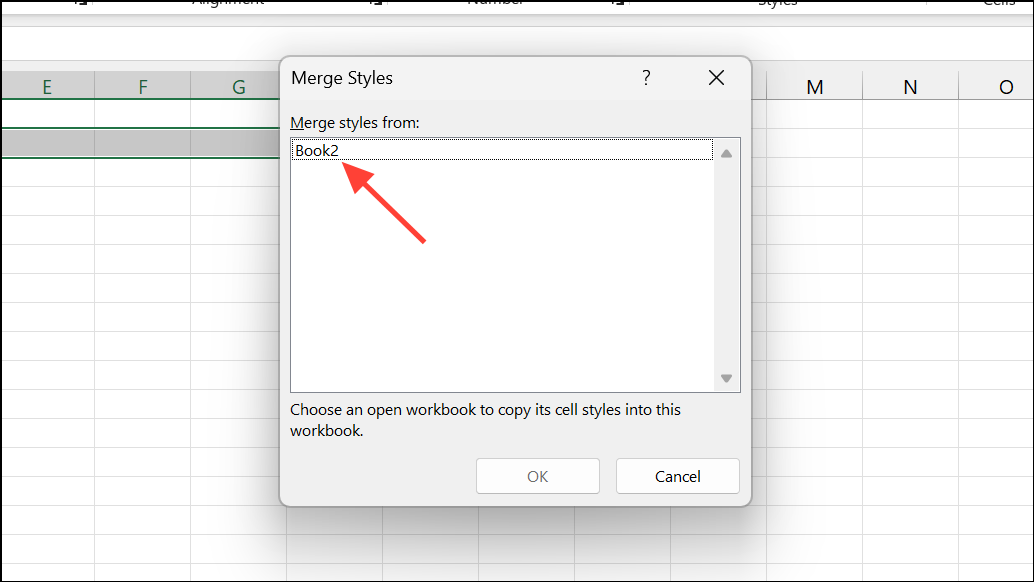
This process is especially useful for applying consistent branding or formatting standards across multiple projects, or for restoring deleted built-in styles.
Making Cell Styles Available in All New Workbooks
If you want your custom cell styles to be readily available every time you create a new workbook, you can save them in a template file.
Book.xltx in your Excel startup folder, typically located at %appdata%\Microsoft\Excel\XLSTART. You can access this hidden folder by entering %appdata% in the File Explorer address bar and navigating to Microsoft > Excel > XLSTART.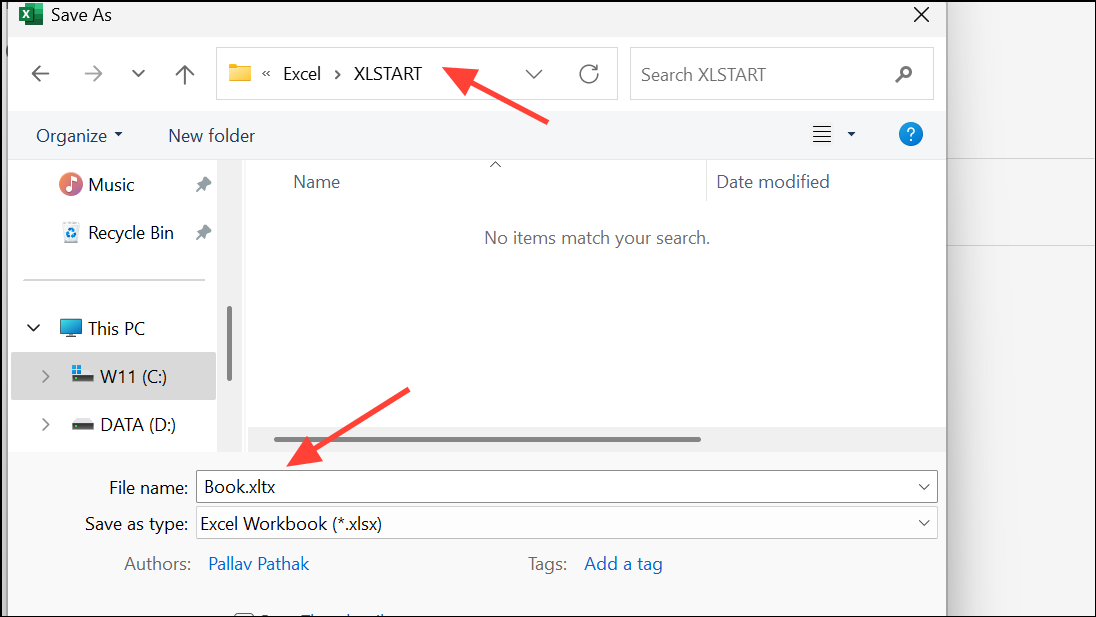
Ctrl+N or the New command) will include your custom styles by default. Existing workbooks will not be affected.This approach streamlines formatting in future workbooks and eliminates the need to manually recreate styles each time.
Using the Cell Style feature in Excel speeds up formatting, keeps your data visually consistent, and reduces repetitive manual work. Whether you’re managing reports, financial statements, or project trackers, mastering cell styles can save you time and improve the clarity of your spreadsheets.





