
Running the Windows 11 Installation Assistant and encountering error code 0x8007007f usually signals a permissions or compatibility problem that blocks the upgrade process. This error can abruptly halt the transition from Windows 10 to Windows 11, often after the installation process has already started. Addressing this issue involves ensuring the installer has the necessary administrative rights, updating your system, and confirming there’s enough free space on your primary drive.
Run the Installation Assistant as Administrator
Windows11InstallationAssistant.exe file you downloaded for the upgrade. This is typically found in your Downloads folder unless you chose a different location.Run as administrator. This step is crucial because insufficient permissions are a leading cause of the 0x8007007f error. When prompted by User Account Control (UAC), click Yes to allow the installer to make changes to your device.Enable User Account Control (UAC)
UAC or User Account Control. Select Change User Account Control settings from the results.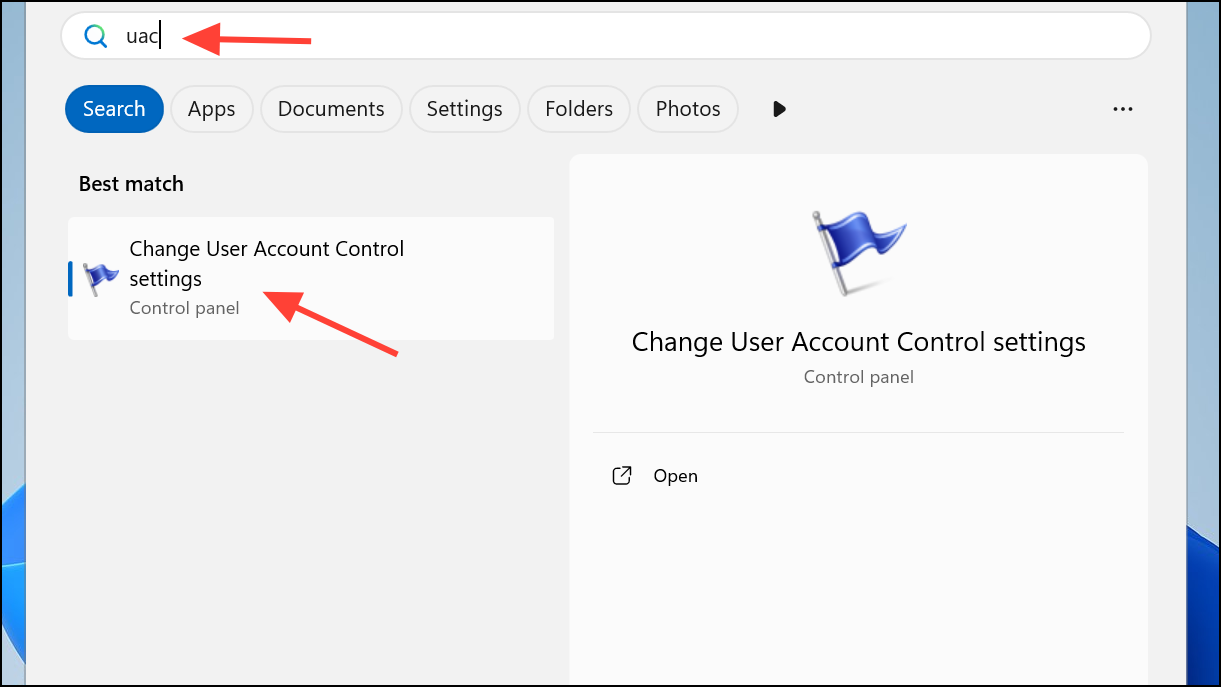
OK and restart your computer if prompted.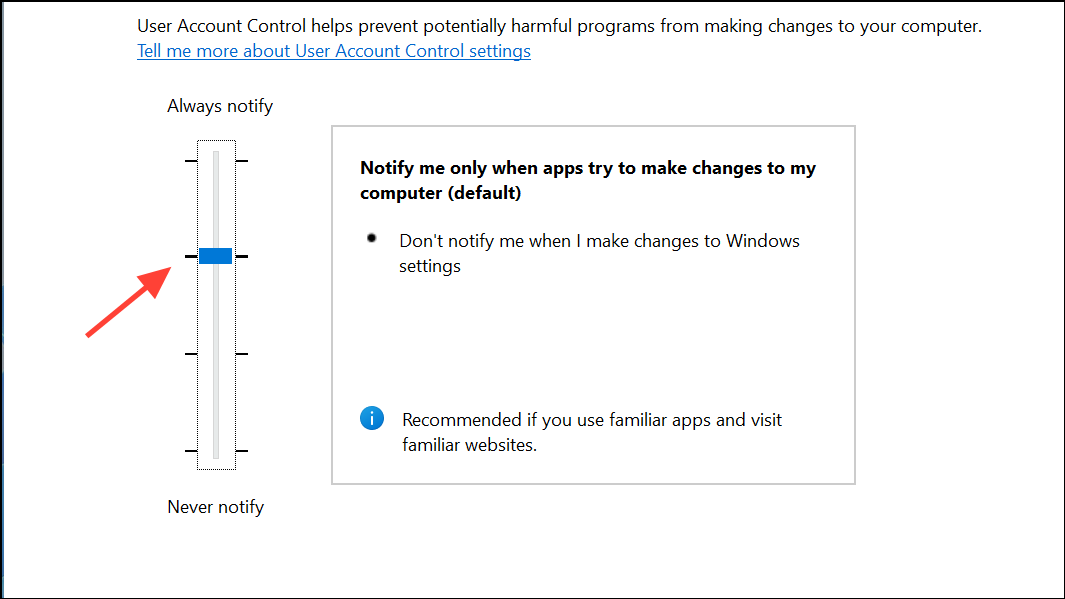
Turning UAC back on ensures that the installer can prompt for and receive the necessary permissions. Several users report that enabling UAC and then re-running the installer as administrator allows the installation to proceed past the error.
Free Up Disk Space on the System Drive
Win + E to open File Explorer. Right-click your system drive (usually C:) and select Properties.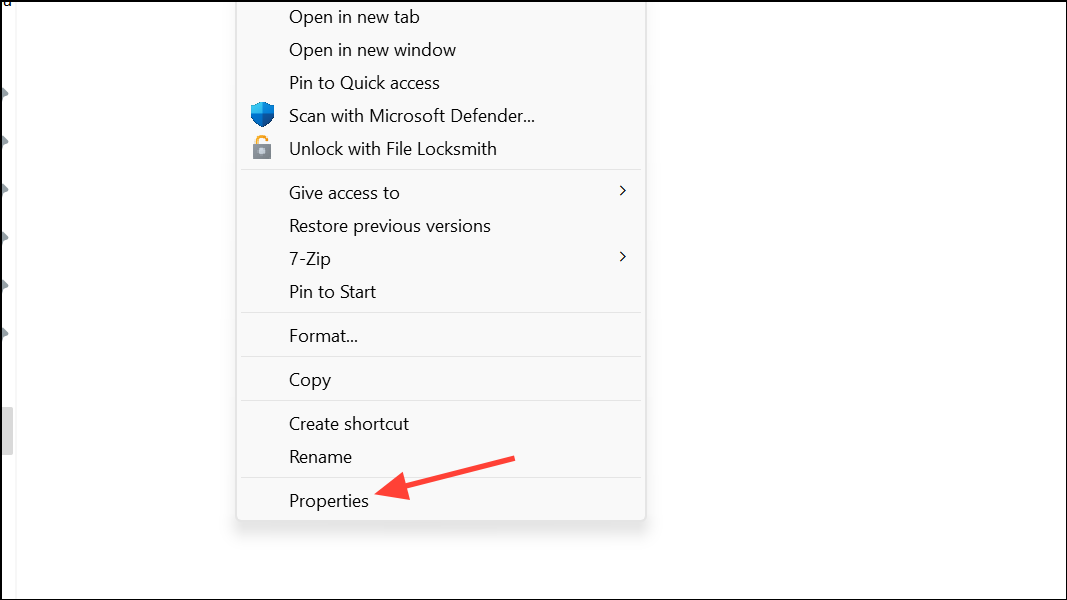
General tab, click Disk Cleanup. Choose files you no longer need, such as temporary files and previous Windows installations, then click OK to delete them.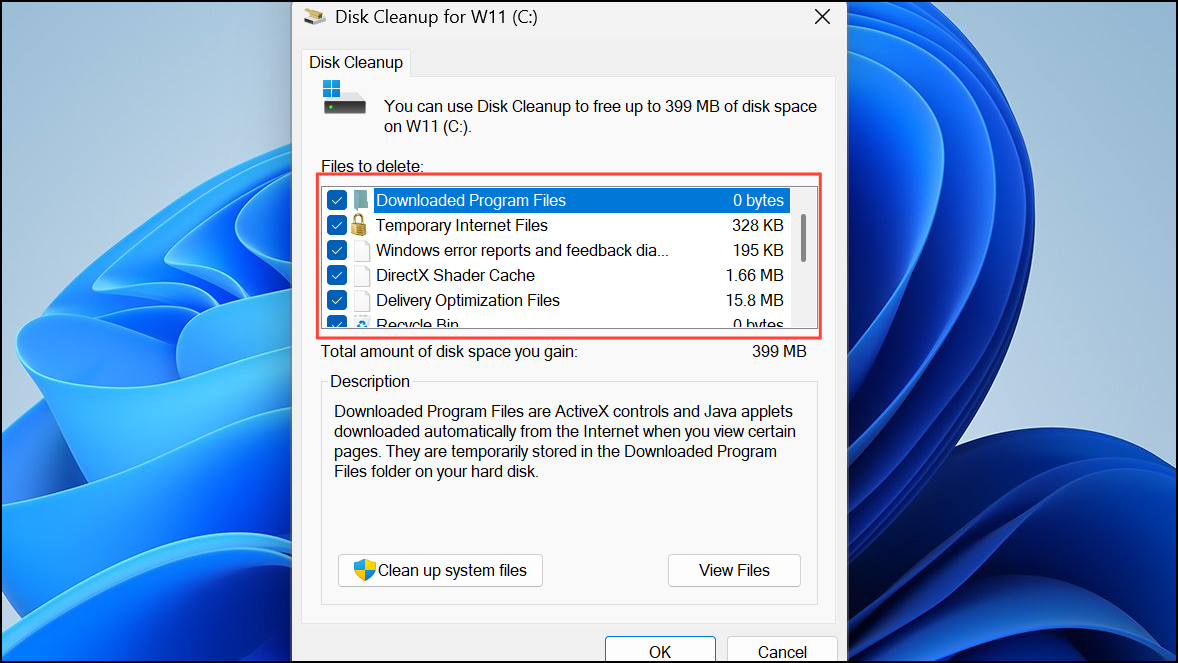
Clean up system files within the Disk Cleanup window. Select additional categories, including Windows Update Cleanup, and confirm deletion.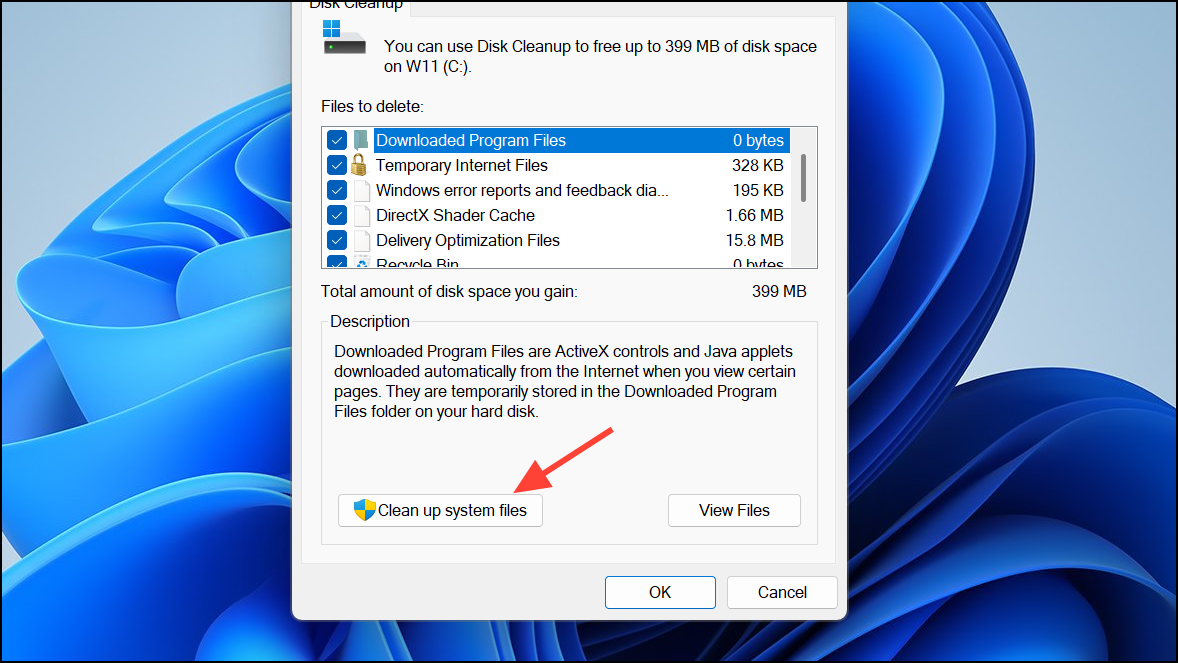
While the official minimum is about 9 GB, reports indicate that having at least 20-60 GB free is more reliable, since the installer creates backup files and needs working space for extraction and rollback.
Update Windows 10 to the Latest Version
Check for updates and install any available updates. The Windows 11 installer requires Windows 10 version 2004 or newer.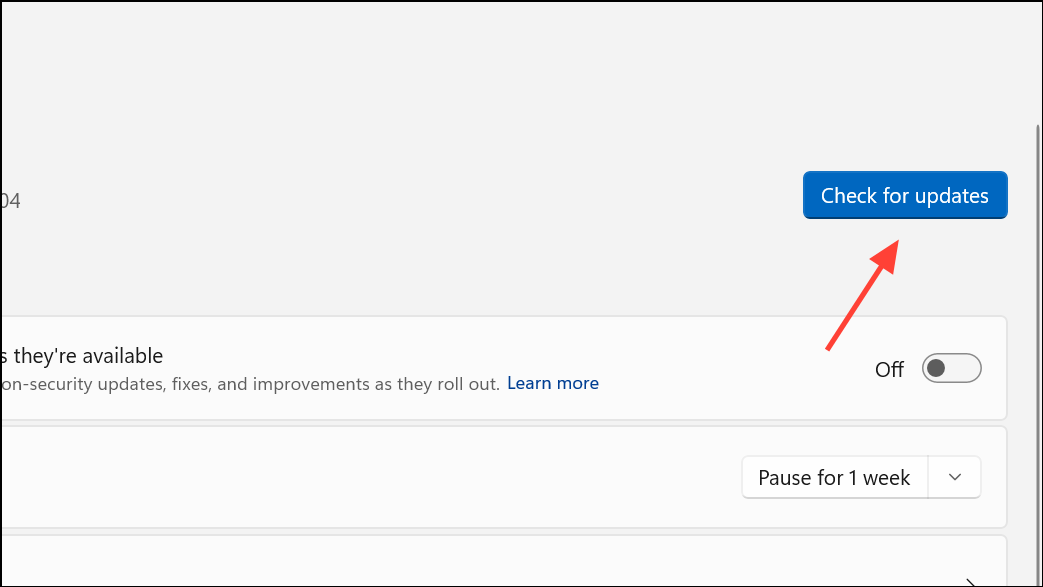
Running an outdated version of Windows 10 can cause compatibility problems that result in the 0x8007007f error, so keeping your system updated is essential.
Update Graphics Drivers
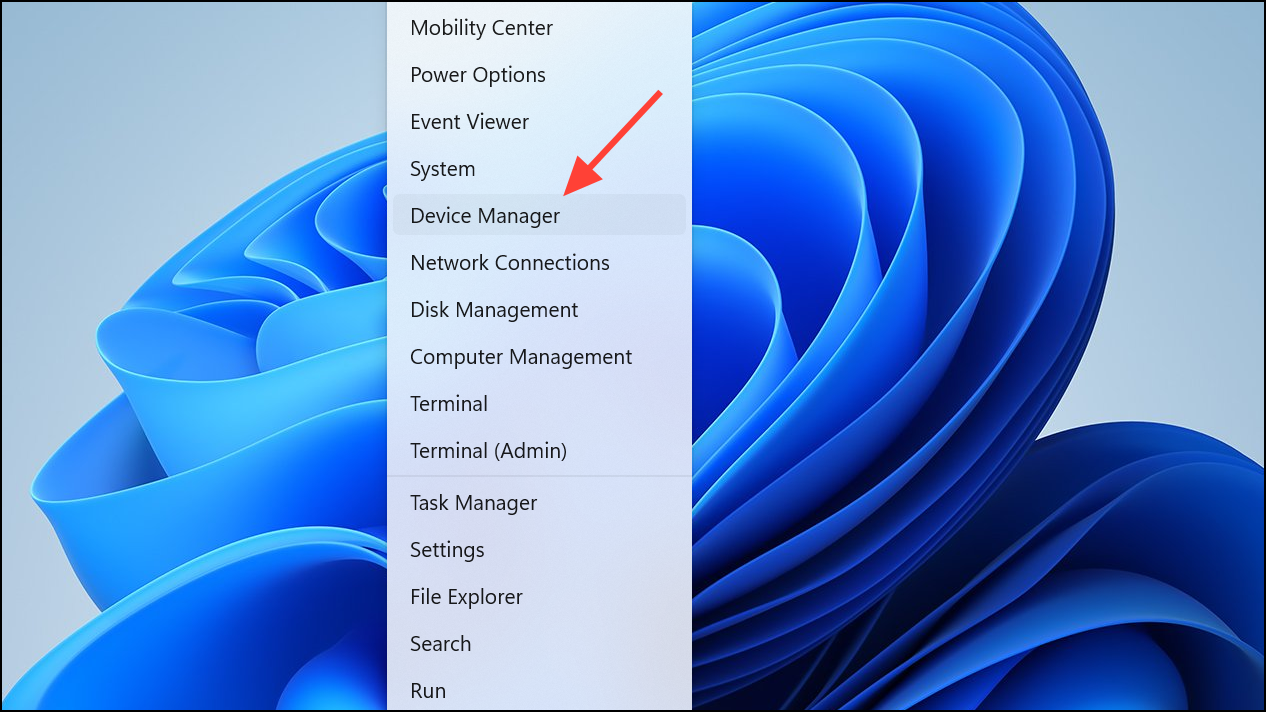
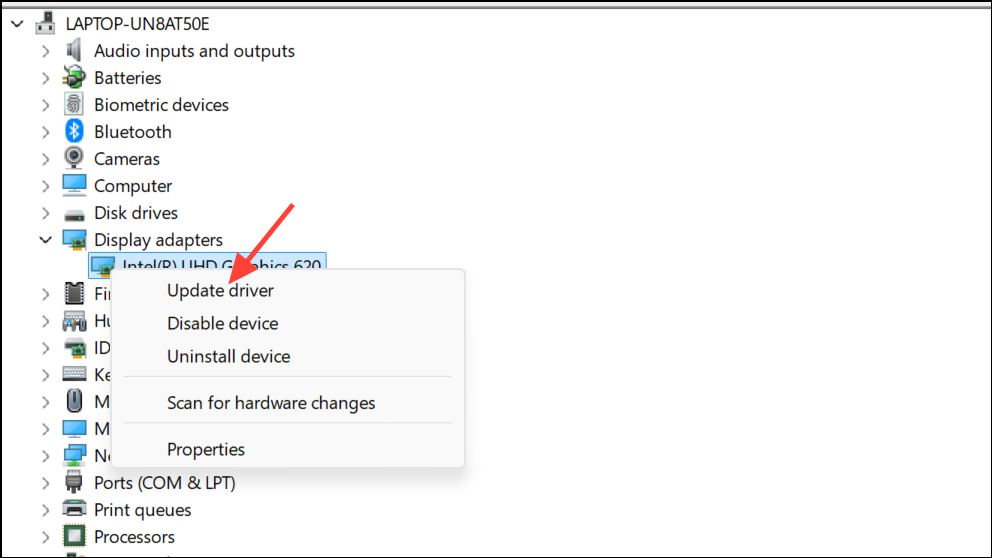
Search automatically for drivers and let Windows search for and install any updates. Outdated or incompatible graphics drivers have been linked to installation failures with error code 0x8007007f.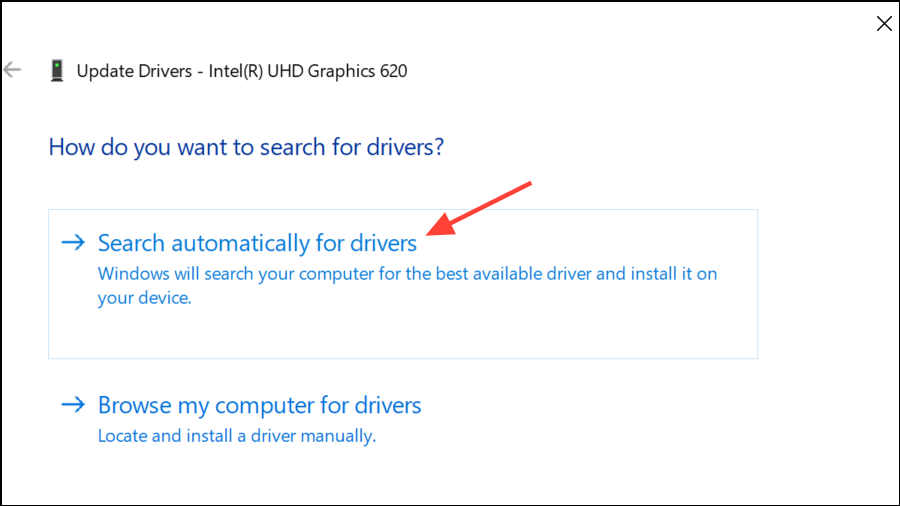
Scan and Repair System Files
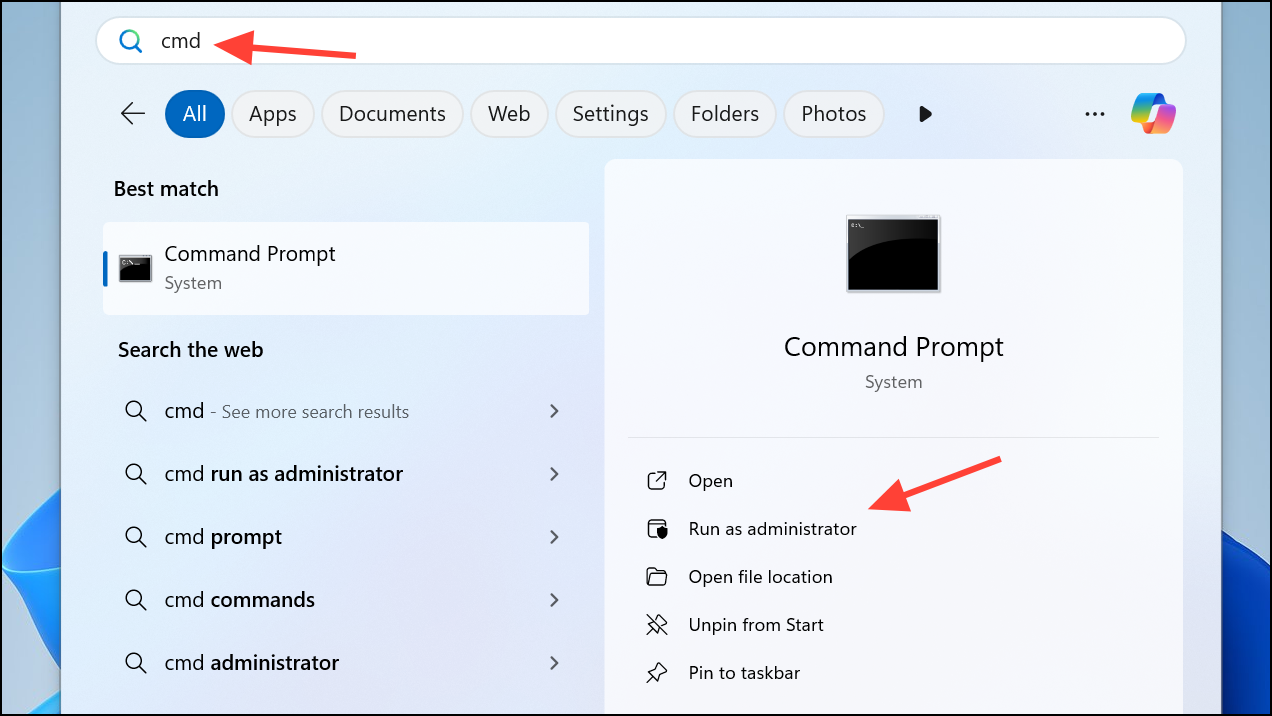
sfc /scannow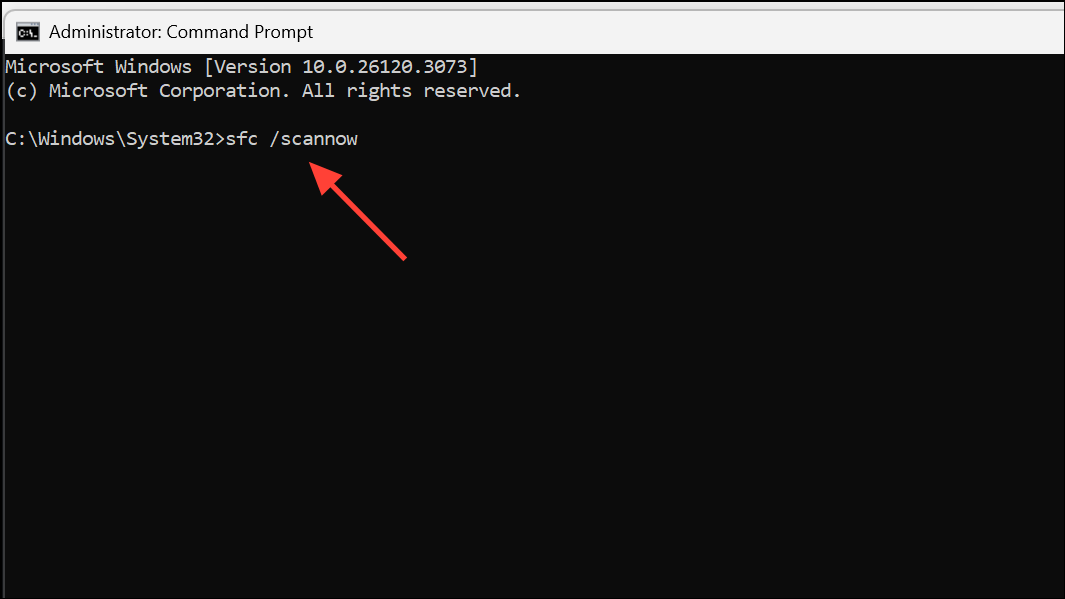
This command checks for and repairs corrupted system files that could interfere with the installation process. Wait for the scan to complete, then try the upgrade again.
Alternative Methods and Additional Checks
- If the Installation Assistant continues to fail, download the official Windows 11 ISO from Microsoft’s website, mount it, and run
setup.exeas administrator. - Confirm that your PC meets all Windows 11 requirements, including TPM 2.0 and Secure Boot. Use
tpm.mscto check TPM status. - Disable or temporarily uninstall third-party antivirus software, as it may block installer actions.
- Turn off Developer Mode under
Settings > Update & Security > For Developersbefore running the installer. - If you have used privacy or system tweaking utilities (like O&O Shutup10++), restore default settings before attempting the upgrade.
Addressing Windows 11 error code 0x8007007f usually comes down to running the installer with elevated permissions, confirming system requirements, and ensuring your PC is updated. Tackle these steps methodically, and you’ll typically resolve the installation roadblock without a full reinstall.



