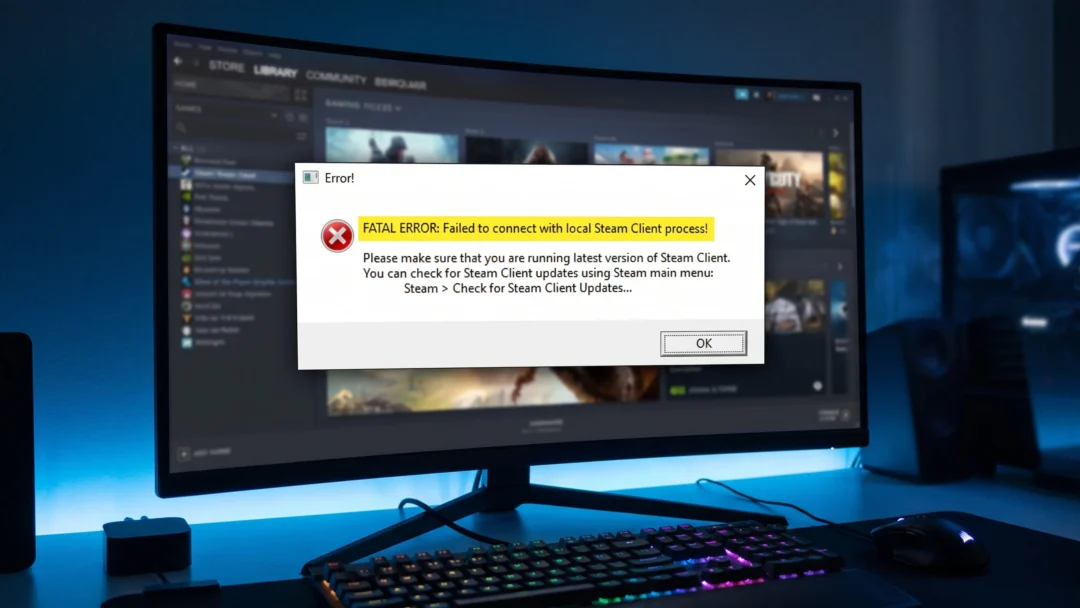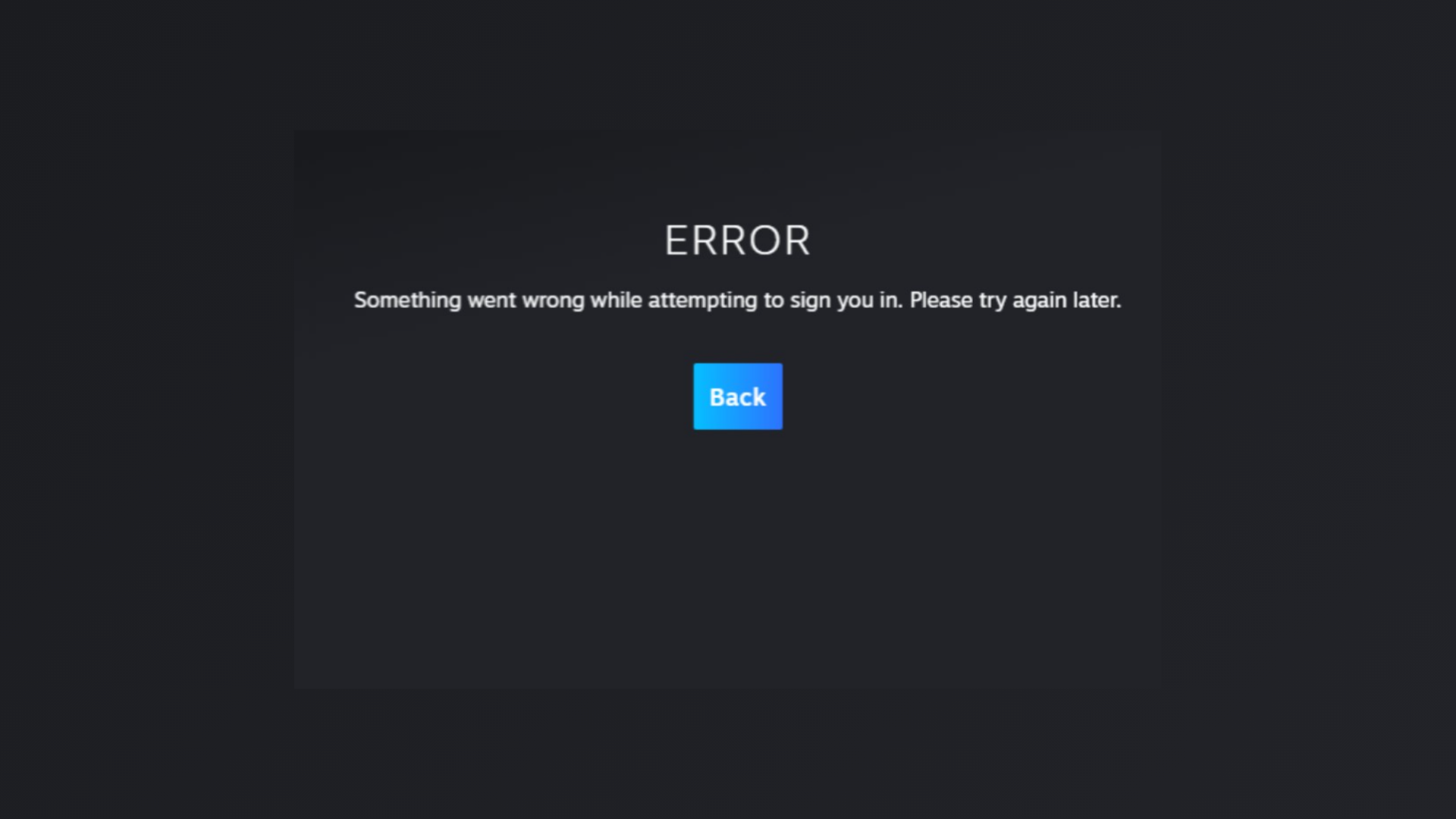
Steam Error Code 83 stops games from launching by disrupting the connection between your PC, Steam, and sometimes the game’s servers. This error can show up due to software conflicts, firewall or antivirus blocks, outdated drivers, or even hardware issues like overheating or disk problems. Addressing the most likely causes first will get you back to gaming faster, so follow these detailed steps to troubleshoot and resolve Error Code 83.
Verify Game File Integrity in Steam
Library tab at the top of the window. This displays all your installed games.Properties from the context menu. This opens the game’s settings panel.Local Files tab, then select Verify integrity of game files. Steam will scan your local game files and compare them to the server’s versions.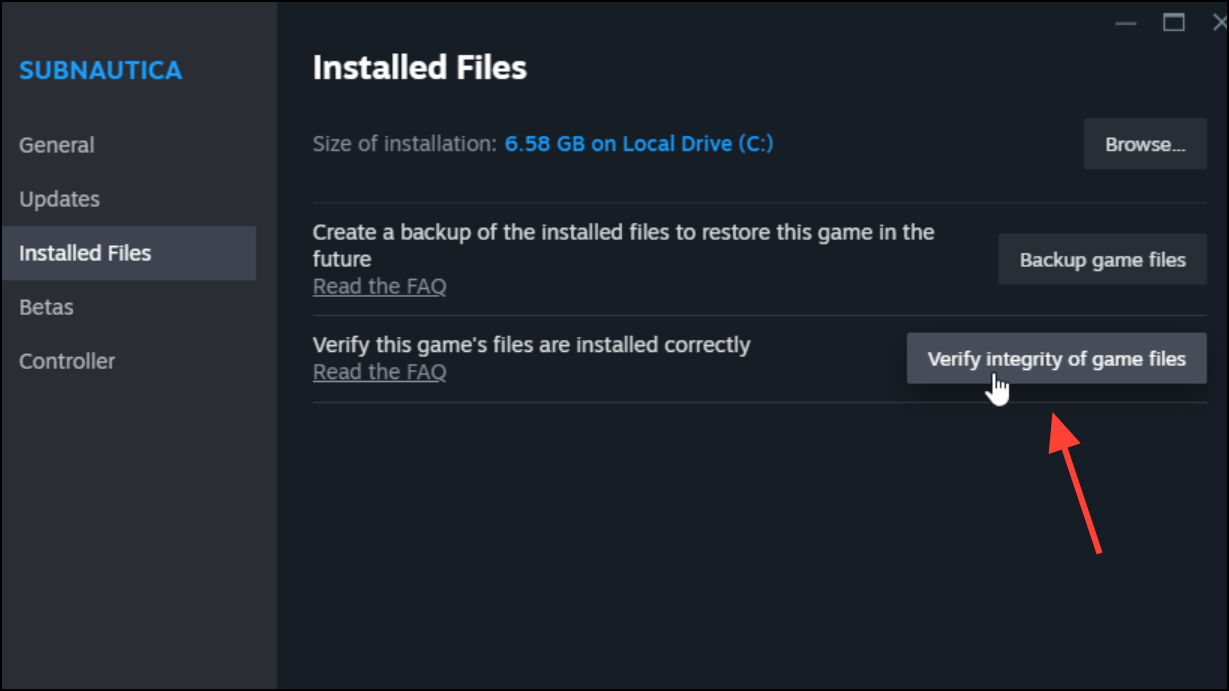
Update Windows and Graphics Drivers
Windows + I to open Settings, then go to Update & Security. Click Windows Update and select Check for updates. Install any available updates and restart your PC if required.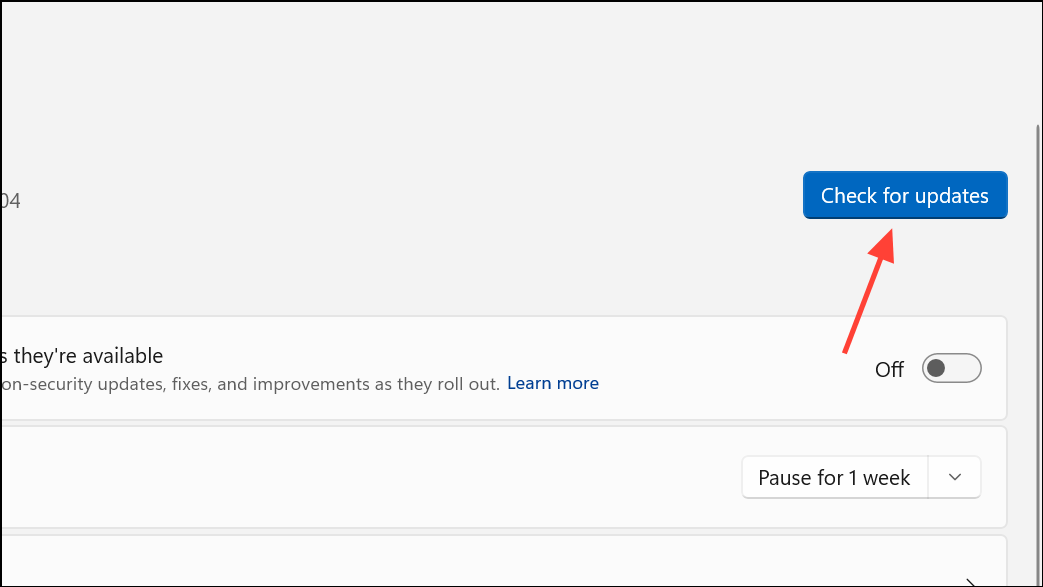
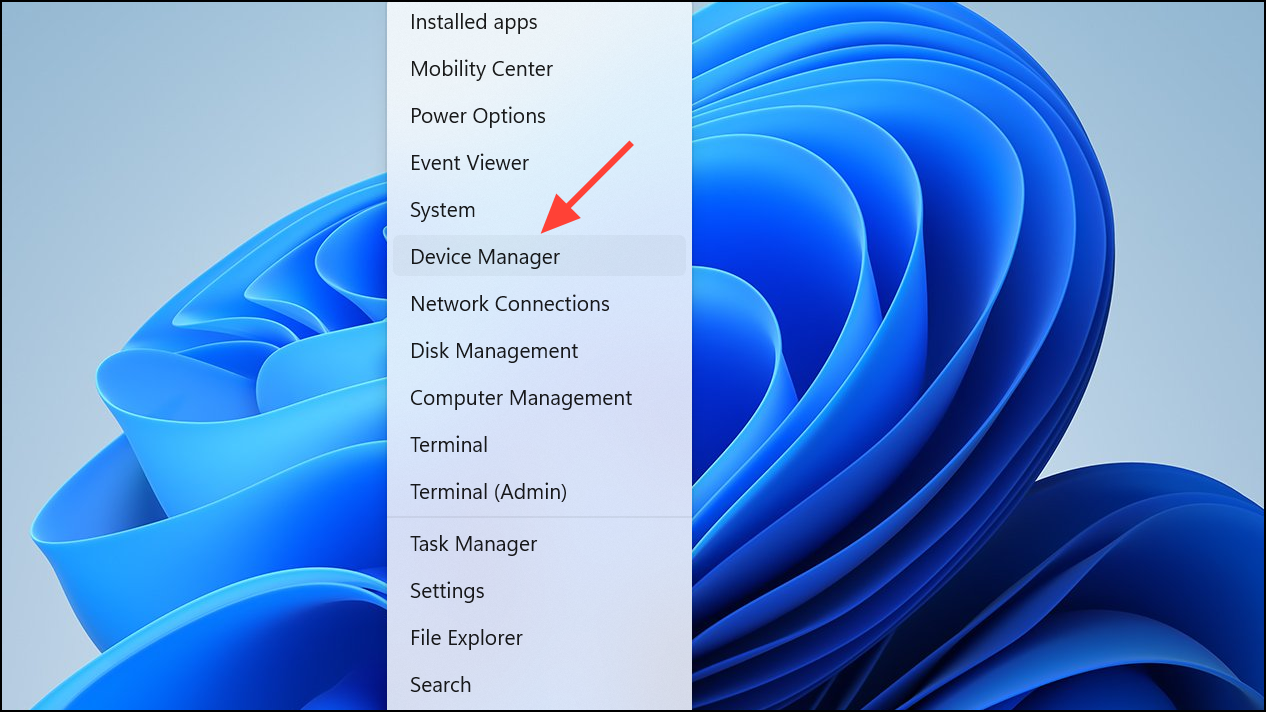
Display adapters, right-click your GPU, and choose Update driver. Select Search automatically for drivers and follow prompts. Restart your PC after updating.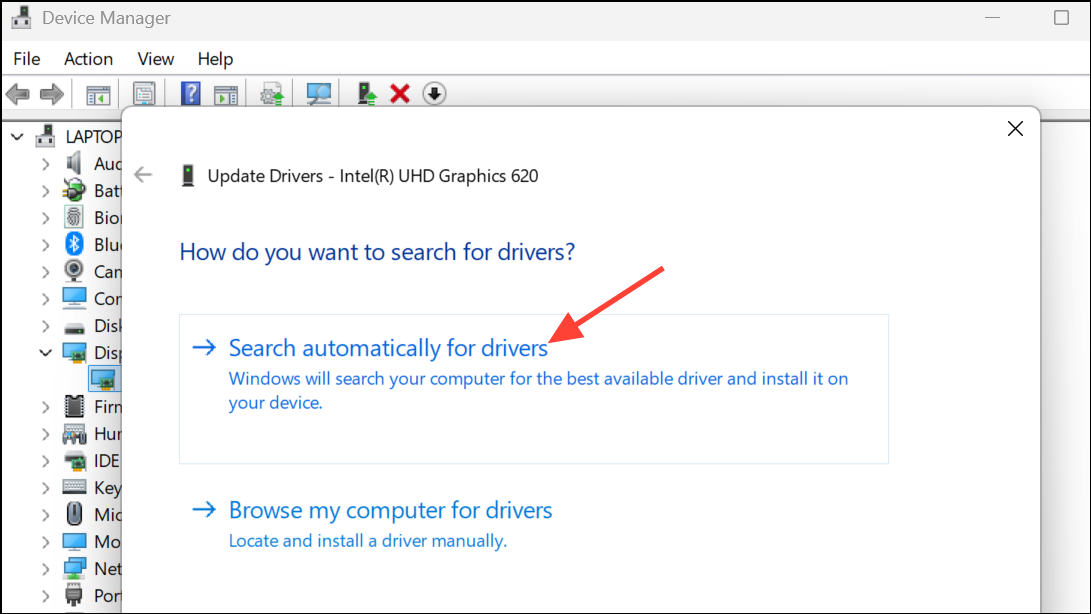
Keeping Windows and drivers up to date ensures compatibility with Steam and prevents errors caused by outdated software.
Allow Steam and Games Through Firewall and Antivirus
Windows Security from Settings, then go to Firewall & network protection and click Allow an app through firewall. Click Change settings, then add Steam and the game if they’re not listed, checking both Private and Public boxes.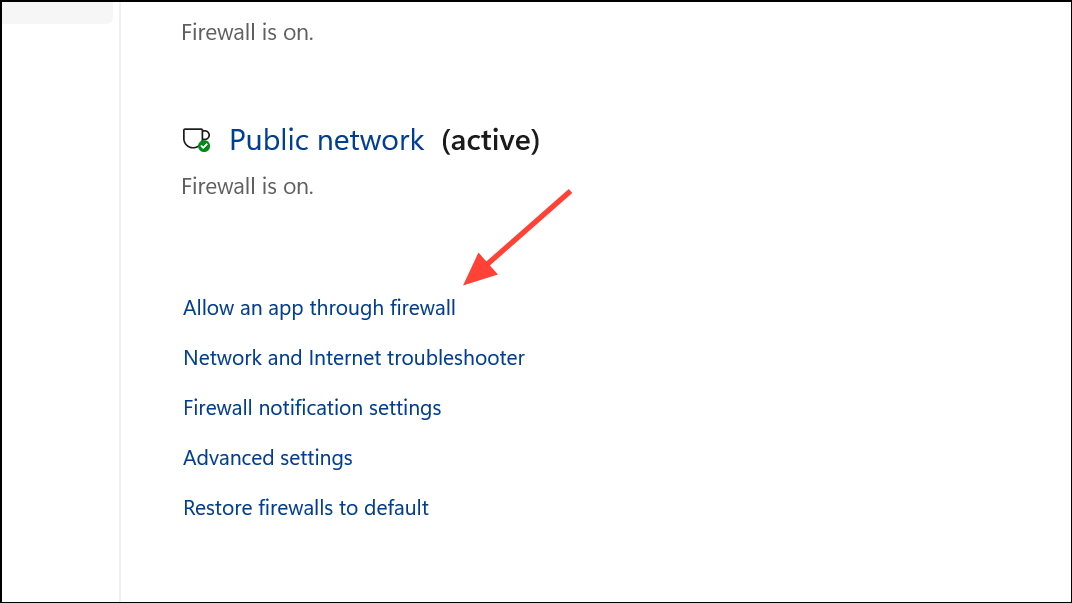
Virus & threat protection > Manage settings > Add or remove exclusions and add the relevant folders.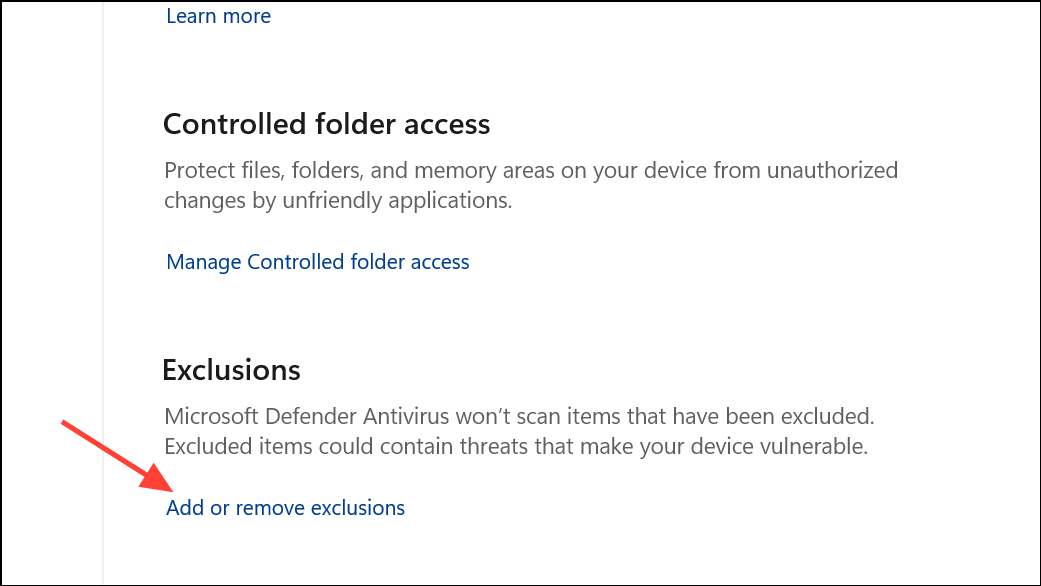
This step prevents security software from blocking essential network or file access for Steam and your games.
Run Steam as Administrator
Run as administrator. This grants Steam the necessary permissions to access protected system resources and network features.Properties, go to the Compatibility tab, and check Run this program as an administrator. Click OK.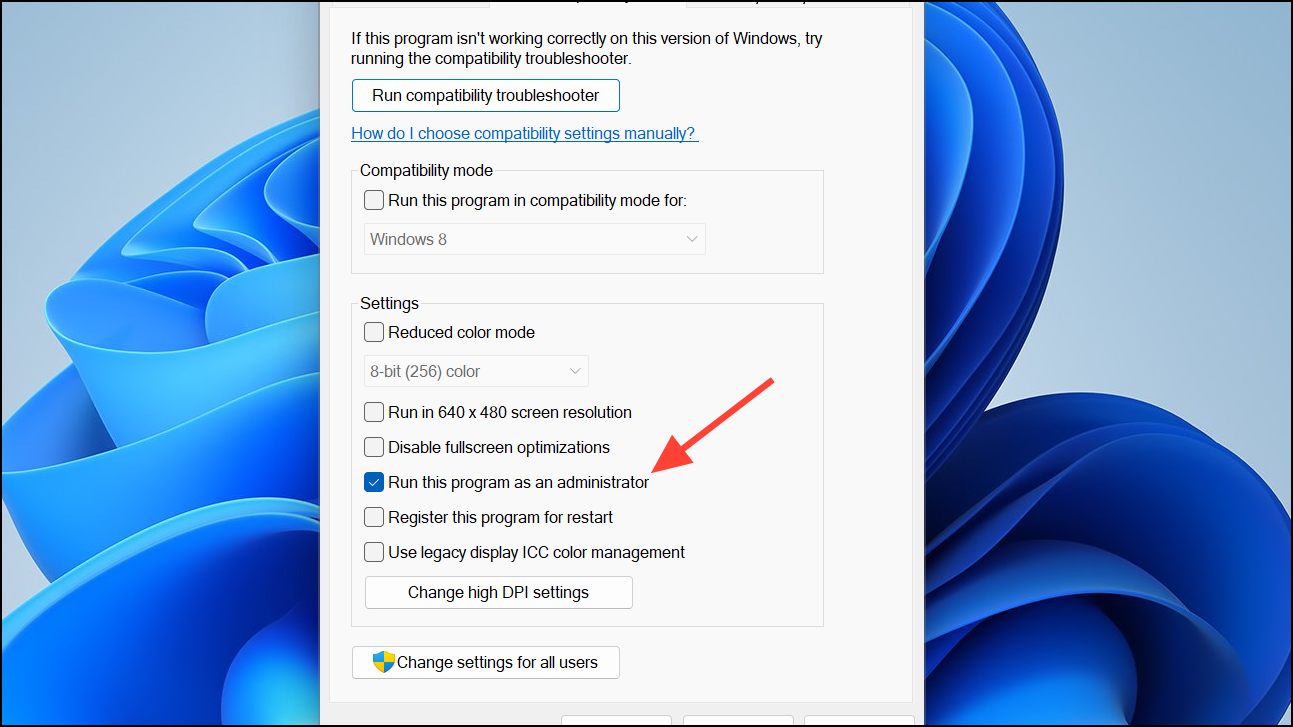
This approach resolves permission-related launch issues, especially after system updates.
Clean Temporary Files and Steam Download Cache
Windows + I, go to System > Storage, and select Temporary files. Check the boxes for files you want to delete and confirm the deletion.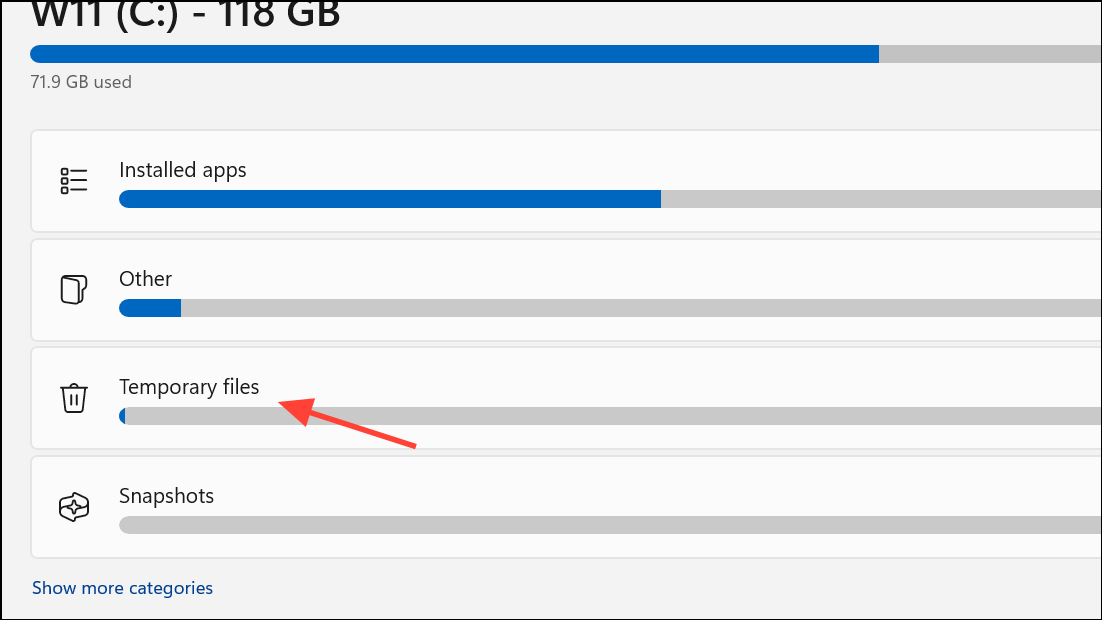
Steam in the top-left, choose Settings, then Downloads, and click Clear Download Cache. Steam will restart and you’ll need to log in again.Removing temporary files and cache addresses issues caused by corrupt or outdated data.
Check for Hardware and System Issues
Command Prompt as administrator and run chkdsk /f to scan and repair disk errors.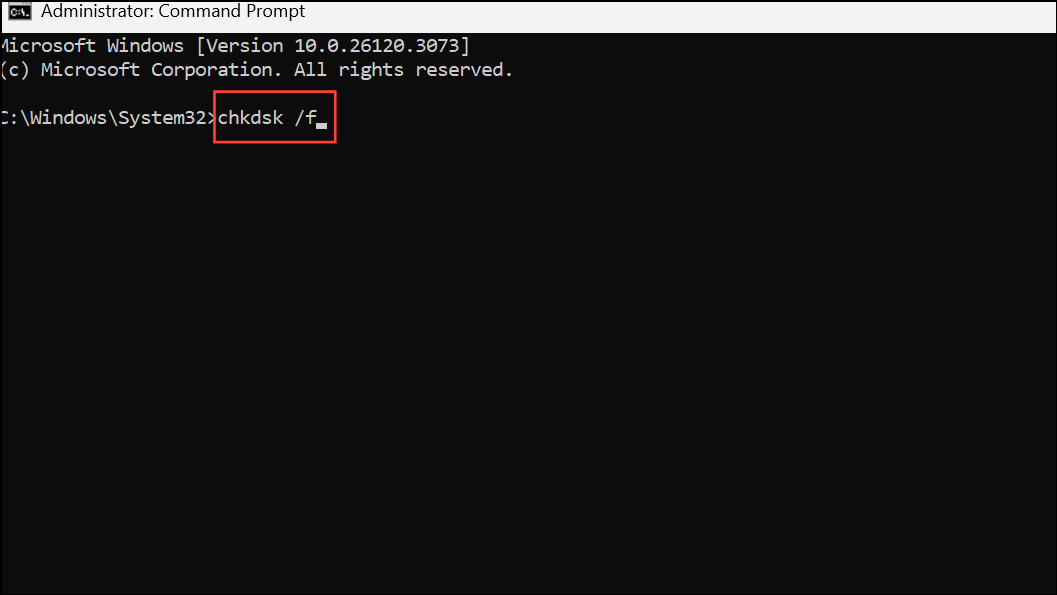
Adjust Game and Steam Settings
Properties, and unchecking Enable the Steam Overlay while in-game.Borderless Windowed instead of Fullscreen, as some users report fewer disconnects in this mode.Properties, and in Launch Options enter -dx11 or -dx12 to force a specific DirectX version.Reinstall the Game or Steam Client
Manage > Uninstall, then reinstall it from your library.steamapps folder to a safe location, uninstall Steam, then reinstall and restore your games.Addressing Steam Error Code 83 involves checking game files, updating software, configuring security settings, and sometimes tackling hardware problems. Once you pinpoint the cause, you’ll be able to launch your games smoothly again.