

Task Manager sometimes displays fewer CPU cores than your processor actually has, which can cause confusion about system performance or raise concerns about hardware problems. This discrepancy often stems from specific Windows configuration settings or BIOS options that limit the number of active cores, rather than from a hardware defect or physical CPU failure.
Adjusting Windows Boot Settings Using System Configuration
Windows + R to launch the Run dialog. Then type msconfig and press Enter. This brings up the System Configuration window, where you can manage boot and startup options.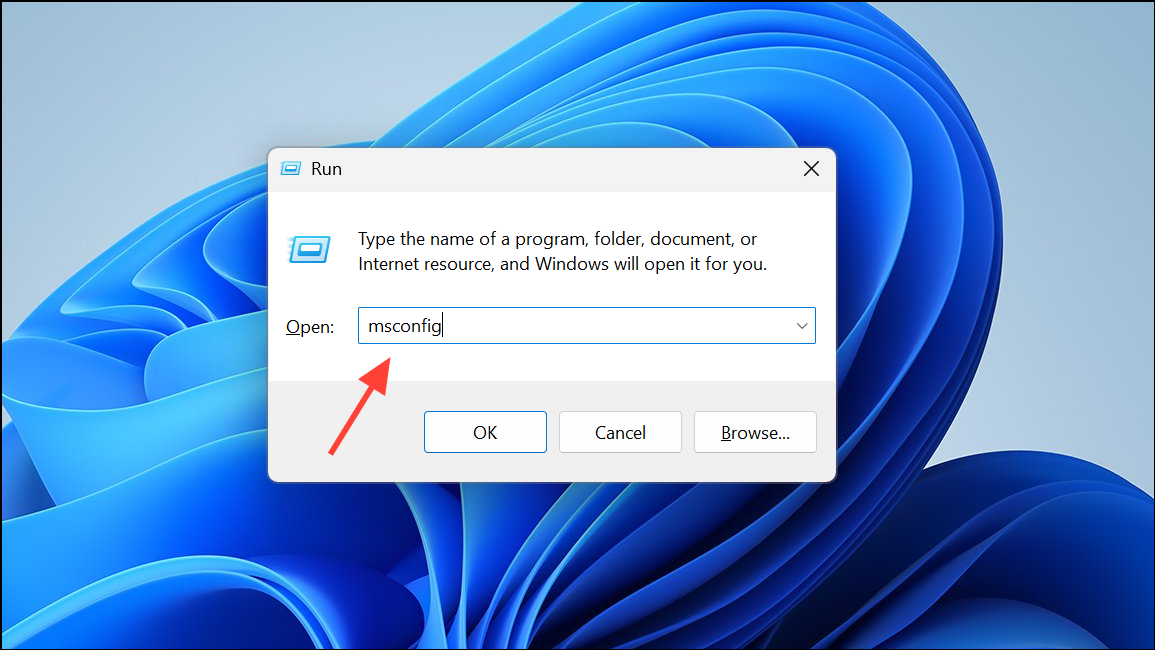
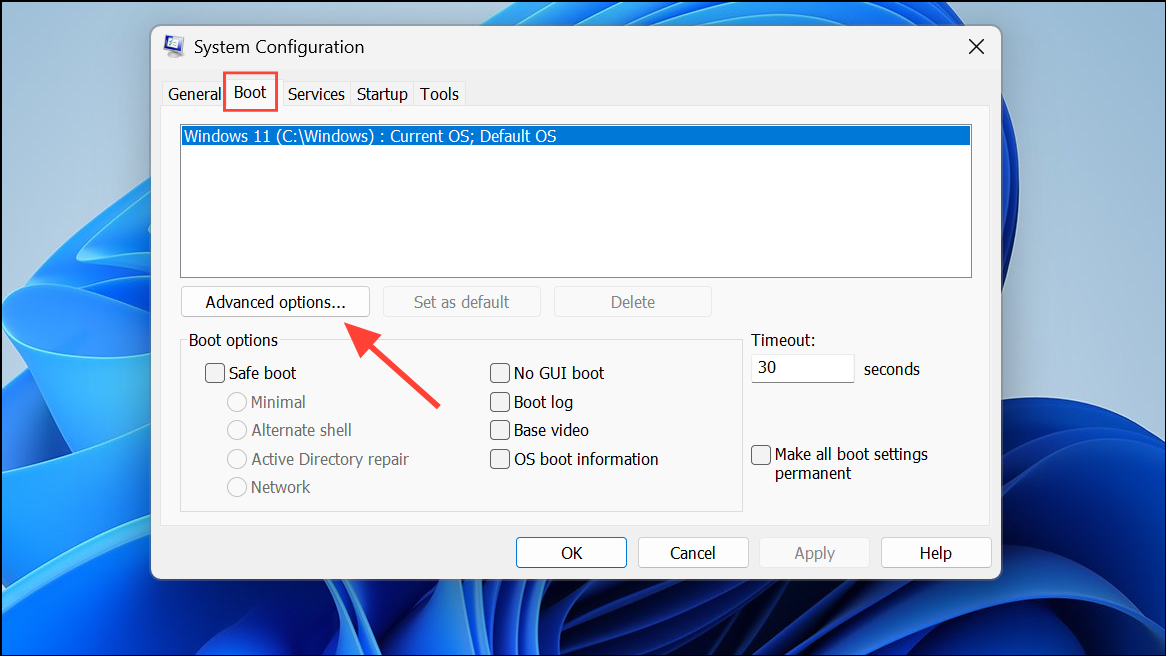
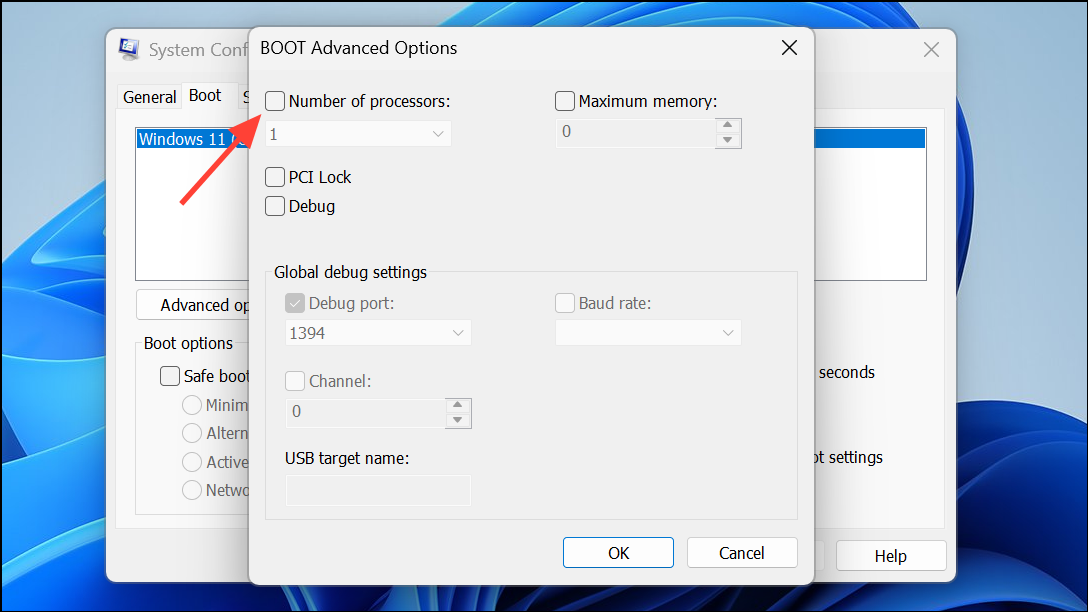
Resetting BIOS Settings to Default
Incorrect BIOS settings can also prevent the operating system from recognizing all CPU cores. For example, after a CPU upgrade or changes to BIOS options, some cores may be disabled or hidden from Windows.
F2, Del, or Esc during startup.Reinstalling Windows as a Last Resort
On rare occasions, persistent core detection problems may be due to a corrupted Windows installation or incompatible drivers, especially after significant hardware changes. If you have exhausted the previous steps and Task Manager still shows fewer cores than expected, consider reinstalling Windows 11. This process refreshes system files and ensures that hardware is detected correctly.
Additional Checks and Troubleshooting
If Task Manager continues to show fewer cores, use third-party utilities such as CPU-Z to verify how many cores the system hardware actually reports. If CPU-Z and BIOS both show the correct number of cores, but Windows does not, the issue is almost certainly software-based.
Also, check Device Manager under Processors to confirm that all logical processors are listed. If BIOS and hardware tools report the correct core count but Windows does not, focus on Windows configuration and driver updates. For older hardware, be aware that some motherboards may lack official support or drivers for newer Windows versions, which can occasionally cause detection problems.
By carefully adjusting Windows boot settings and reviewing BIOS options, you can usually restore the full visibility of all CPU cores in Task Manager. Keeping BIOS firmware current and verifying system configuration after hardware upgrades helps prevent similar issues in the future.



