
Switching between open applications using Alt+Tab in Windows 11 often displays every open Microsoft Edge tab alongside your other windows, cluttering the task switcher and making navigation less efficient. This behavior is controlled by a Windows setting, not by Edge itself, and can be changed to show only the main browser window for a cleaner, faster app-switching experience.
Disable Edge Tabs in Alt+Tab Using Windows Settings
Windows + I on your keyboard. This shortcut quickly brings up the main Settings window.Alt+Tab task switcher.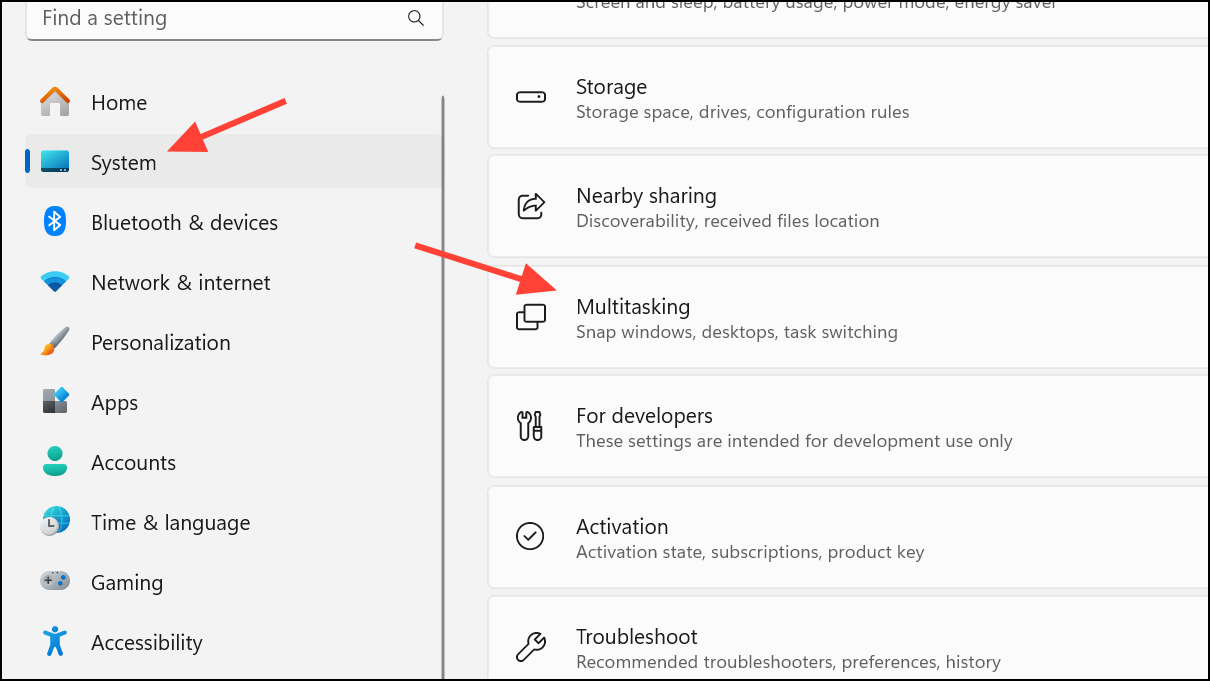
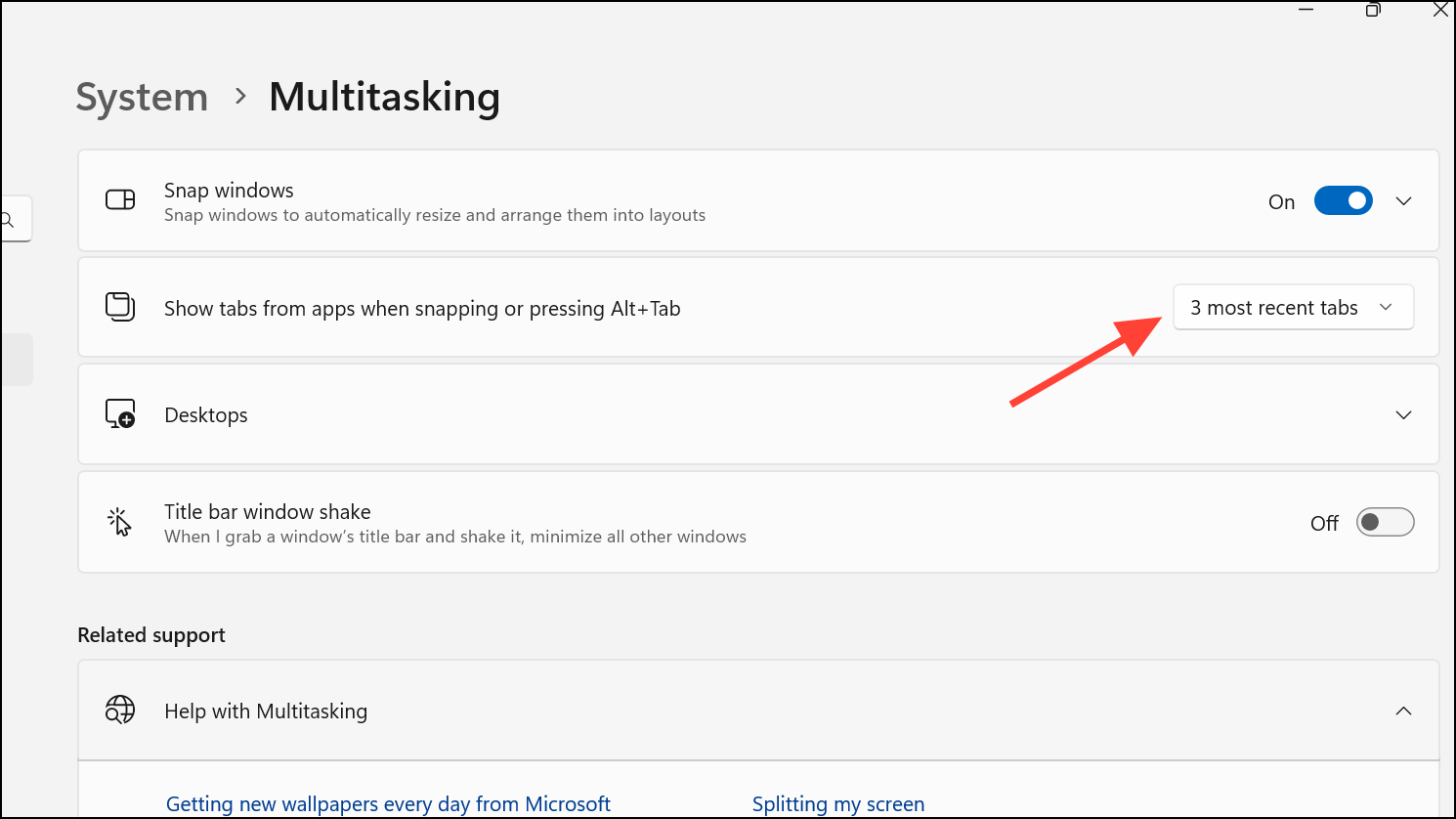
Alt+Tab, so only the main browser window is shown. This change streamlines task switching and reduces visual clutter.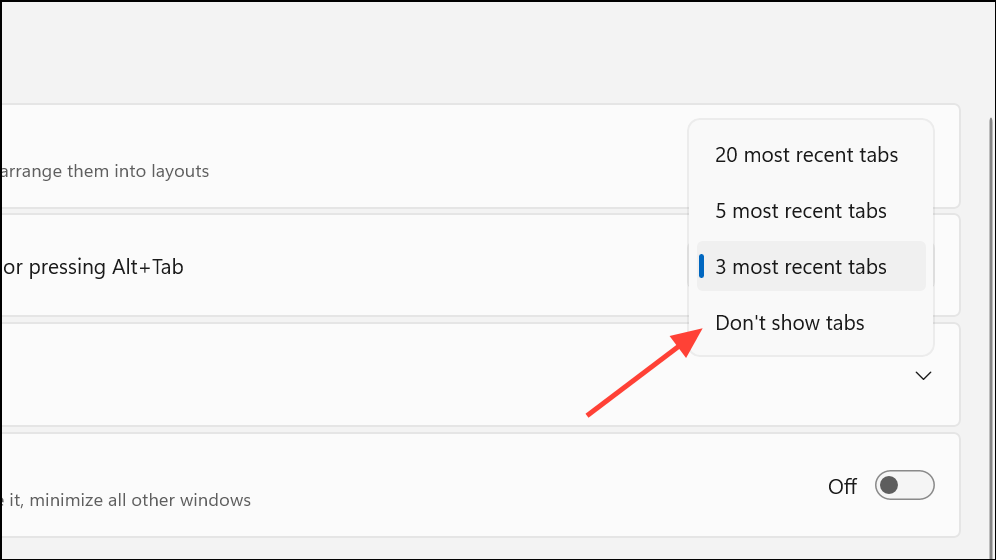
Alt+Tab to confirm the change—only open windows, not individual Edge tabs, should now appear.Disable Edge Tabs in Alt+Tab Using the Registry Editor
For users who prefer a more direct or scriptable approach, or if the Settings option is missing or unavailable, you can change the same behavior using the Windows Registry Editor. This method is more advanced and should be used with caution, as incorrect changes to the registry can cause system issues.
Windows + R to open the Run dialog, type regedit, and press Enter. If prompted by User Account Control, click Yes to allow Registry Editor to make changes.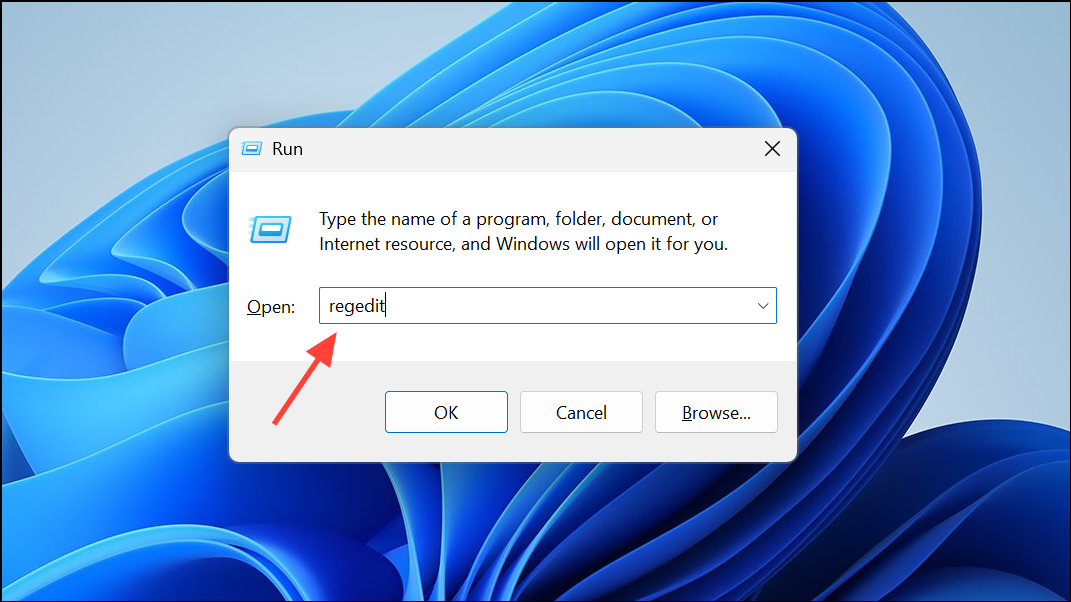
HKEY_CURRENT_USER\SOFTWARE\Microsoft\Windows\CurrentVersion\Explorer\Advanced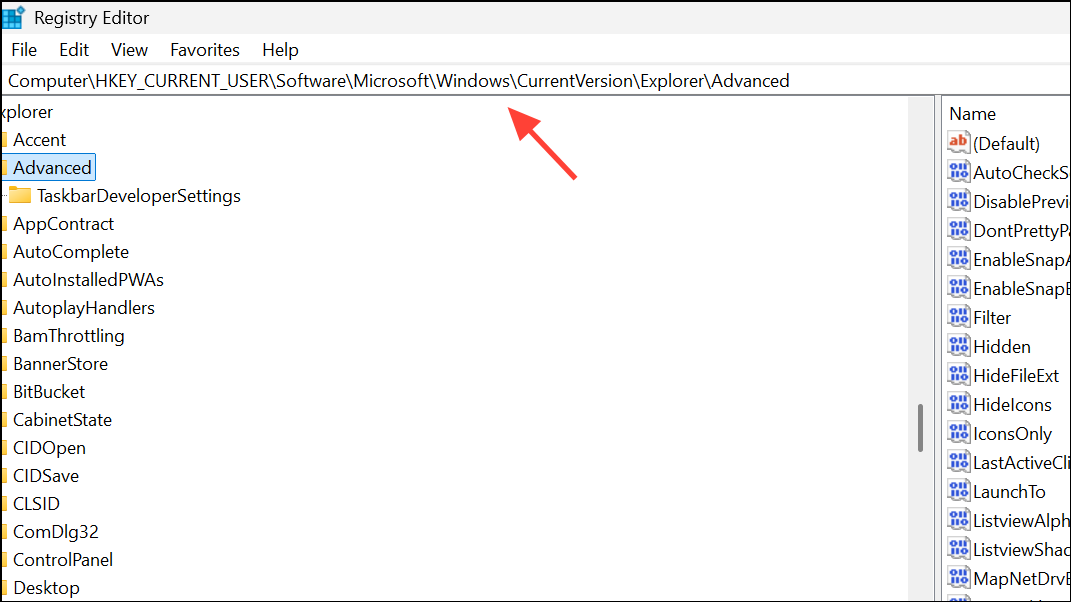
This key contains advanced user settings for Windows Explorer and related features.
MultiTaskingAltTabFilter. If it does not exist, right-click in the right pane, select New > DWORD (32-bit) Value, and name it MultiTaskingAltTabFilter.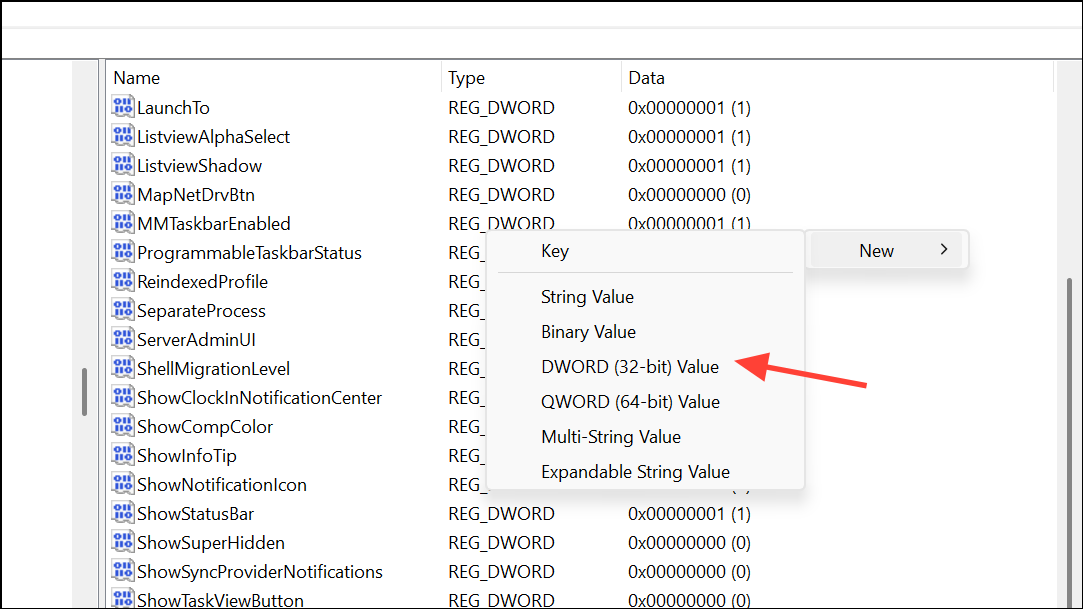
MultiTaskingAltTabFilter and set its value data to 3 to prevent Edge tabs from being shown in Alt+Tab. The possible values are:0: Show 20 most recent Edge tabs.1: Show 5 most recent Edge tabs.2: Show 3 most recent Edge tabs.3: Don’t show Edge tabs.
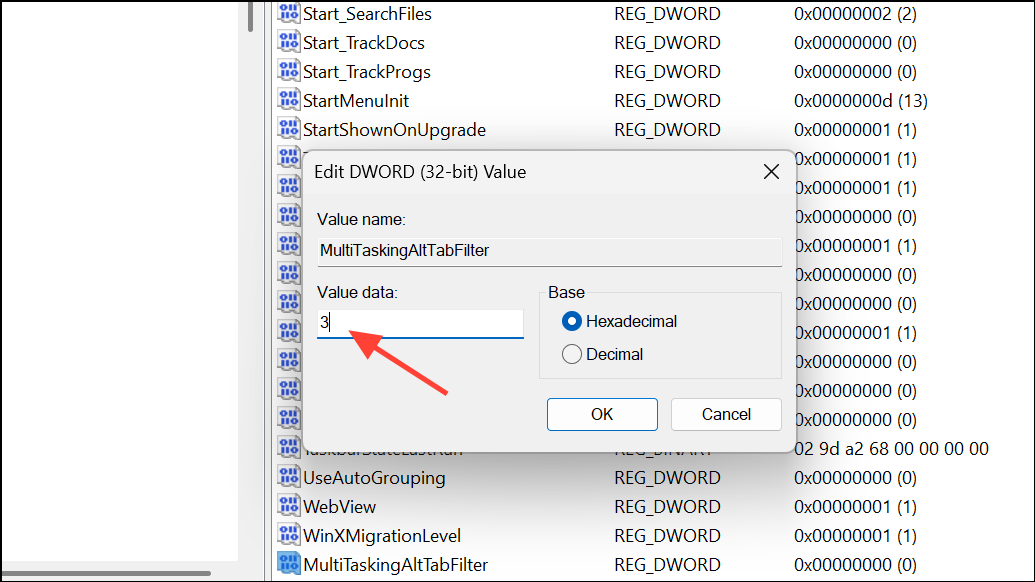
Alt+Tab now, only open windows will appear, not individual Edge tabs.Troubleshooting and Notes
If you do not see the Multitasking or Alt+Tab options in your Windows Settings, ensure your system is up to date. Some versions of Windows 11 may relocate or rename this setting, but it typically remains under System > Multitasking. If the option is missing, the registry method above can be used as an alternative.
These changes do not affect other browsers—only Microsoft Edge integrates its tabs with the Windows Alt+Tab switcher by default. Adjusting this setting will optimize your workflow by reducing the number of items shown, making app switching more straightforward and less distracting.
With this adjustment, switching between tasks in Windows 11 becomes simpler and less cluttered, letting you focus on the windows that matter most.





