

Typing in Microsoft Word and seeing only uppercase letters, even though Caps Lock is off, disrupts document creation and slows down workflow. This issue can result from formatting settings, keyboard shortcuts, accessibility features, or style configurations within Word. Addressing the root cause quickly restores normal typing and prevents frustration.
Check and Remove All Caps Formatting in Word
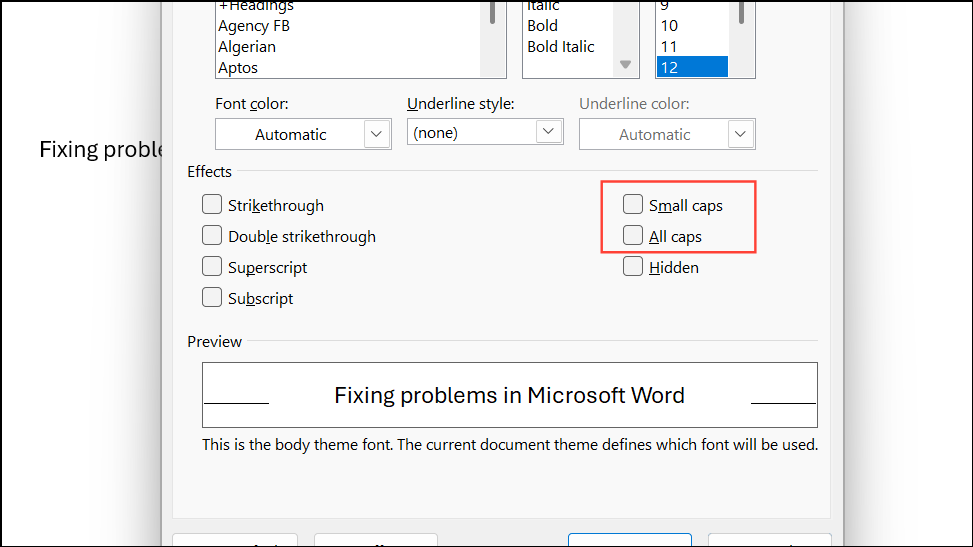
Formatting options in Word can force text to display in all uppercase, regardless of Caps Lock status. This setting is often triggered by accidentally using keyboard shortcuts or by applying styles that enforce uppercase letters.
Ctrl + A to select all content.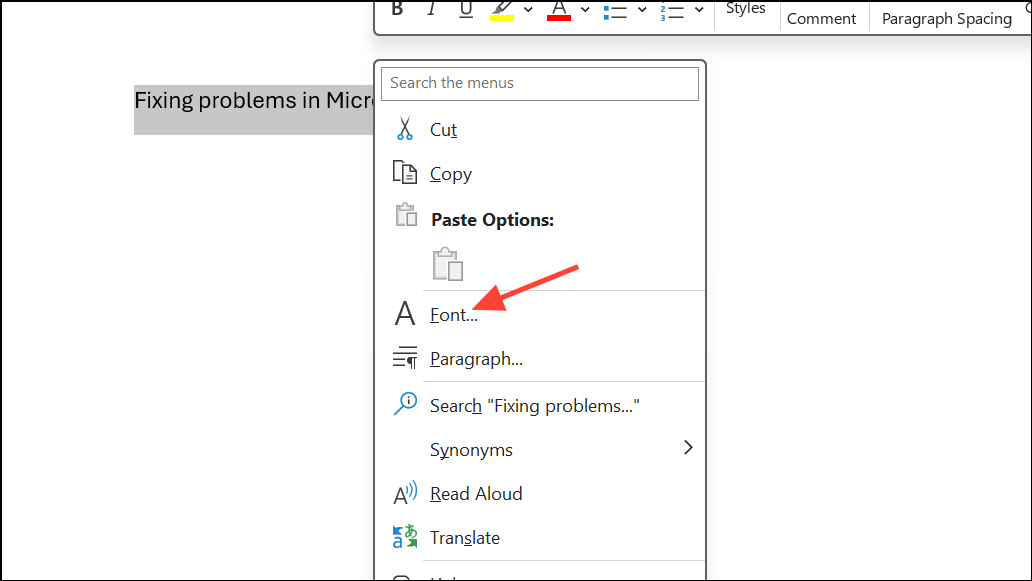
Use Keyboard Shortcuts to Toggle Case
Word supports keyboard shortcuts that change text case formatting. Accidentally pressing these shortcuts can lock text in all caps mode, even if Caps Lock is off.
Ctrl + Shift + A to toggle All Caps formatting. This shortcut applies or removes the All Caps effect for the selected text.Shift + F3. This shortcut cycles through uppercase, lowercase, and sentence case for the selected text. Press it repeatedly until the desired case appears.These shortcuts quickly resolve formatting issues caused by accidental keystrokes.
Reset Keyboard Configuration and Accessibility Settings
Sticky Keys or Filter Keys—Windows accessibility features—can alter keyboard behavior, causing letters to appear in uppercase even when Caps Lock is off. These settings may be enabled by holding down the Shift key for several seconds or through accidental activation.
Shift keys simultaneously. This action cancels certain accessibility changes and can immediately restore standard typing behavior.Shift key for 8 seconds to open the Filter Keys popup window. If the popup appears, click “Settings.”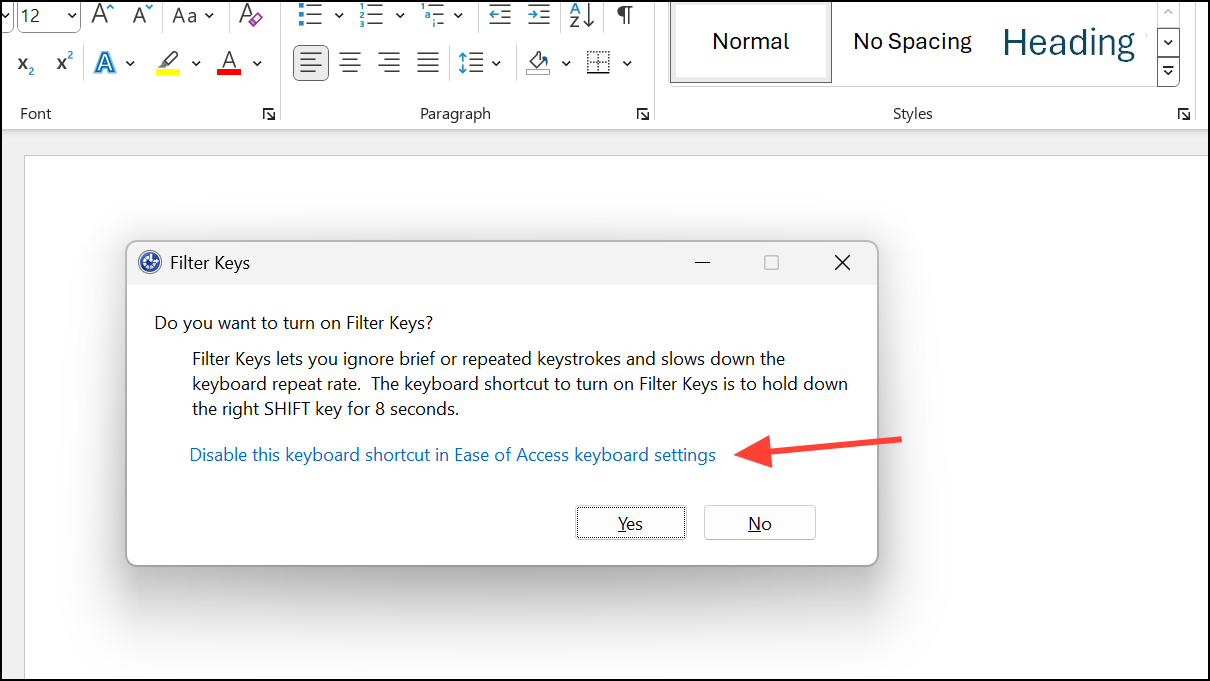
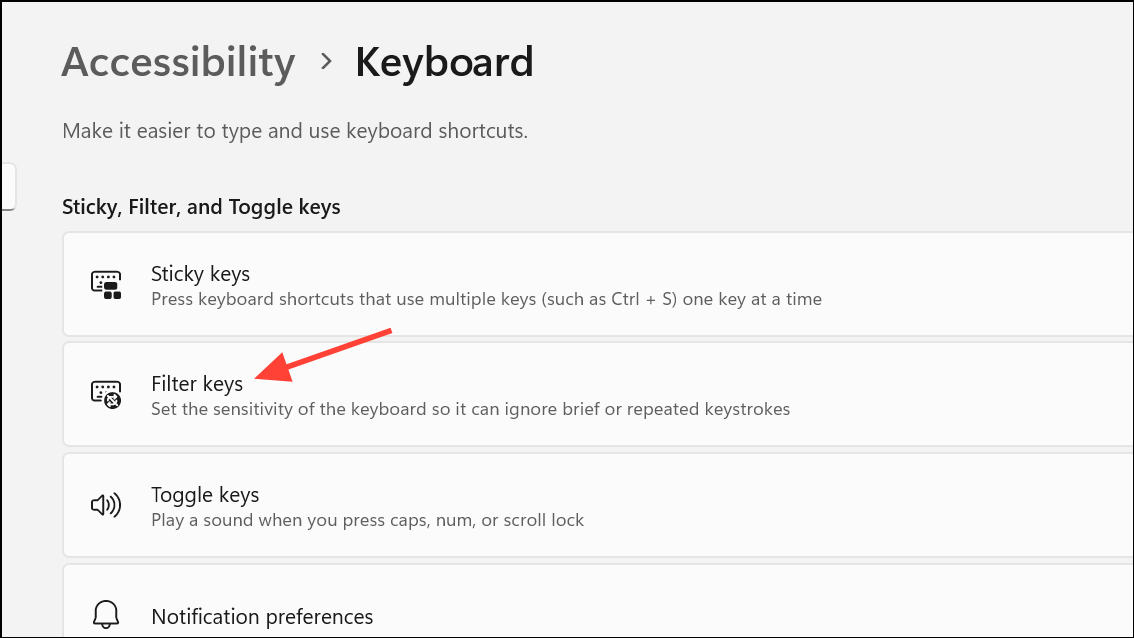
Shift keys to ensure changes take effect.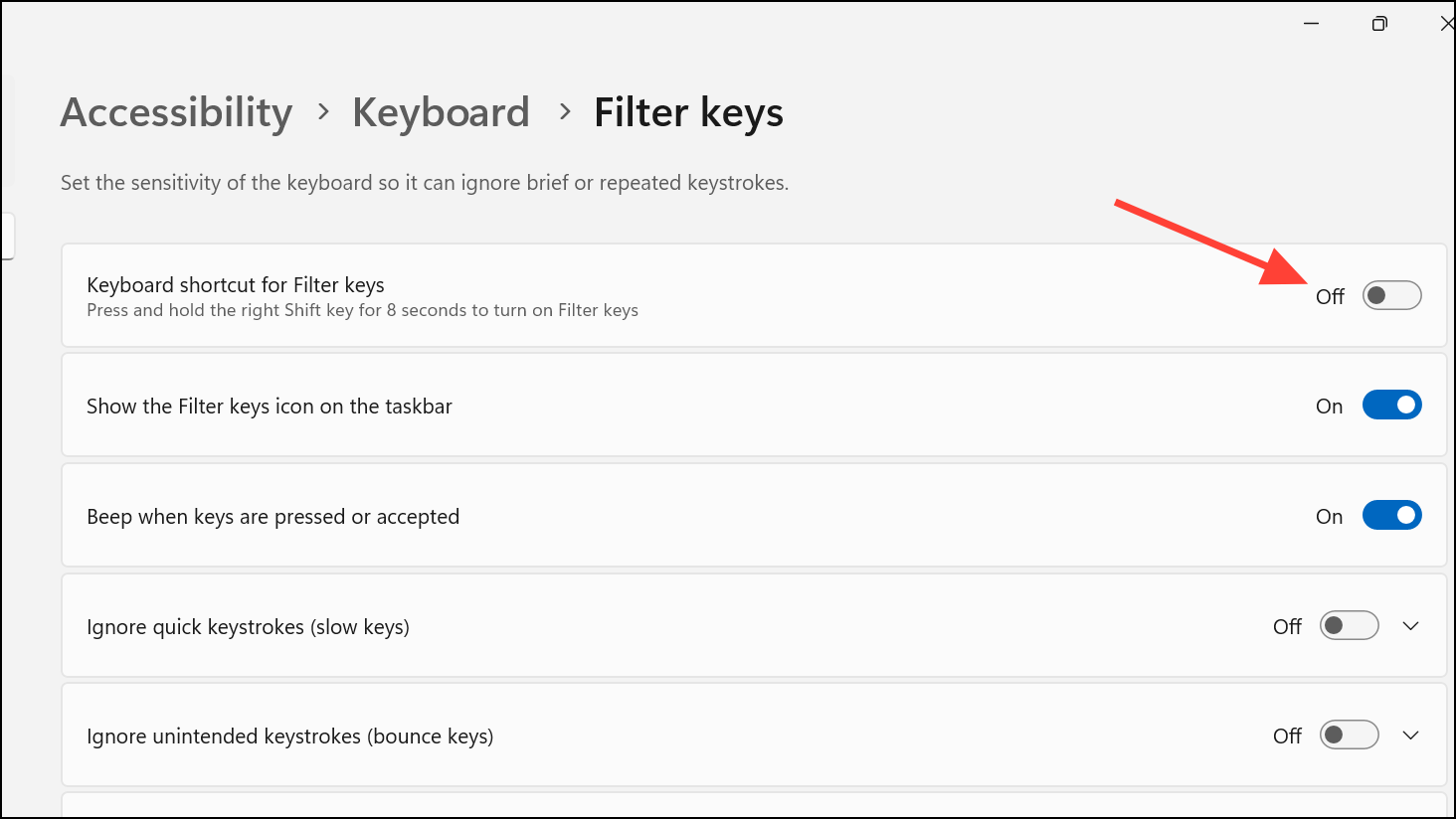
Disabling these shortcuts prevents unexpected keyboard behavior from recurring.
Clear Formatting and Reset Styles
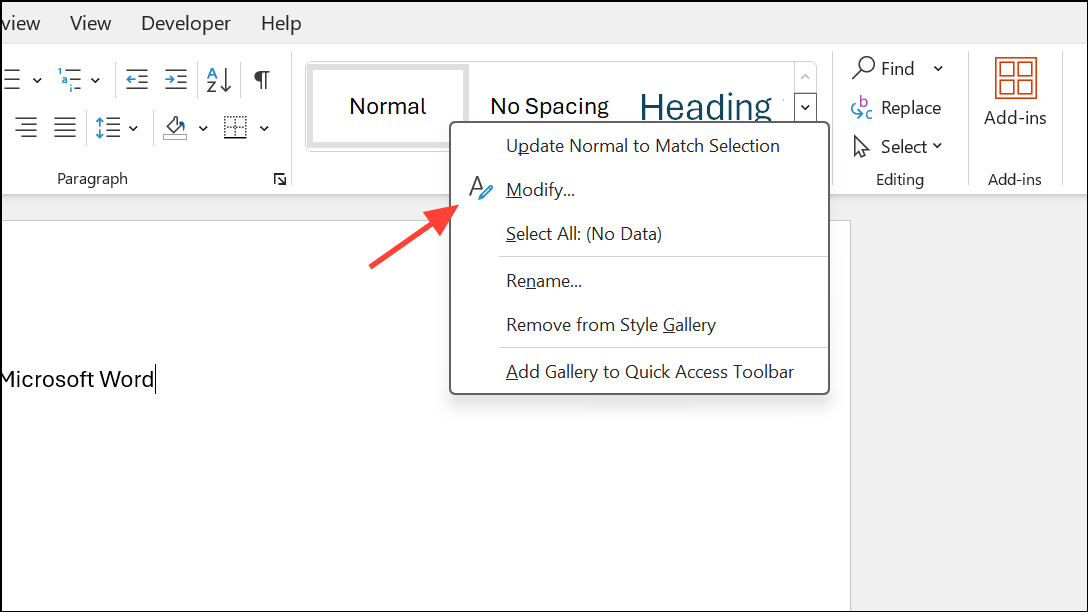
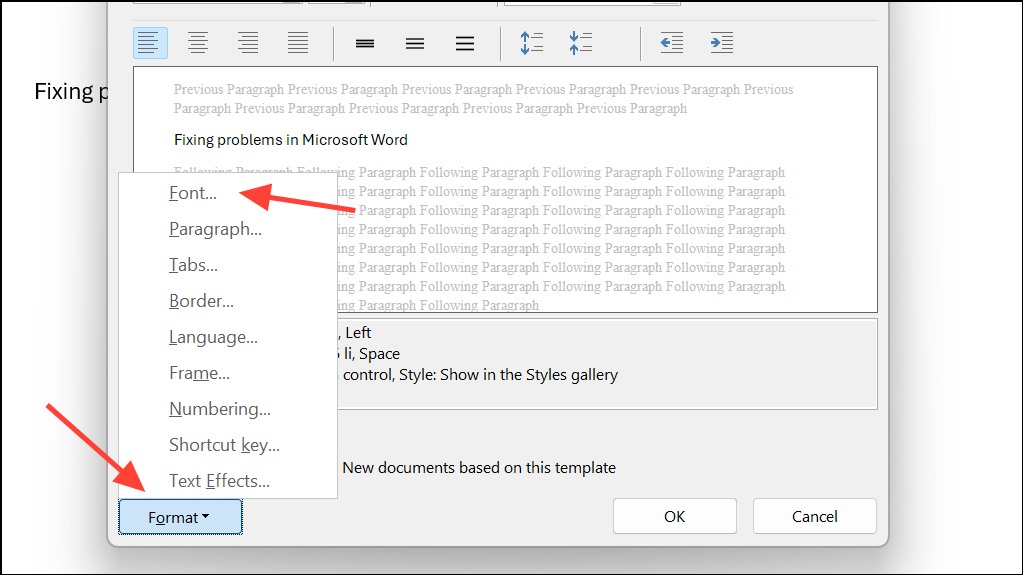
Documents copied from other sources or using inherited formatting may have styles that enforce all caps. Clearing formatting resets text to the default style and removes unwanted effects.
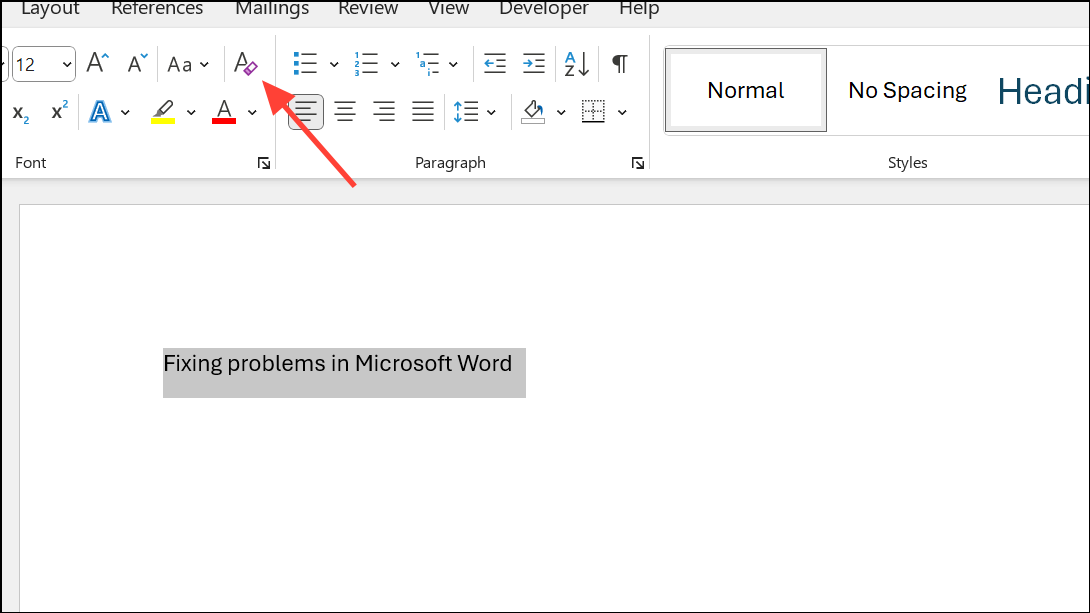
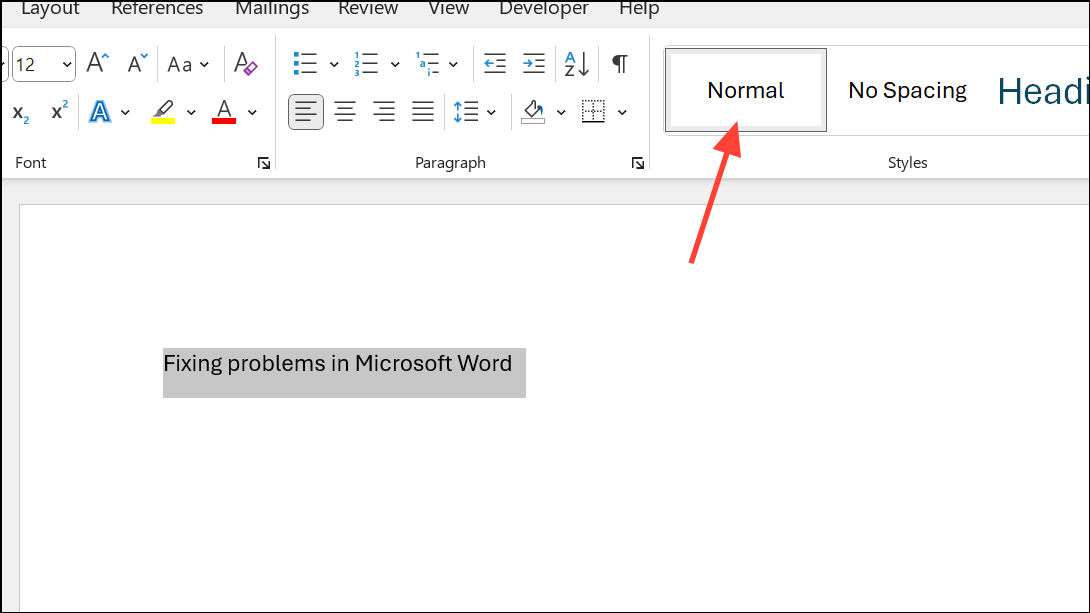
This process strips away persistent formatting and restores standard text appearance.
Adjust System Keyboard Settings
Windows keyboard settings can influence how Caps Lock and Shift interact. If toggling Caps Lock does not restore lowercase typing, review these settings.
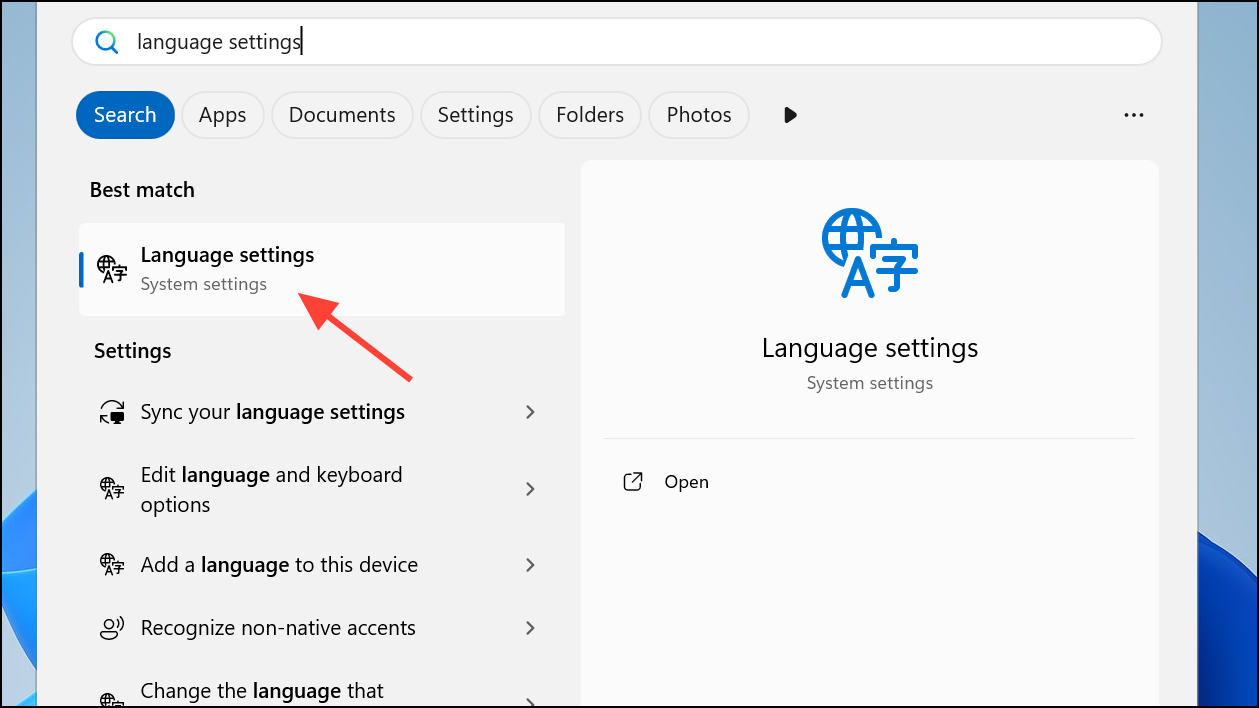
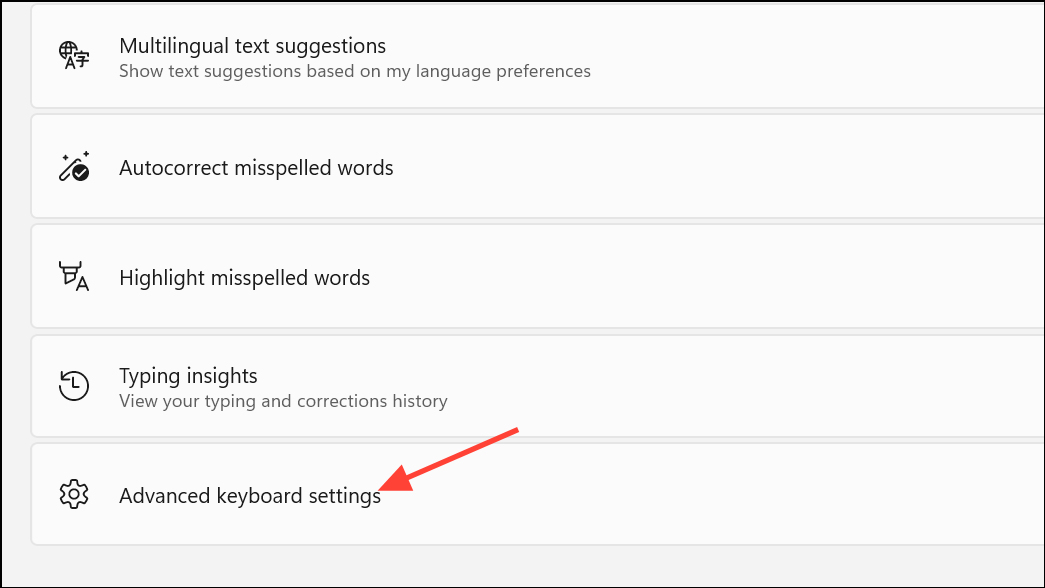
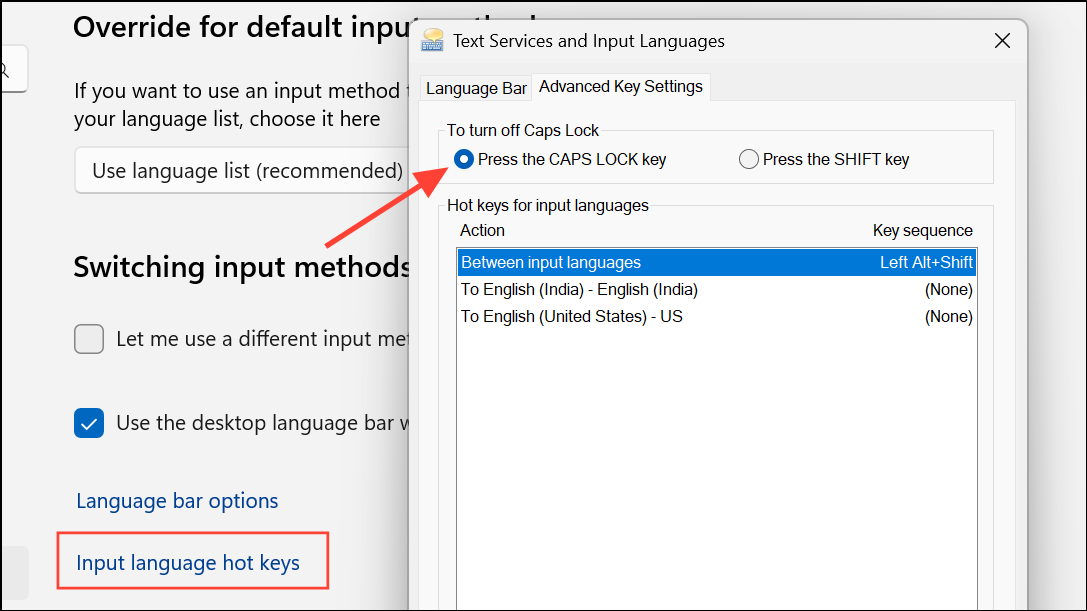
Ensuring the correct setting here prevents confusion between Shift and Caps Lock functionality.
Repair or Restart Microsoft Word and Windows
Occasionally, restarting Word or Windows temporarily resolves the issue, especially if the problem is software-related or isolated to a single session. If the issue recurs, repairing your Office installation may help.
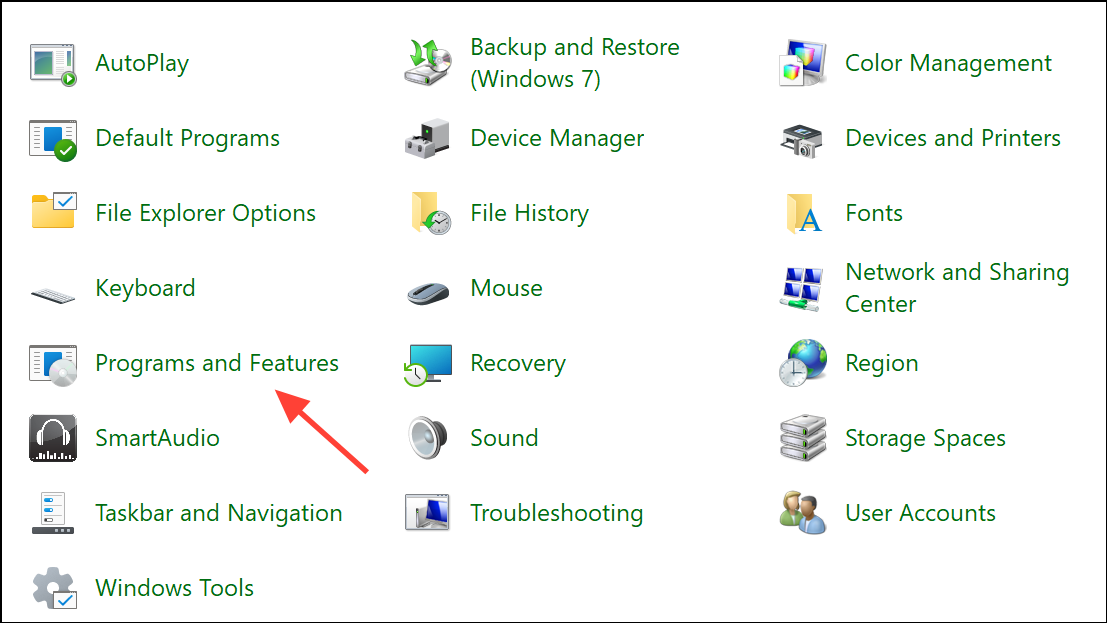
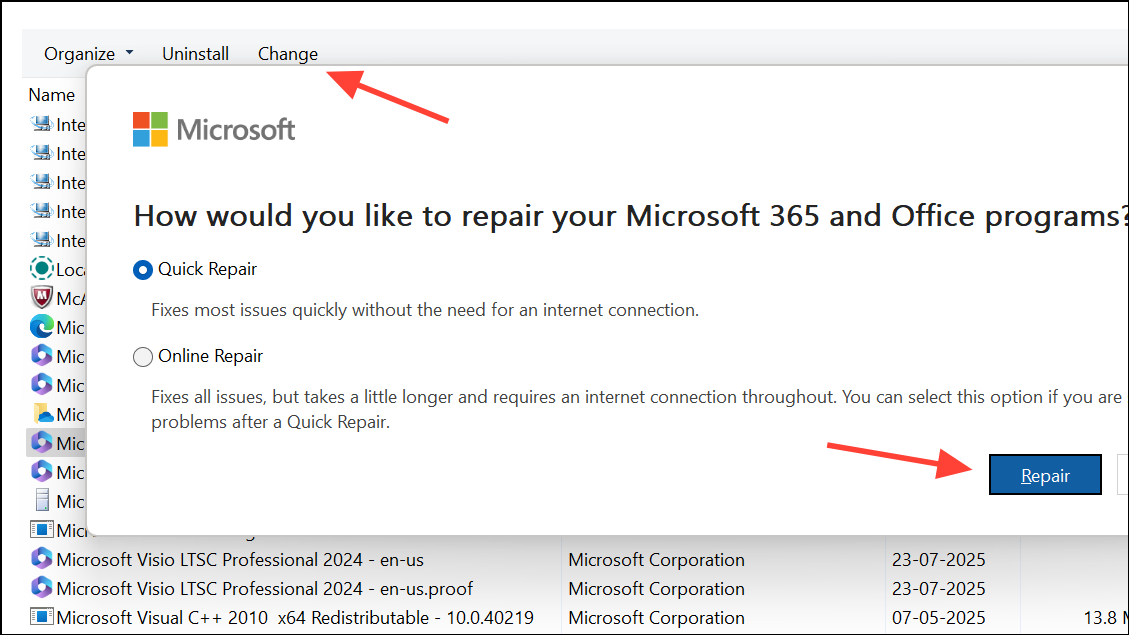
Repairing Office can fix underlying software issues that cause persistent formatting or keyboard problems.
Resolving the all caps issue in Word involves checking formatting, keyboard shortcuts, accessibility settings, and system preferences. Applying these steps restores normal typing and streamlines your document editing experience.





