
Unexpected shutdowns or display issues when closing a laptop lid on Windows 11 can disrupt workflows, disconnect external monitors, or even risk file loss. These problems often stem from misconfigured power settings, driver conflicts, or firmware bugs introduced by system updates. Adjusting the correct settings and addressing underlying causes can restore predictable lid close behavior, whether you want your laptop to sleep, shut down, or remain on with the lid closed.
Change Lid Close Action Using Power Settings
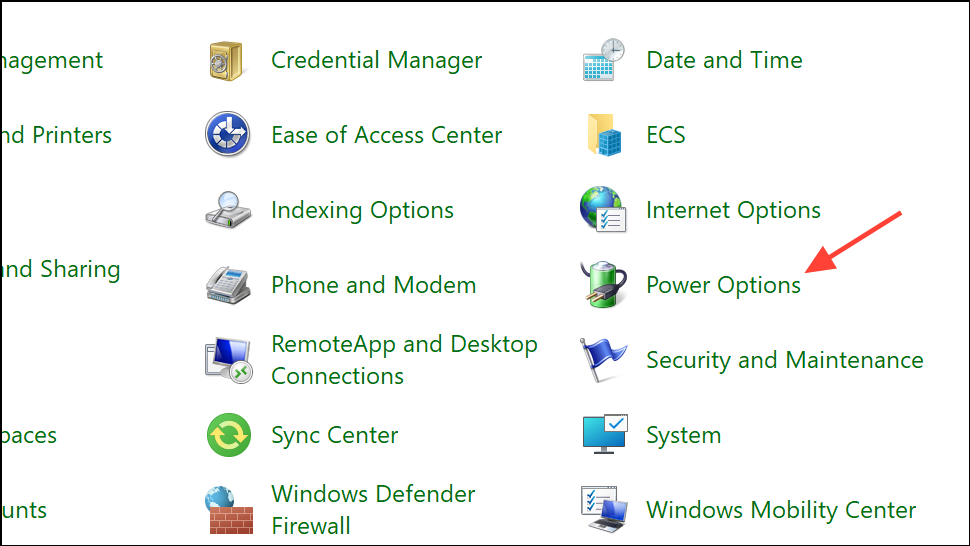
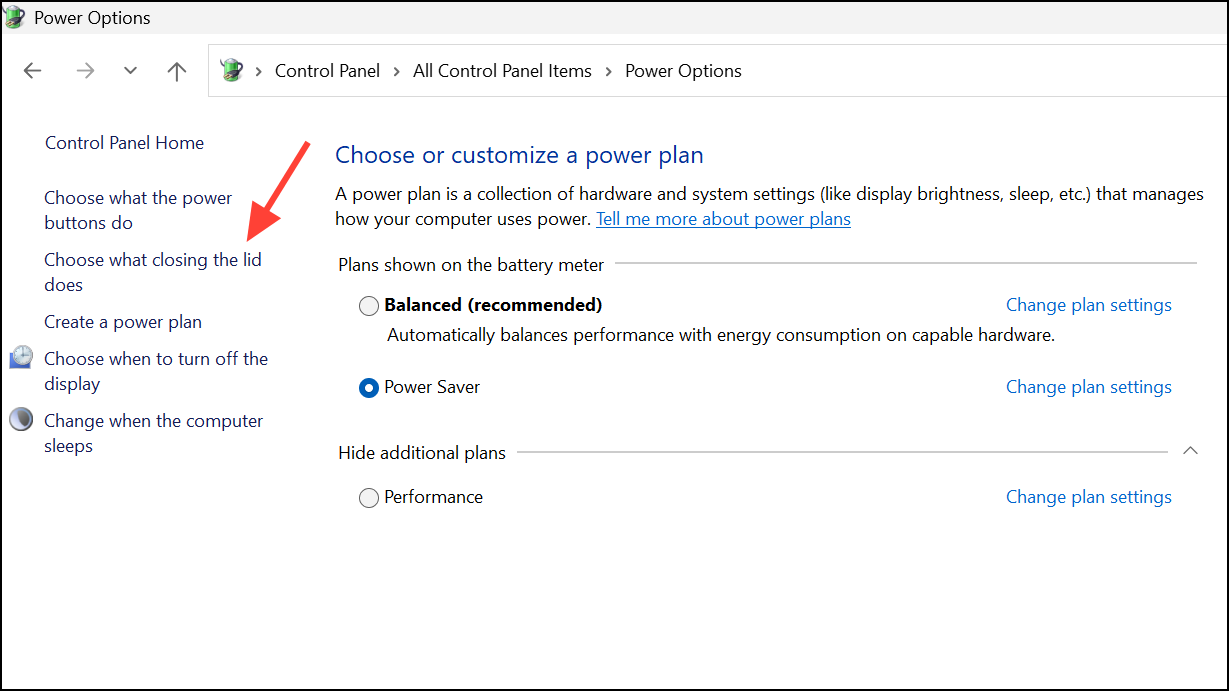
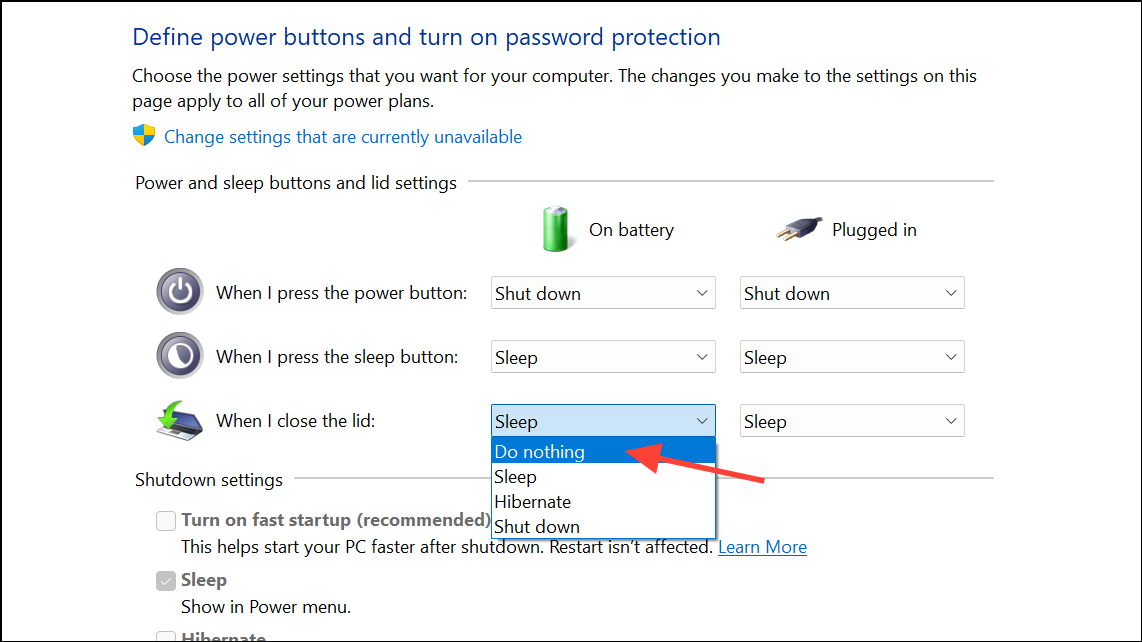
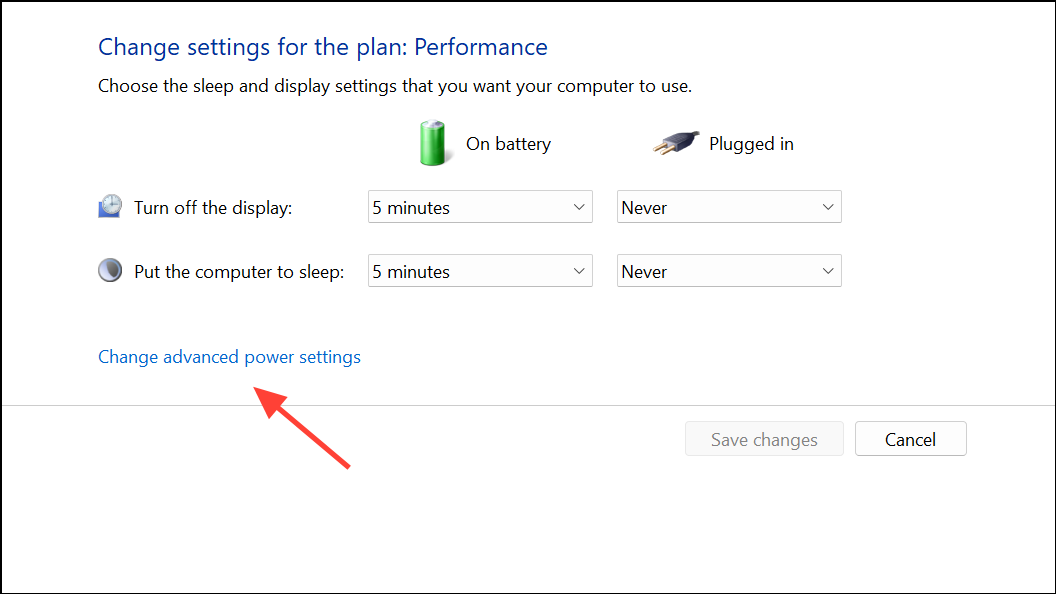
Check Advanced Power Options and Registry Settings
Sometimes, lid close behavior may not change as expected due to hidden or overridden settings, especially after major Windows updates.
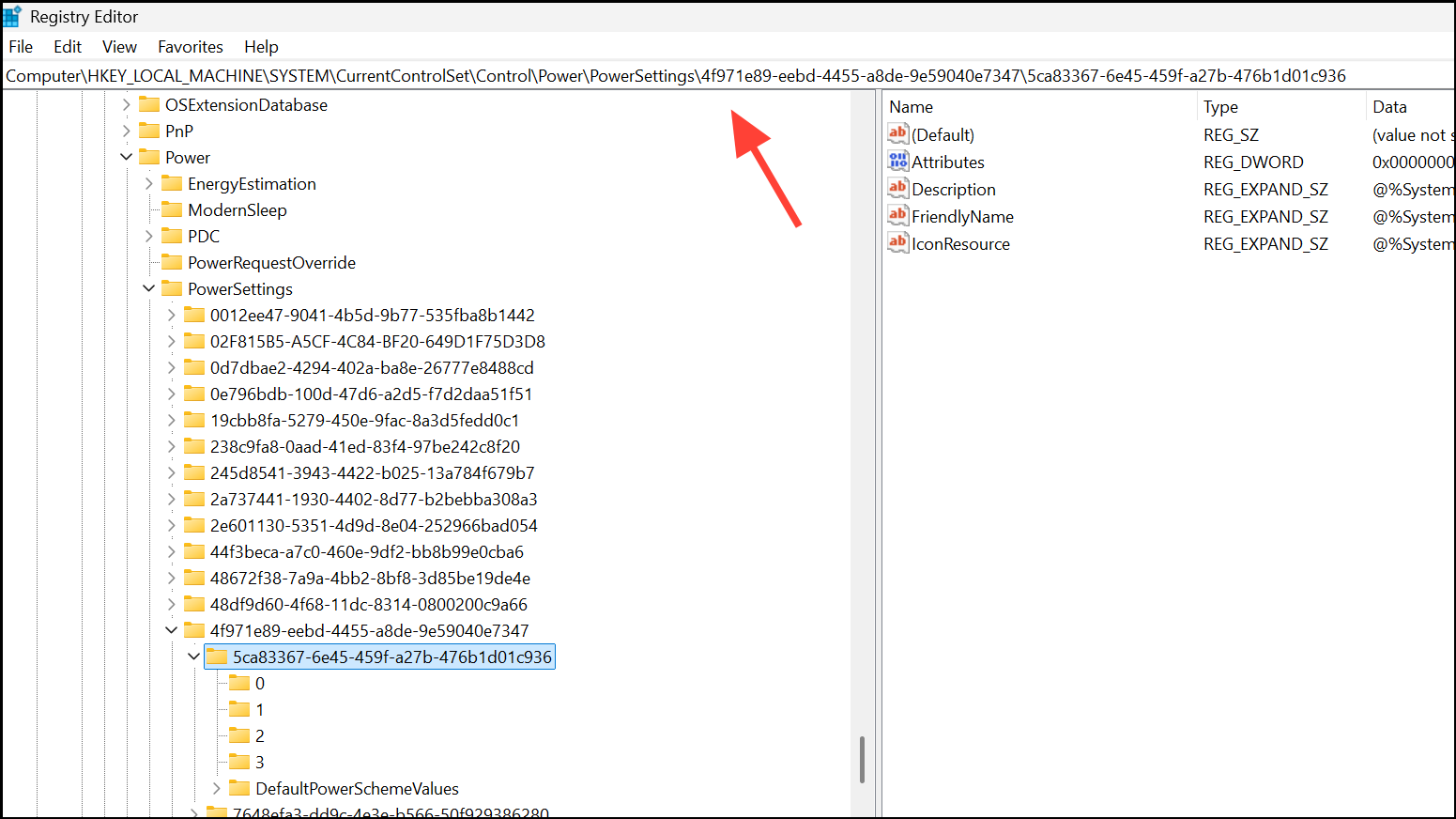
regedit in the Start menu). Navigate to:
HKEY_LOCAL_MACHINE\SYSTEM\CurrentControlSet\Control\Power\PowerSettings\4f971e89-eebd-4455-a8de-9e59040e7347\5ca83367-6e45-459f-a27b-476b1d01c936
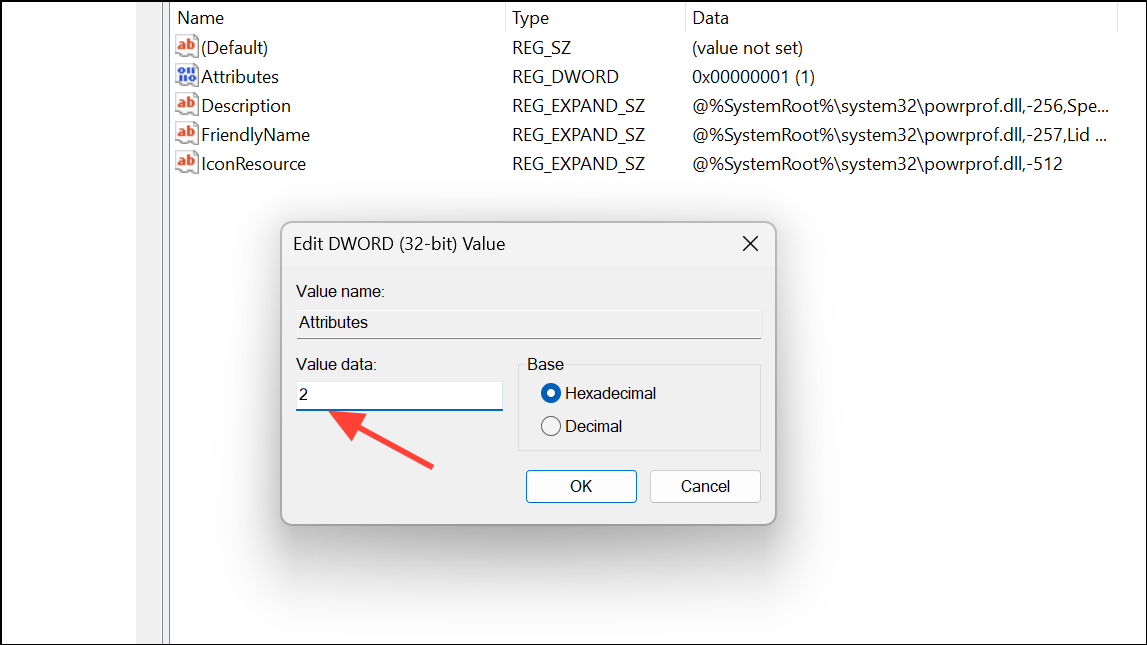
Set the Attributes value to 2. This exposes additional power settings in the Advanced Power Options dialog. After making changes, restart your laptop and recheck the lid close action settings.
Update Drivers and BIOS/Firmware
Lid close issues can also result from outdated or incompatible drivers, especially after Windows feature updates. Power management relies on chipset, storage, and firmware compatibility.
DRIVER_POWER_STATE_FAILURE (0x9f)), update or reinstall the affected drivers. For NVMe or storage-related issues, download the latest firmware from the manufacturer’s support site.Check for Conflicting OEM or Third-Party Power Utilities
Some laptops (notably Lenovo, HP, and Dell) include proprietary power management software that can override Windows settings. These utilities may set their own lid close actions or introduce sleep/shutdown timers independent of Windows.
Run Windows Power Troubleshooter and Check Event Viewer
Windows includes built-in troubleshooting tools that can identify and fix power-related misconfigurations or errors.
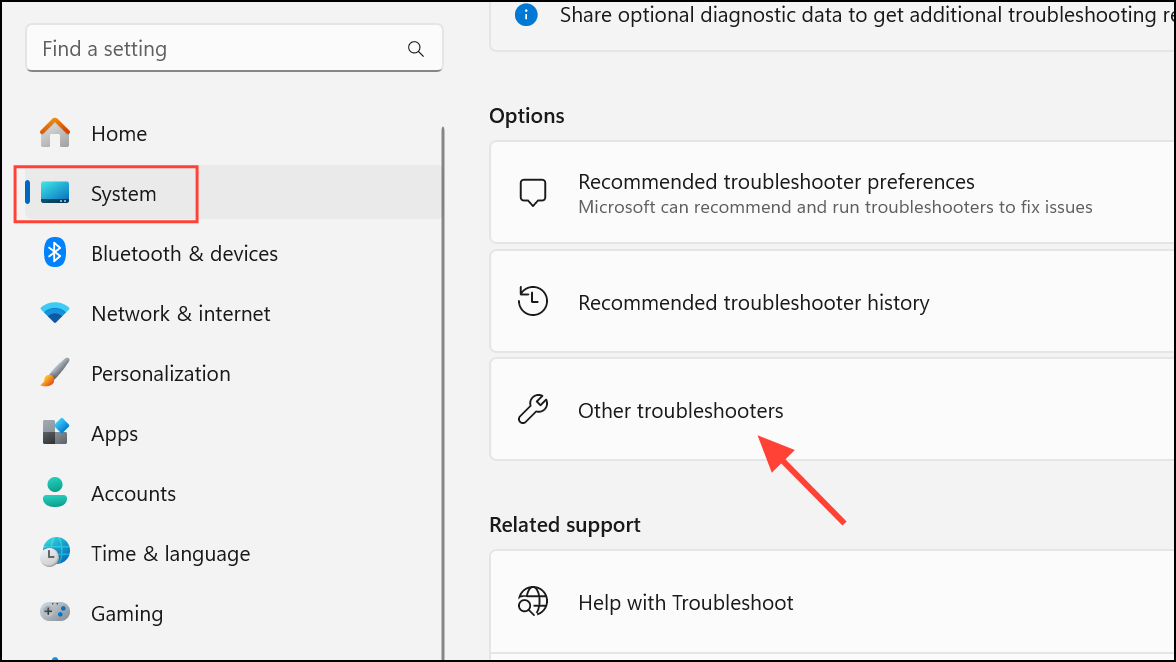
Win + X > Event Viewer). Navigate to Windows Logs > System and look for critical errors or warnings around the time of the shutdown. Codes such as 0x0000009f indicate driver power state failures, which may require driver or firmware updates.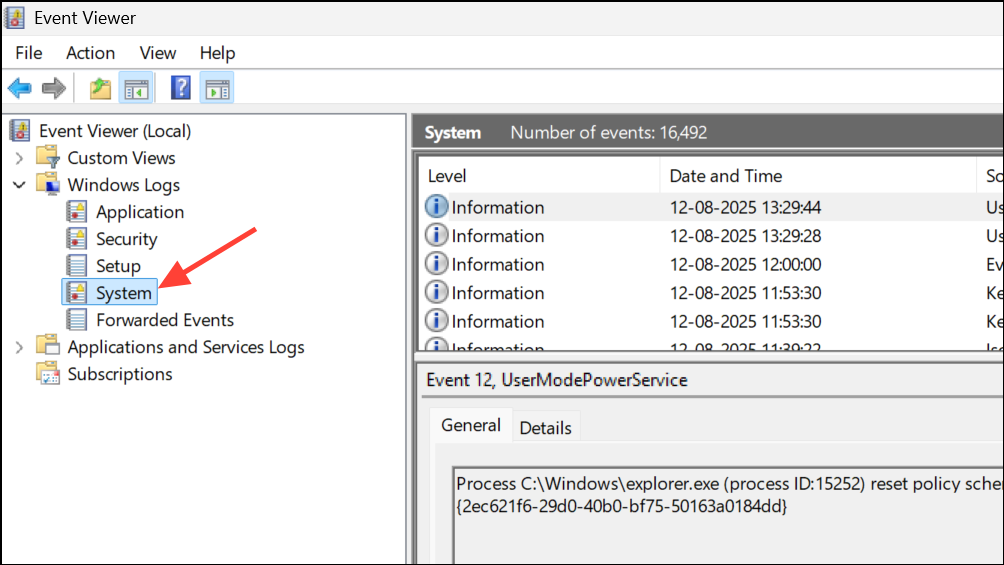
Adjust Sleep and Hibernate Timers
Even if lid close actions are set correctly, Windows may still shut down or hibernate after a period of sleep. This behavior can be controlled through advanced power settings.
- Sleep > Sleep after: Set to
Neveror your preferred duration. - Sleep > Hibernate after: Set to
Neverif you do not want the laptop to hibernate after sleeping. - Hard disk > Turn off hard disk after: Set to
0(Never) to prevent premature shutdowns on some systems.
Click Apply and OK to save your changes.
Test for Hardware or Thermal Issues
If your laptop still shuts down or fails to sleep correctly with the lid closed, hardware faults or overheating may be the cause. Laptops can trigger forced shutdowns to protect components if temperatures exceed safe limits, especially when ventilation is blocked by a closed lid.
Configuring the correct lid close behavior on Windows 11 often requires adjusting both Windows and manufacturer settings, updating drivers and firmware, and ruling out hardware issues. Careful troubleshooting restores reliable power management and prevents data loss or workflow interruptions.



