

Prime Video streams may fail to load in Microsoft Edge, showing a spinning circle, black screen, or only audio with no picture. Other Amazon sites, including the main Amazon.com page, can also refuse to load or display errors like DNS_PROBE_FINISHED_NXDOMAIN. These problems tend to occur after system updates, browser changes, or adjustments to network and privacy settings. Firefox and other browsers often continue to work, pointing to a specific conflict between Edge and Amazon’s streaming or web technologies.
Update Widevine Content Decryption Module
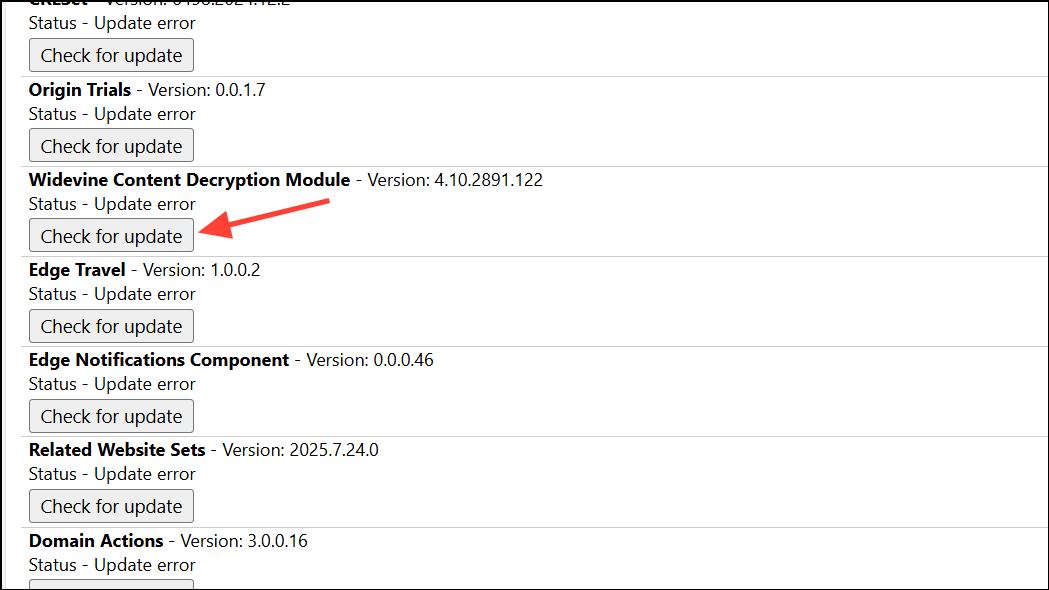
Amazon Prime Video relies on the Widevine Content Decryption Module for secure streaming. If this plugin is outdated or corrupted, video playback will fail even if other streaming sites work.
edge://components/ in the address bar. This page lists browser plugins and their update status.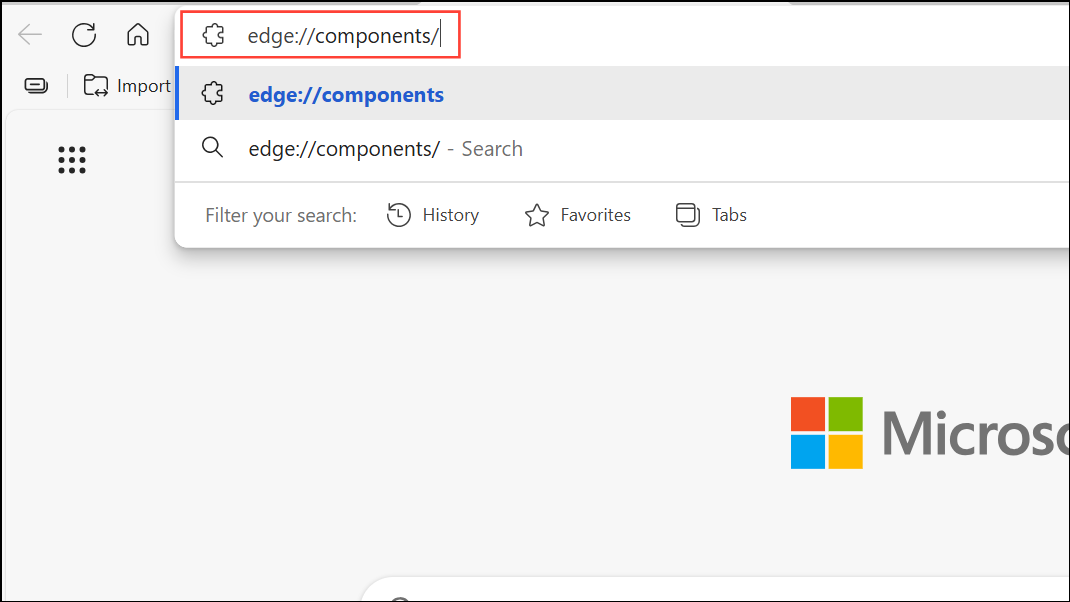
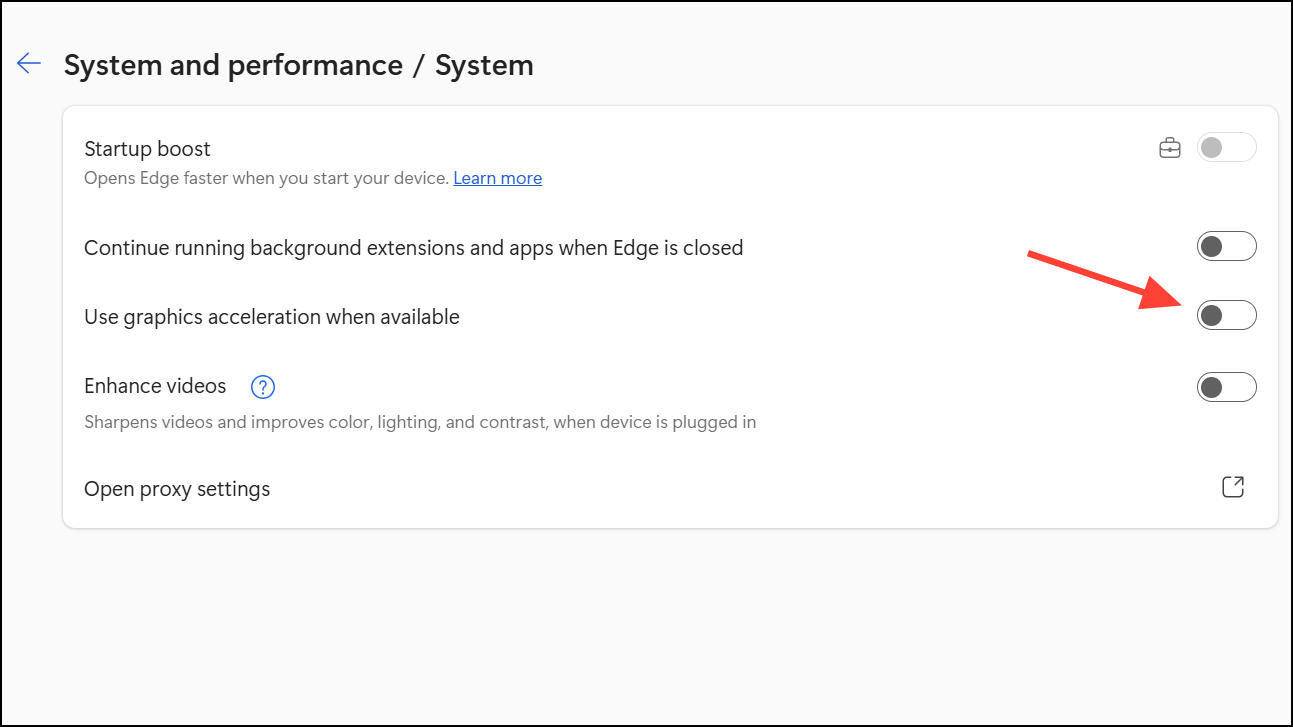
Disable Hardware Acceleration in Edge
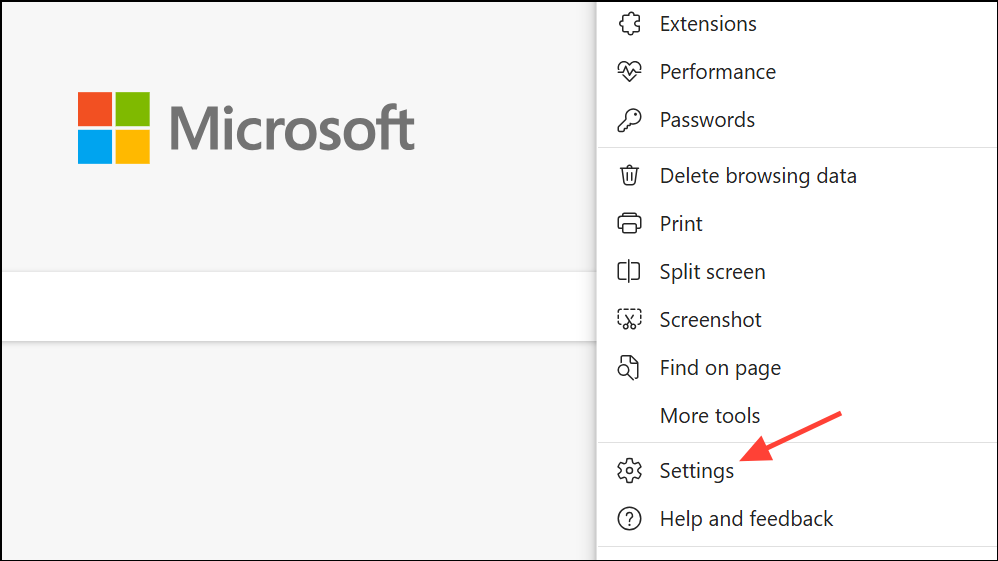
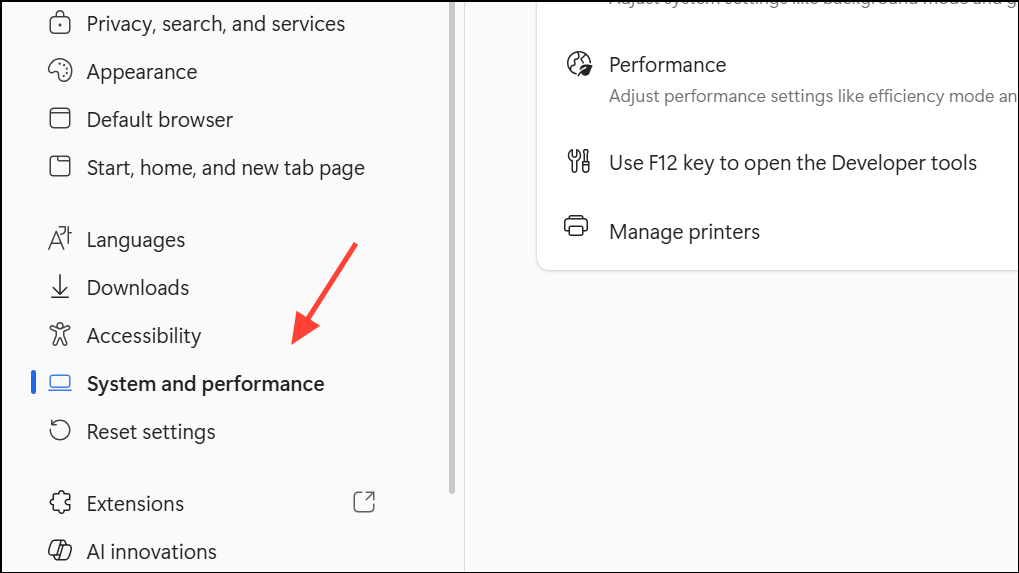
Hardware acceleration can cause video playback issues, especially on systems with certain graphics drivers or after major Windows updates. Disabling this setting often resolves black screens or endless loading circles on Prime Video.
Clear Browser Cookies and Site Data
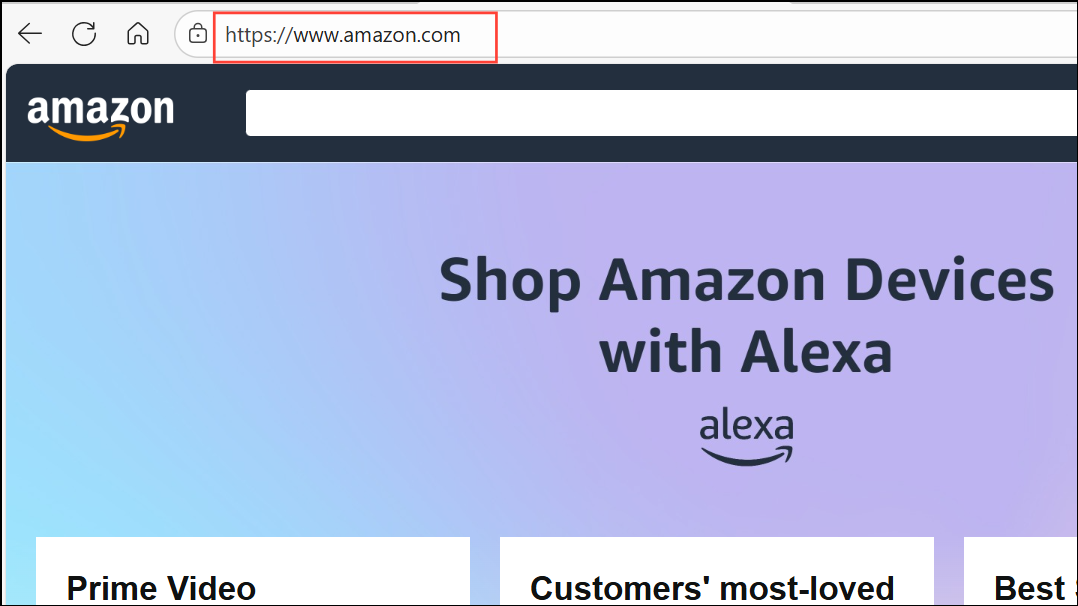
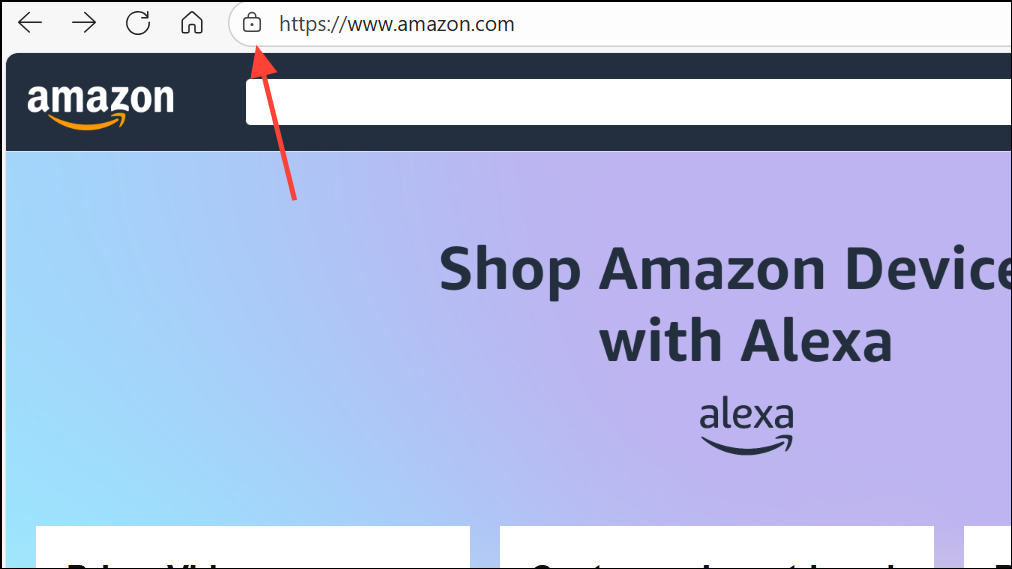
Corrupted or oversized cookies can break Amazon site functionality, leading to incomplete page loads or login issues. Clearing cookies for Amazon often resolves these errors.
Check and Update DNS Settings
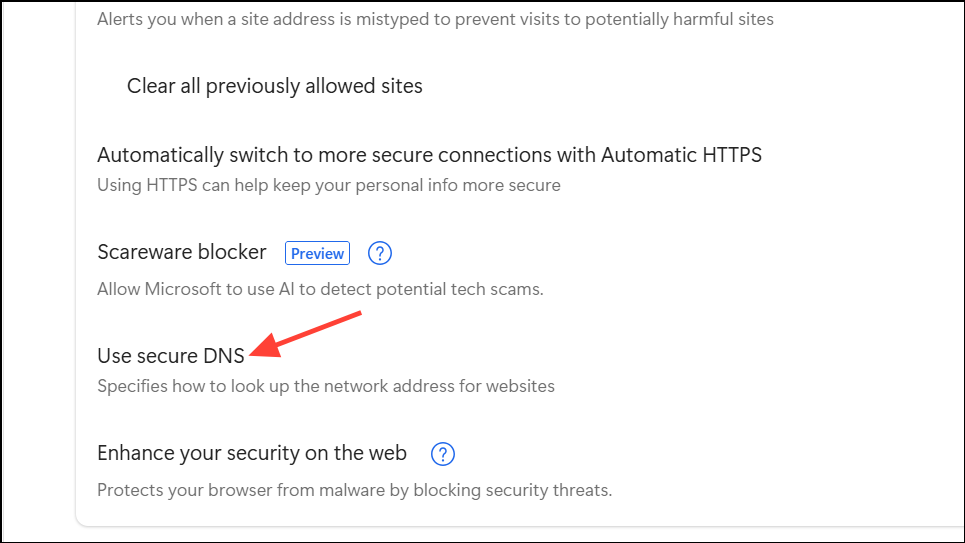
Edge-specific DNS errors, such as DNS_PROBE_FINISHED_NXDOMAIN, can prevent Amazon sites from loading. Changing DNS providers or flushing the DNS cache may resolve these issues.
ipconfig /flushdns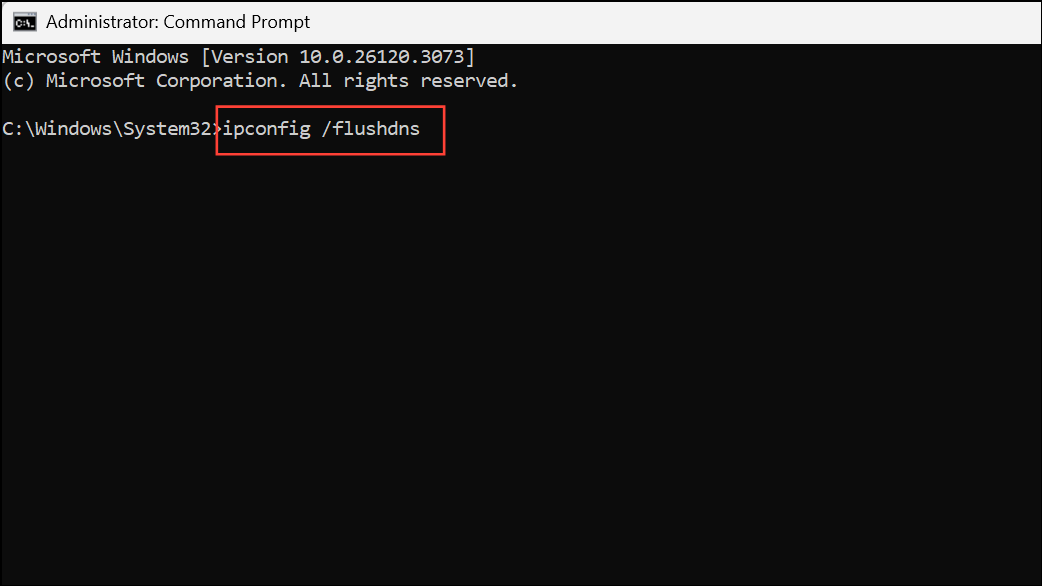
This clears the local DNS cache. Reopen Edge and test Amazon again.
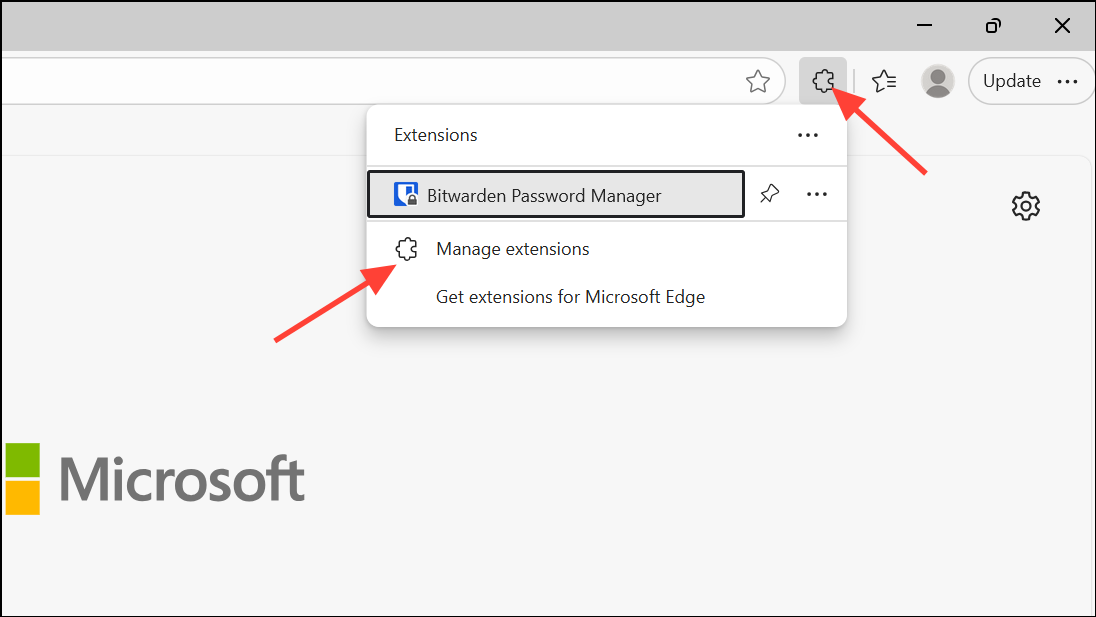
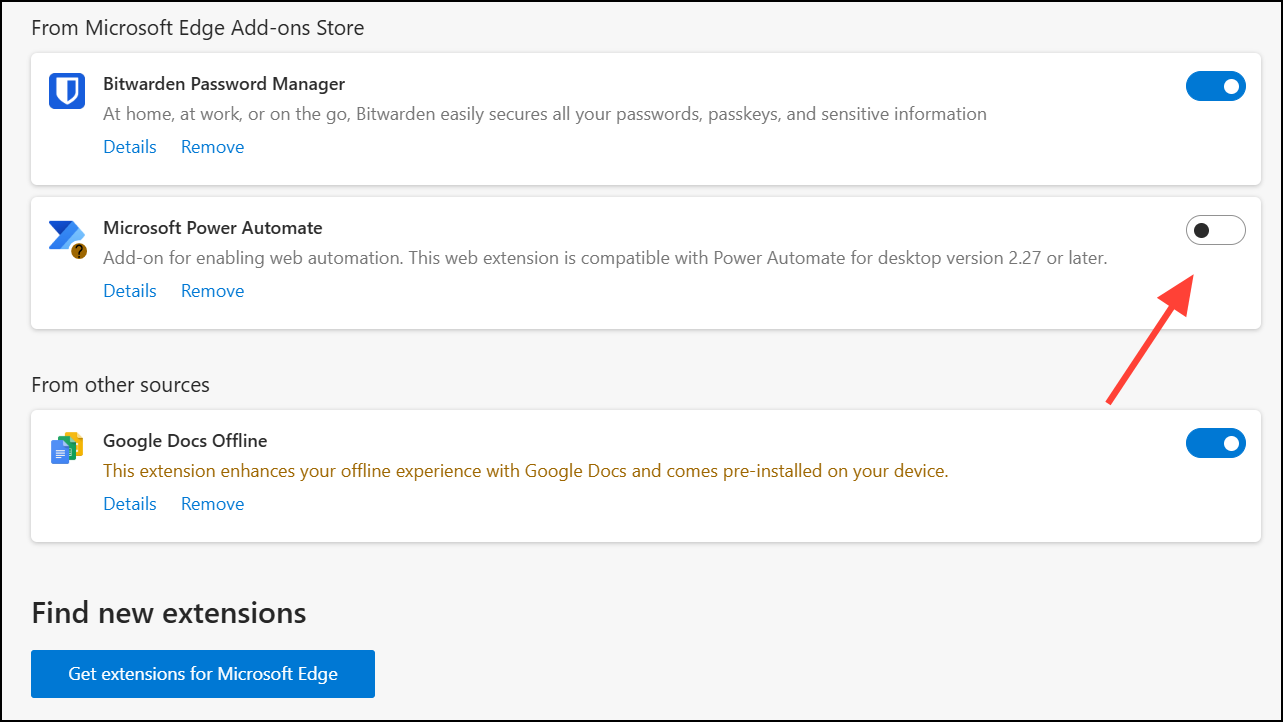
Review and Disable Problematic Extensions
Extensions like ad blockers, privacy tools, or specific Twitch-related add-ons can interfere with Amazon services, including Prime Video and account access. Disabling or removing these extensions often restores site functionality.
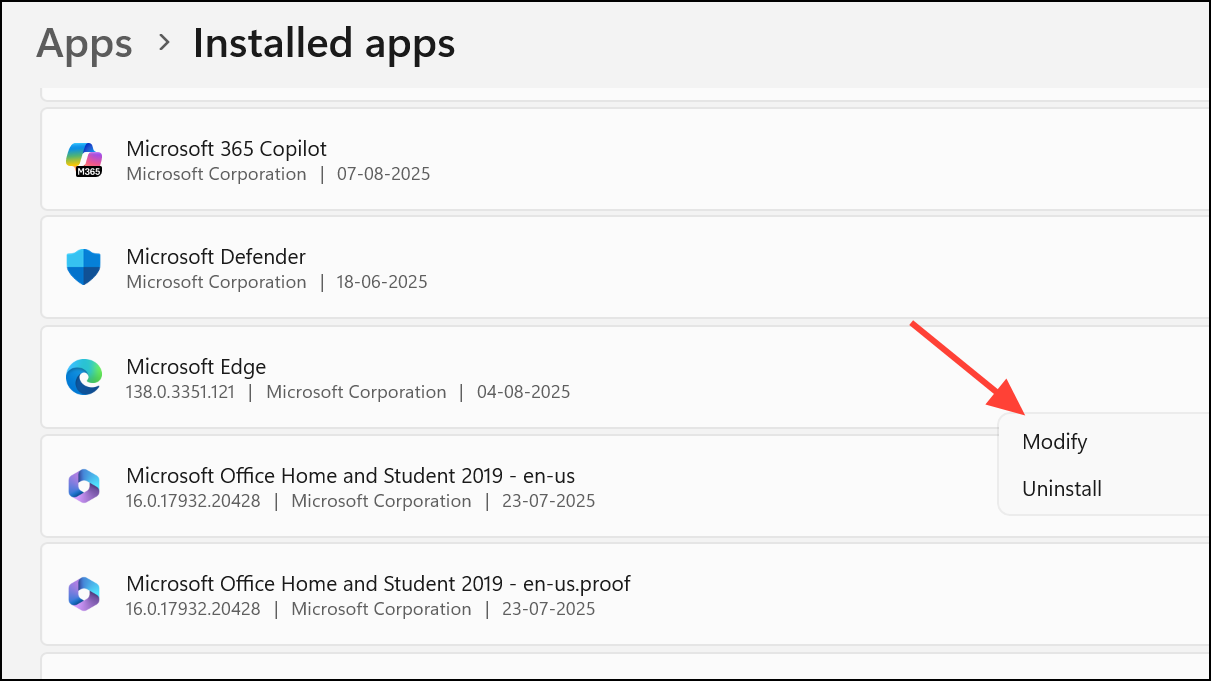
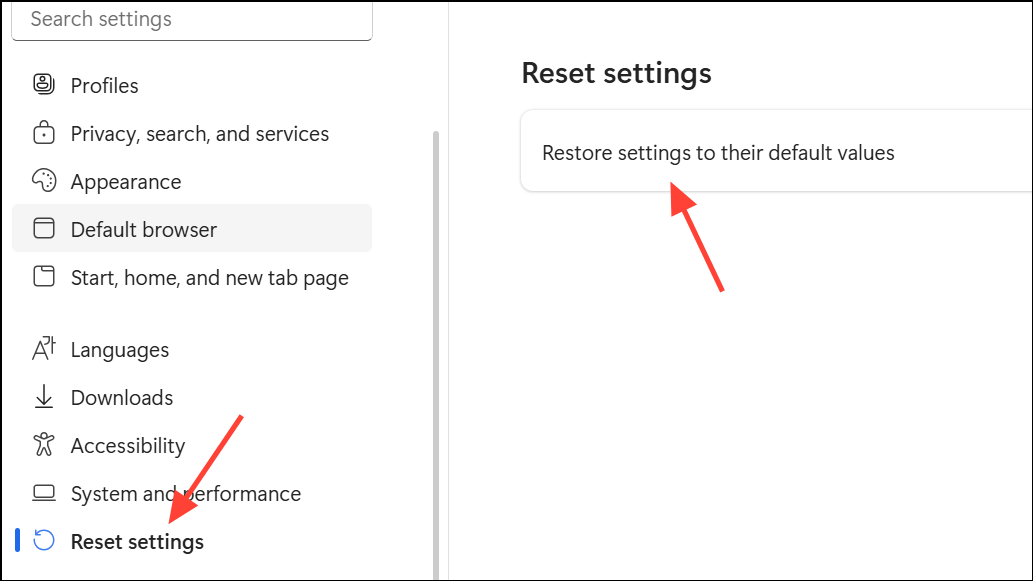
Reset or Repair Microsoft Edge
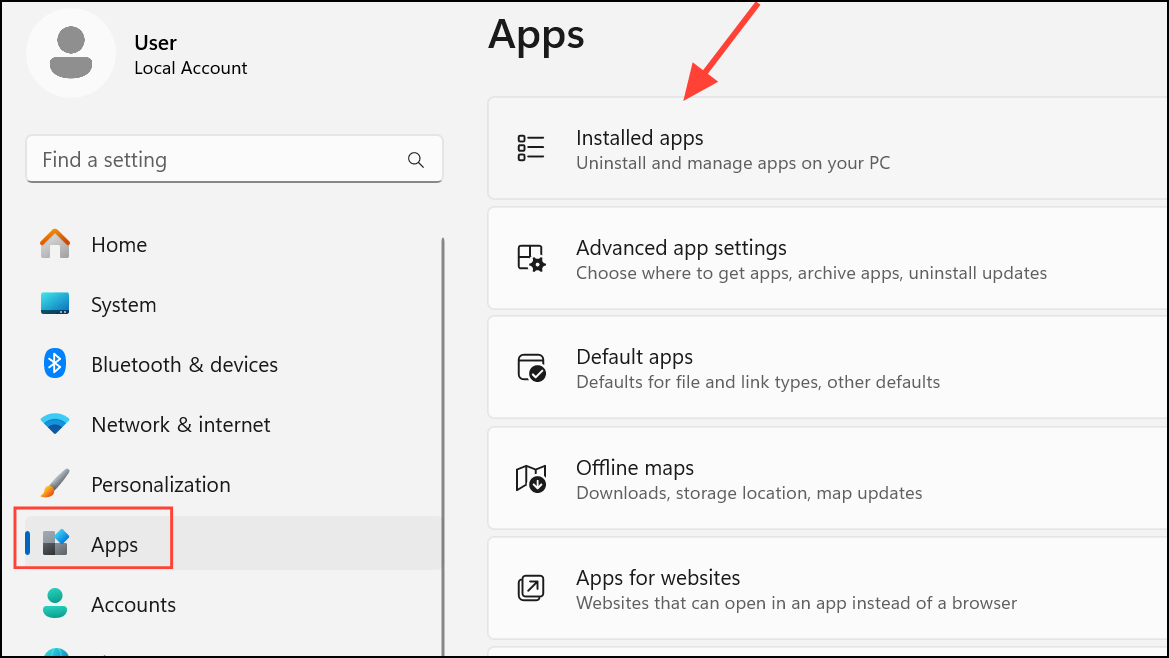
If the above steps fail, Edge may need to be reset or repaired to fix deeper configuration or corruption issues.
Check DRM and Protected Content Settings
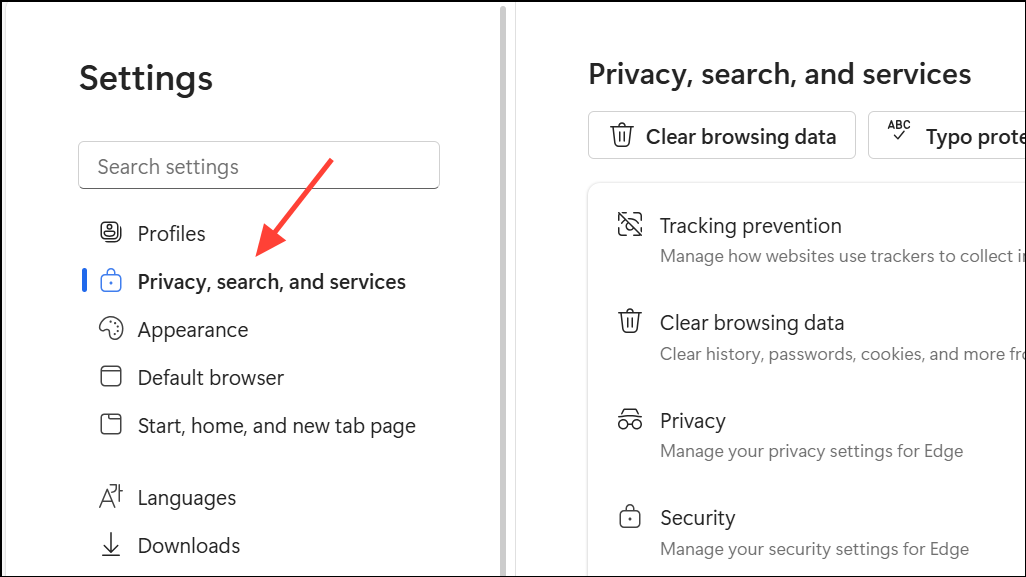
Prime Video requires DRM (Digital Rights Management) to play protected content. If DRM is disabled, videos will not load or play.
Test in InPrivate Mode or New Profile
Profile corruption or persistent cookies can cause persistent issues. Using InPrivate mode or a fresh Edge profile helps isolate these problems.
Network Troubleshooting and System Updates
Rarely, network configuration or recent Windows updates (such as moving from Windows 11 23H2 to 24H2) can trigger Amazon site failures in Edge. Testing on a different network, updating all drivers, or temporarily using another browser may help isolate the cause.
- Restart your modem and router.
- Temporarily disable VPNs or proxies.
- Try connecting via a mobile hotspot to see if the issue is network-related.
- Check for pending Windows and driver updates, especially graphics drivers.
If the issue began after a major Windows update and persists despite all troubleshooting, consider using the Prime Video Windows app or Firefox as a temporary workaround while awaiting an official fix.
Resolving Edge browser issues with Amazon Prime or Amazon sites often requires a mix of plugin updates, settings adjustments, and extension management. If all else fails, switching to another browser or the official app keeps your streaming uninterrupted while waiting for a permanent solution.





