

Real-time document collaboration in Word lets multiple people work on the same file, see each other’s changes instantly, and streamline feedback without the confusion of multiple versions or endless email attachments. This approach solves the hassle of merging edits and tracking contributions, especially for teams working remotely or across different locations. Below you’ll find detailed instructions for the most effective way to collaborate and share documents in Word, along with alternative methods for specific needs or limitations.
Collaborating and Sharing Documents Using Word and OneDrive
Storing a Word document in OneDrive or SharePoint and using Word’s built-in sharing features enables real-time co-authoring and robust document control. This method is the most reliable and feature-rich for collaboration.
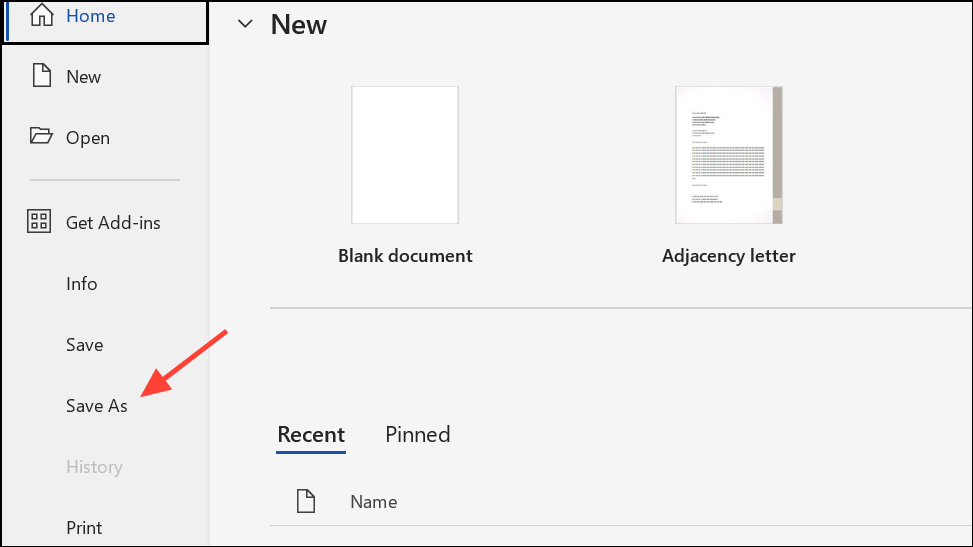
File > Save As, then choose OneDrive or SharePoint as your storage location. This cloud storage is essential for enabling sharing and real-time collaboration features.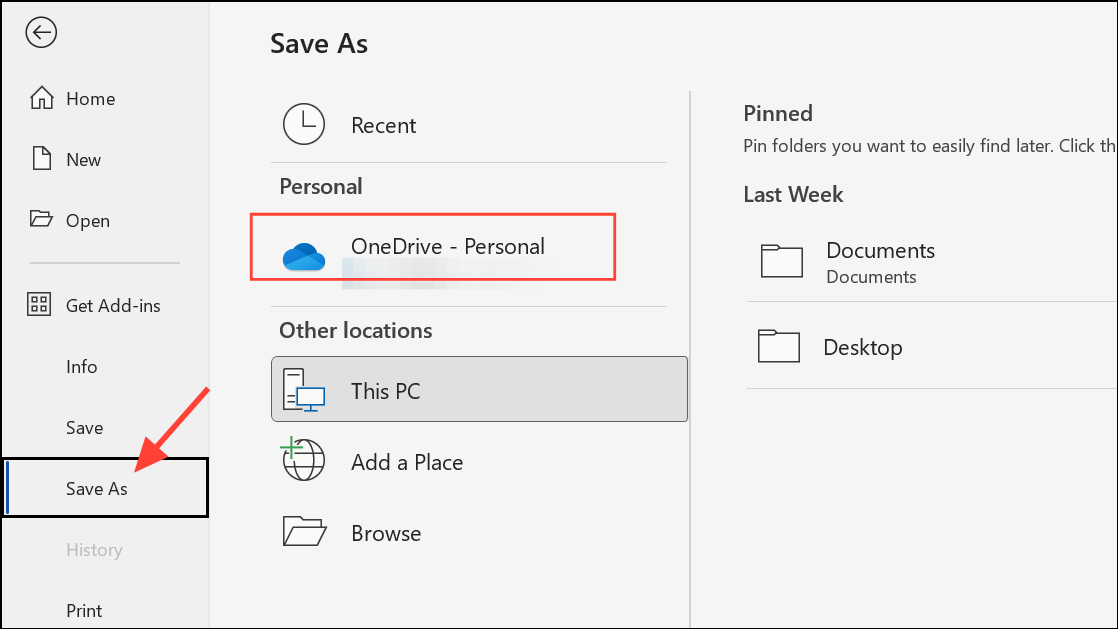
Share button in the upper-right corner of the Word window. If the file is not yet in OneDrive or SharePoint, Word will prompt you to upload it.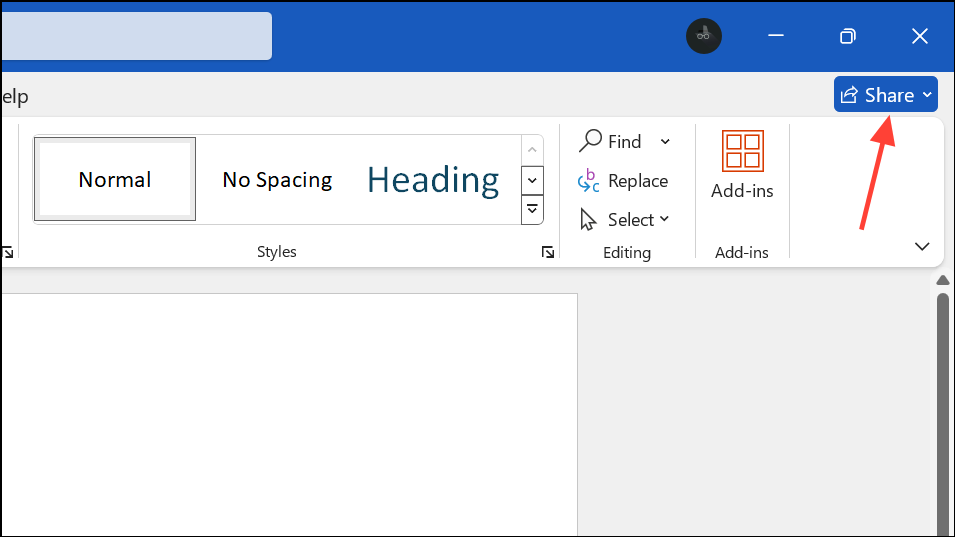
Send to distribute the link.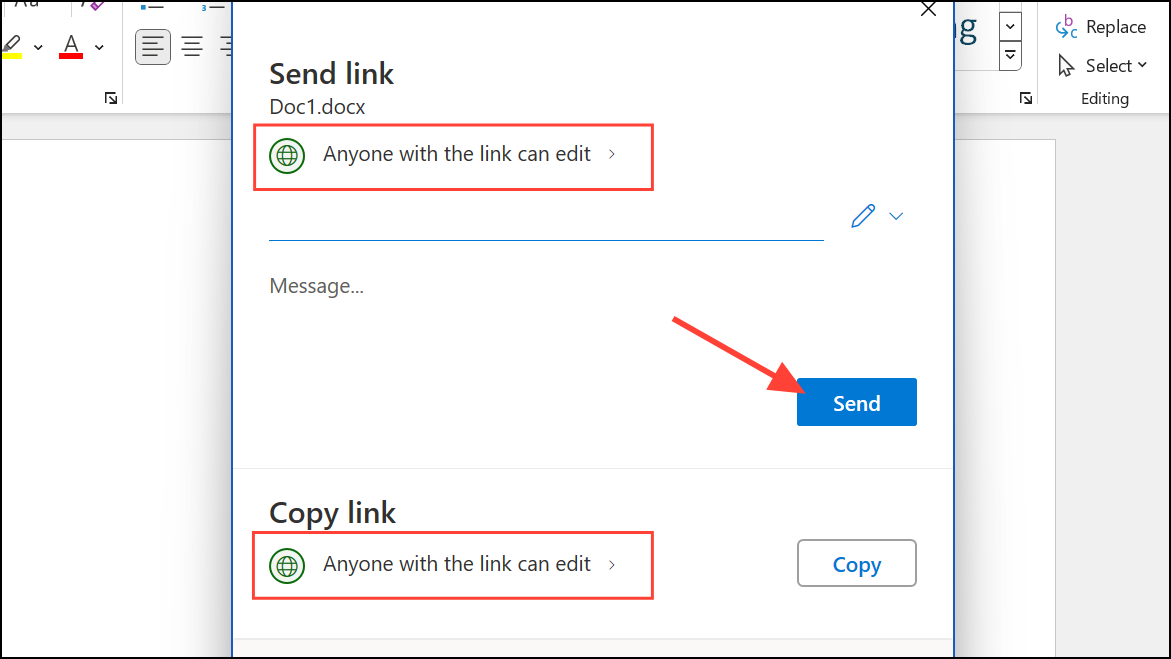
@ followed by their name in a comment.Review tab and select Track Changes. All insertions, deletions, and formatting changes will be marked for review. Use New Comment to leave feedback or suggestions for others, which appears in the document margin.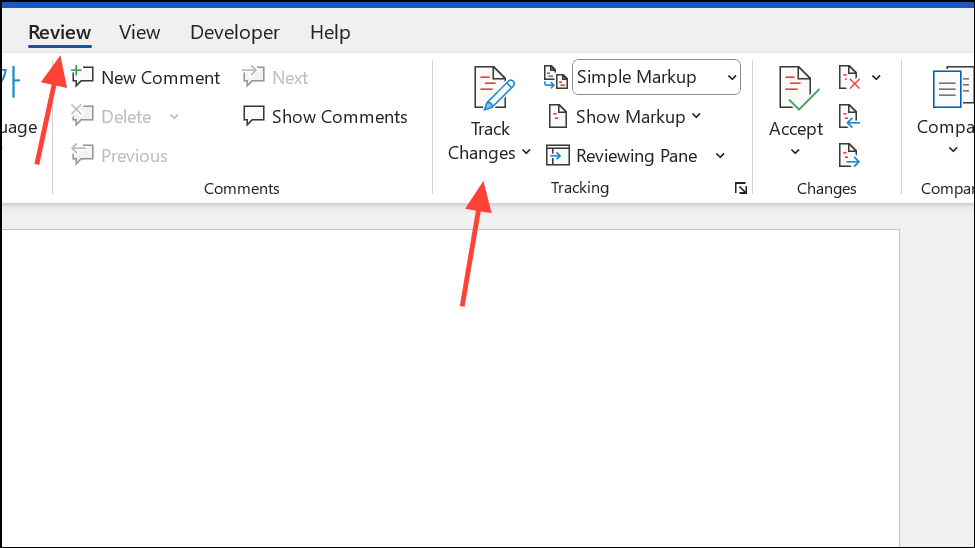
Review tab, use the Accept or Reject buttons to approve or dismiss tracked changes. You can process changes individually or accept/reject all at once for a clean final draft.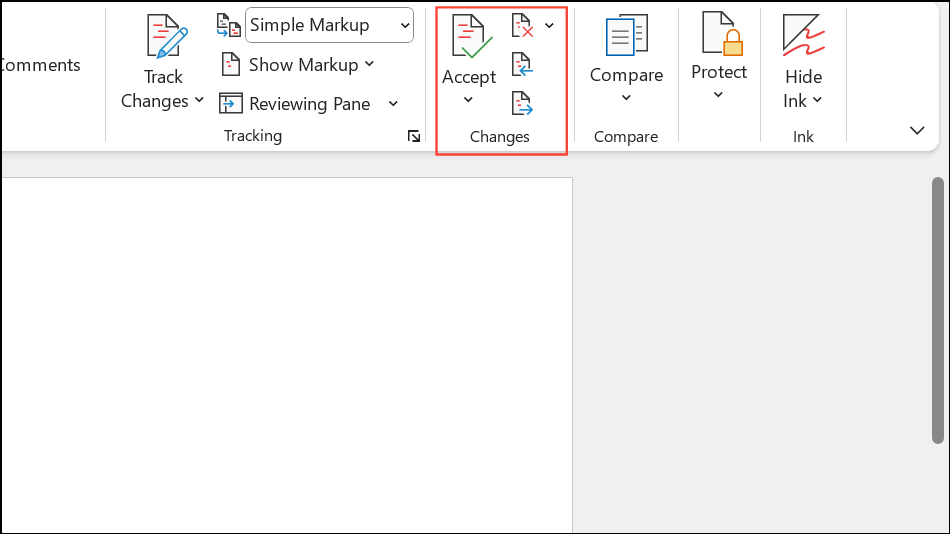
File > Info > Version History. Browse previous document versions and restore the one you need to recover lost content or undo errors.Collaborating in Word for the Web
Word for the web offers a browser-based editing experience that supports real-time collaboration, even if some users do not have the desktop app. This is particularly useful for teams with mixed devices or those who do not all have Microsoft 365 subscriptions.
Review tab, and tracked changes are available for collaborative editing and review.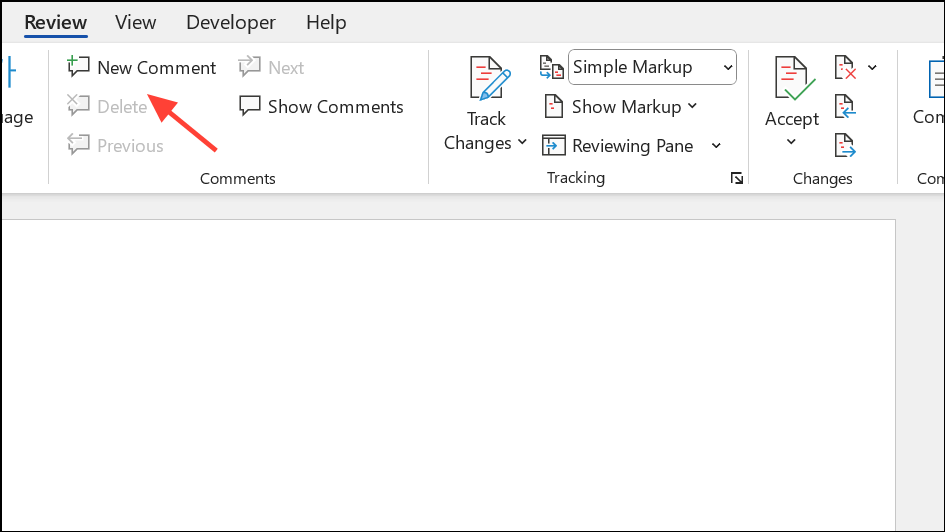
Open in Desktop App from the toolbar.Sharing Documents by Sending Copies or Attachments
When real-time collaboration is not possible—such as when recipients do not have access to OneDrive, SharePoint, or a Microsoft account—you can share Word documents by sending copies as email attachments. This method does not support live co-authoring, so edits must be merged manually.
Compare and Combine features, or manually review and incorporate edits.Important Tips and Cautions
- For real-time co-authoring in the Word desktop app, all collaborators must be signed into a Microsoft account and the document must be saved to OneDrive or SharePoint.
- Anonymous editing is possible in Word for the web with an edit link, but desktop apps require sign-in for collaboration.
- Track changes and comments are stored as metadata. Before sharing documents externally, remove sensitive comments and accept or reject all tracked changes to avoid disclosing internal notes or privileged information.
- If you accidentally accept or reject changes, or need to recover earlier content, use the version history feature in OneDrive or SharePoint.
- For advanced collaboration, integrate documents with Microsoft Teams meetings to discuss and edit files together in real time.
Collaborating and sharing documents in Word is much more efficient when using cloud storage and built-in sharing tools. Following these steps reduces confusion, streamlines teamwork, and keeps everyone on the same page.





