
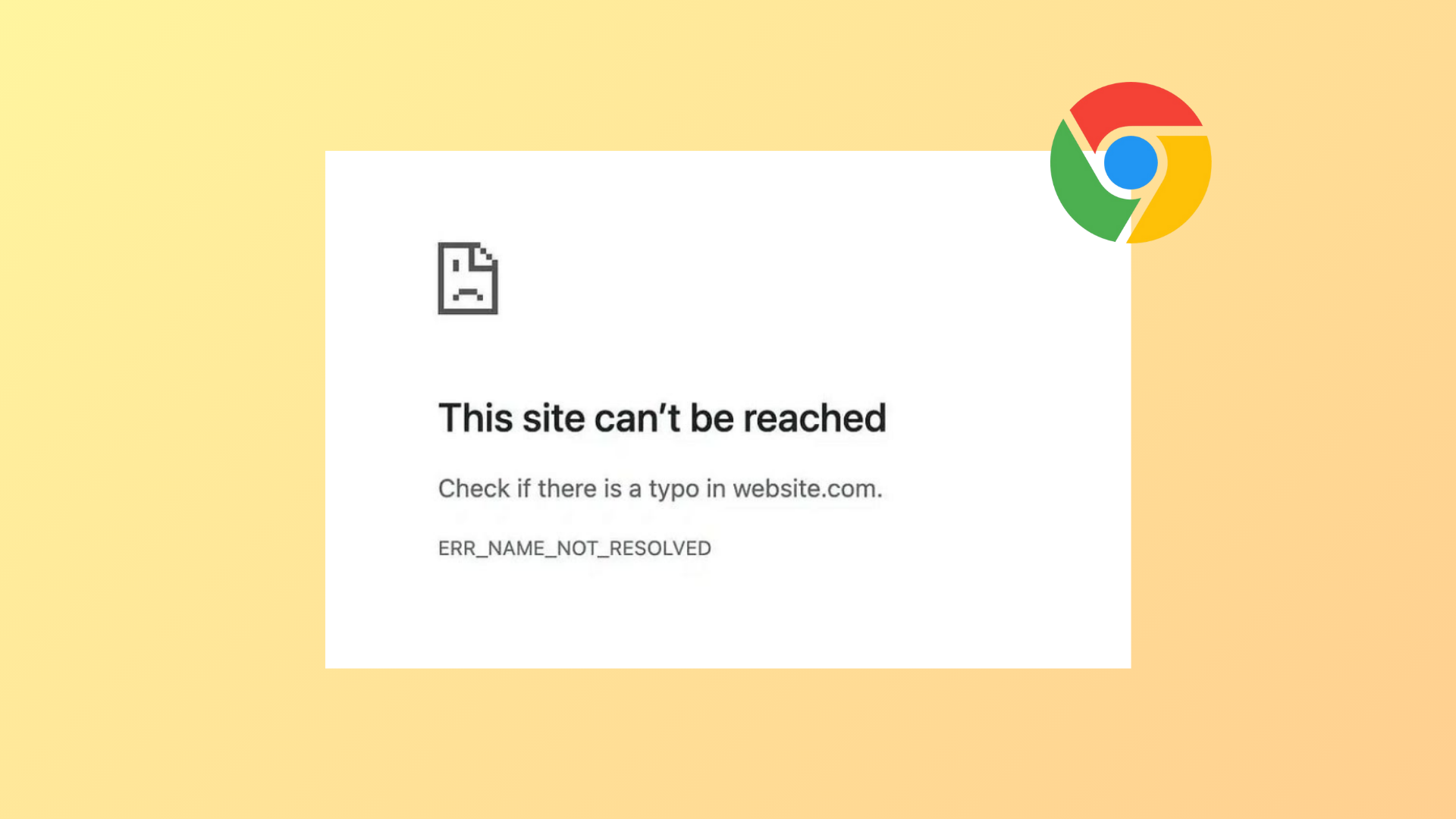
DNS lookup failures prevent Chrome from accessing websites, resulting in the error message: ERR_NAME_NOT_RESOLVED or Error Code 105. This issue arises when Chrome cannot convert a domain name into an IP address, halting the connection process. The most common causes include DNS misconfiguration, outdated cached data, firewall restrictions, or temporary network problems. Addressing these root causes restores normal browsing and site accessibility.
Flush the DNS Cache on Windows 11
DNS cache stores mappings of domain names to IP addresses for quicker access. However, if this cache contains outdated or incorrect records, Chrome will fail to resolve the domain, displaying the error. Flushing the DNS cache clears these records and forces the system to request fresh information from DNS servers.
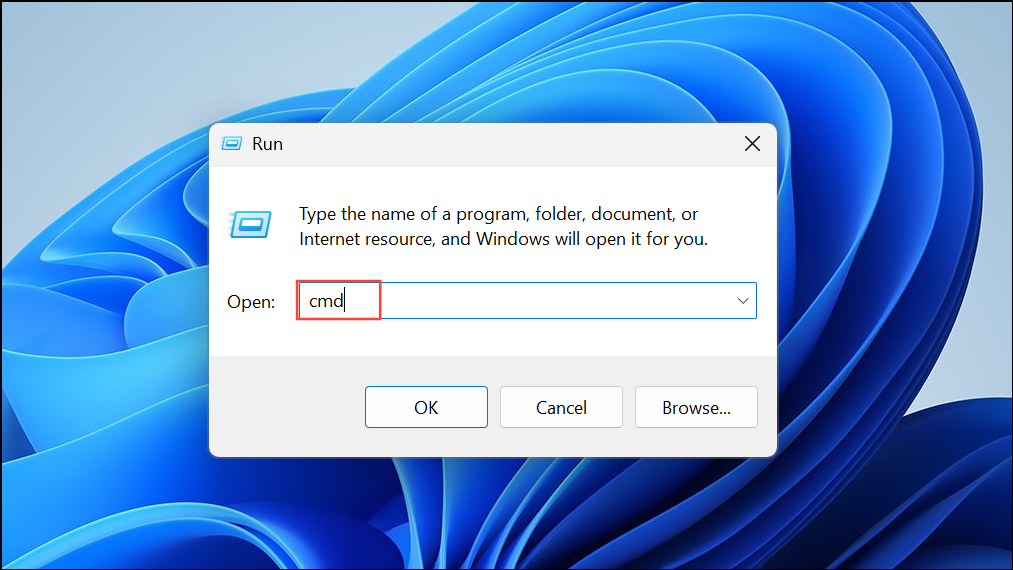
ipconfig /flushdns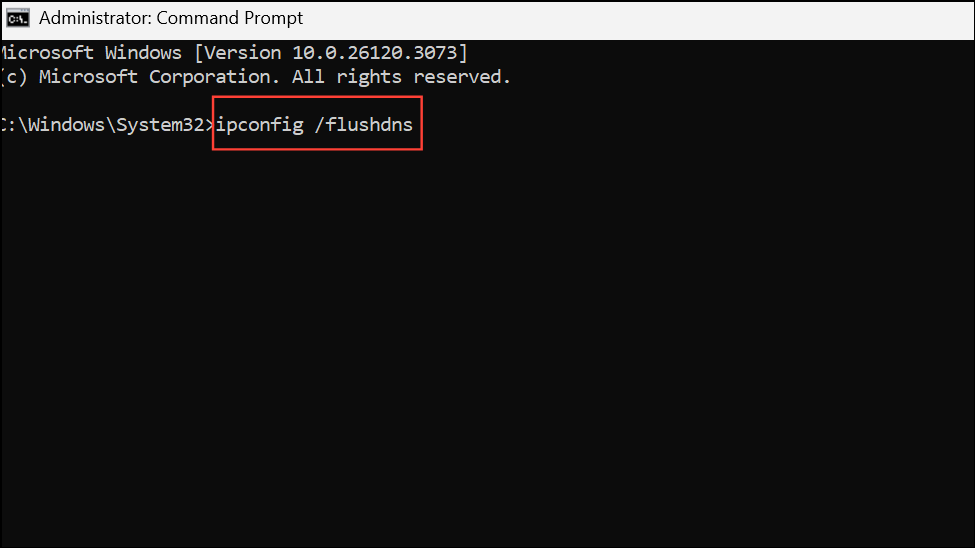
After running the command, you should see a confirmation message stating that the DNS resolver cache was successfully flushed. This forces the system to update its DNS records the next time you attempt to visit a website.
Clear Chrome’s Host Cache and Browser Data
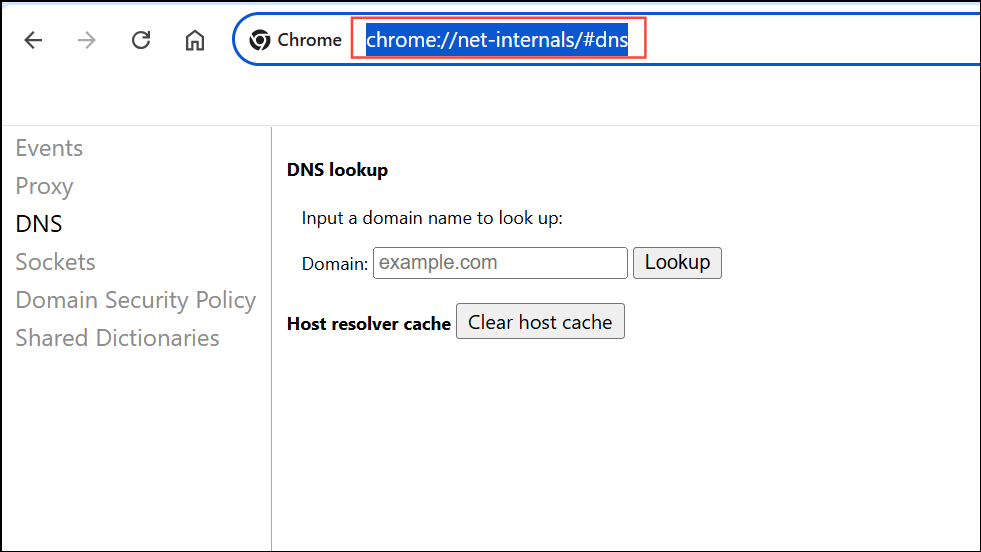
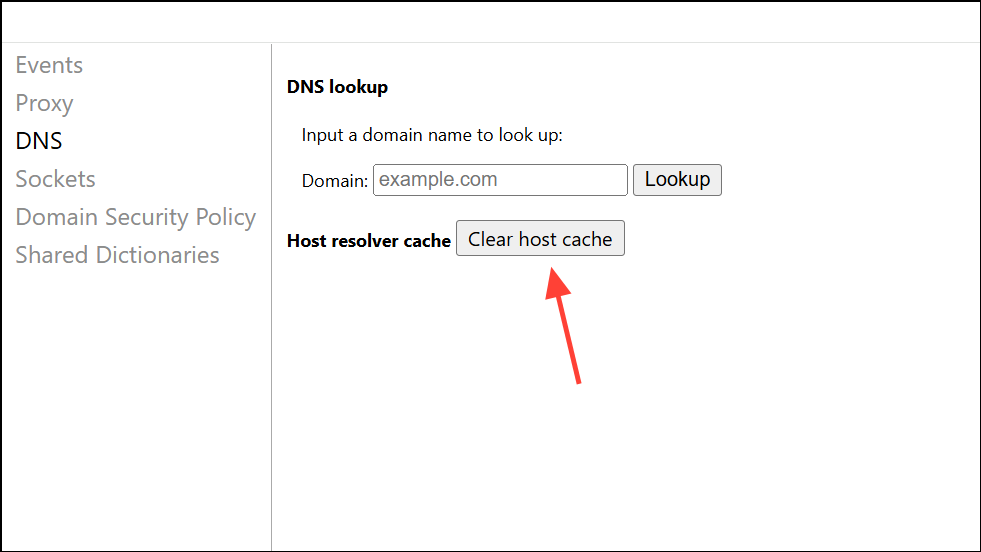
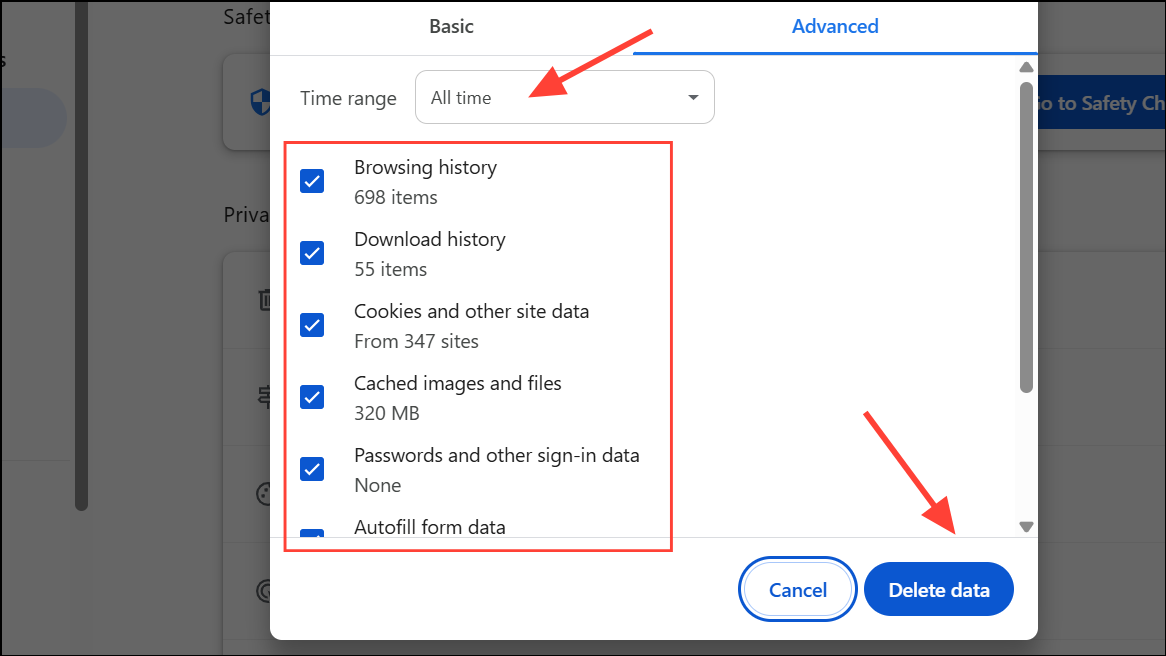
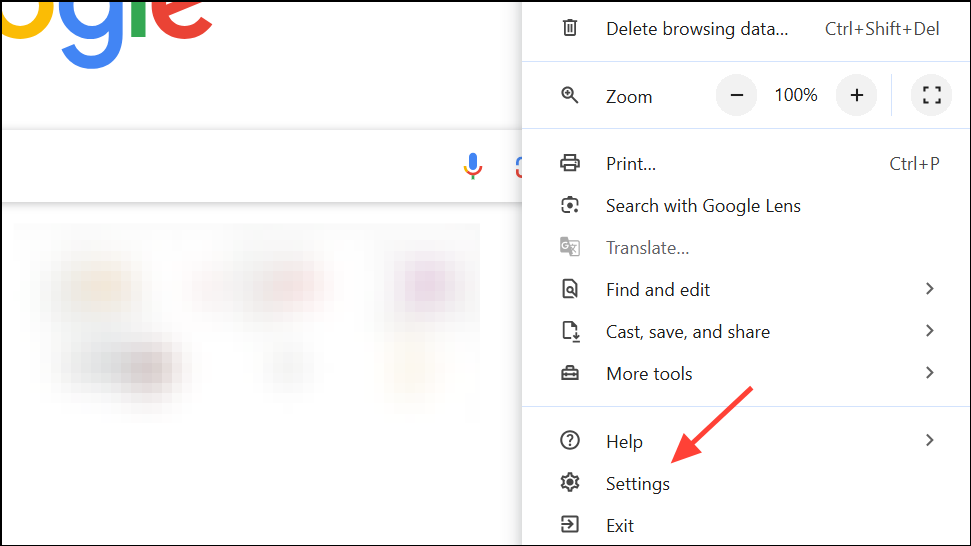
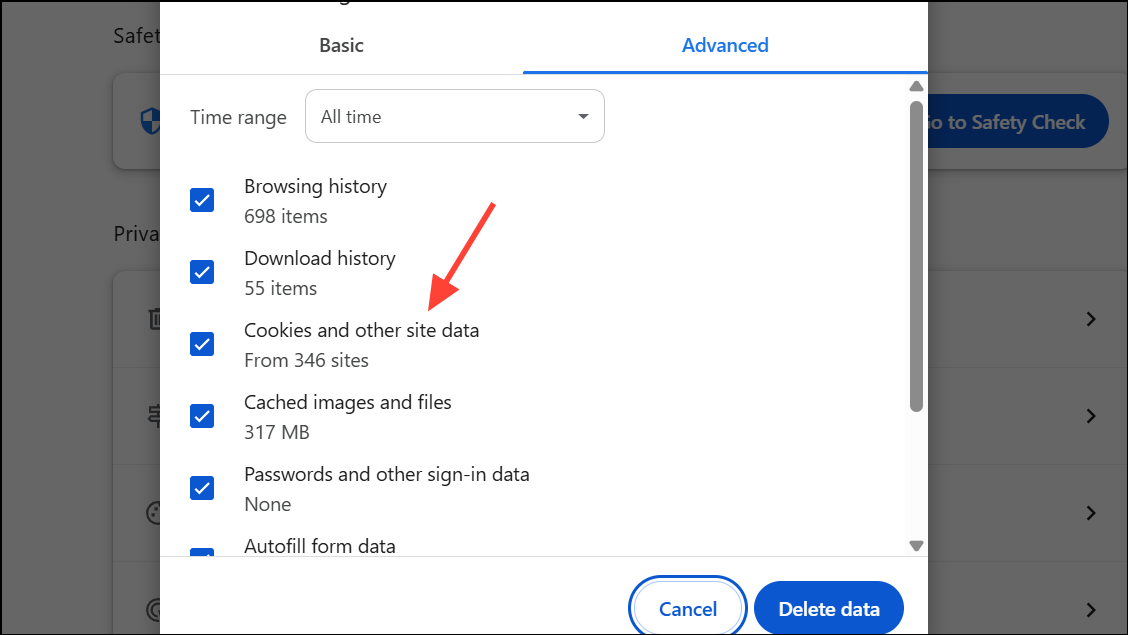
Chrome maintains its own DNS cache, separate from the operating system. Outdated entries here can also trigger DNS resolution errors. Clearing this cache, along with browser cookies and site data, removes stale information that may block website access.
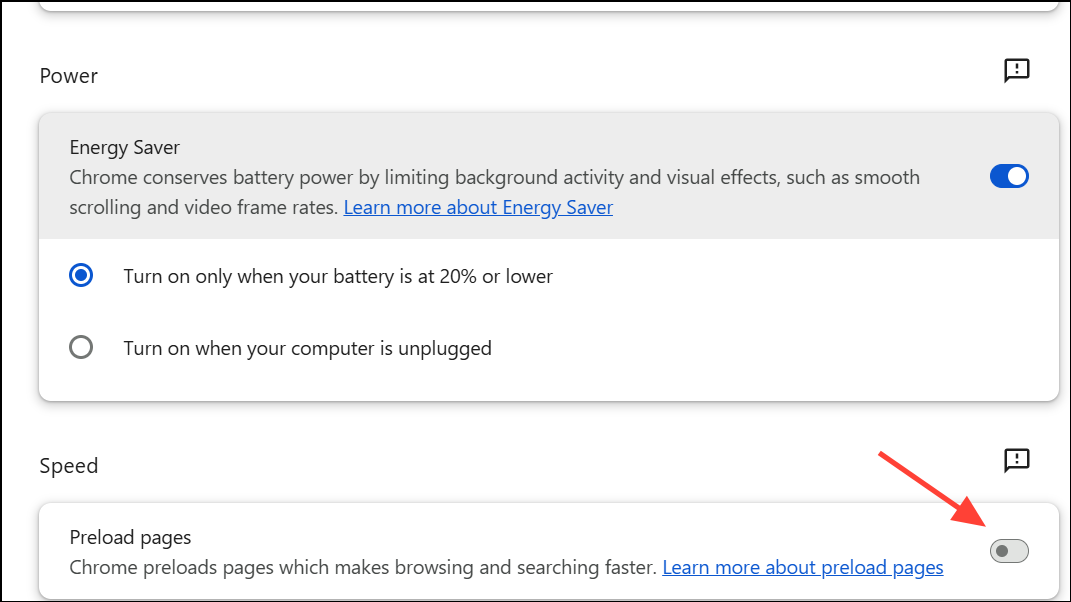
Disable Chrome’s Page Preloading Feature
Chrome’s preloading feature attempts to speed up browsing by prefetching resources and DNS information for predicted sites. If the cached DNS data becomes outdated, this can cause the ERR_NAME_NOT_RESOLVED error. Disabling preloading ensures Chrome fetches fresh DNS data for each request.
Restart Your Router and Test the Internet Connection
Network devices like routers can occasionally experience issues that disrupt DNS queries. Restarting the router refreshes its internal state and often resolves temporary connectivity problems.
Change DNS Server Addresses
Sometimes, the DNS servers provided by your ISP may be slow, unresponsive, or misconfigured. Switching to a public DNS service like Google DNS or Cloudflare DNS can resolve lookup failures and speed up domain resolution.
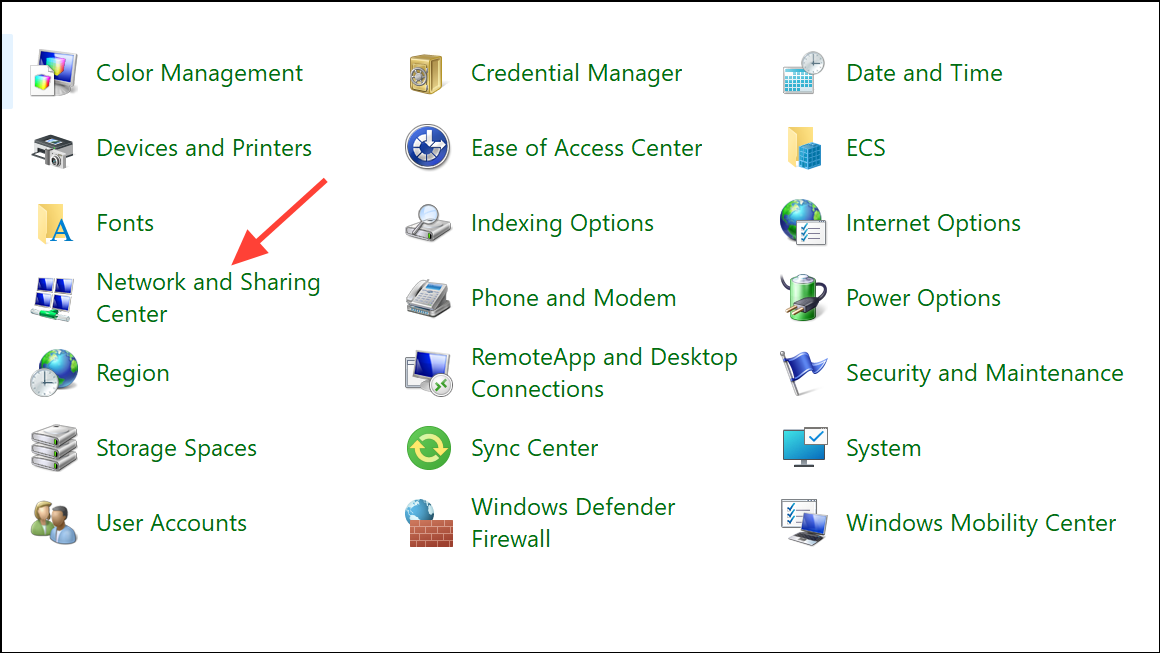
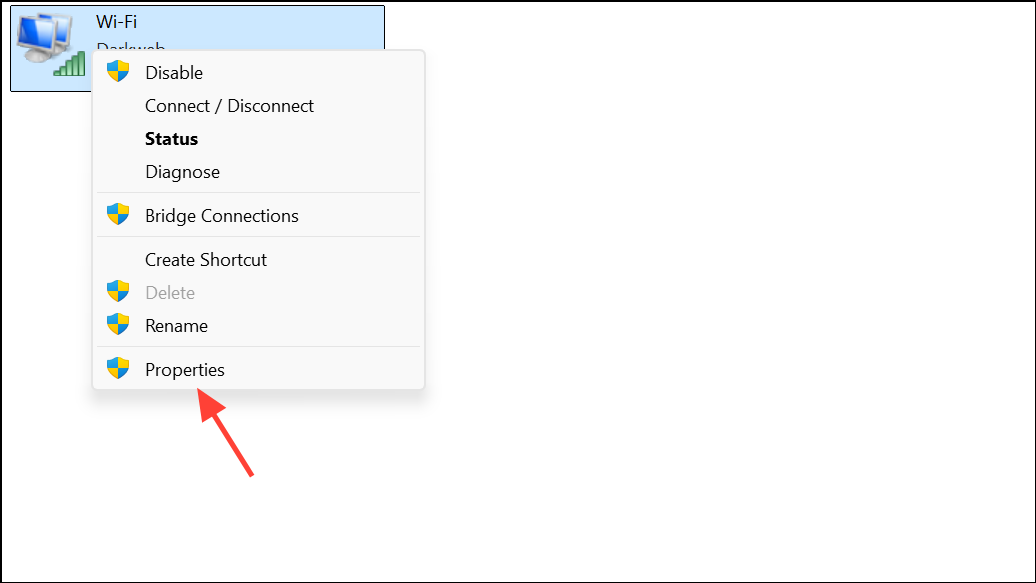
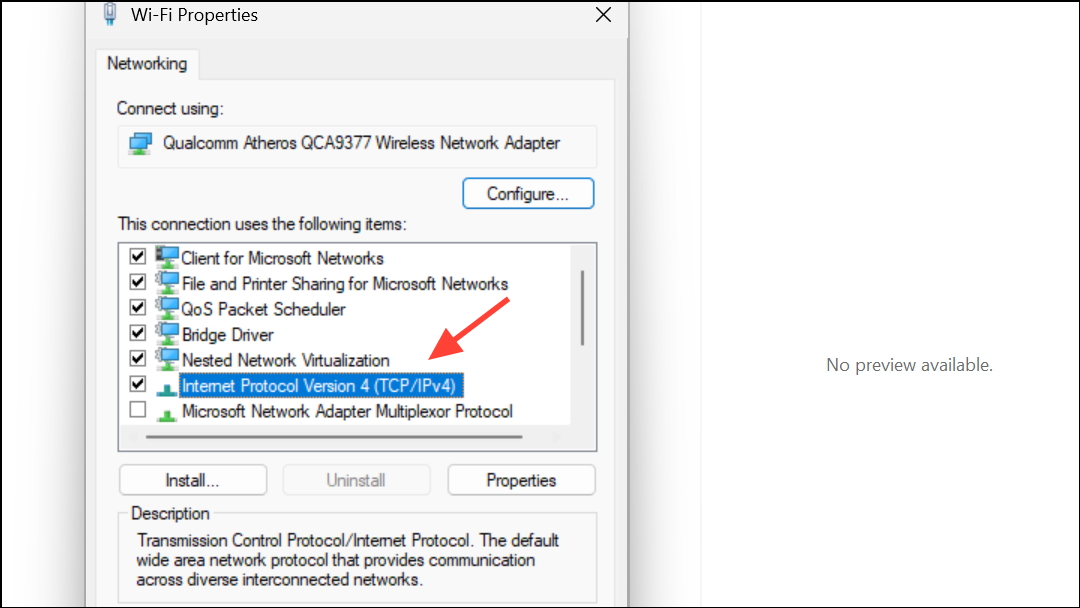
- Google DNS (IPv4):
8.8.8.8and8.8.4.4. - Cloudflare DNS (IPv4):
1.1.1.1and1.0.0.1.
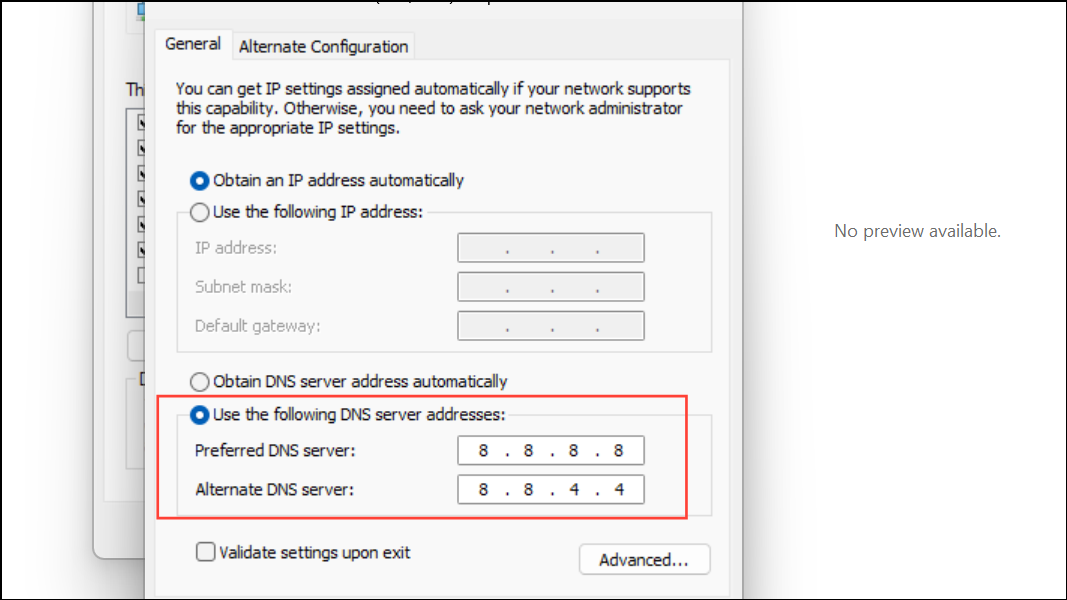
Click OK to save your changes. Reconnect to the internet and test Chrome again.
Reset Windows Firewall Settings
Firewall or security software can block DNS requests or Chrome’s network access, causing DNS resolution errors. Resetting firewall settings restores default rules and removes unintended blocks.
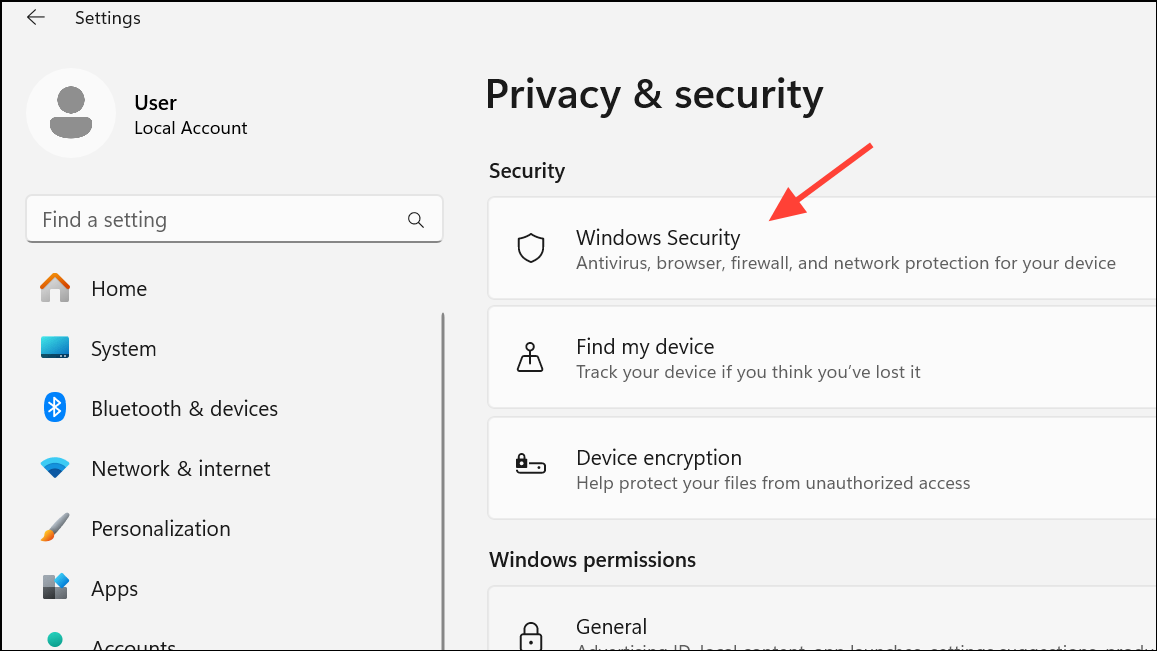
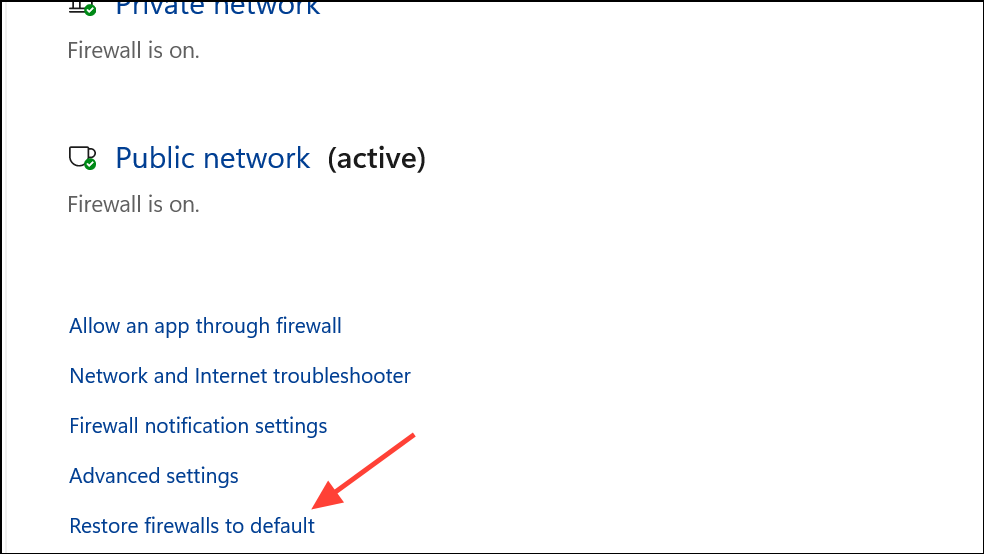
If you use third-party antivirus or firewall software, temporarily disable it and check if the error resolves. If so, add Chrome as an allowed application or adjust the firewall rules accordingly.
Disable DNSSEC for Your Domain (Website Owners Only)
DNSSEC (Domain Name System Security Extensions) adds cryptographic protection to DNS records. However, if DNSSEC is misconfigured or your domain recently changed hosts, DNS propagation issues can cause ERR_NAME_NOT_RESOLVED errors for all visitors. Disabling DNSSEC can restore normal resolution if this is the cause.
After disabling DNSSEC, test your website in Chrome to confirm that the error no longer appears.
Additional Solutions and Maintenance Tips
Other factors, such as incorrect proxy settings, browser extensions, or malware, can also cause DNS resolution problems. Ensure proxy settings are correct (or disabled if not needed) in Chrome’s system settings. Temporarily disable suspicious extensions or run a malware scan with trusted security software if problems persist. Periodically clearing browser and DNS caches, as well as keeping your system and browser updated, minimizes the chance of future DNS errors.
Restoring DNS functionality in Chrome often comes down to clearing outdated cache, configuring reliable DNS servers, and ensuring network and firewall settings are correct. These targeted steps resolve most instances of error code 105 and ERR_NAME_NOT_RESOLVED, so you can get back to uninterrupted browsing.





