
Network interruptions, DNS misconfigurations, or browser issues frequently cause the This Site Can't Be Reached error in Google Chrome. This error may appear with codes such as ERR_CONNECTION_RESET, DNS_PROBE_FINISHED_NXDOMAIN, or ERR_CONNECTION_TIMED_OUT, each pointing to a different underlying issue. Addressing these problems systematically can restore normal browsing and prevent future disruptions.
Change DNS Server Settings
Switching to a reliable public DNS server such as Google DNS or Cloudflare DNS often resolves persistent connection errors, especially when your ISP’s DNS servers are unreliable or blocked.
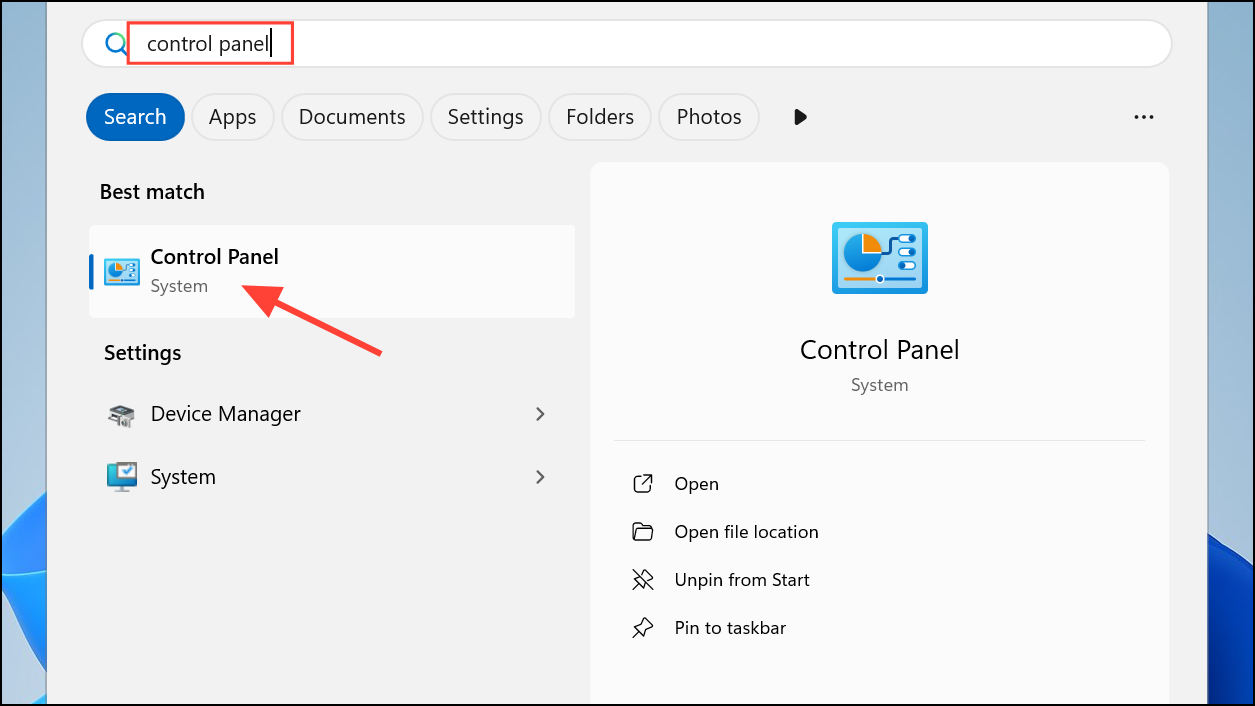
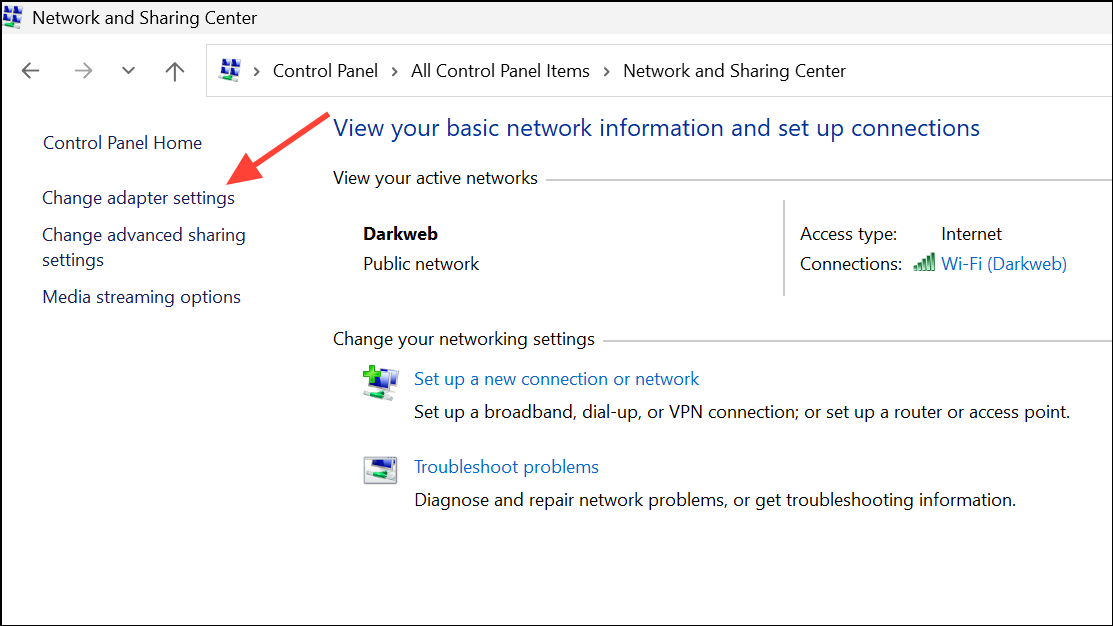
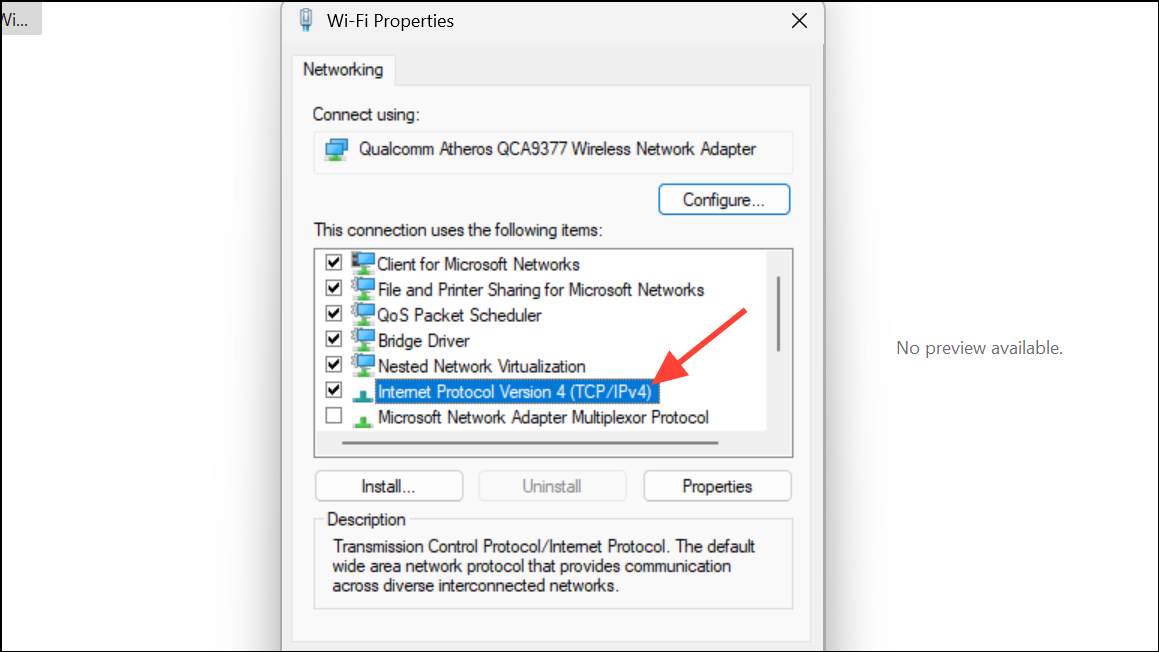
8.8.8.8 as the Preferred DNS server and 8.8.4.4 as the Alternate DNS server for Google DNS. For Cloudflare DNS, use 1.1.1.1 and 1.0.0.1.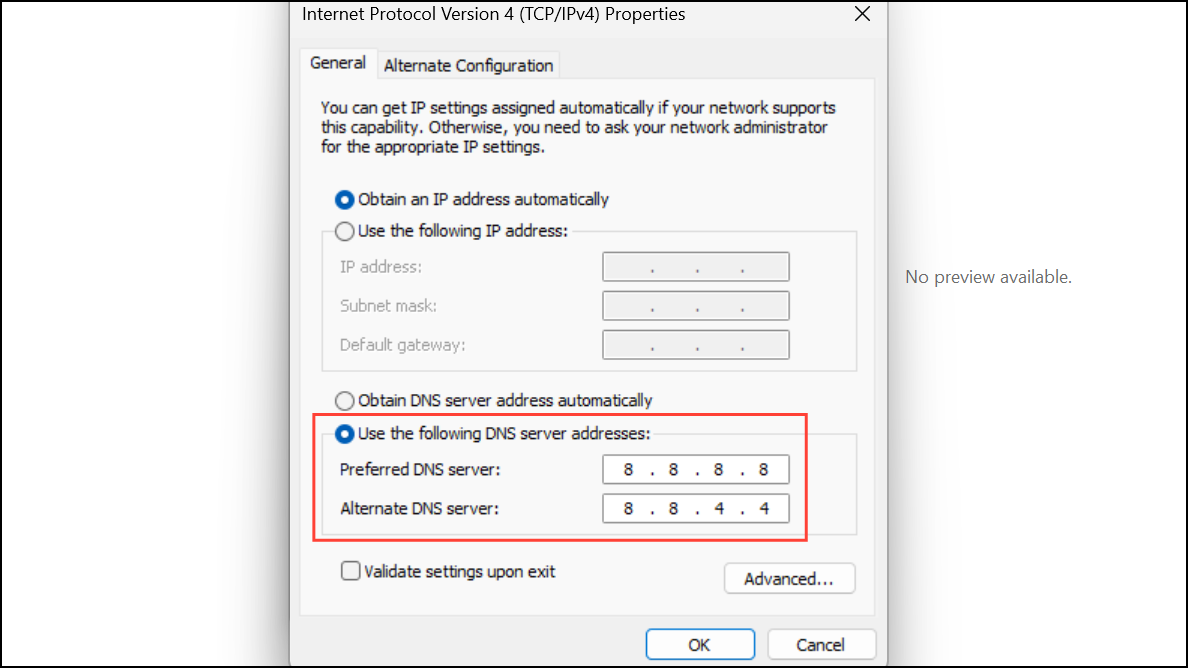
Flush DNS Cache
Flushing the DNS cache removes outdated or corrupted records that may prevent Chrome from resolving website addresses correctly.
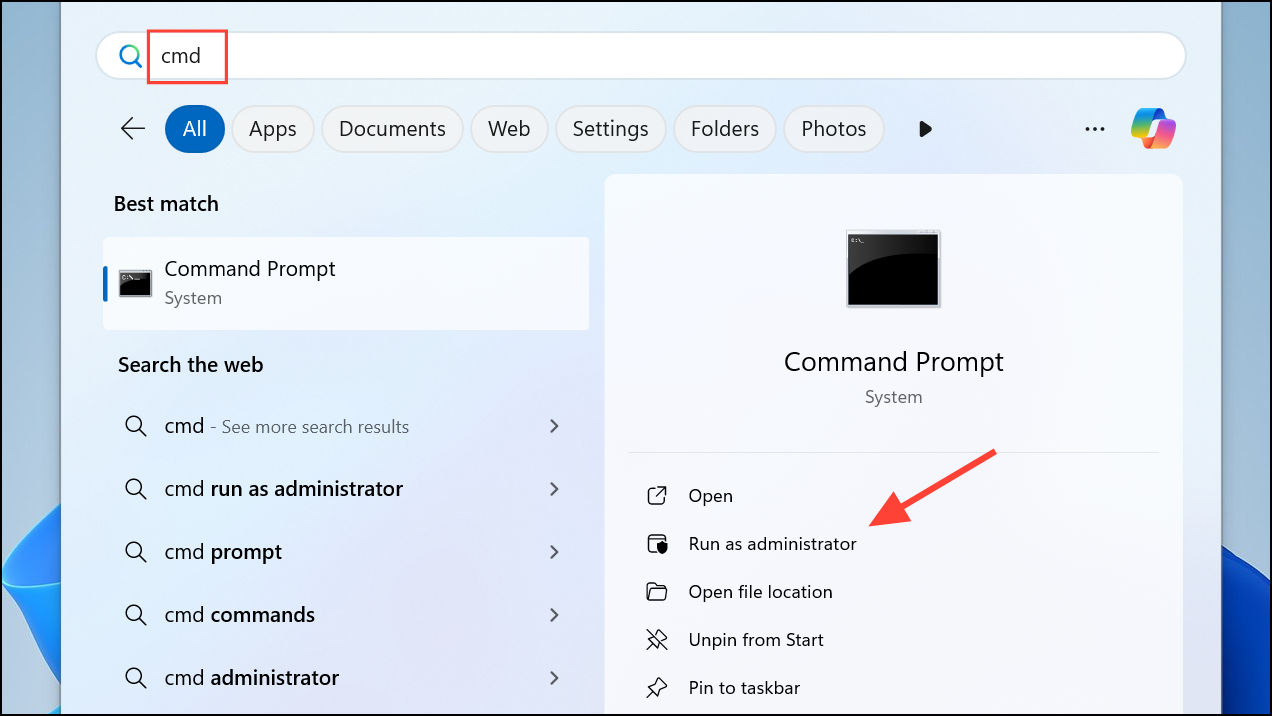
ipconfig /flushdns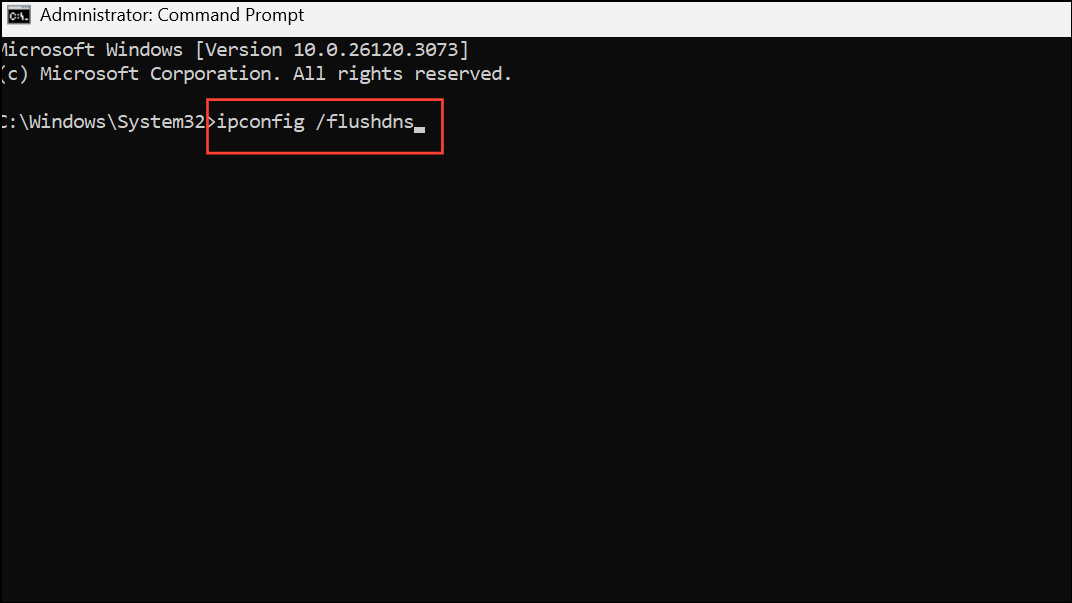
This command clears the DNS cache. If the command completes successfully, you’ll see a confirmation message.
Restart Internet Connection and Router
Temporary network issues or router misbehavior can disrupt connectivity, resulting in Chrome’s error message.
Clear Chrome Cache and Cookies
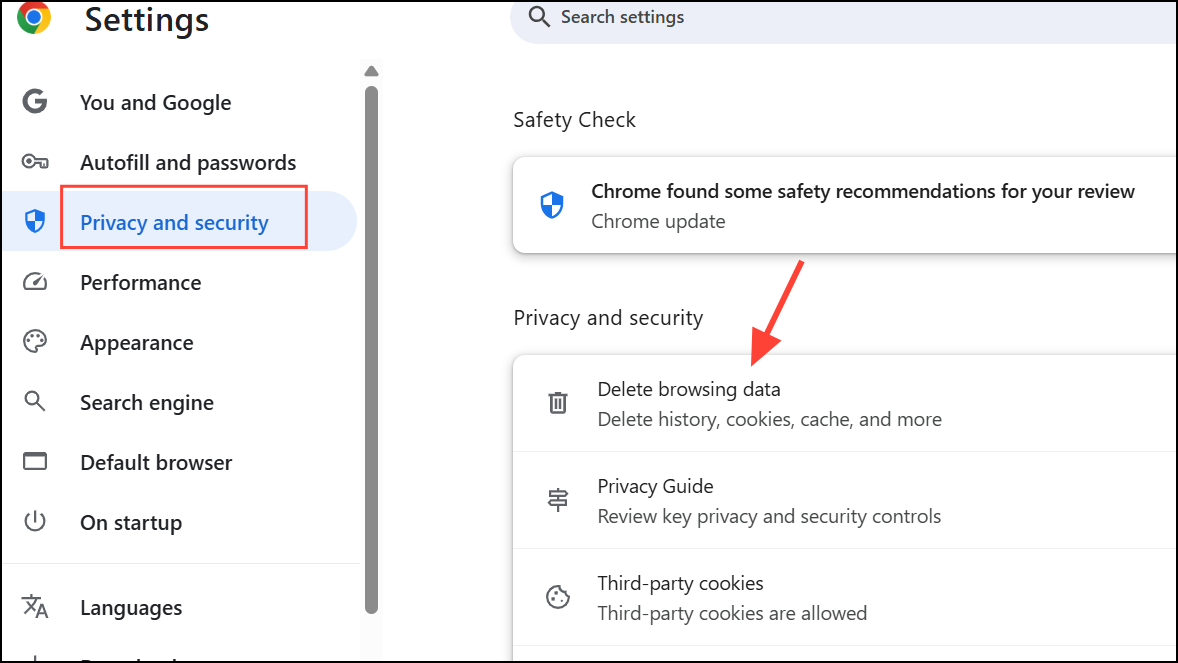
Corrupted or stale browser cache and cookies can interfere with website loading and authentication, leading to connection errors.
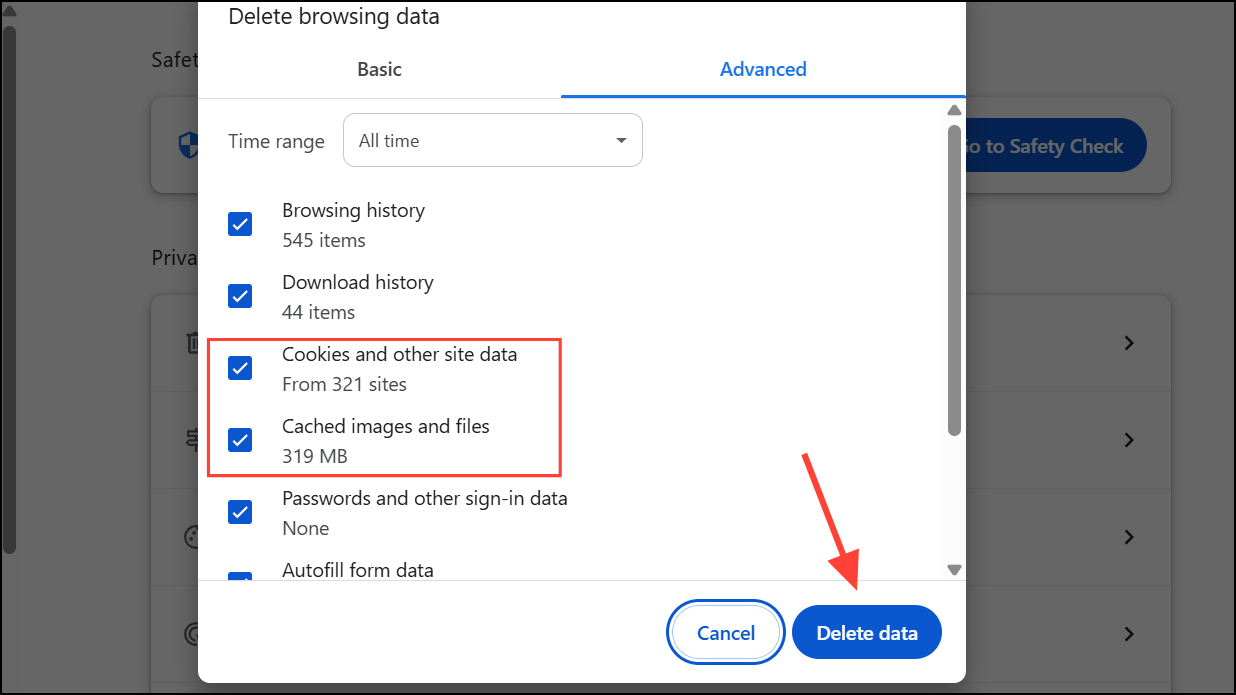
Disable Firewall, Antivirus, VPN, or Proxy Temporarily
Overly strict security software, VPNs, or proxy settings sometimes block legitimate sites. Temporarily disabling these services can help identify if they are the cause.
Reset Chrome Settings and Disable Extensions
Misconfigured Chrome settings or problematic extensions can prevent sites from loading correctly.
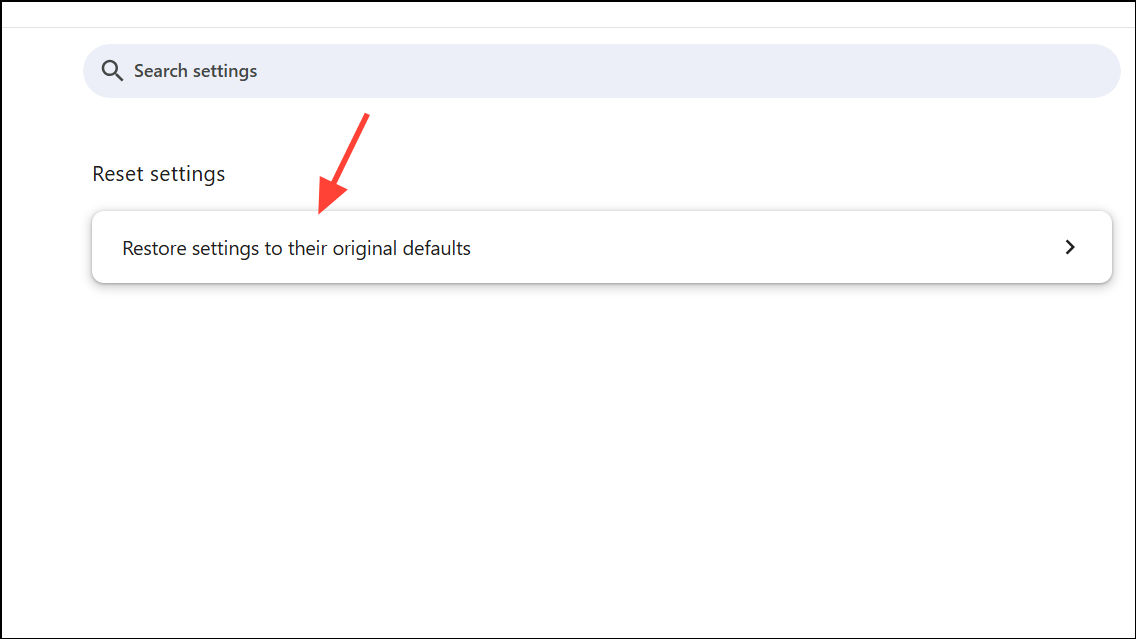
chrome://extensions/ in the address bar. Disable all extensions, then reload the website.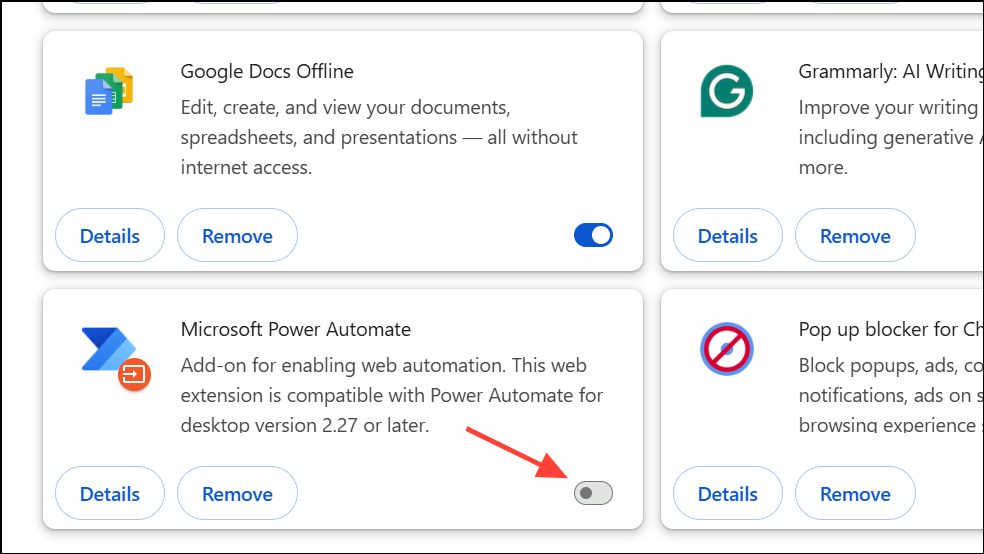
Renew IP Address
Obtaining a new IP address from your router can resolve conflicts or expired leases that disrupt network access.
ipconfig /release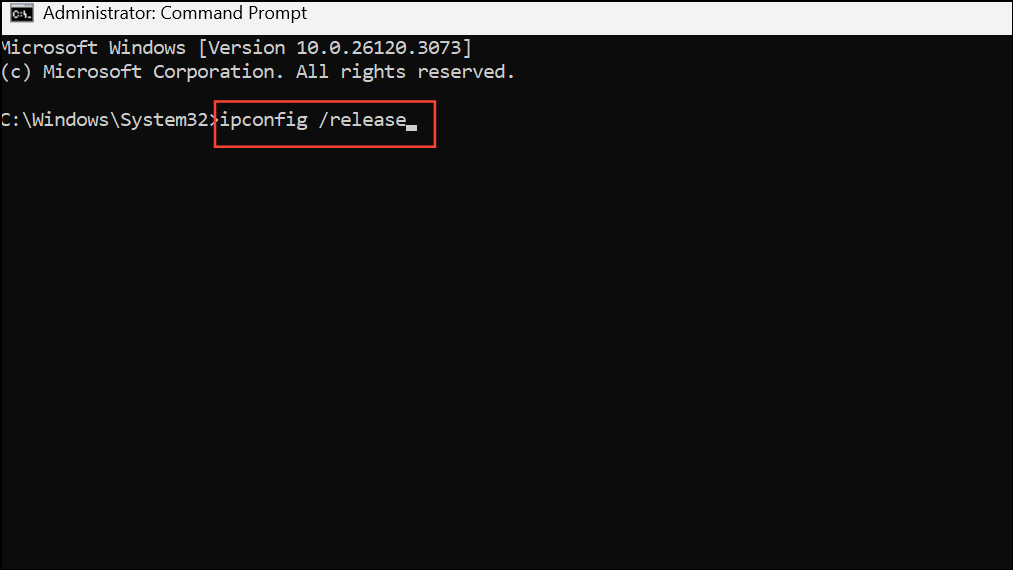
Wait for the command to complete, then enter:
ipconfig /renew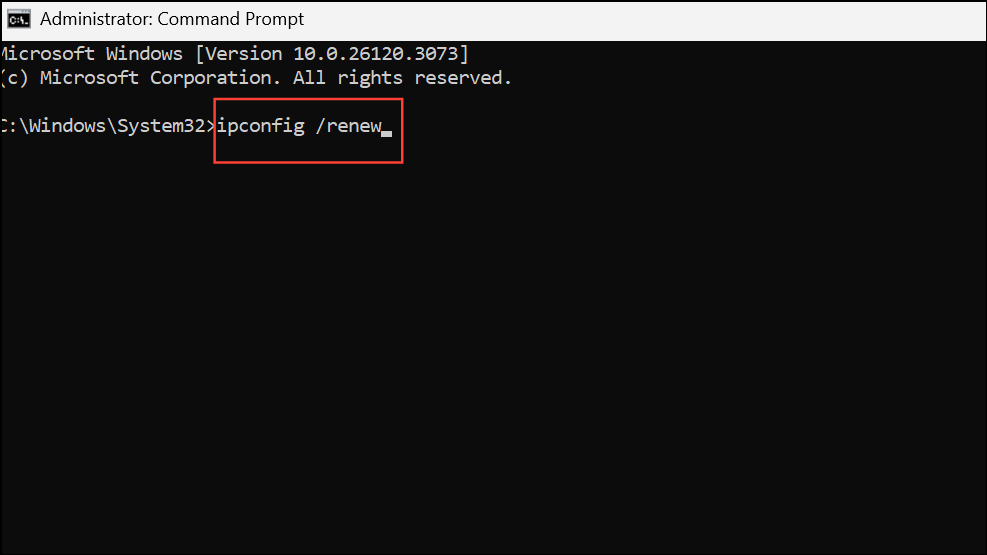
This forces your computer to request a new IP address from the router. After completion, try accessing the desired website.
Test on a Different Device or Network
If the error persists, try loading the website on another device (phone, tablet, or another computer) connected to the same network. Alternatively, switch to a different network (such as mobile data) to determine if the issue is isolated to your device or network.
If the site loads elsewhere, the problem likely lies with your original device or local network settings. If not, the website itself may be down or blocked by your ISP.
Check Website Status and URL
Sometimes, the website is genuinely offline or the URL is mistyped. Double-check the web address for errors. Use an online tool like Down for Everyone or Just Me to confirm if the website is accessible globally.
Systematic troubleshooting—starting with DNS changes and moving through cache clearing, network resets, and Chrome settings—addresses nearly all causes of the “This Site Can’t Be Reached” error in Chrome. If none of these steps work, contact your ISP or the website administrator for further assistance.





