
Typing a period is essential for clear communication, but on Windows 11, the period key can sometimes malfunction—either not registering at all, producing unexpected characters, or working only with the Shift key. Incorrect keyboard settings, driver problems, accessibility features, or software conflicts often cause these symptoms. Addressing the root cause restores normal typing and ensures you can use all punctuation as intended.
Check for Num Lock or Alternative Keyboard Modes
On some laptops and compact keyboards, activating
Num Lock can remap keys—including the period key—to function as part of a virtual numeric keypad. If pressing the period or comma key results in numbers or unusual characters, look for a Num Lock or Fn Lock indicator on your keyboard. Toggle it off by pressing Fn + Num Lock or the specific key combination for your device.If you’re unsure which key toggles
Num Lock, refer to your keyboard’s manual or manufacturer’s website. Some keyboards require Fn + a function key (such as F11).Test the Period Key with the On-Screen Keyboard
Use the Windows On-Screen Keyboard to determine if the issue is hardware or software related. Press
Windows + R, type osk, and press Enter to launch the virtual keyboard.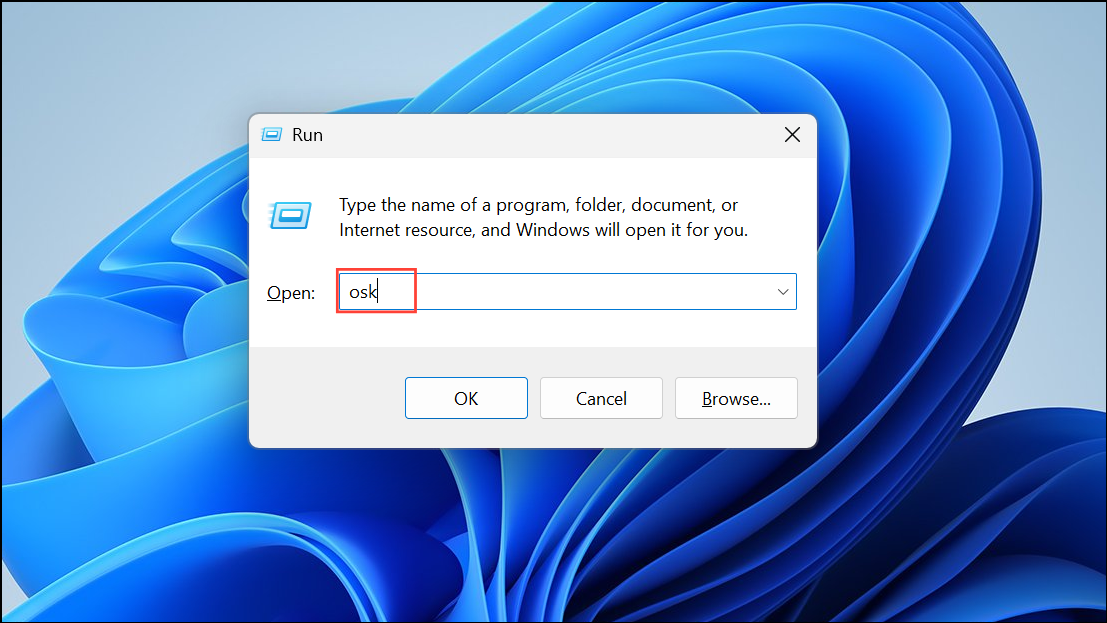
Click the period key on the virtual keyboard. If it works, your physical keyboard or its driver may be at fault. If it does not work, the problem is likely with your Windows settings or software.
Reinstall or Update Keyboard Drivers
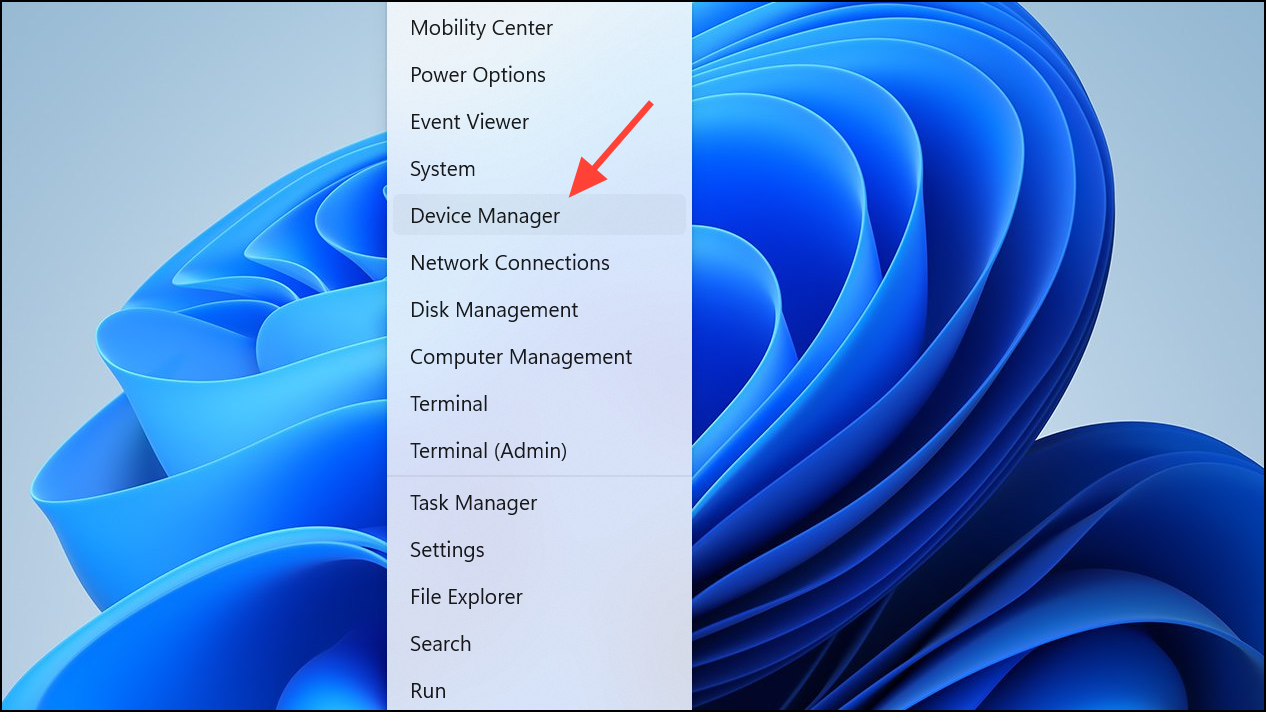
Expand the
Keyboards section. Right-click your keyboard device and choose Uninstall device. Restart your computer to allow Windows to reinstall the driver automatically.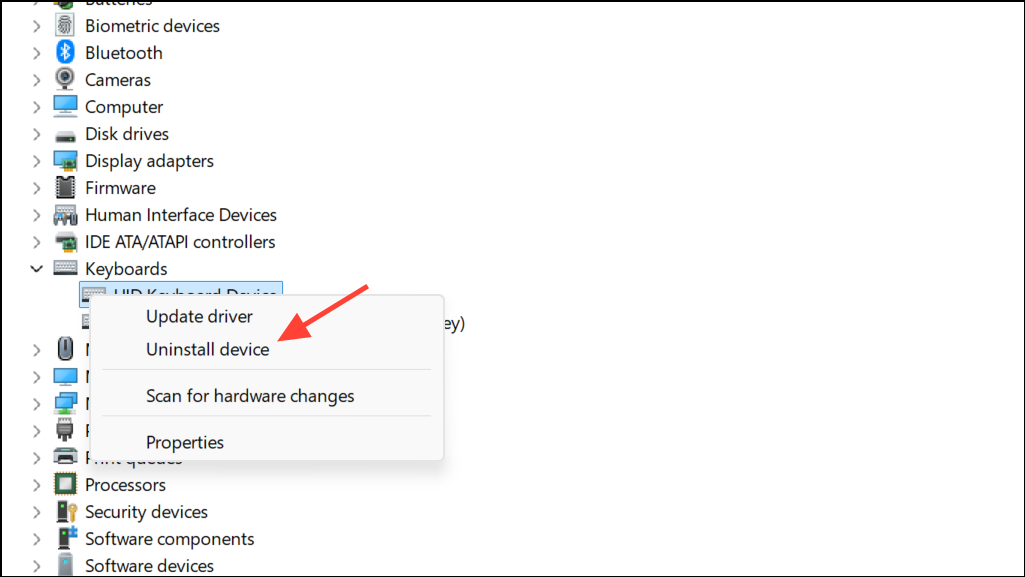
Alternatively, right-click and select
Update driver to check for updates. If the problem persists, visit your keyboard manufacturer’s website to download the latest driver for your model and install it manually.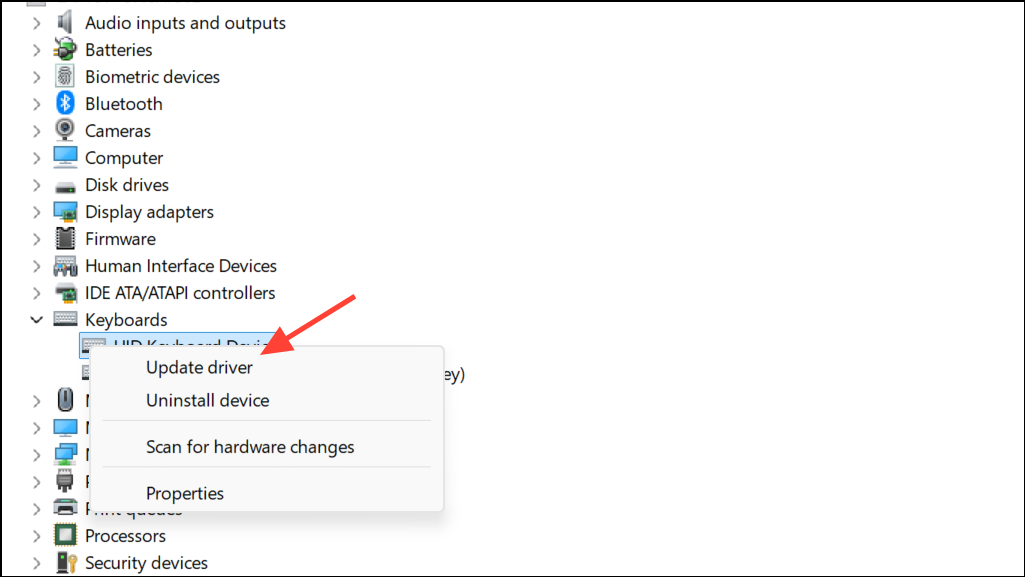
Check Keyboard Layout and Language Settings
Incorrect keyboard layouts can cause the period key to produce the wrong symbol or nothing at all. Go to
Settings > Time & Language > Language & Region.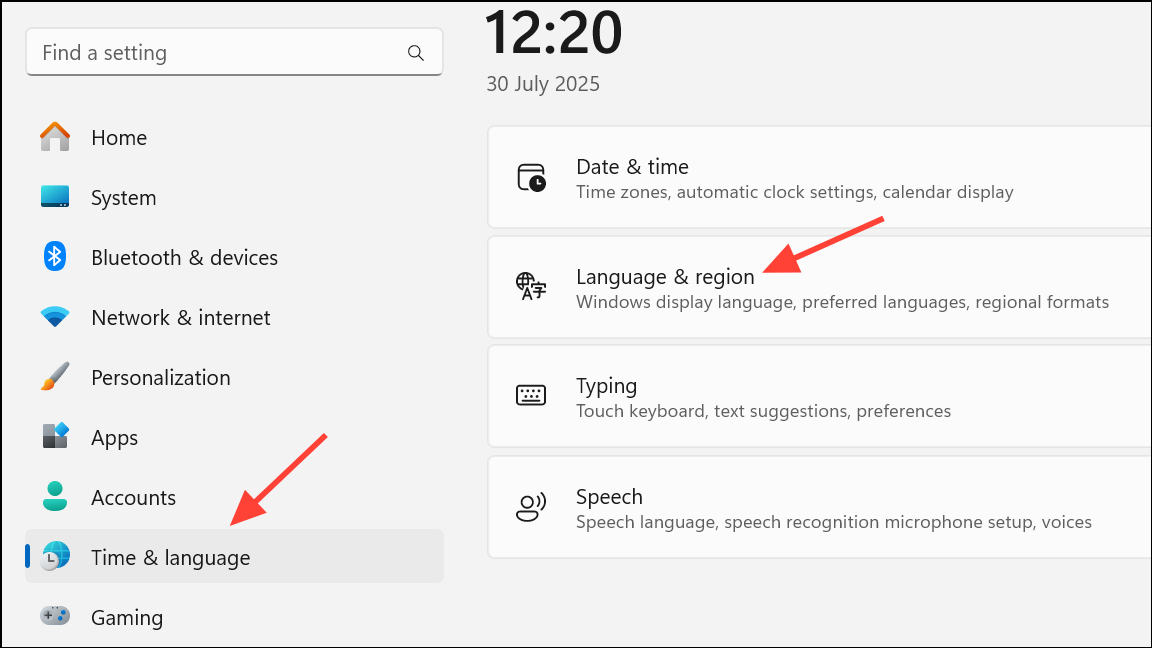
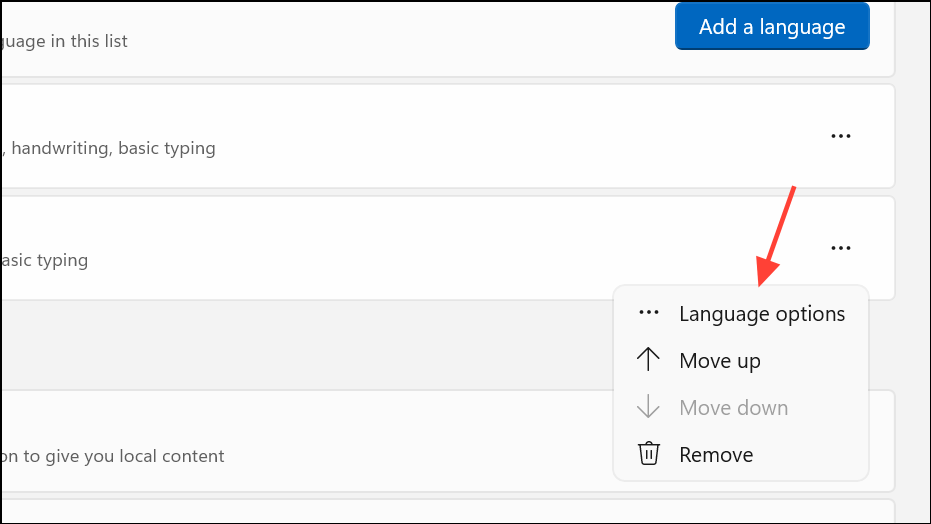
Under
Keyboards, ensure only your intended layout (such as US QWERTY) is present. Remove any unfamiliar or unnecessary layouts, especially those like US-International that can remap punctuation keys.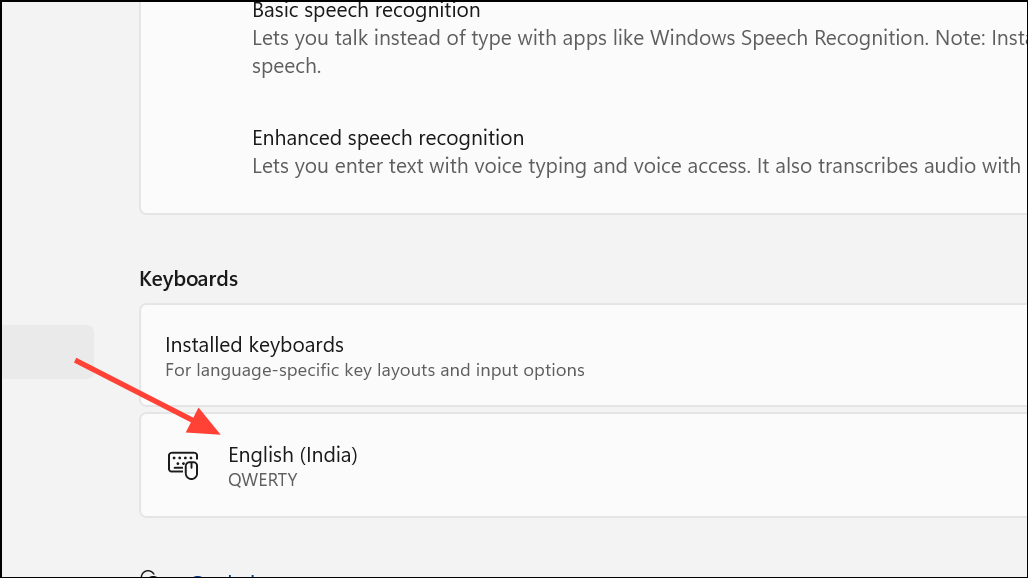
On the taskbar, click the language indicator (e.g.,
ENG) and verify the correct keyboard layout is active.Disable Sticky Keys and Filter Keys
Accessibility features like Sticky Keys or Filter Keys can interfere with normal key input. Open
Settings > Accessibility > Keyboard.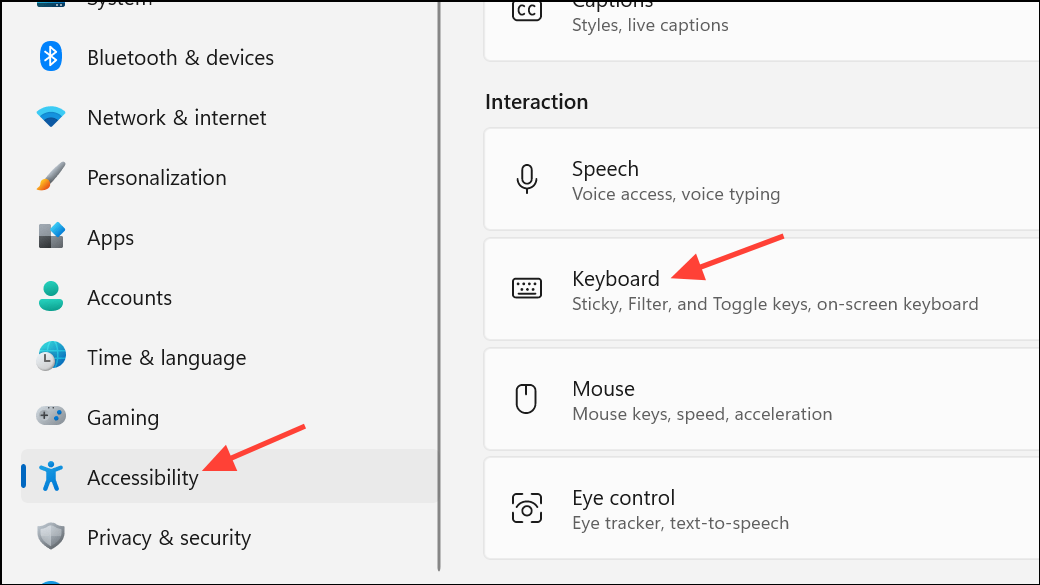
Turn off
Sticky Keys and Filter Keys if they are enabled. Test the period key again to see if normal function returns.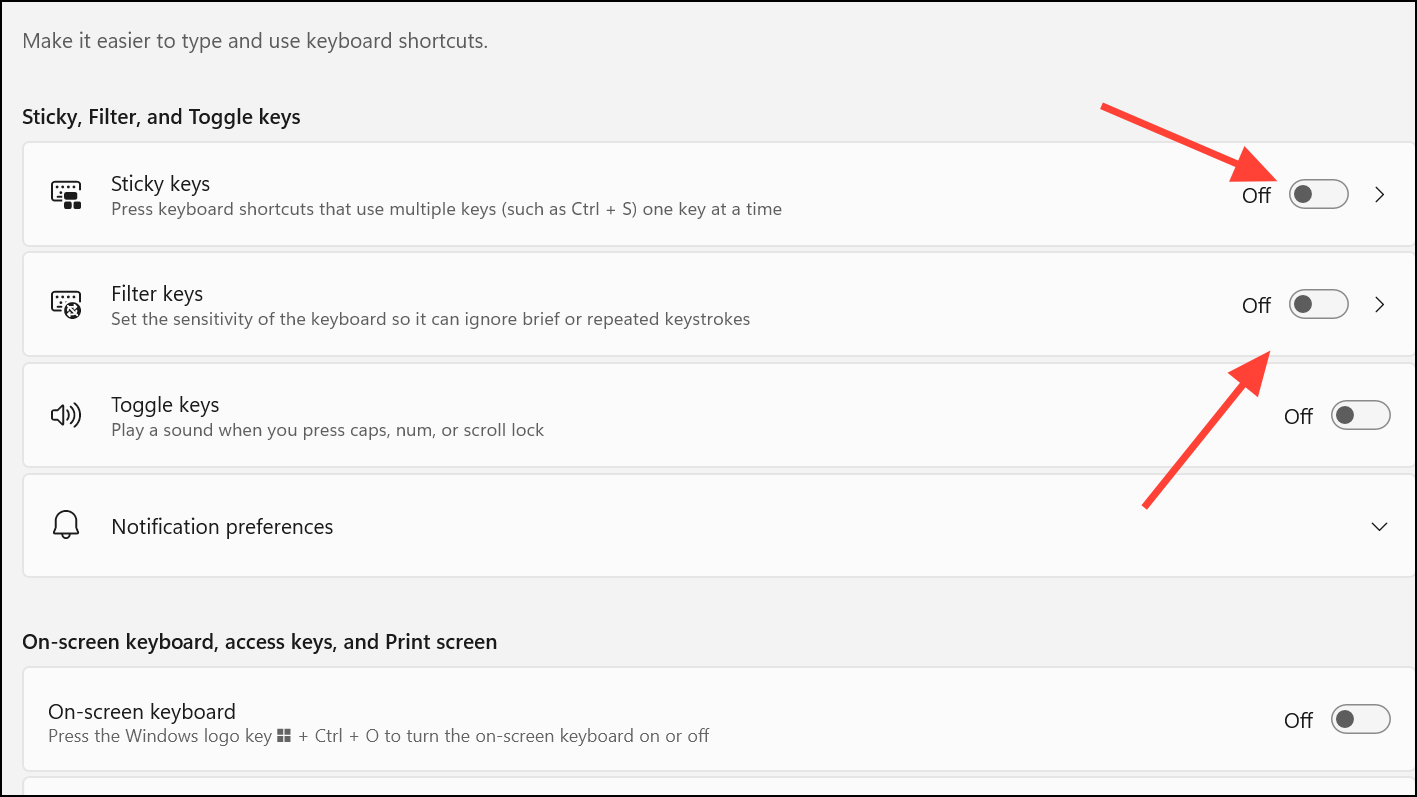
Identify Software Conflicts with Clean Boot
Third-party software or background services can intercept or remap keyboard input. To check for conflicts, perform a clean boot. Press
Windows + R, type msconfig, and press Enter.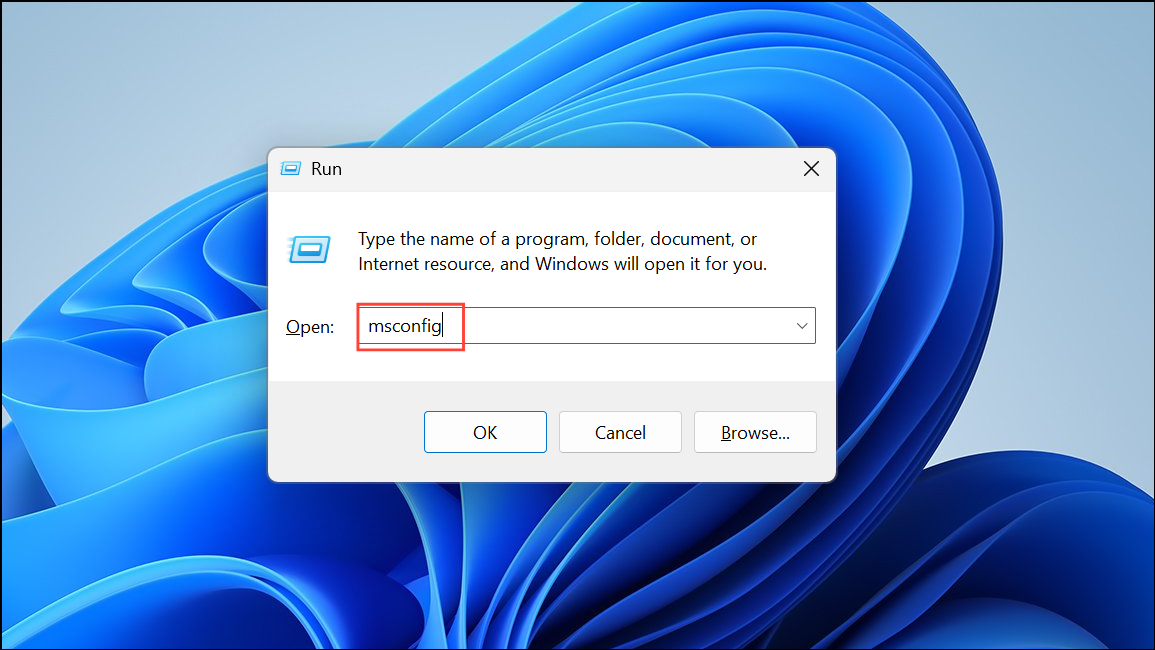
In the
System Configuration window, go to the Services tab, check Hide all Microsoft services, then click Disable all.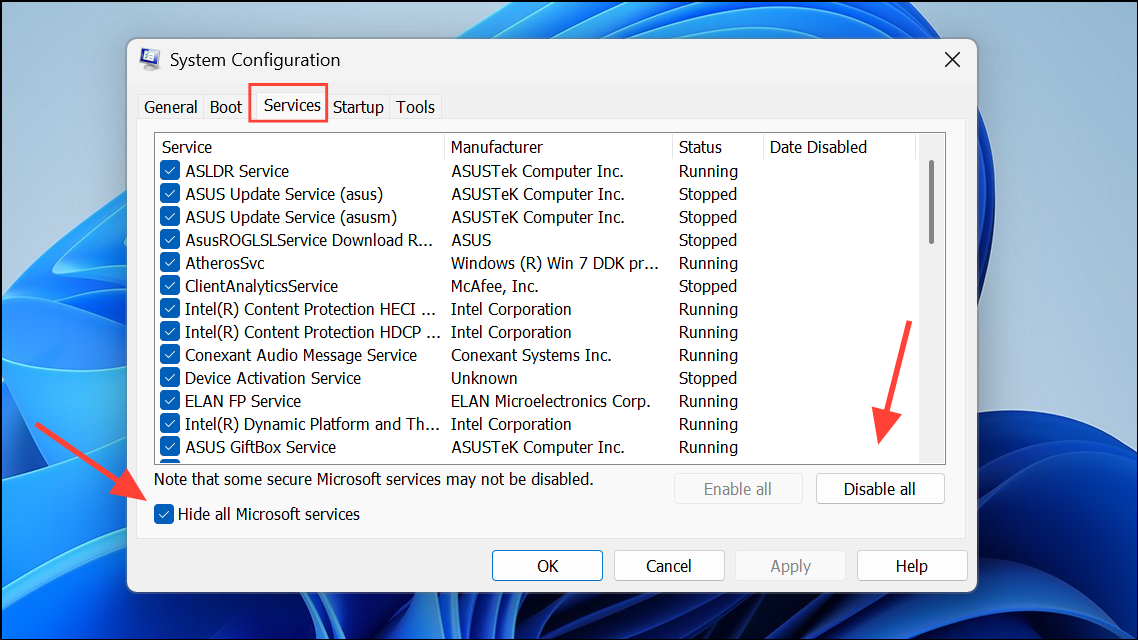
Switch to the
Startup tab and click Open Task Manager. Disable all startup items. Restart your computer and test the period key. If it works, re-enable services one by one to identify the conflicting software.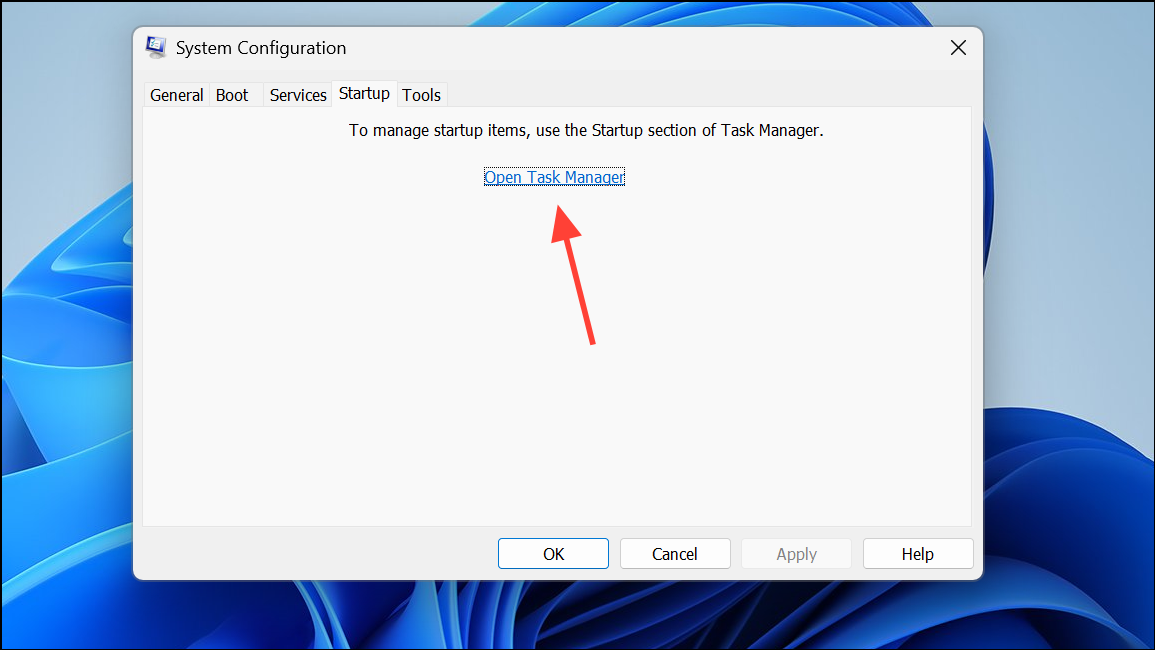
Check for Key Remapping or Special Input Tools
If the period key inserts unexpected symbols (such as accented characters), you may have a language input tool or key remapping utility installed. Go to
Settings > Apps > Installed apps and look for third-party keyboard utilities (e.g., Keyman, Google Input Tools).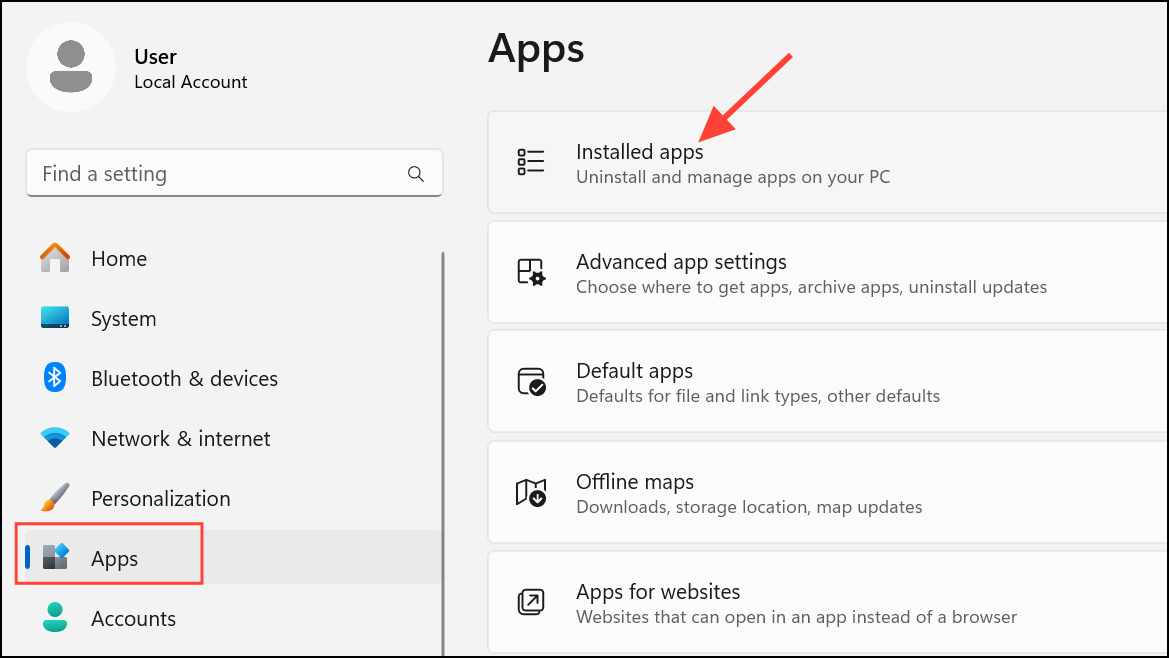
Uninstall any input tools or keyboard remapping software you do not use. Restart your computer and test the period key.
In programs like Microsoft Word, check
File > Options > Proofing > AutoCorrect Options for any custom rules that might replace the period key input. Remove any unwanted entries.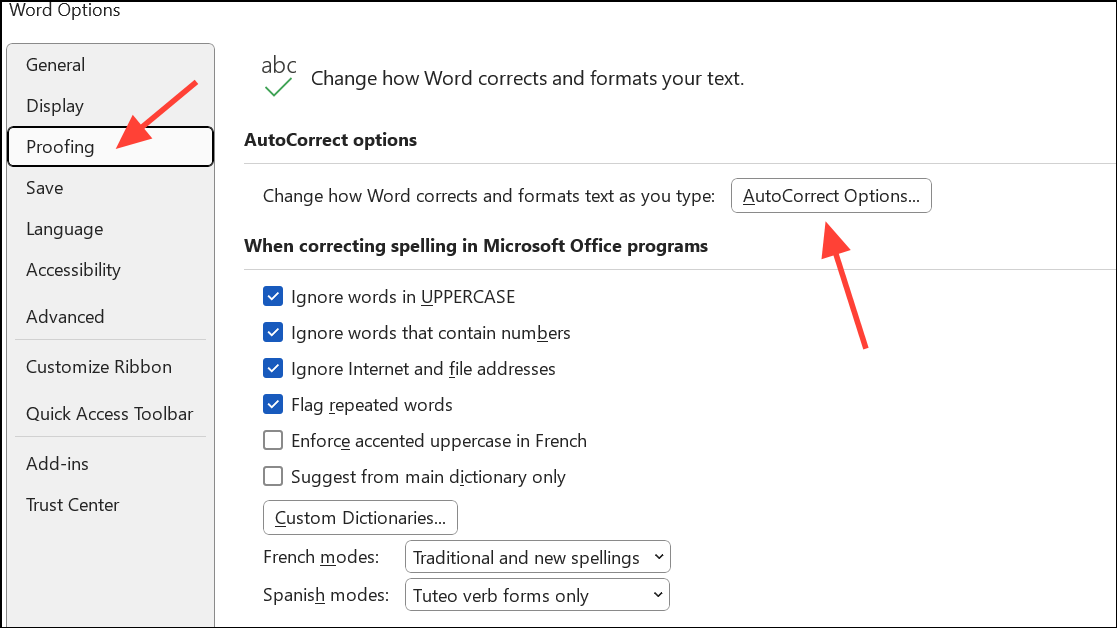
Try Another Keyboard or Create a New User Profile
Connect a different keyboard to your computer. If the period key works, your original keyboard may have a hardware fault or dust buildup. Clean the key area with compressed air or a soft brush, or consider replacing the keyboard if cleaning fails.
If the period key works in a different user account, your Windows profile may be corrupted. Create a new user account via
Settings > Accounts > Other users and transfer your files to the new account.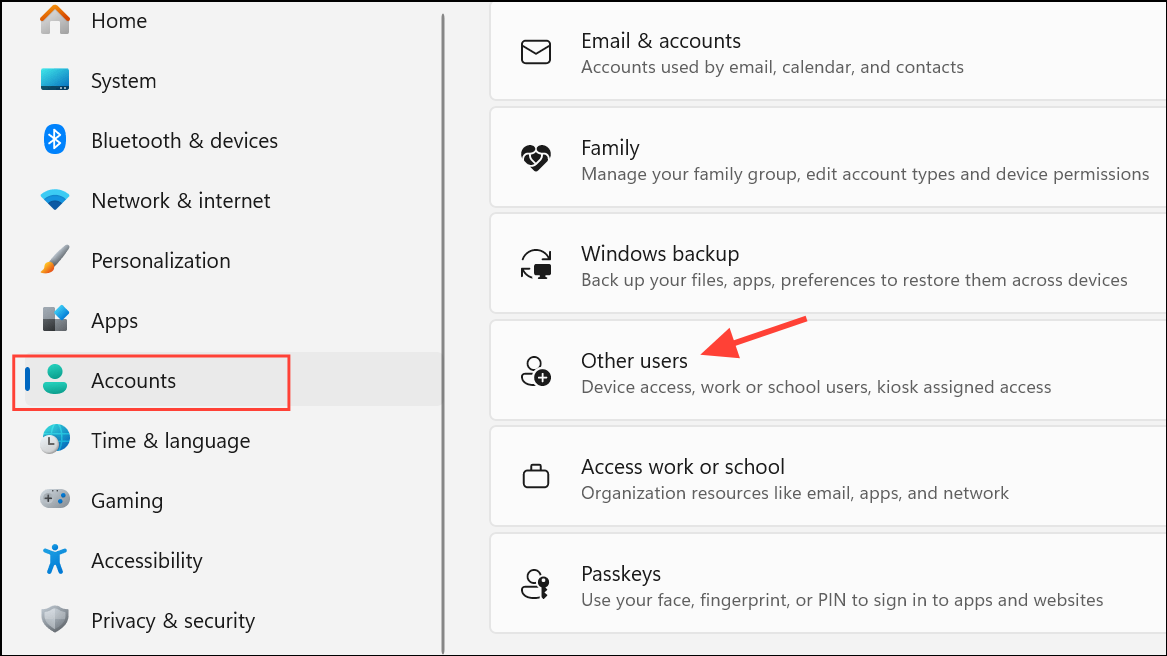
Resolving period key issues in Windows 11 usually comes down to adjusting keyboard settings, updating drivers, or removing conflicting software. Regular maintenance and prompt troubleshooting keep your typing smooth and accurate.



