

Microsoft Edge sometimes fails to appear in the Start menu, apps list, or even file directories, despite Windows 11 reporting it as installed. This issue can block access to web browsing, disrupt system features that rely on Edge, and prevent you from uninstalling or repairing the browser using standard methods. Addressing this problem requires targeted troubleshooting steps to restore Edge’s visibility and functionality without losing your files or settings.
Repair Windows 11 Using an In-Place Upgrade
Corrupted system files or incomplete resets can cause Edge to vanish from menus and directories. Performing an in-place repair with the official Windows 11 ISO is the most effective way to restore missing system components, including Microsoft Edge, while keeping your personal data and installed applications intact.
Setup.exe.Reinstall Microsoft Edge Using the Official Installer
If Edge still does not appear after a system repair, or if the Microsoft Store lists Edge as installed but you cannot launch or reinstall it, use the standalone Edge installer to overwrite or restore the application.
Download anyway or similar, and proceed with the download.Install for all users if prompted. This will force a fresh installation or repair of Microsoft Edge, creating new shortcuts and restoring the browser to the apps list.C:\Program Files (x86)\Microsoft\Edge\Application for the msedge.exe file. Double-clicking this file should now launch Edge.Show Hidden Files and System Folders
Edge may be present but hidden due to system folder settings. Manually searching for its files can help determine if the browser is installed in a protected or hidden directory.
View at the top. Enable Hidden items and select Options > Change folder and search options.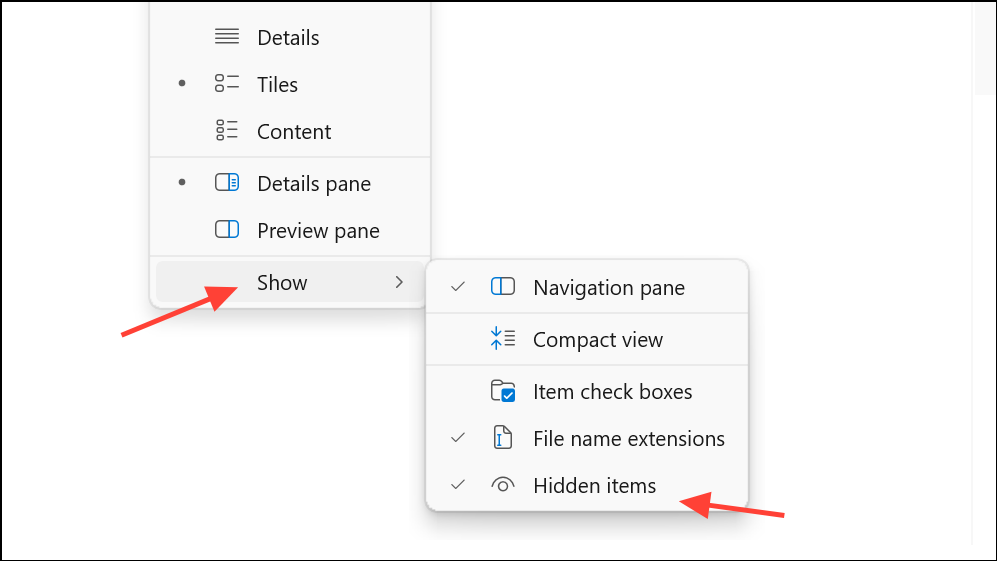
View tab, uncheck Hide protected operating system files and choose Show all files and folders. Click Apply.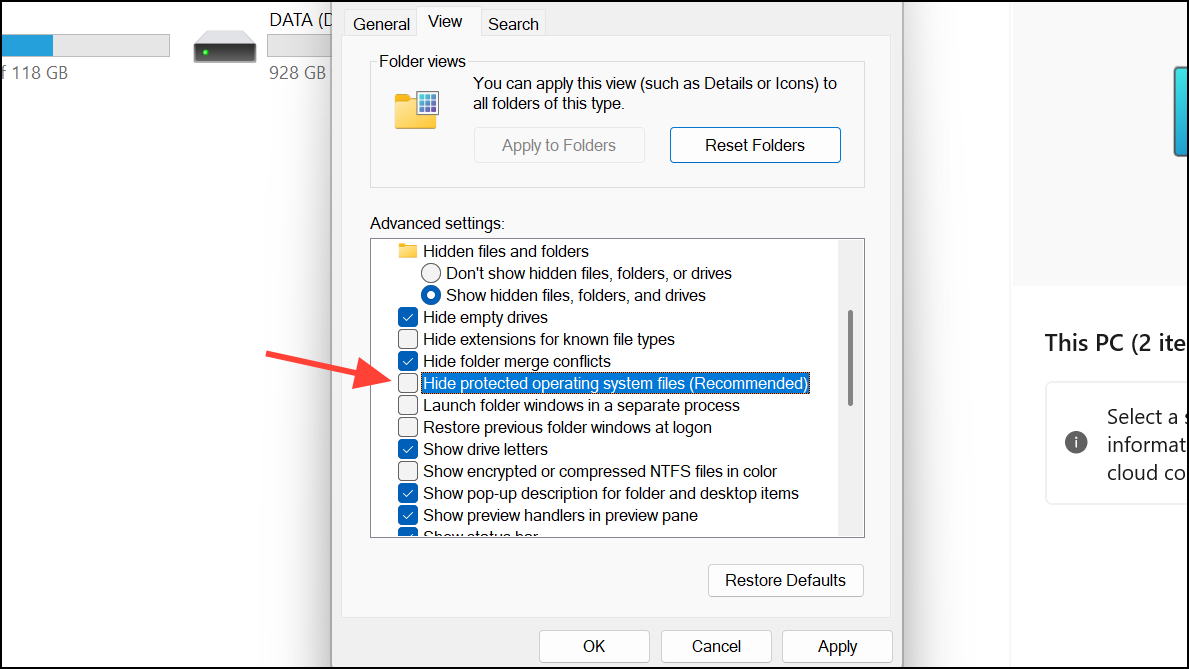
C:\Program Files (x86)\Microsoft\Edge\ApplicationC:\Program Files (x86)\Microsoft\EdgeWebViewC:\Windows\SystemApps\Microsoft.MicrosoftEdge_8wekyb3d8bbwe
If you find msedge.exe, try launching it directly. If not, continue with reinstallation steps above.
Re-Register Microsoft Edge via PowerShell
Re-registering Edge can restore its shortcuts and app registration if the files exist but are not properly linked in Windows.
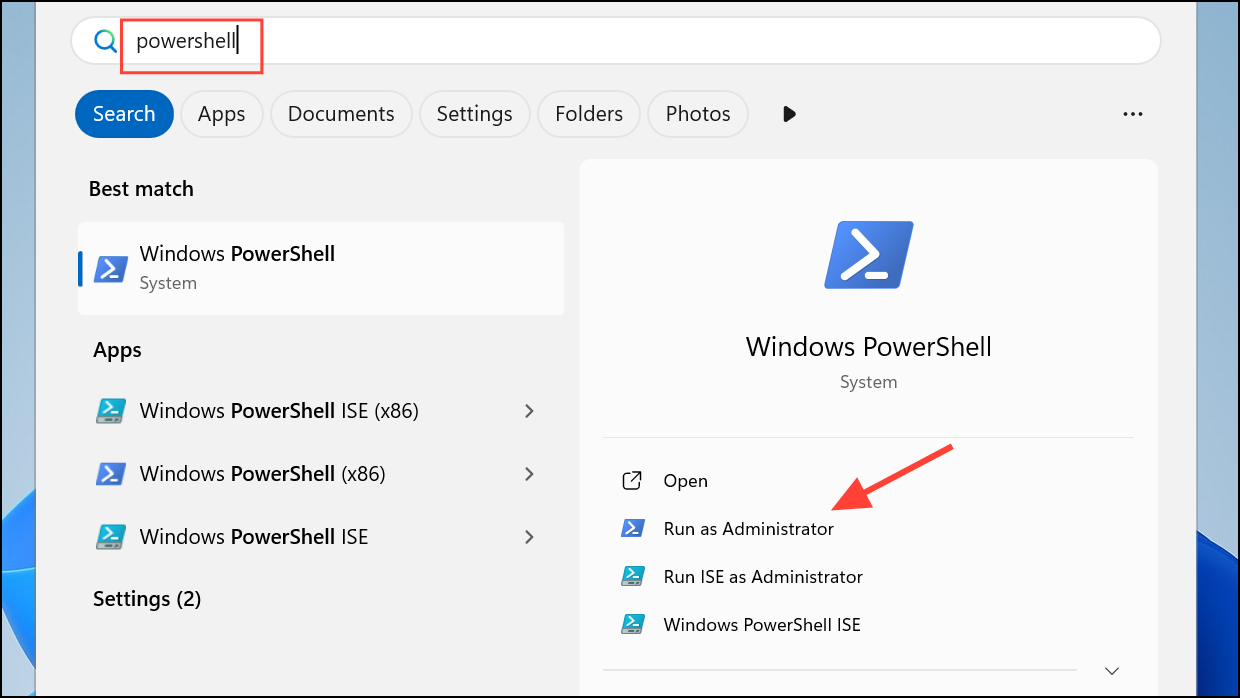
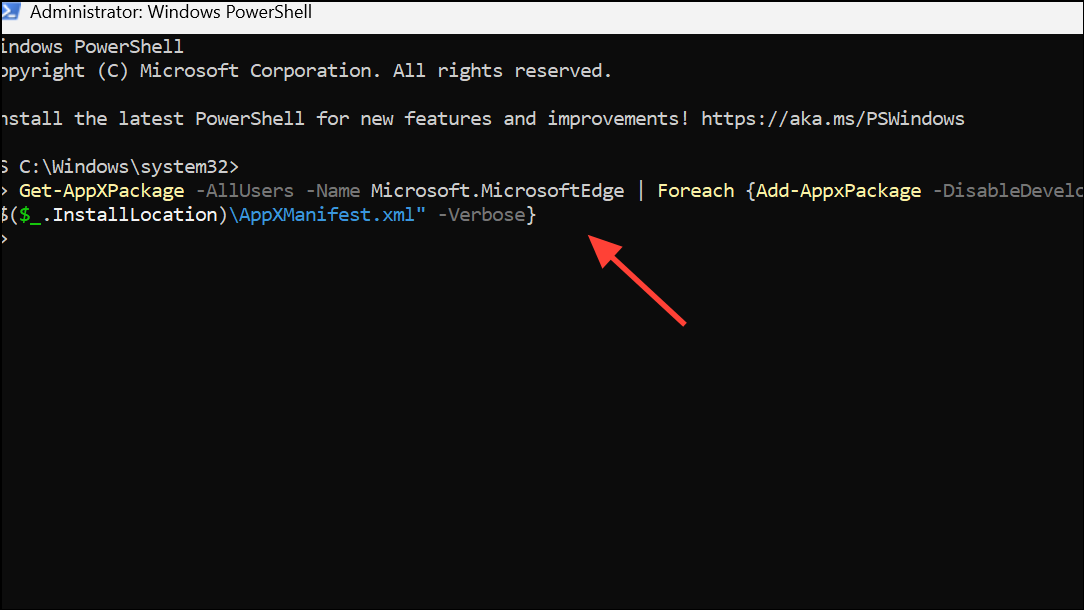
Get-AppXPackage -AllUsers -Name Microsoft.MicrosoftEdge | Foreach {Add-AppxPackage -DisableDevelopmentMode -Register "$($_.InstallLocation)\AppXManifest.xml" -Verbose}
Switch to a New User Profile
Corrupted user profiles can prevent Edge from appearing, even if it is installed system-wide. Creating a new local user account can help determine if the issue is profile-specific.
net user NewUser NewPassword /add
net localgroup administrators NewUser /add
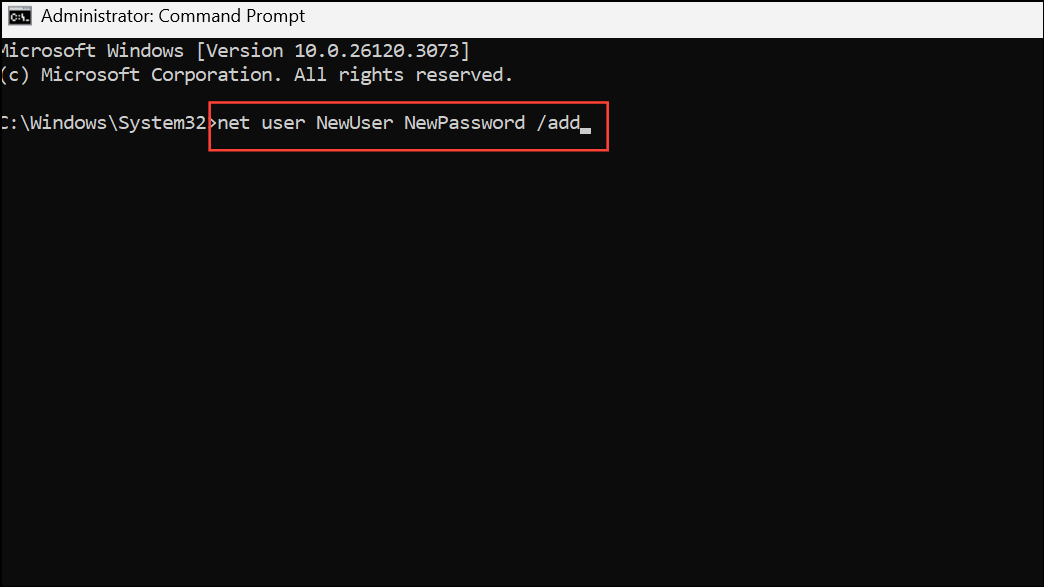
Replace NewUser and NewPassword with your preferred username and password.
Standard Troubleshooting Steps
If Edge appears but is not functioning correctly or intermittently disappears, try these additional troubleshooting actions:
- Restart your computer to clear any background processes or system glitches.
- Update Windows 11 and Microsoft Edge to the latest versions to resolve compatibility issues.
- Clear Edge’s browser cache and profile data to eliminate corruption.
- Temporarily disable browser extensions to rule out conflicts.
- Run Windows troubleshooters for apps and network issues via Settings.
Restoring Microsoft Edge when it’s installed but not visible in Windows 11 usually requires a combination of system repair, manual reinstallation, or profile troubleshooting. Once resolved, regular updates and periodic system maintenance help prevent recurrence.





