
Backlight LEDs remaining on after a laptop is powered down indicate a malfunction in the display’s power control, causing unnecessary battery drain and potential hardware stress. This issue persists across brands and models, including Lenovo, HP, Dell, and others, and can be triggered by hardware faults, firmware bugs, or misconfigured power management settings. In some cases, the backlight may stay faintly lit even when the laptop is completely shut down, regardless of operating system or method of shutdown.
Check for Hardware Faults
Update BIOS/UEFI Firmware
Adjust Power Management and Display Settings
Settings > System > Power & battery and set specific timeouts for turning off the display and putting the device to sleep.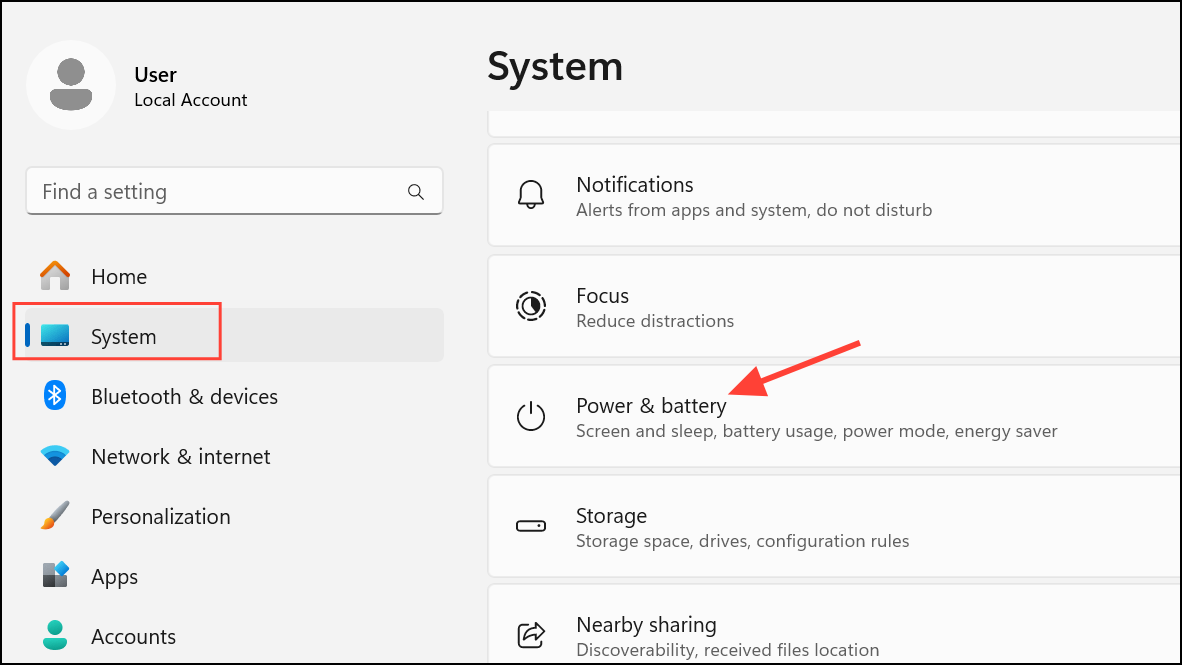
Additional power settings to access your power plan. You can also access it by opening the Control Panel and selecting Power options.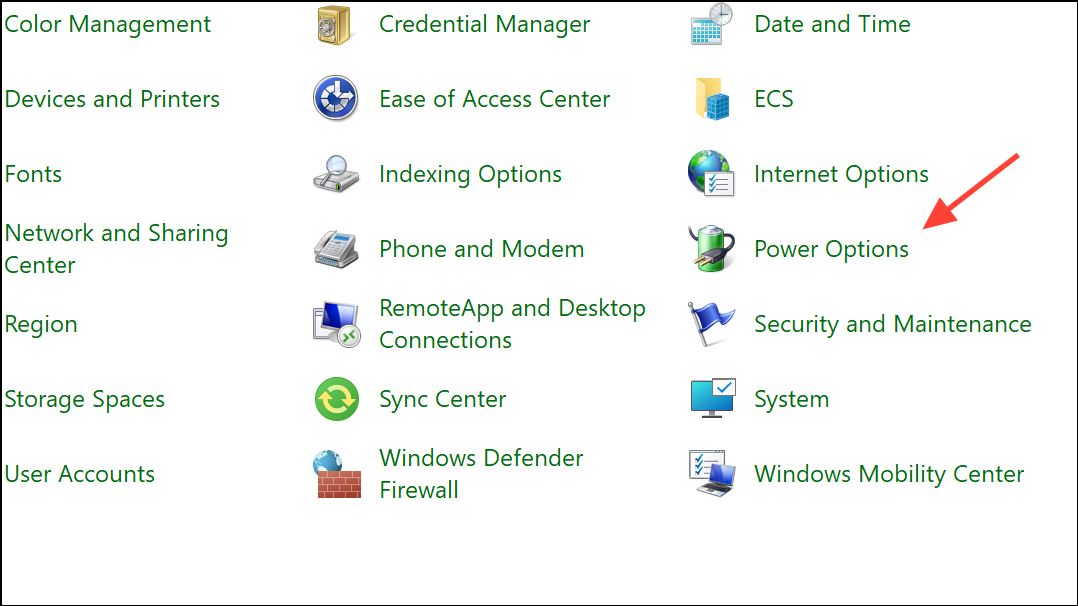
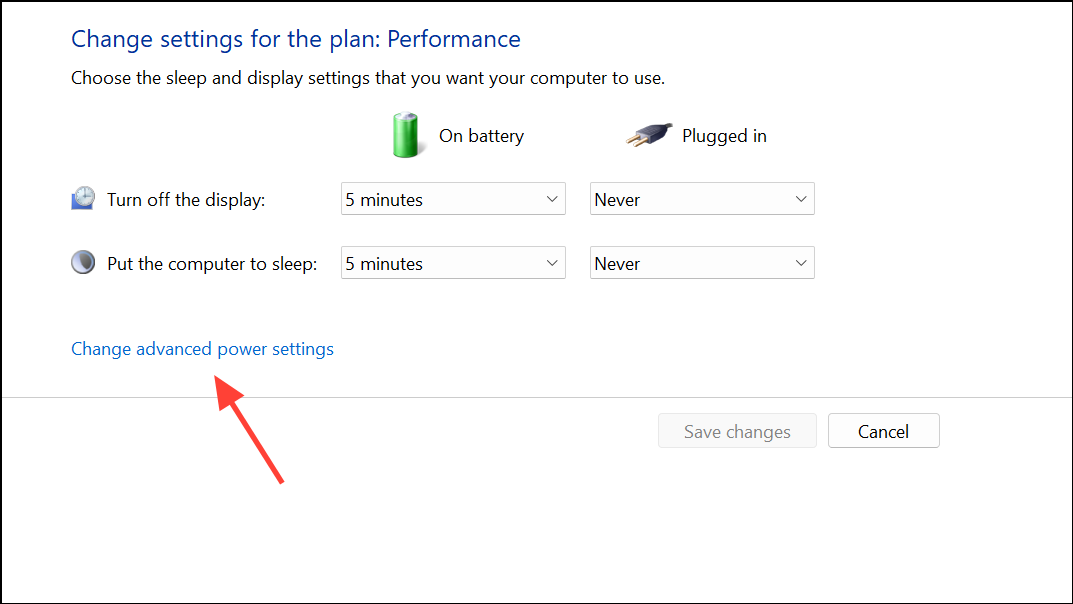
Display section, ensure Turn off display after is set to your desired timeout. Expand the Sleep section and set Allow hybrid sleep to Off. This can correct signaling issues that cause the backlight to stay on during sleep or shutdown.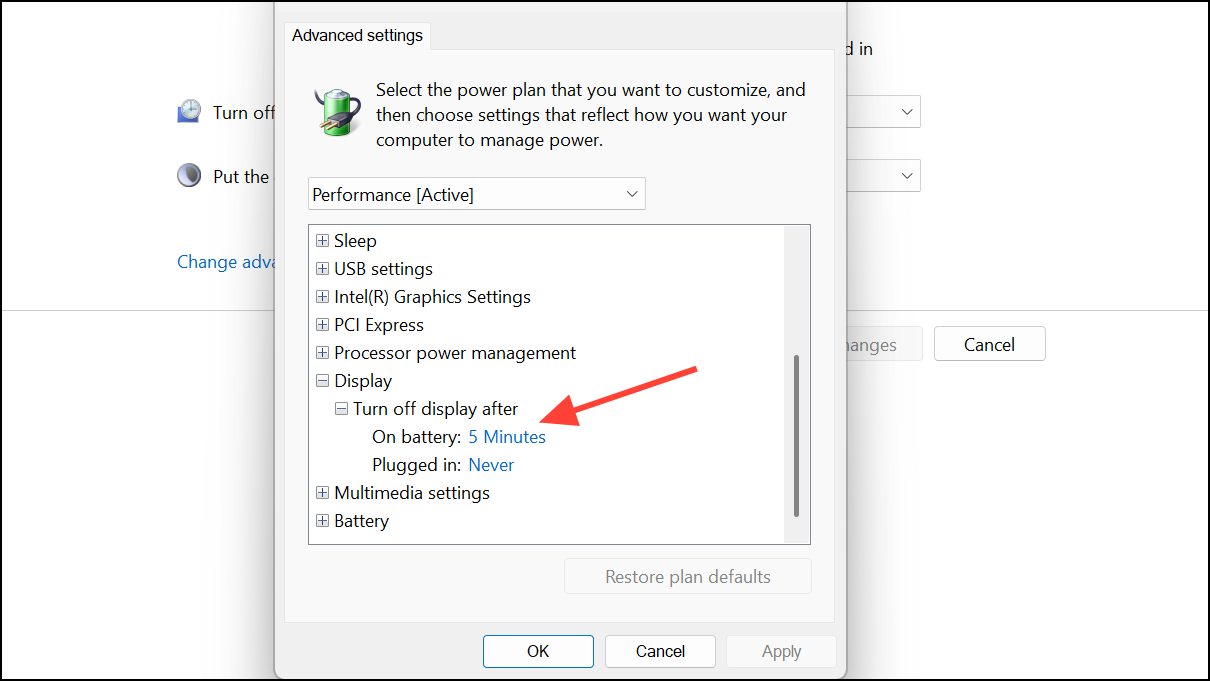
Blank. Instead, set the screensaver to None and rely solely on the display timeout. A blank screensaver may send a continuous black image, keeping the backlight powered.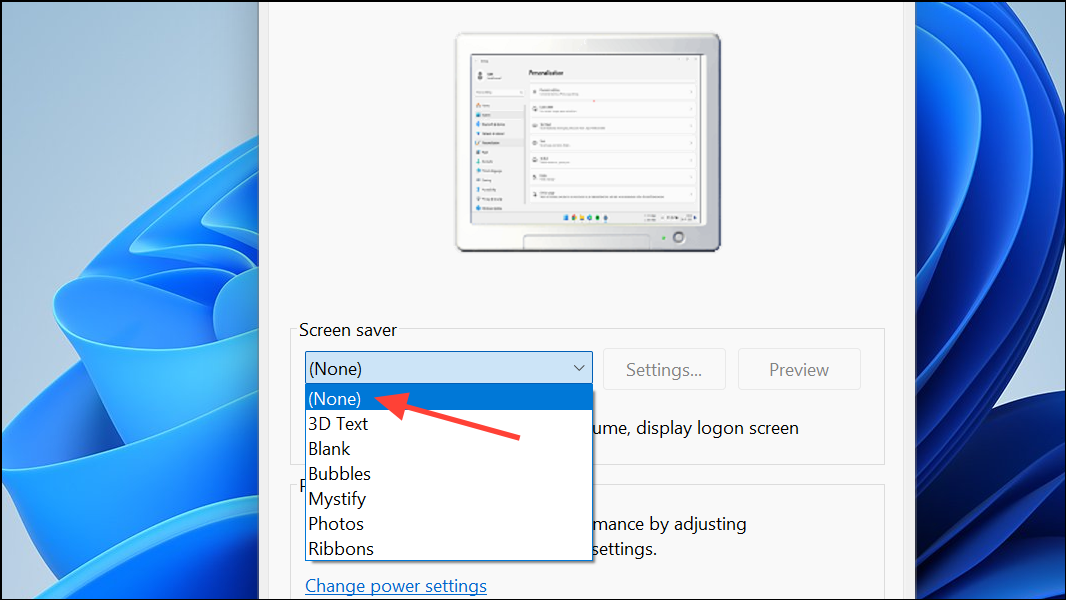
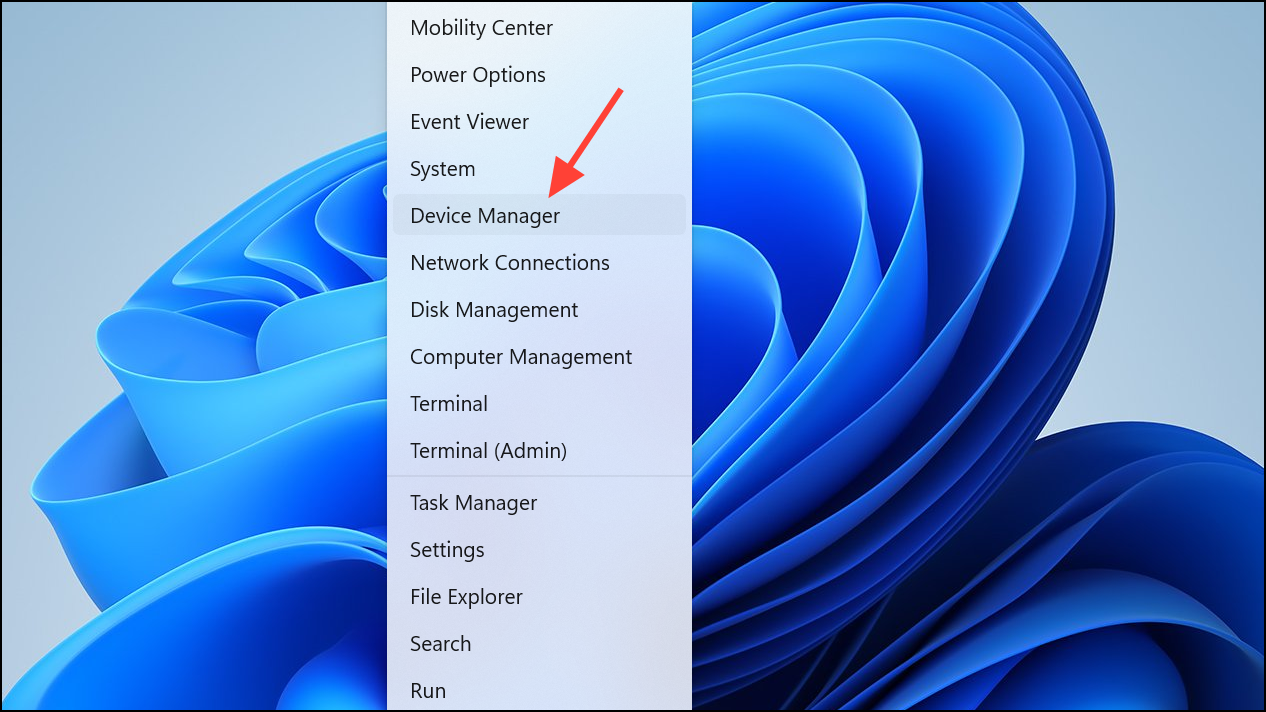
Display adapters, right-click your graphics driver, and select Update driver.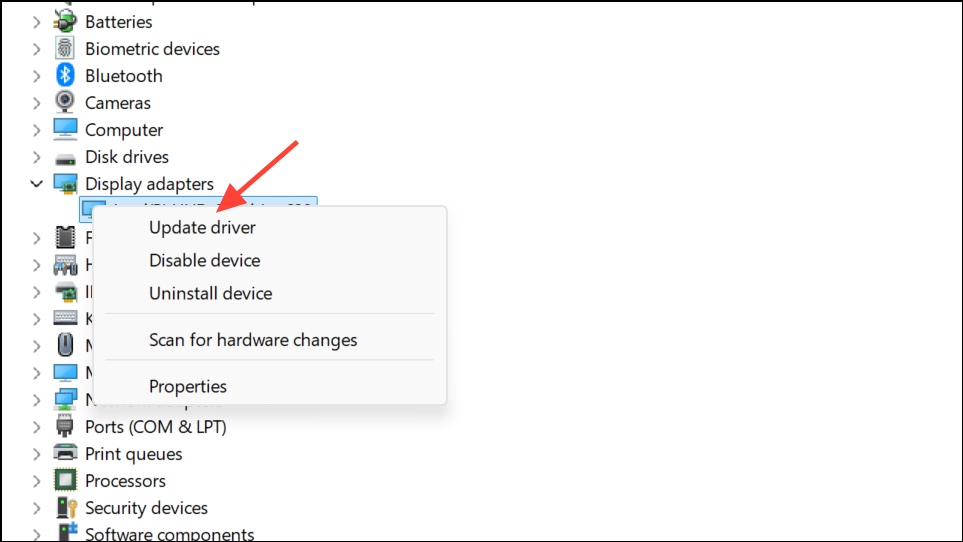
Search automatically for updated driver software or download the latest version from the manufacturer.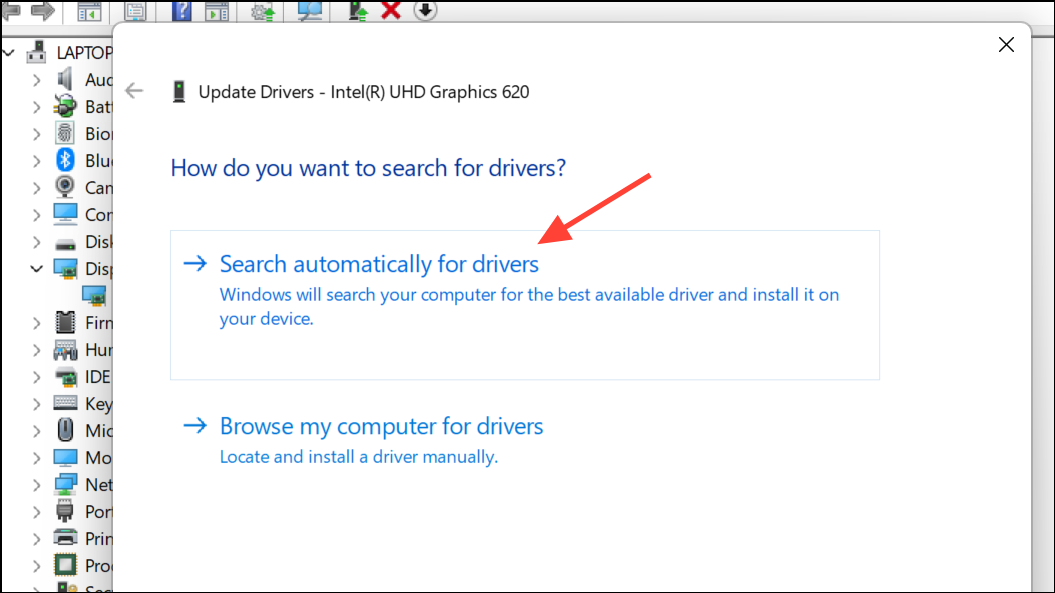
Disable Fast Startup
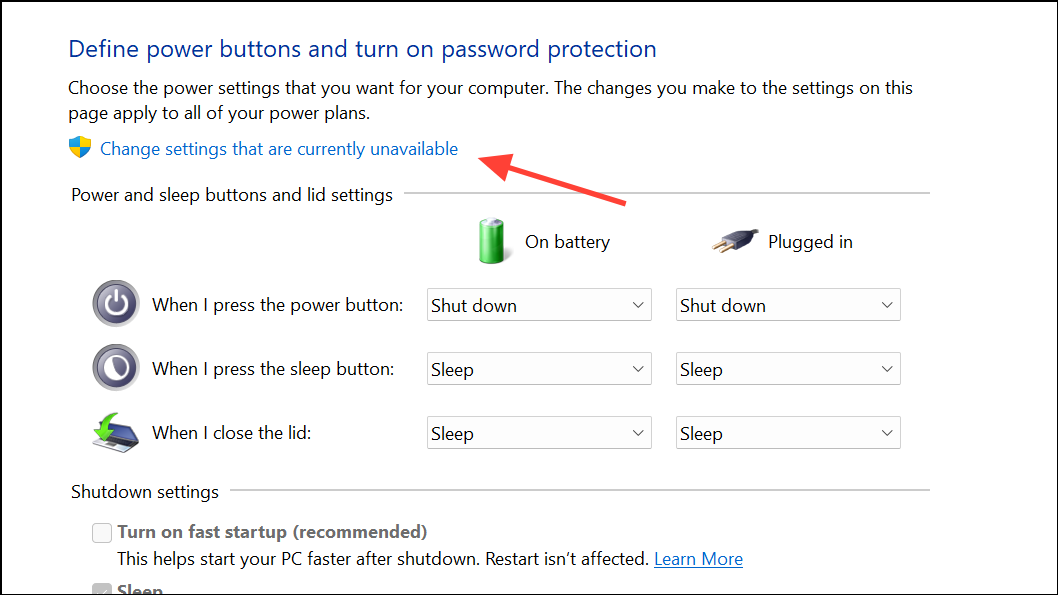
Turn on fast startup (recommended) and click Save changes. Fast Startup can prevent the system from fully powering down hardware, leaving the backlight on.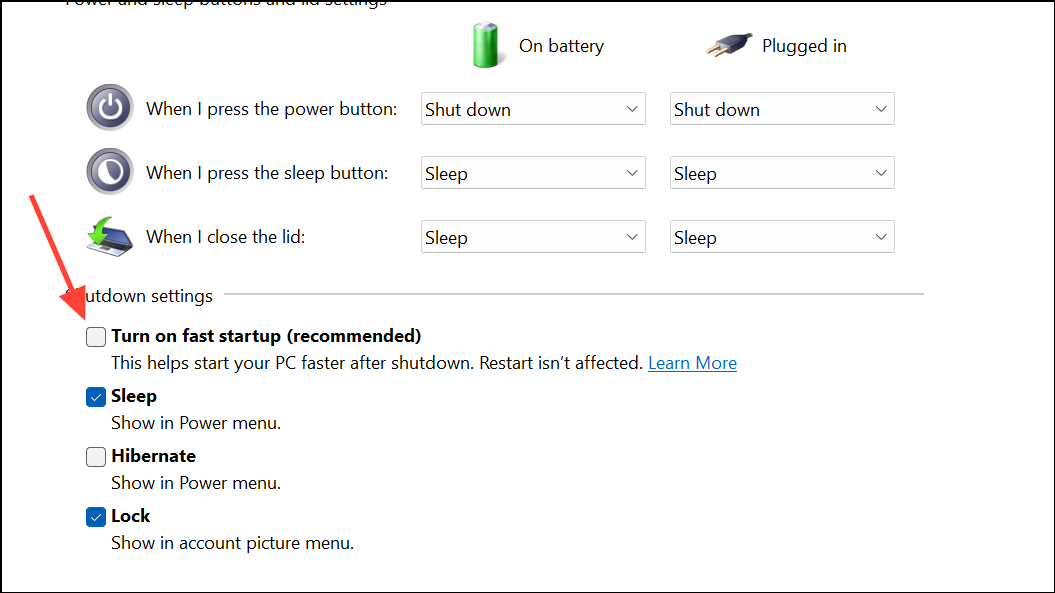
Update or Reinstall Display Drivers
Device Manager, uninstall your current display driver by right-clicking your graphics adapter and selecting Uninstall device. Check the box to delete the driver software if prompted.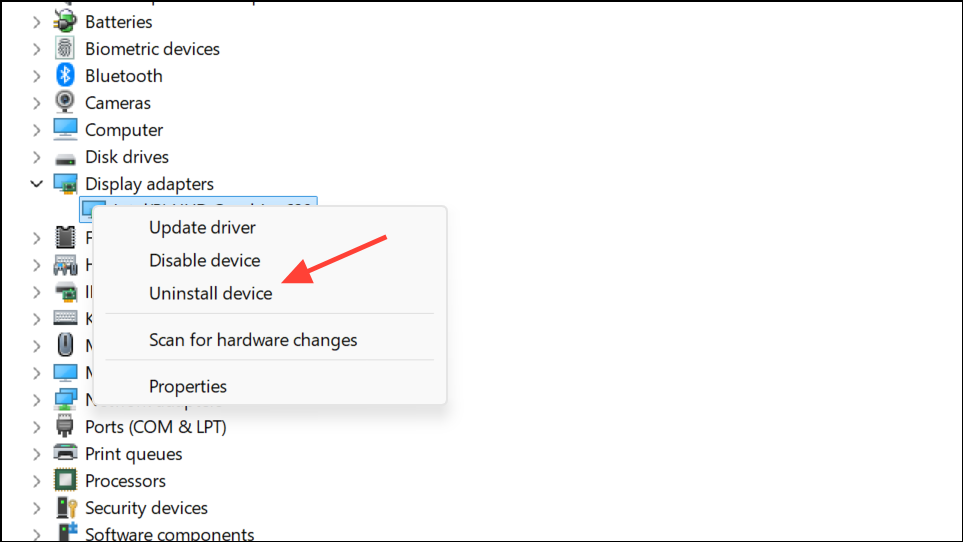
Run the Power Troubleshooter
Settings > Update & Security > Troubleshoot. Select Additional troubleshooters, then choose Power and run the troubleshooter. This tool scans for misconfigured settings that could keep the backlight active.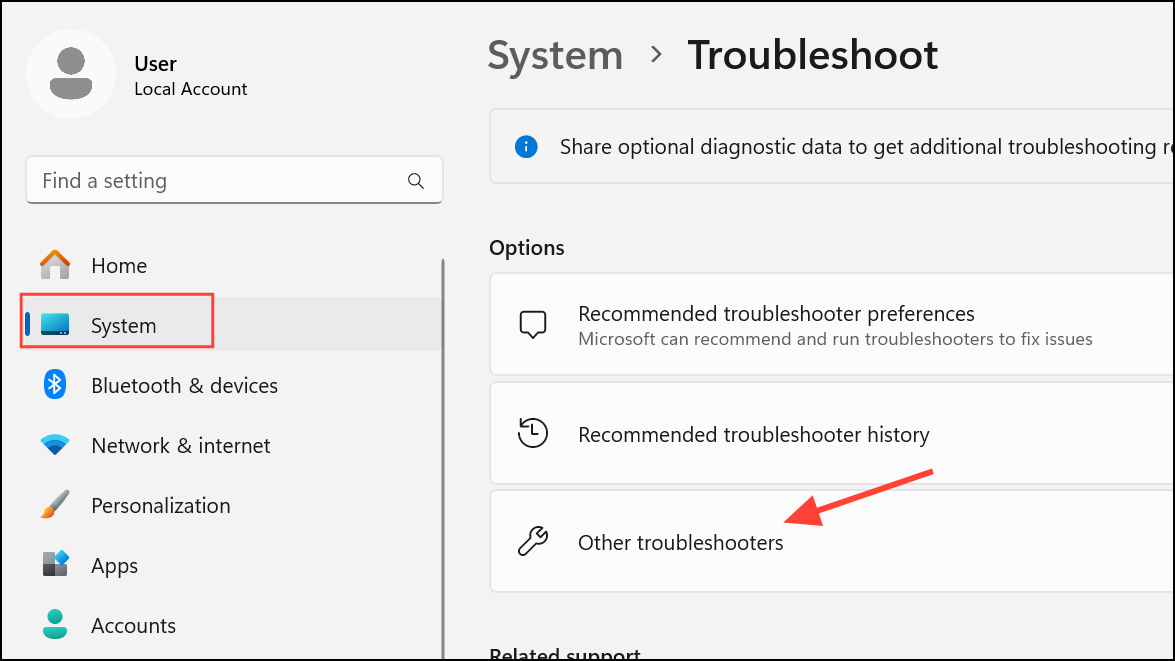
Perform a Hard Reset
When to Seek Hardware Repair
If the above steps do not resolve the issue, the persistent backlight is likely due to a hardware fault. Common causes include a failing display panel, a shorted LED, or a malfunctioning power circuit on the motherboard. Continuing to use the device in this state generally will not immediately damage other components, but it can cause unnecessary battery drain and, over time, stress the affected circuits. Professional repair or screen replacement may be required. If the laptop is under warranty, contact the manufacturer for service. If out of warranty, consult a qualified technician to diagnose and replace the faulty part.
Resolving a laptop backlight that won’t turn off involves a mix of firmware updates, power management tweaks, and, when necessary, hardware repairs. With careful troubleshooting, you can restore proper screen shutdown and avoid needless power drain or hardware wear.



