

Signature lines or digital signatures in Microsoft Word sometimes fail to appear due to document settings, compatibility limitations, or certificate issues. This can disrupt document workflows, especially when signatures are required for approval or verification. Addressing this problem requires checking feature availability, ensuring correct configuration, and using alternative methods when standard options are unavailable.
Method 1: Insert a Signature Line Using Built-In Tools

Insert tab on the ribbon, then select Microsoft Office Signature Line. In most modern versions of Word for Windows, this command is directly available. If you do not see the option, your version or platform (such as Word for Mac) may not support digital signature lines natively.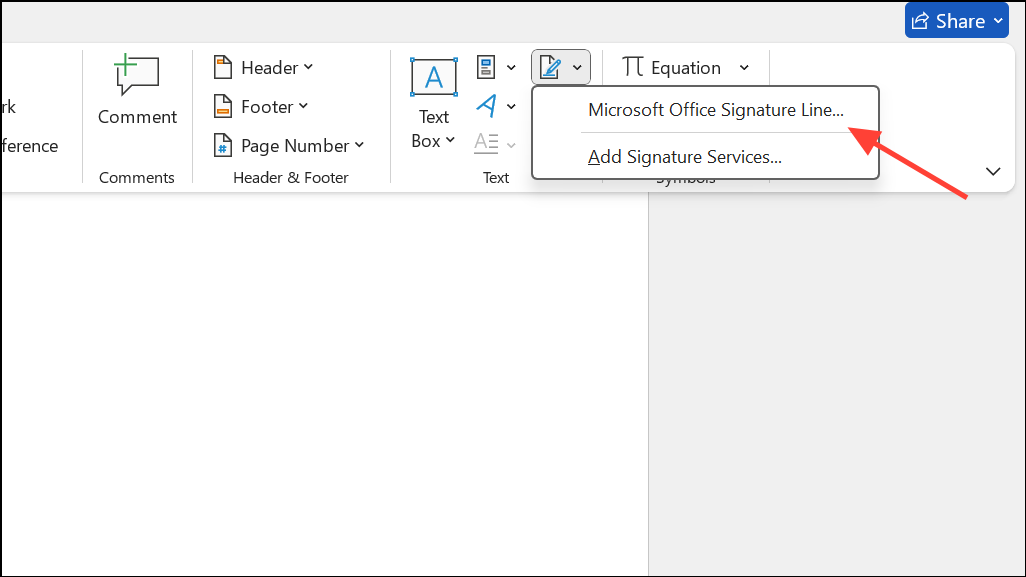
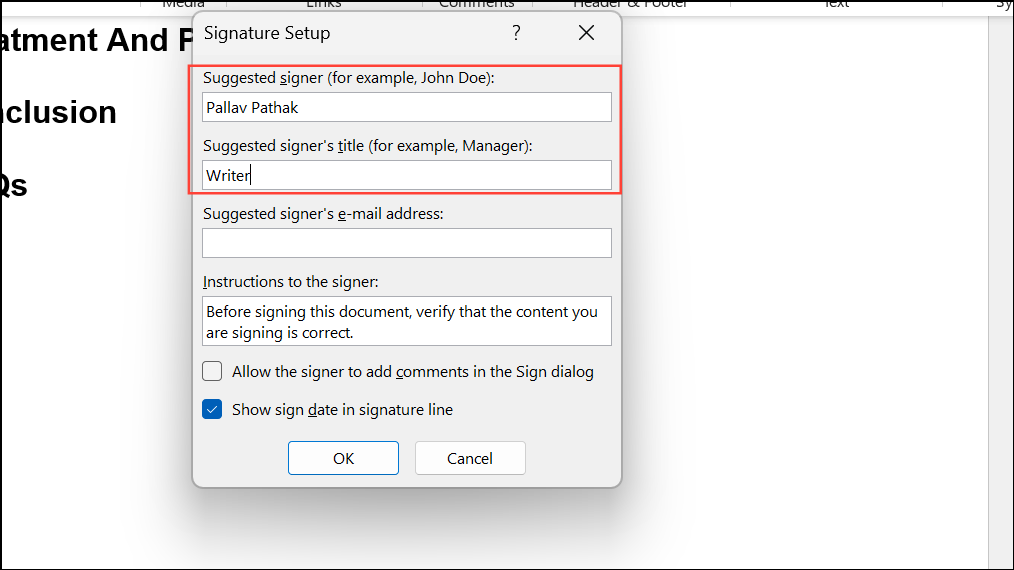
OK. The signature line will be inserted at the chosen location, displaying an X and a line for the signature.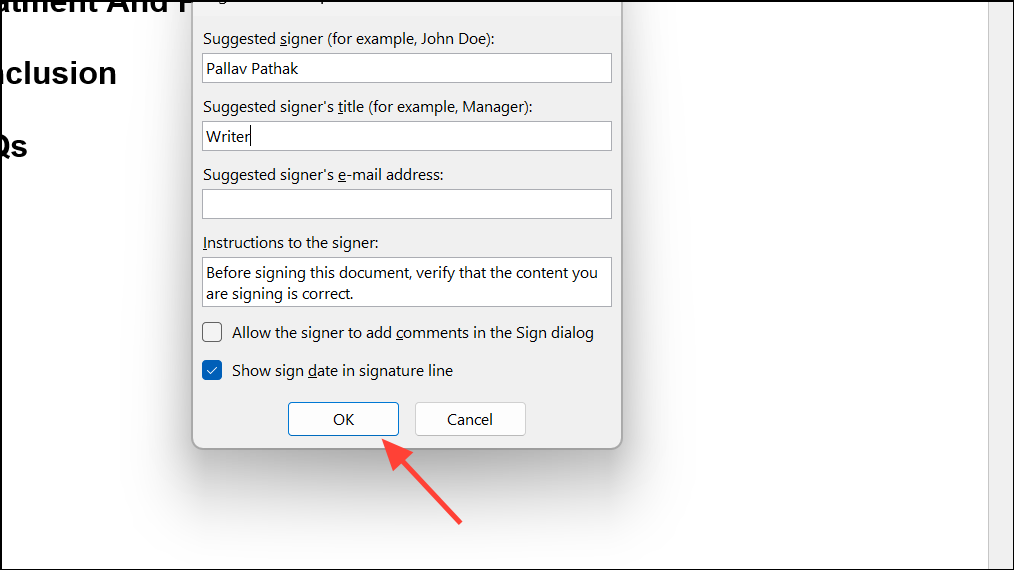
Sign. If prompted, select your digital certificate. If you do not have one, Word may offer to create a self-signed certificate, though some organizations require certificates from trusted authorities.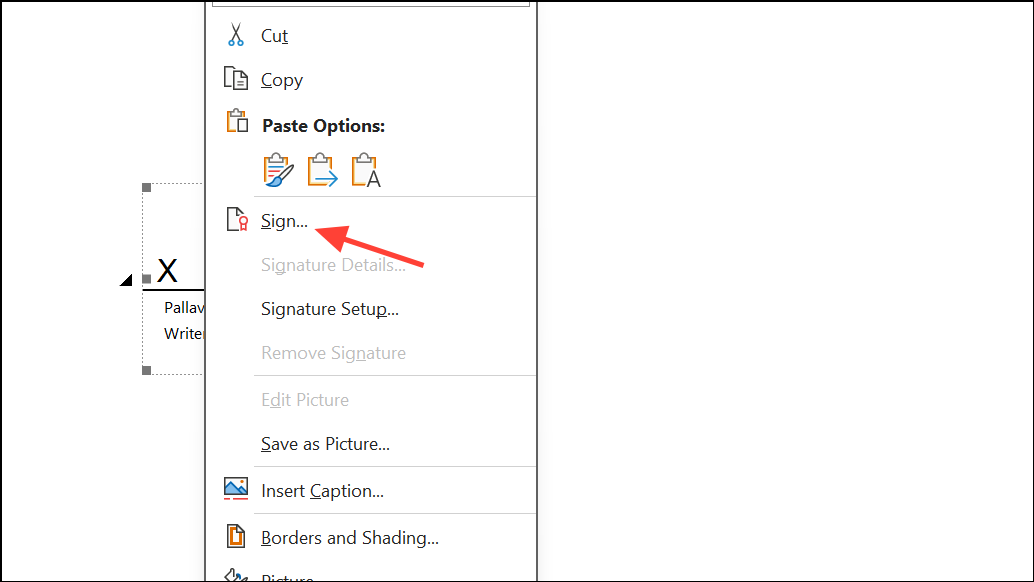
Method 2: Scan and Insert a Handwritten Signature as an Image
.jpg or .png. If a scanner isn’t available, you can use a smartphone camera, but ensure the image is well-lit and clear.Insert tab, and select Pictures > This Device. Locate your scanned signature image and insert it into the document.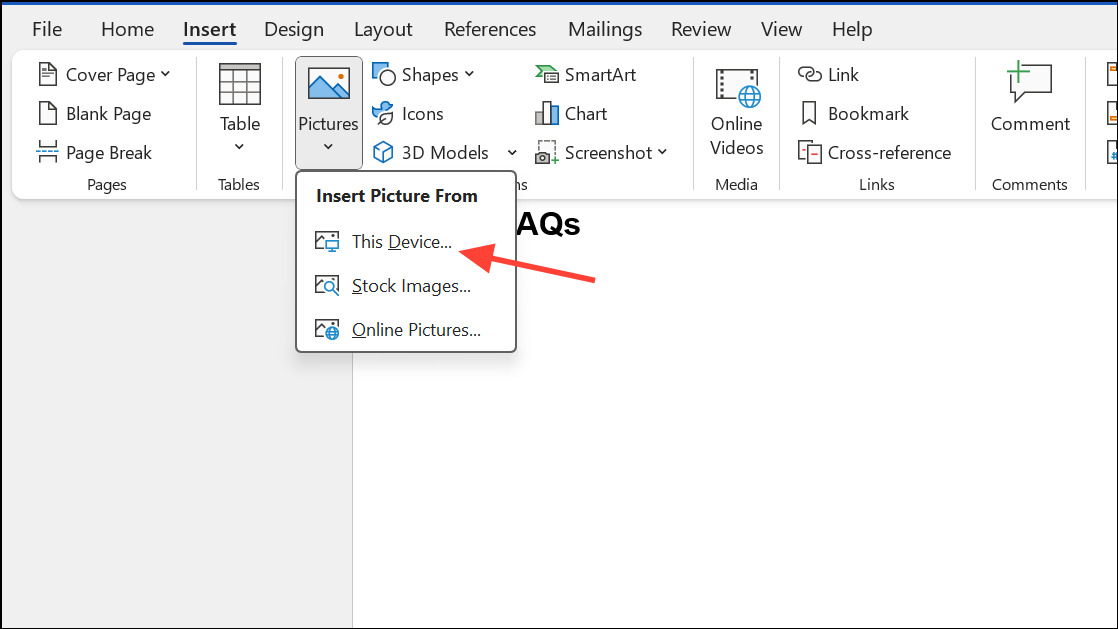
Picture Format tab and choose Crop to remove unwanted white space or borders. Right-click the image and choose Save as Picture if you want to reuse the cropped version in other documents.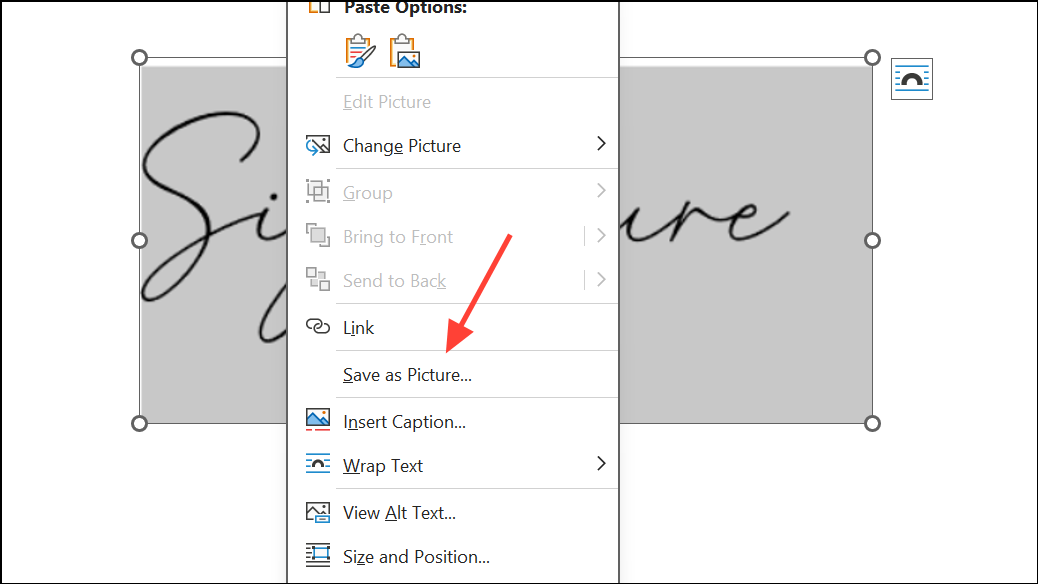
Insert > Quick Parts > Save Selection to Quick Part Gallery (Windows) or AutoText (Mac) to create a reusable signature block.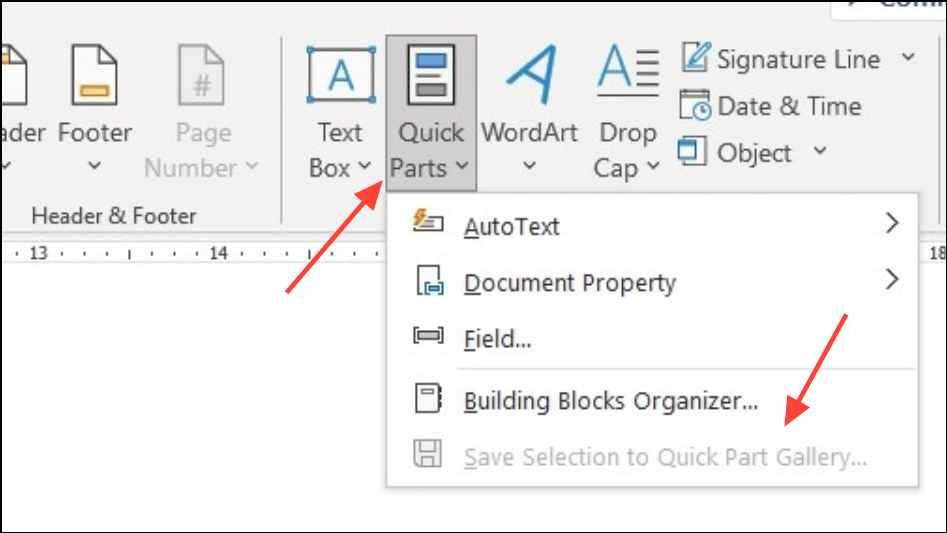
Method 3: Troubleshoot Missing Signature Line or Block
Signature lines may not appear in Word for several reasons:
- The feature is unavailable on your version or platform (such as Word for Mac or Word Online).
- The document is opened in a compatibility mode that disables digital signature features.
- Document protection or editing restrictions are enabled, preventing insertion of new signature lines.
- Signature lines created in macro-enabled templates may not display properly in Word Online or when uploaded to services like SharePoint.
- Signature lines may be hidden if the document is viewed in a mode that suppresses certain objects, such as in draft view or in some print layouts.
File > Info > Convert. This enables modern features, including signature lines.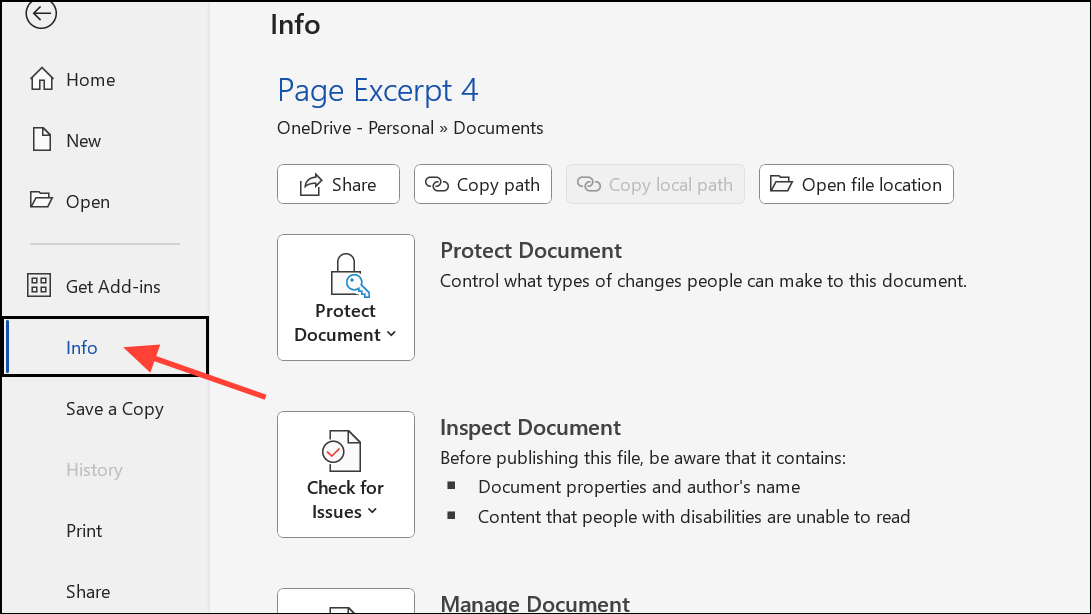
Review tab and select Restrict Editing. If restrictions are active, disable them to allow signature line insertion.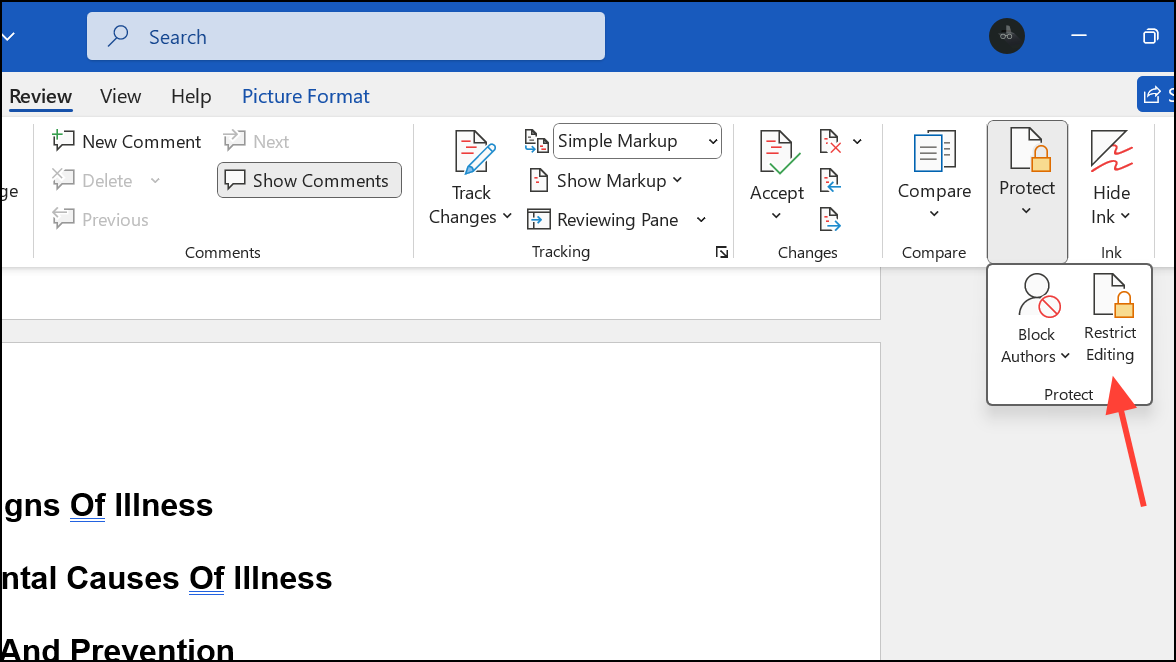
Print Layout view and ensure that drawing objects and images are set to display in Word’s options: File > Options > Advanced, then scroll to Show document content and verify Show drawings and text boxes on screen is checked.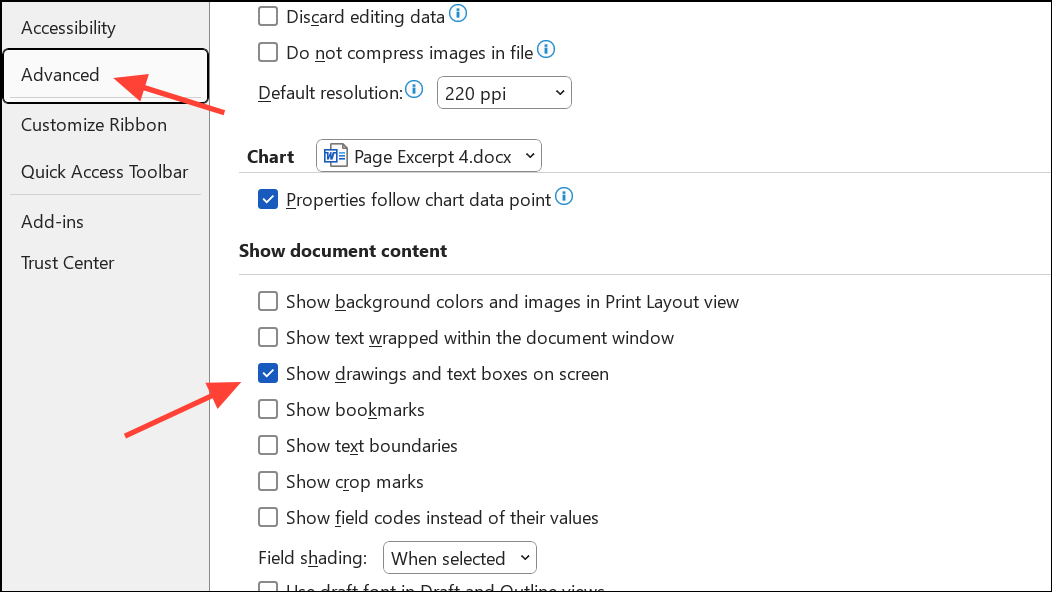
Method 4: Fix Digital Certificate or Signing Issues
Sometimes, Word prevents you from signing a document due to untrusted or missing digital certificates. This is common when using self-signed certificates or after recent security updates.
Resolving missing signature lines or digital signatures in Word usually involves checking feature availability, document compatibility, and certificate trust. These steps streamline the process of adding or restoring signatures so your documents remain valid and ready for approval.





