
Copying and pasting data in Microsoft Excel sometimes fails with error messages like “Cannot paste the data” or incomplete results, especially when working with large files, filtered tables, or complex formatting. These issues can slow down workflows and disrupt data management, but targeted troubleshooting can restore normal copy-paste behavior.
Remove Filters Before Copying and Pasting
Applying filters to a table hides certain rows, and copying data from a filtered view only includes visible cells. When you paste this data elsewhere, the results may seem incomplete or misaligned because hidden rows are excluded.
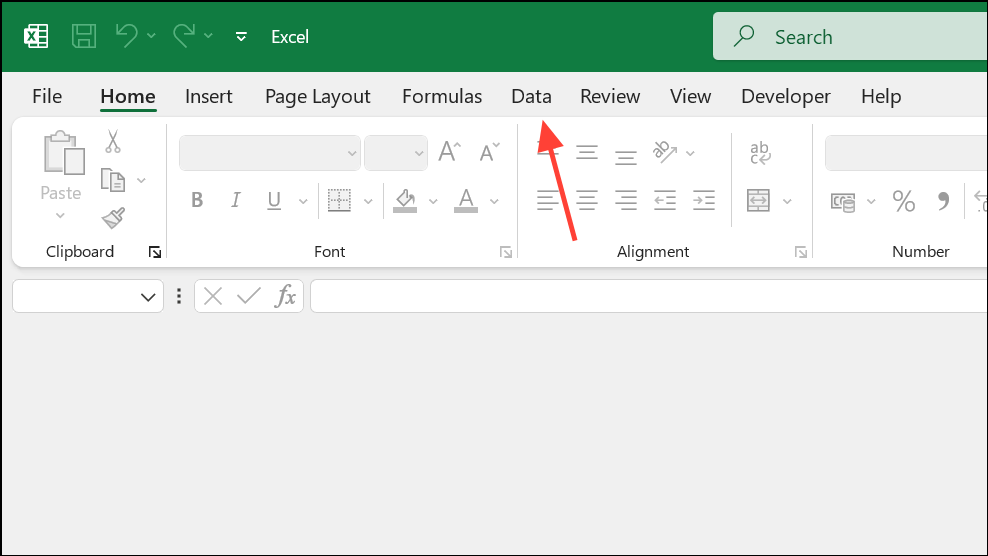
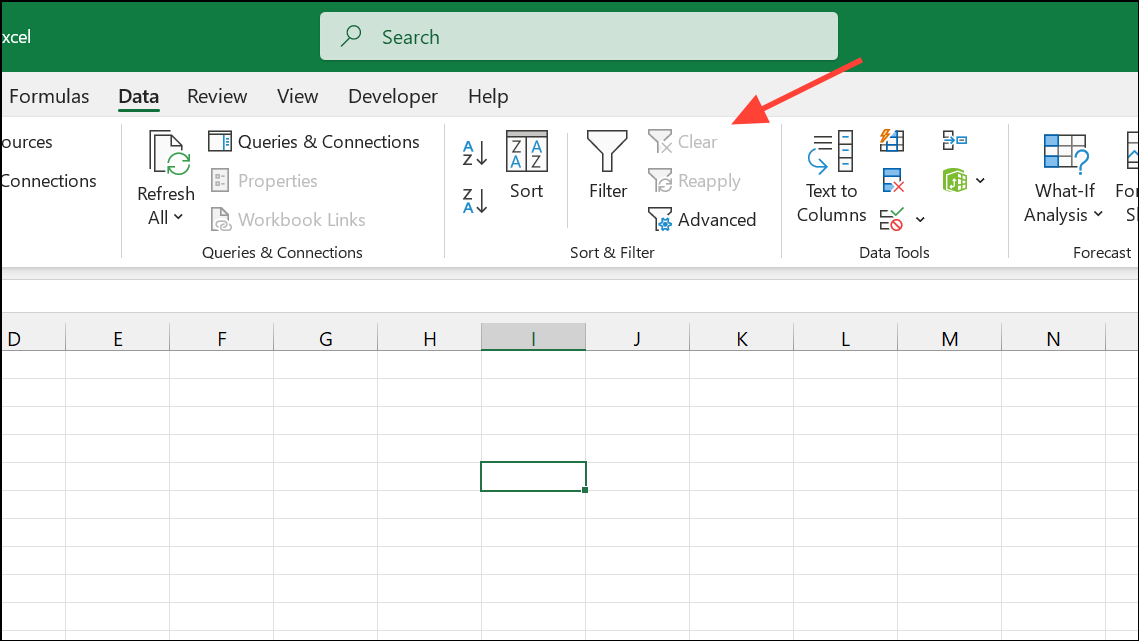
Ctrl + C, and then paste it to the desired location. All rows, including those previously hidden, will now be included.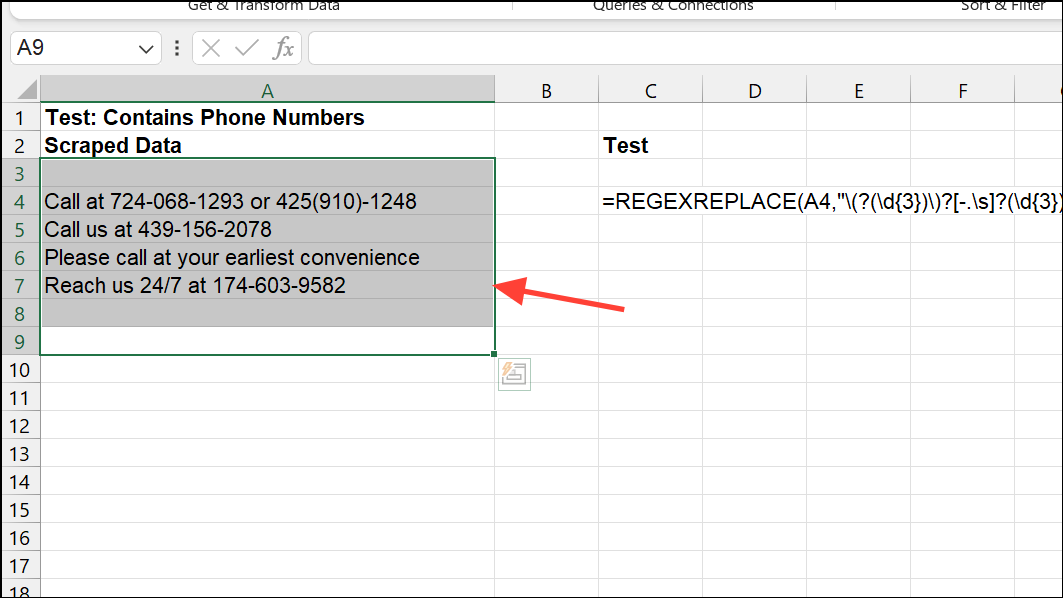
This approach ensures that copy-paste operations reflect the actual data, not just the filtered subset, and prevents missing values after pasting.
Unmerge Cells to Resolve Paste Errors
Merged cells in Excel can block successful pasting, especially if the destination cells are not merged in the same way. Excel does not allow pasting data into a range that conflicts with merged cell structure, which can trigger errors or incomplete pastes.
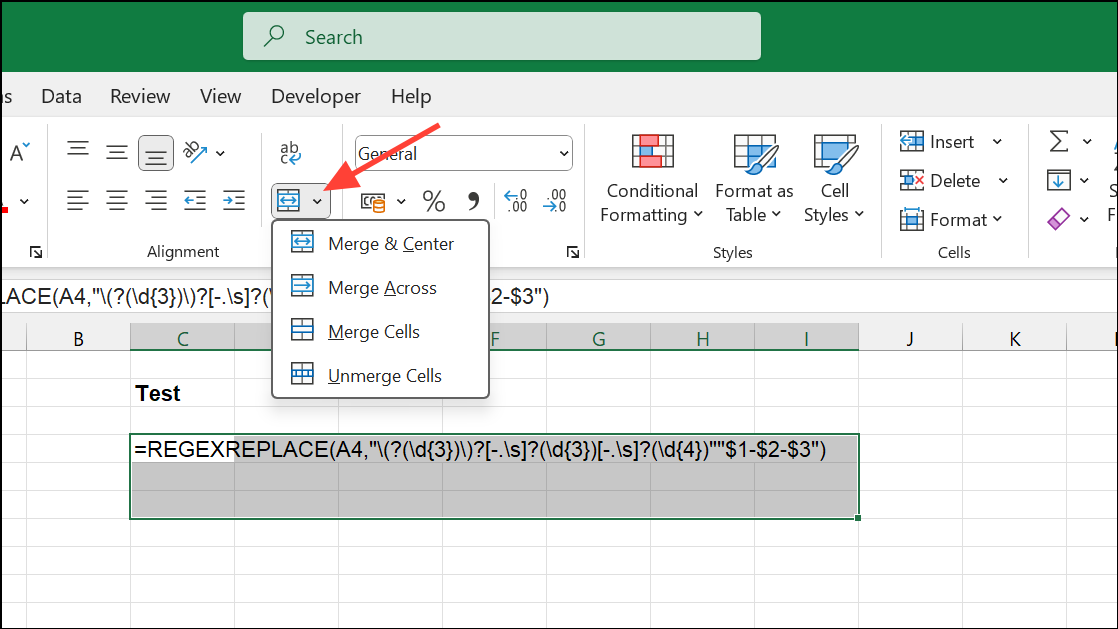
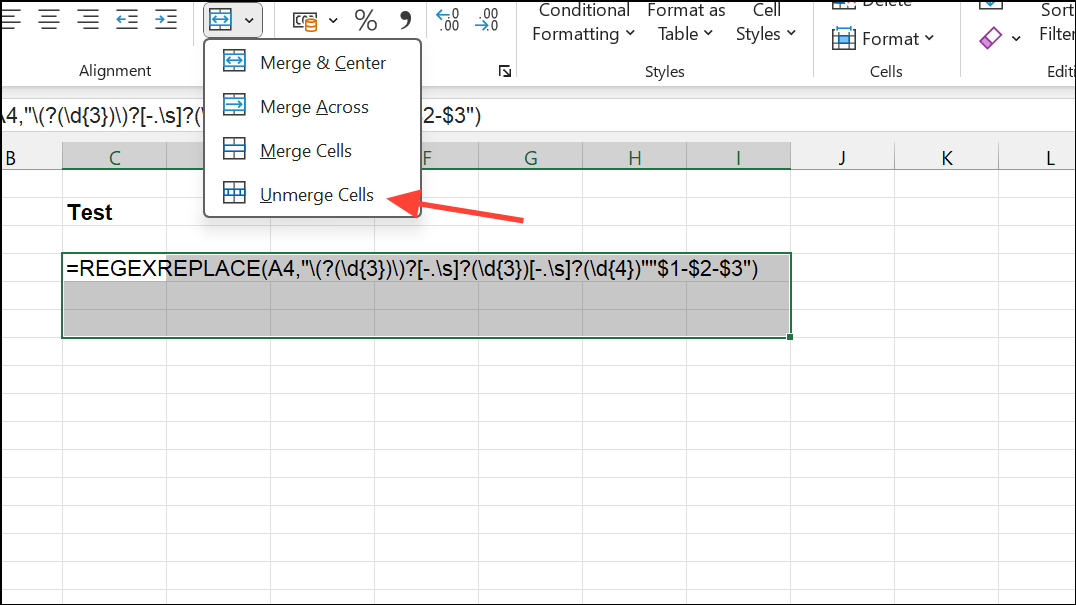
Unmerging ensures that the source and destination ranges match in structure, which is required for a successful paste.
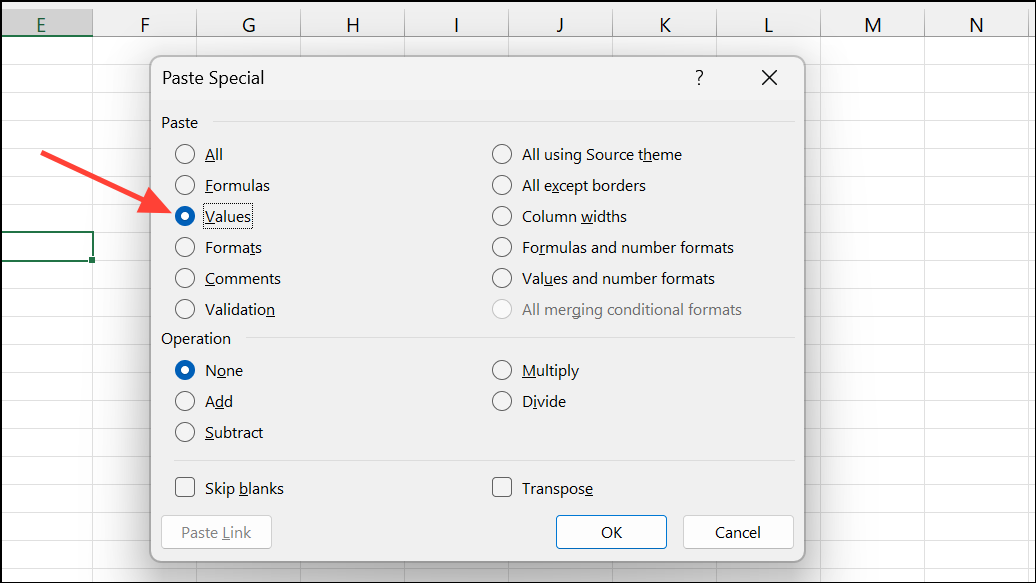
Use Paste Special for Complex Data
Standard paste operations may fail if the source and destination formats don’t align, or if you’re copying formulas, formatting, or data from external sources. Paste Special allows you to specify exactly what to paste, such as values only or formulas only, which can bypass many compatibility issues.
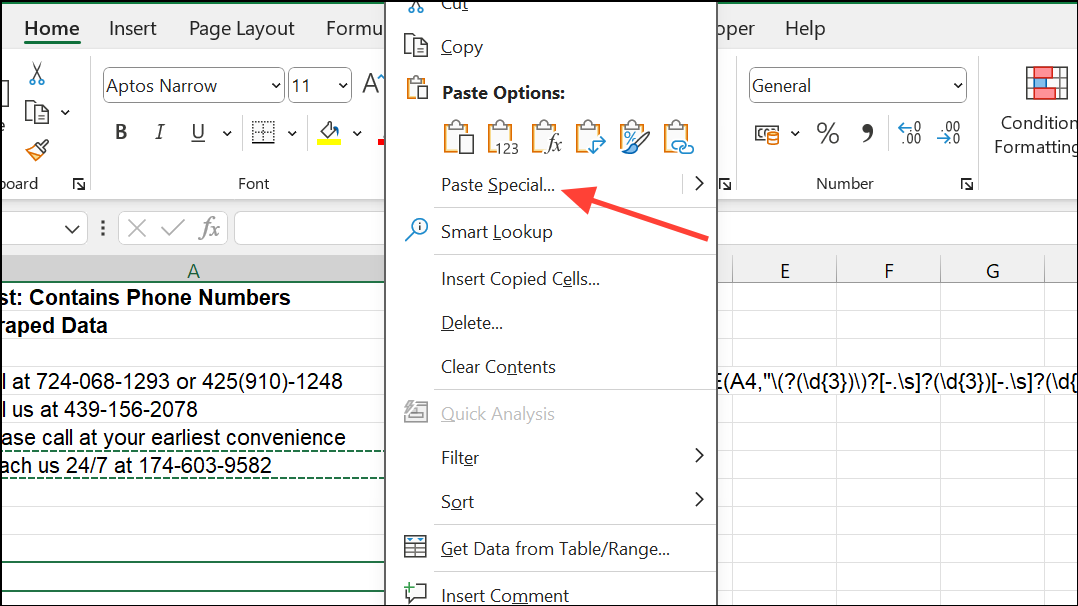
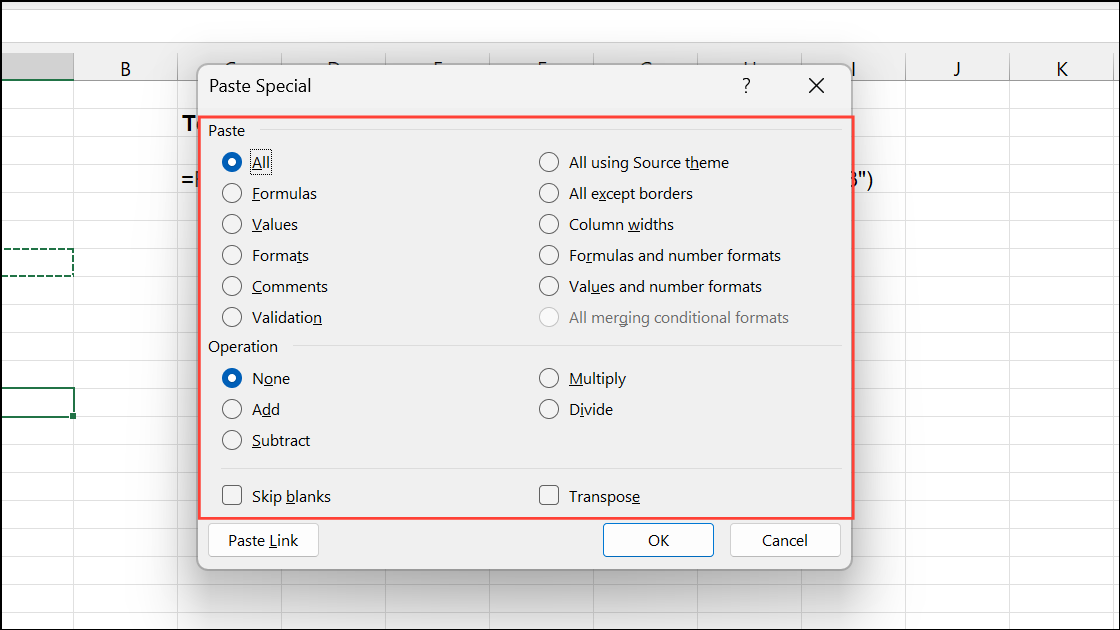
This method is especially useful when copying between workbooks, from Access extracts, or when pasting into cells with different formatting requirements. It also helps avoid errors related to “too many cell formats.”
Check and Match Cell Formats
If Excel refuses to paste data, mismatched cell formats may be the cause. For example, pasting dates into a column formatted as text, or vice versa, can block the operation.
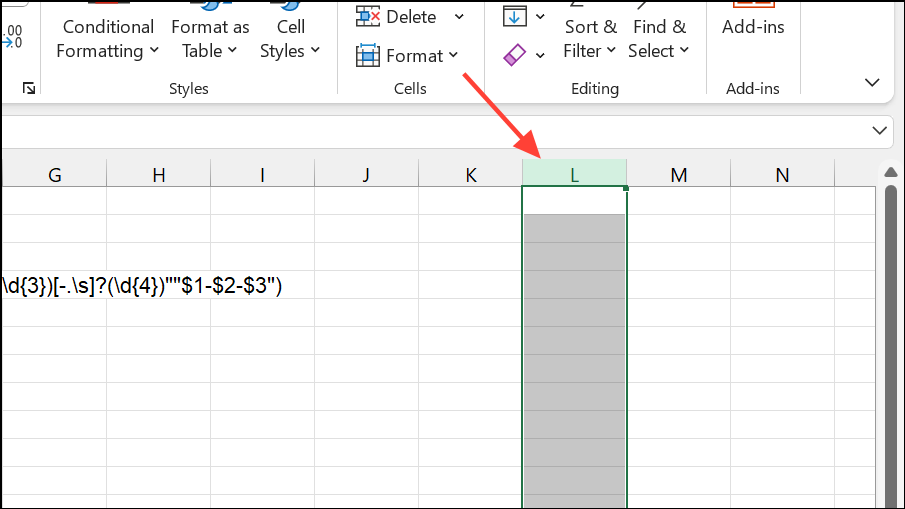
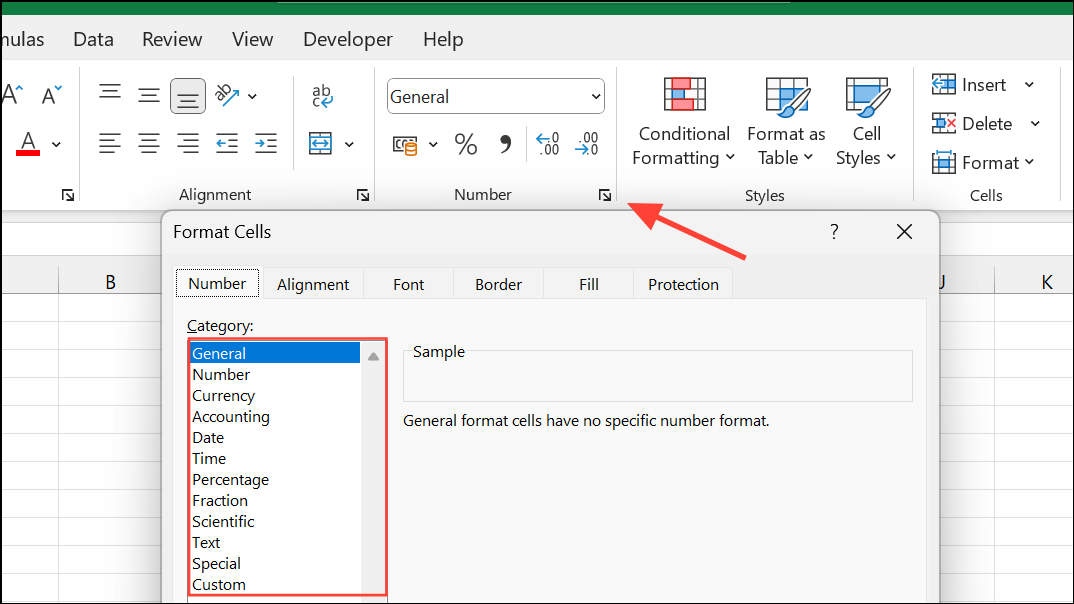
Adjusting formats before pasting prevents errors and ensures data is interpreted correctly.
Insert Additional Columns if Needed
Pasting a large dataset into an area with insufficient columns can cause failures or partial pastes.
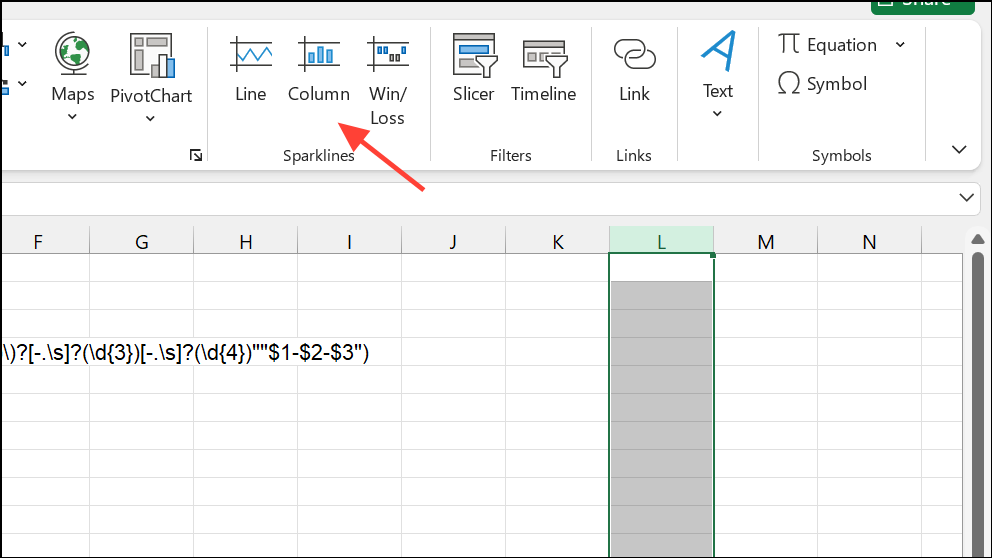
Ensuring the destination area matches the size and shape of the copied data allows Excel to paste everything as expected.
Clear Excess Cell Formatting
Excel has a limit on the number of unique cell formats in a workbook. If your file approaches this limit (often after repeated formatting changes), you may see errors like “too many cell formats” or failed paste attempts.
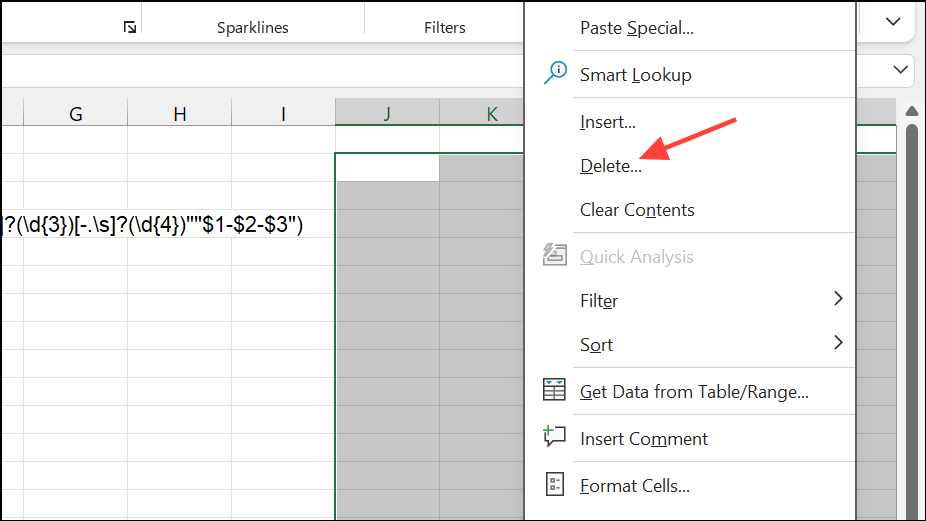
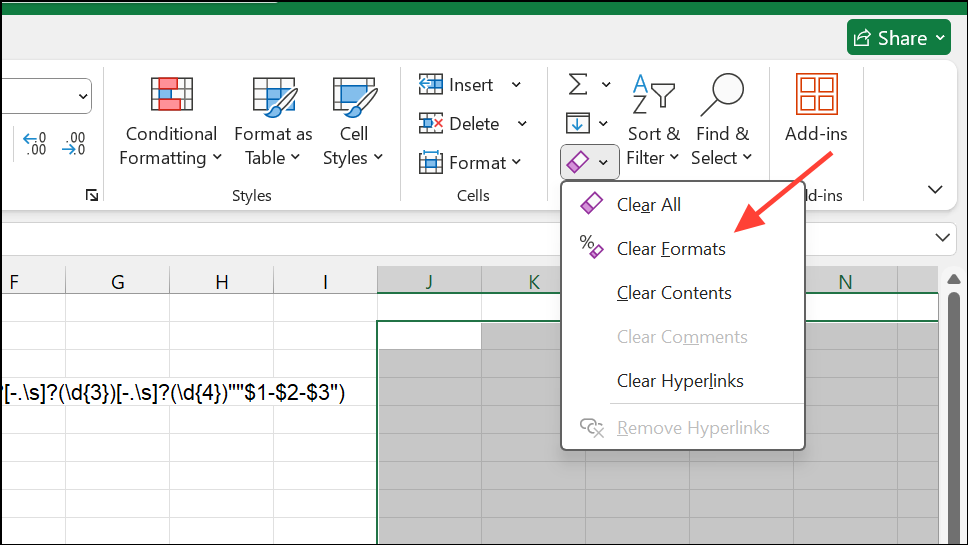
Reducing formatting complexity can resolve persistent paste errors in large or heavily-edited workbooks.
Restart Excel or Use Safe Mode
Occasionally, Excel’s internal processes or add-ins can interfere with clipboard operations. Restarting Excel or opening it in Safe Mode can resolve these conflicts.
Ctrl key and launch Excel to start in Safe Mode, which disables all add-ins and customizations.Restarting or using Safe Mode can quickly resolve issues caused by temporary glitches or third-party software.
Disable Dynamic Data Exchange (DDE)
Dynamic Data Exchange (DDE) is a protocol that allows Excel to communicate with other applications. While useful for automation, it can cause copy-paste errors if other applications or background processes interfere.
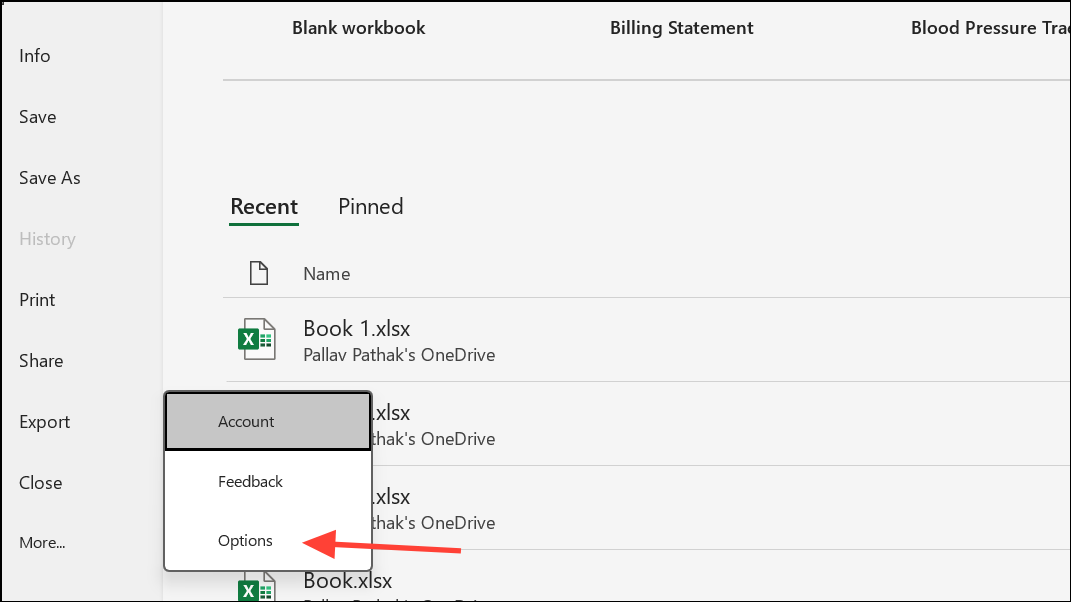
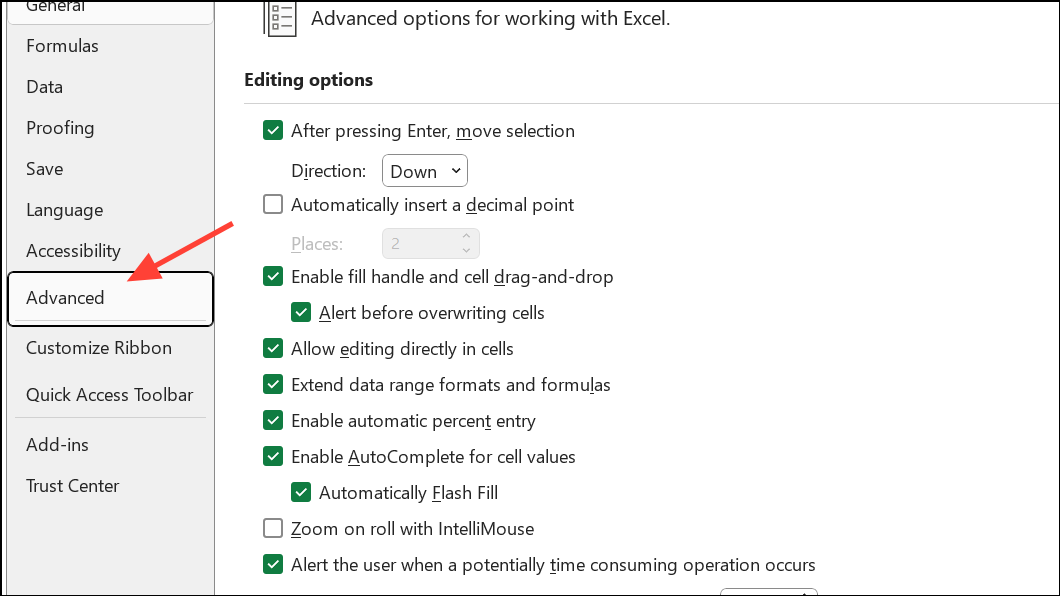
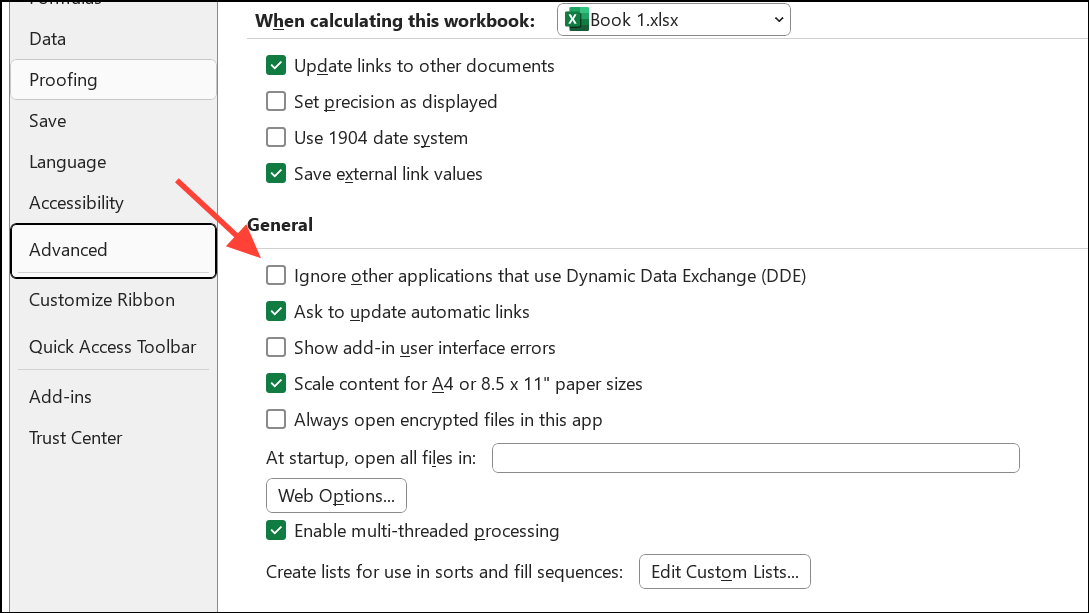
Disabling DDE prevents Excel from conflicting with other programs, which can resolve persistent clipboard and paste issues.
Check for Clipboard Conflicts
Sometimes, Excel reports that the clipboard is in use by another application, preventing copy and paste operations between files or programs.
Eliminating clipboard conflicts restores normal copy and paste behavior across applications.
Copy to a New Workbook as a Last Resort
If the original file is corrupt or repeatedly fails to allow pasting, transferring your data to a fresh workbook can resolve underlying issues.
This approach is especially useful when encountering persistent errors related to file corruption or excessive formatting.
Troubleshooting Excel paste issues requires a methodical approach—removing filters, unmerging cells, matching formats, and adjusting settings can quickly restore copy and paste functionality so you can keep working without interruption.





