
Excel workbooks with extensive data and complex formulas can grind to a halt, even on high-powered machines. When files exceed hundreds of thousands of rows or contain heavy calculations, scrolling and basic actions may lag, formulas recalculate slowly, and saving takes much longer than expected. These slowdowns are not always caused by hardware limitations—often, the underlying structure and content of the file are the main culprits. Optimizing Excel’s handling of large files involves targeted changes to formulas, formatting, data models, and system settings.
Use Power Query and Power Pivot for Large Datasets
Loading massive datasets directly into Excel worksheets can overwhelm the application. Instead, Power Query and Power Pivot are built-in tools designed for handling and analyzing large volumes of data efficiently. Power Query allows you to import, clean, and transform data from various sources, while Power Pivot enables you to build data models that support advanced analysis using the DAX calculation engine. These tools operate in memory and can process millions of rows with minimal lag.
Data tab. Select Get Data to launch Power Query. Import your large dataset (such as a CSV or database connection).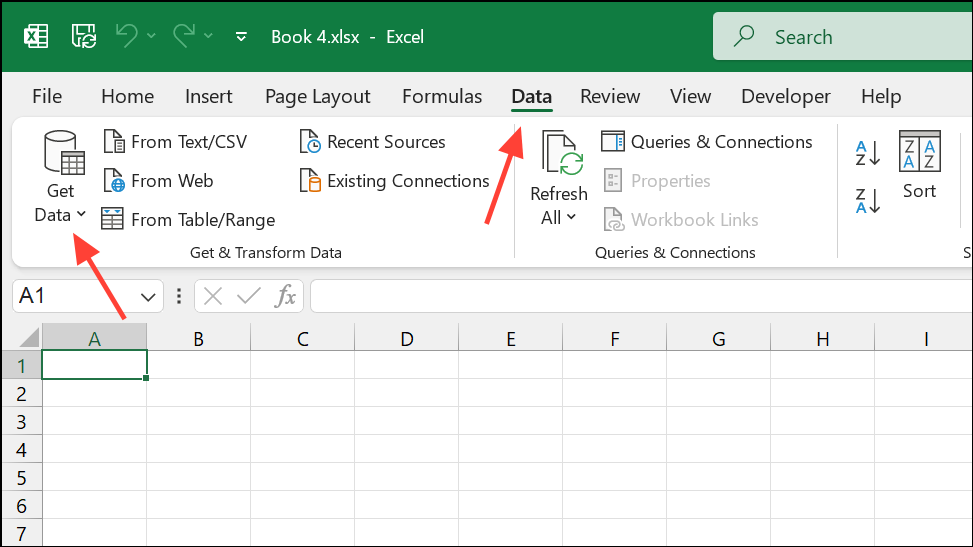
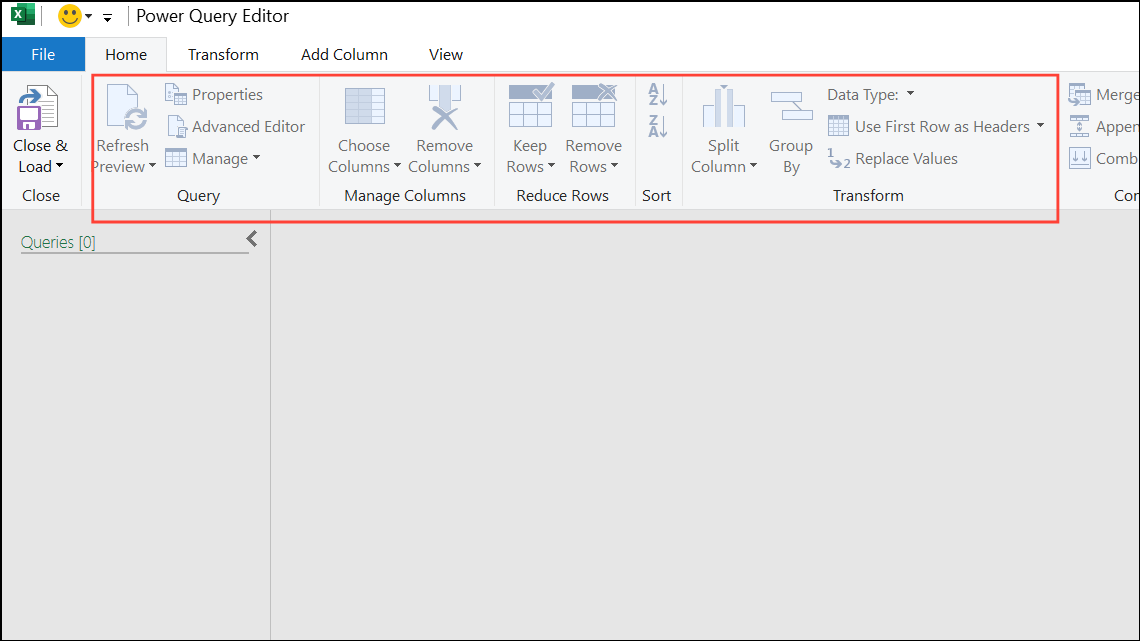
Close & Load To... and select Only Create Connection or Add this data to the Data Model. This avoids loading data directly into worksheet cells and leverages Excel’s in-memory engine.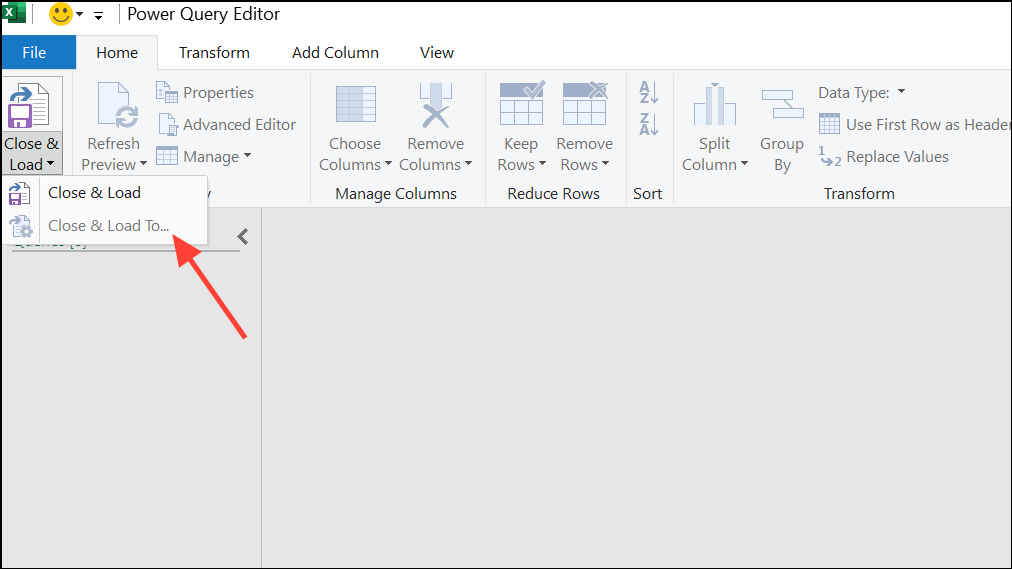
Switching to Power Query and Power Pivot can reduce file size, speed up calculations, and make it feasible to work with datasets that would otherwise slow Excel to a crawl.
Optimize and Simplify Formulas
Complex or inefficient formulas are a leading cause of slow Excel files. Nested functions, array formulas copied across thousands of rows, and volatile functions (which recalculate frequently) can all degrade performance.
=SUM(A:A)). Instead, specify exact ranges, like =SUM(A1:A10000), to limit recalculation scope.NOW, TODAY, OFFSET, INDIRECT, and RAND. These recalculate whenever any change is made in the workbook.IF statements with INDEX/MATCH or SUMIFS where applicable.Paste Special > Values to remove unnecessary formulas from large data ranges, retaining only the static results.Streamlining formulas can cut recalculation time dramatically and prevent lag during data entry and editing.
Reduce File Size and Remove Unnecessary Formatting
Large Excel files are not just about data volume; formatting, unused styles, and excess content can inflate file size and slow performance. Cleaning up these elements restores speed and responsiveness.
CTRL+END on each sheet to check the last used cell. If this is far beyond your actual data, select and delete all blank rows and columns beyond your data range, then save and reopen the file to reset the used range.Picture Format tab, and use Compress Pictures to reduce file size.Check Performance tool (Microsoft 365) or the Inquire Add-In (enterprise Excel) to remove excess formatting from empty cells and manage conditional formatting rules. Excessive formatting can slow down even small files.Regularly cleaning up your workbook keeps files manageable and ensures Excel remains responsive even as your datasets grow.
Switch Calculation Mode to Manual
By default, Excel recalculates formulas automatically whenever a change is made. With large files, this can cause repeated delays. Switching to manual calculation mode gives you control over when recalculations occur.
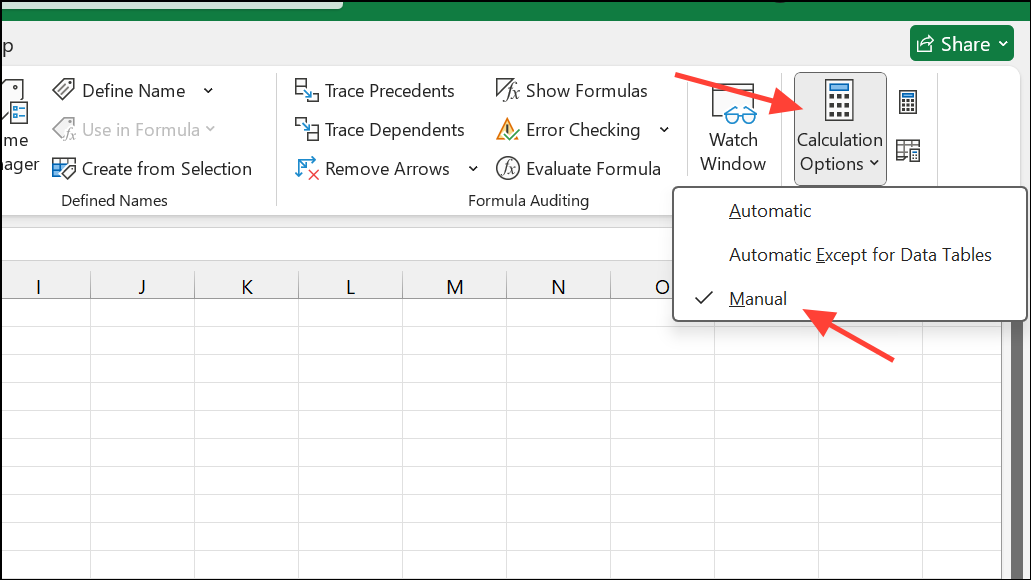
F9 to trigger calculation manually.Recalculate Before Saving in File > Options > Formulas if you want updated values before closing the file.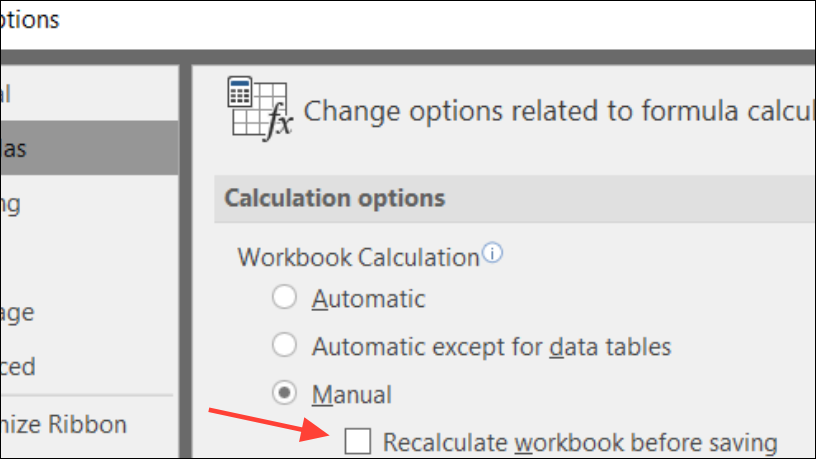
Manual calculation mode helps avoid unnecessary interruptions, especially when editing or importing large amounts of data.
Upgrade to 64-Bit Excel and Enable Multi-Threaded Calculations
Excel’s 32-bit version is limited to 2 GB of RAM, which can quickly become a bottleneck with large files. The 64-bit version uses all available system memory, allowing for much larger datasets and faster processing. Multi-threaded calculations let Excel use multiple CPU cores for faster formula evaluation.
File > Account > About Excel. If you see “32-bit,” consider upgrading to the 64-bit version if your system supports it.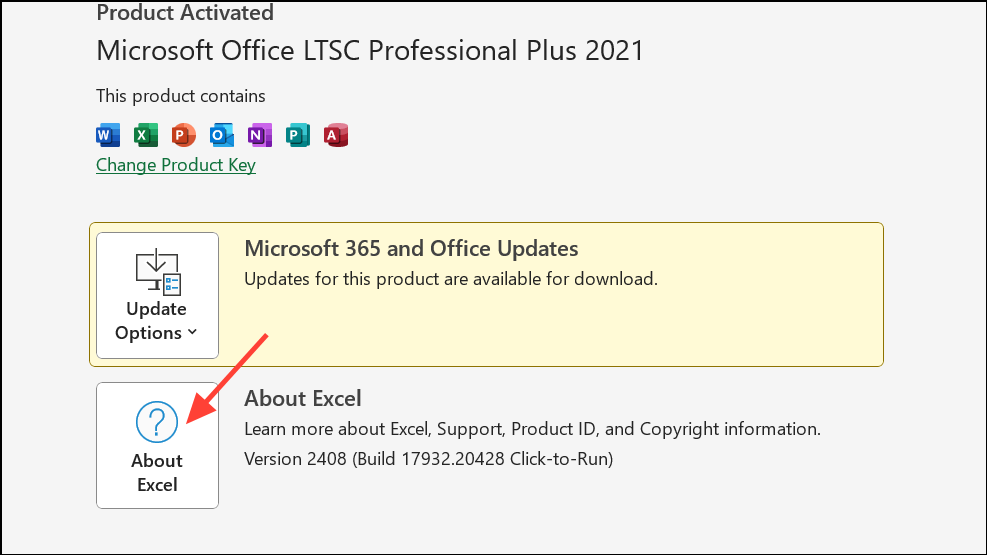
File > Options > Advanced > Formulas, and ensure Enable multi-threaded calculation is checked.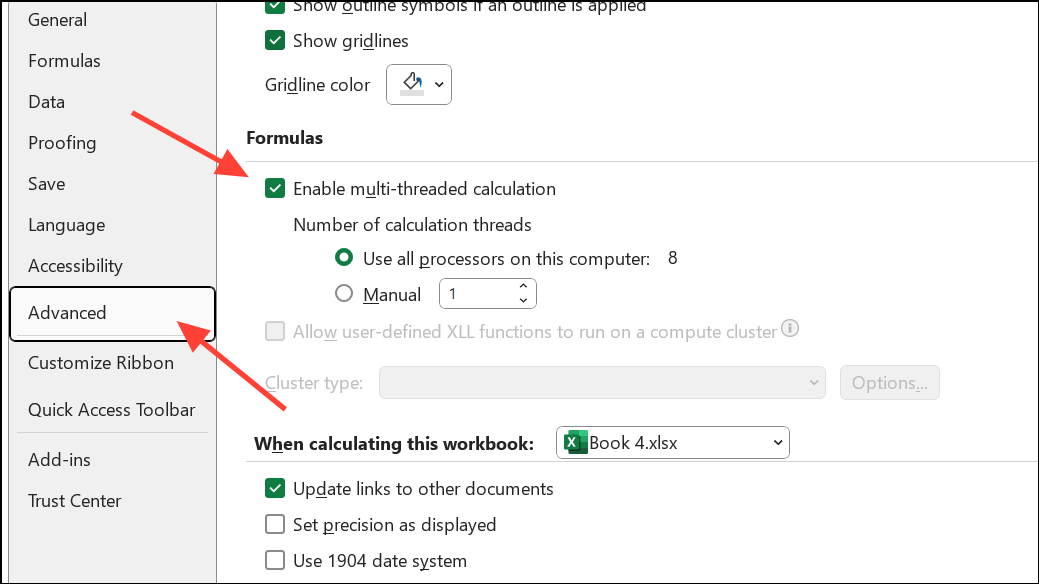
Upgrading and enabling these settings can significantly boost Excel’s ability to process large and complex files quickly.
Remove Unused Names, Styles, and Links
Workbooks may accumulate hidden named ranges, unused styles, and external links over time, each of which can slow performance and increase file size.
Name Manager from the Formulas tab. Delete any named ranges referring to non-existent cells or external workbooks you no longer use.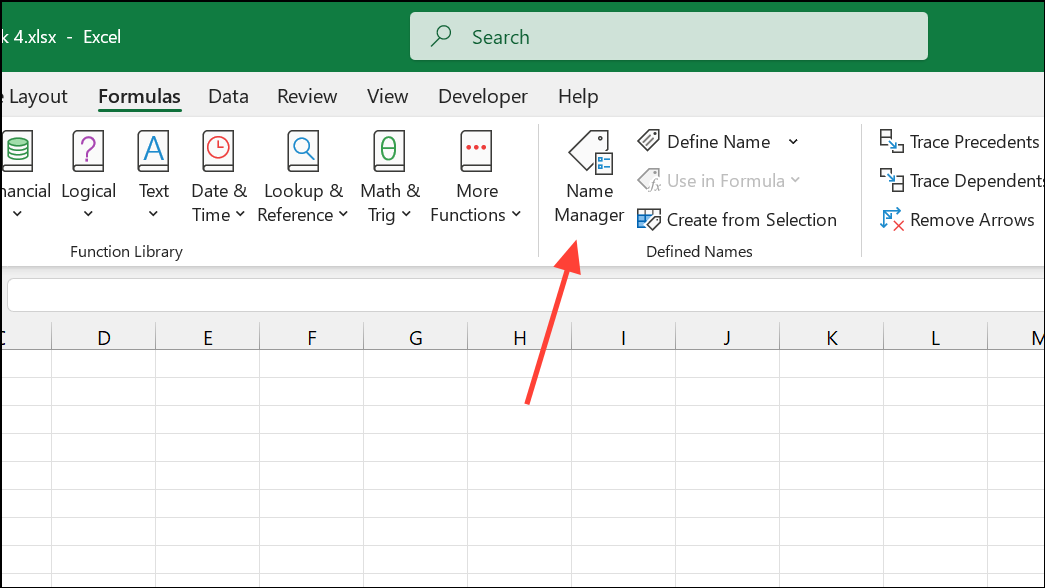
Styles pane and selecting Delete. For large numbers of unused styles, consider using a third-party utility or Excel add-in to clean them up in bulk.Data tab and selecting Edit Links (or Workbook Links in Microsoft 365). Update or remove links to files you no longer need.Removing these unused elements reduces clutter and can resolve unexplained slowdowns.
Disable Hardware Graphics Acceleration and Adjust Display Settings
In some cases, Excel’s use of hardware graphics acceleration can cause lag, especially on certain hardware configurations or with multiple language packs installed.
File > Options > Advanced. Scroll to the Display section and check Disable hardware graphics acceleration.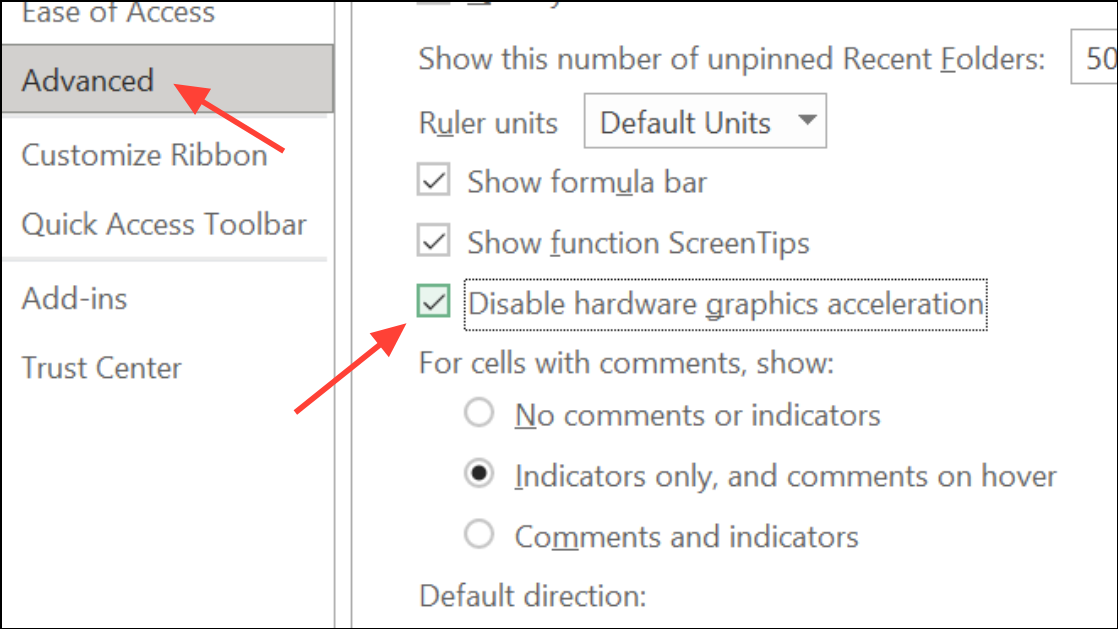
This adjustment can resolve lag that persists even on high-end systems and with otherwise optimized files.
Additional Tips for Smoother Excel Performance
- Close unnecessary background applications to free up memory and CPU resources.
- Keep Excel and Office updated for the latest performance improvements and bug fixes.
- Disable unnecessary add-ins, as these can load with Excel and consume resources even when not in use.
- Save files in binary format (
.xlsb) for faster opening and saving, especially for large workbooks. - Limit the use of charts and graphics within the workbook, or place them on separate sheets.
Optimizing large Excel files is about more than just hardware—it’s about structuring your data, formulas, and formatting for speed. With these targeted strategies, you can transform sluggish workbooks into fast, reliable tools for data analysis and reporting.





