
Audio output through the headphone jack can suddenly stop functioning on Windows 11 systems, especially after updates or driver changes. When Windows 11 fails to detect headphones plugged into the jack, users lose access to private audio and experience interruptions in calls, meetings, or entertainment. This issue often results from missing or outdated audio drivers, incorrect settings, or conflicts between hardware and software components.
Method 1: Reinstall or Update Audio Drivers
Missing or outdated audio drivers commonly prevent Windows 11 from recognizing the headphone jack. Reinstalling or updating these drivers restores proper detection and playback.
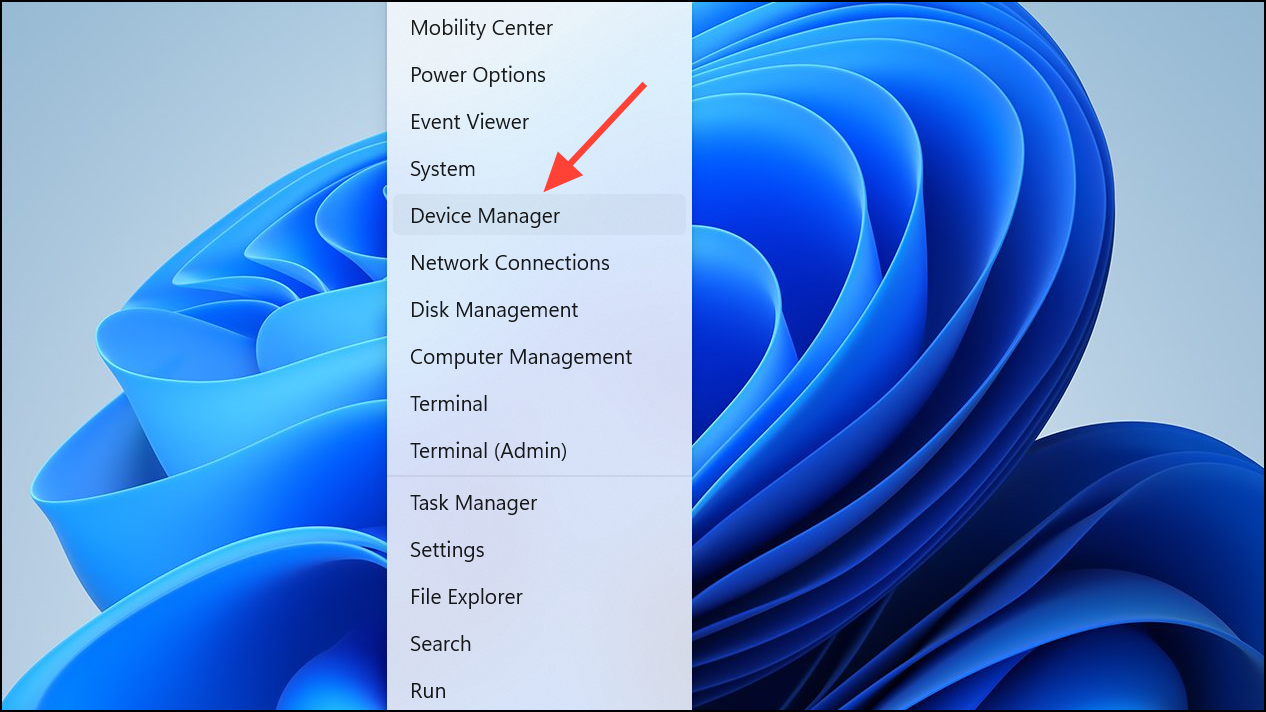
Sound, video and game controllers section. Look for your primary audio device, such as Realtek Audio or High Definition Audio Device.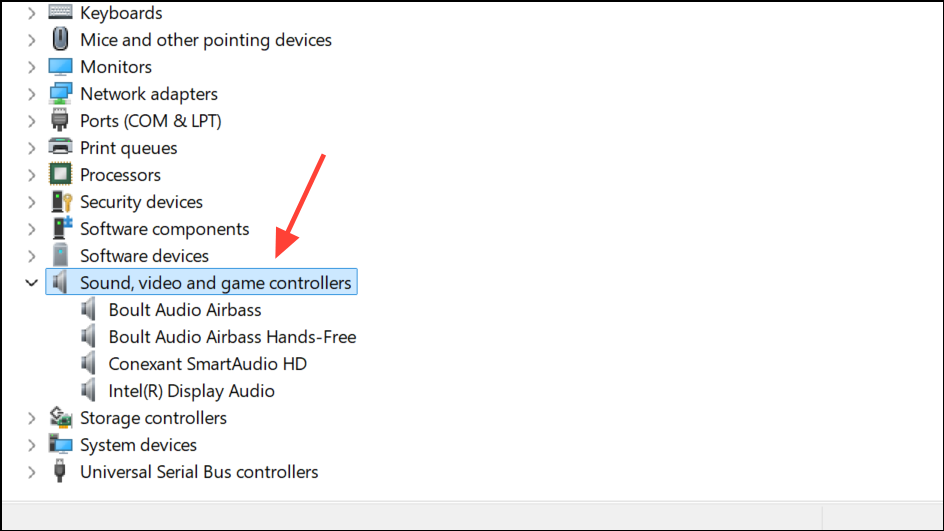
Update driver. Choose Search automatically for drivers to let Windows locate the latest version.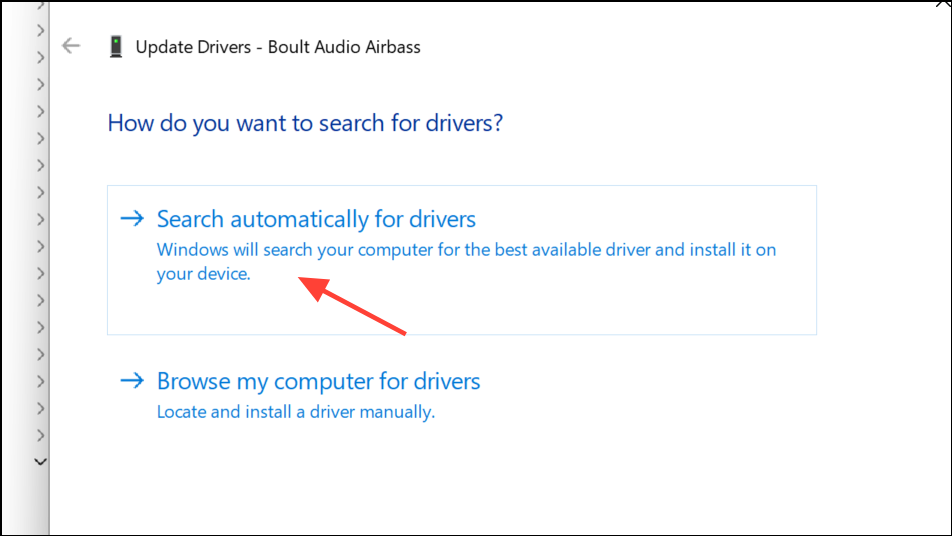
Browse my computer for drivers and select Let me pick from a list of available drivers on my computer. Test an older driver if available, as newer updates can sometimes cause compatibility issues.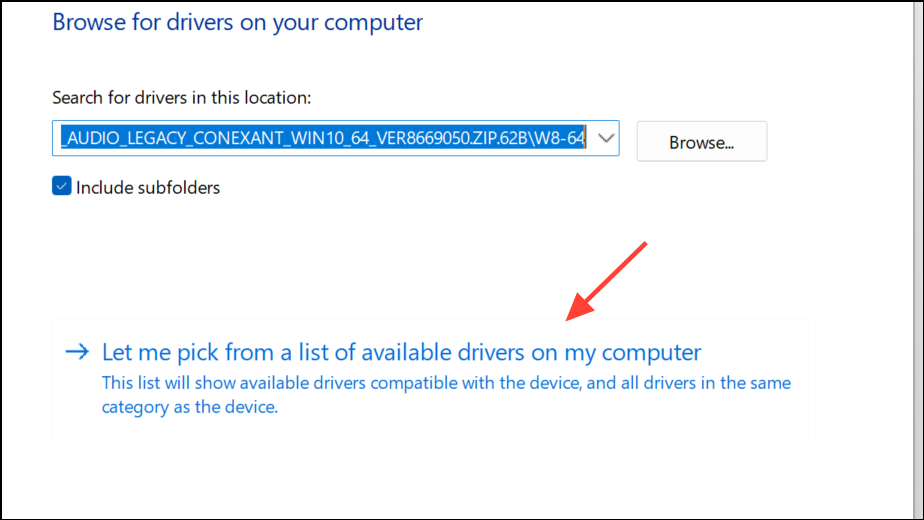
Uninstall device. After uninstalling, restart your PC. Windows will attempt to reinstall the generic driver automatically. If it does not, download the correct driver from your PC or motherboard manufacturer’s website and install it manually.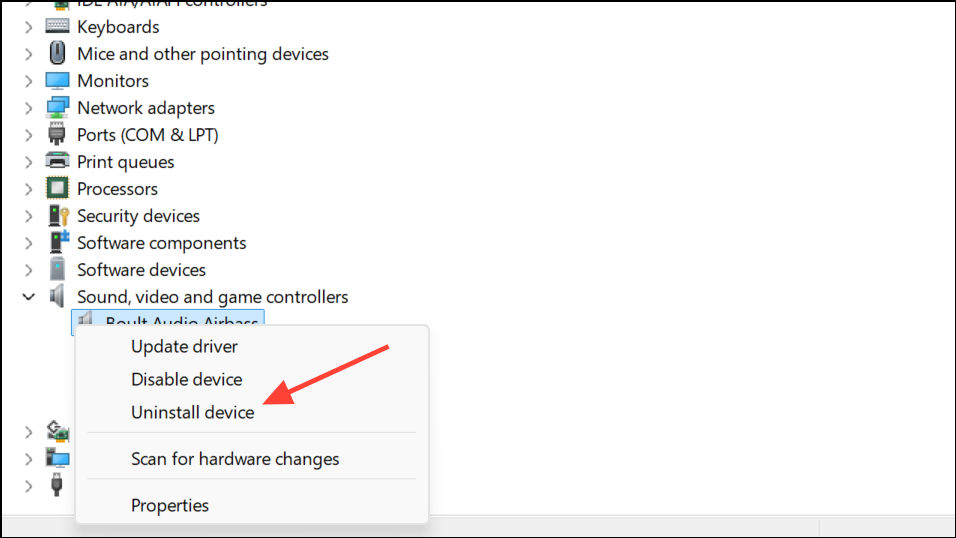
Method 2: Set Headphones as Default Playback Device
Incorrect audio output settings can prevent sound from routing through your headphones, even when they are physically connected.
Sound settings or open Settings > System > Sound.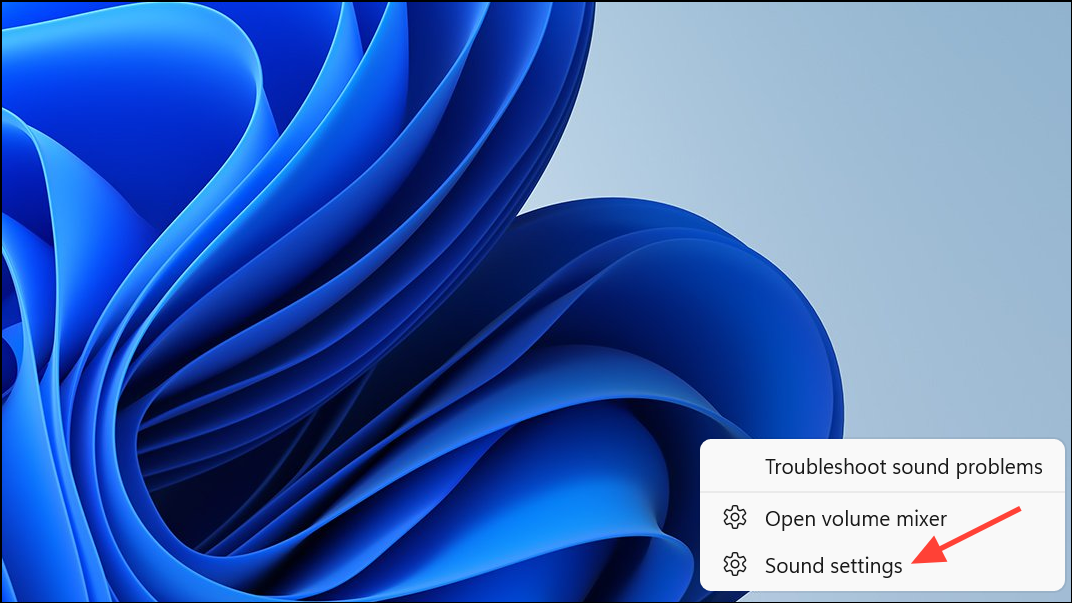
Output section, locate your headphones in the list of audio devices. Click to select them as the default output device.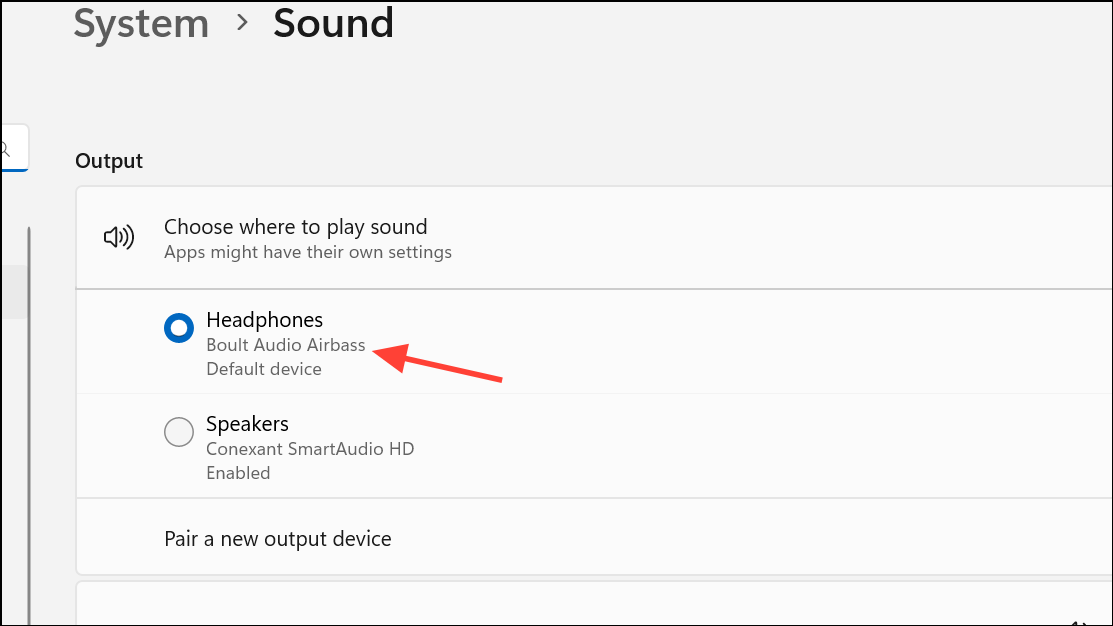
Manage sound devices and look under the Disabled section. Enable your headphones if listed.Method 3: Run Windows Audio Troubleshooter
Windows 11 includes a built-in troubleshooter that can automatically detect and resolve many audio issues, including those related to the headphone jack.
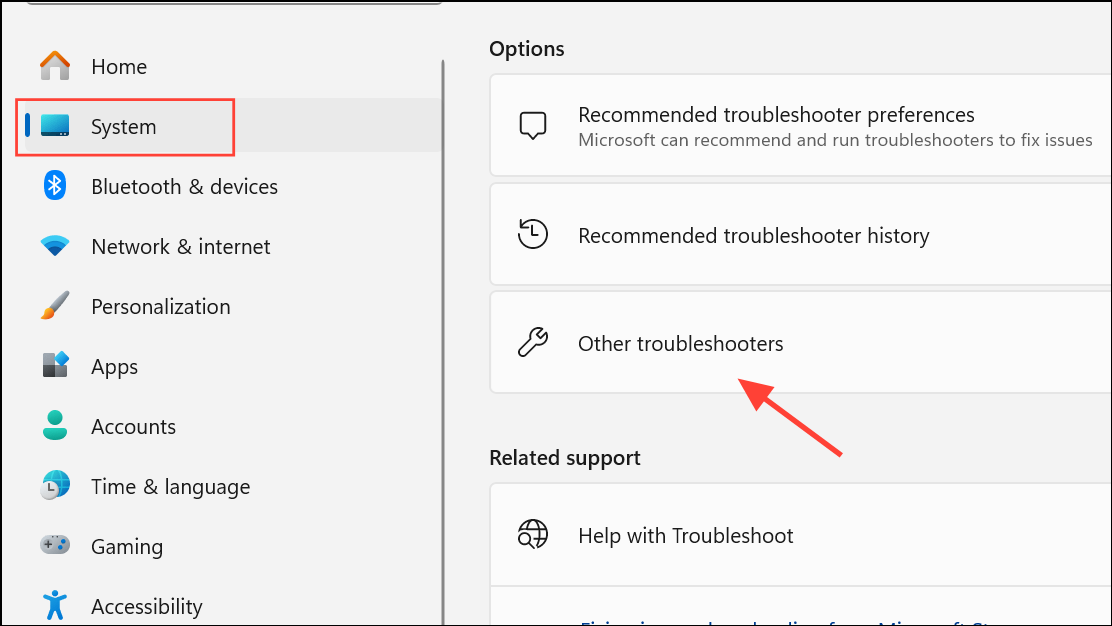
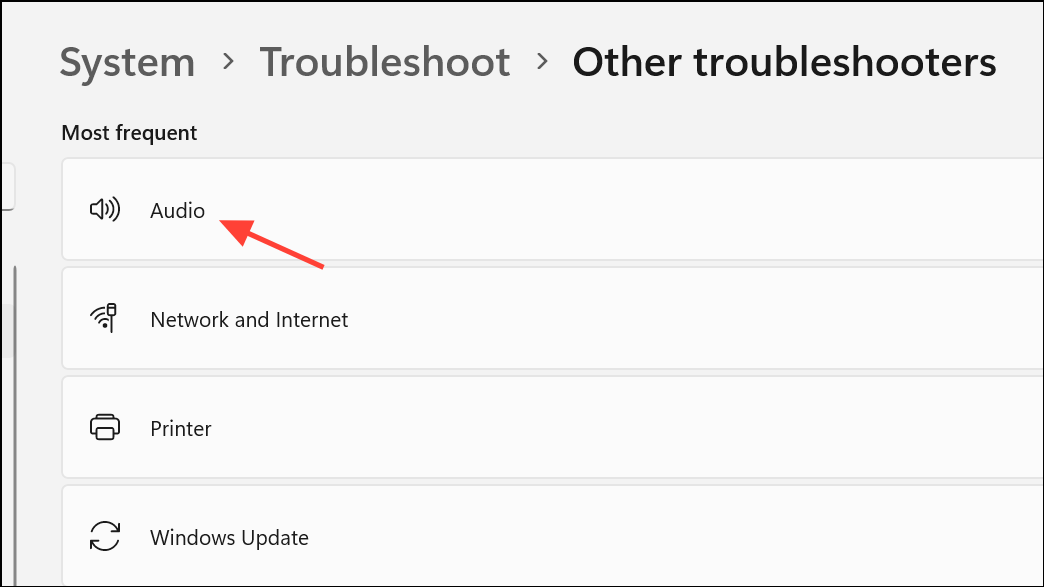
Method 4: Check for Generic Audio Driver Availability
When only virtual audio outputs (such as NVIDIA High Definition Audio) are present in Device Manager, the system may lack the necessary generic audio driver for the headphone jack.
Device Manager, confirm if any generic audio device (e.g., High Definition Audio Device or Realtek Audio) is listed under Sound, video and game controllers. If only NVIDIA outputs are present, the system is missing a core driver.Settings > System > Recovery, select Fix Problem using Windows update, and click Re-install now. This process reinstalls Windows 11 without removing personal files or apps, restoring missing system drivers.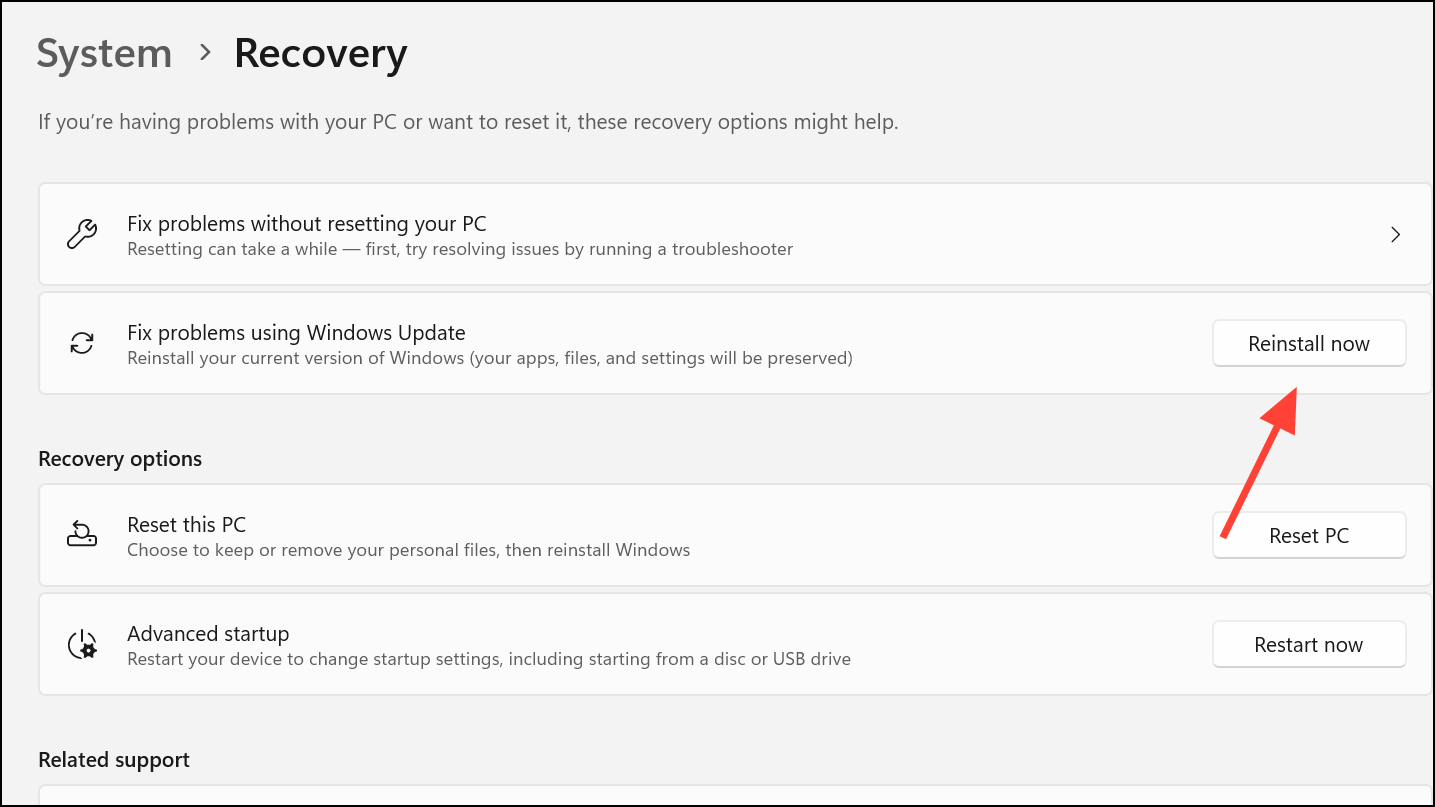
Method 5: Adjust Realtek Audio Console Settings (If Applicable)
Some laptops and desktops use Realtek audio hardware with a dedicated control panel. Incorrect settings in this console can prevent the system from recognizing the correct audio device type.
Device Manager, expand Sound, video and game controllers, right-click Realtek (R) Audio, and select Update driver.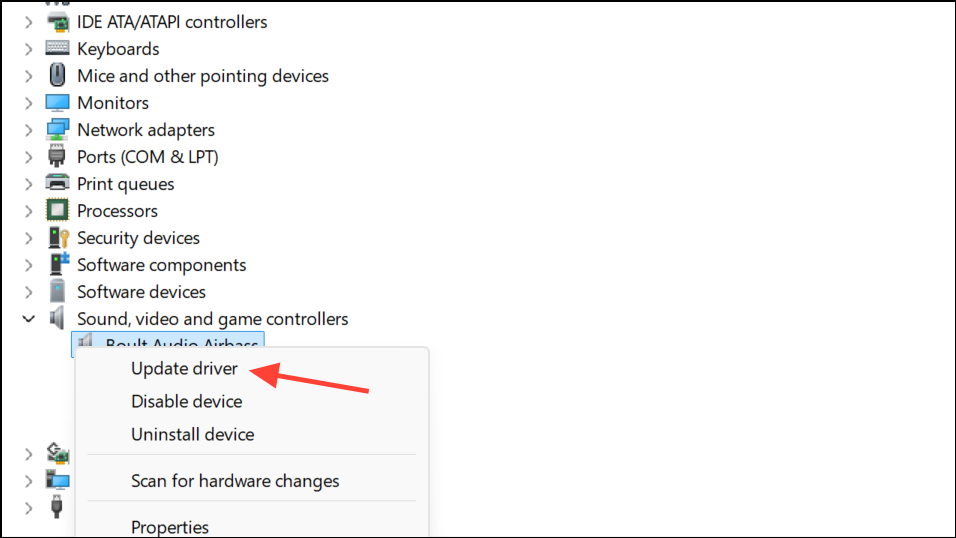
Realtek Audio Console in the Windows search bar and open the app. If the app is missing or crashes, download the latest version from your manufacturer’s support site or the Microsoft Store.Device advanced settings in the Realtek Audio Console. Change the connector type from Headphone to Headset if available, which enables both audio and microphone functionality for combination jacks.Method 6: Additional Troubleshooting Steps
- Test your headphones on another device to confirm they are working properly.
- Try different headphones in the same jack to rule out hardware failure.
- Inspect the headphone cable and connector for visible damage or debris.
- Restart your PC after each major change to apply new settings or drivers.
- Disconnect any additional audio devices (USB or Bluetooth) to avoid conflicts.
- Check for Windows updates, as new patches may address audio issues.
Resolving headphone jack issues on Windows 11 often requires a mix of driver updates, settings adjustments, and sometimes system recovery. Keeping your audio drivers current and verifying output settings usually restores proper headphone detection and playback.



