

Videos on YouTube and other platforms may stop playing in Microsoft Edge due to browser settings, extensions, or corrupted data. Disabling problematic extensions and clearing browser cache often restore video playback instantly, while other methods address deeper system or browser issues.
Disable Extensions That Block Video Playback
Browser extensions—especially ad blockers or privacy tools—can interfere with video streaming. Disabling them is the fastest way to identify the culprit.
Ctrl + Shift + N. InPrivate mode runs Edge without most extensions enabled.edge://extensions/ in the address bar and press Enter. Disable all extensions by toggling them off.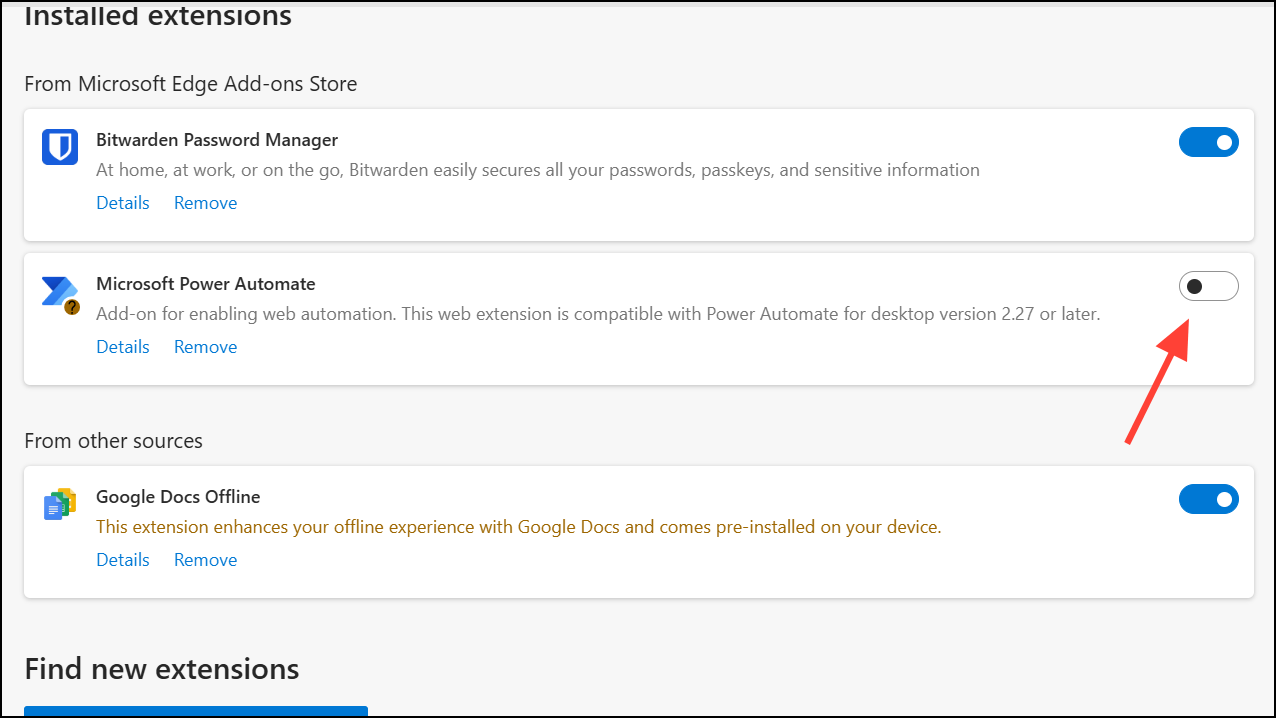
Clear Browsing Data and Cache
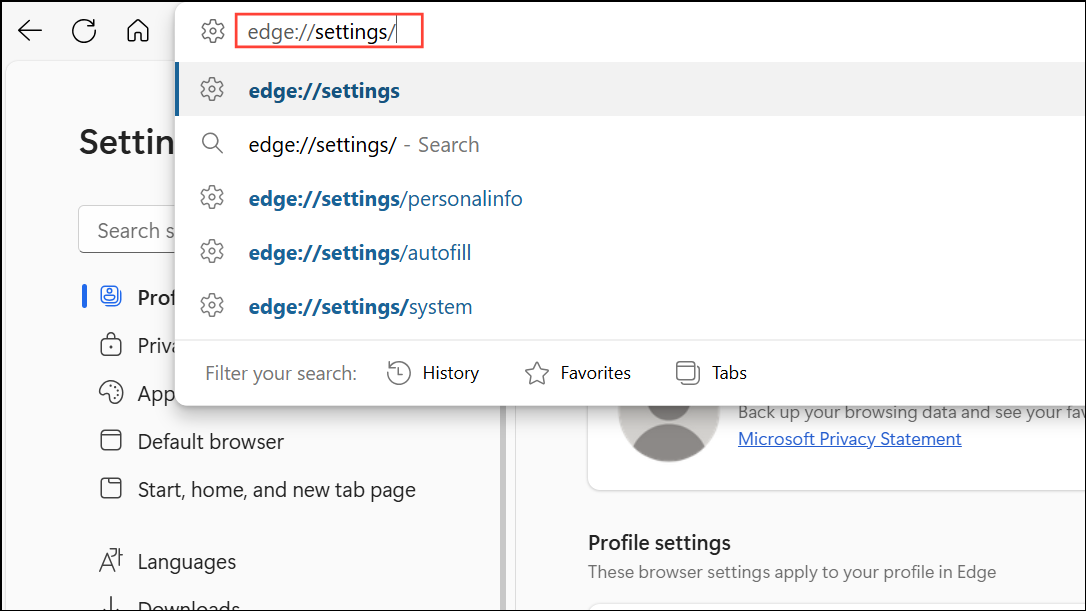
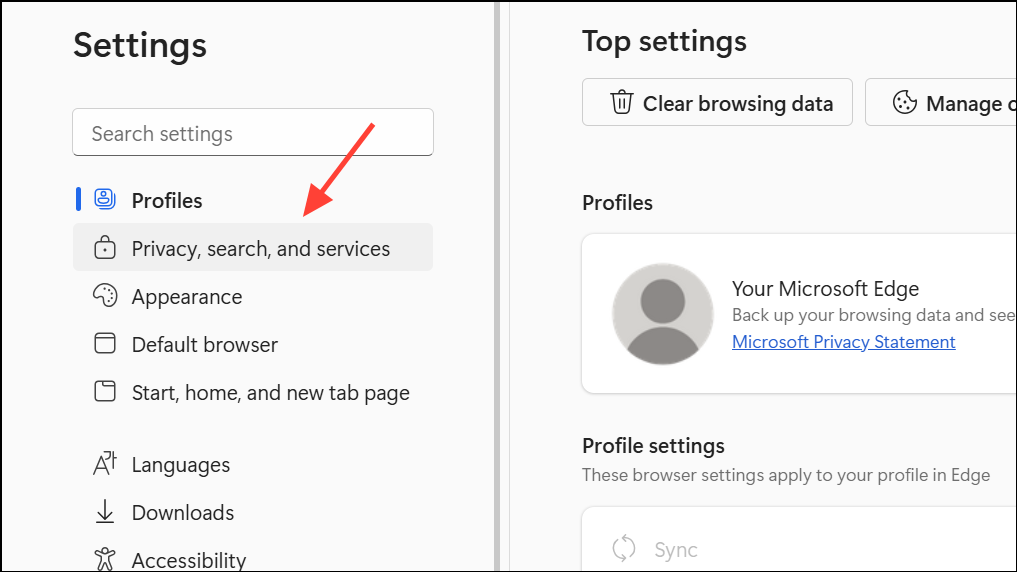
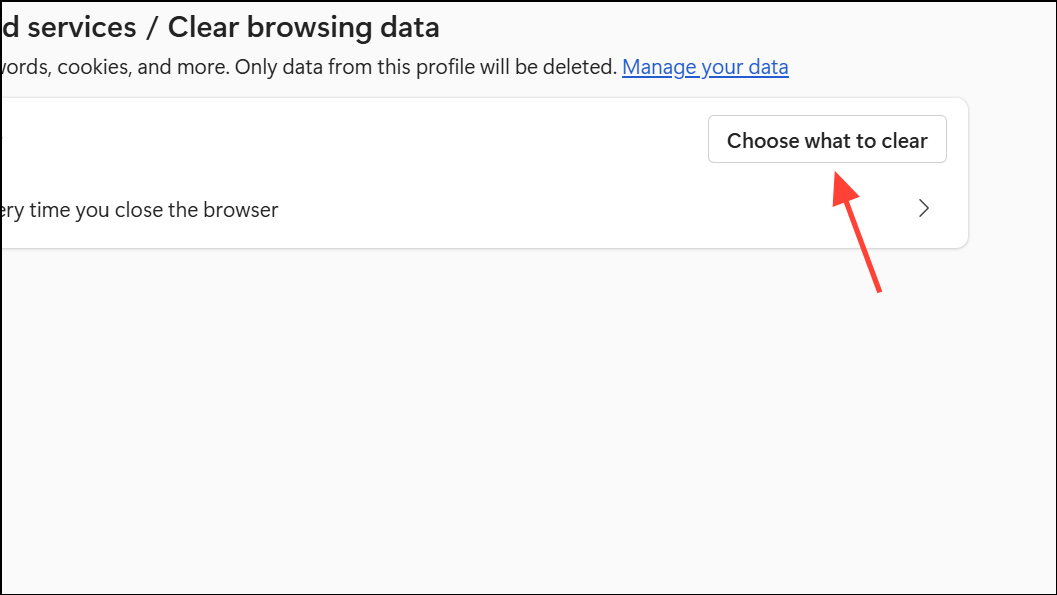
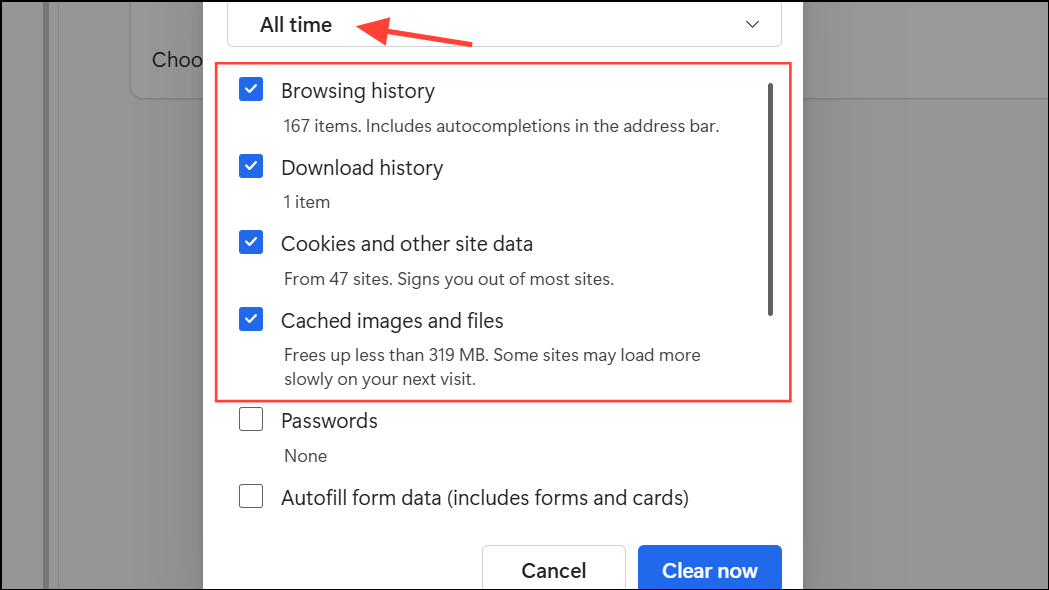
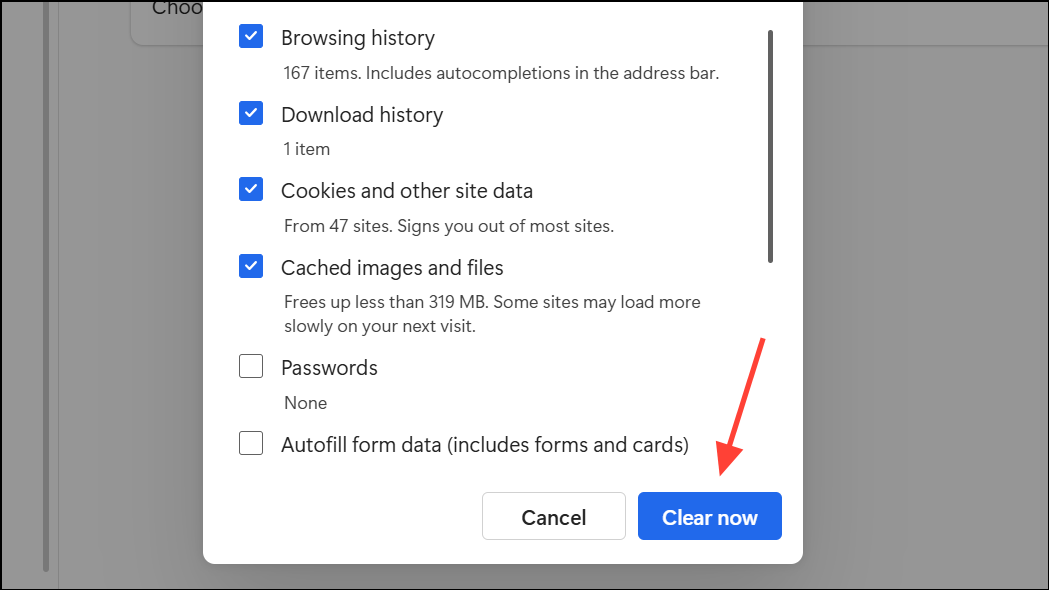
Corrupted or outdated cache files can prevent videos from loading. Clearing your browser cache refreshes website data and often resolves playback problems.
Update Microsoft Edge
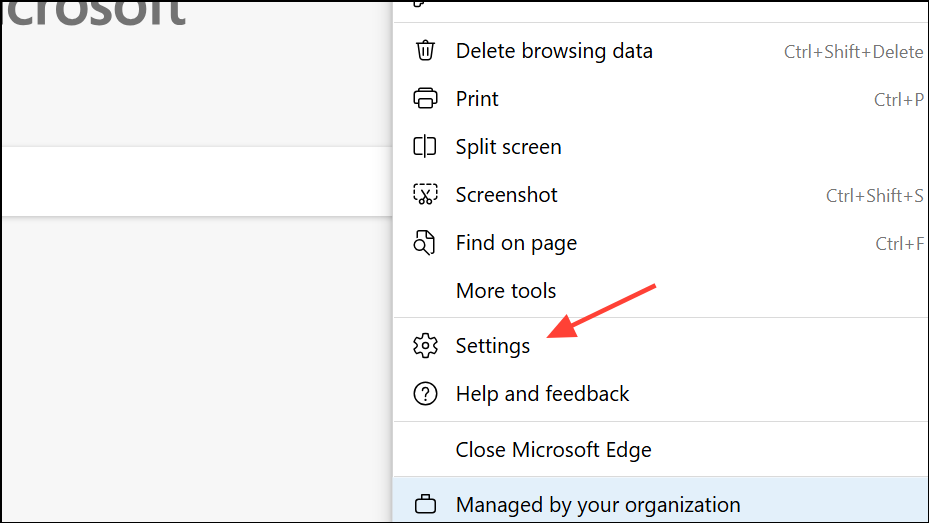
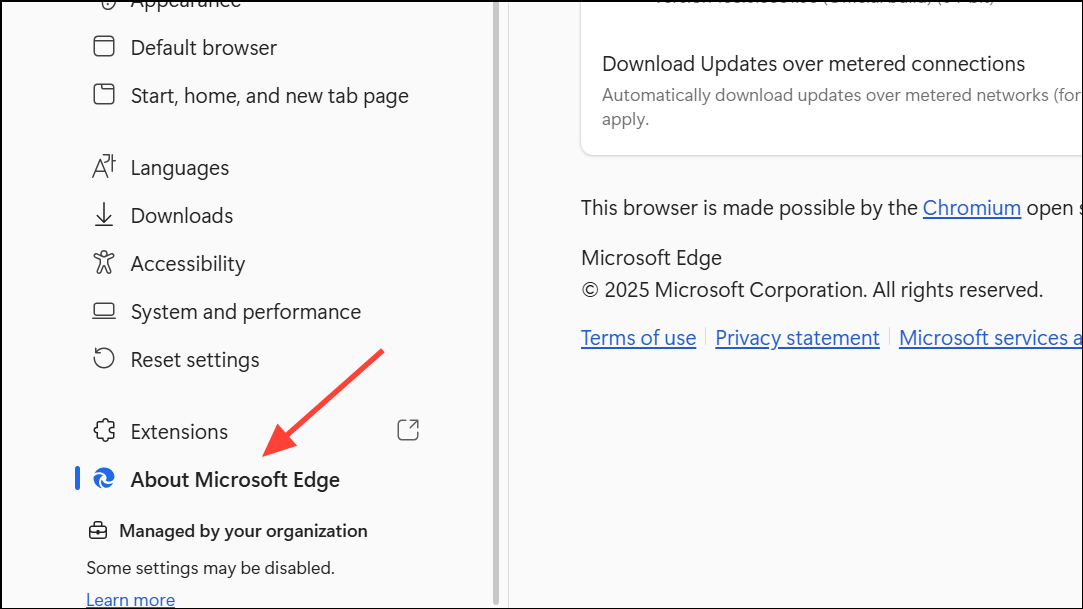
Running an outdated version of Edge can cause compatibility issues with modern video players. Updating ensures you have the latest bug fixes and support.
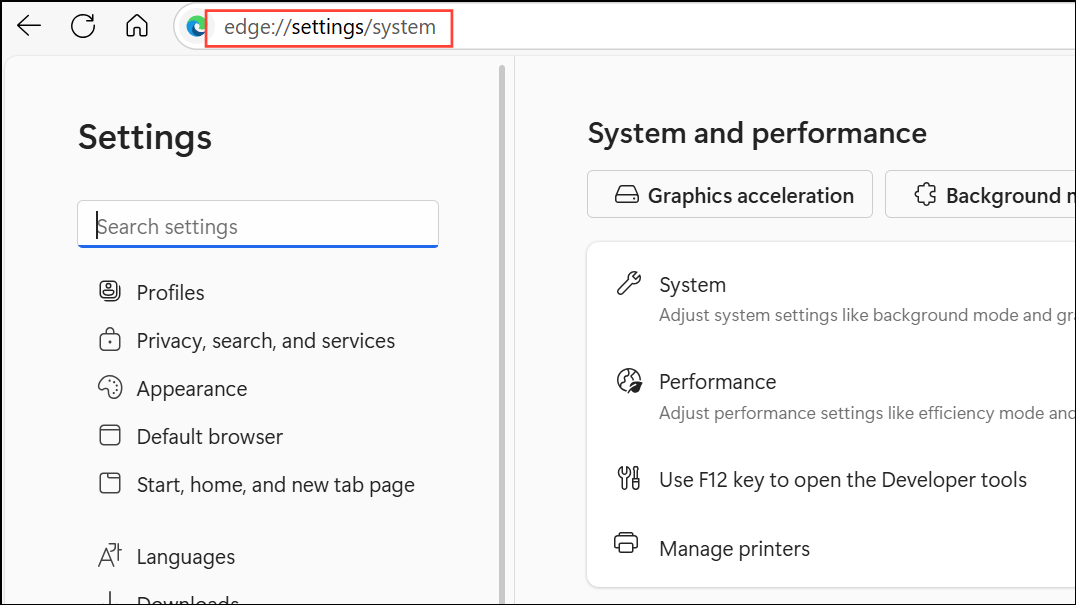
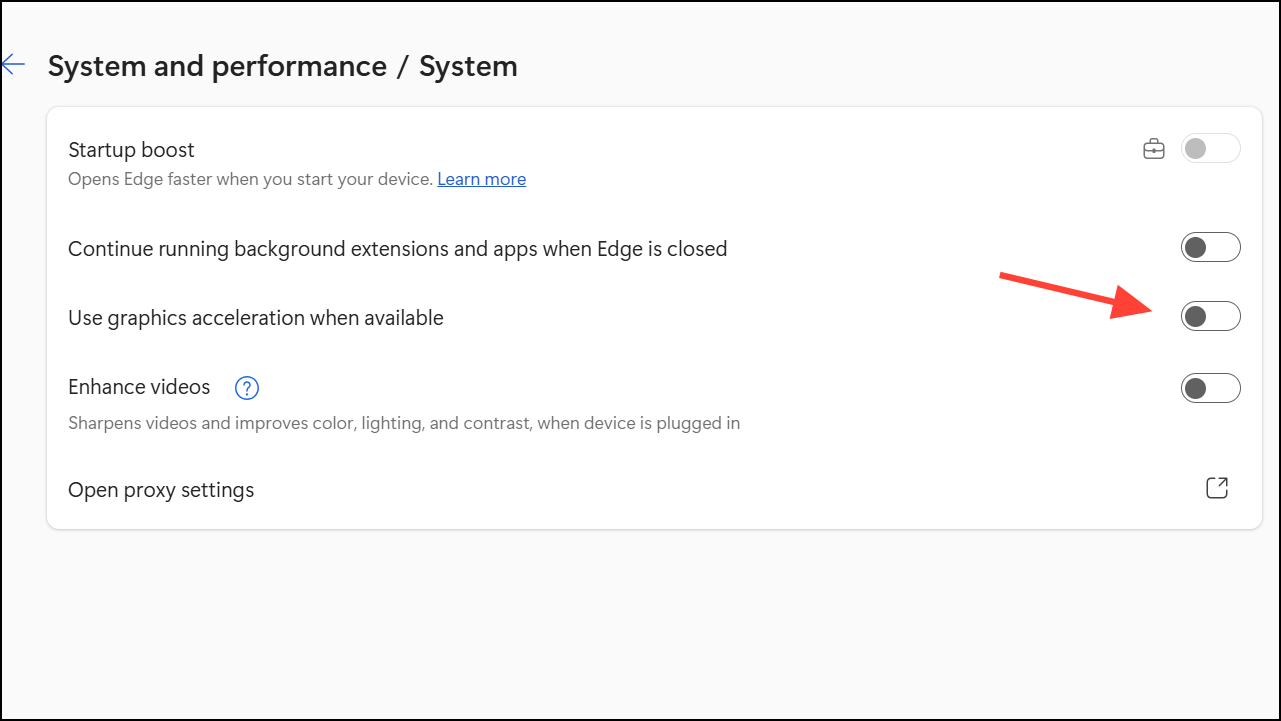
Turn Off Hardware Acceleration
Hardware acceleration allows Edge to use your GPU for video rendering. If your graphics drivers are outdated or incompatible, this can cause playback issues.
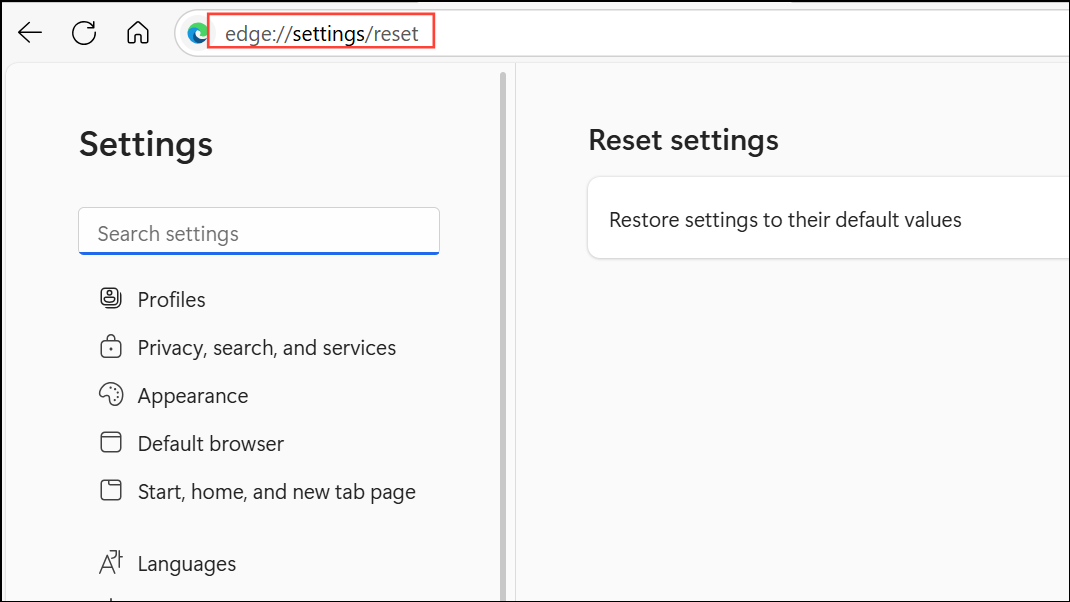
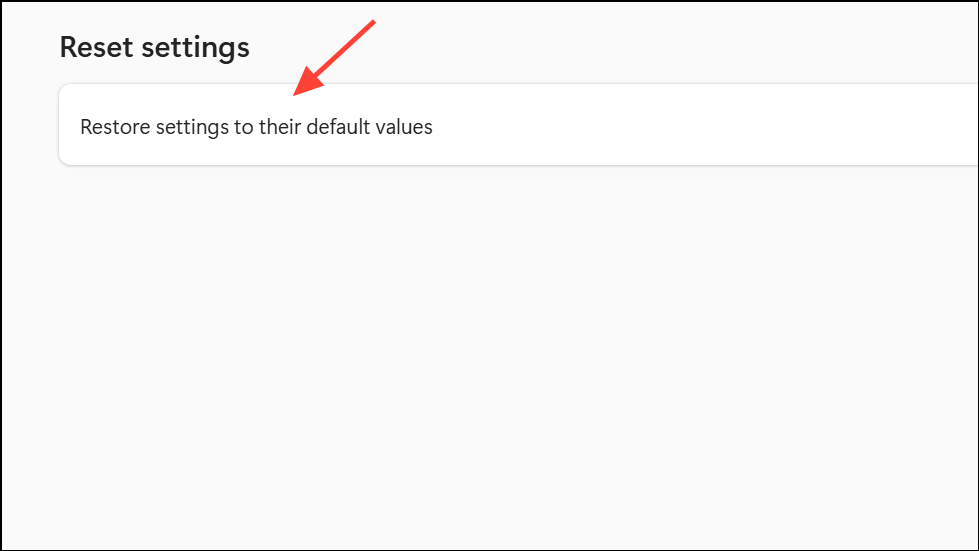
Reset Edge to Default Settings
Resetting Edge reverts browser settings to their defaults without deleting your bookmarks, history, or passwords. This can resolve issues caused by misconfigured settings.
Disable Microsoft Defender SmartScreen Temporarily
SmartScreen protects you from malicious sites but may occasionally block legitimate video content. Temporarily disabling it can help isolate the problem.
Check for Problematic Browser Flags
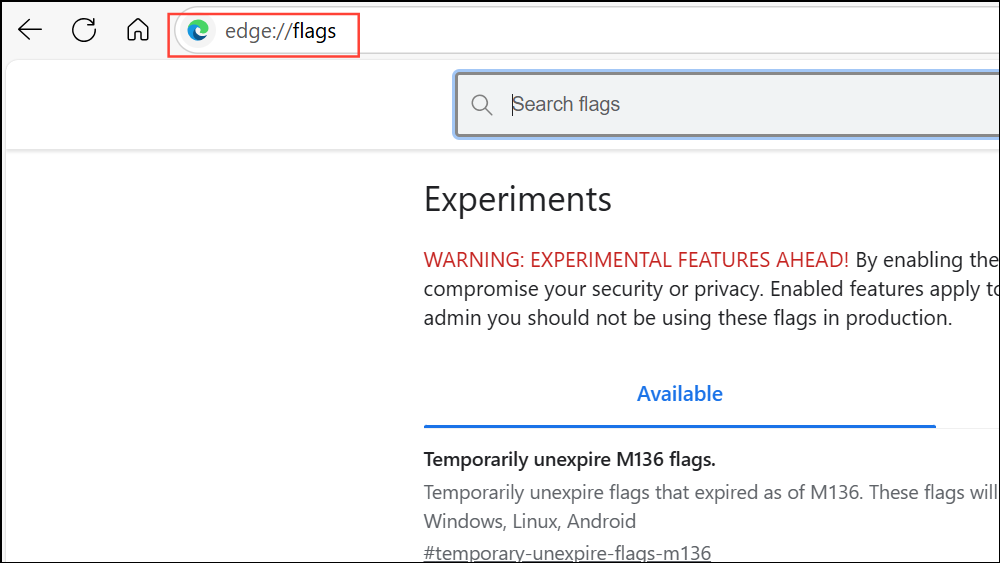
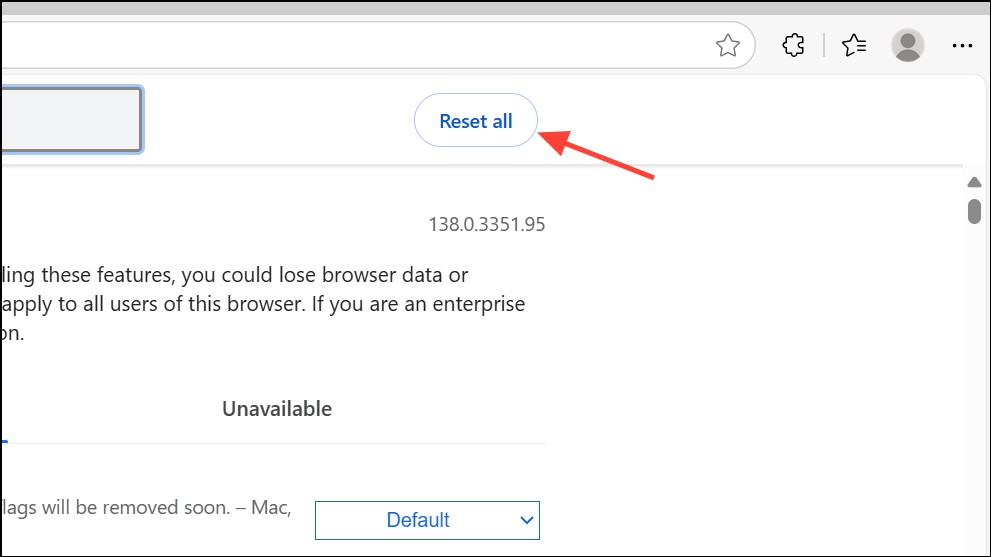
Experimental features (flags) can sometimes interfere with video playback. Resetting all flags restores default browser behavior.
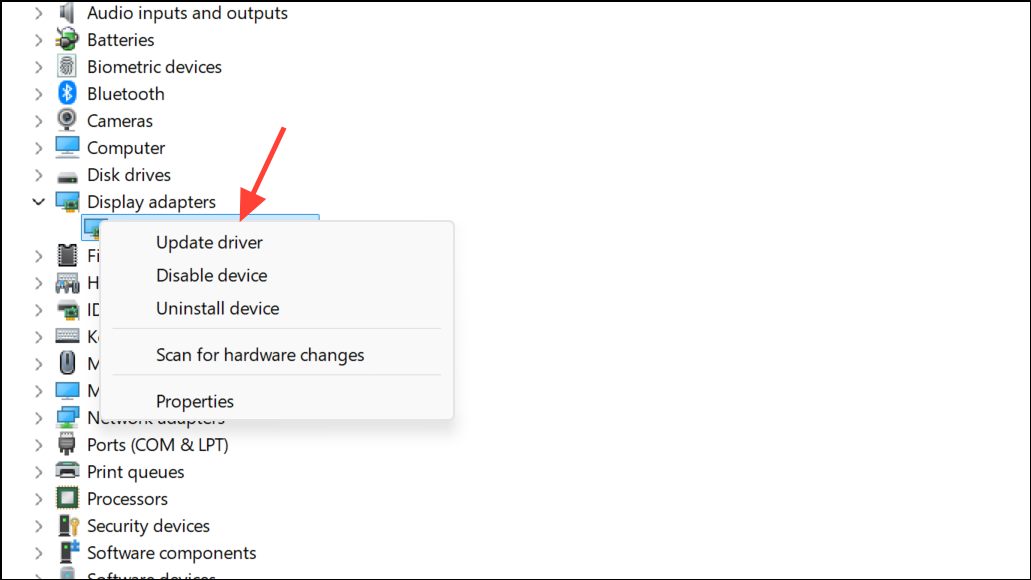
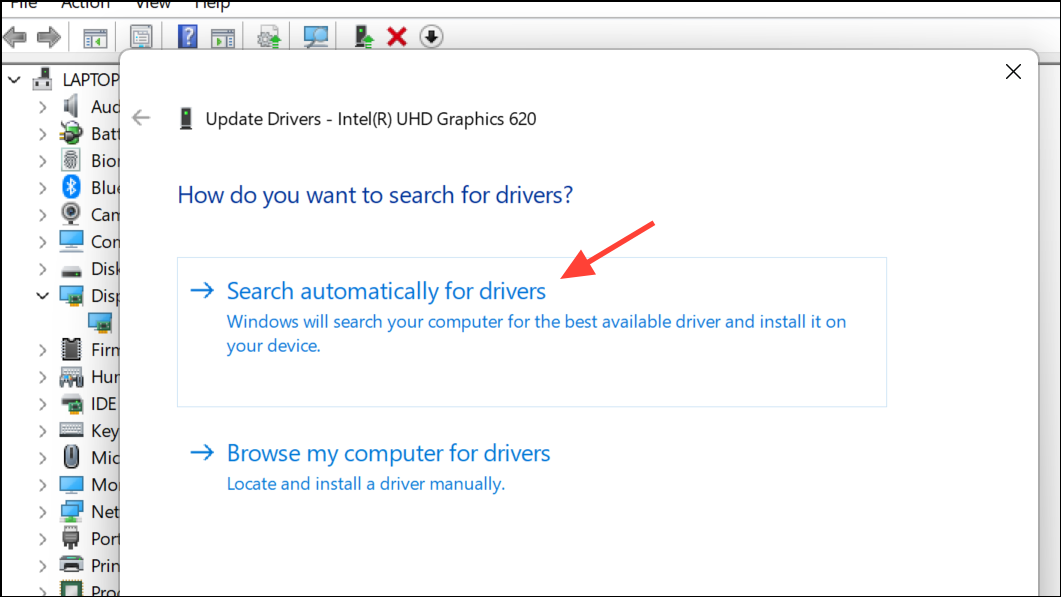
Update Graphics Drivers
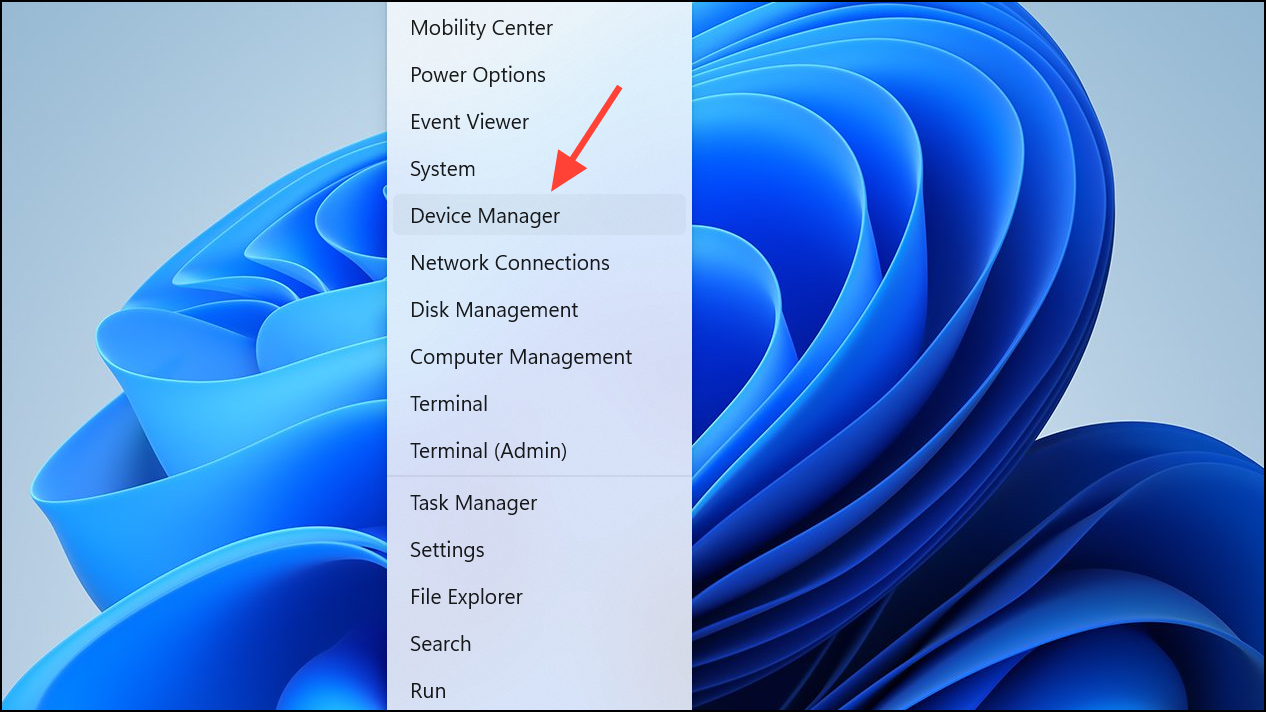
Outdated or broken graphics drivers can disrupt video playback in browsers. Keeping drivers current ensures compatibility with Edge and video streaming services.
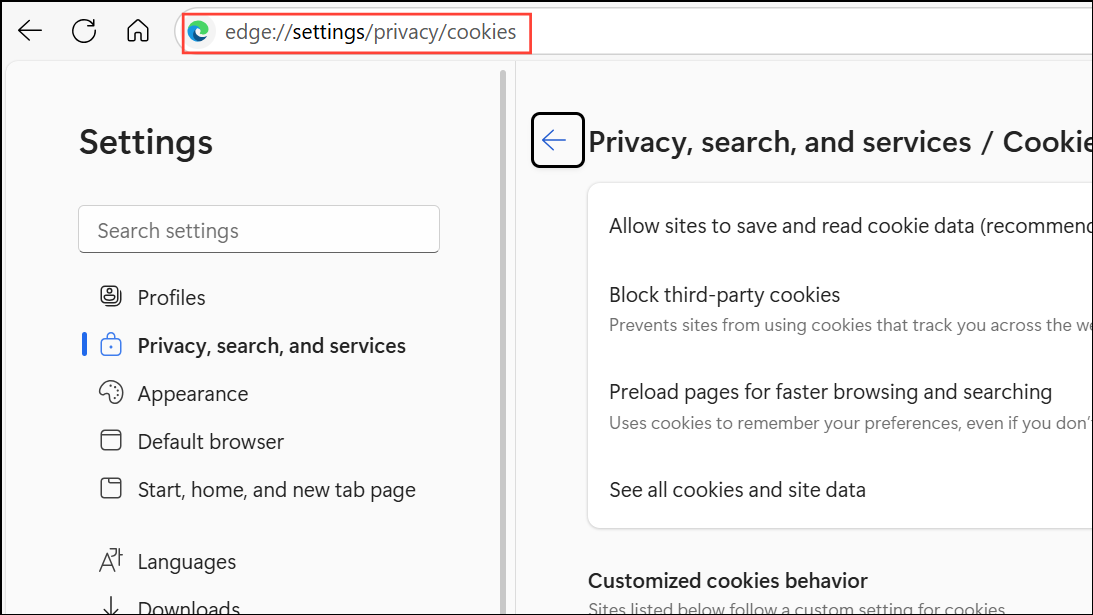
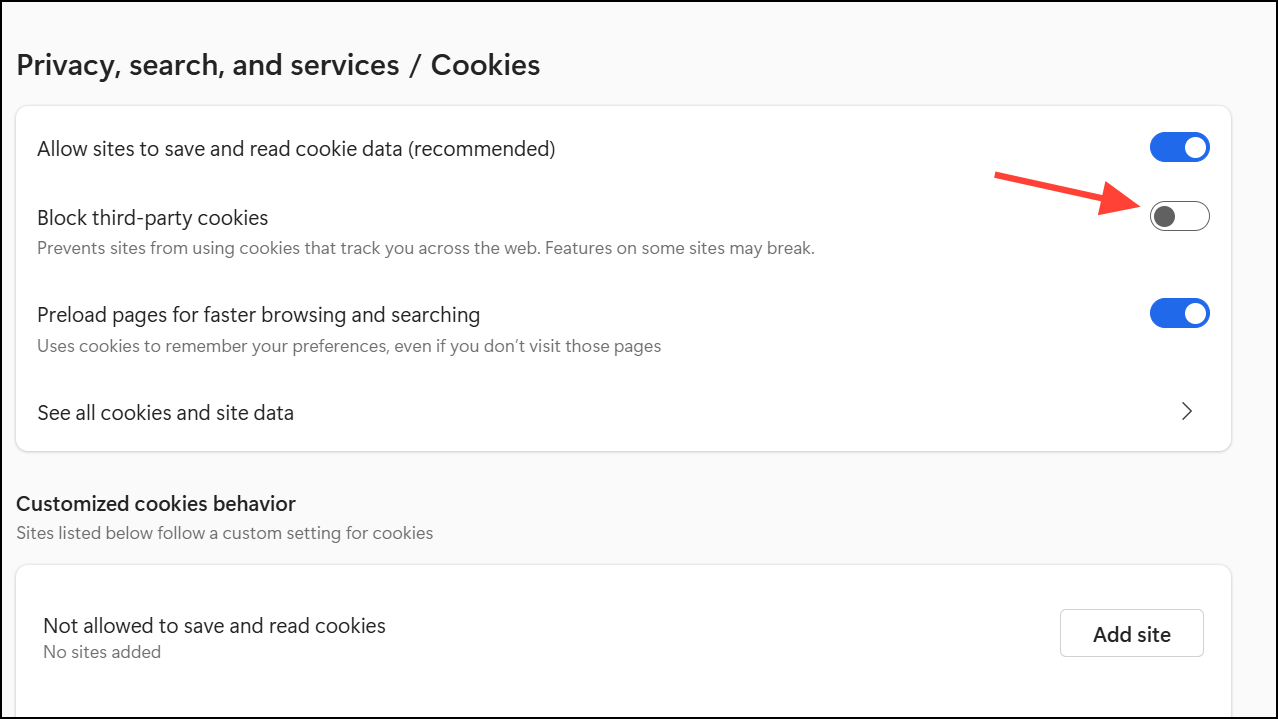
Enable Third-Party Cookies
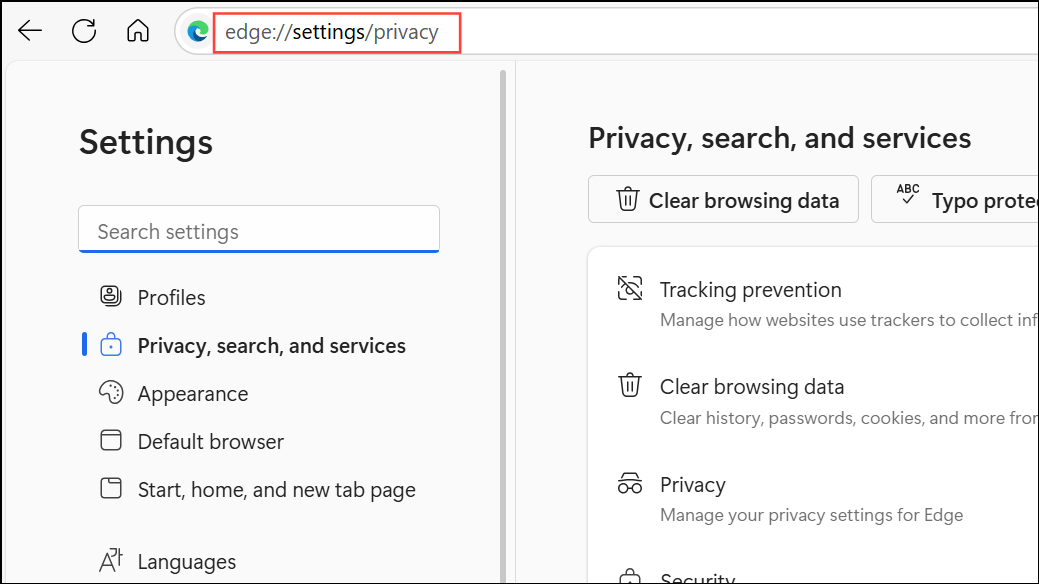
Blocking third-party cookies can interfere with embedded video players. Adjusting this setting may resolve playback issues.
Resolving video playback issues in Edge often comes down to disabling extensions, clearing cache, or updating browser and drivers. Regular maintenance and careful extension management keep streaming smooth and trouble-free.





