

“Threat service has stopped. Restart it now.” is a common message that appears in Windows Defender (also known as Windows Security) on Windows 10 and 11. This issue prevents the built-in antivirus from running scans or protecting your system, and often persists even after clicking the Restart now button. The error can be triggered by system file corruption, broken registry entries, third-party antivirus conflicts, or Windows updates. Below, you’ll find effective methods to restore Windows Defender’s threat protection service and get your PC’s security back on track.
Restore Windows Defender Services via Registry Repair
Misconfigured or missing registry entries for Windows Defender frequently cause the threat service to stop. Correcting these entries can reactivate the service and restore full antivirus functionality.
Win + R, typing regedit, and pressing Enter. Click Yes if prompted by User Account Control.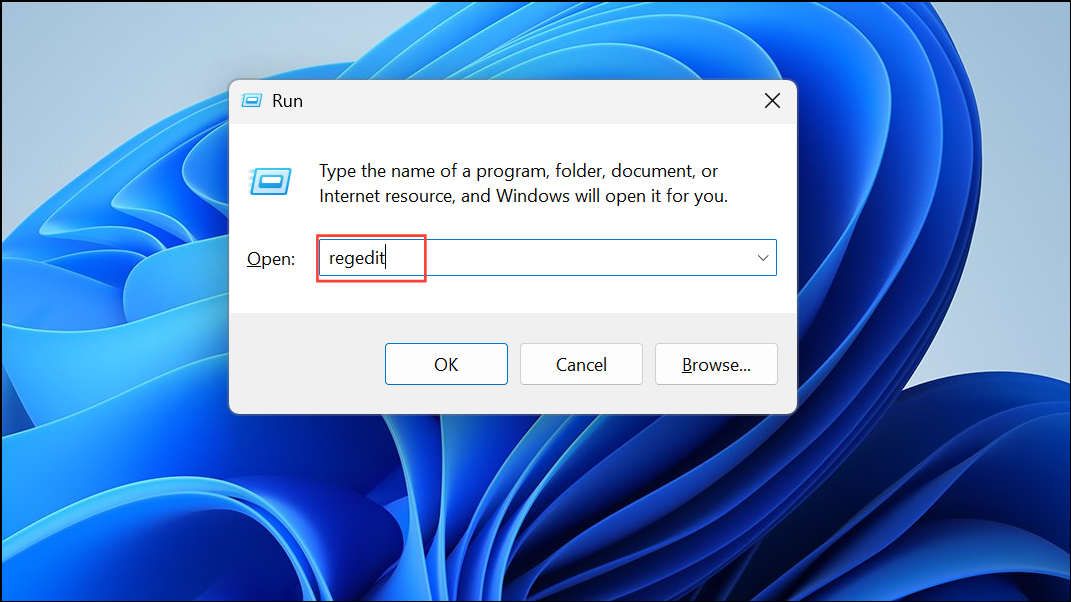
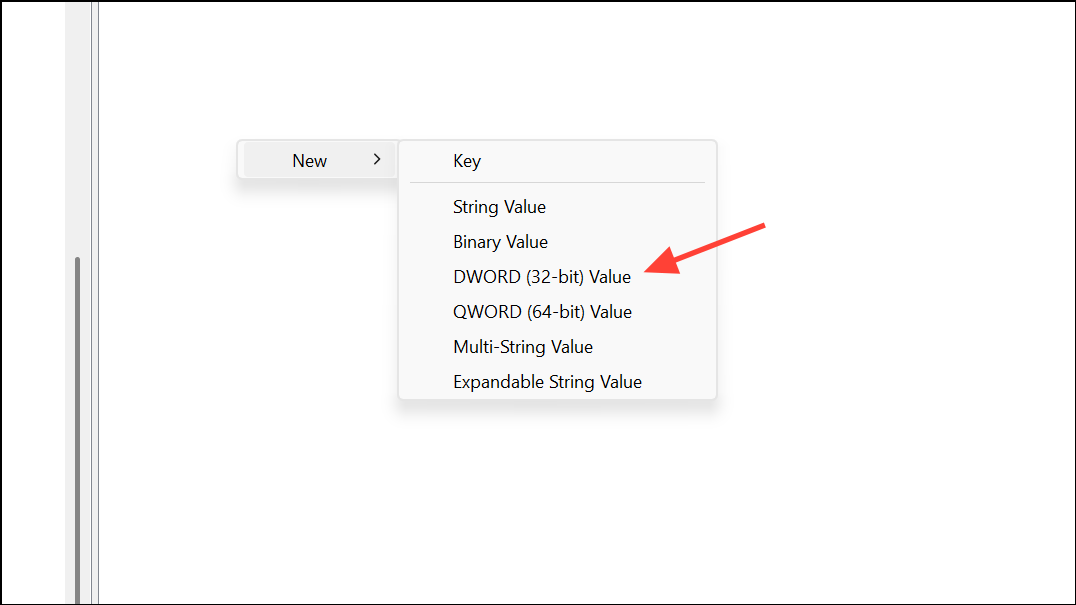
HKEY_LOCAL_MACHINE\SOFTWARE\Policies\Microsoft\Windows Defender. Check for the entries DisableAntiVirus and DisableAntiSpyware in the right pane. If they exist, double-click each and set their value data to 0.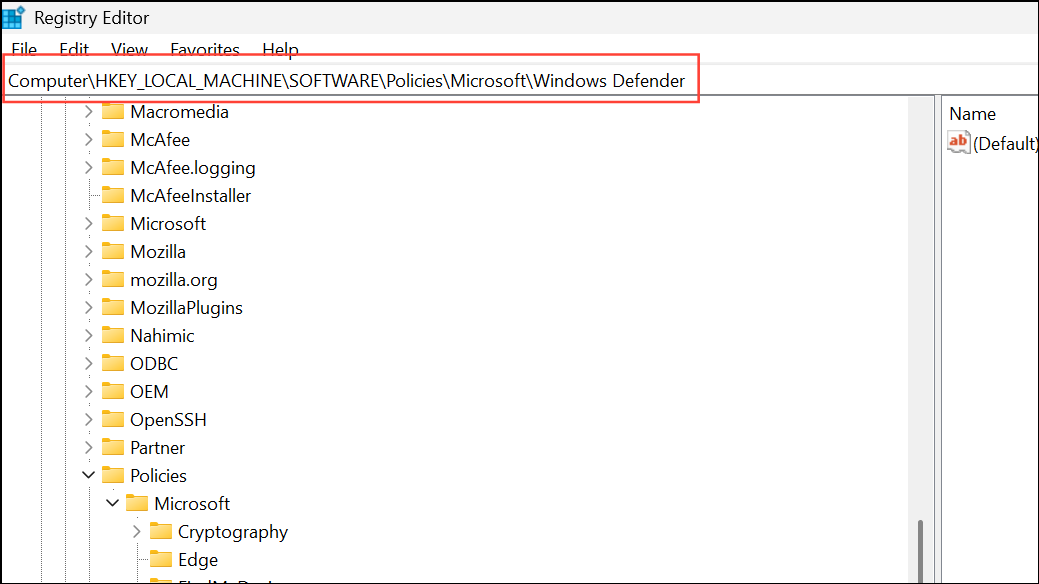
0.
HKEY_LOCAL_MACHINE\SYSTEM\CurrentControlSet\Services\WinDefend. Double-click the Start entry in the right pane and set its value data to 2 (which means “Automatic”).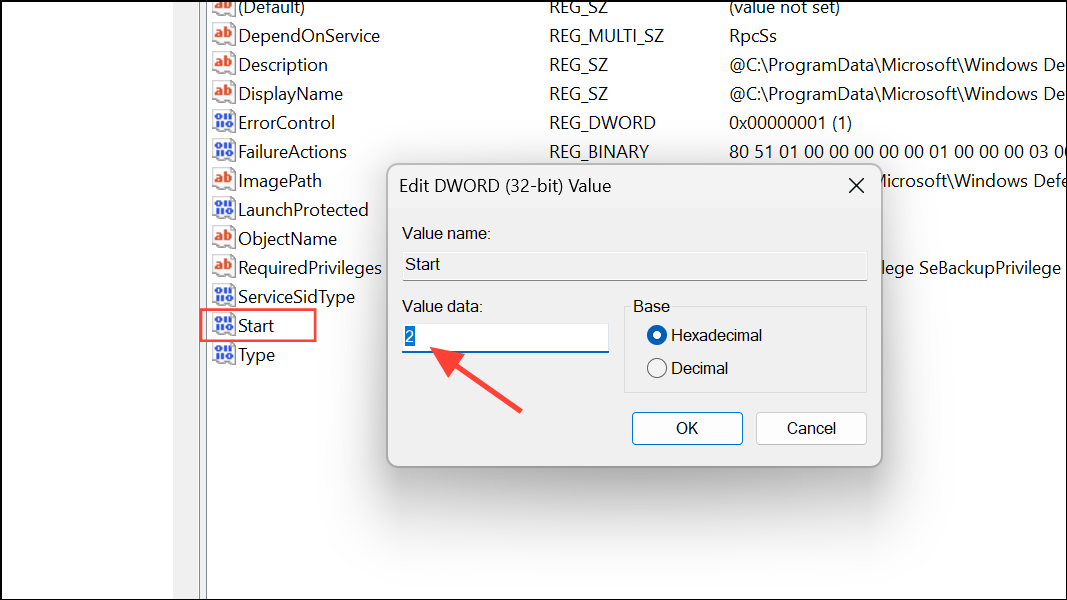
Enable Windows Defender Services Using the Services Console
Windows Defender relies on several background services. If any are disabled or stopped, the threat service error appears.
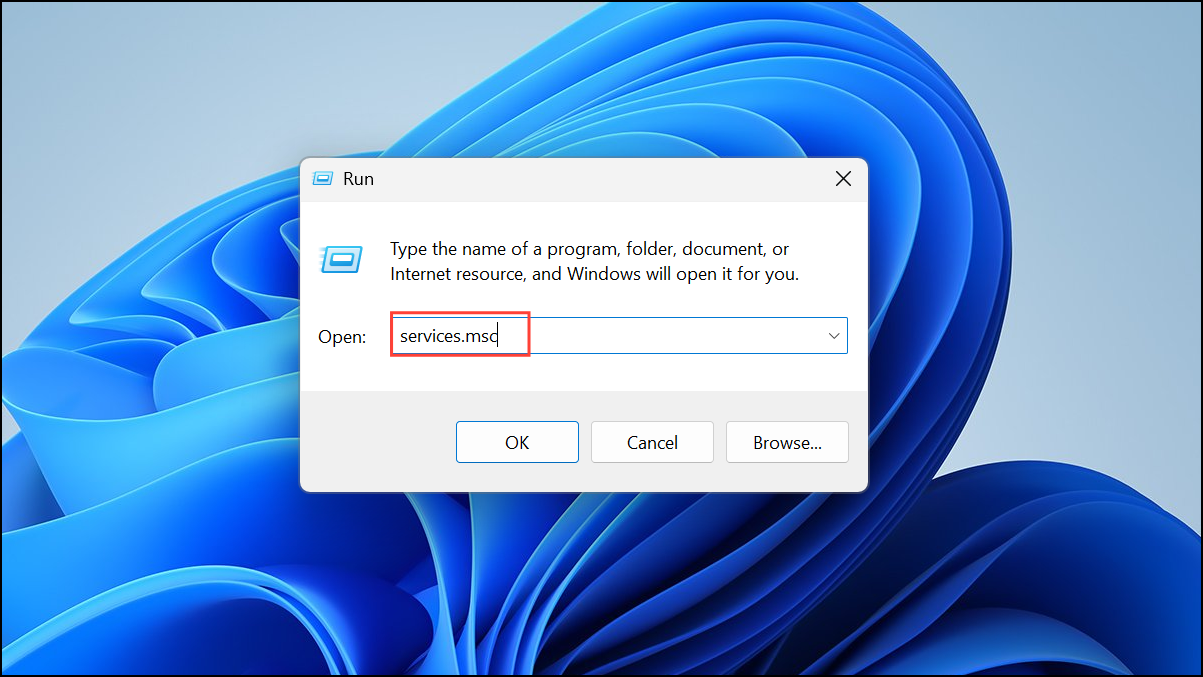
- Windows Defender Antivirus Service
- Windows Defender Advanced Threat Protection Service
- Windows Defender Antivirus Network Inspection Service
- Windows Defender Firewall
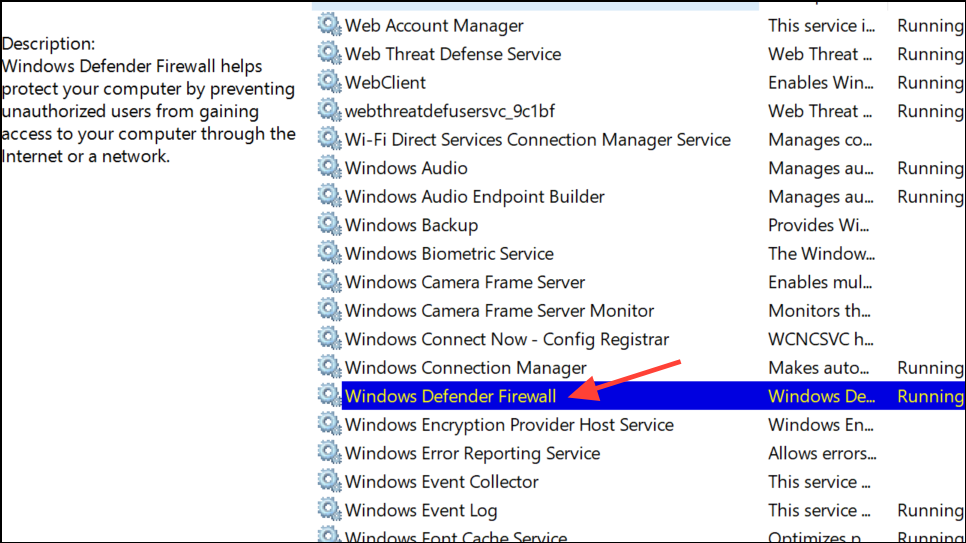
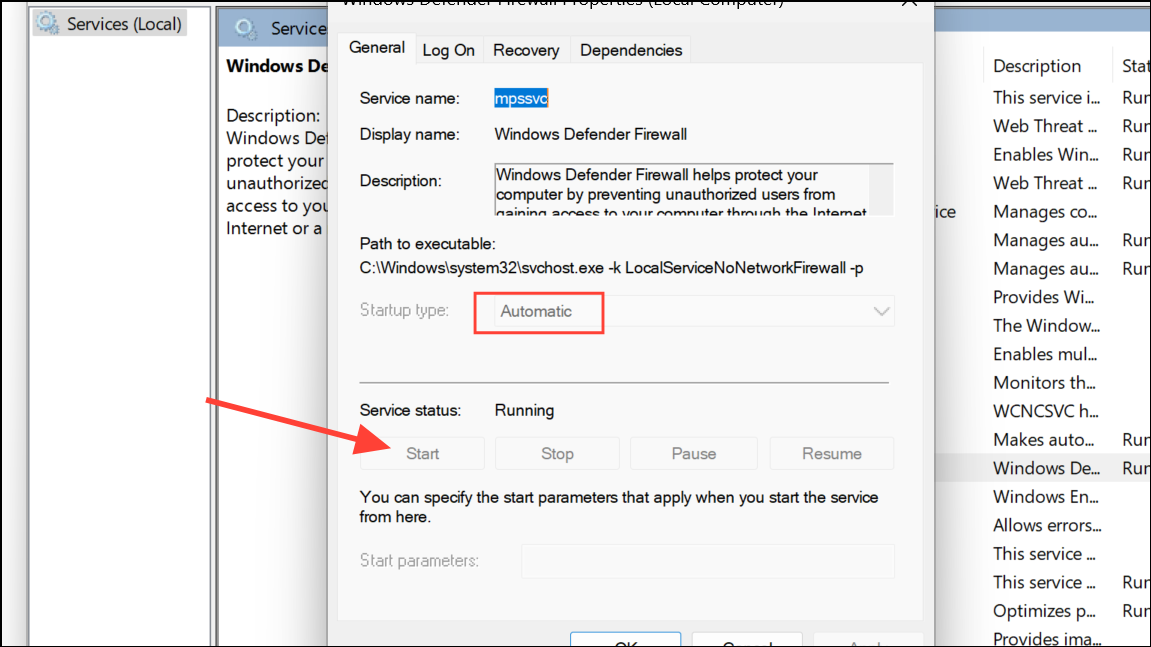
Remove Conflicting Third-Party Antivirus Software
Windows Defender automatically disables itself when another antivirus product is installed. If you see the “threat service has stopped” message, check for any third-party security software.
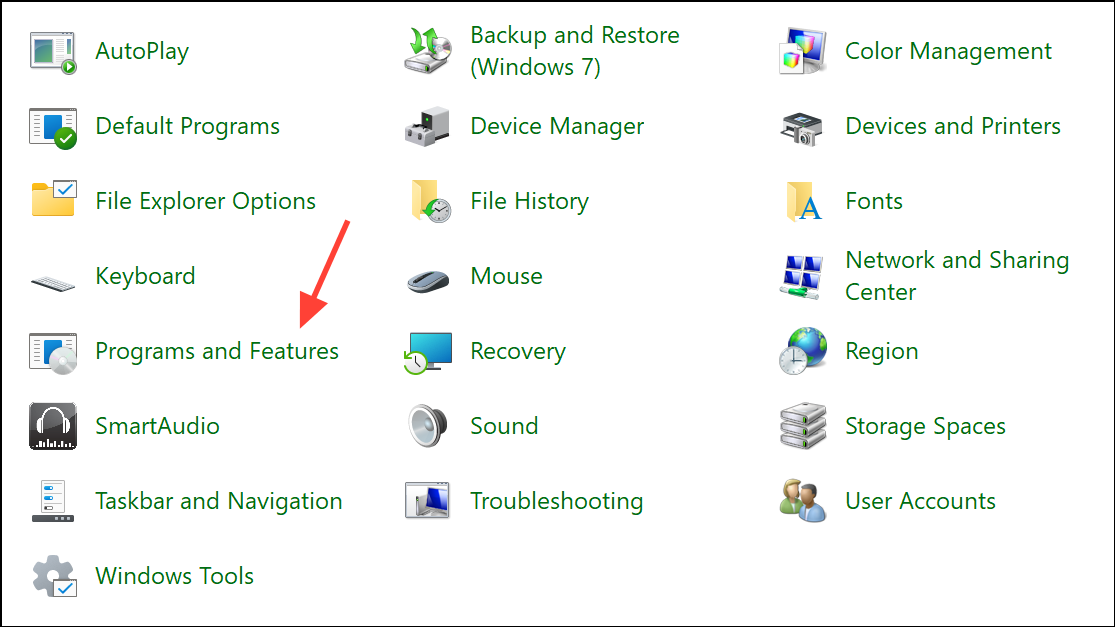
Repair System Files with SFC and DISM
Corrupted Windows system files can disrupt Defender’s services. Running the System File Checker and Deployment Imaging Service Management Tool can repair these files.
cmd, right-clicking it, and choosing Run as administrator.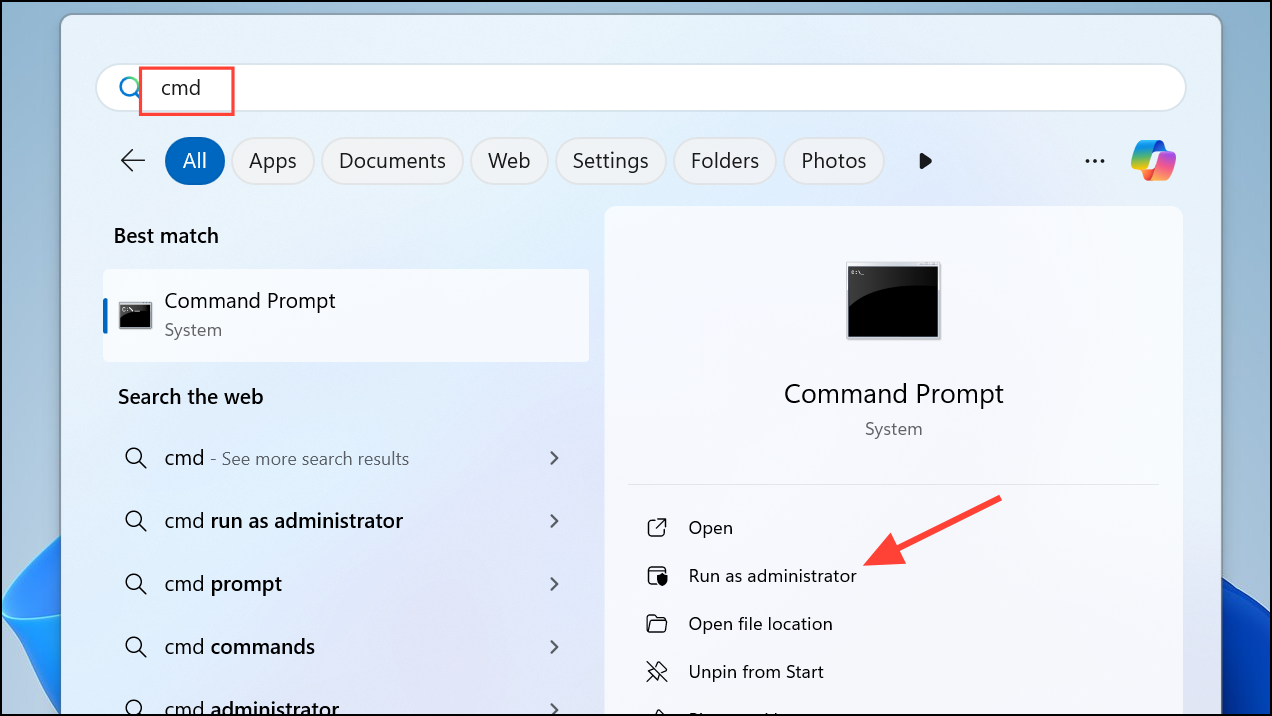
sfc /scannow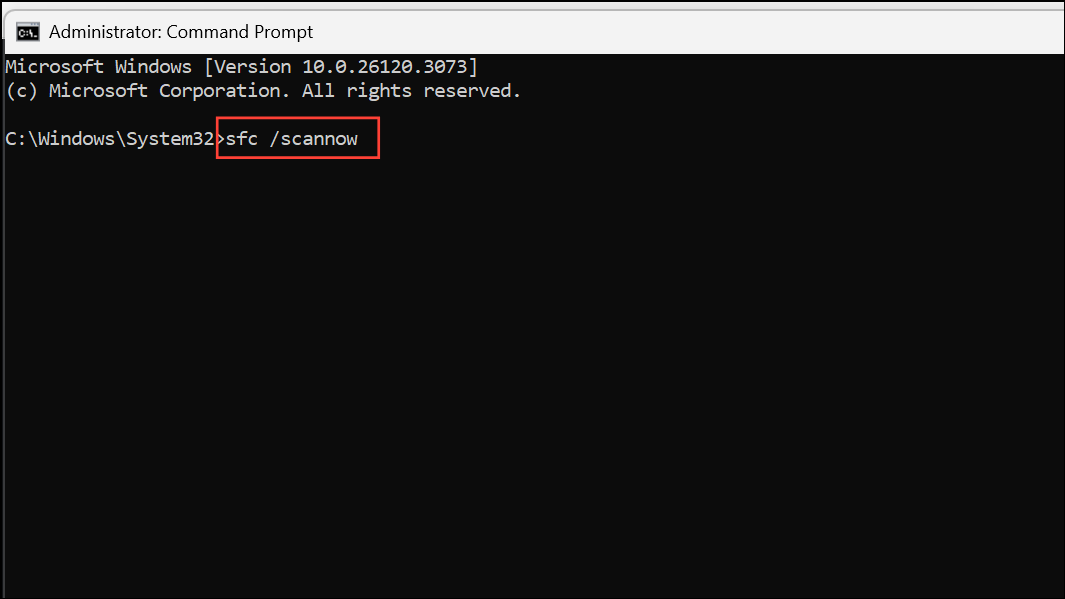
This command scans for and repairs corrupted system files. Wait for the process to complete.
Dism.exe /Online /Cleanup-Image /Restorehealth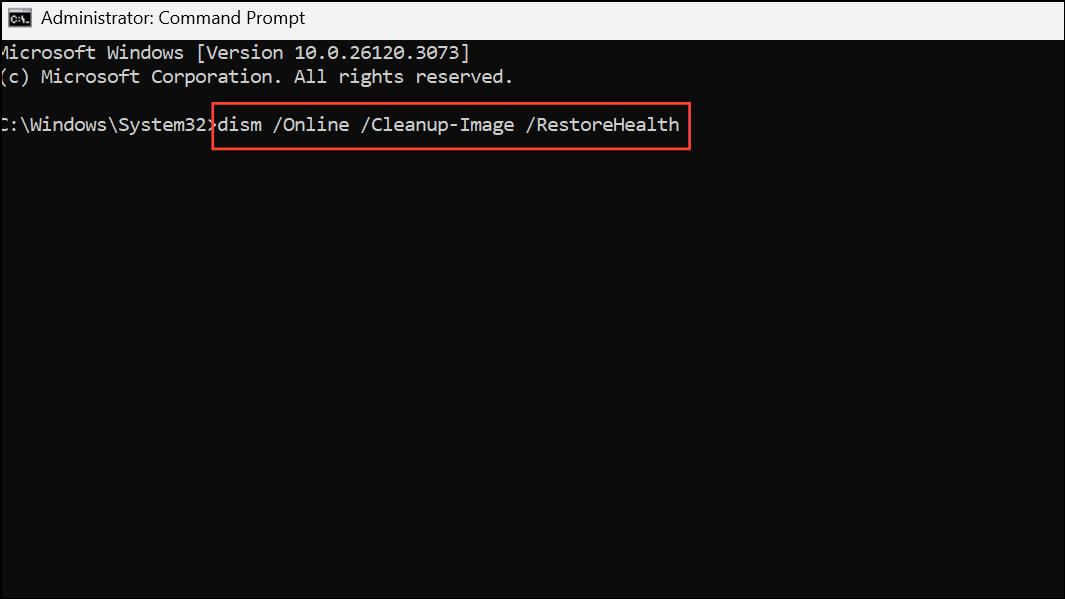
Let the process finish, then restart your PC. Check if the Defender threat service is working.
Update Windows and Defender Definitions
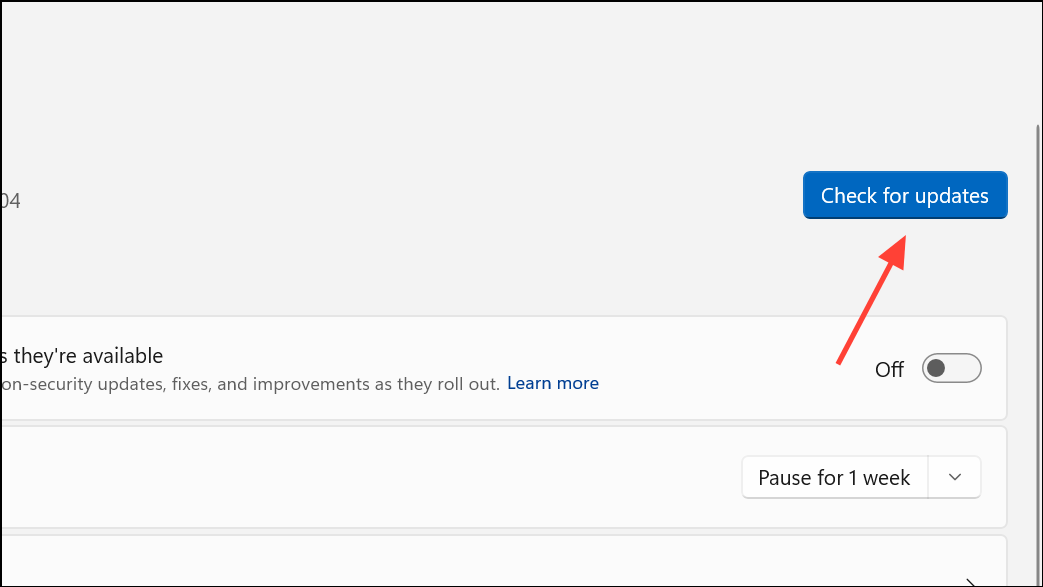
Windows updates or outdated Defender definitions can cause the service to stop. Applying the latest updates can fix service crashes or bugs introduced by previous patches.
Repair Windows with an In-Place Upgrade
If none of the above solutions work, performing an in-place upgrade reinstalls Windows system files without deleting your personal data or installed apps. This approach often repairs persistent Defender service issues caused by deep system corruption.
Addressing the “Threat service has stopped. Restart it now.” error in Windows Defender usually involves restoring registry settings, enabling required services, removing conflicting antivirus software, or repairing system files. If the problem persists, a system upgrade can restore full Defender protection and keep your PC secure.



